 CoreAxis School ERP
Campus · Chapter 41
Transport
Transport keeps the school's bus routes: areas and stops covered, vehicle number and seats, driver and monthly fare. Each student who uses the bus is assigned to one route with a pickup point. The route fare is billed to the student's dues once a transport charge is set up in Finance › Fee Structure › Extra charges (Charge to: Transport route, Amount: route fare).

Add a route (example: Route 4 — Bailey Road)
Open Campus › Transport. The Routes & Vehicles tab lists each route with riders and fare.
Three routes, 18 students on transport. Click Add Route.
Type the Route Name (Route 4 — Bailey Road), Areas Covered and Stops (comma-separated).
Fill Monthly Fare (₹) (1000), Vehicle No. (BR01PM3308) and Capacity (32).
Fill Driver Name (Suresh Mahto) and Driver Phone (9876541224).
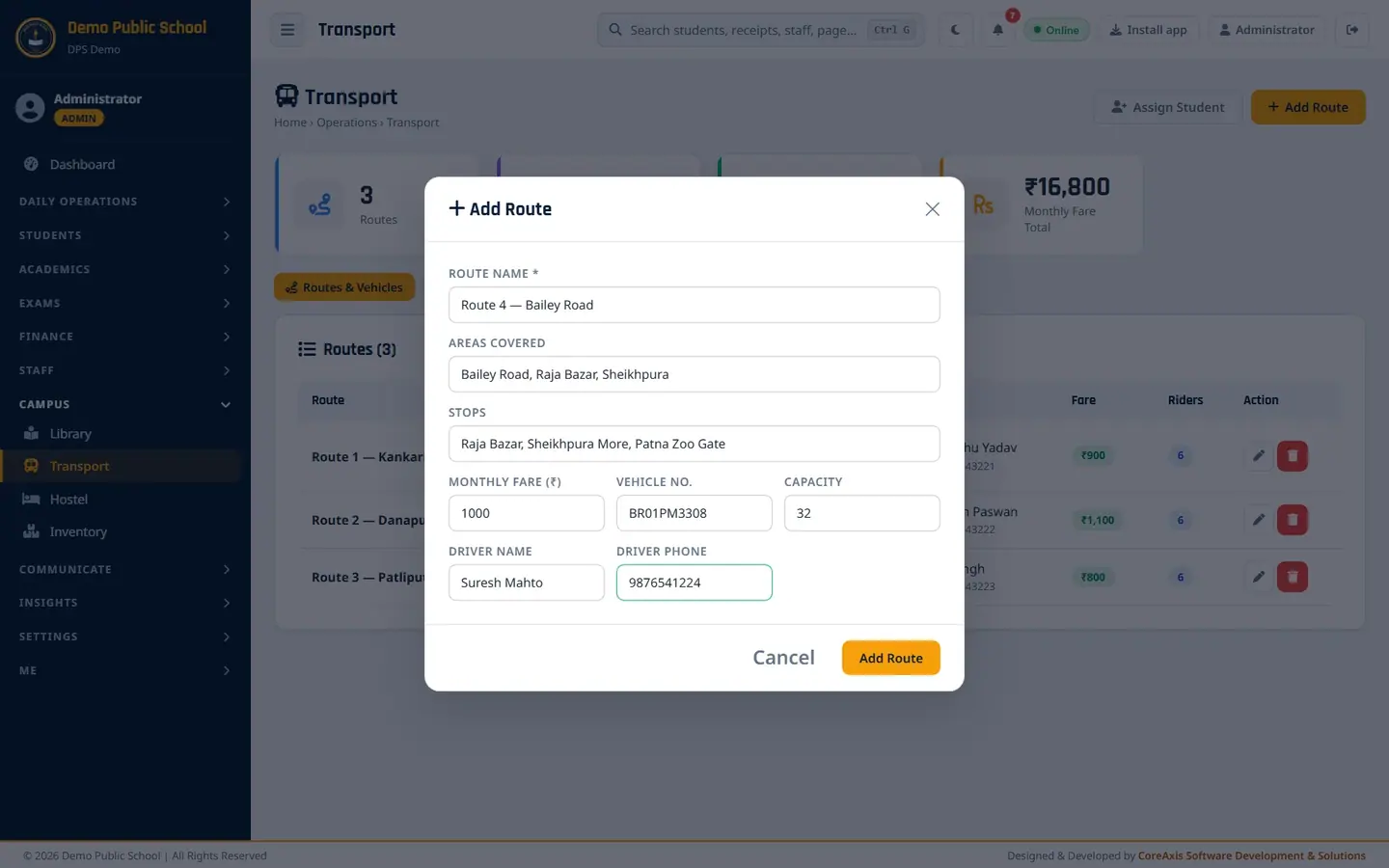
Add Route form. Click Add Route and confirm.
Assign a student to a route (example: Aryan Kashyap, Class V, Route 3 — Patliputra)
Click Assign Student (on either tab).
In Student, type the name and choose Aryan Kashyap — V. Only active students without a route are listed.
In Route, choose Route 3 — Patliputra (₹800/mo).
Type the Pickup Point (Boring Canal Road).

Assign Student to Route. Click Assign and confirm. The student appears in Student Assignments with the route, pickup point and monthly fare.
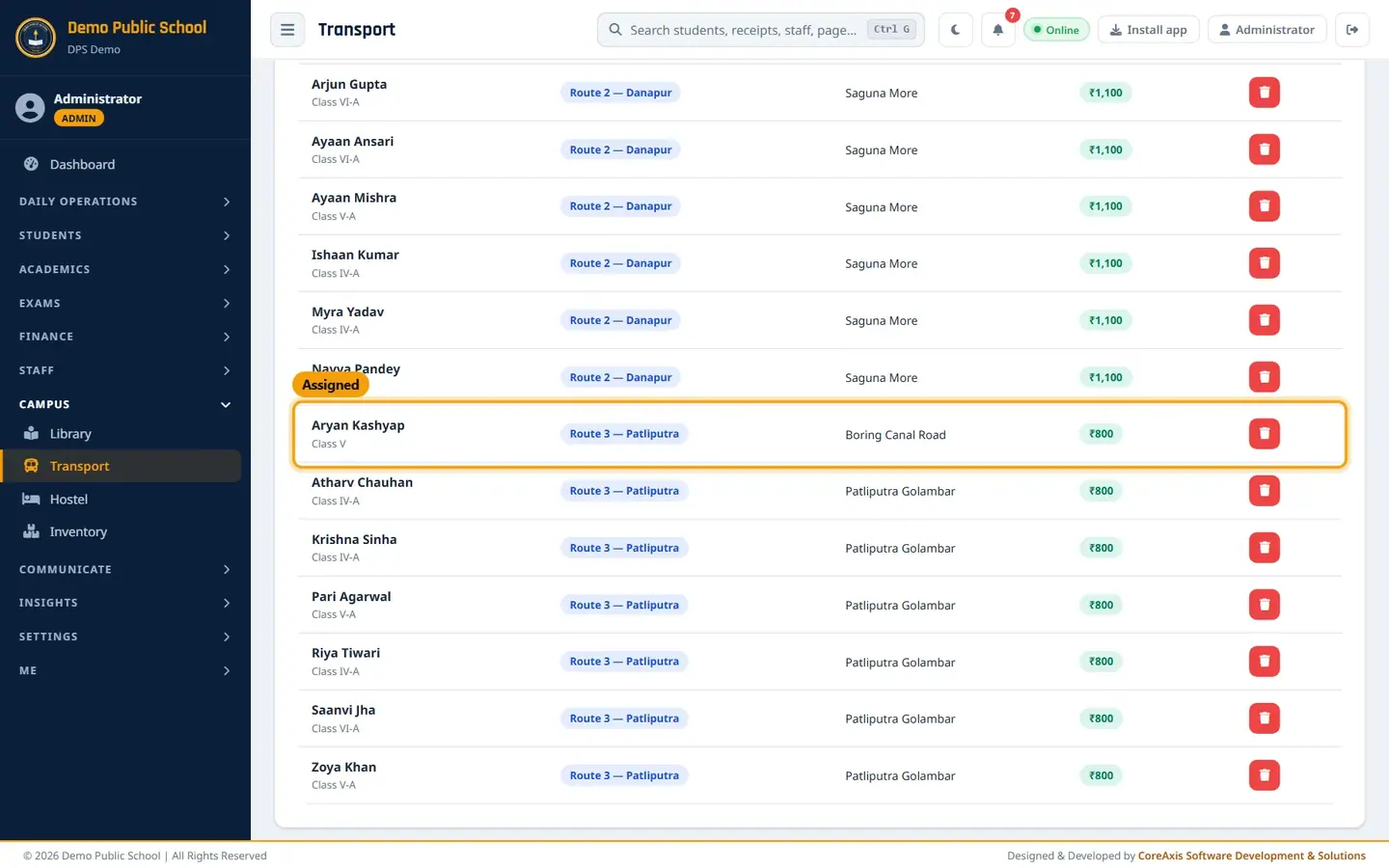
Aryan Kashyap on Route 3 at Boring Canal Road.
TipTo move a student to another route, remove the assignment (red button) and assign again.
TipParents see the route, pickup point, driver and phone in the parent portal.
Screen at a glance
- Routes / Avg Riders / Students on Transport / Monthly Fare Total
- Summary cards; Monthly Fare Total adds the fare of every assigned student.
- Routes & Vehicles
- Route, Areas / Stops, Vehicle and capacity, Driver and phone, Fare, Riders, Edit / Delete.
- Student Assignments
- Student and class, Route, Pickup Point, Monthly Fare, Remove.
Questions
I assigned a student but the fee does not show in dues.
Assigning only records the route. Add a monthly transport charge once in Fee Structure › Extra charges (Charge to: Transport route, Amount: the route fare). After that, every assigned student is billed each month.
A bus is full.
The Riders column shows how many students are on each route against the vehicle Capacity. Move some students to another route or edit the route to a bigger vehicle.