 CoreAxis School ERP
Communicate · Chapter 45
SMS
CoreAxis sends SMS through the school's own Fast2SMS account (or another HTTP SMS gateway). Once the gateway is saved and enabled, the app can send automatic SMS (absent alert, fee receipt, welcome on admission, leave decisions) and you can send your own messages to a list of numbers, a class, all students' parents or all staff. Every SMS is written to the log. SMS credit is paid to the gateway provider, not to CoreAxis. In the demo school SMS is not set up, so the page shows SMS Inactive.
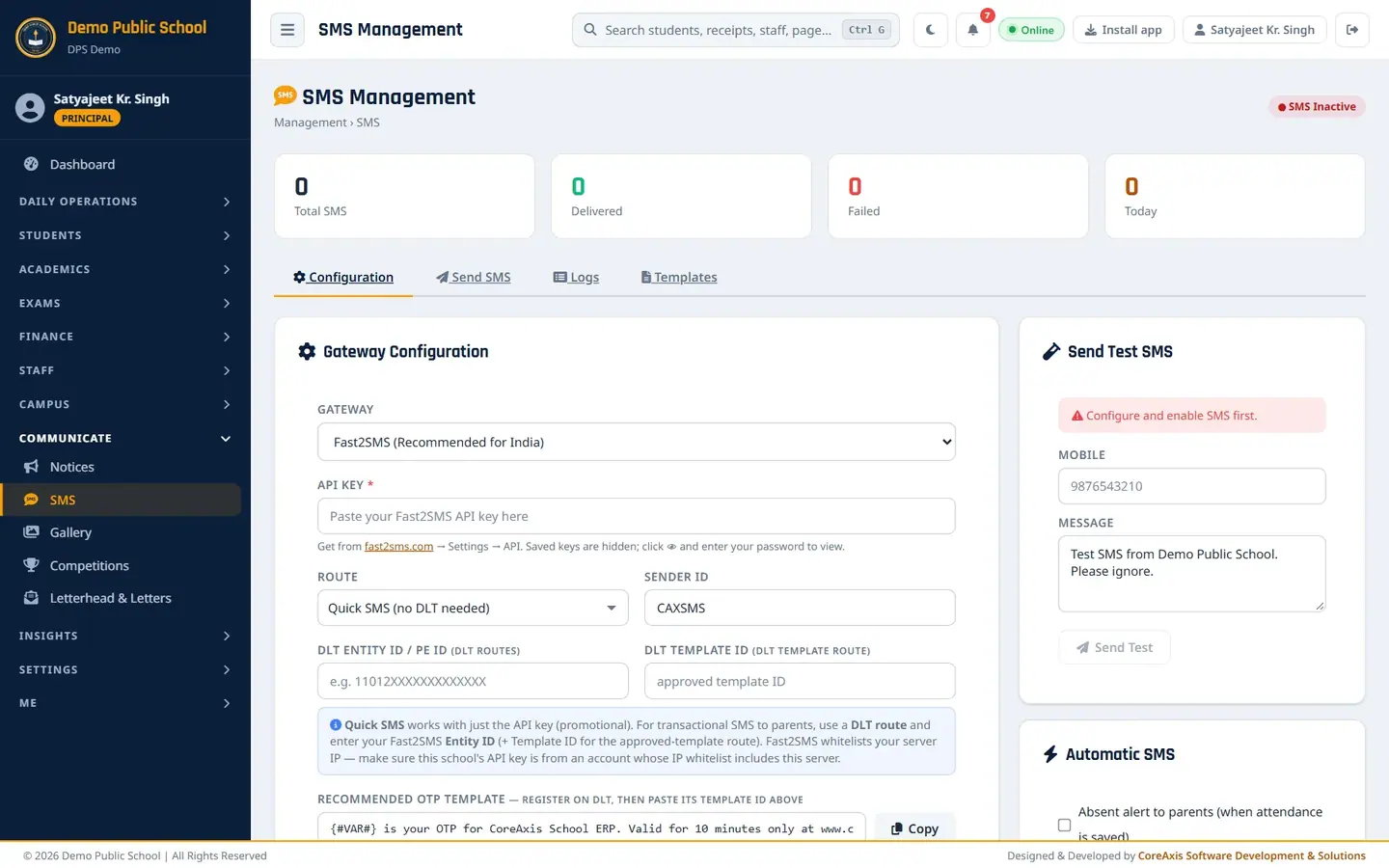
Set up the SMS gateway (Configuration tab)
Do this once. You need a Fast2SMS account; for messages to parents, a DLT registration (Entity ID and approved templates) is also needed by Indian telecom rules.
Open Communicate › SMS. The Configuration tab opens.
Gateway Configuration and Send Test SMS. In Gateway, keep Fast2SMS (Recommended for India), or choose Generic HTTP API and type the API URL with {key}, {mobile} and {message} in it.
Paste the API Key from fast2sms.com › Settings › API. A saved key is hidden; click the eye icon and enter your password to see it.
Choose the Route: Quick SMS (no DLT needed) for testing; DLT — approved template (Template ID) or DLT — custom text (Entity ID only) for messages to parents.
Fill Sender ID, DLT Entity ID / PE ID and, for the template route, DLT Template ID. The Recommended OTP template box has text you can register on the DLT portal (click Copy).
Tick Enable SMS Service and click Save Configuration.
Under Send Test SMS, type your own Mobile number and click Send Test to check delivery.
TipFast2SMS allows only whitelisted server IPs. If tests fail, add the CoreAxis server IP to your Fast2SMS IP whitelist.
Choose automatic SMS
On the Configuration tab, find Automatic SMS on the right.

Automatic SMS switches. Tick the alerts the school wants: Absent alert to parents (when attendance is saved), Fee receipt on payment, Welcome SMS on admission, Allow SMS with notices, Leave alerts.
Click Save.
Send an SMS (Send SMS tab)
Shown for reference only; no SMS was sent for this manual.
Open the Send SMS tab. If SMS is not configured, a red line says so with a link to Configuration.

Send SMS: choose who receives it. In Send To, choose Manual Numbers (type 10-digit numbers, one per line), Specific Class (pick the class in Select Class), All Students (all parents) or All Staff.
Type the Message, or click a quick-template button (for example Result Day or Exam Schedule) and edit the words in brackets. The counter shows characters (1 SMS = 160 characters).
Click Send SMS and confirm. The button stays disabled until SMS is enabled. The result appears in Logs.
ImportantBulk SMS to all students or a class is sent to every parent mobile number and uses credit for each. Check the text carefully before you send.
Logs and Templates
Open Logs to see every SMS with mobile, type, message, status and time. Filter by status or search a number.

SMS Logs. Open Templates to read the standard messages used for admission, fee due reminder, fee receipt, admit card and others. Click Copy to reuse one in Send SMS.

SMS Templates.
Screen at a glance
- SMS Active / Inactive badge
- Shows whether the SMS service is enabled.
- Total SMS / Delivered / Failed / Today
- Counts from the SMS log.
- Configuration
- Gateway, API key, route, sender and DLT IDs, enable switch, test SMS, automatic SMS, setup guide.
- Send SMS
- Manual numbers, a class, all students' parents or all staff.
- Logs
- Every SMS sent by the app, with status.
- Templates
- Ready texts with placeholders such as [STUDENT NAME] and [AMOUNT].
Questions
Test SMS fails with an IP error.
Fast2SMS blocks servers that are not whitelisted. Add the server IP in your Fast2SMS account, then send the test again.
Parents receive SMS late or not at all on the Quick SMS route.
Quick SMS is promotional and may be blocked by DND. Register on the TRAI DLT portal and use a DLT route with approved templates.