 CoreAxis School ERP
Staff · Chapter 35
Staff
The Staff page is the school's list of every employee: teachers, office staff and support staff. Each staff member's Role / Designation decides what they can open after signing in (Admin, Teacher or Accountant screens) or whether they get no login at all. The same list feeds Staff Attendance, Staff ID Cards, Leave Management, Salary / Payroll and the Timetable.

Add a staff member (example: Priya Kumari Jha, new TGT Sanskrit teacher)
Priya Kumari Jha joins Demo Public School on 28 October 2026 as a TGT teacher for Sanskrit. She needs a teacher login.
Open Staff › Staff in the left menu and click Add Staff at the top right.
The staff list with the Add Staff button. Under Login Details, type the Full Name (Priya Kumari Jha) and a Username (priya.jha).
Type a starting Password (••••••••). It must have at least 8 characters with an uppercase letter, a lowercase letter and a number. Tell the teacher privately and ask her to change it after her first sign-in.
In Role / Designation, choose TGT Teacher (Trained Grad.).

Login Details: name, username, password and role. Under Personal Details, fill Qualification (M.A. (Sanskrit), B.Ed.), Email (priya.jha@demo.coreaxis.info) and Phone (9876541203). The email is her sign-in ID, so it is required and must not be used by anyone else.
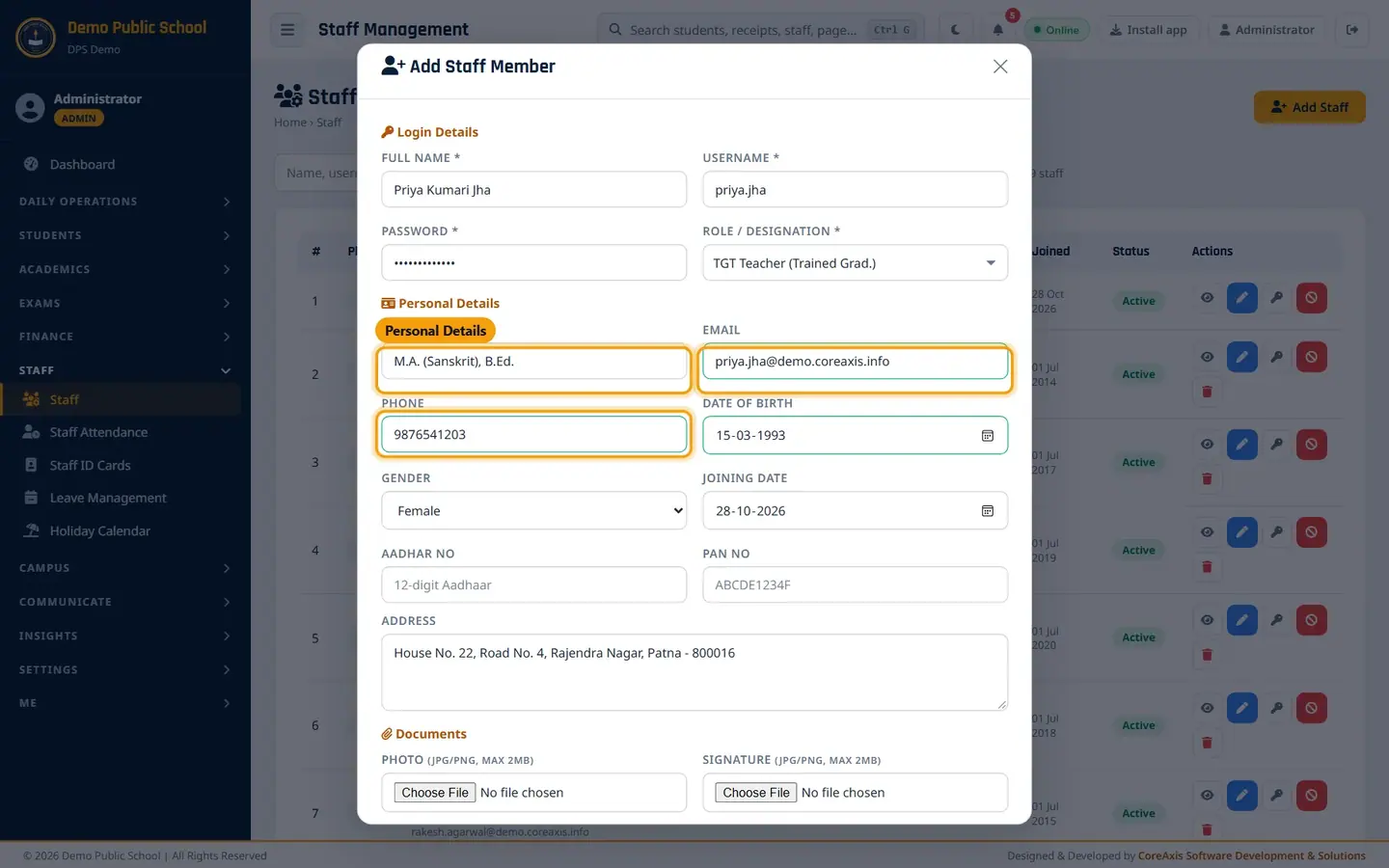
Personal Details with qualification, email and phone. Fill Date of Birth, Gender, Joining Date and Address. Aadhar No and PAN No are optional.
Under Documents, choose a Photo and a Signature if you have them (JPG/PNG, up to 2 MB each). The photo appears on the staff ID card.
Click Add Staff, then confirm in the popup.
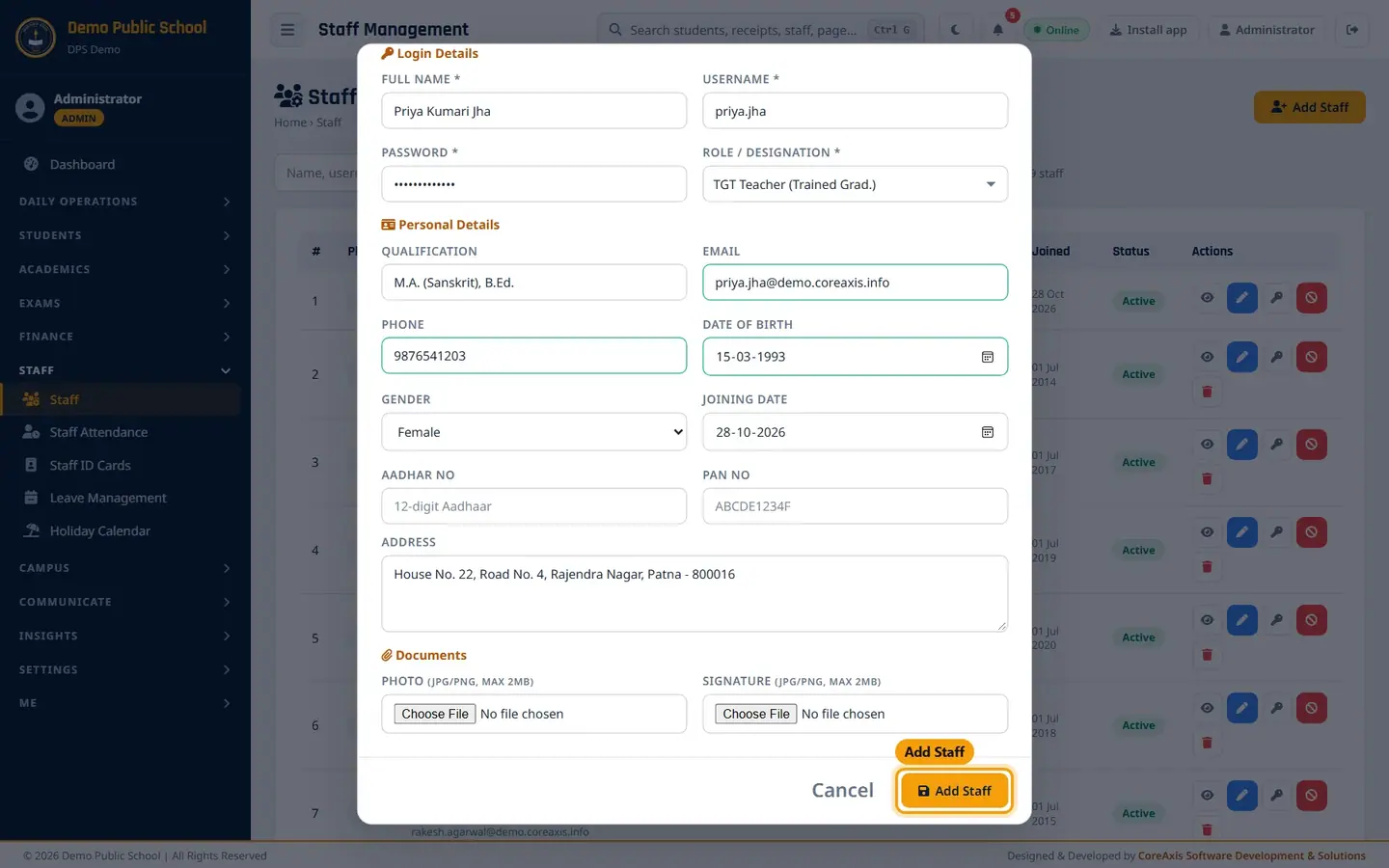
Click Add Staff to save. The message Staff member added! appears and Priya is now in the list with the status Active.

The new teacher in the staff list.
TipIf you leave Username blank, the app makes one from the email address.
TipYour plan sets the maximum number of active staff. If the limit is reached, the app sends you to Plan & Billing.
TipA new teacher sees only the classes and subjects you give her. Assign her subjects in Academics › Subjects and periods in Timetable.
Choose the right role: who gets which login
The role groups in the Role / Designation list decide the screens a person sees. Roles marked (No Login) are for staff who are on the rolls (attendance, salary, ID card) but never sign in.
- Leadership: Principal / Director, Vice Principal, Administrator (System)
- Full admin screens: every module, approvals, settings, school profile and billing.
- Teaching Staff: Head Teacher / HOD, PGT, TGT, PRT, Computer, PTI / Sports, Art, Music, Counselor, Lab Assistant, Librarian, Teacher (General)
- Teacher screens: attendance and marks for their own classes, homework, timetable, notices, Library Desk, Competitions and the Me menu.
- Finance & Admin: Accountant, Cashier, Office Clerk
- Accountant screens: Fee Desk, Fee Dues, Concessions, Cheques, UPI / Bank Claims, Expenses, Payroll, Finance Ledger, Reports and the Me menu.
- Support Staff (No Login): Nurse, Peon / Helper, Security Guard, Bus Driver, Housekeeping, Other
- No sign-in. They still appear in Staff Attendance, Salary / Payroll and Staff ID Cards.
View a staff profile
Type part of the name, username, email or phone in the search box and click Search (or filter by role and status).
Click the eye icon (View Profile) in the Actions column.
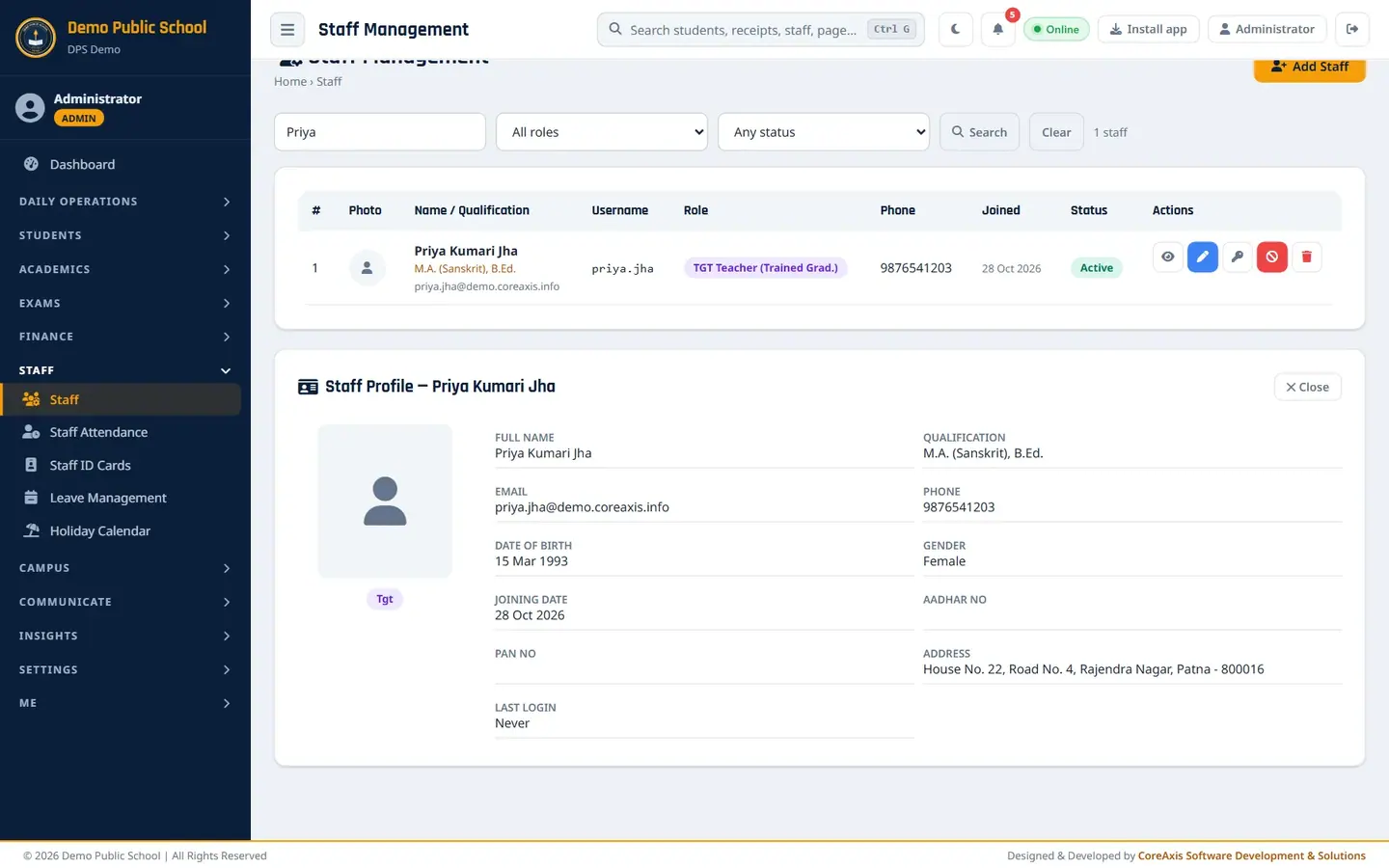
Staff Profile shows photo, signature, role and all personal details, including Last Login. Click ✕ Close to hide the profile.
Edit details or change a role
Click the blue pencil icon (Edit) on the staff member's row.
Correct the details. To give extra rights, change Role / Designation (for example from TGT Teacher to Head Teacher / HOD).
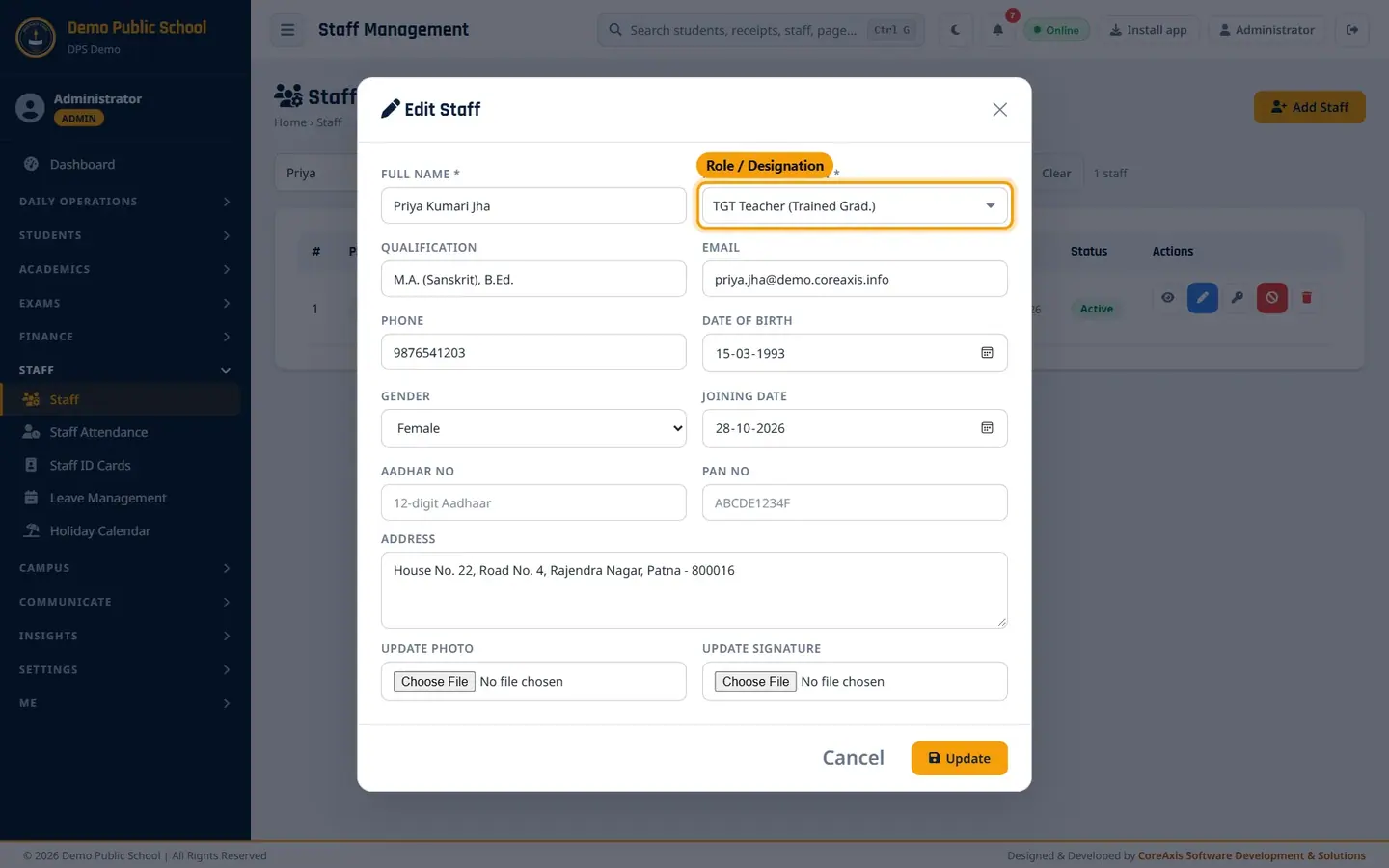
Edit Staff opens with the staff member's current role: TGT Teacher (Trained Grad.) for Priya Kumari Jha. Use Update Photo or Update Signature to replace the pictures.
Click Update and confirm.
TipCheck the Role / Designation box before you click Update. It shows the role saved now; change it only if you mean to change the person's rights.
ImportantBefore you click Update, check that the Role / Designation box shows the person's real role. Changing a teacher to a Leadership role gives them full admin access.
Reset a password, deactivate or delete
If a staff member forgets the password, click the key icon (Reset Password), type a new password (••••••••) and click Reset. They are signed out of all their devices.

Reset Password for one staff member. When someone leaves, click the red circle icon (Toggle) to make them Inactive. Their login stops working, trusted devices and PINs are removed, and their past records stay.
Click the bin icon (Delete) only for an account made by mistake. The app asks twice.
ImportantDelete removes the account permanently and cannot be reversed. For staff who leave, use Toggle (Inactive) instead, so attendance, salary and leave history stay.
Screen at a glance
- Search box
- Finds staff by name, username, email or phone.
- All roles / Any status
- Filters the list by role or by Active / Inactive.
- # / Photo / Name / Qualification
- Name in bold, qualification in saffron, email below. A warning badge shows if the email cannot receive sign-in codes.
- Username
- The short login name (sign-in also works with the email).
- Role
- The designation chosen in Role / Designation.
- Phone / Joined
- Mobile number and joining date.
- Status
- Active (can sign in) or Inactive.
- Actions
- View Profile, Edit, Reset Password, Toggle (activate / deactivate), Delete.
Questions
The new teacher says she did not get a sign-in code.
The first sign-in on a new device sends a 6-digit code to the staff member's email. Check the email address on her profile for spelling, then ask her to look in the spam folder.
Can a peon or bus driver have a login?
No. Support Staff roles are marked (No Login). They are kept on the rolls for attendance, salary and ID cards only.
A teacher left mid-year. Should I delete her?
No. Click Toggle to make her Inactive. Deleting removes her account and breaks the link to her past attendance, salary and leave records.