 CoreAxis School ERP
Students · Chapter 10
Document Register
Every document issued with Issue & Print is entered in the Document Register with a reference number and a verify code. Each copy is listed: the first is the ORIGINAL, later office copies are DUPLICATE COPY – n, and downloads from the parent portal or mobile app are DIGITAL COPY. The register has three tabs: Register (all documents), TC / SLC Approvals (requests from the office) and Document Fees (what the school charges per document). Admins and Principals can revoke a document, waive a fee and approve TC requests; the Accountant can view, reprint and raise requests.
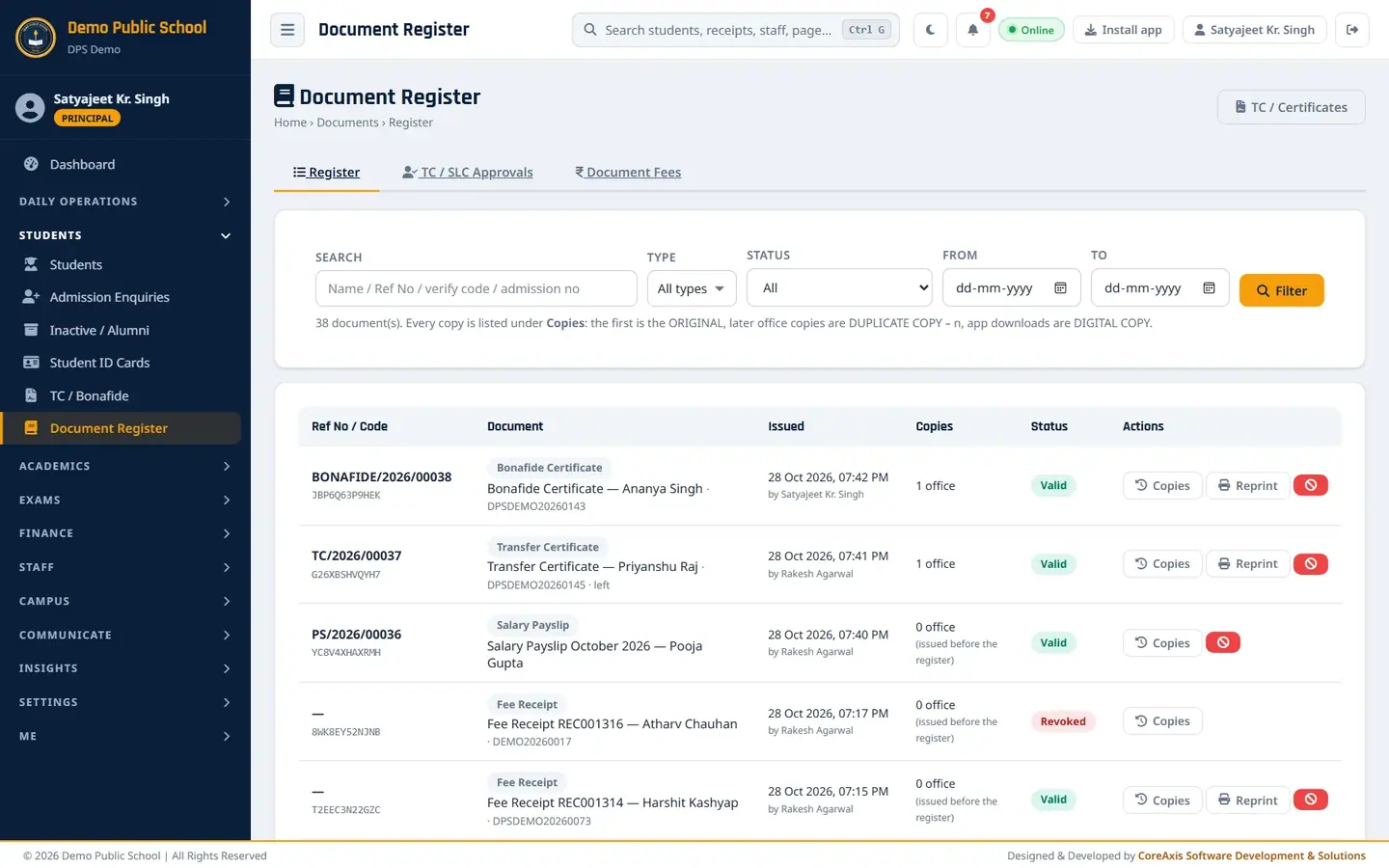
Find an issued document (example: Ananya Singh's Bonafide certificate)
In the sidebar open Students and click Document Register. The Register tab lists the latest documents first.
The Register tab. Type a name, reference number, verify code or admission number in Search, for example Ananya Singh.
Narrow the list with Type (for example Bonafide Certificate), Status and the From / To dates if needed.
Click Filter.

BONAFIDE/2026/00038 issued by Satyajeet Kr. Singh. Click Copies on the row to see every copy with date and the person who printed it.
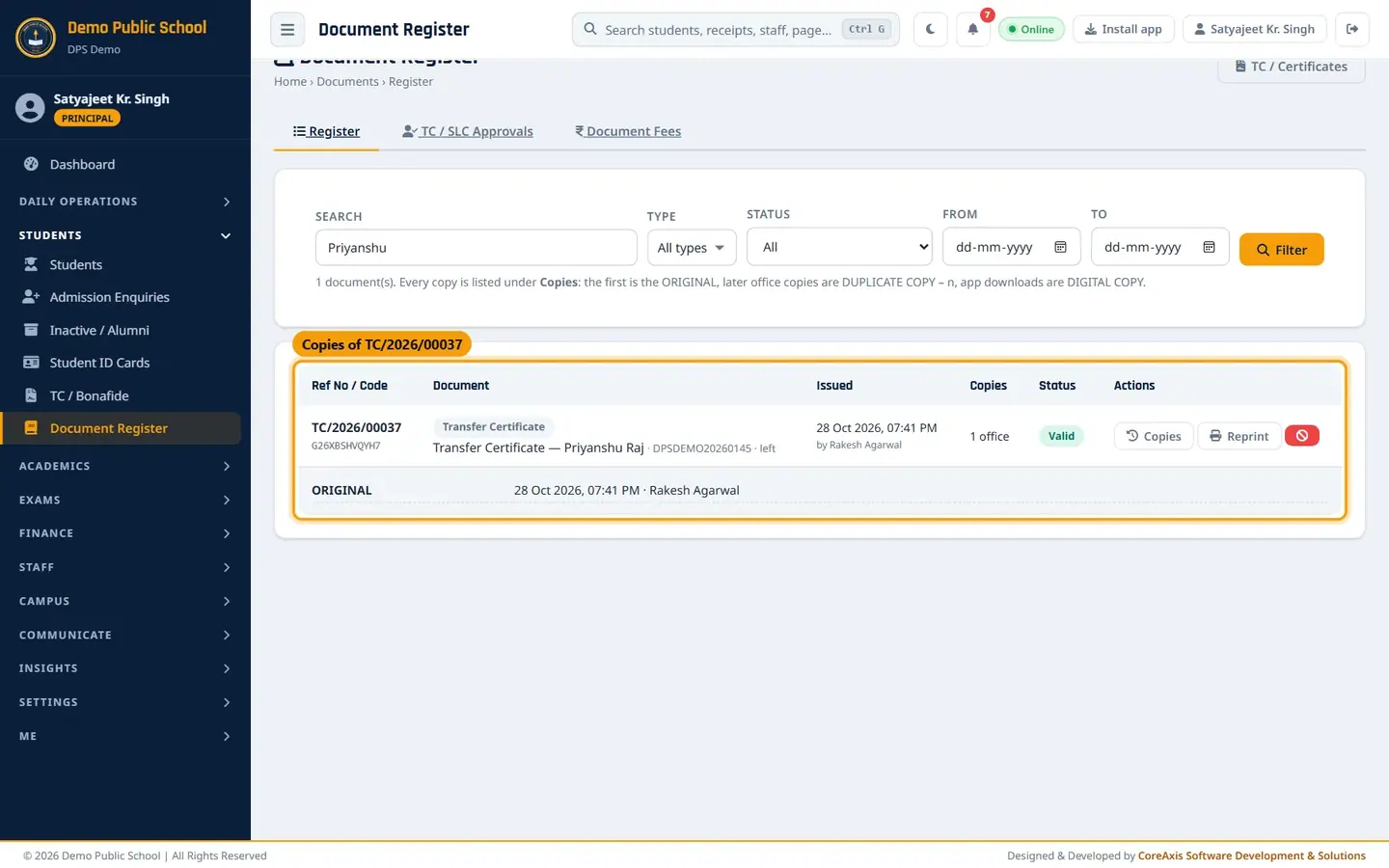
The TC of Priyanshu Raj: one ORIGINAL, printed by Rakesh Agarwal.
Print a duplicate copy (example: Ananya's parent lost the Bonafide)
Find the document and click Reprint. A preview opens in a new tab.

Reprint makes the next DUPLICATE COPY. Type the Reason for the duplicate, for example Parent lost the first copy. It is required for TC, SLC and ID cards and optional for others.
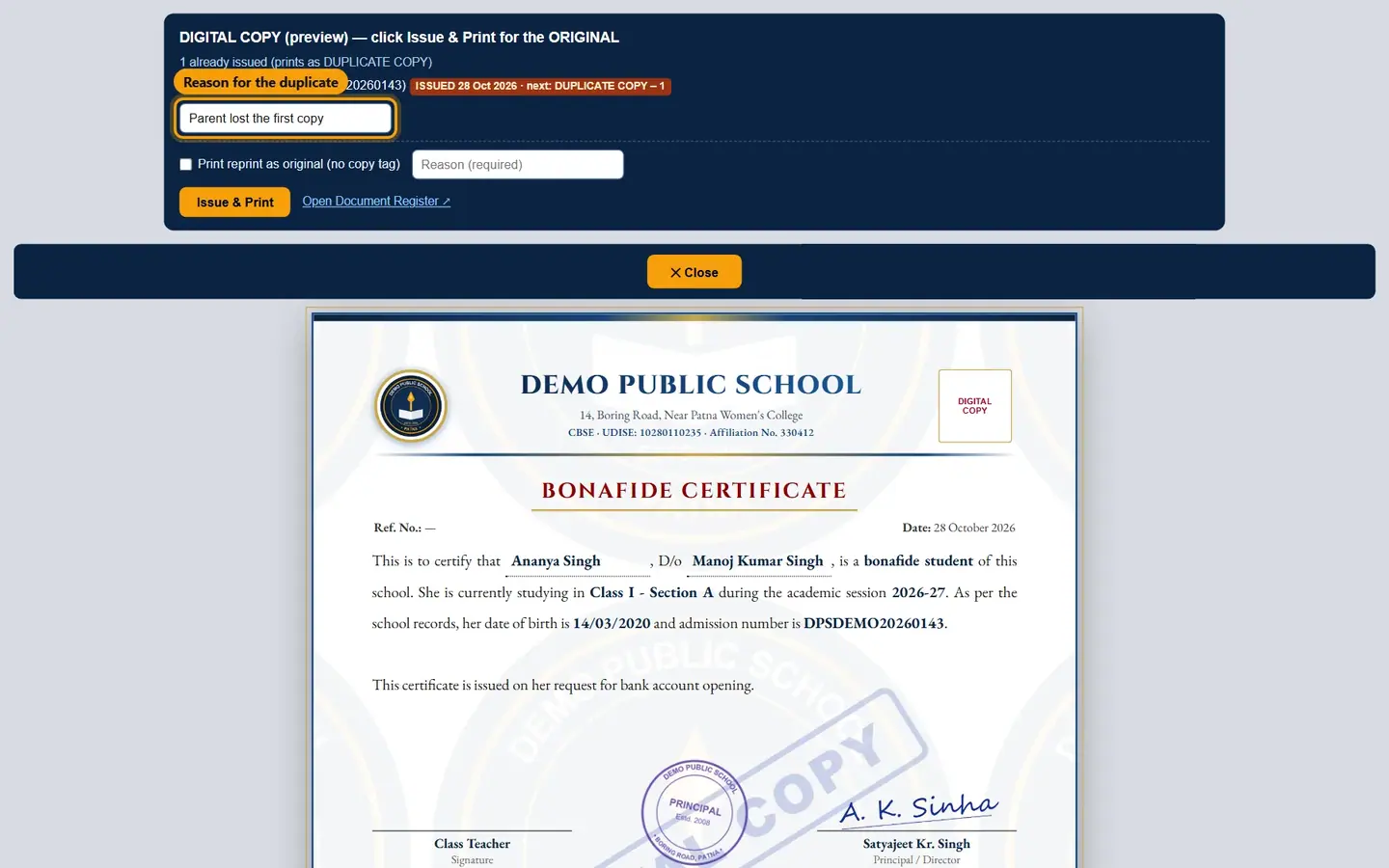
The reason is saved with the copy. Click Issue & Print. The bar shows 1 duplicate copy and the certificate is stamped DUPLICATE COPY – 1 with the reprint date.
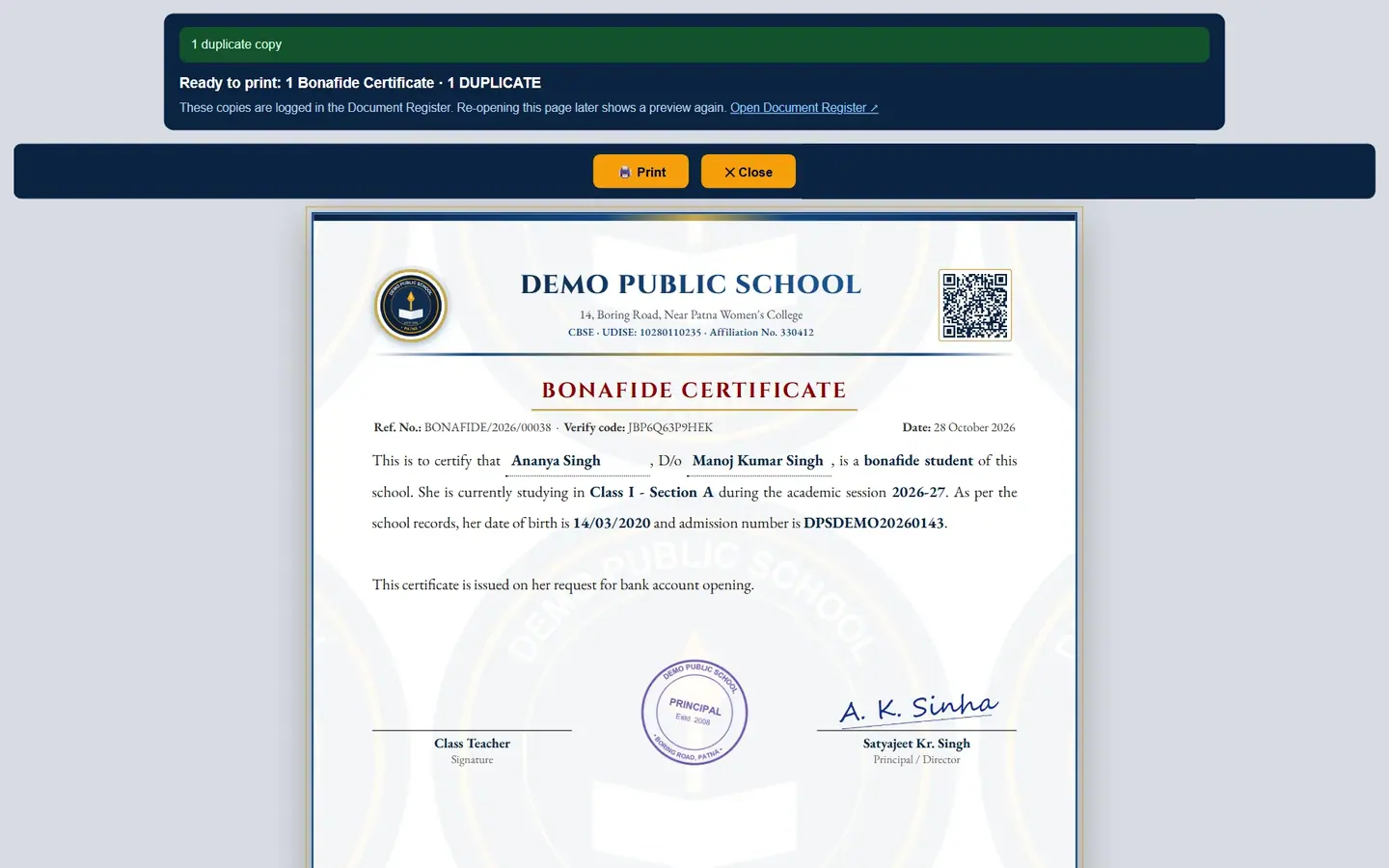
Same reference number and verify code as the original. Click Print. Back in the register, Copies now shows ORIGINAL and DUPLICATE COPY – 1.

2 office copies.
TipIf the school charges a duplicate fee, the copy waits as Fee pending until the fee is collected at the Fee Desk. Then click Print (fee paid) under Copies. Admin or Principal can Waive the fee with a reason.
Revoke a document issued by mistake
Only the Admin or Principal can revoke. A revoked document shows as revoked when its QR code or verify code is checked, and the same document can be issued afresh.
Find the document and click the red Revoke button (circle with a line) on the row.
Type the Reason for revoking (required), for example Wrong date of birth printed.

Revoke needs a reason. Click Confirm. The status changes to Revoked and any unpaid copy fee is dropped.
ImportantRevoking cannot be reversed. Issue a fresh document after correcting the student's details.
Approve TC / SLC requests
Click the TC / SLC Approvals tab. A number on the tab shows how many requests are waiting.

Each request shows the checks that are still failing. Read Checks now: fee dues not cleared or library books not returned are listed in red.
Click Approve (optional note) or Reject (reason required), then Confirm.
After approval the office clicks Issue now to open the TC and issue it once fees and books are cleared.
TipThe person who raised a request, or the Admin / Principal, can cancel it with the ban icon.
Set document fees
Click the Document Fees tab.
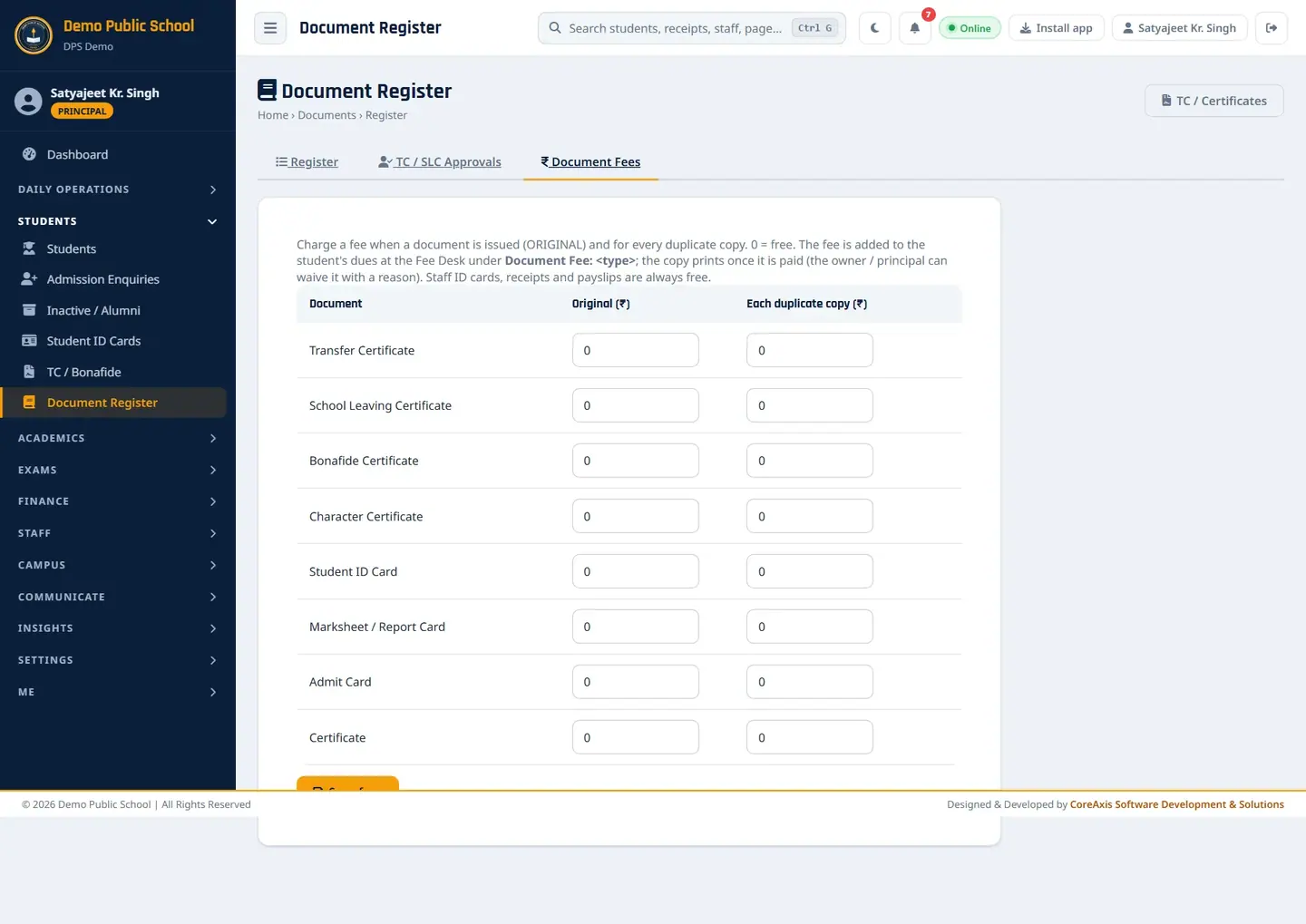
Blank or 0 means free. For each document type type the fee for the Original (₹) and for Each duplicate copy (₹), for example Transfer Certificate 0 and 100.
Click Save fees.
TipThe fee is added to the student's dues at the Fee Desk as Document Fee: <type>. Staff ID cards, fee receipts and payslips are always free.
Screen at a glance
- Ref No / Code
- Reference number (for example TC/2026/00037) and the 12-character verify code printed under the QR code.
- Document
- Type badge, title, student and admission number; 'left' after a TC / SLC.
- Issued
- Date and time of the original, and who issued it.
- Copies
- Number of office copies and digital copies (portal / app downloads).
- Status
- Valid, Revoked, Fee pending, or Forced (rule overridden).
- Actions
- Copies (history), Reprint (next duplicate), Revoke (Admin / Principal).
- Type filter
- Transfer Certificate, School Leaving Certificate, Bonafide, Character, Student ID Card, Marksheet / Report Card, Admit Card, Certificate, Staff ID Card, Fee Receipt, Salary Payslip.
- Status filter
- All, Valid, Revoked, Fee pending, Forced (rule overridden).
Questions
Some old documents say '(issued before the register)'.
These were issued before the register was switched on. They are listed for the record; new copies are counted from now.
Why does a fee receipt appear with digital copies?
Each time a parent downloads a receipt or report card from the portal or app, a DIGITAL COPY is logged against it.