 CoreAxis School ERP
Getting Started · Chapter 1
About this manual
CoreAxis School ERP runs a school's daily work in one place: admissions, attendance, fees, exams, staff, payroll, library, transport, hostel, notices and the parents' portal. It works in any browser at https://coreaxis.info, and the same data is available in the School eRegister mobile app. This manual shows every web screen, with worked examples from the Demo Public School.
Who uses which login
Each person signs in with their own account. What they see depends on their role; a menu item that a role cannot use is not shown.
- Admin / Principal
- The whole school: students, academics, exams, finance, staff, campus, communication, reports and settings. Only Admin / Principal can approve concessions, approve leave, issue TCs and change school settings. Demo school: Satyajeet Kr. Singh (Principal) and the Administrator account.
- Accountant
- The fee desk and everything about money: fee dues, concessions (request), cheques, UPI / bank claims, fee structure, expenses, School Store, payroll, the finance ledger and reports. Demo school: Rakesh Agarwal.
- Teacher
- Their own classes and subjects: attendance, marks, homework, timetable, notices, report cards, ID / admit cards, Library Desk and competitions, plus their own leave, attendance and payslips. Demo school: Amit Kumar Mishra, class teacher of Class VI-A.
- Student / Parent
- The portal: fees and receipts, paying online or by UPI / bank transfer, attendance, results and report cards, online exams, homework, notices and leave requests. Parents sign in with the child's admission number and date of birth, and can add a second child.
The example school
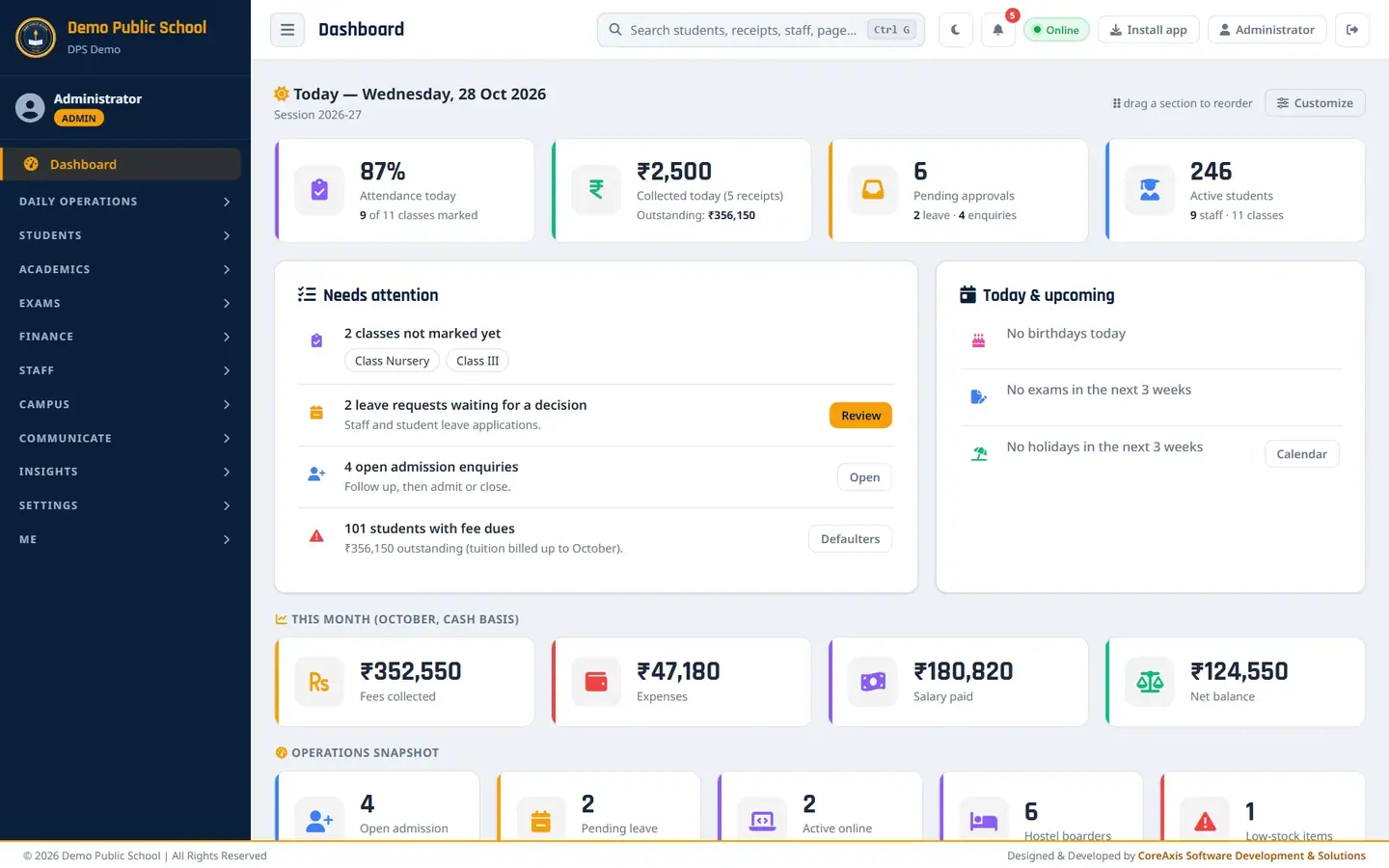
Every screenshot comes from the Demo Public School, 14 Boring Road, Patna: Play Group to Class VIII, one section per class, about 250 students, nine staff, session 2026-27. Names, phone numbers and amounts are sample data. Your school's screens look the same, with your own name, logo and data.
How to read the steps
- Bold words
- A bold word is a button, tab, menu item or field label, written exactly as on the screen.
- Menu
- Under each chapter title, Menu shows where to click in the left sidebar, for example Finance › Cheques / DD. On a phone, open the sidebar with the menu button at the top left.
- Address bar
- Each screenshot shows the page address, for example https://coreaxis.info/admin/fees.php. You can type the address to go straight to a page after signing in.
- Saffron boxes
- A saffron outline in a screenshot marks the control the step asks you to use.
- Confirmation popups
- Every action that saves, changes or deletes something first asks Are you sure? in a popup. Deleting asks twice. Read the popup, then click the coloured button to go ahead, or Cancel.
- Search anywhere
- Press Ctrl + G (or click the search box at the top) to find a student, receipt, staff member or page by typing part of its name.
Before you start
Use a current version of Chrome, Edge, Firefox or Safari. The first time you sign in on a computer or phone, the system sends a 6-digit code to your email; tick Trust this browser so that you are not asked again for 30 days on that device. Keep your password private: the school office can reset it, but no one from CoreAxis or the school will ever ask you for it.