 CoreAxis School ERP
Students · Chapter 7
Student Attendance
Attendance is marked once a day for each class. Start with Mark all present, change the few absentees, and save. Parents of students newly marked absent get an SMS when the school has SMS alerts on. The Dashboard shows which classes are still unmarked, the parent portal shows each child's attendance, and the Attendance Register gives the month grid for printing. Teachers mark only the classes assigned to them.
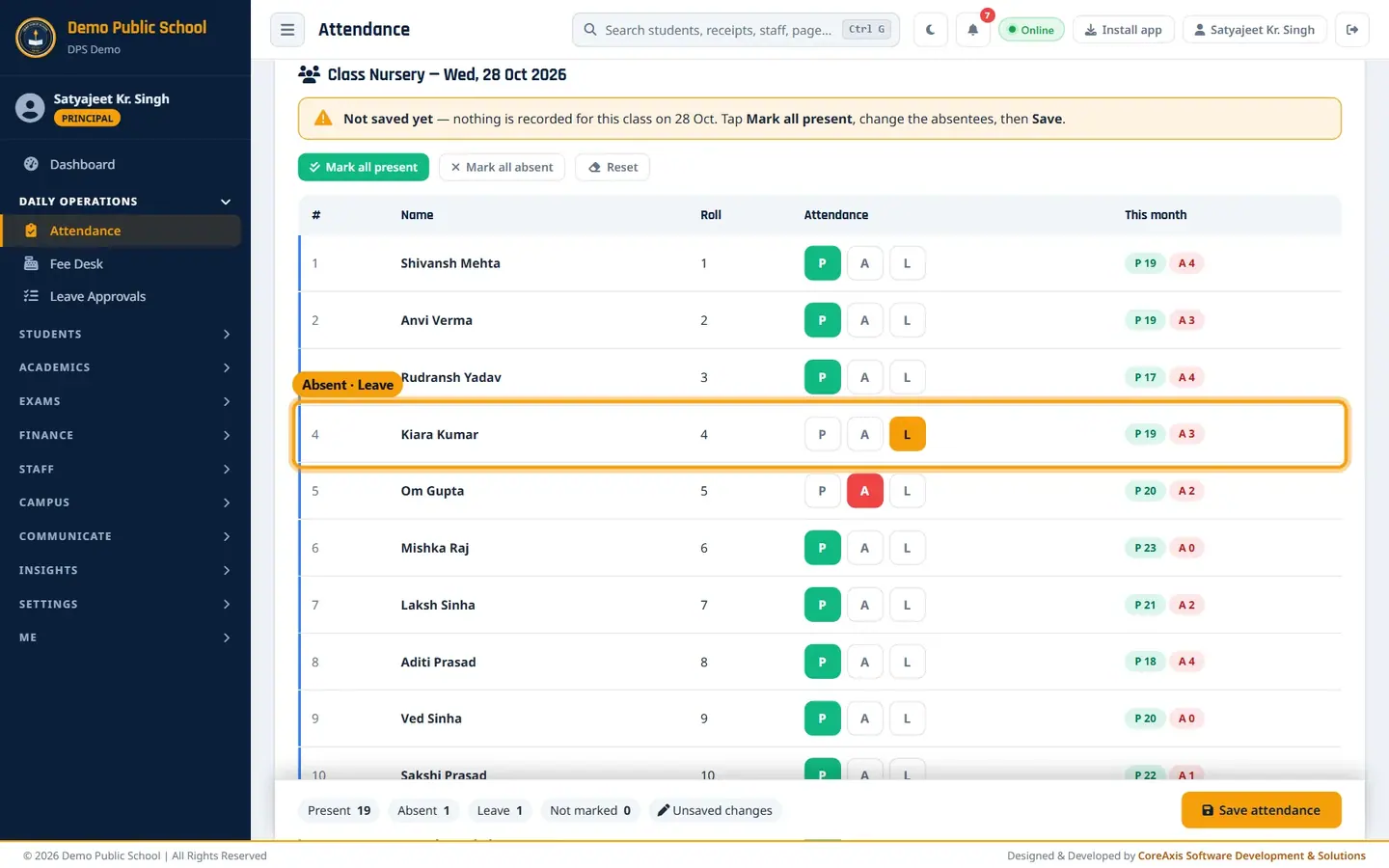
Mark today's attendance (example: Class Nursery, Wednesday 28 Oct 2026)
The Dashboard showed Class Nursery and Class III as not marked yet. Clicking the Class Nursery chip there opens the same page.
In the sidebar open Daily Operations and click Attendance.
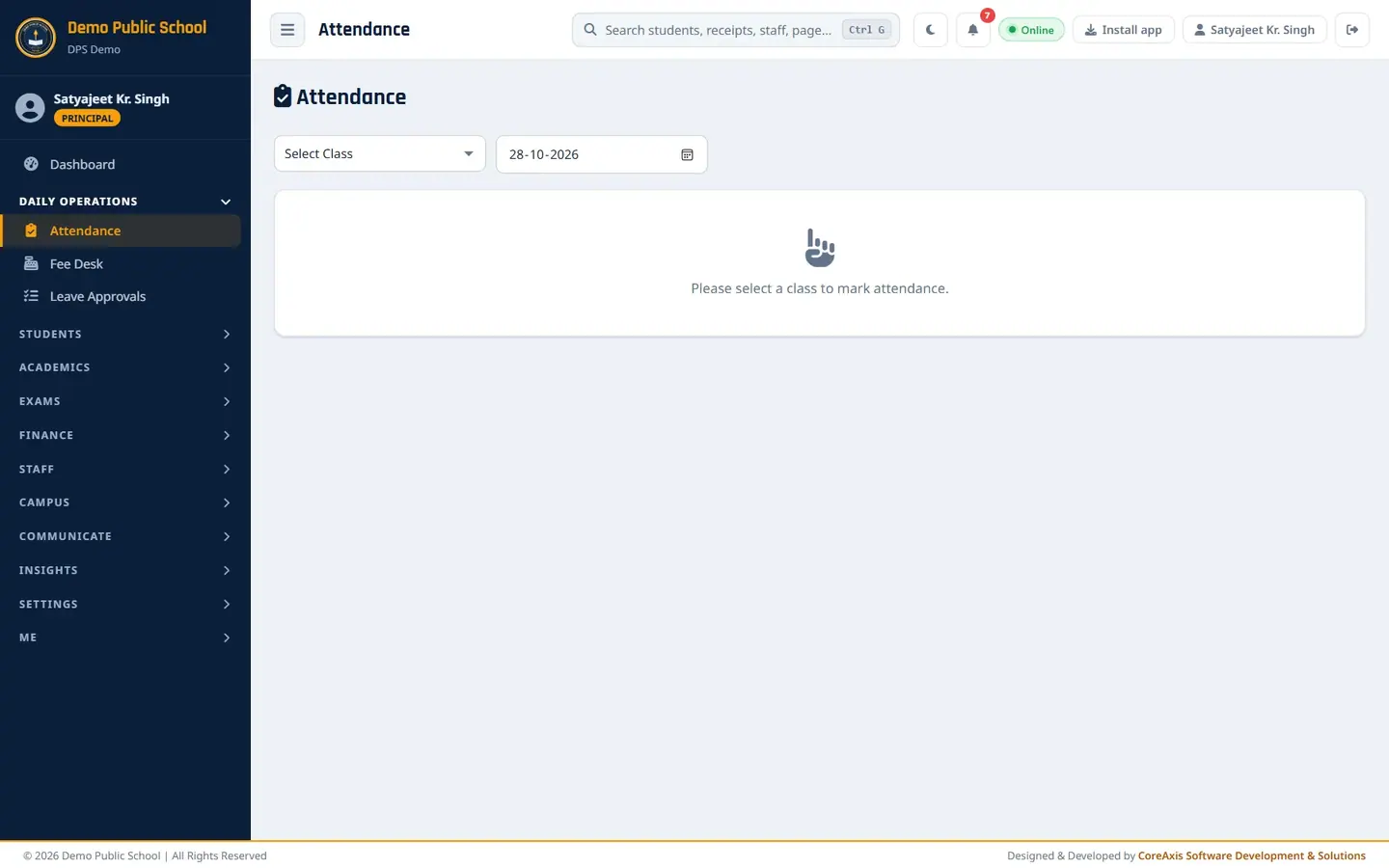
Pick a class to start. Pick the class in Select Class: Class Nursery. The date is today; change it only to mark or correct another day.
The yellow box says Not saved yet — nothing is recorded for this class today.
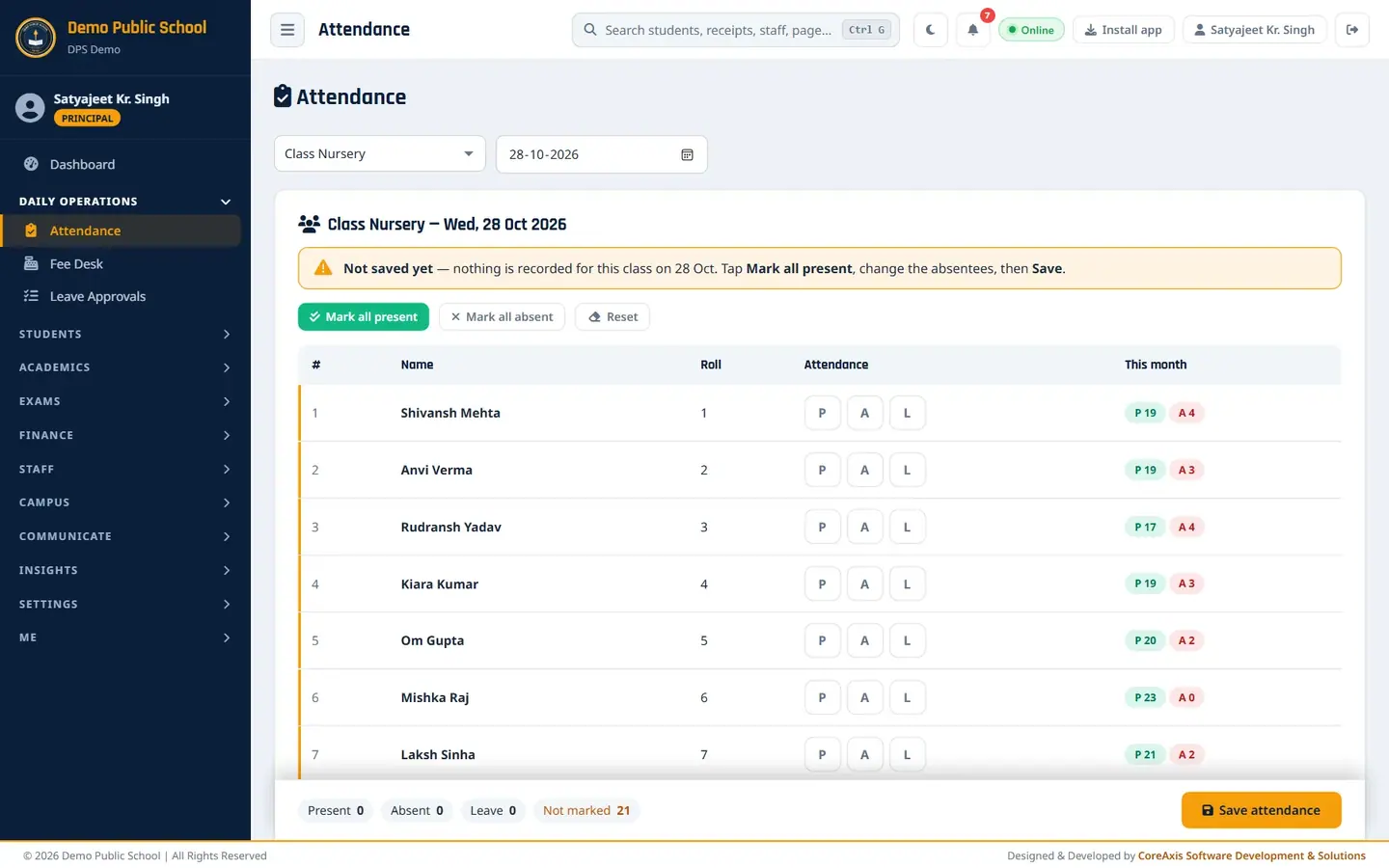
Unmarked students have a yellow edge. Click Mark all present. Every student turns green P.
Change the absentees: click A for Om Gupta (absent) and L for Kiara Kumar (on leave).
P = Present, A = Absent, L = Leave. The This month column shows each child's P and A so far. Check the counts at the bottom: Present 19, Absent 1, Leave 1, Not marked 0. Unsaved changes reminds you to save.
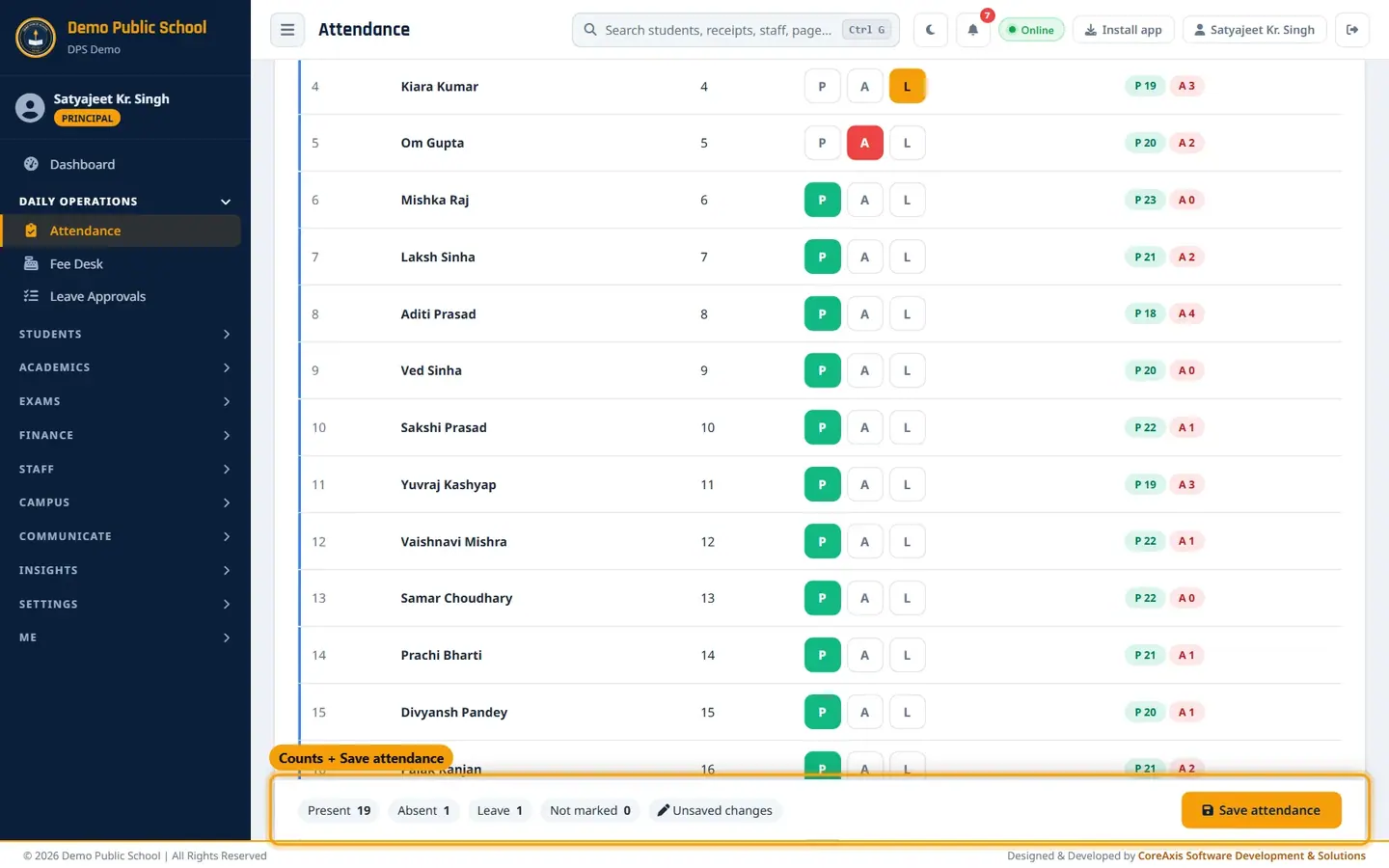
The counts bar stays at the bottom of the screen. Click Save attendance, then Save attendance again in the popup.
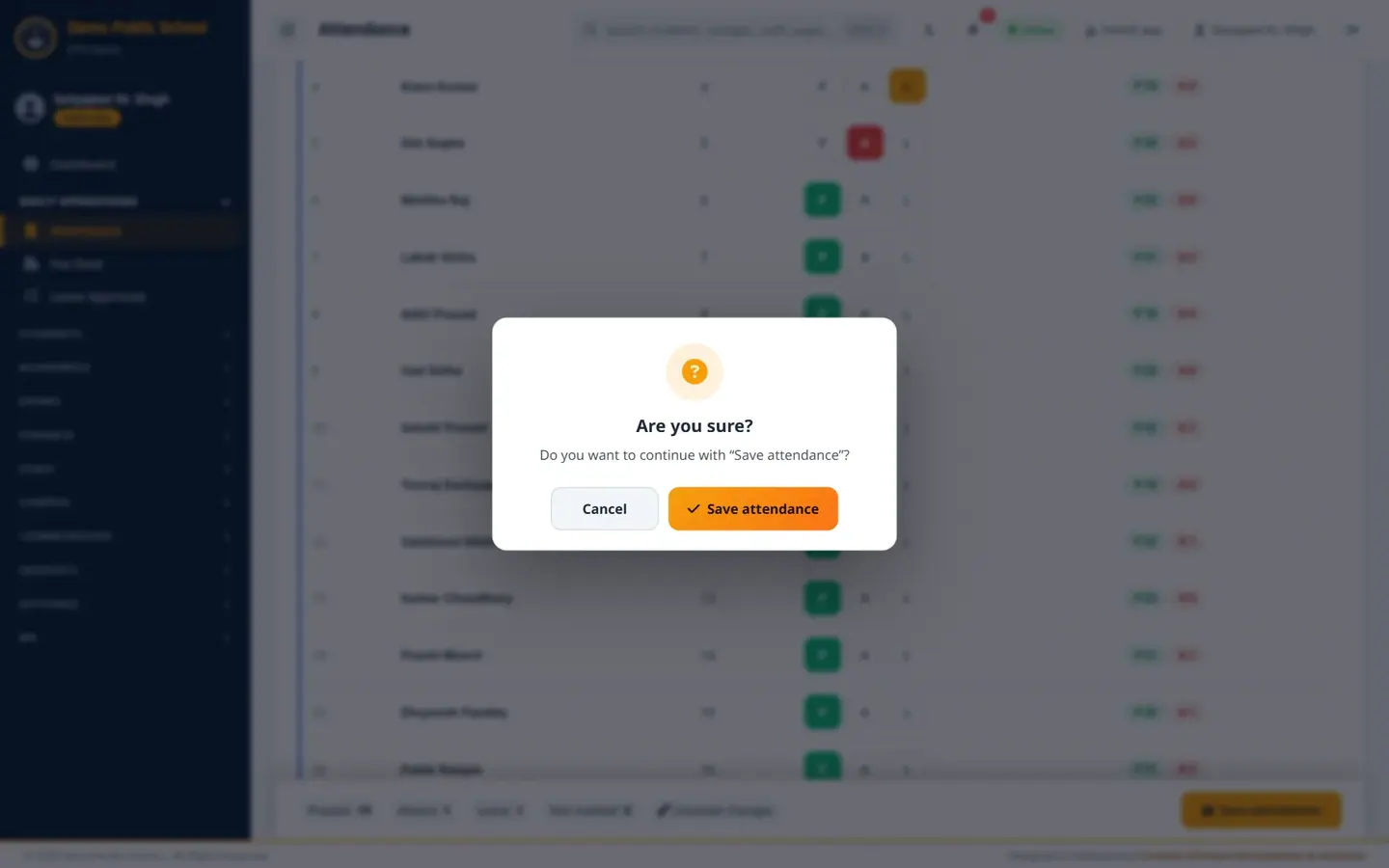
Saving asks once for confirmation. The message Attendance saved for 28 Oct 2026 appears and the green box shows Saved, the time and who marked it.
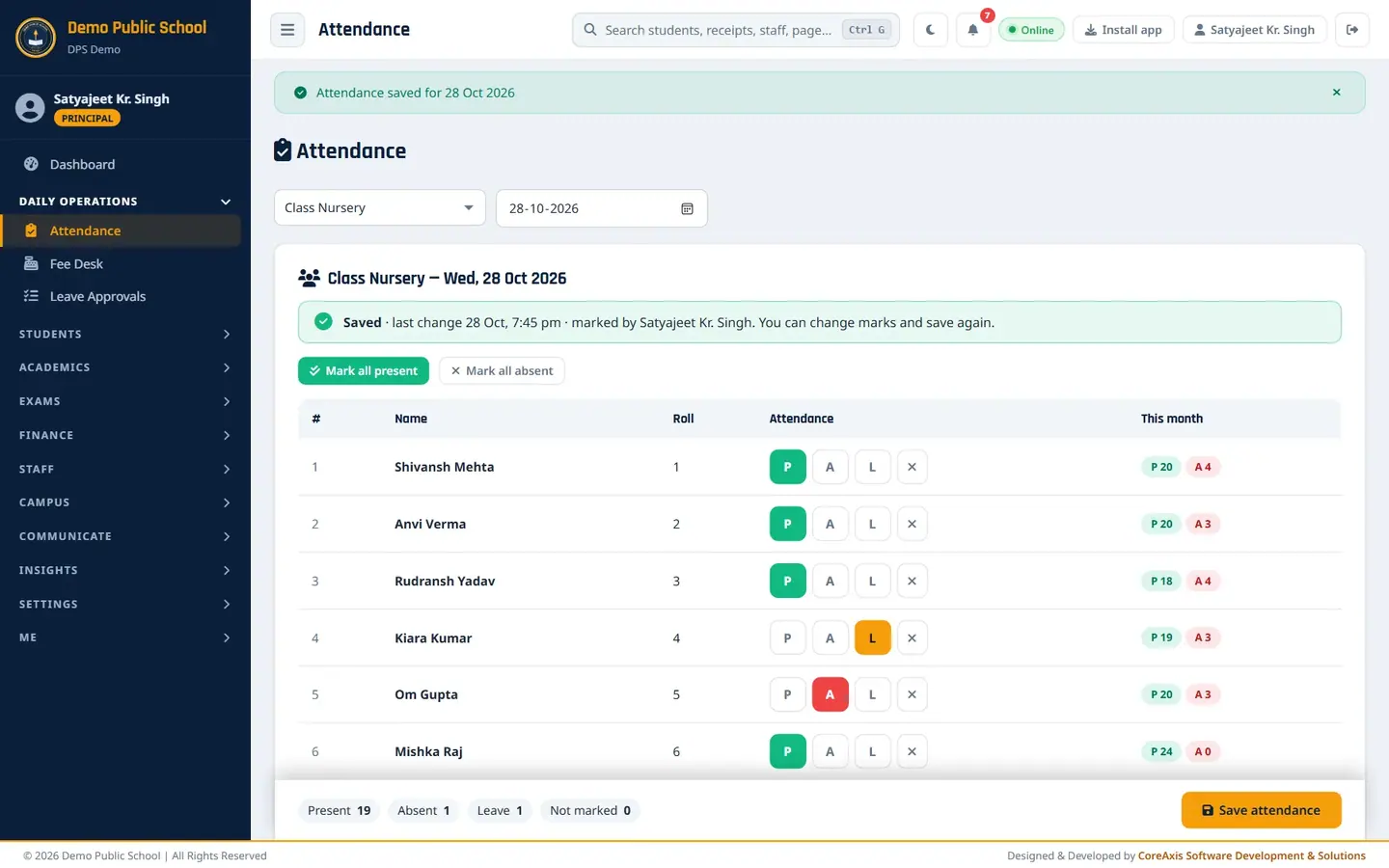
Saved by Satyajeet Kr. Singh.
TipTo correct a mark later, open the same class and date, change the mark and click Save attendance again. The x button next to a mark clears it.
TipOn a Sunday or a holiday from the Holiday Calendar the page shows a notice; days marked H are holidays.
TipAn absent SMS goes only to students newly marked absent, so saving twice does not send a second SMS.
View the monthly Attendance Register (example: Class Nursery A, October 2026)
In the sidebar open Academics and click Attendance Register.
Pick Class: Class Nursery A, Month: October and Year: 2026, and click View.
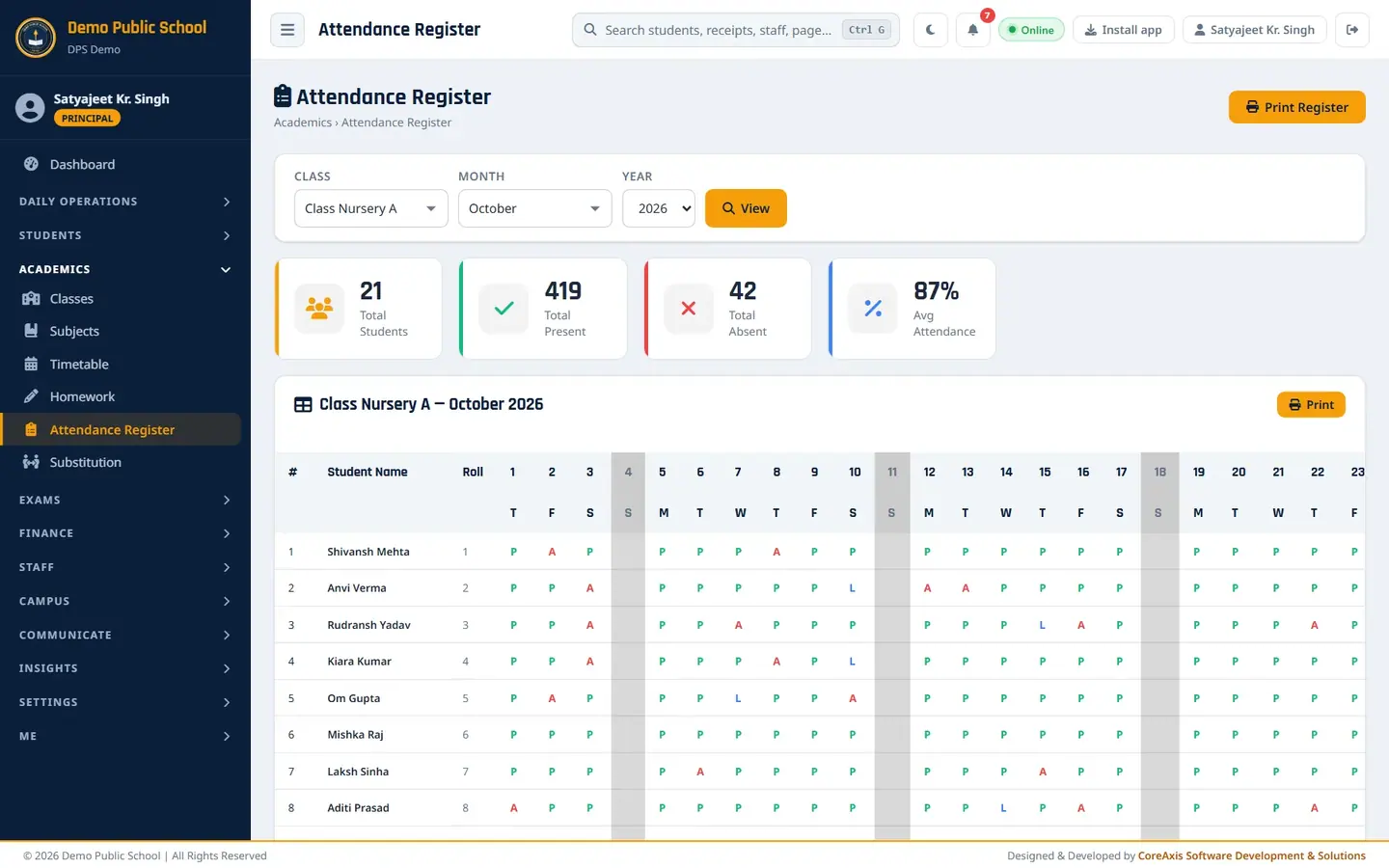
Month grid: one row per student, one column per day; Sundays are greyed. Read the four cards: Total Students, Total Present, Total Absent and Avg Attendance.
Scroll right to see the student's P, A, L totals and attendance % for the month.
Click Print Register (or Print on the table) to print the register on A4 landscape.
TipTeachers see the register only for their own classes.
Screen at a glance
- Select Class / date
- Class to mark and the attendance date (today by default).
- Status box
- Yellow Not saved yet, or green Saved with last change time and who marked it; also warns if some students are not marked.
- Mark all present / Mark all absent / Reset
- Set every student at once; Reset clears unsaved marks (only before the first save).
- #, Name, Roll
- Students of the class in roll order.
- Attendance
- P (Present, green), A (Absent, red), L (Leave, amber); H (Holiday, blue) appears for holiday-marked days.
- This month
- Days present and absent so far this month.
- Counts bar
- Present, Absent, Leave, Not marked, Unsaved changes, and Save attendance.
- Register cards
- Total Students, Total Present, Total Absent, Avg Attendance for the month.
- Register grid
- Day-by-day marks with weekday letters, then P, A, L totals and % per student.
Questions
A parent applied for leave in the portal. Do I still mark L?
Yes. Leave applications are decided in Daily Operations › Leave Approvals; the attendance mark for each day is still made here.
The Dashboard still shows a class as not marked.
The class is counted as marked only after Save attendance. Open the class and check for the green Saved box.
Can I mark attendance from a phone?
Yes. On a phone the list shows one student per row with large P / A / L buttons, and the Save bar stays at the bottom.