 CoreAxis School ERP
Insights & Settings · Chapter 51
Academic Sessions
An academic session is the school year (for example 2026-27, 1 April 2026 to 31 March 2027). Fees, attendance, exams and reports belong to a session, and only one session is active at a time. At the end of the year you create the next session, check promotion eligibility from the Annual exam results, promote the students into the new session, and then activate it. Old-session dues stay in the old session and show as Arrears in the new one.
Create the next session (example: 2027-28)
Open Settings › Academic Sessions. The Sessions tab lists each session with dates, number of students and status. The current one shows Active and Current.

Sessions list: 2026-27 is active. Click New Session.
Type the Session Year (2027-28) and check Start Date (01-04-2027) and End Date (31-03-2028).
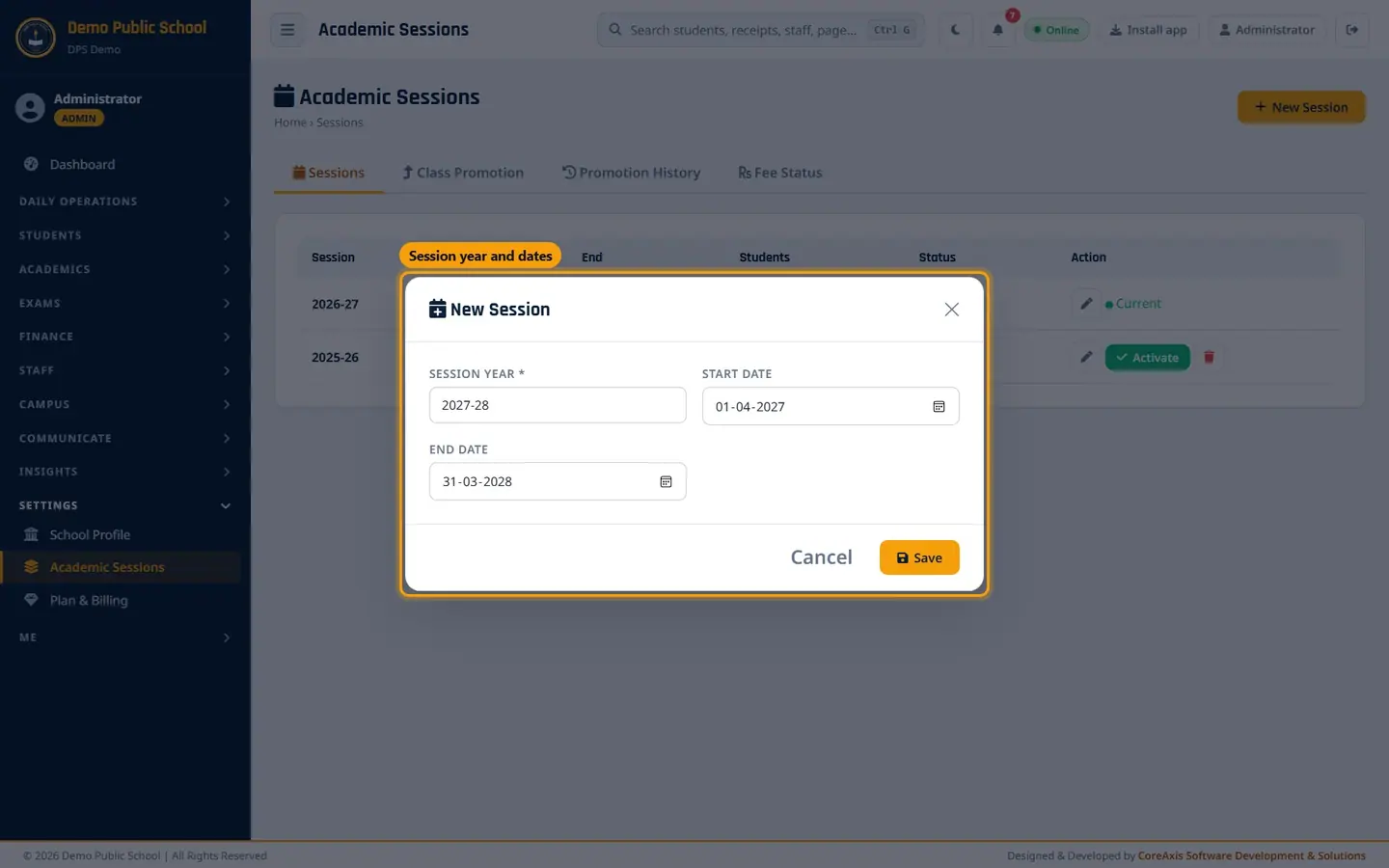
New Session form. Click Save and confirm. The message Session added! appears. The new session is Inactive, so nothing changes for anyone yet.
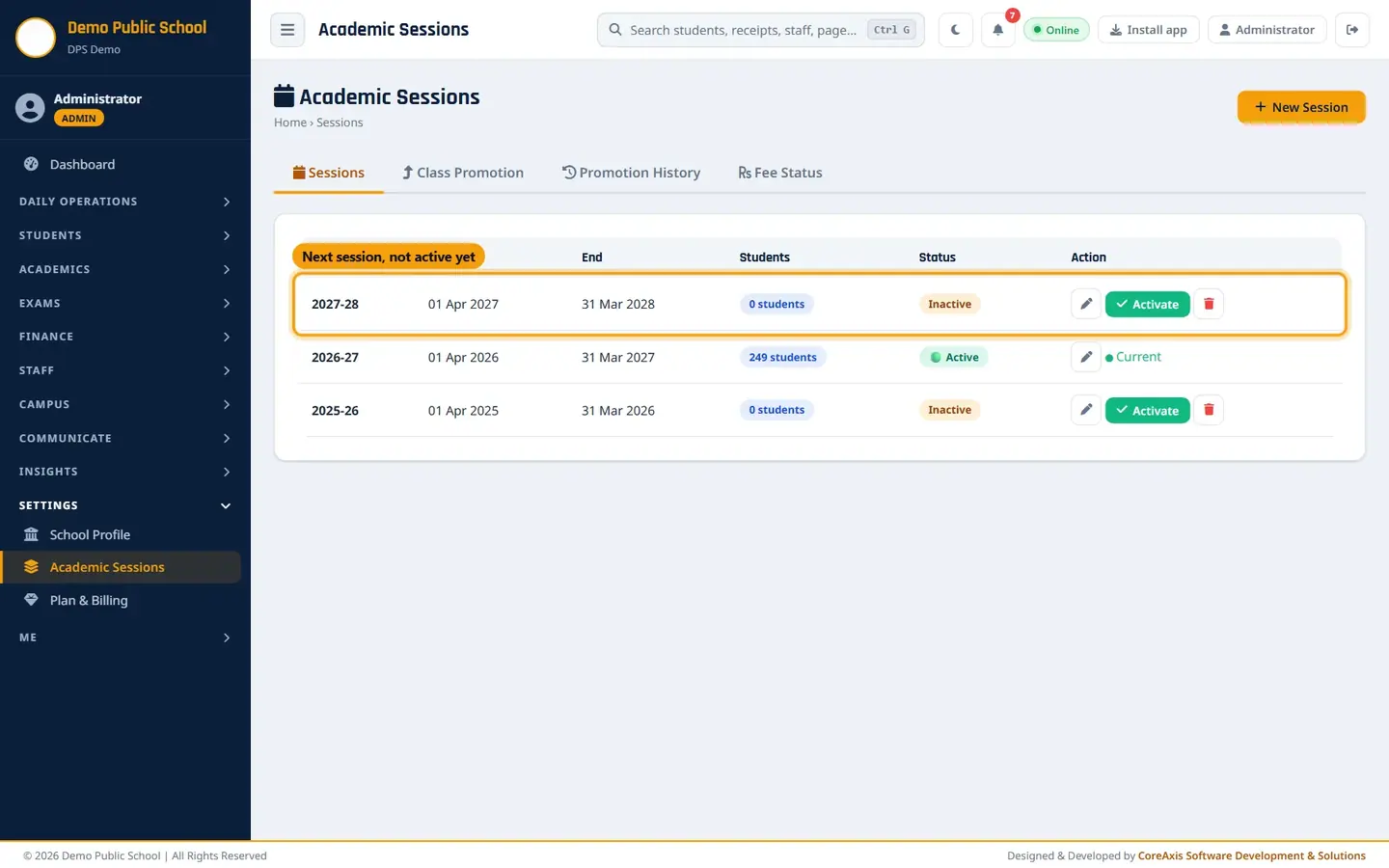
2027-28 added, not active.
TipCreate the next session in March, before promotion. Fee Structure for the new session can then be set up in advance.
Check promotion eligibility (example: Class VI, 2026-27 results into 2027-28)
This check only reads results; it changes nothing.
Open the Class Promotion tab. The top strip shows the class order (Play → Nursery → … → the last class → Pass Out) and the number of students in each class.

Class progression and promotion rules. Read Promotion Rules: Promote = passed the Annual exam by the rule set in School Profile (33% overall, or every subject); Detained = failed, stays in the same class in the new session; No Exam = no marks entered, not promoted; Pass Out = final class, becomes alumni.
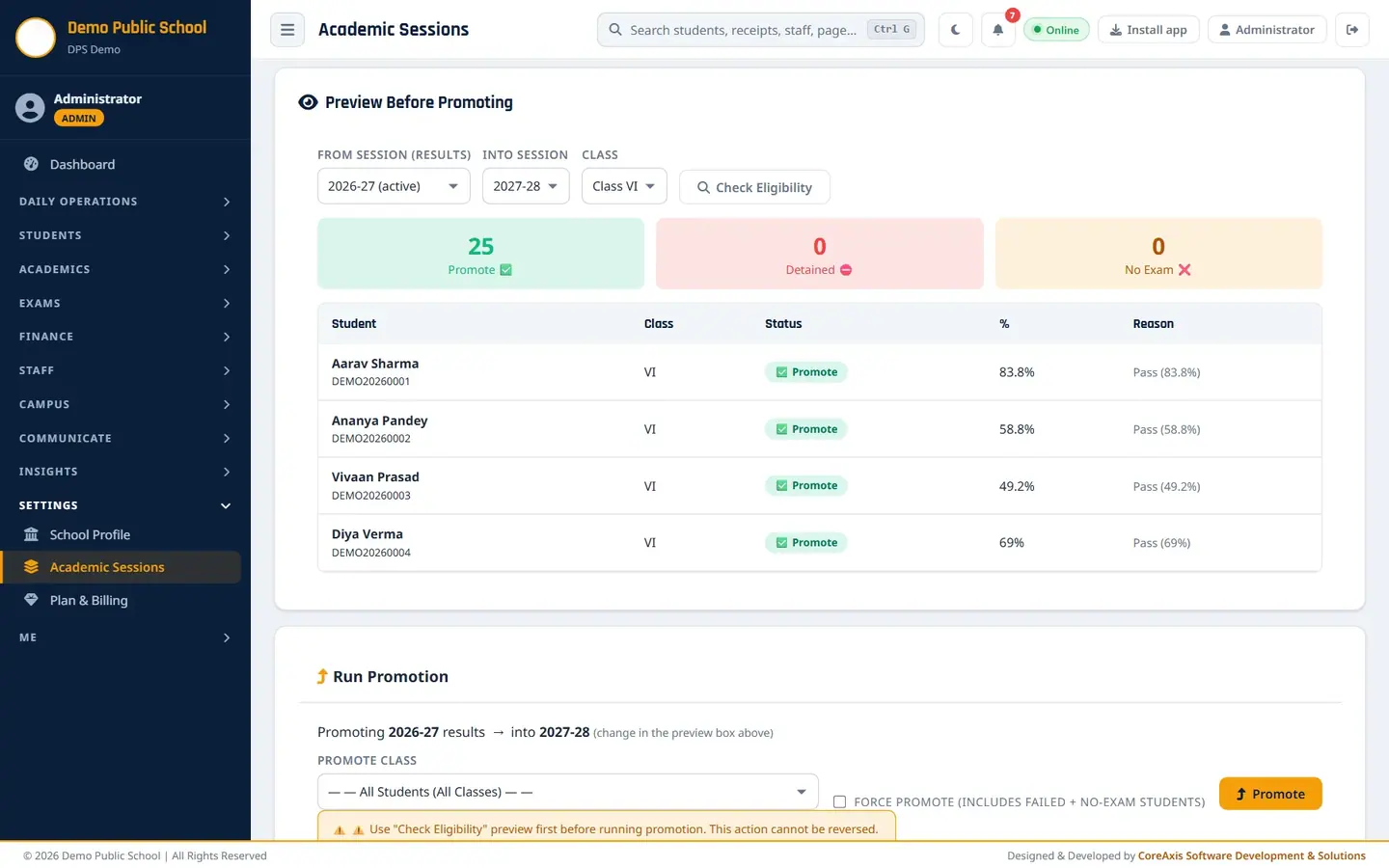
Under Preview Before Promoting, choose From Session (results) (2026-27 (active)), Into Session (2027-28) and Class (Class VI).
Click Check Eligibility. The boxes count Promote, Detained and No Exam, and the table lists each student with percentage and reason.
Class VI: 25 can be promoted, none detained. If students show No Exam, finish marks entry for the Annual exam first, then check again.
Run the promotion (year end only)
Do this once a year, after Annual exam results are final and the new session exists. It was not run for this manual.
Under Run Promotion, check the line Promoting 2026-27 results → into 2027-28. If it says Choose a target session, create the next session first.
In Promote Class, choose Only Class VI (one class at a time is safest), or All Students (All Classes).

Run Promotion with the warning. Leave Force promote (includes failed + no-exam students) unticked, unless the school has decided to promote everyone (for example under a no-detention rule).
Click Promote. Read the popup (Pass → Promote · Fail → Detained · No Exam → Skip) and confirm.
Open Promotion History to check each student's from-class, to-class, status and percentage.

Promotion History (empty until a promotion is run). When every class is done, go back to Sessions and click Activate on 2027-28. The old session becomes inactive.
ImportantPromotion cannot be reversed. Run Check Eligibility for every class first, and make sure all Annual exam marks are entered.
Fee status of a session
Open the Fee Status tab. Choose the Session and, if needed, a Class.

Billed, Paid, Balance and status per student. Students marked Partial or with a balance still owe money. Click the rupee icon to open the Fee Desk for that student.
Use this list before the rollover: unpaid amounts move to the new session as Arrears.
Screen at a glance
- Sessions tab
- Session, Start, End, Students, Status (Active / Inactive), Edit, Activate, Delete.
- Class Promotion tab
- Class progression, Promotion Rules, Preview Before Promoting, Run Promotion.
- Promotion History tab
- Student, From Class, To Class, Status, %, Date, Remarks, and manual Promote for a detained student.
- Fee Status tab
- Student, Class, Billed, Paid, Balance, Payments, Last Payment, Status (Cleared / Partial), Collect Fee.
Questions
One detained student passed the re-test.
Open Promotion History and click Promote on that student's row.
We activated the new session by mistake.
Click Activate on the old session again. Activation only switches which session is current; promotions already run are not undone.