 CoreAxis School ERP
Students · Chapter 8
Student ID Cards
Student ID Cards prints identity cards in the standard CR80 size (the size of a bank card), front and back, with the school logo, photo, class, roll number, father's name, date of birth, mobile, address, admission number and a QR code. Names and details come from the student record and the School Profile, so nothing is typed here. Like certificates, cards open as a preview and are recorded in the Document Register only when you click Issue & Print.
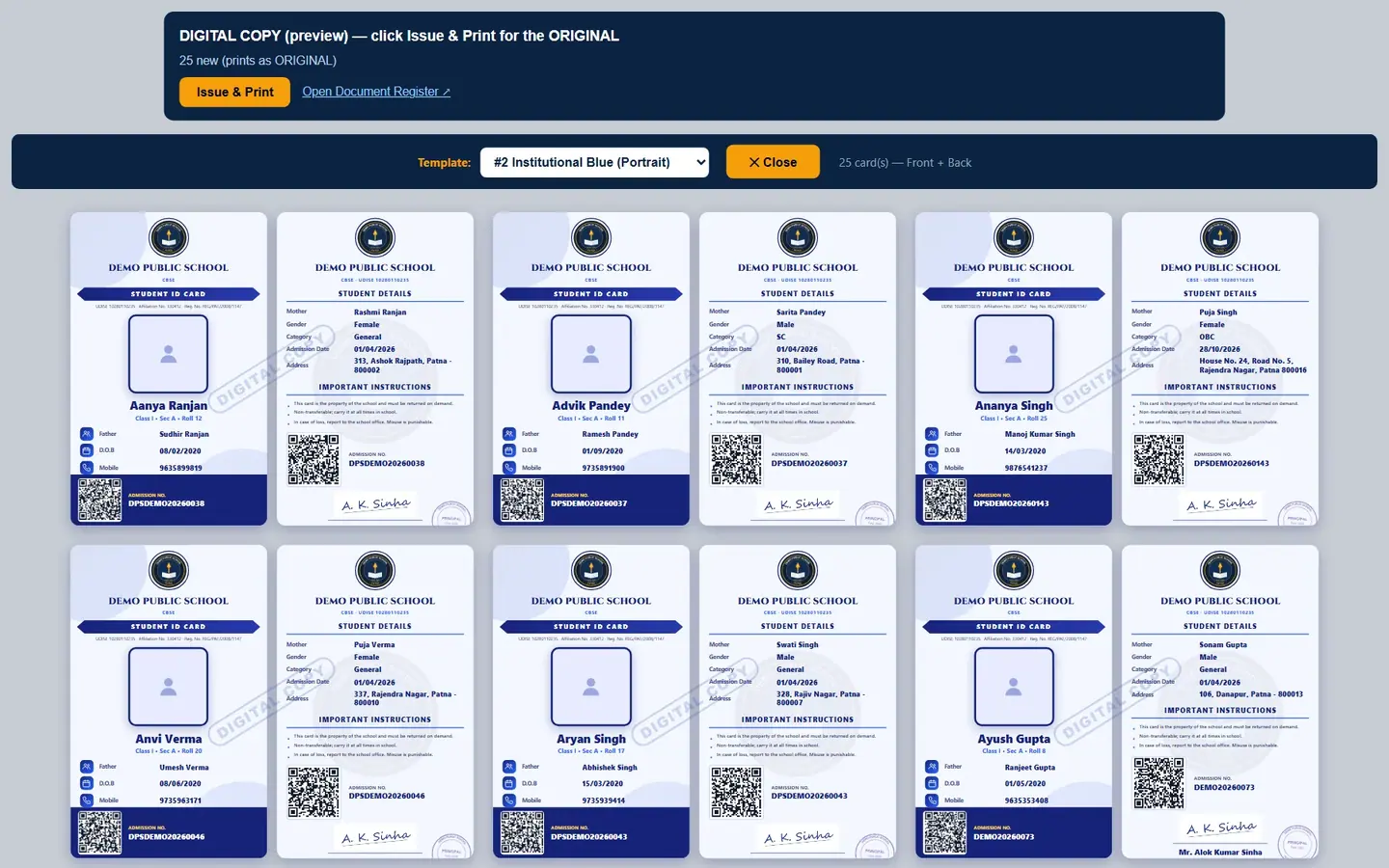
Print ID cards for a class (example: Class I-A, Institutional Blue design)
In the sidebar open Students and click Student ID Cards.
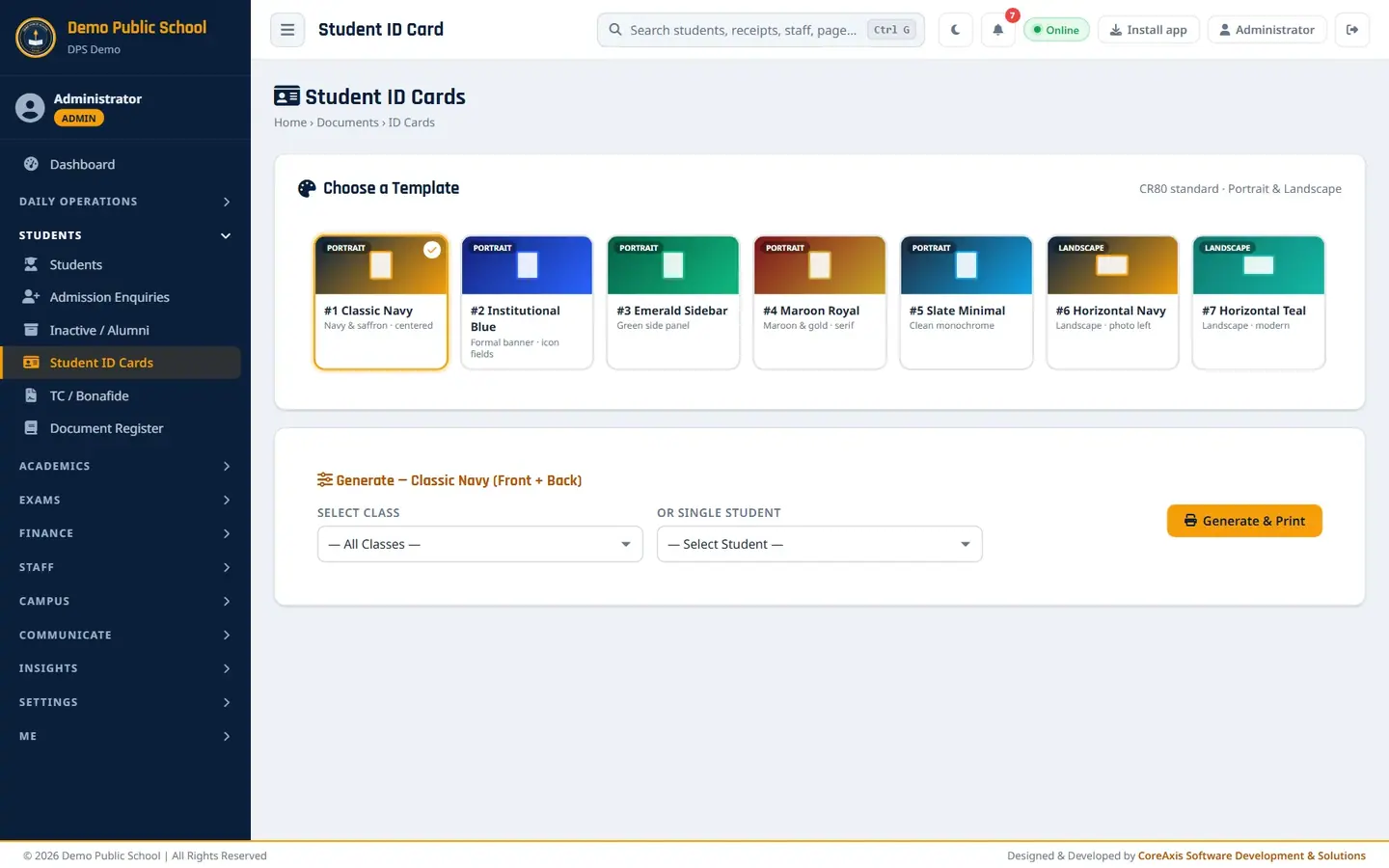
Seven designs: five portrait, two landscape. Under Choose a Template click a design, for example #2 Institutional Blue. A tick marks the chosen design.
In Select Class pick Class I. A Live Preview of the class's cards appears below.
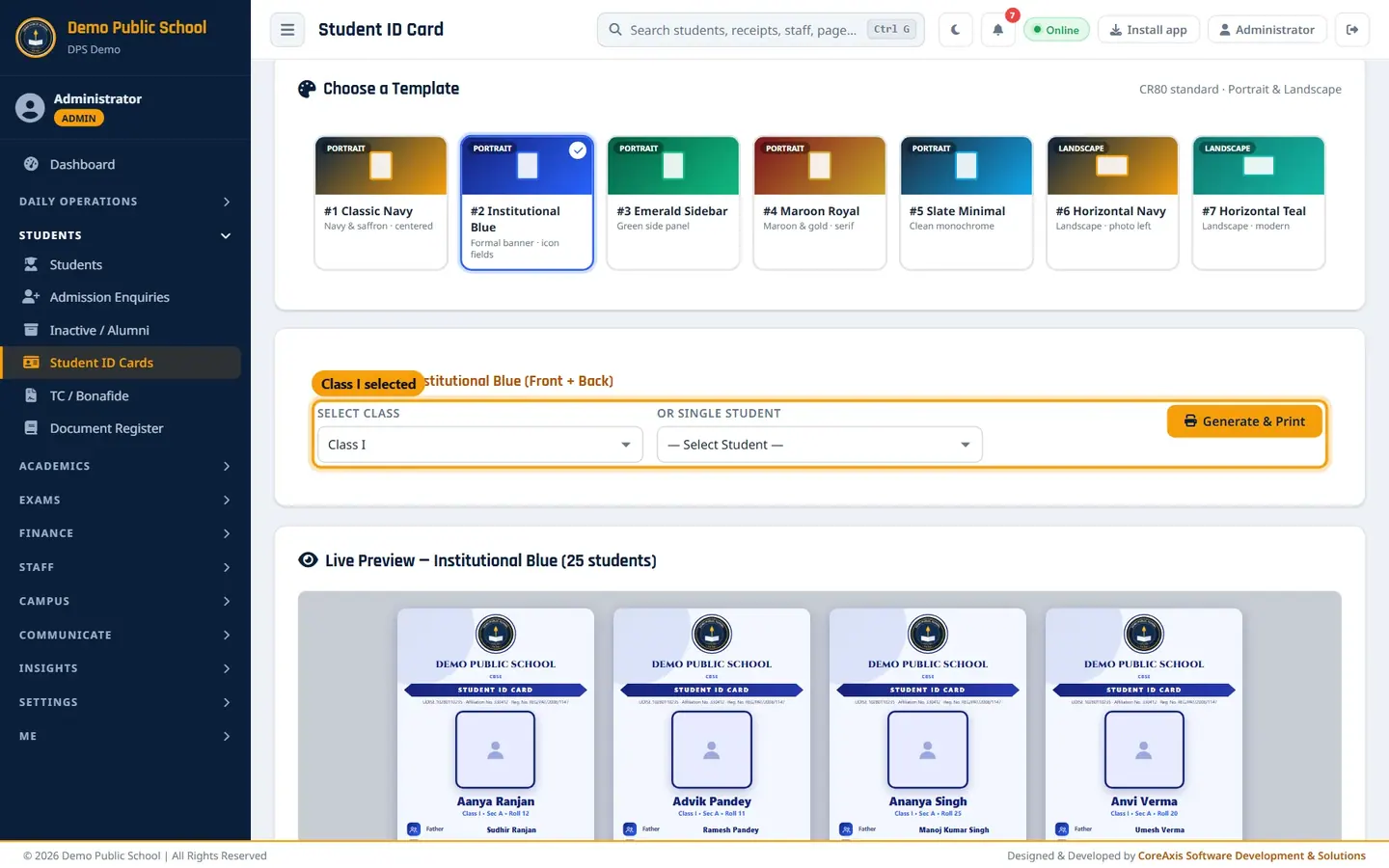
Class I selected; 25 cards in the preview. Click Generate & Print. The cards open in a new tab, front and back side by side, marked DIGITAL COPY.
25 new cards (prints as ORIGINAL). To try another design, change Template in the top bar of the preview.
Click Issue & Print. The cards are logged in the Document Register and the print bar appears.
Click Print. In the print window choose your card printer or A4 paper and print both sides.
TipAdd or change student photos in Students › Edit (Student Photo) before printing. A card without a photo shows a blank silhouette.
TipThe school logo, address, UDISE / affiliation numbers and the principal's signature and stamp come from Settings › School Profile.
Print one student's card (example: Ananya Singh, new admission)
Pick the design, then pick the student in Or Single Student, for example Ananya Singh (DPSDEMO20260143) — I.
Click Generate & Print. The preview shows 1 new (prints as ORIGINAL).
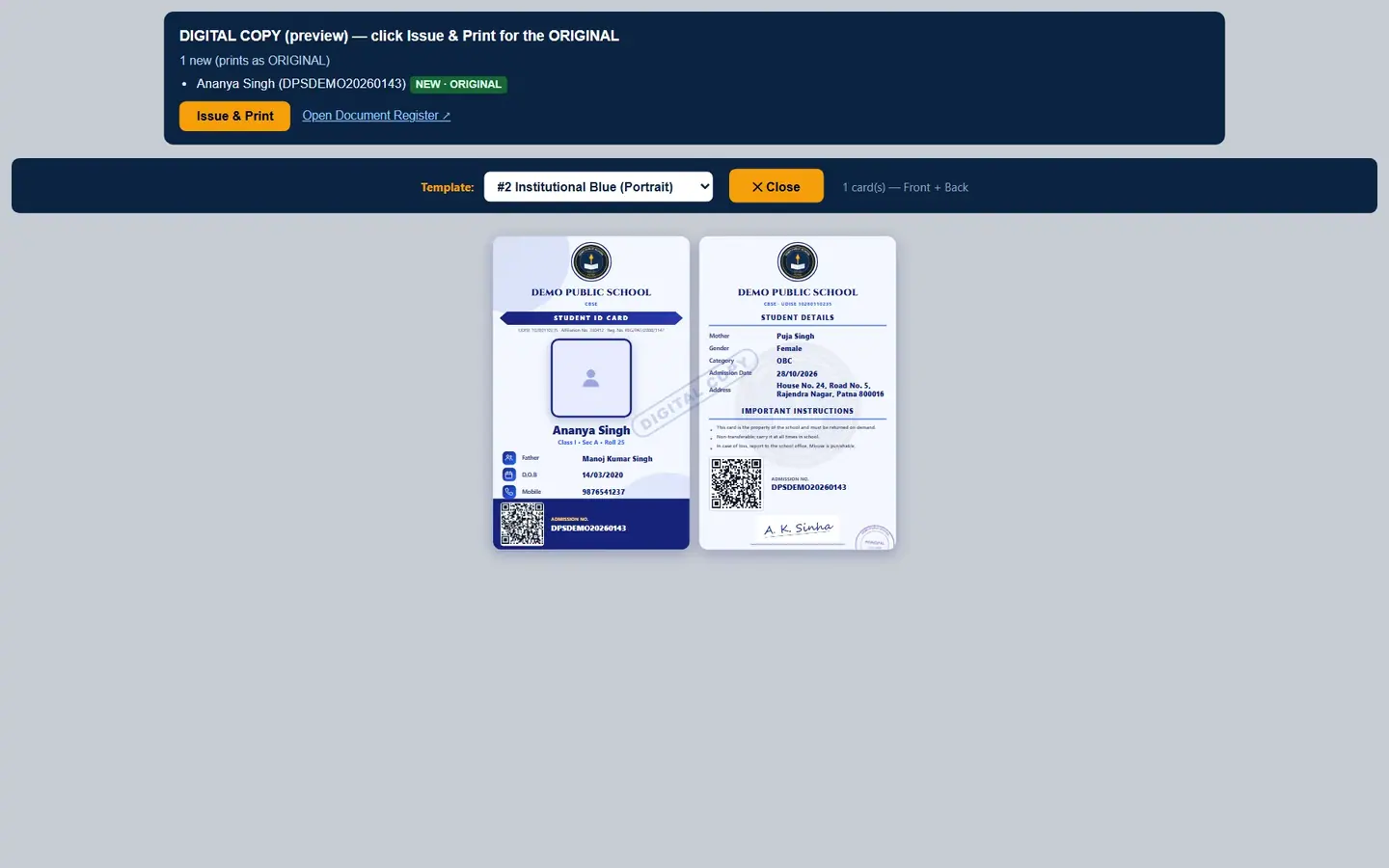
One card for Ananya Singh. Click Issue & Print, then Print.
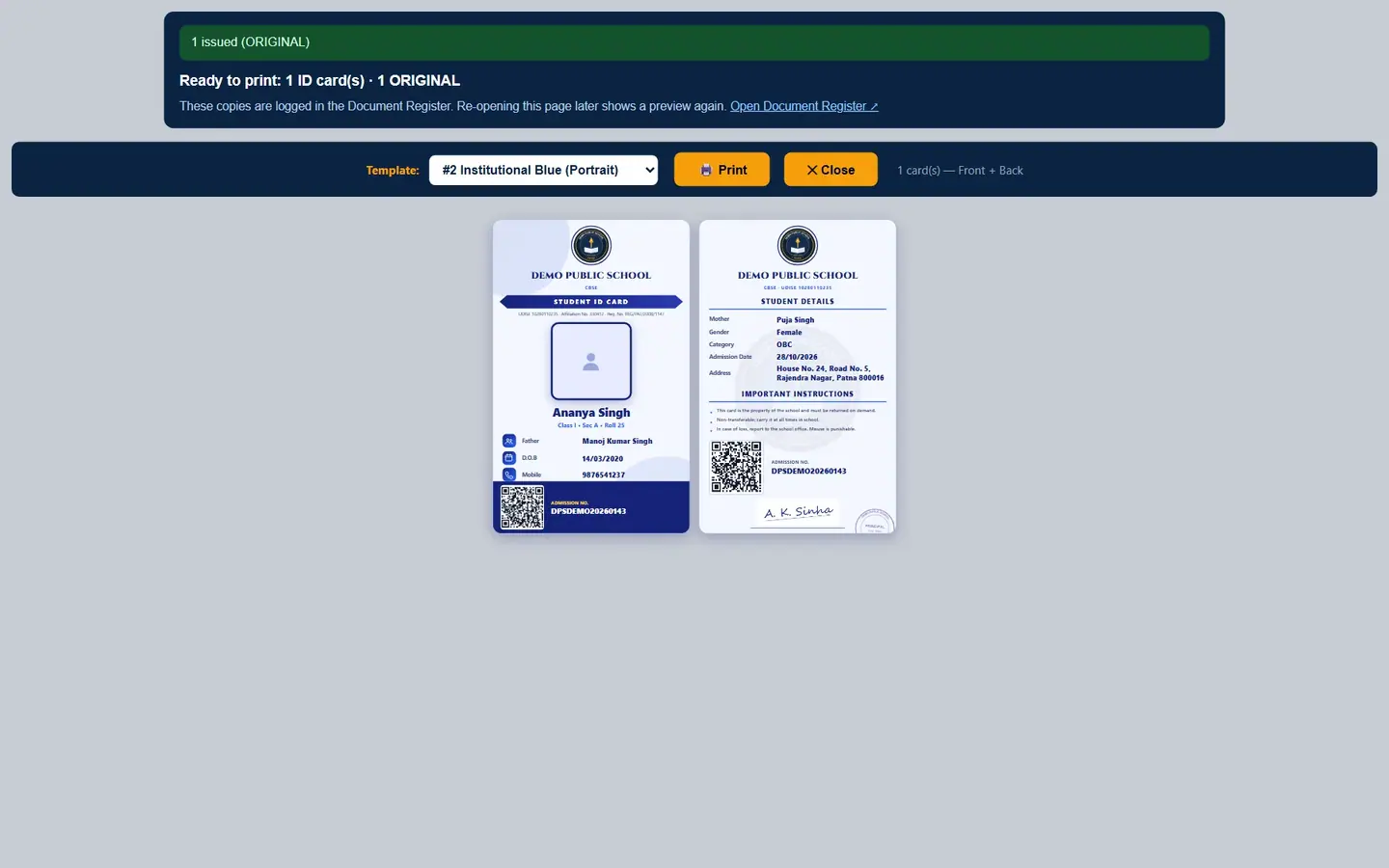
1 issued (ORIGINAL).
TipA lost card is reprinted the same way. The reprint is a DUPLICATE COPY and needs a reason, for example Card lost. If the school charges a duplicate ID card fee (Document Register › Document Fees), the card prints after the fee is paid.
Screen at a glance
- #1 Classic Navy
- Portrait, navy and saffron, centred layout.
- #2 Institutional Blue
- Portrait, formal banner with icon fields.
- #3 Emerald Sidebar
- Portrait, green side panel.
- #4 Maroon Royal
- Portrait, maroon and gold, serif type.
- #5 Slate Minimal
- Portrait, clean monochrome.
- #6 Horizontal Navy
- Landscape, photo on the left.
- #7 Horizontal Teal
- Landscape, modern.
- Select Class / Or Single Student
- Choose one: a whole class or one student.
- Front of the card
- School name and board, photo, name, class, section and roll, father, date of birth, mobile, admission number and QR code.
- Back of the card
- Mother, gender, category, admission date, address, important instructions, QR code, admission number and principal's signature and stamp.
Questions
Can a Teacher print cards?
Yes, for the classes assigned to the teacher. The page is under Cards & Certificates › Student ID Cards.
Where are staff ID cards?
Staff › Staff ID Cards. They work the same way and are always free.