 CoreAxis School ERP
Finance · Chapter 34
Reports
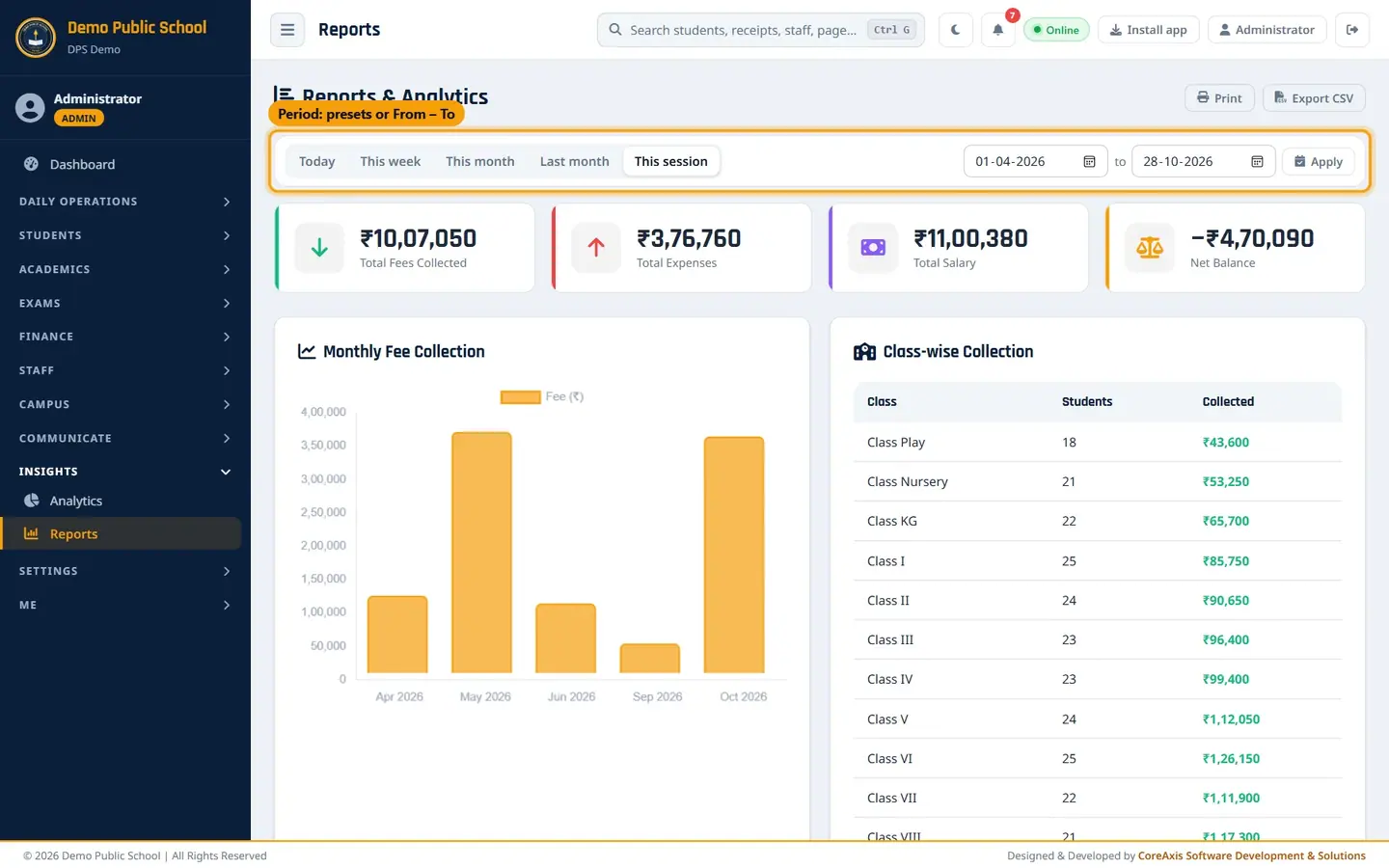
Reports is a one-page summary for the management meeting. It shows the totals for a period (fees, expenses, salary and net balance), a chart of fee collection by month, the amount collected from each class and this month's attendance by class. It opens on the running session up to today; choose another period with the period buttons or the From – To dates. Export CSV downloads the same figures for Excel.

Screen at a glance
- Period buttons
- Today, This week, This month, Last month and This session. The selected button is highlighted. The page opens on This session (1 Apr 2026 to today).
- From – to + Apply
- Any custom period: set the two dates and click Apply. The cards, the chart and Class-wise Collection all use these dates.
- Total Fees Collected
- All fee receipts in the period. Click to open the Fee Desk.
- Total Expenses
- Expenses dated within the period. Click to open Expenses.
- Total Salary
- Net salary paid in the period. Click to open Payroll.
- Net Balance
- Fees − expenses − salary for the period. A minus figure (shown as −₹4,70,090) means spending is more than fee income. Click to open Finance Ledger.
- Monthly Fee Collection
- Bar chart of fees collected in each month of the period.
- Class-wise Collection
- For each class: number of active students and the amount collected in the period.
- Attendance Summary (This Month)
- For each class: present, absent and leave marks this calendar month and the average attendance %. It does not change with the period.
- Prints the page (choose Save as PDF in the print window for a file).
- Export CSV
- Downloads a CSV file for the chosen period (for example reports_2026-09-01_to_2026-09-30.csv) with the four totals, the month-wise collection and the class-wise collection.
Read and print the session report
Open Reports from the menu. The page opens on This session.
Session totals, monthly fee chart and class-wise collection. Read the four cards. In the demo school (1 Apr – 28 Oct 2026): fees ₹10,07,050, expenses ₹3,76,760, salary ₹11,00,380, so the net balance is −₹4,70,090.
Look at the Monthly Fee Collection chart to see the months with low collection, then follow up those classes in Fee Dues.
Scroll down to Class-wise Collection and Attendance Summary (This Month).

The full Reports page. Click Print to print or save the page as PDF for the meeting.
TipAmounts are shown in Indian style: ₹10,07,050, and a minus balance as −₹4,70,090.
Report for one month and export it (example: September 2026)
Click Last month in the period bar, or type 01-09-2026 and 30-09-2026 in the From – to boxes and click Apply.
The period bar: preset buttons, or your own From – to dates. The cards now show September only: fees ₹46,050, expenses ₹53,400, salary ₹1,80,820, net balance −₹1,88,170. The chart and Class-wise Collection change to September too.
Click Export CSV. The file reports_2026-09-01_to_2026-09-30.csv downloads.

September 2026 report with the Export CSV button. Open the file in Excel. It lists the four totals, the collection for each month and the collection for each class (students and amount).
TipSalary counts on the date it was paid, and expenses on their expense date, so a month's net balance can be minus when salaries were paid in that month.
TipFor a day-by-day list of entries use Finance Ledger, which has the same period bar.
Where to find other finance reports
- Defaulter list (CSV)
- Fee Dues › Export CSV, all classes or one class.
- Day book, Cash Book, Bank Book, P&L (CSV / print)
- Finance Ledger, any date range.
- Expense list (CSV)
- Expenses › Export CSV, one month.
- Concession register
- Concessions › Register tab.
- Cheque register
- Cheques / DD › All tab.
- Charts and trends
- Insights › Analytics (Admin / Principal).
Questions
Can I see last session's report?
Yes. Type the dates of that session in the From – to boxes (for example 01-04-2025 to 31-03-2026) and click Apply. The cards, chart and class-wise table cover those dates.
Why does Attendance Summary not change when I change the period?
It always shows the current calendar month. For other months use Attendance › Attendance Register.