 CoreAxis School ERP
Staff · Chapter 36
Staff Attendance
The office marks each staff member Present, Absent, on Leave or Holiday once a day. The Monthly Register shows the whole month in one grid. Salary / Payroll reads this register: it pays Present + Holiday + sanctioned leave days, and deducts Leave Without Pay or half-pay leave as a separate line. Each staff member can see their own record under Me › My Attendance.

Mark today's attendance (example: 28 October 2026, new teacher Priya Kumari Jha present)
Open Staff › Staff Attendance. The Mark Attendance tab opens with today's date.
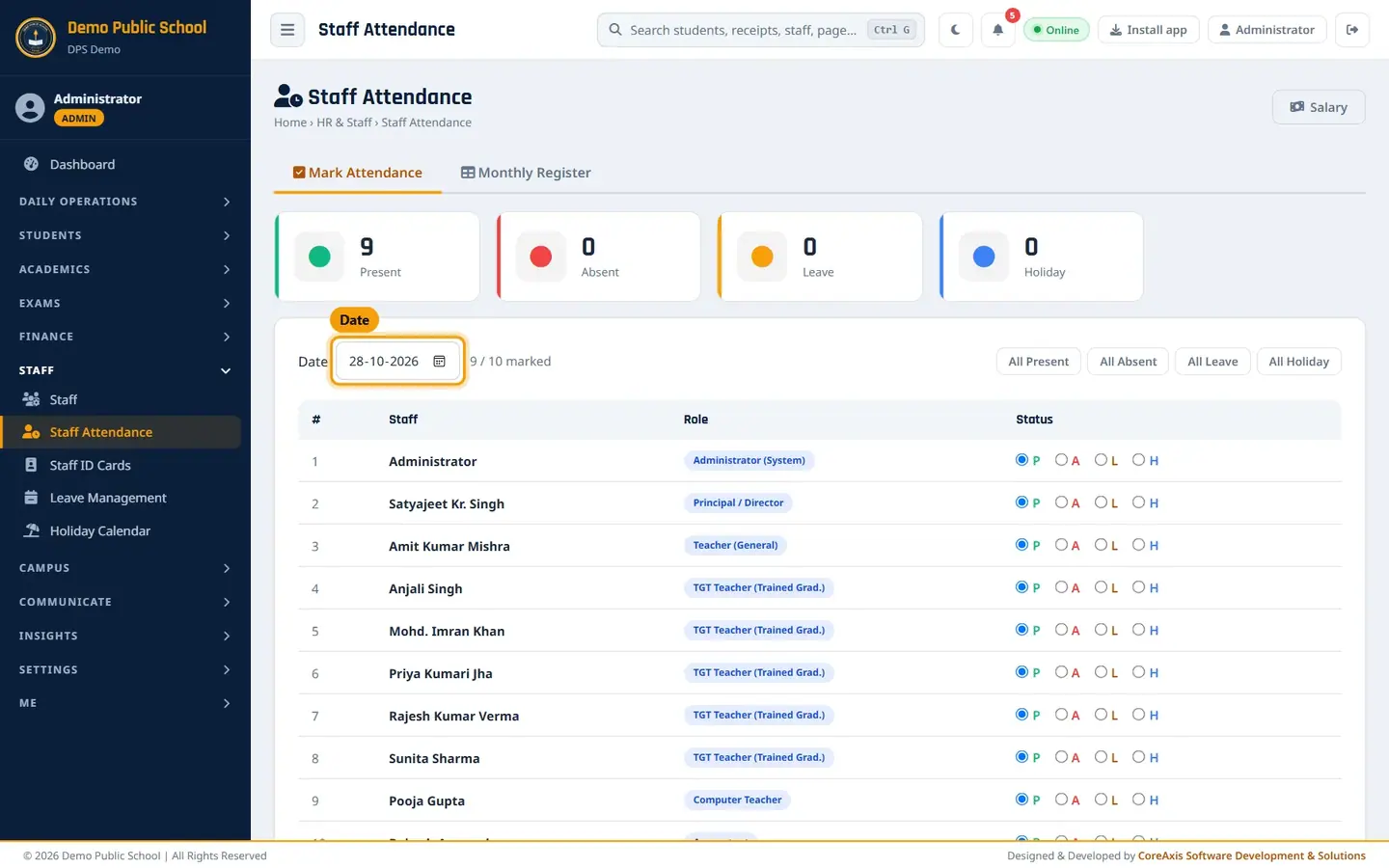
Mark Attendance for today, with counts at the top. To mark another day, change the Date box.
For each staff member, tick P (present), A (absent), L (leave) or H (holiday). Here, tick P for Priya Kumari Jha.
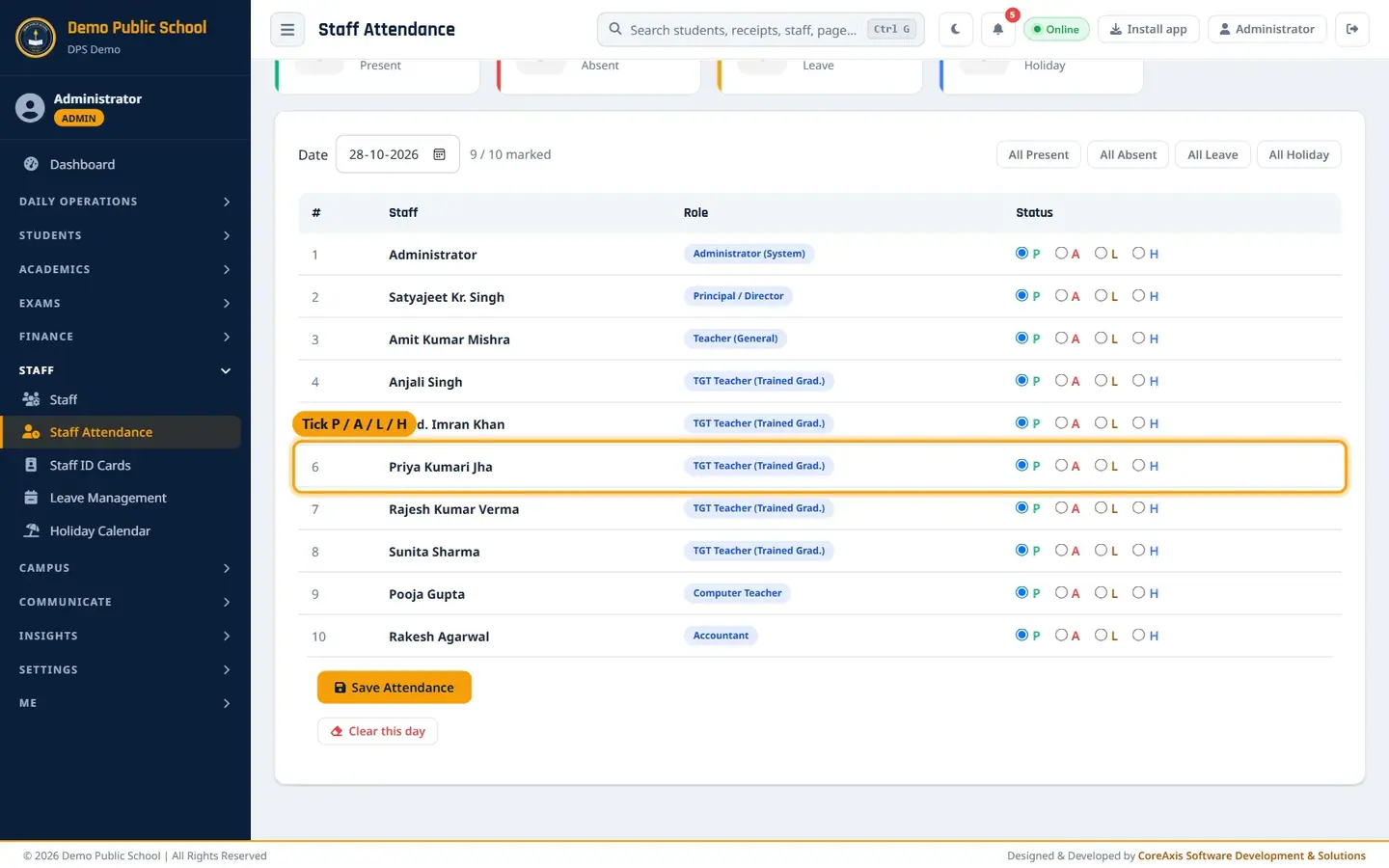
One row per staff member with P / A / L / H. To fill everyone at once, click All Present (or All Absent, All Leave, All Holiday), then change only the exceptions.
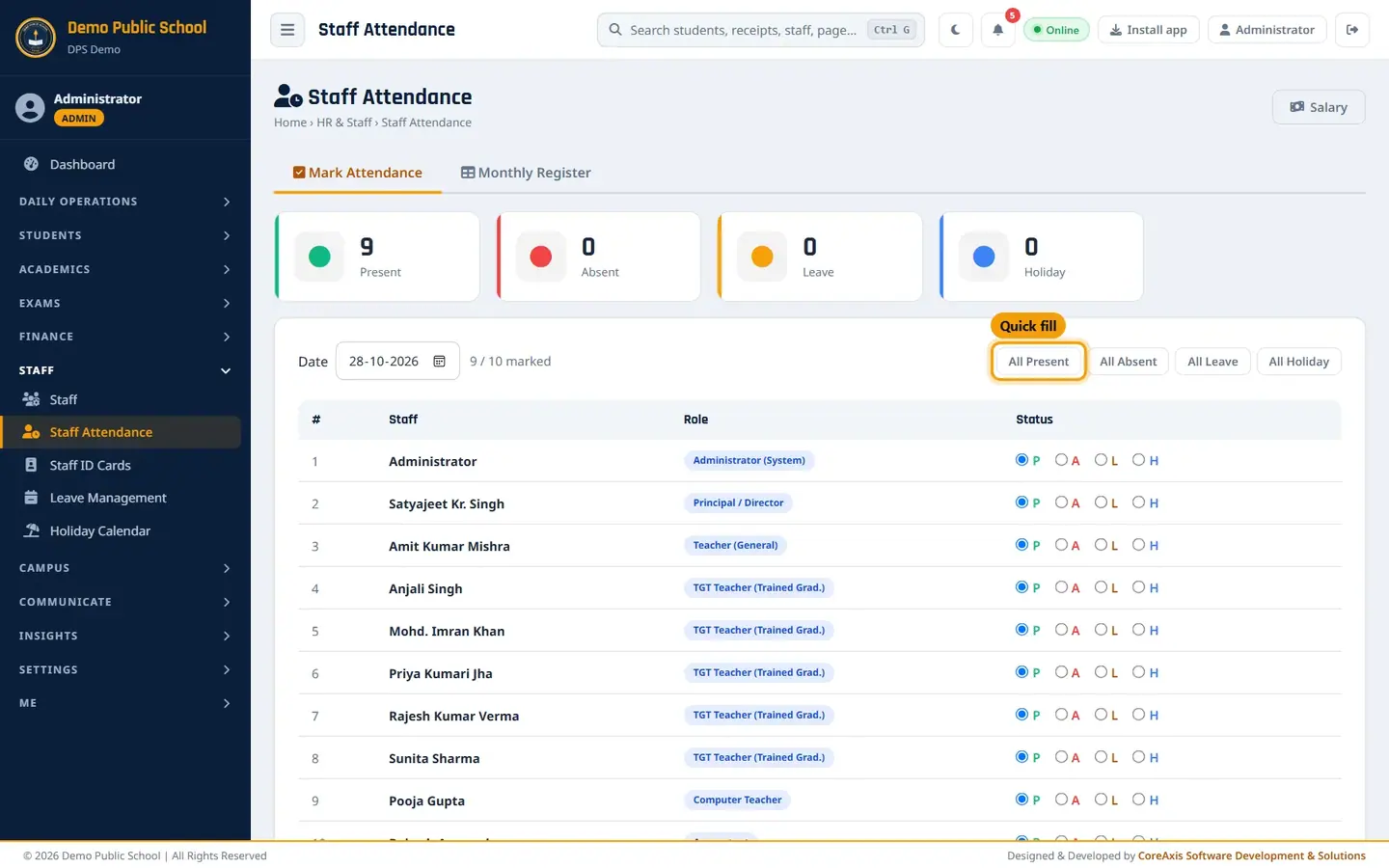
Quick-fill buttons above the list. Click Save Attendance at the bottom and confirm.

Save Attendance. The message Staff attendance saved for 28 Oct 2026 (10 staff) appears and the counter shows 10 / 10 marked.
Saved: 10 present, 0 absent.
TipA staff member with approved leave on that day shows a leave badge next to the name; mark them L.
TipSundays and holidays from the Holiday Calendar are shaded in the register; you do not need to mark them.
TipYou can save again later in the day; the new choice replaces the old one.
ImportantClear this day removes every staff mark for the selected date. Use it only if you marked the wrong date.
Read the Monthly Register
Click the Monthly Register tab.
Pick the month in the month box (for example October 2026).

One row per staff member, one column per day, totals on the right. Read the totals in the P, A, L and H columns. These are the days Payroll uses for the month.
Screen at a glance
- Present / Absent / Leave / Holiday cards
- Counts for the selected date.
- Date and 'x / y marked'
- The day being marked and how many staff already have a status.
- Status (P / A / L / H)
- P present, A absent, L leave, H holiday.
- Salary button
- Opens Finance › Salary / Payroll.
- Monthly Register legend
- Blank = not marked; shaded = Sunday or holiday; · = no mark on an off day.
Questions
I forgot to mark attendance yesterday.
Change the Date box to yesterday, mark everyone and click Save Attendance.
A teacher was on approved leave. What do I mark?
Mark L. The leave badge next to the name links to the approved application. Salary pays sanctioned leave as per its type (full pay, half pay or without pay).