 CoreAxis School ERP
Staff · Chapter 38
Leave Management
Every staff member applies for leave from their own My Leave tab and sees their balance for each leave type. The Principal (or Vice Principal / Admin) approves, rejects or returns each application; if the recommendation level is on, a Head Teacher / HOD recommends it first. Approved leave is shown in Staff Attendance, the Leave Calendar and the Register, cuts the balance, and prints as a sanction order on the school letterhead. The same screens also handle student leave sent by parents or class teachers.
Apply for leave as a staff member (example: Rakesh Agarwal, accountant, CL on 6–7 November 2026)
Teachers and accountants open Me › My Leaves. Admin-level users open Staff › Leave Management and the My Leave tab.
Open Me › My Leaves. The top of the page shows My leave balance for the leave year (for example CL 16 available, EL 30, HPL 20).
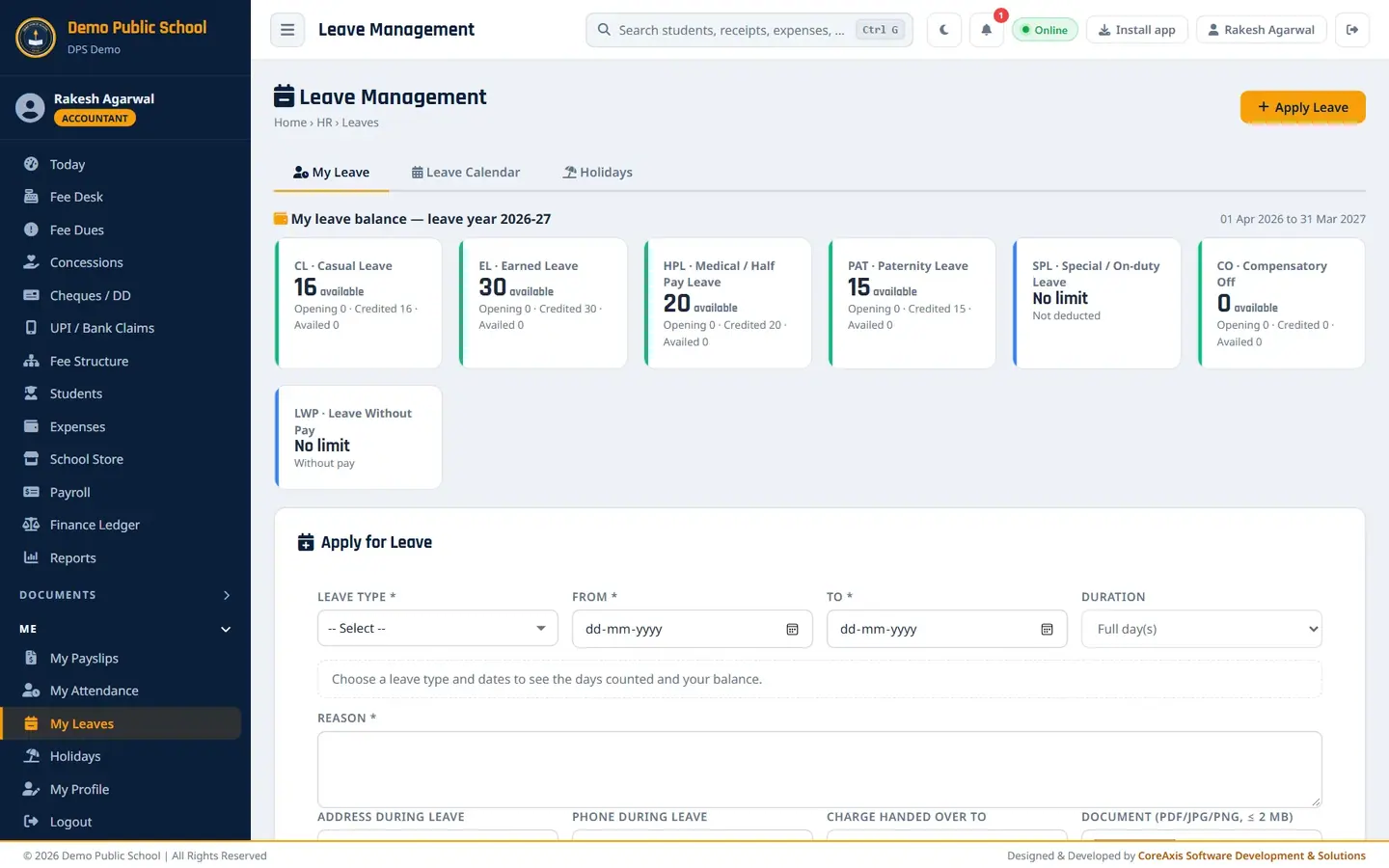
Balance cards for each leave type. Under Apply for Leave, choose the Leave Type: CL — Casual Leave (16 left).
Fill From (06-11-2026) and To (07-11-2026). Leave Duration at Full day(s), or choose First half / Second half for a half day.
Read the grey box: it shows the days counted (2 leave days), your balance (16) and OK to submit. If a rule is broken, it says why here.

Filled form: days counted, balance check, Submit Application. Type the Reason (Attending my younger sister's wedding in Gaya.). Add Address during leave and Phone during leave.
Teachers: choose Charge handed over to and write Class arrangement notes (who takes your periods). Attach a Document (PDF/JPG/PNG, up to 2 MB) if the leave type needs one, for example a medical certificate.
Click Submit Application and confirm in the popup.

Confirm popup. The message Leave application submitted (2 days) appears. The application is listed under My Applications with the status Applied.

My Applications: status Applied, with Withdraw.
TipClick Withdraw to take back an application that is still waiting.
TipAfter an approved leave, use Joining report in My Applications to record the day you resumed duty. An early return gives the unused days back.
TipTo cancel an approved leave (all or some days), use the cancel request in My Applications. The approver must accept it.
Approve, reject or return a leave as Principal
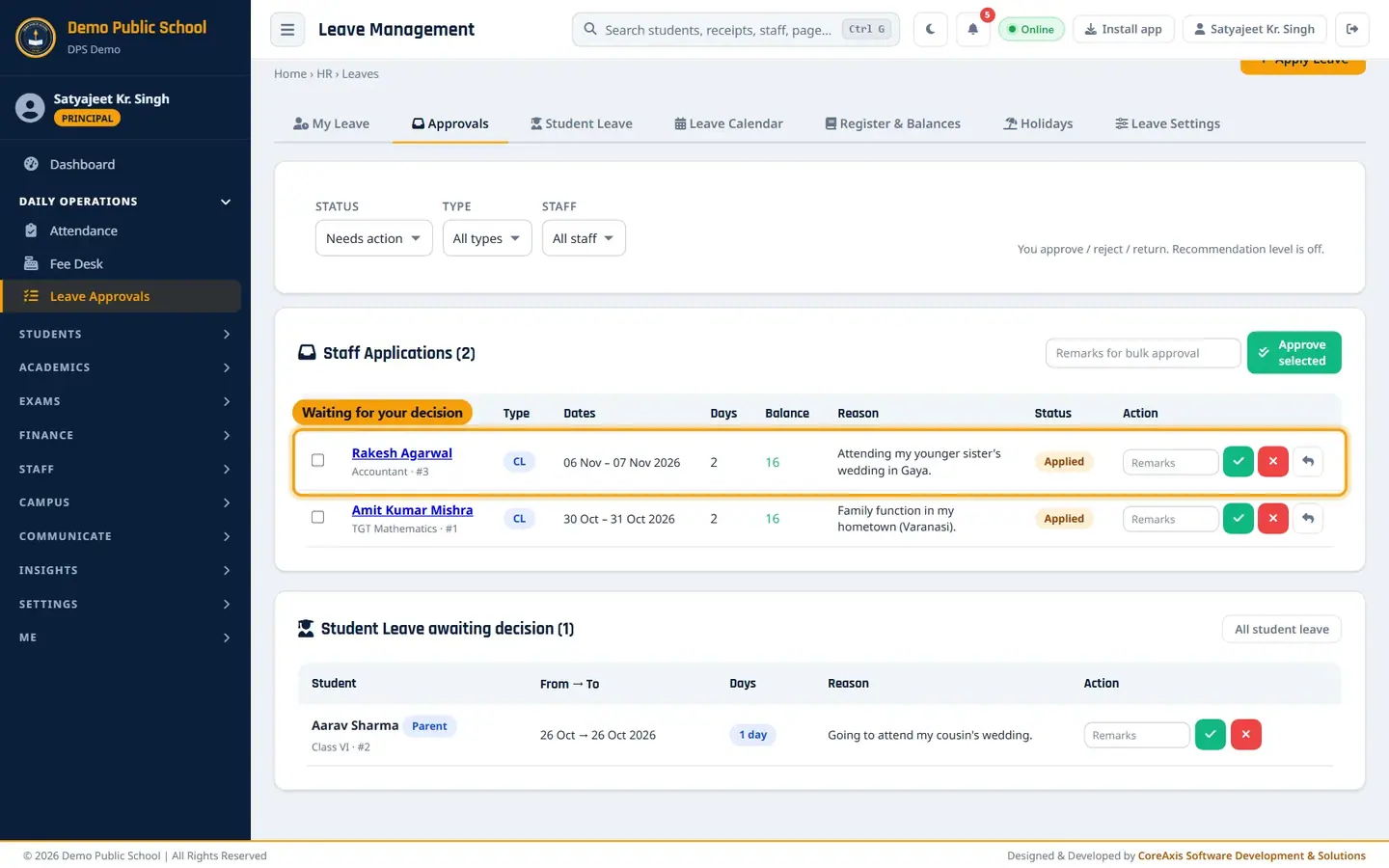
Sign in as the Principal and open Daily Operations › Leave Approvals (or Staff › Leave Management › Approvals). Needs action shows every application waiting for you.
Staff Applications waiting for a decision, with balance. Check the Type, Dates, Days and Balance columns. Balance in green means enough days are left; red means not enough.
Click the applicant's name to see the full application: address, phone, charge handed over, document, timeline and the timetable periods that need a substitute.

One application in full, with the periods to arrange. Back in the list, type Remarks (Sanctioned. Fee desk cover by office staff.).

Remarks box and the action buttons. Click the green tick (Approve), the red cross (Reject) or the return arrow (Return for correction), and confirm.

Confirm the approval. The message Leave approved. appears. Change Status to Approved to see it with a print button.
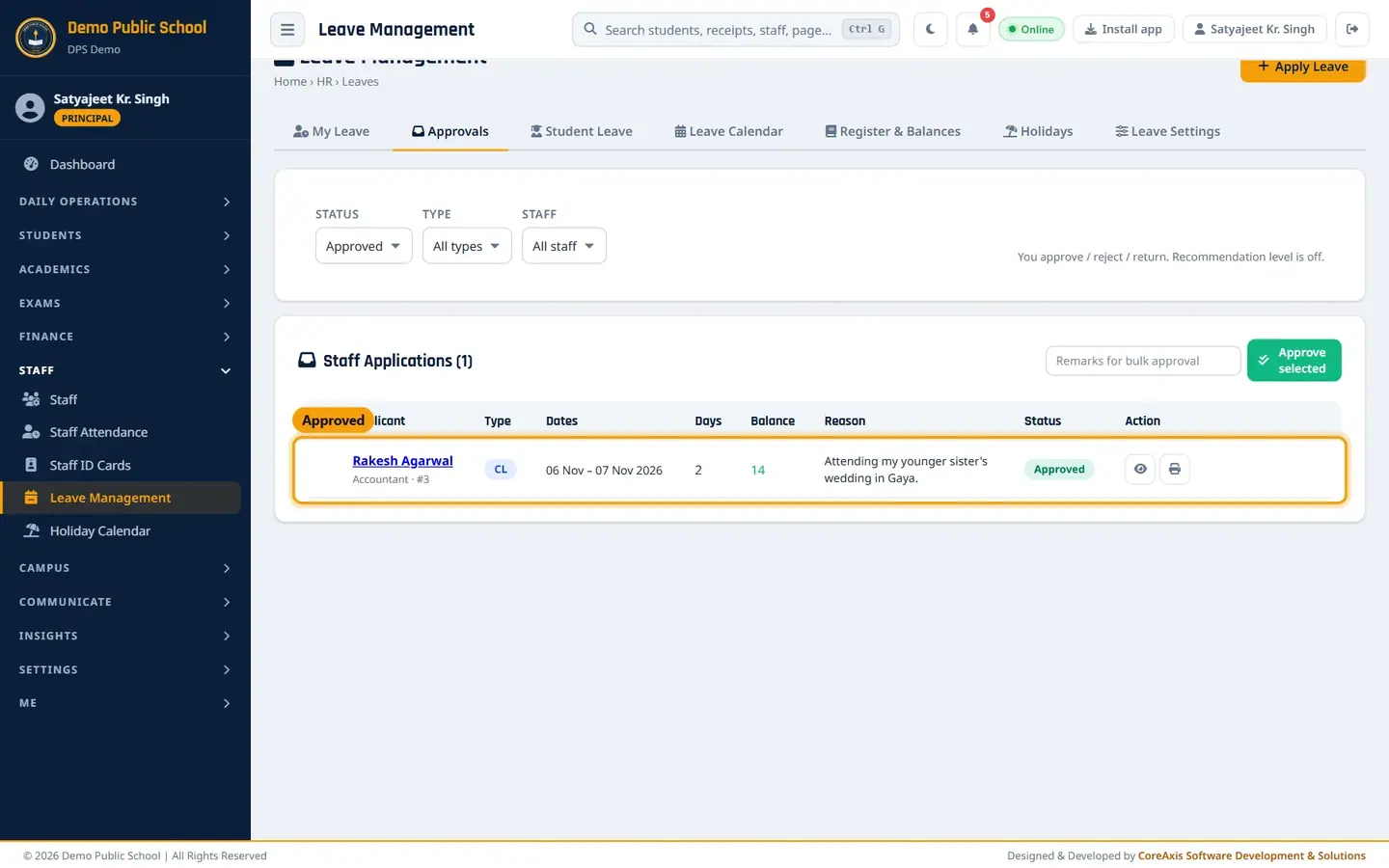
Approved list with View and Sanction order. Click the print icon (Sanction order) to print the leave sanction order on the school letterhead.

Leave Sanction Order with order number and balance after the leave.
TipTo approve many applications at once, tick them, type one remark in Remarks for bulk approval and click Approve selected.
TipReturn sends the application back to the staff member to correct and resubmit; write what to change in Remarks.
TipThe applicant gets a notice of every decision (and an SMS if Leave alerts are on in SMS settings).
Recommendation level (HOD recommends, Principal approves)
When Recommendation level is ticked in Leave Settings, staff applications first go to the chosen recommenders (for example a Head Teacher / HOD). The recommender sees an Approvals tab with a Recommend button and a Return button. After it is recommended, the status becomes Recommended and the Principal approves or rejects as above. In the demo school the recommendation level is off, so the screen says: You approve / reject / return. Recommendation level is off.
Student leave
Open the Student Leave tab. Parents apply from the student portal (marked Parent); class teachers and the office can click + Student Leave to file one.
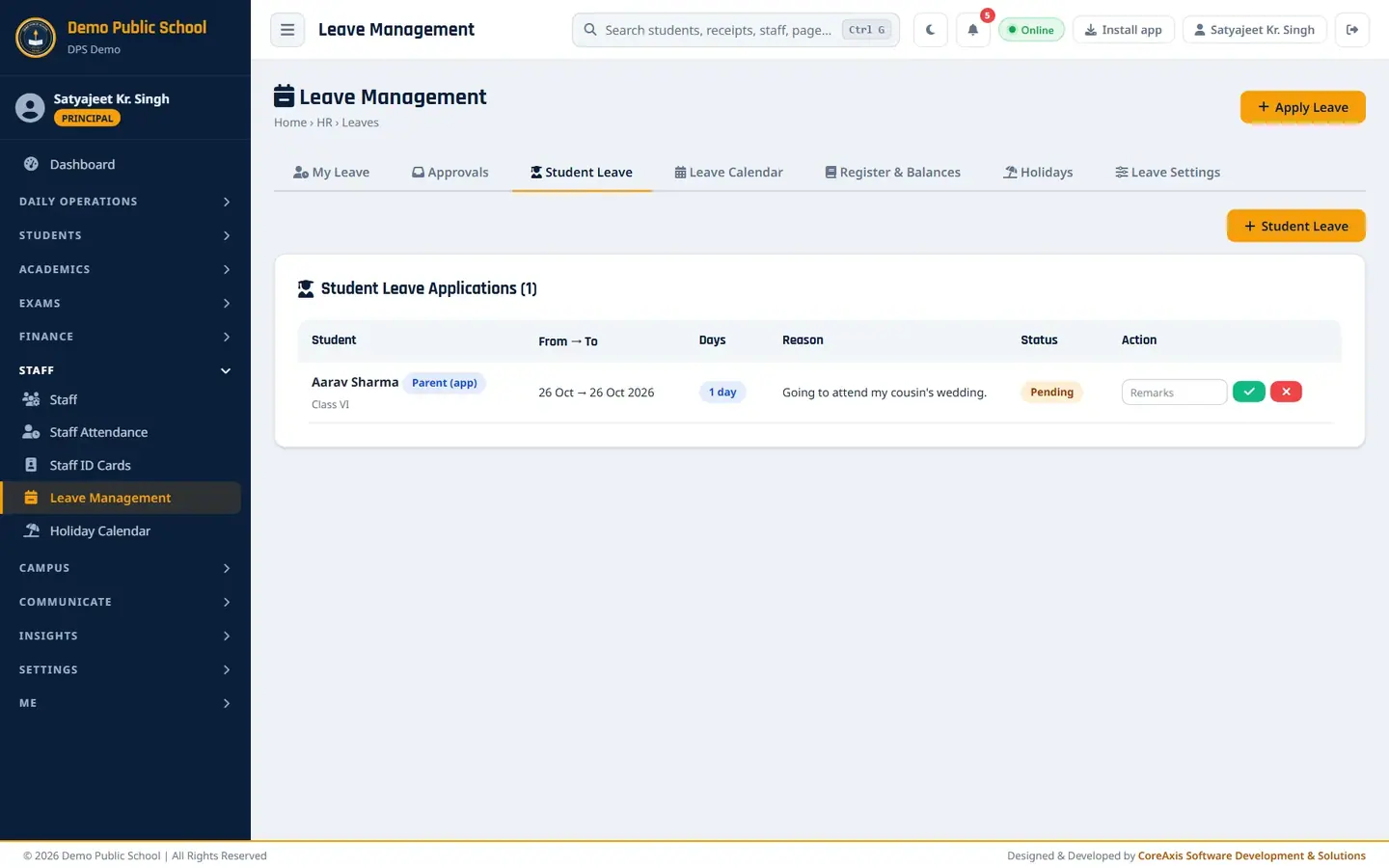
Student Leave Applications with Pending status. Type a remark and click the green tick to approve or the red cross to reject. The popup names the student, for example "Approve the leave of Aarav Sharma? The parent sees the decision in the portal / app." Click Approve or Reject. The class teacher of the student's class or the Principal can decide. The parent is told the decision.

Approve popup for Aarav Sharma's leave.
Leave Calendar and substitution list
Open the Leave Calendar tab and pick the month (November 2026). Green chips are approved leave; amber chips are awaiting a decision.

Month view: Rakesh Agarwal on CL on 6 and 7 November. Click Substitution list and choose a date to see teachers on leave, their periods and suggested free teachers. Click the printer icon to print it for the staff room.
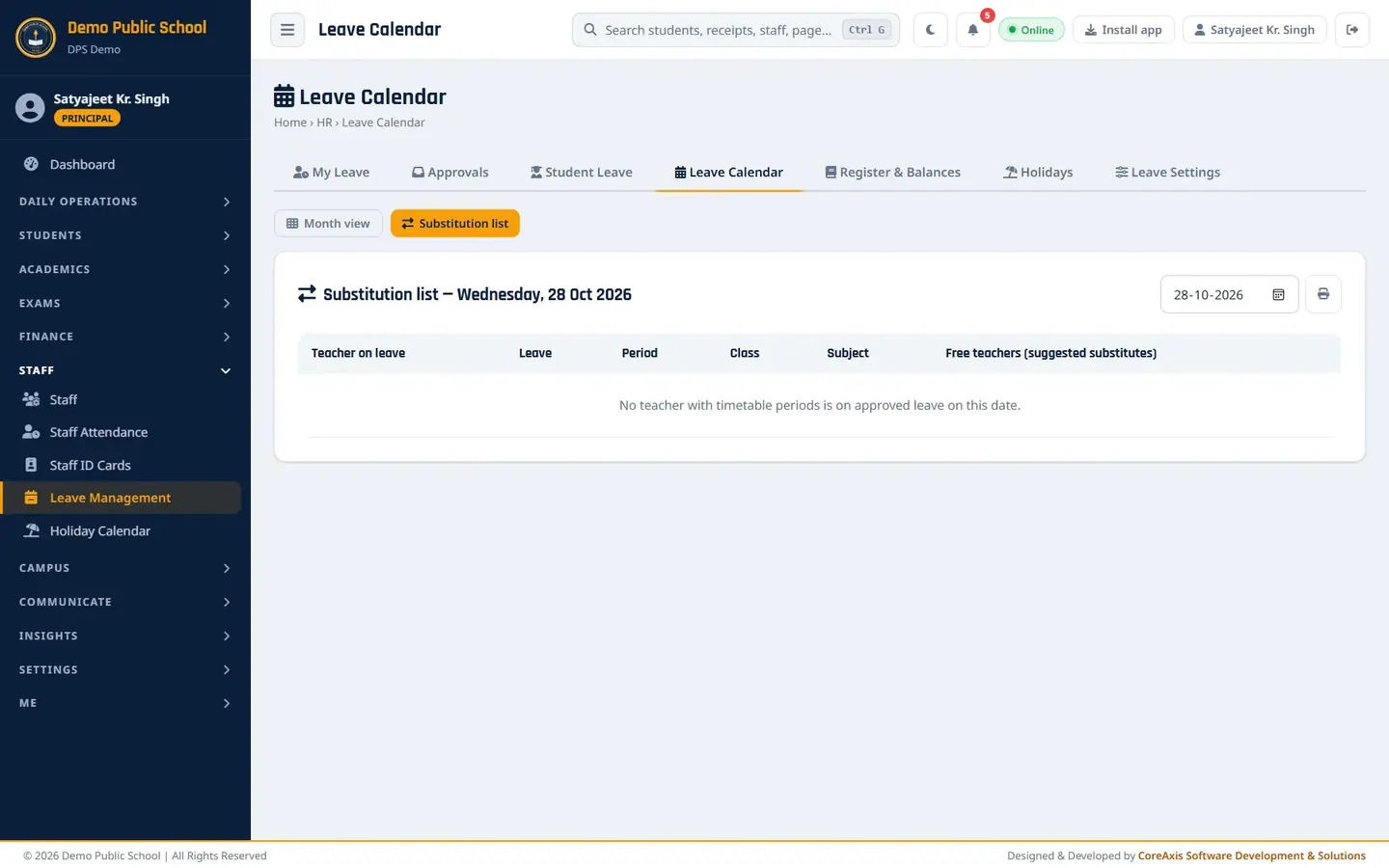
Substitution list for one day.
Leave Register and balance report (Admin / Principal)
Open Register & Balances. Filter by Leave year, Staff, Type and Status.

Leave register: one line per application with order number. Click Balance report to see, for each staff member and leave type, the opening, credited, availed and balance days.
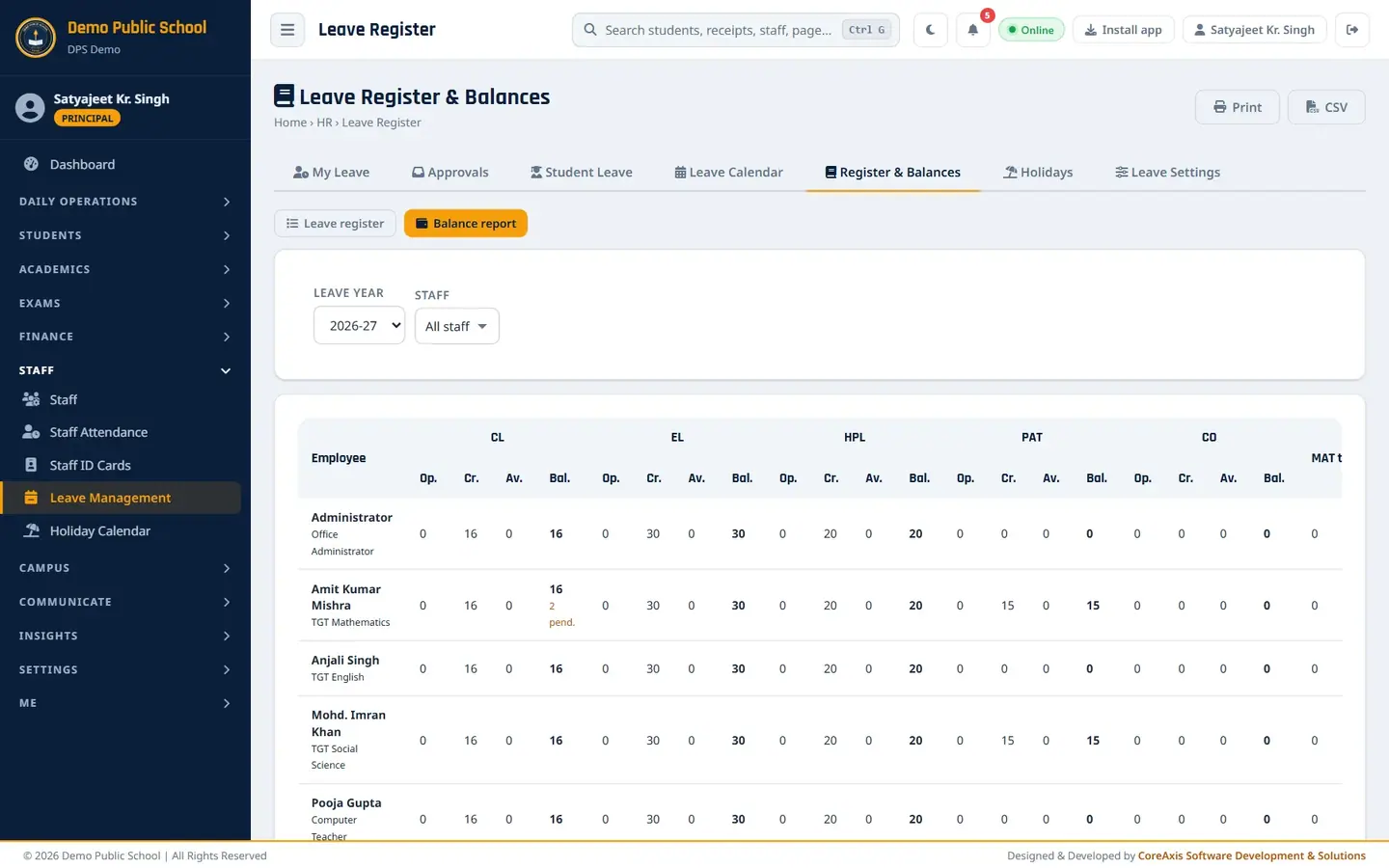
Balance report. Click Print for a paper register or CSV to open it in Excel.
Leave Settings: types, rules, leave year and balances (Admin / Principal)
Open Leave Settings. The table Leave types & rules lists every type with its quota, credit pattern, carry-forward cap, half-day, document rule, gender, pay effect, sandwich rule, notice days and maximum at a time.

Leave types & rules. Click Add Leave Type (or the pencil on a row) to set a type's rules, then Save.

Leave type form. Under Workflow & leave year, choose the Leave year (academic session or calendar year), turn the Recommendation level on or off, tick the Recommenders and click Save.
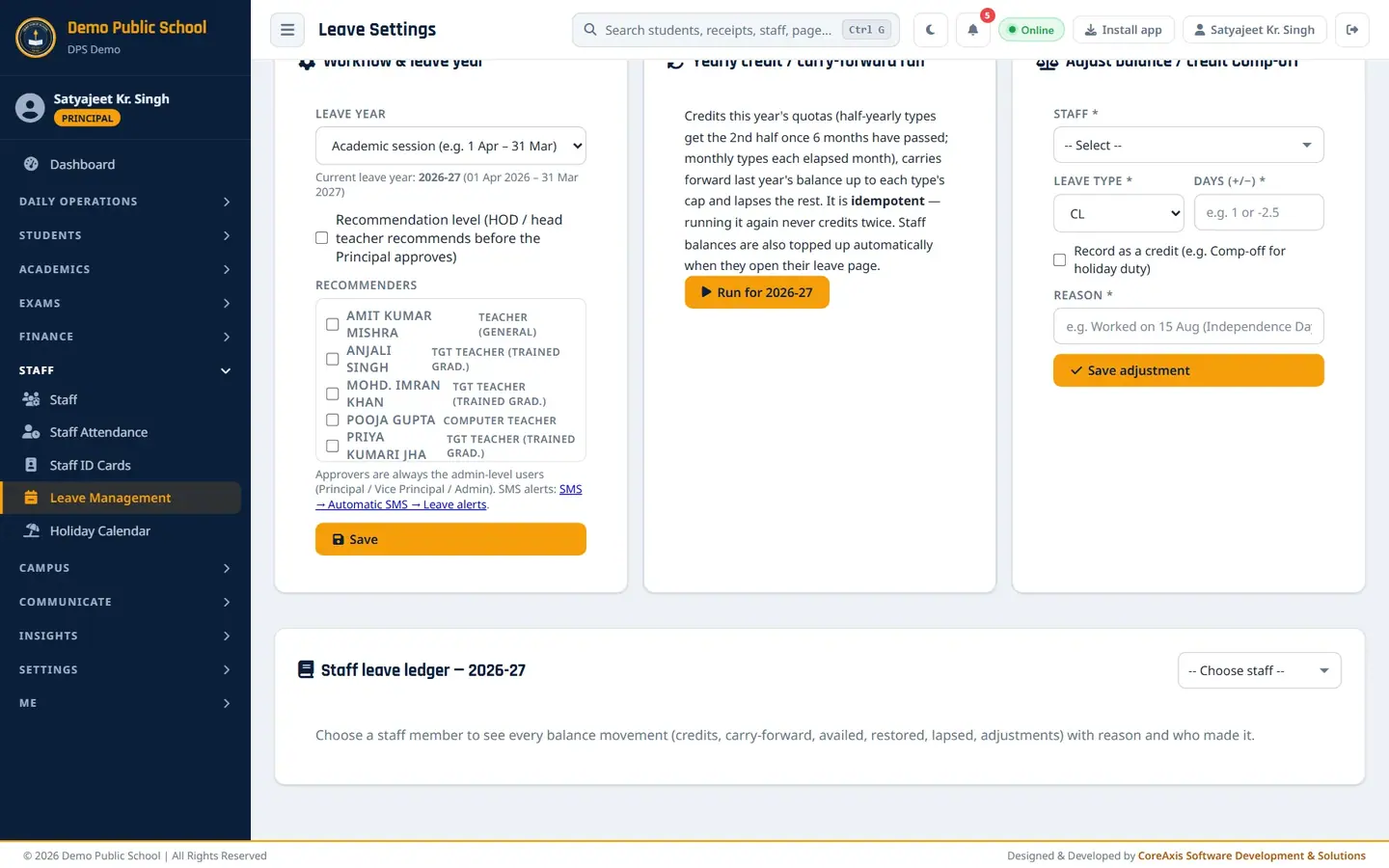
Workflow & leave year, yearly credit run and balance adjustment. At the start of a leave year, click Run for 2026-27 under Yearly credit / carry-forward run. It credits quotas and carries forward balances; running it again never credits twice.
To give a Comp-off for holiday duty or correct a balance, use Adjust balance / credit Comp-off: choose Staff, Leave type, Days, tick Record as a credit if needed, write the Reason and click Save adjustment.
Leave types in the demo school
- CL — Casual Leave
- 16 a year, credited yearly, lapses at year end, half-day allowed, at most 5 days at a time.
- EL — Earned Leave
- 30 a year, credited half-yearly, carry forward up to 300, 7 days' notice, sandwich rule on.
- HPL — Medical / Half Pay Leave
- 20 a year, half pay, document needed for more than 3 days.
- MAT / PAT — Maternity / Paternity Leave
- Maternity: women only, up to 180 days, twice in service, document always. Paternity: men only, 15 days.
- CCL — Child Care Leave
- Inactive in the demo school.
- SPL — Special / On-duty Leave
- No limit, not deducted (exam duty, training).
- CO — Compensatory Off
- Credited by the office for work on a holiday.
- LWP — Leave Without Pay
- No limit; deducted from salary.
Questions
The form says the leave cannot be submitted.
Read the grey check box under the dates. It names the rule, for example not enough balance, too many days at a time, or notice days not met. Choose another type (for example LWP) or change the dates.
Do Sundays inside my leave count?
Only for types with the Sandwich rule on (EL, HPL, MAT, PAT, LWP in the demo school). For CL, Sundays and holidays inside the dates are not counted.
Can the office apply on behalf of a teacher who is ill?
Yes. Admin-level users see an Applicant box on the Apply form; choose the teacher. Filing for someone else waives the notice rule.
Can an approved leave be deleted?
No. Approved staff leave changes balances and attendance, so it must be cancelled through a cancellation request instead.