 CoreAxis School ERP
Academics · Chapter 11
Classes
The Classes page lists every class of the school with its sections, student count, class teacher, monthly fee and admission fee. The order of the list is the promotion order: at session end, students move to the next class in this list. Fees set here feed the Fee Desk and fee dues; the class teacher set here decides who can mark attendance and enter marks for that section. Every action on this page first asks you to confirm in a popup, so nothing changes by a stray click.

Screen at a glance
- Classes / Sections / Active students
- Three counters at the top: how many classes, how many sections in all, and how many active students are enrolled.
- Lock note
- The blue note reminds you that the class order is locked. It can only be changed after you click Reorder.
- Class card
- One card per class, numbered in promotion order (1 = lowest class). The line under the name shows the number of sections, students and subjects. Click the subjects link to open Subjects filtered to that class.
- Rename
- Renames the class for all its sections. Students, fees and subjects stay as they are.
- + Section
- Adds another section (B, C …) to the class with the same fees, subjects and promotion order.
- Section table
- Columns: Section, Students, Class Teacher, Monthly Fee, Admission Fee, Actions.
- Edit (pencil)
- Opens the section's form: section name, monthly fee, admission fee and class teacher.
- Delete (bin)
- Deletes an empty section. The bin is greyed out with the hint "Cannot delete: has students" while the section has any students, including students who have left.
- Subjects (top right)
- Opens the Subjects page.
- Reorder
- Unlocks the class order so you can drag classes or use the ↑ ↓ arrows.
- Add Class
- Opens the form to create a new class with one or more sections.
Add a class (example: Class IX, section A, ₹1,200 a month)
Demo Public School is opening Class IX next session. Rajesh Kumar Verma will be its class teacher.
Open Academics › Classes and click Add Class at the top right.
The Classes page with the Add Class button. A confirmation popup asks "Add a new class?". Click Yes, add class. The form opens; nothing is saved yet.
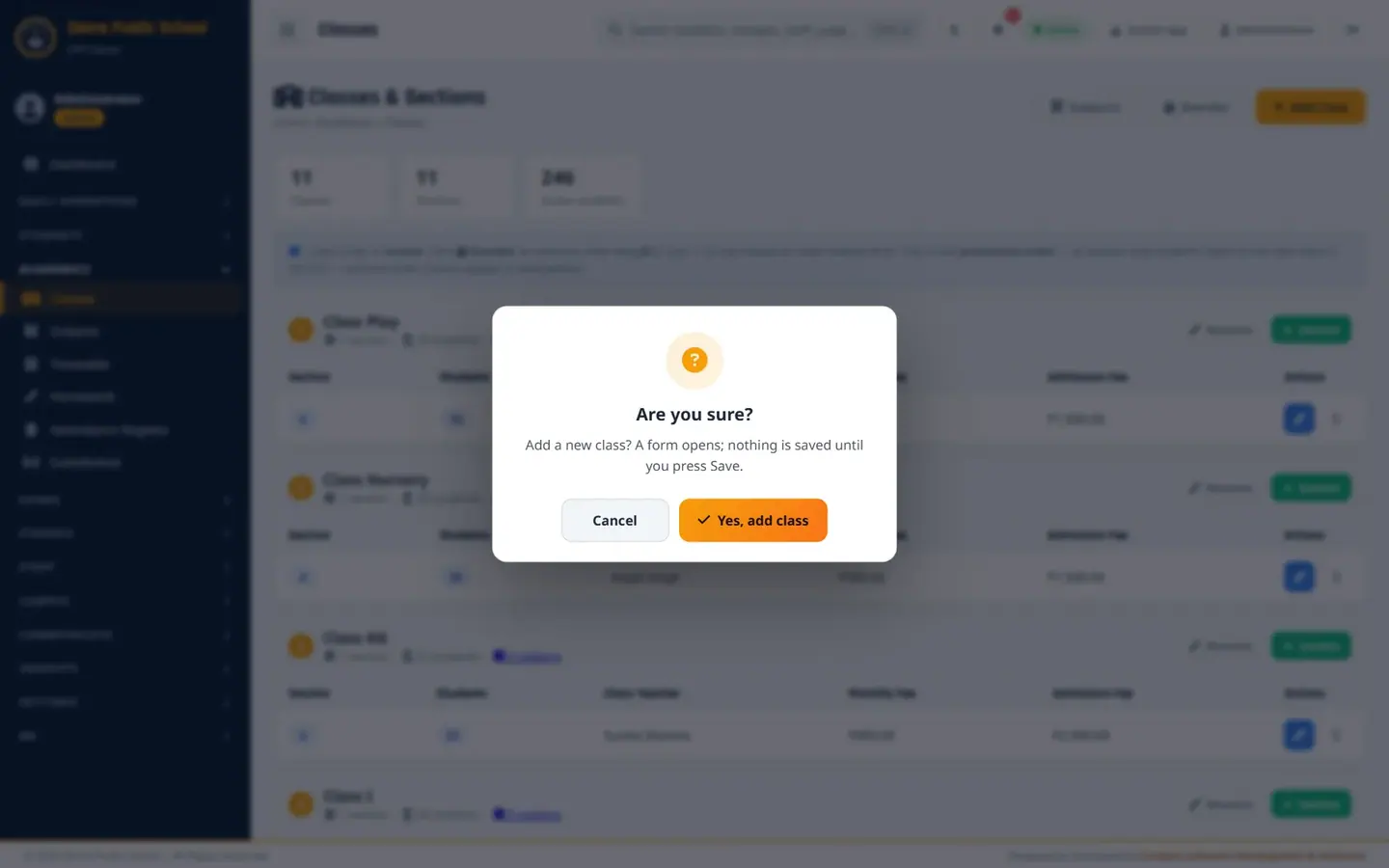
Every action on this page starts with a confirmation popup. Type IX in Class Name.
Under Sections, keep A ticked. Tick more letters if the class starts with more sections, or type a name such as Rose in Other name.
Enter 1200 in Monthly Fee (₹) and 3000 in Admission Fee (₹).
Pick Rajesh Kumar Verma in Class Teacher.
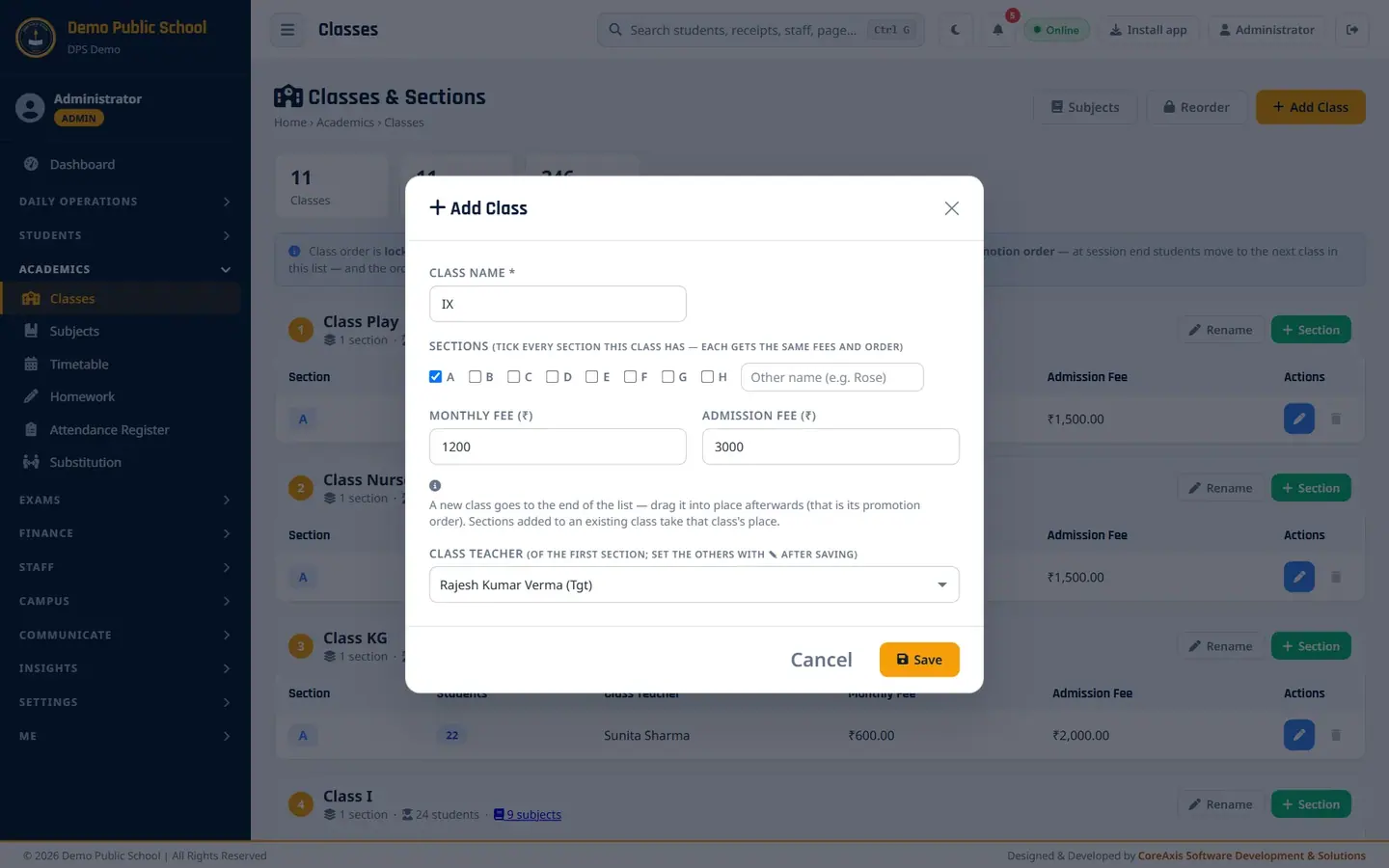
The Add Class form filled in for Class IX. Click Save, then Yes, add in the popup. The message "Class IX: section A added." appears and Class IX is added at the end of the list.
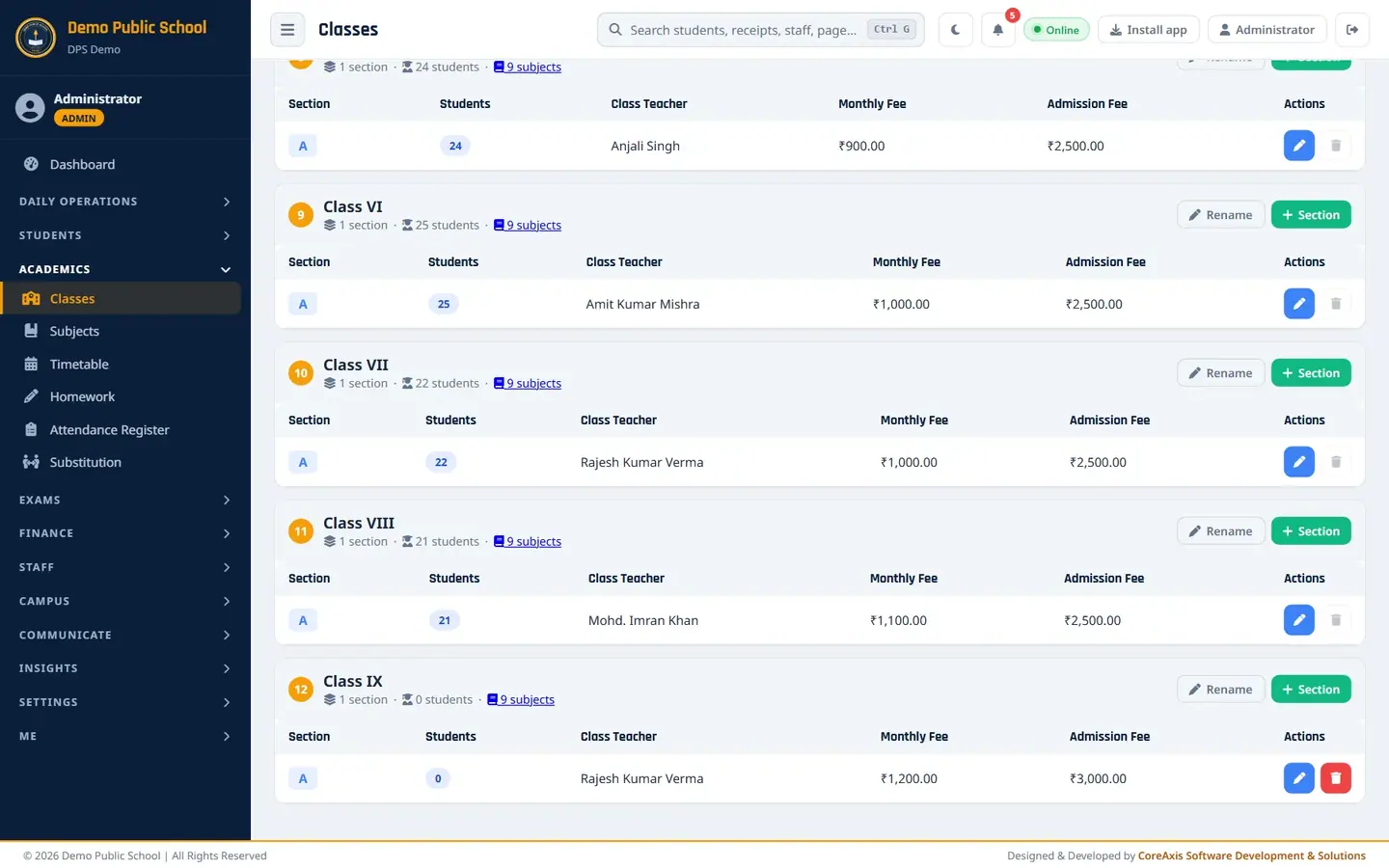
Class IX appears as class 12 with 0 students.
TipA new class always goes to the end of the list. If it does not belong at the end, use Reorder to move it (see below).
TipSubjects marked "All classes" are added to the new class on their own. Class IX shows 9 subjects straight away.
Add a section (example: Class IX – B with Mohd. Imran Khan as class teacher)
On the Class IX card, click + Section.
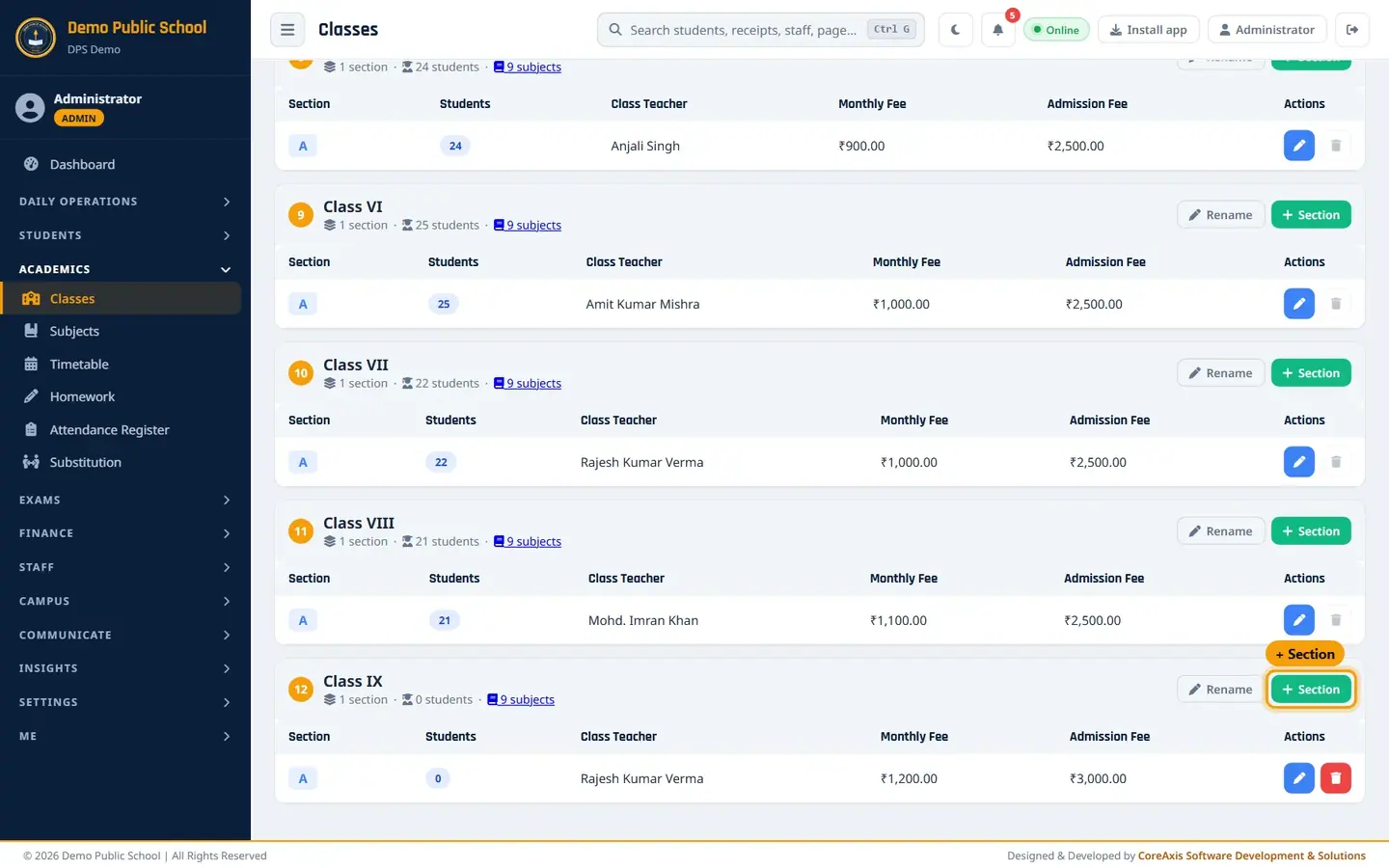
The + Section button on the class card. Click Yes, add section in the popup.
Leave Section name blank to get the next free letter (B), or type a name.
Pick Mohd. Imran Khan in Class Teacher.
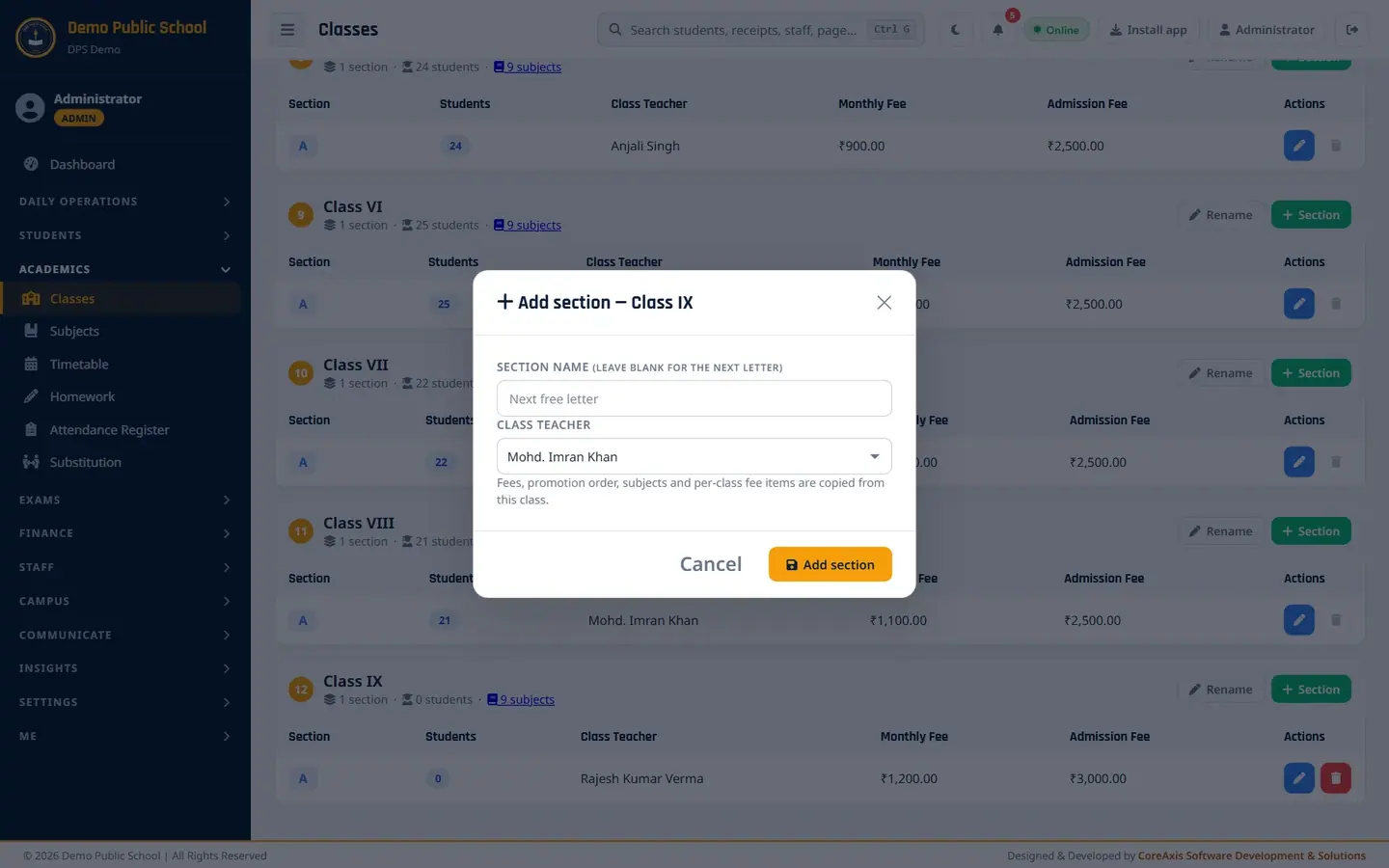
Fees, promotion order, subjects and per-class fee items are copied from the class. Click Add section, then Yes, add. The message "Section B added to Class IX — same fees, promotion order and subjects as section A." appears.

Class IX now has sections A and B.
Edit a section: class teacher and fees (example: Class IX – A)
In the section row, click the blue pencil (Edit section).
Click Yes, edit in the popup. The Edit Class IX - section A form opens.
Change Monthly Fee, Admission Fee or Class Teacher as needed. In the example the monthly fee is changed from 1200 to 1250.

The Edit section form. Click Update, then Yes, save in the popup.
TipA new monthly fee applies to months billed from now on. Months already billed keep their old price.
TipThe Correction box (it appears as soon as you change the monthly fee) also re-prices months already billed this session. Use it only to fix a wrongly entered fee. It changes what students already owe, so the app asks you once more before saving.
TipThe class teacher controls who can mark the section's attendance and enter its marks. A teacher sees only the classes they are class teacher of.
TipTo rename the whole class (all sections), use Rename on the class card, not this form.
Change the class order (promotion order)
The order on this page is used everywhere classes are listed, and at session end each class is promoted to the class below it.
Click Reorder at the top right and Yes, unlock in the popup.
Drag a class by its grip handle, or click the ↑ ↓ arrows next to its number. Other actions on the page are paused while you reorder.
Check the bar at the bottom of the page. Click Save order to keep the new order, or Cancel & lock to throw it away.
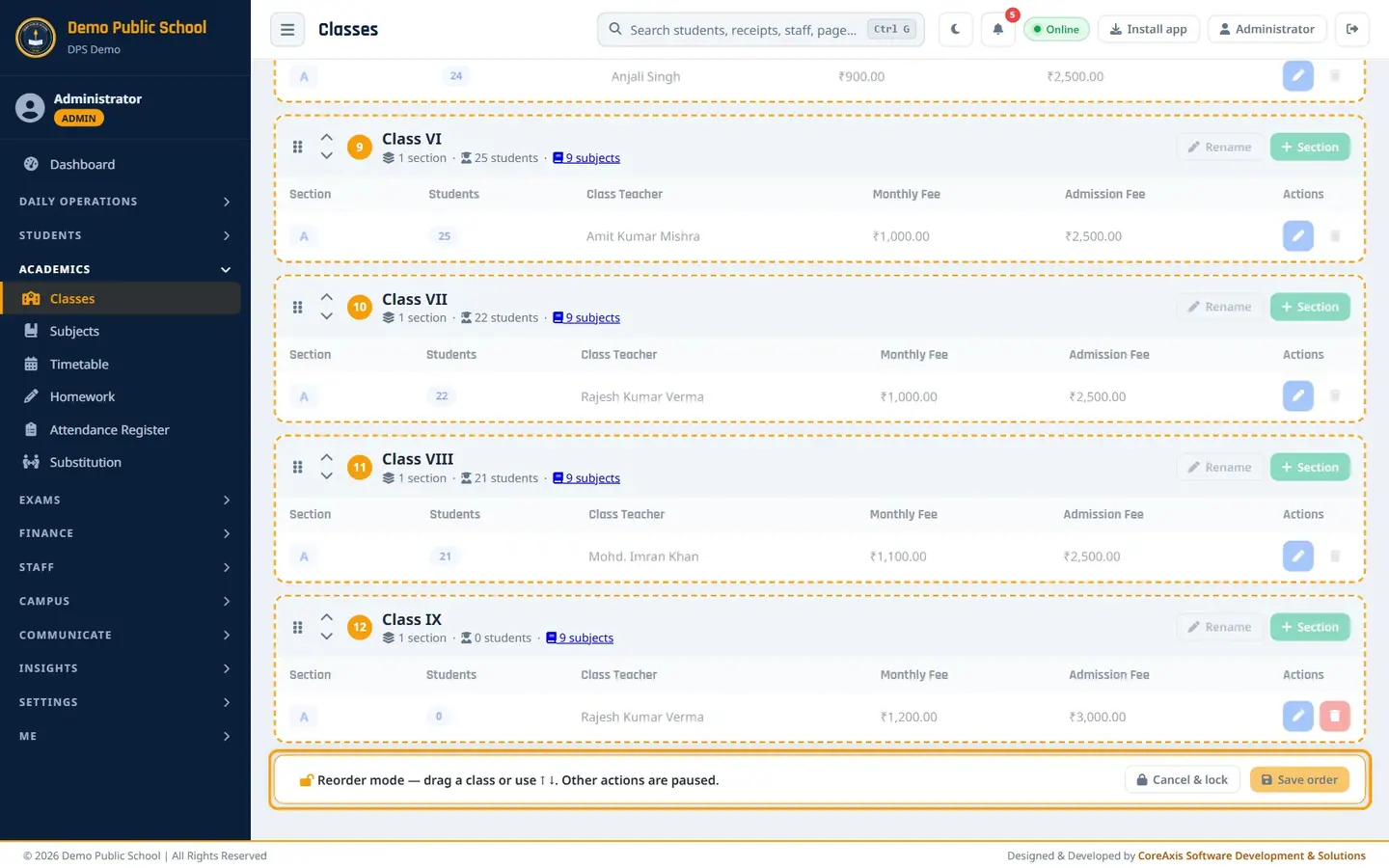
Reorder mode: dashed class cards and the Save order bar. Confirm in the popup. The message lists the new order, for example Play → Nursery → KG → … → IX.
ImportantPromotion at session end follows this order. Put the lowest class first and check the order before you save.
Rename a class
On the class card, click Rename and confirm with Yes, rename.
Type the new name and click Rename, then confirm.
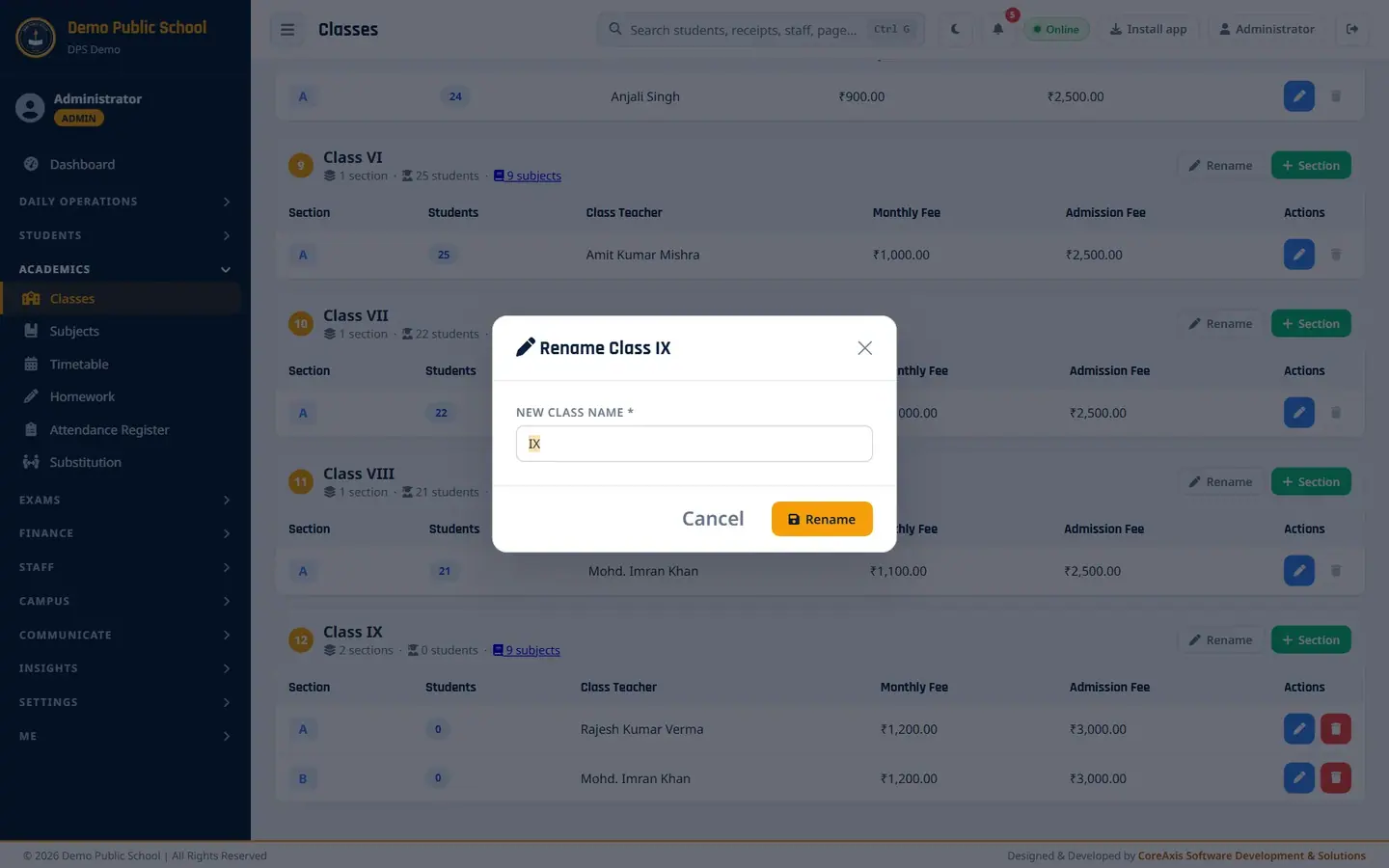
Renaming changes the name of all sections at once.
TipTwo classes cannot have the same name. The app stops you with a message if the name is already used.
Delete an empty section (example: Class IX – B)
Click the red bin in the section row. The bin works only for a section with no students.
Read the first warning: the section's timetable, per-class fees and unused subjects go with it. Click Delete.

First warning. A second warning asks "Are you absolutely sure?". Click Yes, proceed. The message "Section deleted." appears.

Deleting asks twice.
ImportantDeleting a section cannot be reversed. A section that has ever had students (including students who left) cannot be deleted — their records keep the class.
Questions
The Delete button of a section is grey. Why?
The section has students (active or left). Move the active students to another section first. Sections with past students stay, so their old records keep the class name.
We raised the Class V fee from ₹900 to ₹950. Will old months change?
No. The new fee applies to months billed from now on. Only tick the Correction box if the old fee was entered wrongly and you want every billed month re-priced.
Where do I assign subjects to a class?
On the Subjects page. Click the "9 subjects" link on a class card to open Subjects filtered to that class.