 CoreAxis School ERP
Exams · Chapter 20
Admit Cards
The Admit Card Generator prints admit cards for the eligible students of a class, with the school header, student details, photo box and the exam's subject-wise schedule. The first print of each card is registered in the Document Register as the ORIGINAL; later prints are marked DUPLICATE COPY. Opening the cards without issuing them shows a DIGITAL COPY preview.
Screen at a glance
- Class *
- Required. The class whose admit cards you print.
- Select Exam (for schedule)
- The exam whose subjects, dates and marks print on the card. — No Exam / General — prints cards for every active student without an exam schedule.
- Template
- Detailed (full page) or Simple tabular (2 per A4).
- Single Student (optional)
- Leave as All Students in Class, or pick one student.
- Generate & Print Admit Cards
- Opens the cards in a new tab.
- Preview
- Reloads the page with your choices so you can check the student list.
- Student list
- Roll No, Admission No, Student Name, Father and a Print button for one card.
- Rules / Before Printing
- Reminders: assign subjects in Exams first, give students roll numbers, print on A4 portrait with 10 mm margins.
Print admit cards for a class (example: Unit Test 2, Class VI)
Before you start: the exam's subjects and dates are set (Create Exams), the class has been checked in Exam Eligibility, and forms are submitted (Exam Form Apply).
Open Exams › Admit Cards.
Pick Class VI in Class and Unit Test 2 — November 2026 (Class VI) in Select Exam.
Keep Detailed (full page) in Template and All Students in Class in Single Student.
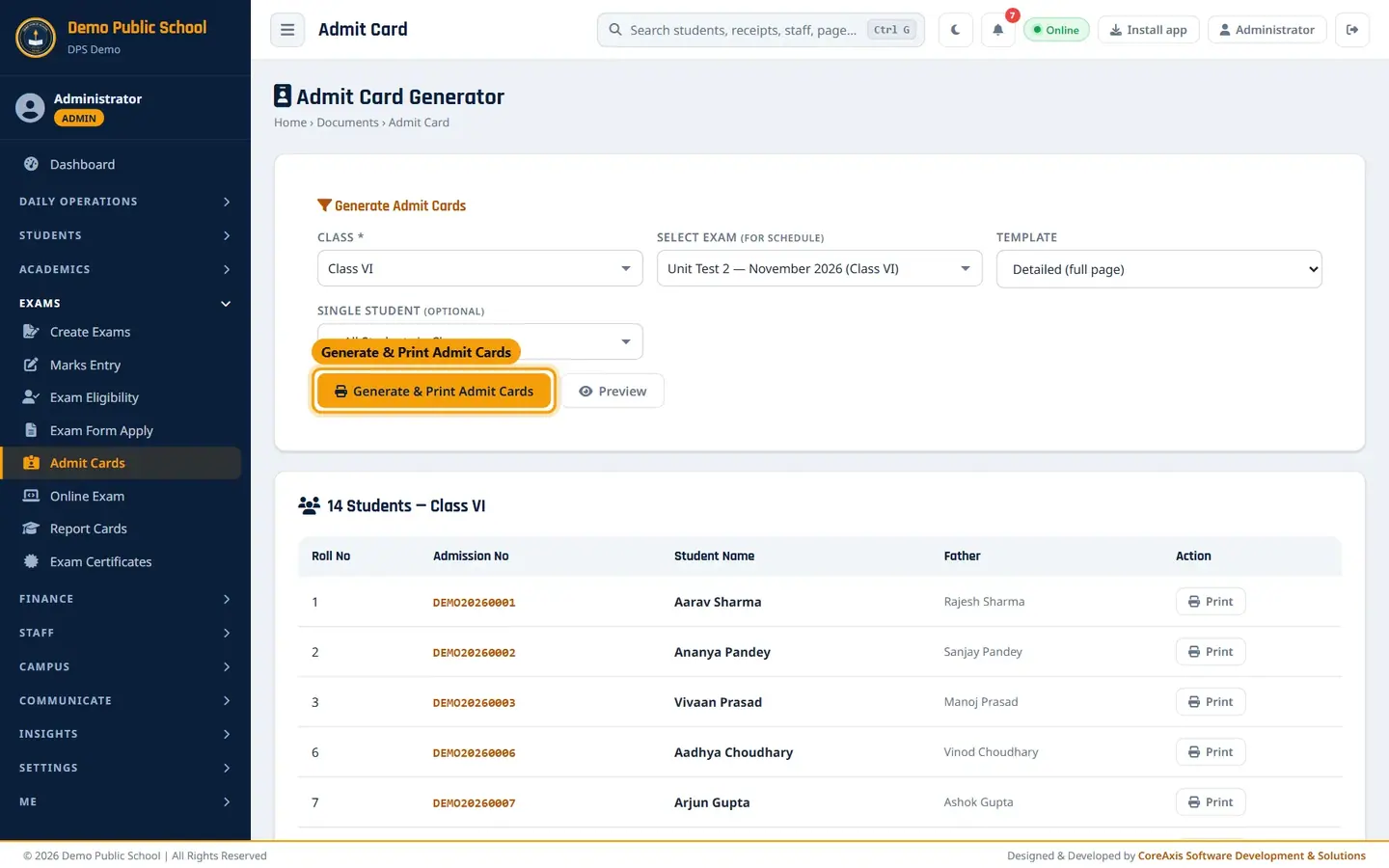
The generator with class, exam and template chosen. Click Preview and check the list: 14 students — the approved students whose exam form is submitted.

Only eligible students are listed. Click Generate & Print Admit Cards. The cards open in a new tab as a DIGITAL COPY (preview). Check the names, roll numbers and schedule.
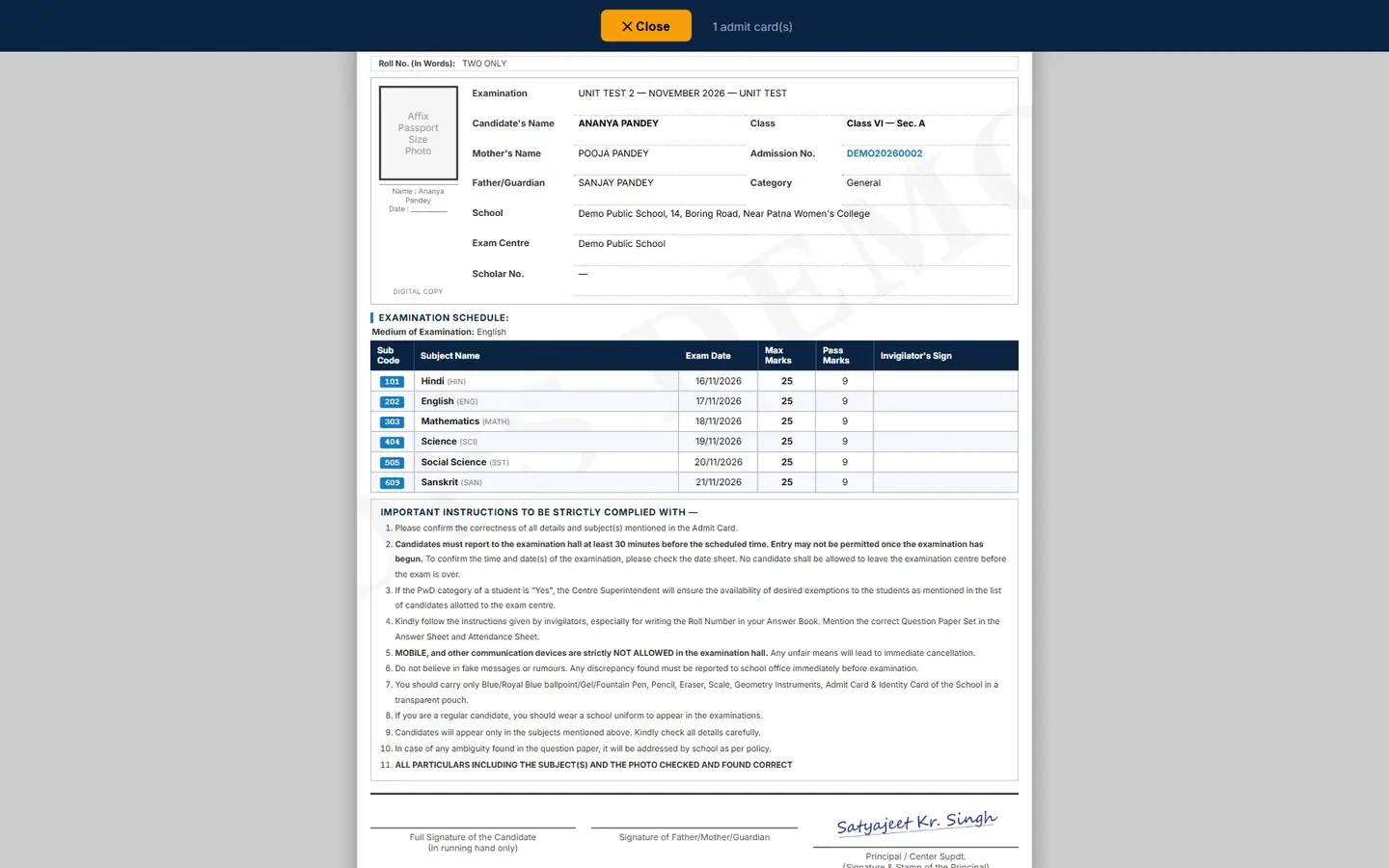
Preview of Ananya Pandey's admit card. The schedule lists only the exam's six subjects with their dates and marks. Click Issue & Print in the dark bar. The cards are registered as ORIGINAL and the browser's print window opens. Print on A4.
TipTo print one card, click Print in that student's row, or pick the student in Single Student.
TipPrinting the same card again prints it as DUPLICATE COPY – 2, 3 … Every issue is listed in the Document Register (Open Document Register in the dark bar).
TipRoll numbers must be set in the student profiles; the roll number also prints in words (for example TWO ONLY).
TipThe EXAMINATION SCHEDULE prints only the subjects ticked for the exam in Create Exams › Assign Subjects, with the dates, maximum and pass marks set there. If a subject or date is wrong, correct it there and generate the cards again.
Print two cards per page
Choose Simple tabular (2 per A4) in Template and click Generate & Print Admit Cards.
Each card shows the student table and a compact schedule, with a cut line between the two cards.
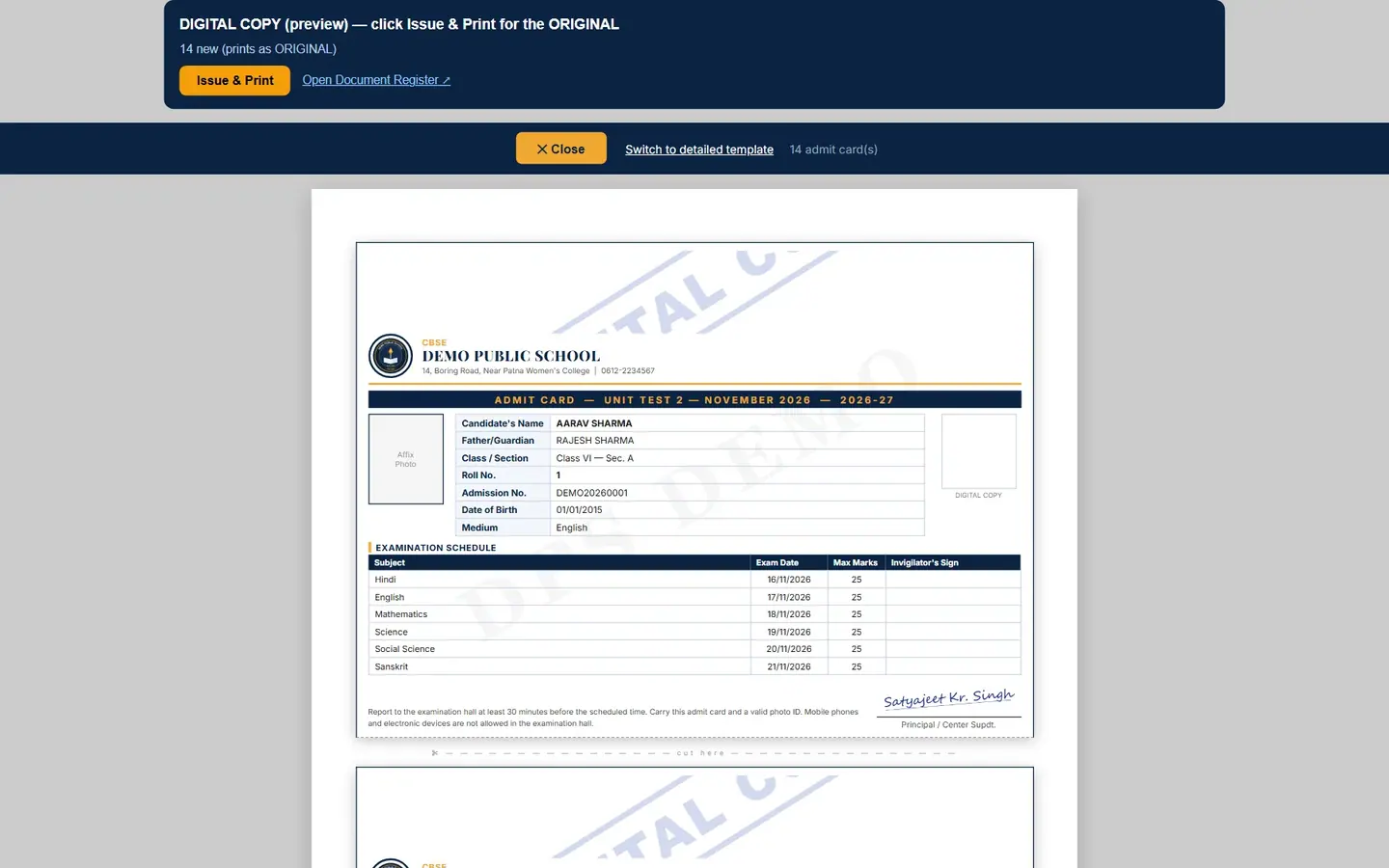
Simple tabular template: Unit Test 2's six subjects, 25 marks each. Use Switch to detailed template in the top bar to go back.
Questions
The student list is empty after I choose the exam.
No student of that class is Approved for the exam yet. Run Auto-Check in Exam Eligibility (and submit forms in Exam Form Apply), or choose — No Exam / General — to print cards for all students.
A student lost the admit card. Can I print it again?
Yes. Print it for that student; it prints as DUPLICATE COPY and the reprint is recorded in the Document Register.
Can teachers print admit cards?
Yes, for their own class, from Cards & Certificates › Admit Cards in their menu.
A subject is missing from (or extra on) the schedule.
The schedule shows exactly the subjects assigned to the exam. Open Exams › Create Exams, click Subjects in the exam's row, tick or untick the subject, save, and generate the cards again.