 CoreAxis School ERP
Students · Chapter 4
Students
Students is the school's master list of active students. Every other module (attendance, fees, exams, ID cards, certificates, the parent portal) reads the student record kept here. A new admission gets an admission number and roll number automatically, and its fee dues are created from the class fee. Admins and Principals add and edit students; the Accountant has a view-only Students page for looking up a student before collecting fees.
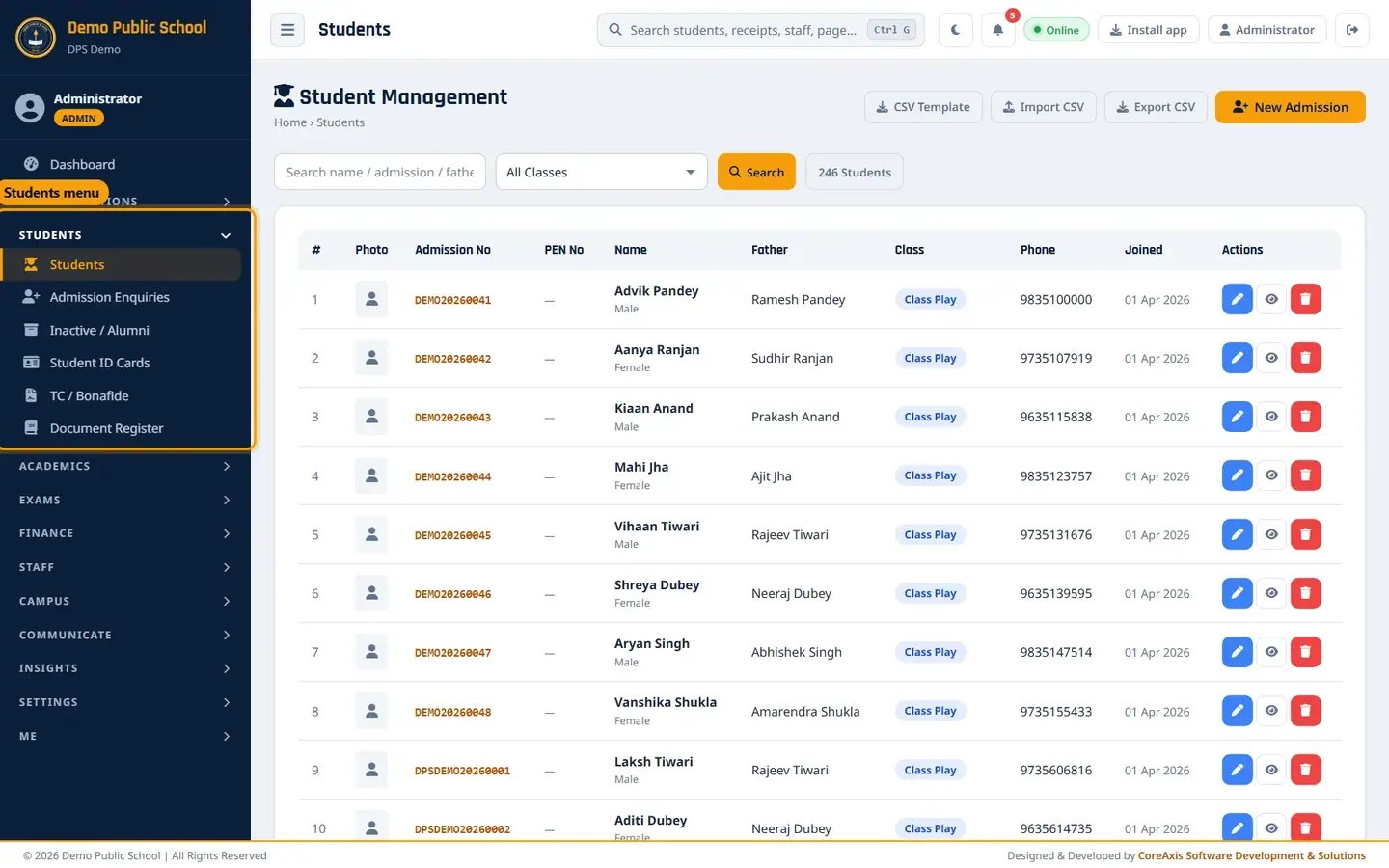
Find a student (example: all students of Class I)
In the sidebar open Students and click Students. The Student Management list opens with all active students, 25 per page.
The Students list. The count button shows how many students match. Pick a class in the All Classes box, for example Class I. The list reloads with that class only.
To search, type part of a name, admission number or father's name in Search name / admission / father... and click Search.

The list after picking Class I. Click Clear to remove the search and the class filter.
Use « Prev, the page numbers and Next » at the bottom to move between pages.
TipThe global search in the top bar (Ctrl G) also finds a student from any page.
Admit a new student (example: Ananya Singh, Class I-A)
On the Students list click New Admission. The New Admission form opens.
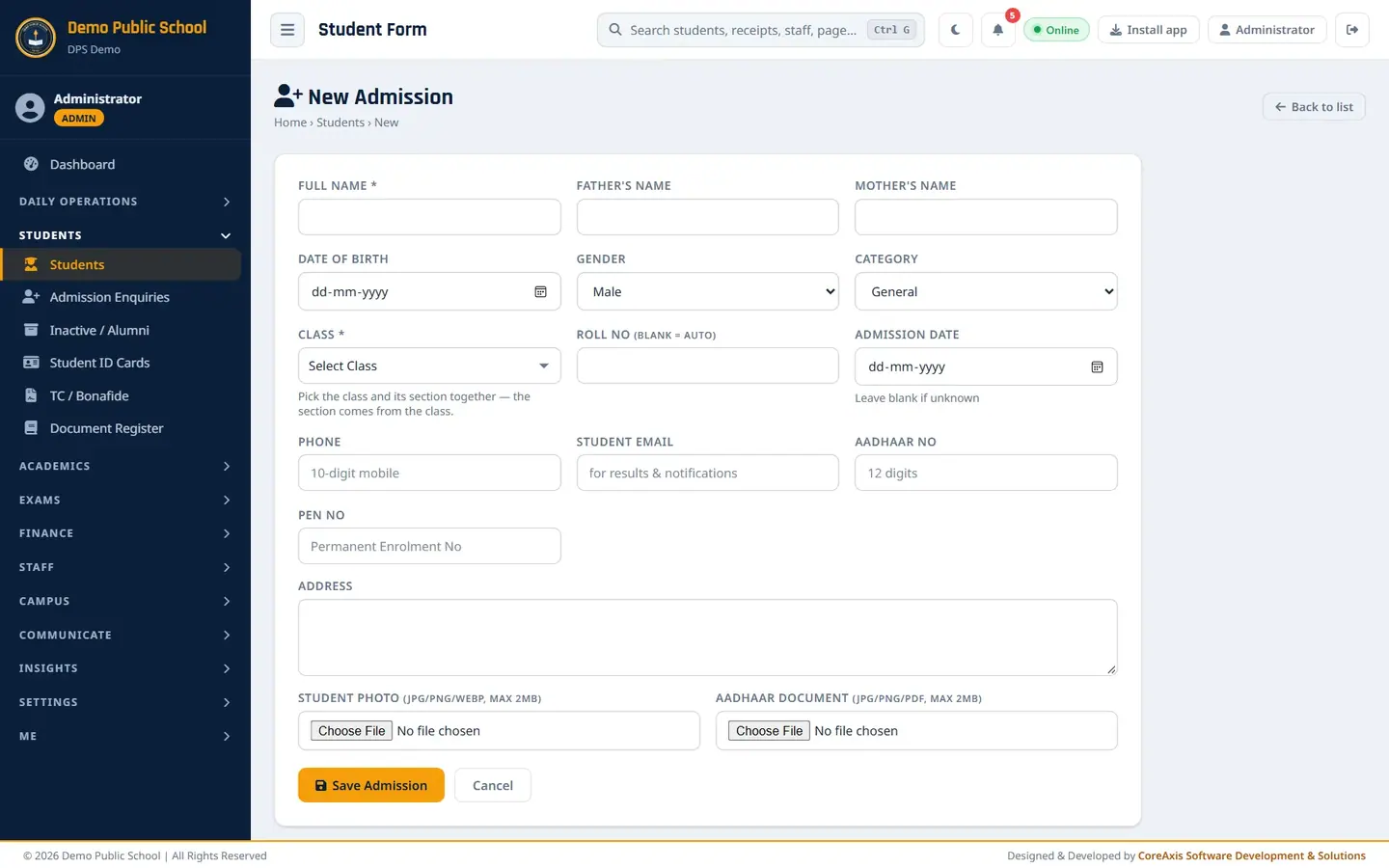
The empty New Admission form. Type Full Name (required): Ananya Singh.
Type Father's Name: Manoj Kumar Singh, and Mother's Name: Puja Singh.
Pick Date of Birth: 14-03-2020. Choose Gender: Female and Category: OBC.
Click Class (required) and pick Class I. The section comes with the class (Class I has section A).
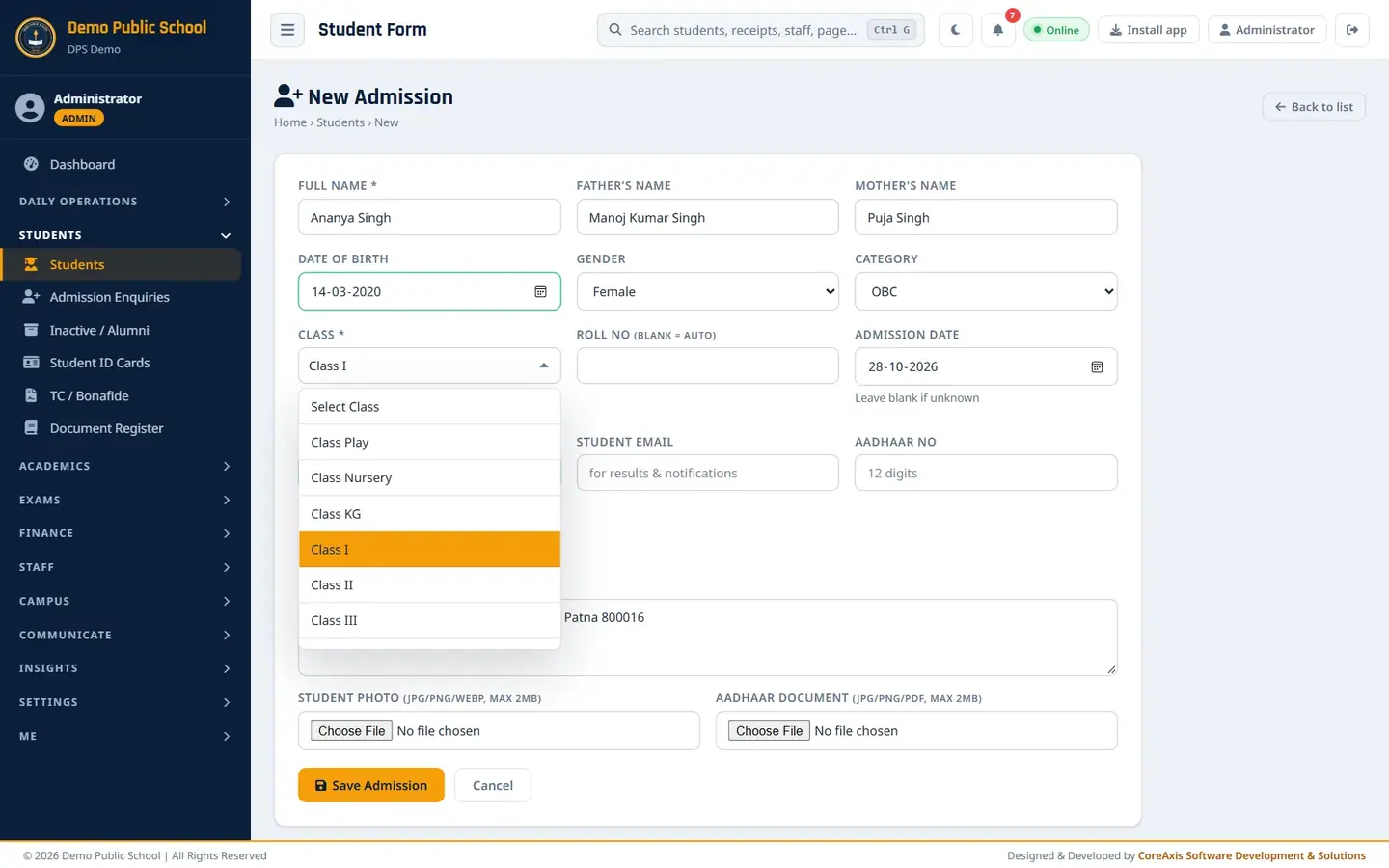
Type in the box to filter the class list. Leave Roll No blank to get the next roll number automatically. Set Admission Date: 28-10-2026.
Type Phone: 9876541237 (10 digits). This number gets SMS alerts and is used for sibling matching.
Type the Address: House No. 24, Road No. 5, Rajendra Nagar, Patna 800016. Fill Student Email, Aadhaar No and PEN No if you have them.

The filled form for Ananya Singh. Optionally choose a Student Photo (JPG/PNG/WEBP, max 2 MB) and the Aadhaar Document (JPG/PNG/PDF, max 2 MB).
Click Save Admission, then Save Admission again in the popup.
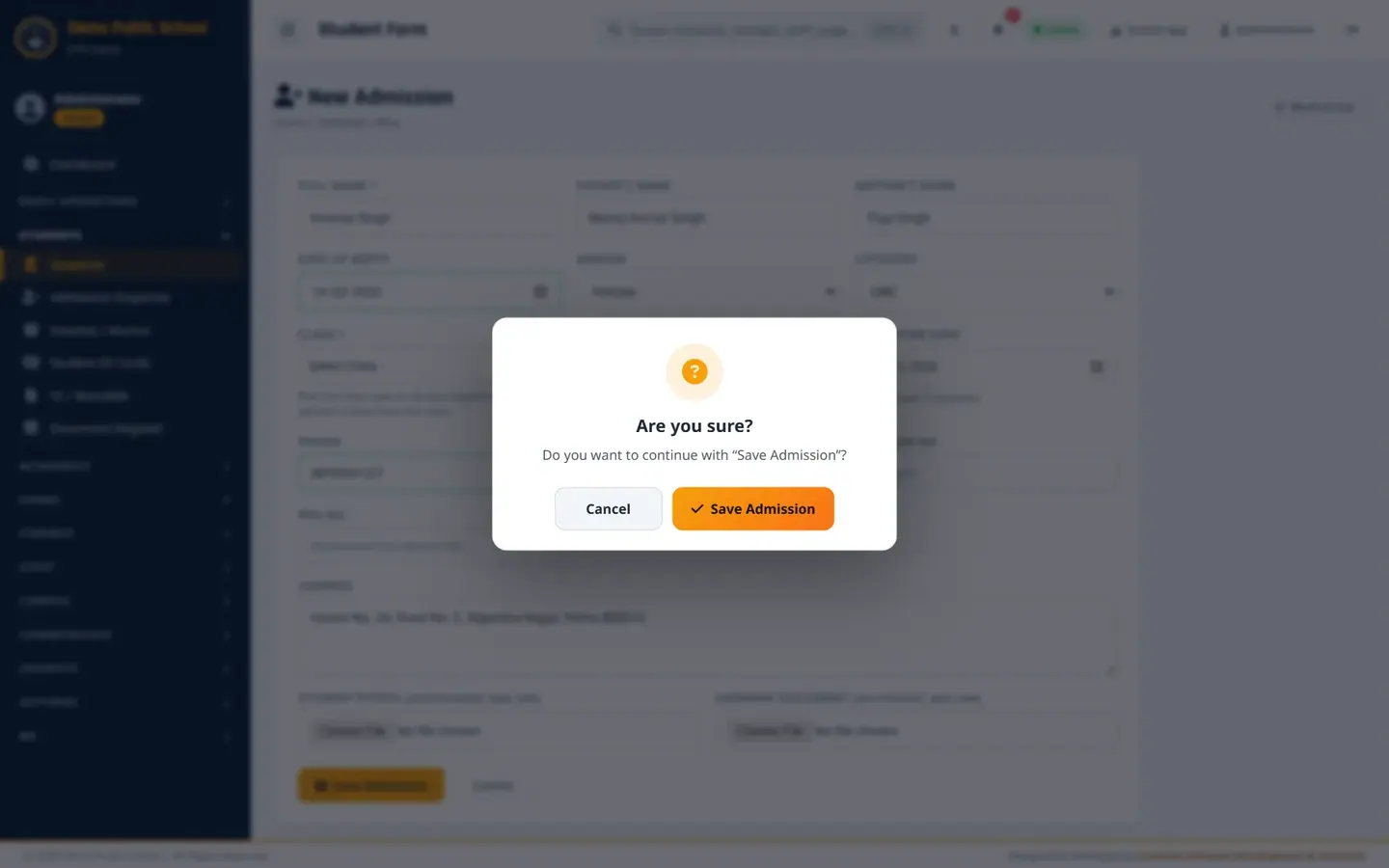
Every save asks for confirmation. The list opens with the message Student admitted! Admission No: DPSDEMO20260143. Write this number on the admission form.

The new admission number is shown at the top.
TipFee dues for the new student are created from the class fee. Depending on the school's Fee Structure setting, tuition is billed from the start of the session or from the admission month; Ananya's profile shows ₹4,900 due right after admission.
TipIf an SMS gateway is set up, the parent gets an admission SMS with the admission number.
TipIf a required field is wrong, the form stays open and lists what to fix at the top. Nothing is lost.
ImportantWhen the plan's student limit is reached, the form refuses new admissions. Upgrade the plan in Settings › Plan & Billing.
View a student's profile (example: Ananya Singh)
Find the student in the list. The Actions column has three buttons: Edit (pencil), View (eye) and Remove (bin).
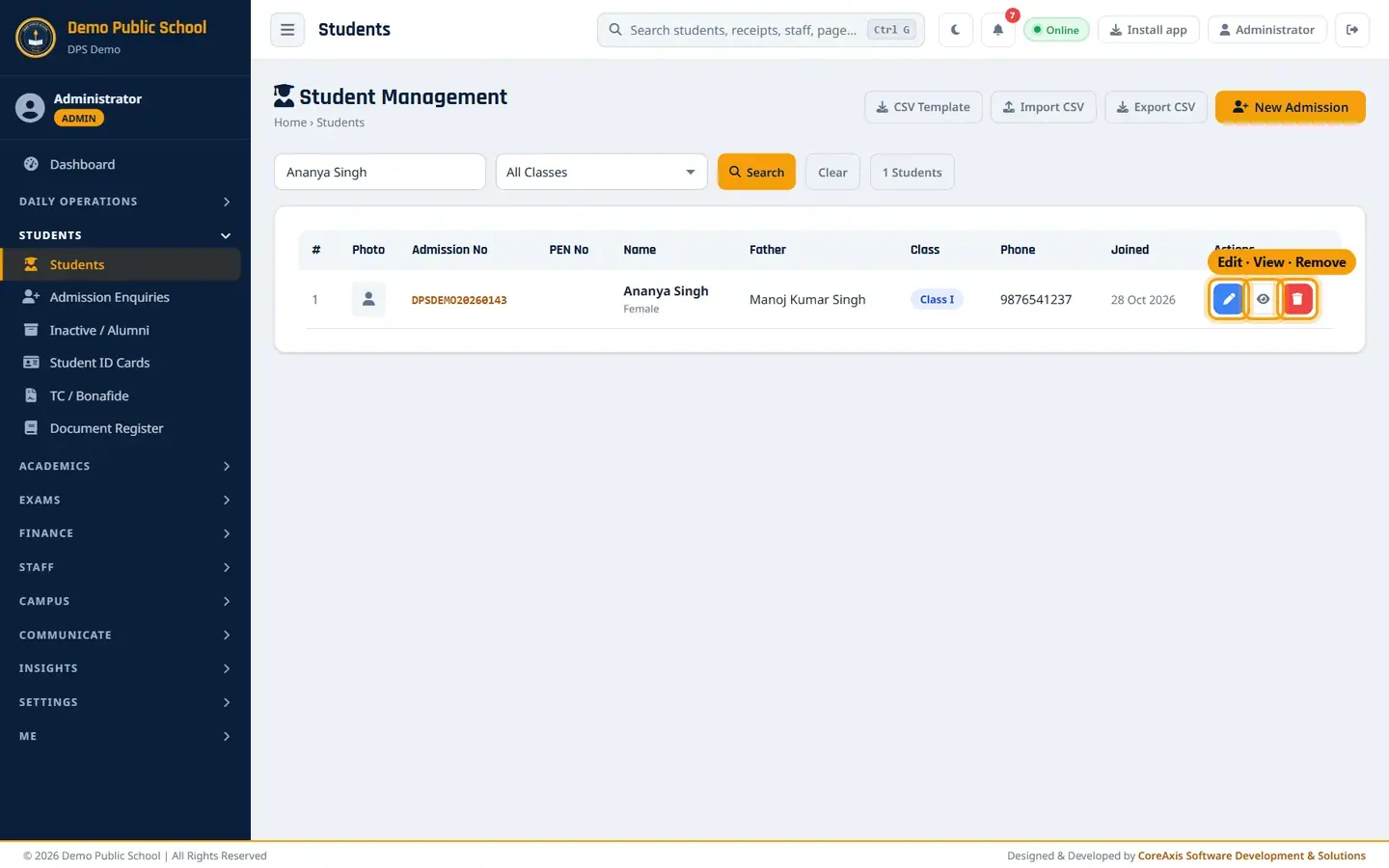
Row actions for Ananya Singh. Click View. The profile opens.

Profile: personal details on the left, fees and attendance on the right. Read the left card: admission number, class, father, mother, date of birth, gender, phone, Aadhaar, category and admission date. If an Aadhaar document was uploaded, click View next to Aadhaar doc.
Read the three cards on the right: Fees Paid this session (with the amount due in red), Days Present (session) and Days Absent (session).
Look at Fee History for the last 12 receipts. Click the print button on a row to reprint that receipt.
Click Back to return to the list.
Edit a student (example: add Ananya's parent email)
In the list click Edit (pencil) on the student's row. The Edit Student form opens with the saved details.
Change what you need, for example type manoj.singh84@gmail.com in Student Email.
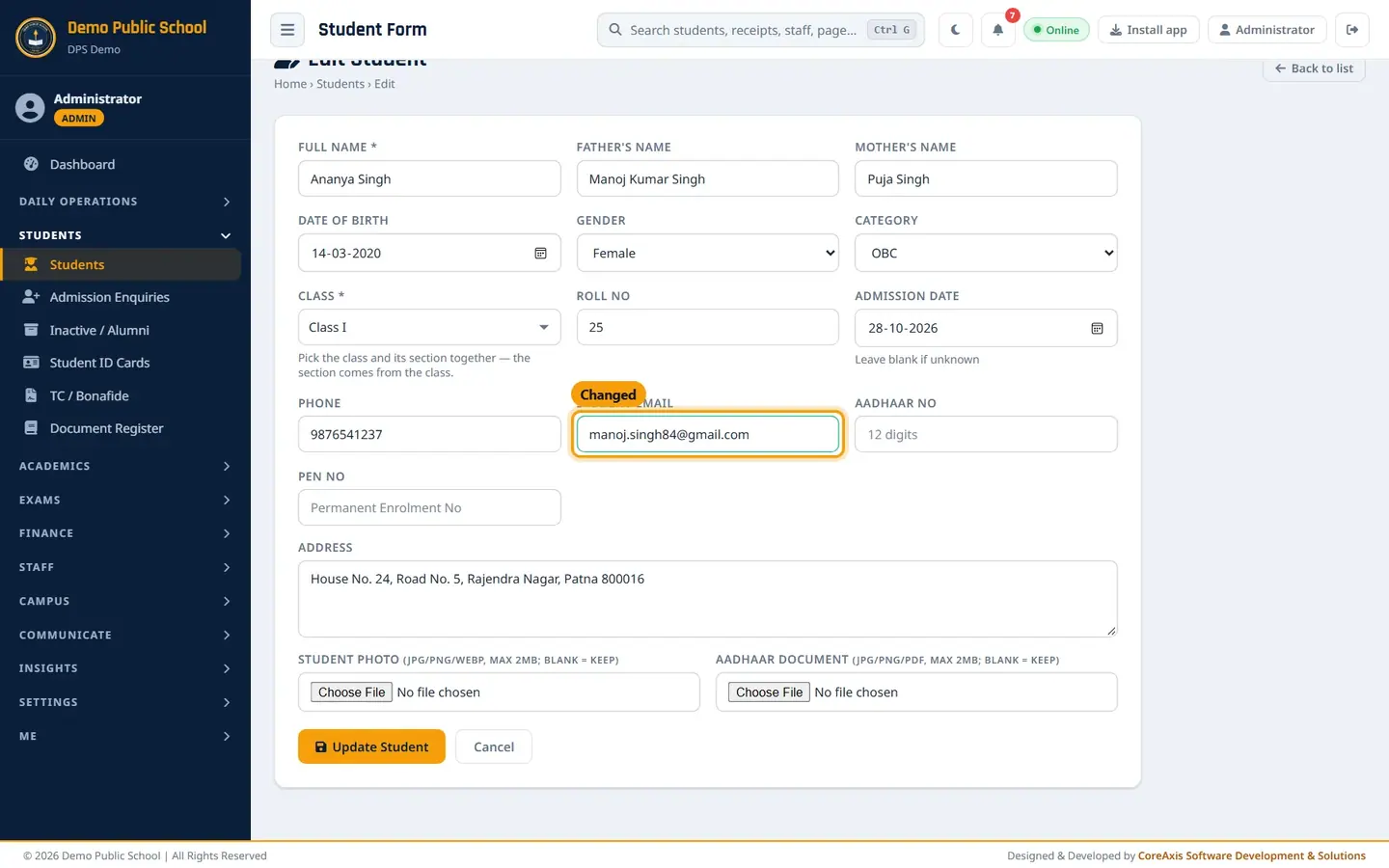
The edit form is the same as the admission form. Leave Student Photo and Aadhaar Document empty to keep the files already saved.
Click Update Student and confirm in the popup. The message Student updated successfully! appears.

Changes are saved at once.
TipChanging the class moves the student to the new class from now on. Fee months already billed keep their amount; the new class fee applies from the next billed month.
Import or export students as CSV
Click CSV Template to download a sample file with the right column names (full_name, father_name, mother_name, dob, gender, class_name, section, admission_date, phone, aadhar_no, pen_no, caste_category, address).
Fill one row per student in Excel or Google Sheets. The class_name must match an existing class exactly (for example I, II, KG). Save as CSV.
Click Import CSV, choose the file in CSV File and click Import Now. Admission numbers and roll numbers are generated automatically.

The Import Students (CSV) popup. To take out a list, pick a class (or keep All Classes) and click Export CSV. The file has admission no, name, parents, date of birth, gender, class, section, roll no, admission date, phone, Aadhaar, PEN, category and address.

Export CSV downloads the students shown by the class filter.
ImportantThe export contains Aadhaar numbers and phone numbers. Keep the file safe and do not share it outside the school office.
Remove a student who has left
Remove takes a student off the active roll. The record, marks and fee history are kept and the student appears in Inactive / Alumni, from where they can be restored.
Find the student and click Remove (red bin) on the row.
Read the Please confirm popup and click Delete. A second popup asks again; click Yes, proceed to remove, or Cancel to stop.
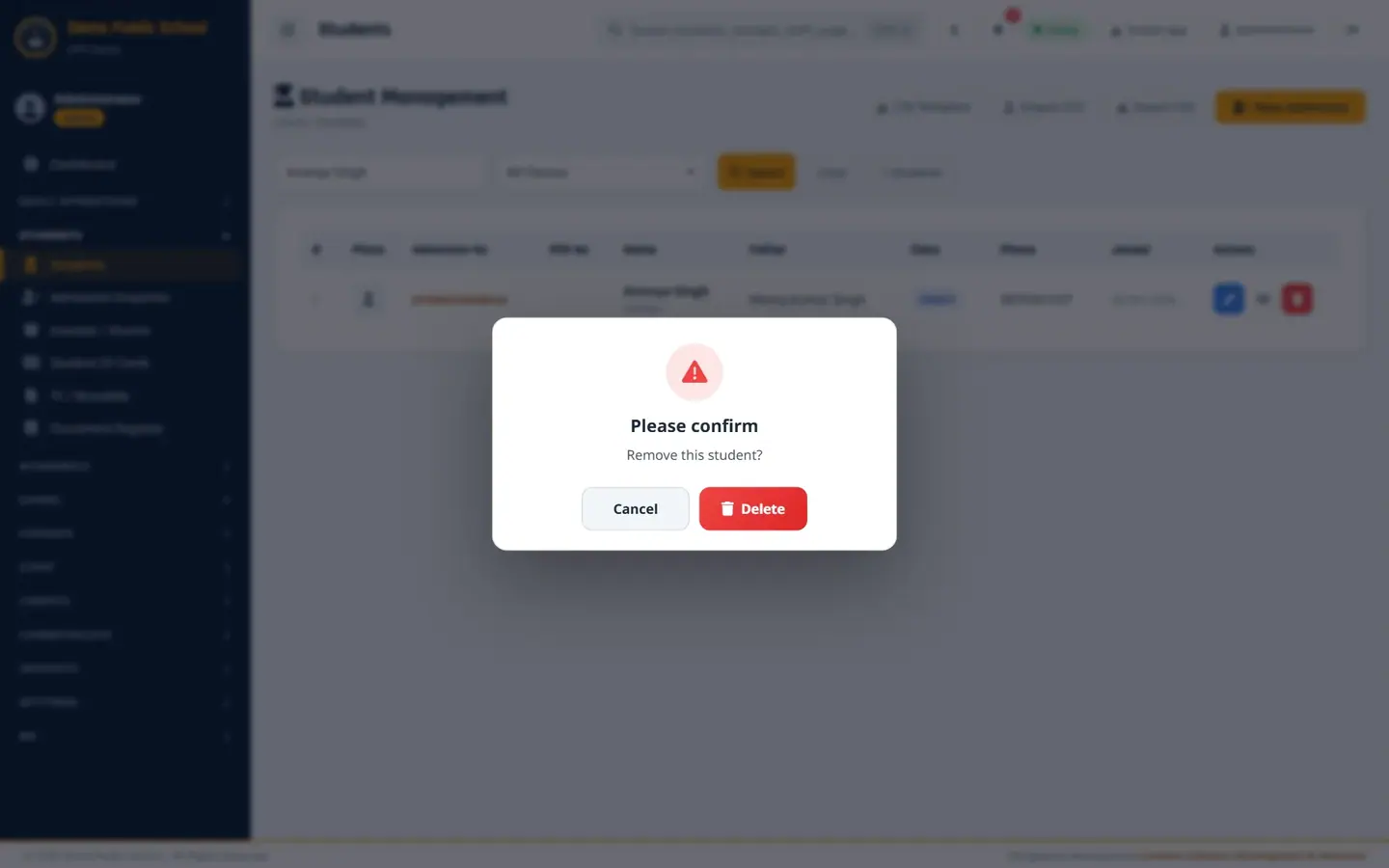
Remove asks twice. The message Student removed. appears. Any hostel bed and transport seat of the student are released.
TipFor a student leaving with a Transfer Certificate, issue the TC from TC / Bonafide instead. Issuing the original TC marks the student Left with the leaving date and reason.
Screen at a glance
- CSV Template / Import CSV / Export CSV
- Download the import format, bulk-import students, export the current class filter as a CSV file.
- New Admission
- Opens the admission form.
- Search / All Classes
- Search by name, admission number or father's name; filter by class. Clear removes both.
- N Students
- How many active students match the search and filter.
- Columns
- #, Photo, Admission No, PEN No, Name (with gender), Father, Class, Phone, Joined (admission date), Actions.
- Form: Full Name *, Class *
- The only required fields. Class sets the section.
- Form: Roll No
- Blank = next free roll number in the class.
- Form: Admission Date
- Leave blank if unknown. Used for the Joined column and for fee billing when the school bills from admission.
- Form: Phone, Student Email
- Phone gets SMS alerts (absent, fee reminders). Email gets results and notifications.
- Form: Aadhaar No, PEN No
- 12-digit Aadhaar and the Permanent Enrolment Number from UDISE+.
- Form: Student Photo, Aadhaar Document
- The photo prints on the ID card and certificates.
Questions
I admitted a student in the wrong class.
Click Edit, pick the right Class and click Update Student. Check the roll number after the change.
Two brothers have the same father's name and phone. Are they linked?
Siblings are linked by the office in Finance › Concessions › Siblings. The app suggests them from the same father's name and phone, but never links them on its own.
Can the Accountant add students?
No. The Accountant's Students page is for looking up students only. Admissions are done by the Admin or Principal.
Where did a removed student go?
To Students › Inactive / Alumni. Click Restore there to bring the student back to the active roll.