 CoreAxis School ERP
Academics · Chapter 12
Subjects
A subject is added once and then ticked for every class or section that studies it. A subject set to All classes is taught in every class, including classes added later. The subject order set here is used on report cards, marksheets, admit cards, marks entry and the timetable. Teachers are linked to subjects through the Timetable: the teacher you put in a period is the teacher of that subject for that class.

Screen at a glance
- Add Subject
- Opens the form to create a subject and choose where it is taught.
- Subjects (n)
- How many subjects the school has (or the selected class has, when filtered).
- Reorder
- Unlocks the subject order. Shown only when the list is not filtered by class.
- Class filter
- All classes, or one class, to see only the subjects taught in that class.
- Order
- Position of the subject on report cards, marks entry and admit cards.
- Subject Name / Code
- Full name and short code (for example Mathematics / MATH). The code prints on admit cards.
- Taught in
- All Classes, or one chip per class / section.
- Actions
- Pencil = Edit / assign classes. Bin = Delete.
Add a subject for some classes (example: Moral Science for Play to Class II)
Open Academics › Subjects and click Add Subject.
The subject list. The order is locked. Click Yes, add subject in the popup.
Type Moral Science in Subject Name and MSC in Code.
Under Taught in, choose Selected classes / sections.
Tick Class Play, Class Nursery, Class KG, Class I and Class II. For a class with several sections, tick the class to select all its sections, or tick single sections.
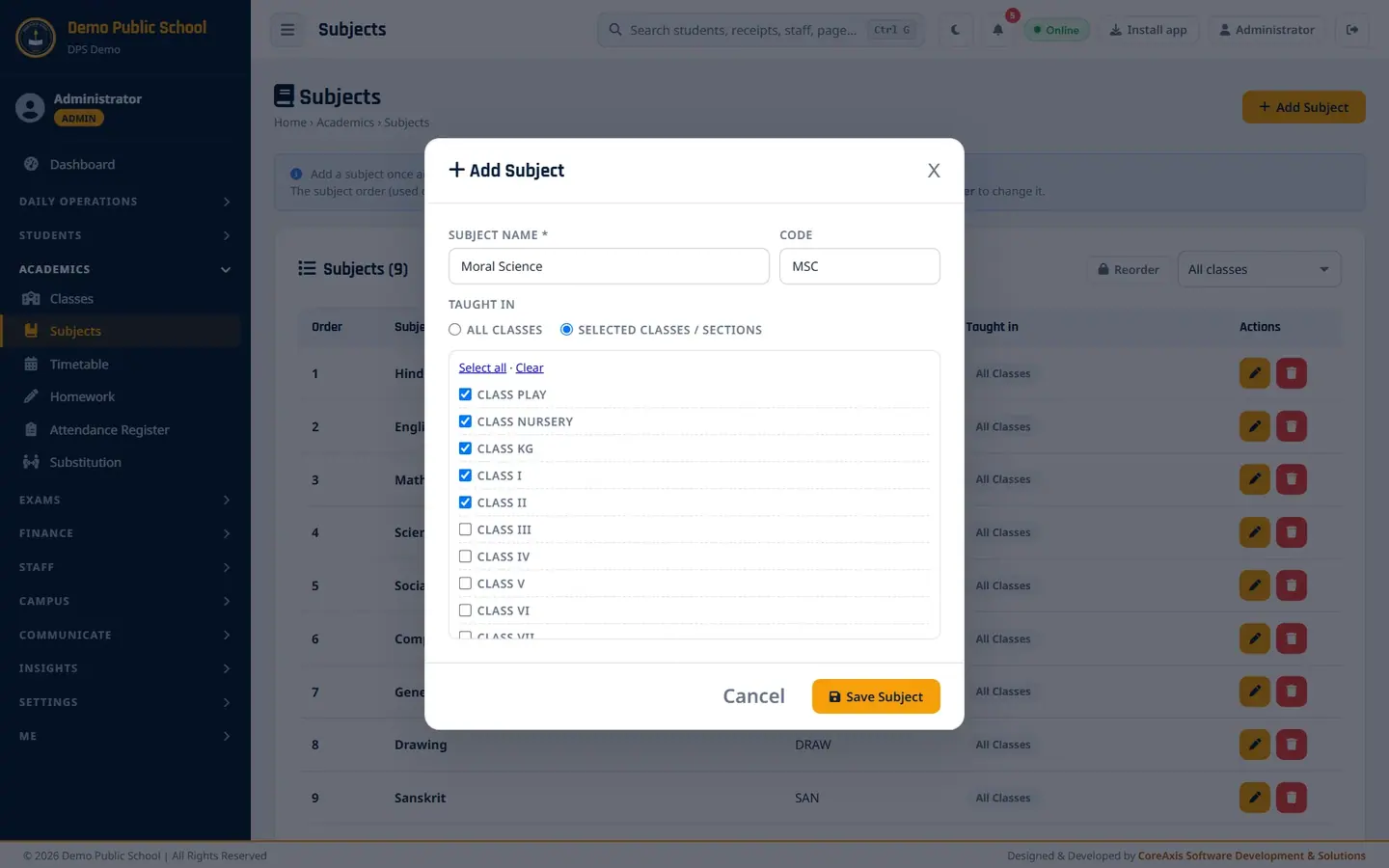
The Add Subject form with five classes ticked. Click Save Subject, then Yes, save in the popup. The message "Subject 'Moral Science' saved." appears.

Moral Science is added at position 10 with chips for its five classes.
TipChoose All classes for subjects that every class studies (Hindi, English, Mathematics). New classes then get them on their own.
TipUse Select all / Clear in the class list to tick or untick everything quickly.
Change the classes of a subject
Click the pencil (Edit / assign classes) in the subject's row and click Yes, edit.
Tick or untick classes, or switch between All classes and Selected classes / sections.
Click Save Subject and confirm.
TipIf you untick a class where the subject already has marks, timetable periods or homework, the subject is kept for that class. The message names those classes. Remove those entries first if you really want to take the subject off.
TipA subject set to All classes that already has marks, timetable periods or homework cannot be limited to some classes. Keep it as All classes, or add a separate subject (for example Sanskrit (Opt)) for the classes that need it.
See the subjects of one class (example: Class VI)
Pick Class VI in the class filter at the top right of the list.

Filtered to Class VI: 9 subjects. Pick All classes to see the full list again.
Change the subject order
Make sure the class filter shows All classes, then click Reorder and Yes, unlock.
Drag a subject by its grip, or use the ↑ ↓ arrows in the Order column.
Click Save order in the bar at the bottom (or Cancel & lock to undo), then Yes, save.

Reorder mode with the Save order bar.
TipThe new order is used at once on report cards, marksheets, admit cards, marks entry and the timetable.
Delete a subject
Click the red bin in the subject's row.
Read the warning and confirm twice.
ImportantA subject used in marks, exams, the timetable or homework is not deleted for those classes; it is only removed from the classes where it is unused. The message tells you how many classes kept it.
Questions
How do I assign a teacher to a subject?
Open Academics › Timetable, pick the class and add a period with that subject and teacher. The timetable is where a teacher is linked to a subject and class; the substitution page and the teacher's own timetable use it.
We have two sections of Class VI and only VI-B studies Sanskrit. Can I set that?
Yes. In Taught in, choose Selected classes / sections and tick only section B under Class VI.
Can two subjects have the same name?
No. The app stops you with "Subject '…' already exists — use ✎ on it to change its classes." Tick more classes on the existing subject instead.