 CoreAxis School ERP
Getting Started · Chapter 2
Signing in
Every school user signs in through one of two doors. Staff (Admin, Principal, Accountant, Teacher) use the staff login with their email and password; on a new browser they also enter a 6-digit code sent to their email. Students and parents use the Student Portal with the admission number and date of birth. After signing in, each person sees only the menus of their own role.

Demo school logins
The Demo Public School has one staff account for each role. Passwords are not printed in this manual; the school office gives each person their own password.
- Admin — Administrator
- admin@demo.coreaxis.info · password •••••••• · full access to every menu, including Settings.
- Principal — Satyajeet Kr. Singh
- satyajeet.singh@demo.coreaxis.info · password •••••••• · same menus as Admin; approves TC / SLC requests, leaves and concessions.
- Accountant — Rakesh Agarwal
- rakesh.agarwal@demo.coreaxis.info · password •••••••• · Fee Desk, Fee Dues, Concessions, Cheques / DD, Expenses, Payroll, Finance Ledger, Reports, TC / Certificates requests.
- Teacher — Amit Kumar Mishra
- amit.mishra@demo.coreaxis.info · password •••••••• · own class attendance, marks, homework, timetable, notices, ID / admit cards.
- Student / Parent — Aarav Sharma
- Student Portal · admission number DEMO20260001 · date of birth 01-01-2015 (no password).
Sign in as staff (example: Principal Satyajeet Kr. Singh, first time on a new computer)
Open your school's address in the browser and click Login. The Welcome Back screen opens.
The staff login screen. Type your email in Email / Username, for example satyajeet.singh@demo.coreaxis.info. A username also works.
Type your password in Password. Click the eye icon if you want to check what you typed.
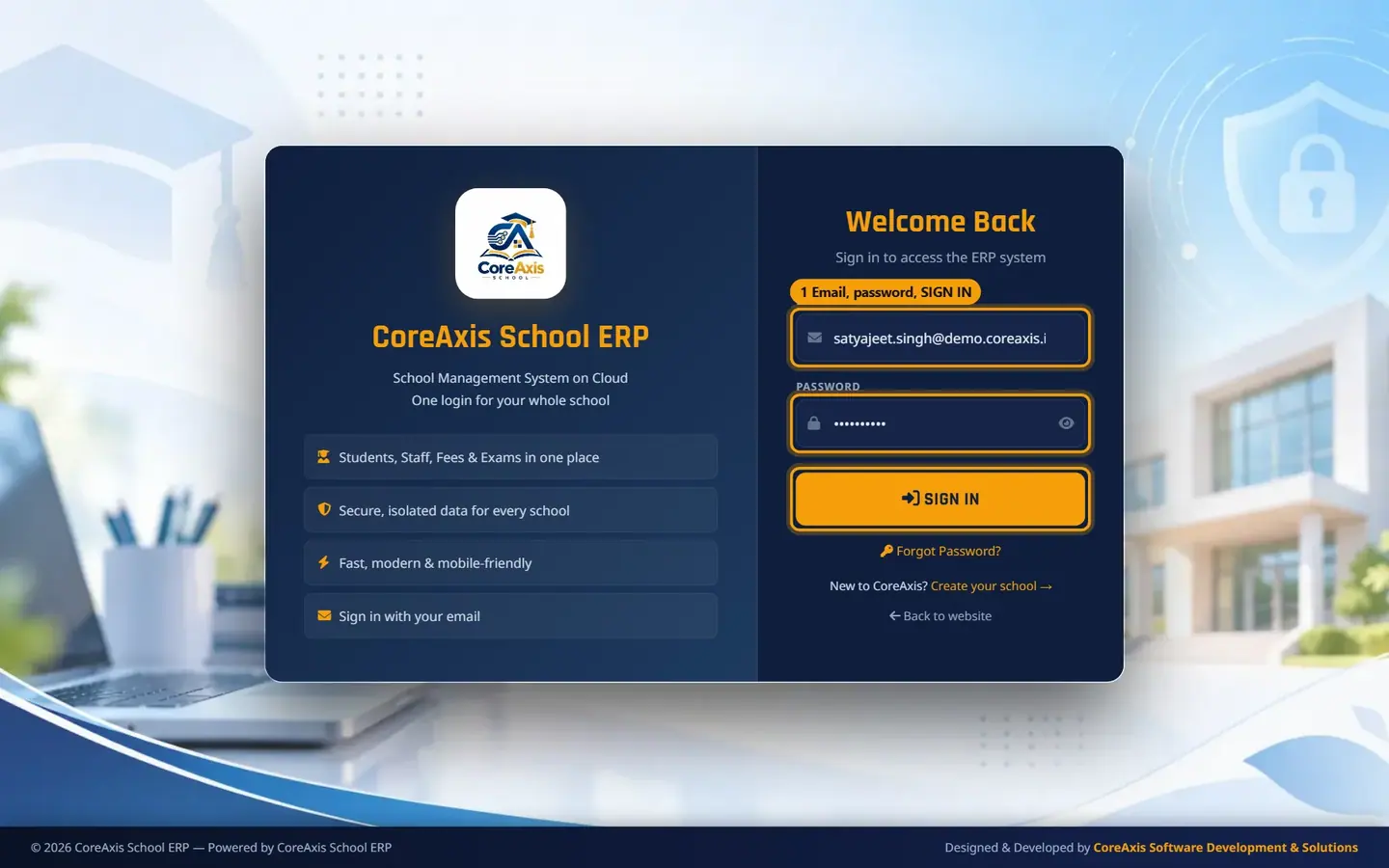
Email and password filled in; the password stays hidden as dots. Click SIGN IN.
On a new browser the Check your email screen opens. Open your email and find the 6-digit code from the school.

The code is sent to the email shown on screen (partly hidden). Type the code in the code box.
Leave Trust this device for 30 days ticked on your own computer. Untick it on a shared or public computer.
Click VERIFY & SIGN IN.
The Set a quick-login PIN screen opens. Type a 4–6 digit PIN in New PIN and again in Confirm PIN, then click SAVE PIN. Click Skip for now if you do not want a PIN.

A PIN lets you sign in on this trusted browser without typing the password. Your dashboard opens. The top bar shows your name and the sidebar shows the menus of your role.
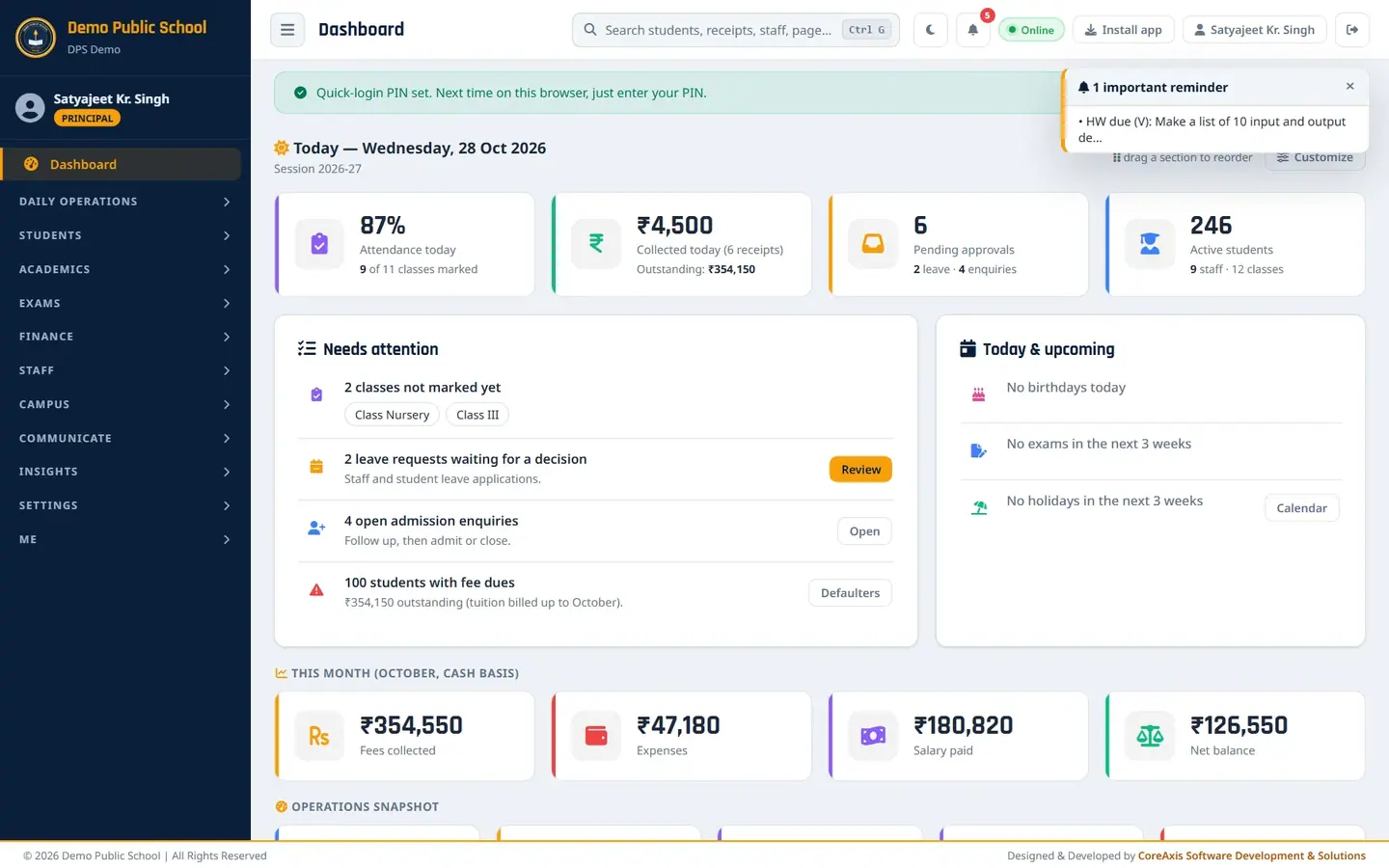
Signed in as the Principal.
TipThe code expires in 10 minutes. If it does not arrive, check the spam folder, then click Resend code (it becomes active after a short wait). Send code by SMS instead appears when the school has SMS turned on.
TipA trusted browser does not ask for a code again for 30 days, unless your password is changed.
TipClick Use a different account on the code screen to go back and sign in as someone else.
ImportantAfter 6 wrong passwords for one account (or 10 from one computer) in 15 minutes, sign-in is locked for 15 minutes.
Sign in with your PIN (example: Satyajeet Kr. Singh on his trusted computer)
Open the school login page on the computer where you set the PIN. The Welcome back screen shows your name and school.

PIN sign-in on a trusted browser. Type your PIN in Enter your PIN. When all digits are typed the screen signs you in; you can also click SIGN IN.
To use the password instead, click Use password instead. To sign in as another person, click Sign in with another account.
TipAvoid easy PINs like 1111 or 1234.
ImportantFive wrong PINs turn PIN sign-in off for that browser. You then sign in with email, password and a new code.
Forgot your password
On the login screen click Forgot Password?. The Forgot Password screen opens.

The Forgot Password screen. Type your email in Email.
Under Send code via, choose SMS or Email (only the options your school has turned on can be chosen).
Click Send Reset Code. Then type the 6-digit code you receive and your new password on the next screen.
TipIf online reset is not available, the screen says so. Ask the school Admin to reset your password.
Sign out
Click the Logout icon at the right end of the top bar.
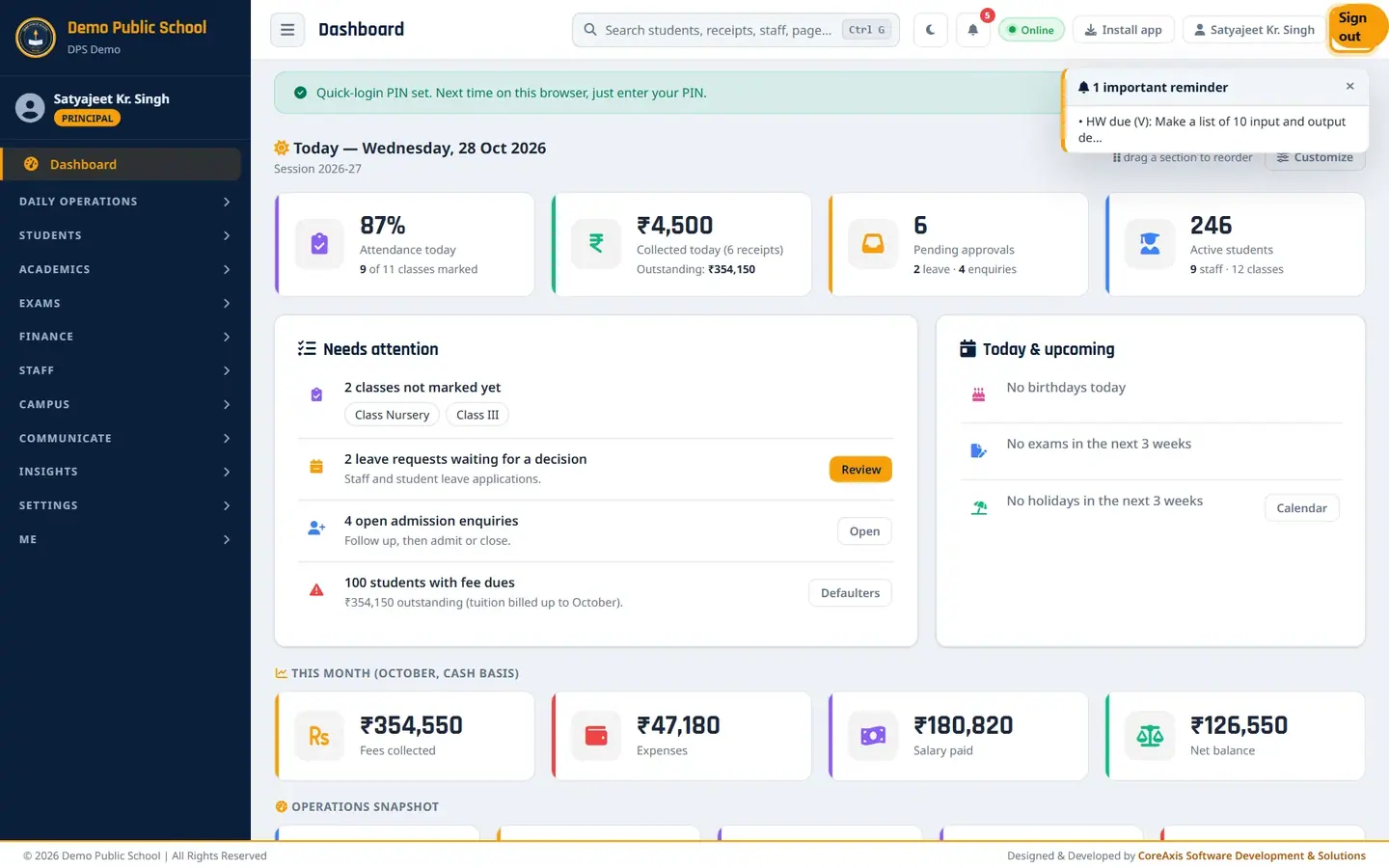
The Logout icon is next to your name. In the Are you sure? popup click Logout. Click Cancel to stay signed in.

Sign-out asks once for confirmation. The login screen opens. On a trusted browser with a PIN it shows the PIN screen for your next sign-in.
TipAlways sign out on a shared computer. Copies of pages saved for offline use are cleared from the browser when you sign out.
Student / Parent portal sign-in (example: Aarav Sharma, Class VI-A)
Students and parents do not need a password. They use the admission number printed on the ID card or fee receipt and the date of birth in school records.
Open the school's Student Portal link (for the demo school: portal.php?tenant=demo).

The Student Portal sign-in screen. Type the Admission Number, for example DEMO20260001.
Pick the Date of Birth, for example 01-01-2015.

Admission number and date of birth filled in. Click Login. The student's Dashboard opens with attendance, fees and latest results.
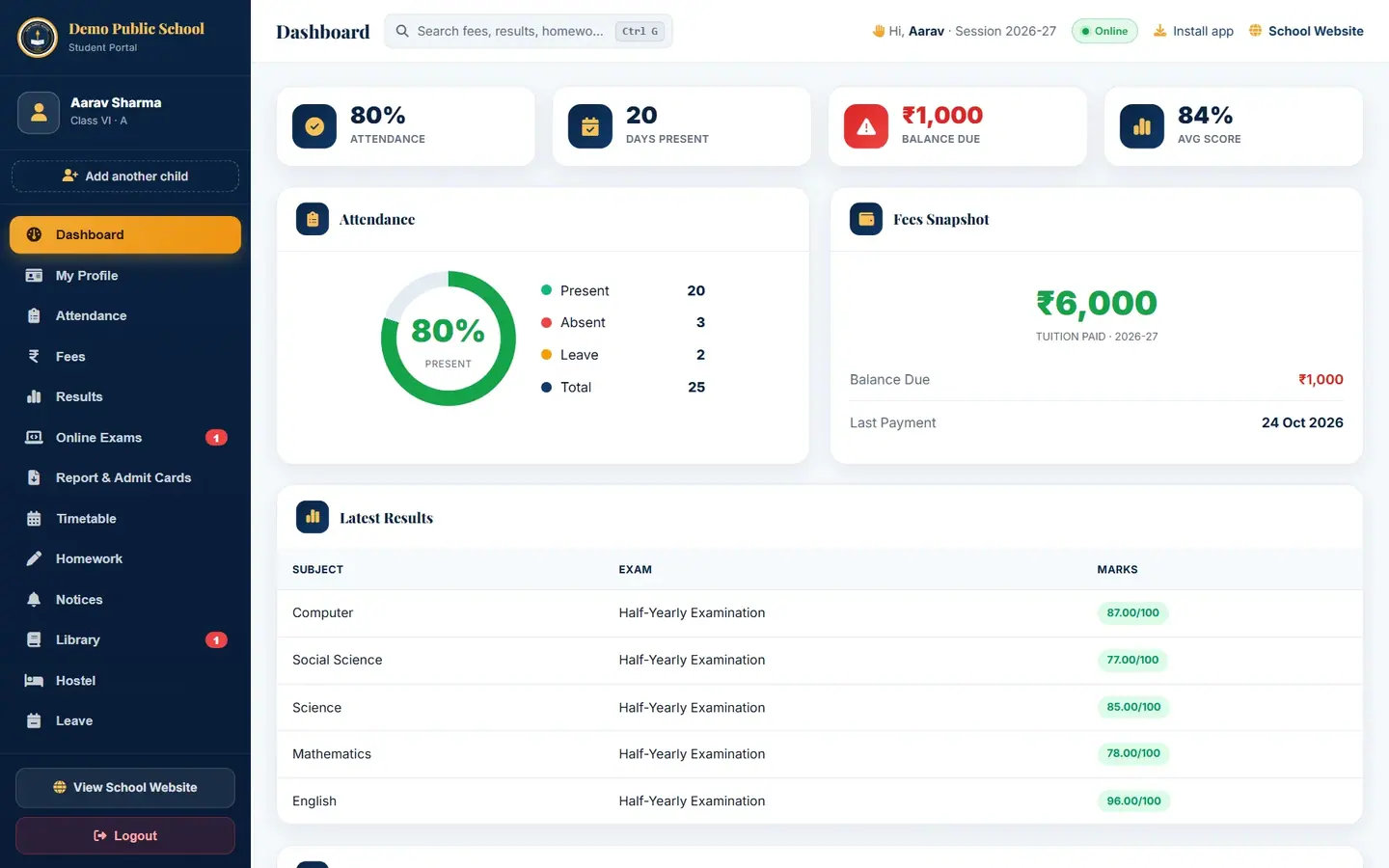
Aarav Sharma's portal dashboard.
TipIf sign-in fails, check the date of birth with the school office. A student who has left the school cannot sign in.
Add and switch a second child (example: Kabir Sharma, Class V-A, brother of Aarav)
A parent with more than one child in the school can see all of them in one sign-in. Each child is verified with their own admission number and date of birth.
In the portal sidebar click Add another child.

Add another child sits under the child's name. Type the other child's Admission Number, for example DEMO20260021.
Pick the other child's Date of Birth, for example 01-05-2016.
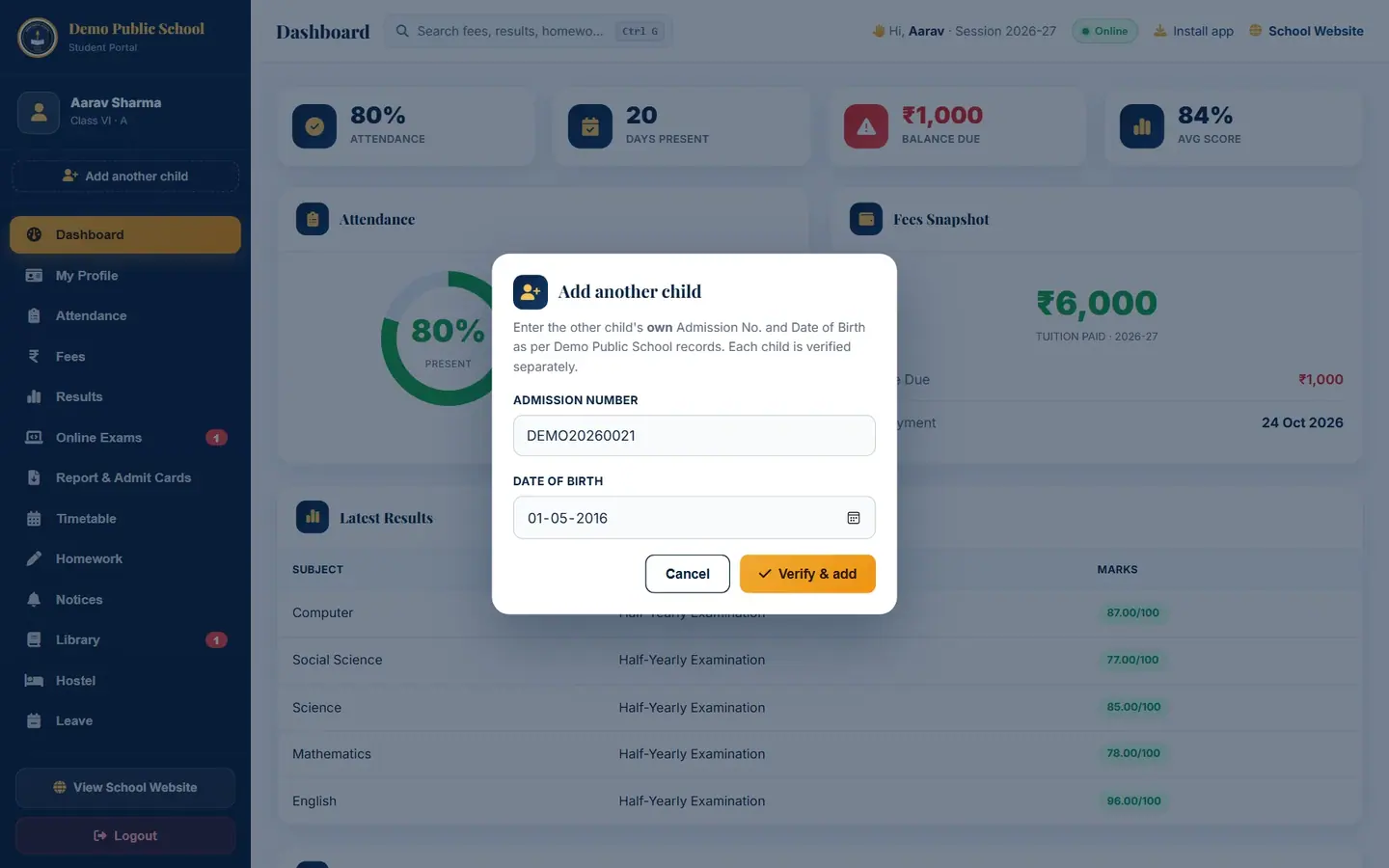
Each child is verified separately. Click Verify & add. The portal now shows Kabir's details and a message confirms he was added.
To switch, click the other child's name in the Viewing strip at the top, or in the sidebar.

The Viewing strip shows both children; the dark one is open now. To add another child, click Add child in the strip.
TipThe children are remembered only for this sign-in. After signing out, sign in again and add the other child again.
Questions
I did not get the 6-digit code.
Wait a minute and check the spam folder. Then click Resend code. A code can be requested about once a minute and only a few times in 15 minutes. Check with the Admin that your email in My Profile is correct.
Can I sign in on my phone?
Yes. The same login works in a phone browser. You can also click Install app in the top bar to add CoreAxis to the home screen.
Why does a driver or peon account not sign in?
Roles such as driver, peon, guard, nurse and housekeeping are staff records only. They have no ERP access and the login screen says so.
I see 'Your session expired for security'.
You were inactive for a long time and were signed out. Sign in again; on a trusted browser no code is needed.