 CoreAxis School ERP
Students · Chapter 9
TC / Bonafide
This page makes four student certificates: Bonafide, Character, Transfer Certificate (TC) and School Leaving Certificate (SLC). Opening a certificate only shows a preview marked DIGITAL COPY; it becomes a valid document only when you click Issue & Print, which numbers it and logs it in the Document Register. The first copy is the ORIGINAL and every later copy is stamped DUPLICATE COPY. A TC or SLC also needs the principal's approval, cleared fees and returned library books, and issuing the original marks the student Left.

Rules at a glance
- Preview first
- Preview & Issue opens the certificate as a DIGITAL COPY preview. Nothing is recorded until you click Issue & Print and confirm the popup. An ORIGINAL TC or SLC asks twice, because it also marks the student Left.
- ORIGINAL and DUPLICATE COPY
- The first issued copy prints as ORIGINAL with a reference number (for example TC/2026/00037), a verify code and a QR code. Every later copy prints as DUPLICATE COPY – 1, – 2 and so on.
- TC / SLC: principal approval
- When the office (Accountant) issues a TC or SLC, it first goes to the Principal as a request. The Admin or Principal can issue directly because they are the approving authority.
- TC / SLC: fees and library
- All fee dues must be cleared and all library books returned before the original is issued. The preview shows what is blocking.
- TC / SLC: student marked Left
- Issuing the original TC or SLC moves the student to Inactive / Alumni with the date and reason for leaving.
- Document fees
- If the school has set a fee in Document Register › Document Fees, it is added to the student's dues and the copy prints after the fee is paid.
- Bonafide / Character
- No approval needed. A Bonafide certificate can be issued only for an active student.
- Signature
- Certificates carry the Principal's signature and stamp from Settings › School Profile, with the Principal's name (Satyajeet Kr. Singh) under it.
Request a TC from the office (example: Priyanshu Raj, Class II-A, father transferred to Ranchi)
Rakesh Agarwal (Accountant) prepares the TC. Because it is a TC, it goes to the Principal for approval.
Open Documents › TC / Certificates (Admin and Principal: Students › TC / Bonafide).
The Student Certificates page. In Generate Certificate (single student) pick Certificate Type: Transfer Certificate (TC).
Pick the Student: Priyanshu Raj (DPSDEMO20260145) — II. Type in the box to search.
Check the Issue Date (28-10-2026) and type Conduct / Character: Good.
Type Reason for Leaving: Father transferred to Ranchi, Promoted / Qualified to Class: Class III, and pick the Date of Leaving: 28-10-2026.

The TC form filled for Priyanshu Raj. Click Preview & Issue. The preview opens in a new tab. The top bar lists what is needed: needs principal approval and Fee dues of ₹4,900.00 are not cleared.
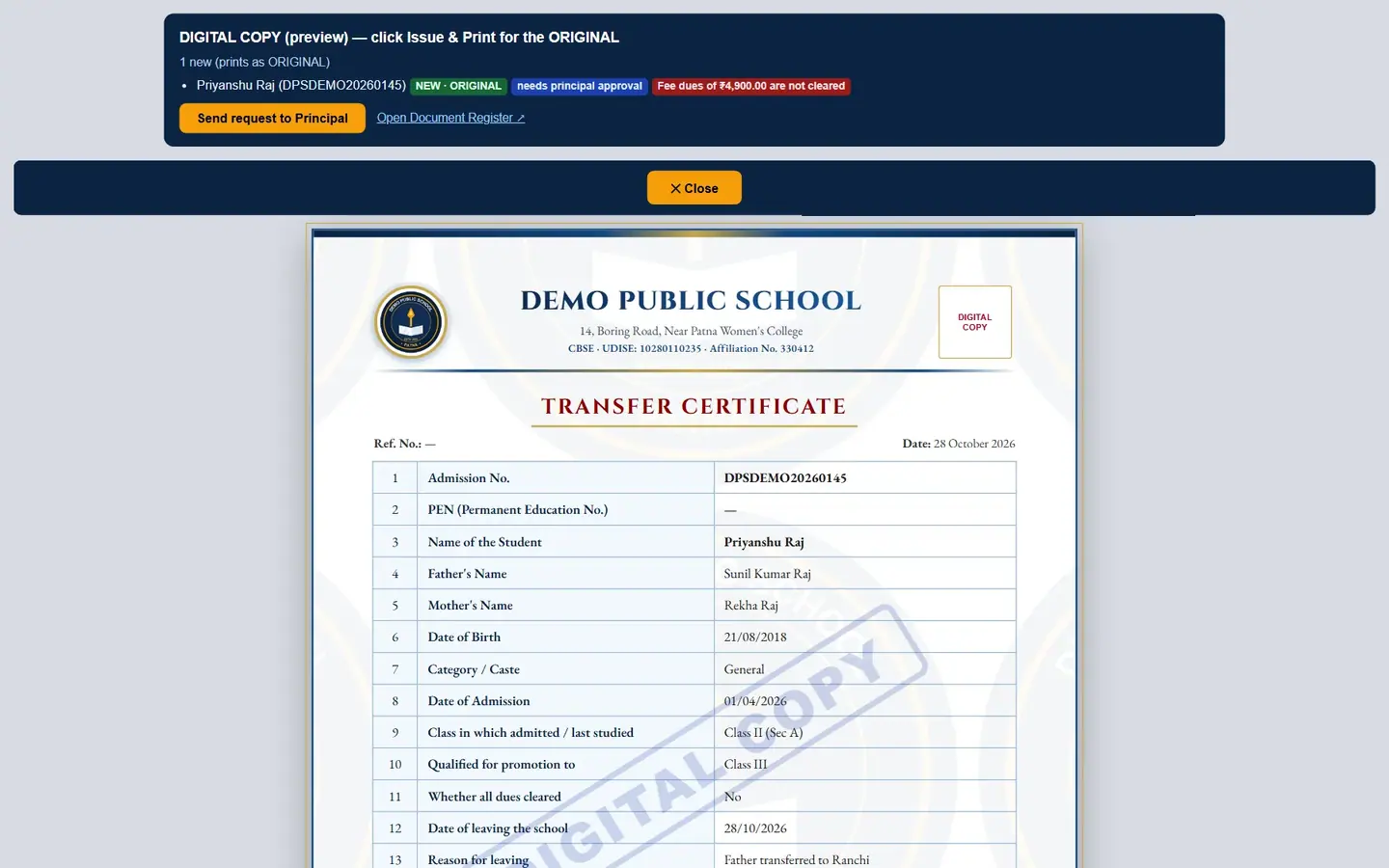
The preview is stamped DIGITAL COPY; the blockers are shown in red and blue. Click Send request to Principal. The bar shows 1 sent to the Principal for approval.
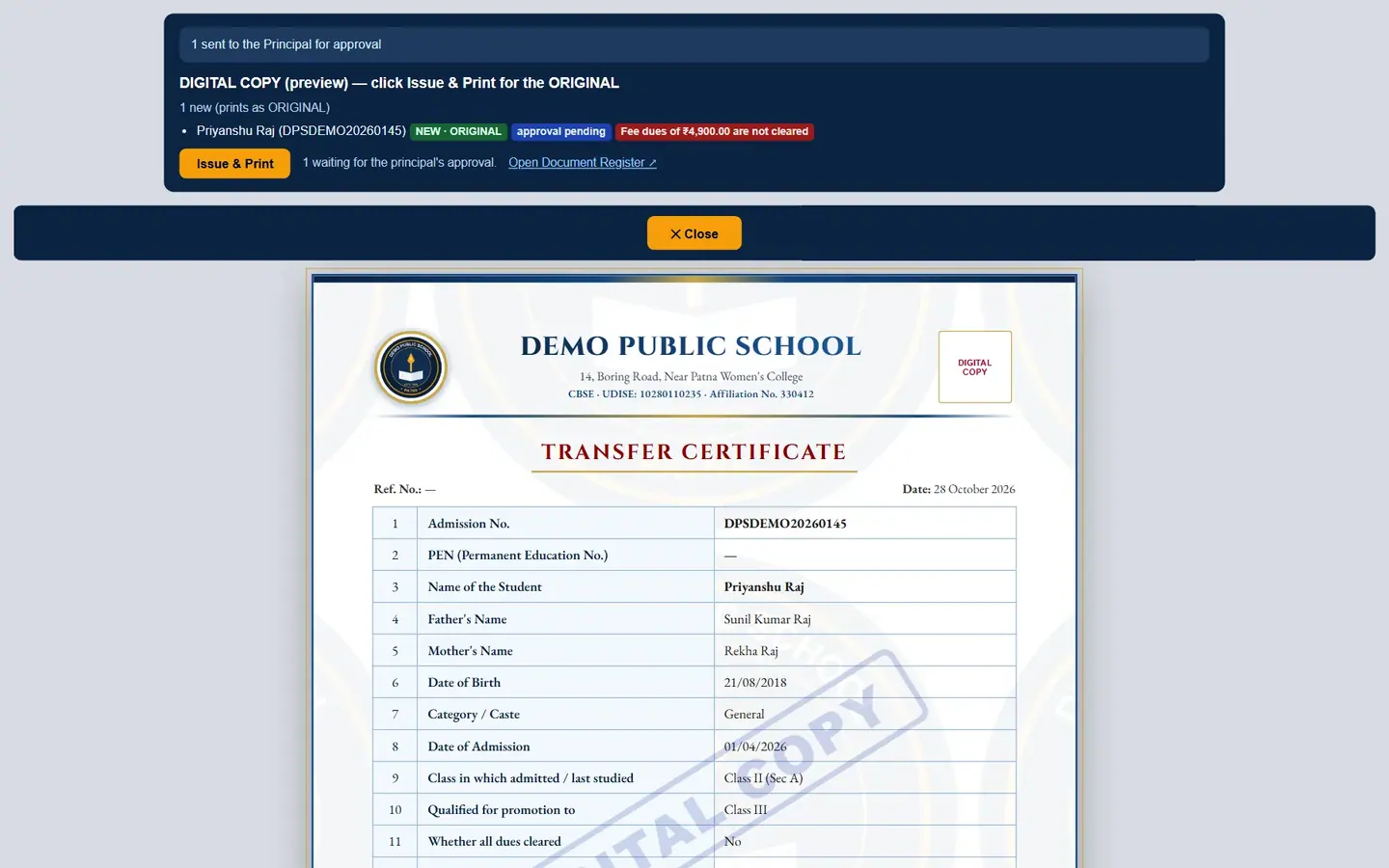
The request now waits in the Document Register.
Approve the TC request (Principal Satyajeet Kr. Singh)
Open Students › Document Register and click the TC / SLC Approvals tab. The waiting request shows the student, type, leaving date and reason, who requested it, and the checks still failing.

Priyanshu Raj's request, raised by Rakesh Agarwal; fees are still due. Click Approve. Type a note if you want (optional) and click Confirm.
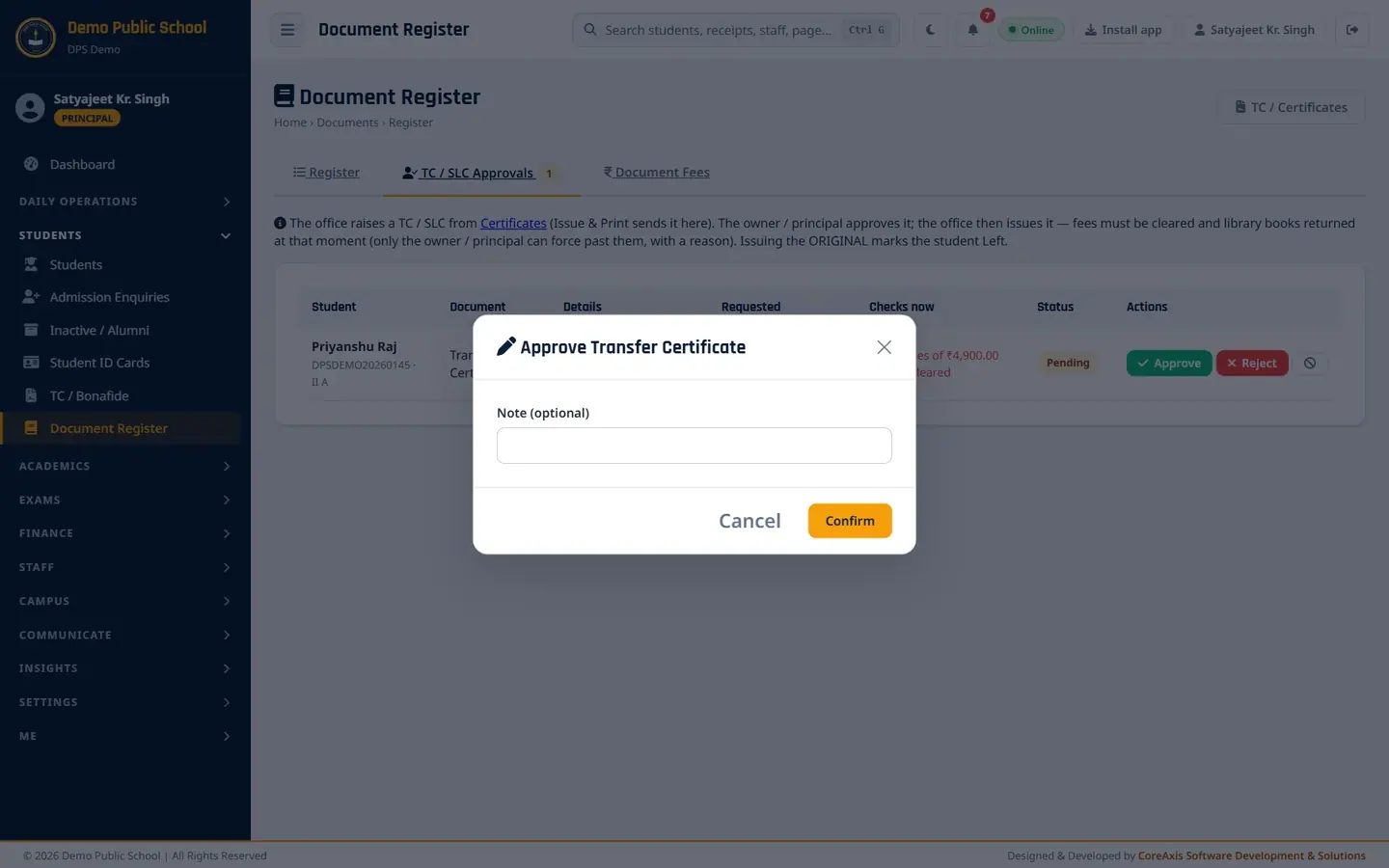
Approve asks for an optional note; Reject needs a reason. The message Approved — the office can now issue it (fees and library are checked at issue) appears and the status turns Approved.

Approved. The Issue now button opens the TC preview.
Clear the dues and issue the original TC
At the Fee Desk, find Priyanshu Raj, tap All · ₹4,900, choose the payment mode and collect the fee. (See the Fee Desk chapter.)
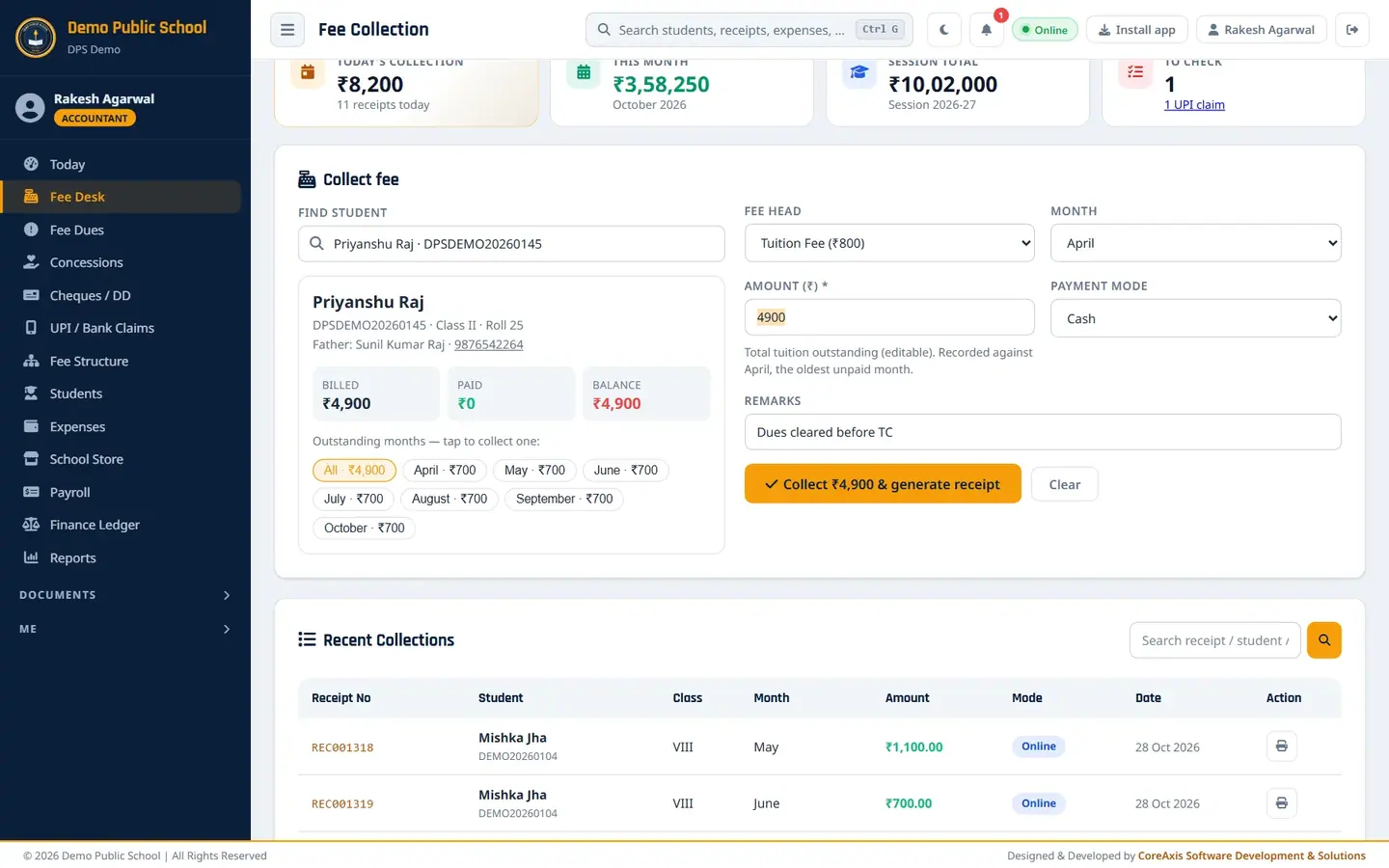
All outstanding months selected at the Fee Desk. Open the TC again (TC / Certificates › Preview & Issue, or Issue now in TC / SLC Approvals). The bar now says approved by principal and shows no blockers.
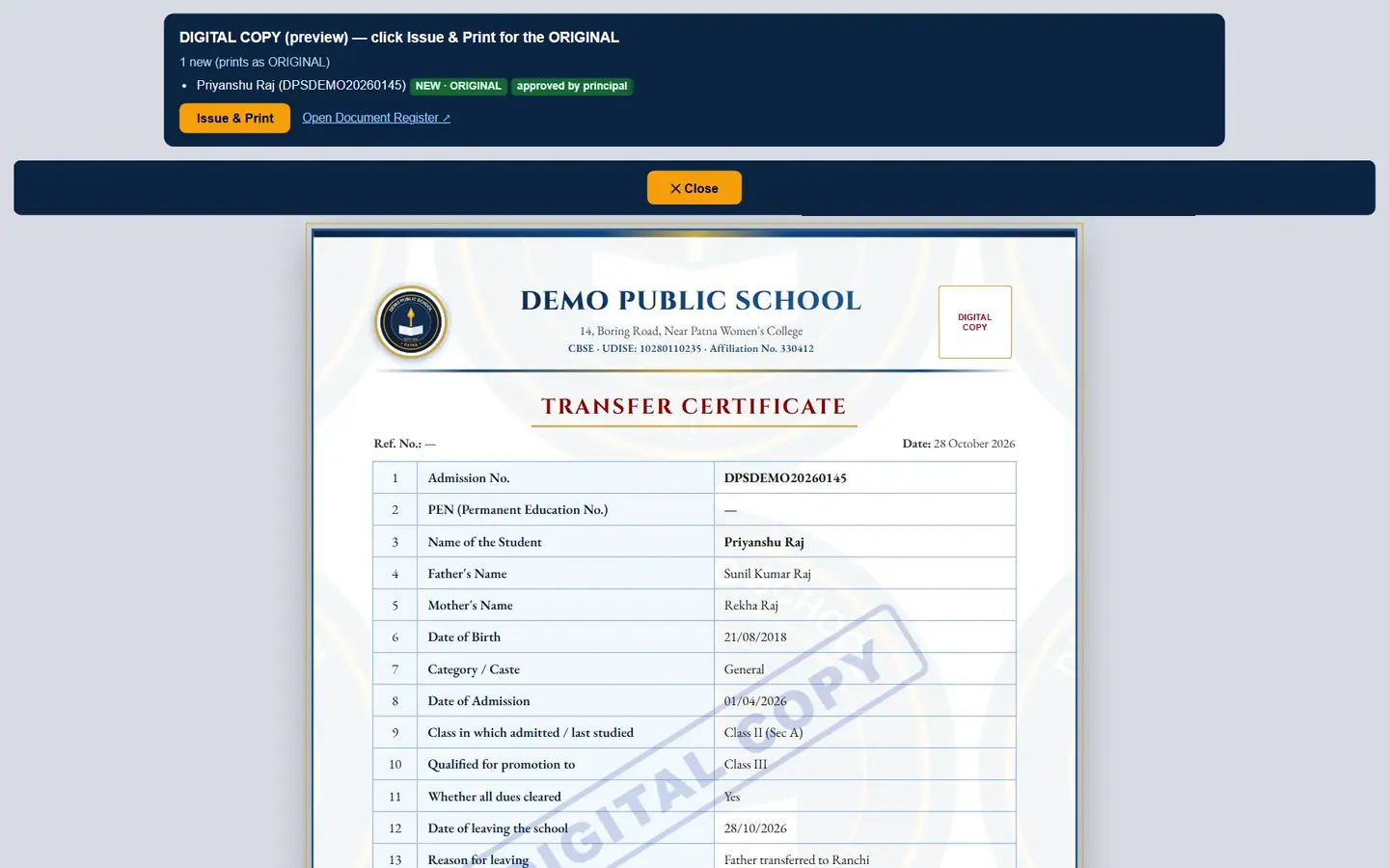
Ready to issue. Click Issue & Print. The popup reads "Issue the ORIGINAL Transfer Certificate for Priyanshu Raj? It is logged in the Document Register and the student is marked Left (leaving date and reason saved) and removed from the active roll." Click Issue & Print, then confirm once more in the second popup.

An ORIGINAL TC asks twice. The first popup names the student (here another student's TC, cancelled) and says they will be marked Left. The bar shows 1 issued (ORIGINAL). The TC now has a reference number (TC/2026/00037), a verify code and a QR code.

The ORIGINAL TC, ready to print. Click Print and print on the school's paper. Click Close when done.
Priyanshu Raj is now marked Left and appears in Inactive / Alumni as Left 28 Oct 2026 with the reason Father transferred to Ranchi.
TipThe Admin or Principal can still issue a blocked TC by forcing the rule with a written reason. The register then shows the document as Forced (rule overridden).
ImportantIssue the original only when the parent is collecting the TC. The student leaves the active roll at once, and a second print will be a DUPLICATE COPY.
Reprint a certificate (DUPLICATE COPY)
Open the same certificate again for the same student, or click Reprint in the Document Register.
The bar says 1 already issued (prints as DUPLICATE COPY) and shows the next copy number, for example next: DUPLICATE COPY – 1.
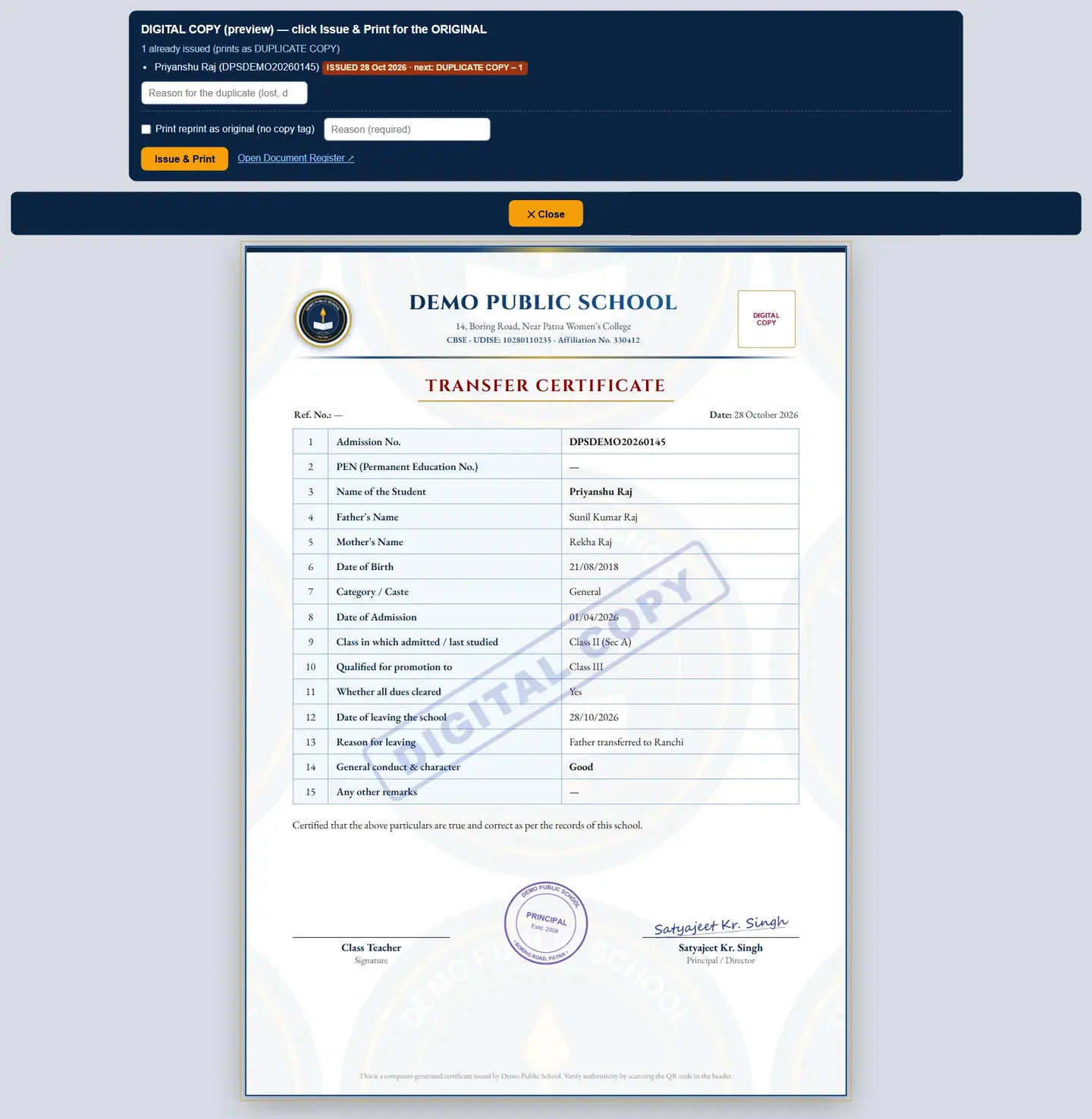
A TC reprint needs a reason. Click Issue & Print and confirm. The copy is stamped DUPLICATE COPY – 1 with the reprint date.
Click Issue & Print. The copy is stamped DUPLICATE COPY – 1 with the reprint date.
Issue a Bonafide certificate (example: Kabir Sharma, Class V-A, for a scholarship)
Pick Certificate Type: Bonafide Certificate and the Student: Kabir Sharma (DEMO20260021) — V.
Type the Purpose (optional): for scholarship application.

Bonafide needs only the student and purpose. Click Preview & Issue and check the preview.
Click Issue & Print. The popup asks "Issue and print the Bonafide Certificate for Kabir Sharma? Each copy is logged in the Document Register." Click Issue & Print.

Issue & Print asks once for a Bonafide certificate. The certificate gets the number BONAFIDE/2026/00042 and prints as ORIGINAL.
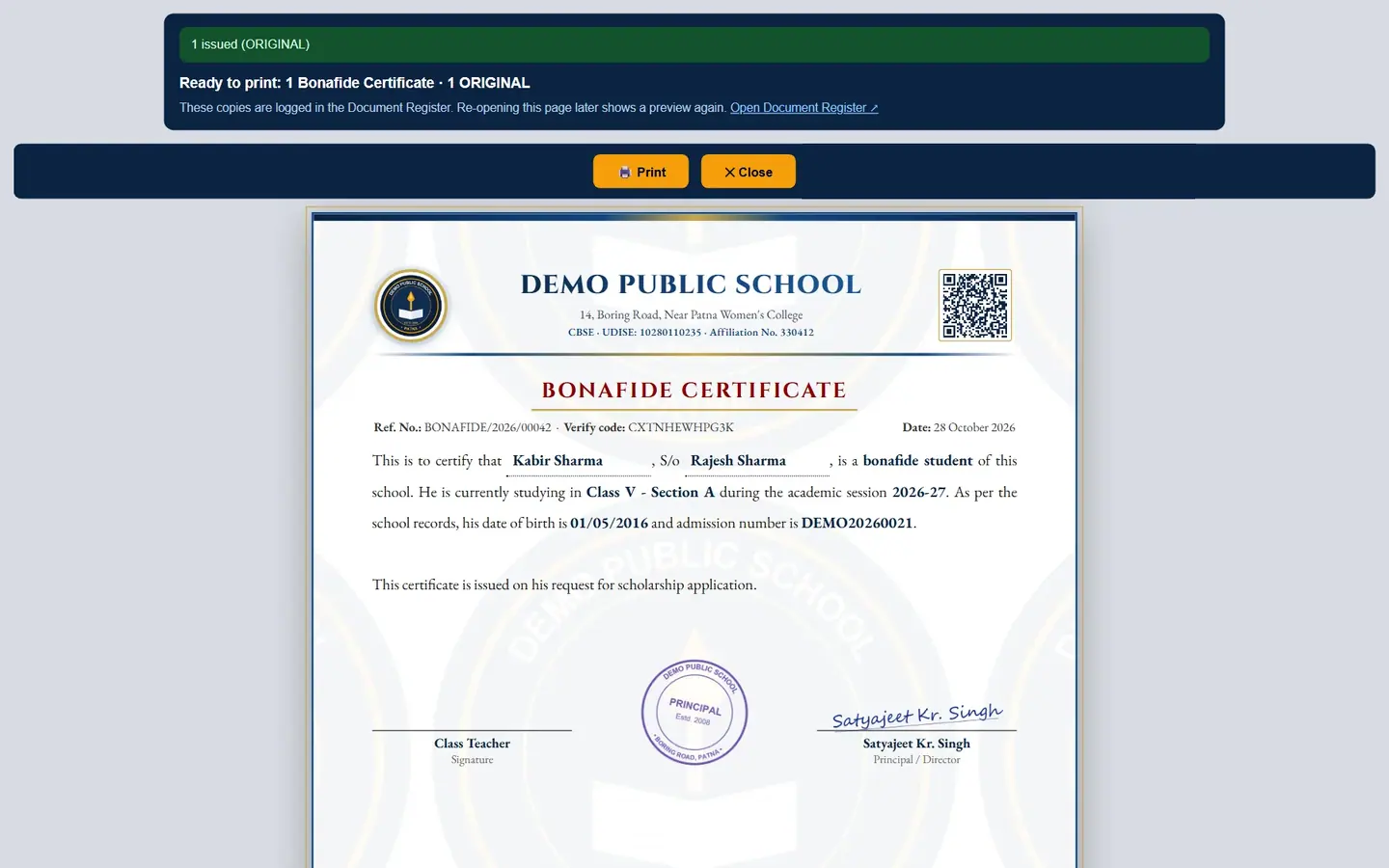
The issued Bonafide certificate with QR code, the Principal's stamp and signature (Satyajeet Kr. Singh). Click Print.
TipA Character certificate works the same way; fill Conduct / Character instead of Purpose.
Print certificates for many students at once
Scroll to Bulk Certificate Printing (Bonafide / Character / TC / SLC).
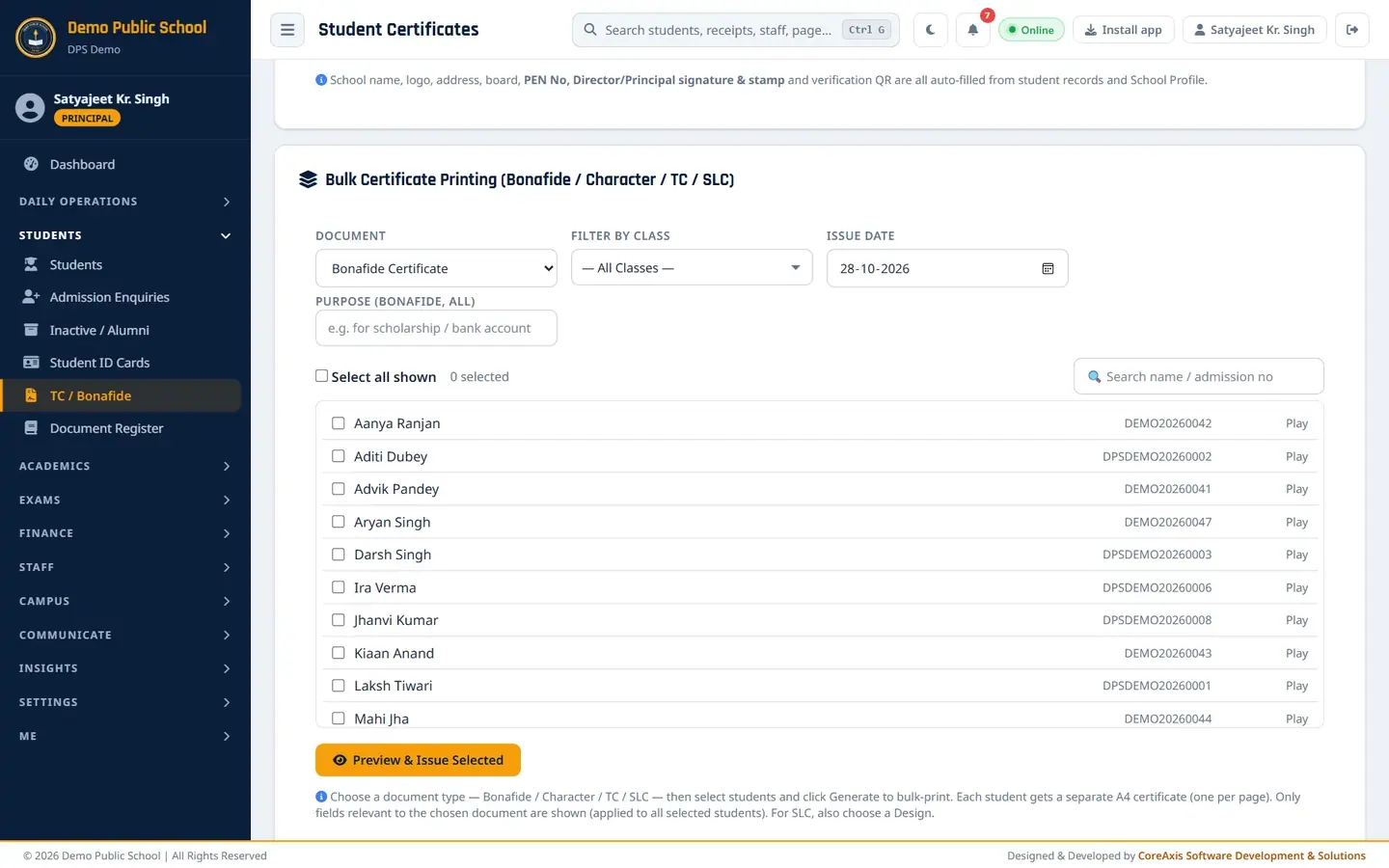
The bulk section. Pick the Document, then Filter by Class to list that class's students.
Set the Issue Date and the common details (purpose, conduct, or leaving date, reason and promoted class for TC / SLC). For SLC choose an SLC Design.
Click Preview & Issue Selected, check the preview and click Issue & Print, then confirm. Each certificate prints on its own page.
Click Preview & Issue Selected, check the preview and click Issue & Print. Each certificate prints on its own page.
Form fields
- Certificate Type
- Bonafide Certificate, Character Certificate, Transfer Certificate (TC), School Leaving Certificate (SLC).
- Student
- Active students first; students who have left are marked [left / inactive].
- Issue Date
- Date printed on the certificate.
- SLC Design Template
- Choice of four SLC layouts (SLC only).
- Purpose (optional)
- Bonafide only, for example for scholarship or bank account.
- Conduct / Character
- Printed on Character, TC and SLC, for example Good.
- Reason for Leaving / Promoted / Qualified to Class / Date of Leaving
- TC and SLC only.
- Any Other Remarks
- Optional line printed at the end.
Questions
The preview says 'Library books not returned'.
Return the books at Campus › Library, then open the TC again. The check runs every time the preview opens.
How does someone check that a TC is real?
Scanning the QR code, or entering the verify code on the school's verification page, shows the document details or says it was revoked.
Can a Teacher issue certificates?
No. Teachers do not see this page. Exam certificates for competitions and results are under Exams › Exam Certificates.