 CoreAxis School ERP
Students · Chapter 6
Inactive / Alumni
When a student leaves, the record is never deleted. Issuing an original TC or SLC, removing a student from the Students list, or a pass-out at session rollover moves the student here. Their marks, attendance and fee history stay intact, so the office can still issue a TC, SLC or character certificate years later, or bring the student back with Restore.
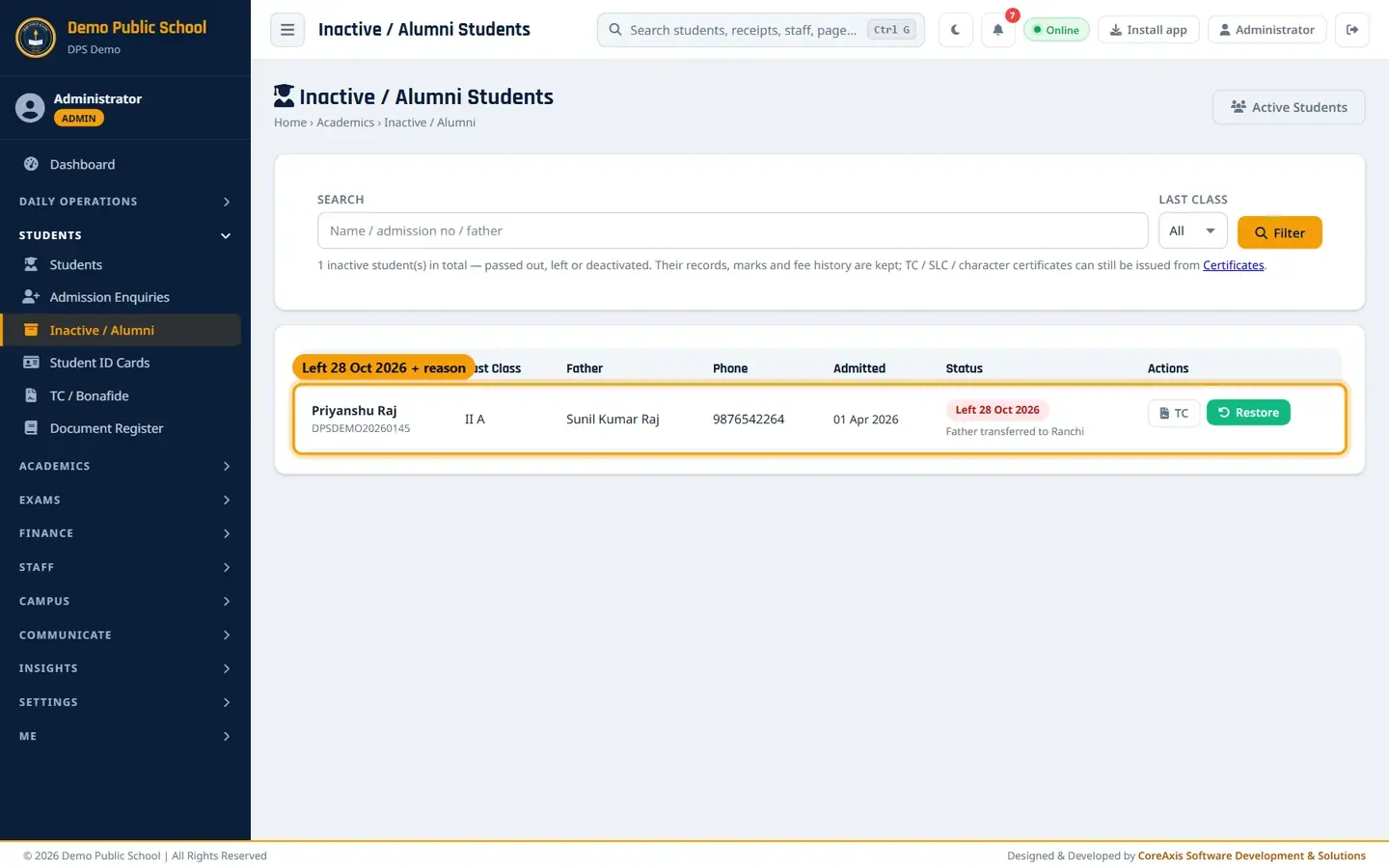
Find a student who has left (example: Priyanshu Raj, left Class II-A with a TC)
In the sidebar open Students and click Inactive / Alumni.
Priyanshu Raj moved here when his original TC was issued: Status shows Left 28 Oct 2026 and the reason, Father transferred to Ranchi. Type a name, admission number or father's name in Search, for example Priyanshu.
To see only one class, pick it in Last class, for example II-A.
Click Filter. The line under the filter shows how many inactive students there are in total.
Read the row: name and admission number, last class, father, phone, admission date and status. Left <date> with the reason under it means the student left with an original TC or SLC (Priyanshu Raj: Left 28 Oct 2026, Father transferred to Ranchi). Passed out Mon YYYY means the student finished the last class at session rollover; Inactive means removed from the Students list.
Issue a TC to a student who has already left
Find the student in the list.

Each row has TC and Restore. Click TC. The Student Certificates page opens with Transfer Certificate and the student already selected.
Fill the leaving details and click Preview & Issue, as described in the TC / Bonafide chapter.
TipA student who already has an original TC gets a DUPLICATE COPY on the next issue. The Document Register keeps every copy.
Restore a student to the active roll
Use Restore when a student was removed by mistake or comes back to the school.
Find the student and click Restore.
Read the popup. It says the fee dues for the active session are regenerated, and that any months the student was away must be waived in Fees.
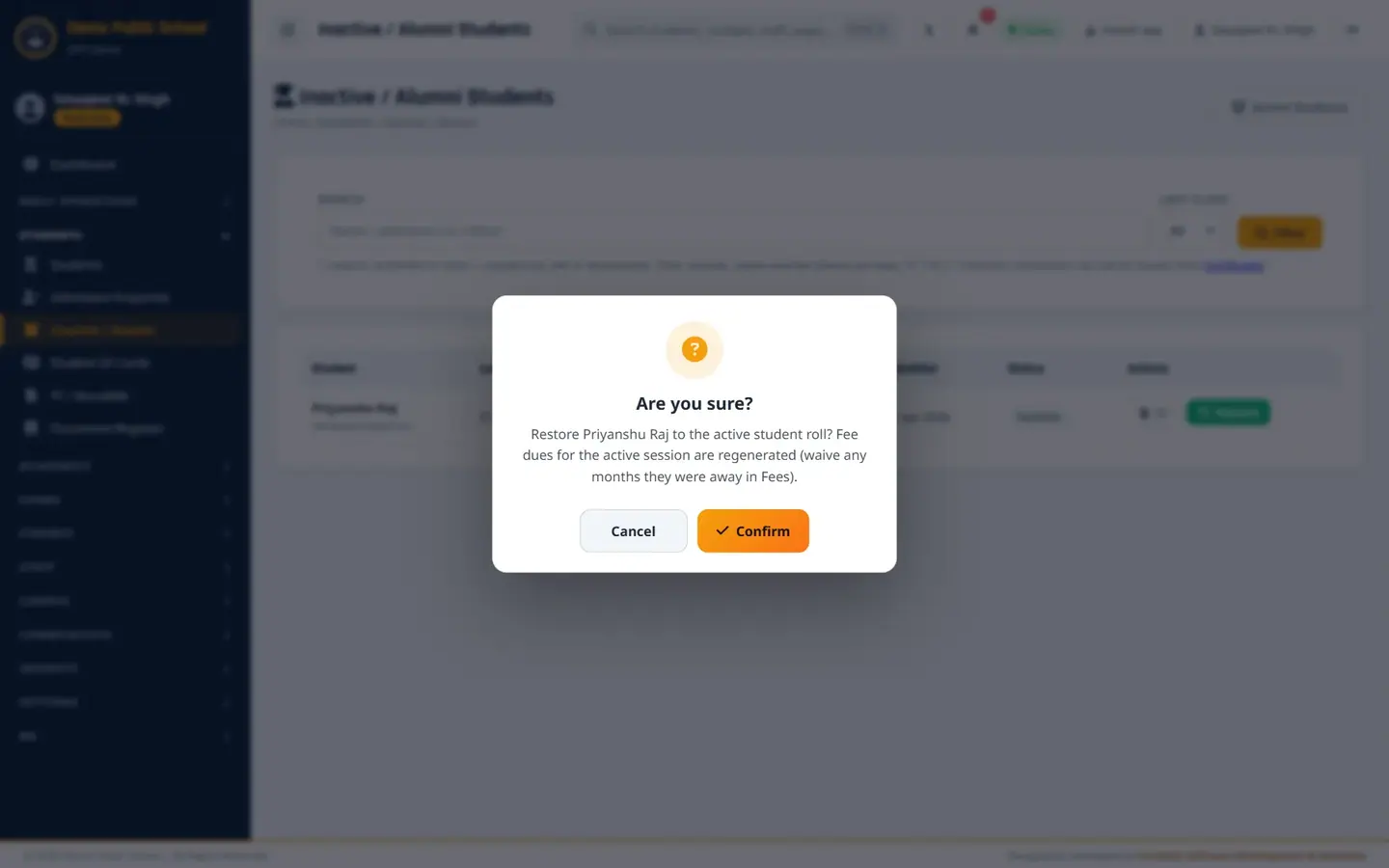
Restore asks for confirmation. Click Confirm. The message Student restored to the active roll appears and the student is back in Students.
Open the student in Students, click Edit and check the class and roll number before the next attendance.
ImportantRestore is refused when the plan's student limit is reached. Upgrade the plan first. A student who left with an original TC should normally not be restored; admit them again only if they really rejoin.
Screen at a glance
- Active Students
- Button back to the Students list.
- Search / Last class / Filter
- Search by name, admission number or father; filter by the class the student was last in.
- Student
- Name and admission number.
- Last Class
- Class and section when the student left.
- Father / Phone / Admitted
- Contact details and the original admission date.
- Status
- Left <date> with the reason for leaving (from the original TC / SLC), Passed out (with month and year), or Inactive (removed from the Students list).
- Actions
- TC opens the TC form for the student; Restore returns the student to the active roll.
Questions
Why can I not see a student here after issuing a Bonafide certificate?
Only an original TC or SLC marks a student Left. Bonafide and character certificates do not change the student's status.
Are the fees of an inactive student still counted as dues?
No. Inactive students are not billed for new months and are not listed as defaulters.