 CoreAxis School ERP
Campus · Chapter 43
Inventory & School Store
Inventory keeps every item the school holds: stationery, uniform items, sports goods, classroom supplies. Each item has a quantity, unit price, minimum stock and location; every stock in and stock out is recorded. When the School Store add-on is on, the same items can be sold to students (one by one or as a ready-made kit). A sale reduces stock and adds the total to the student's fee dues, which the parent pays at the Fee Desk or online.
Add an item (example: Geometry Box)
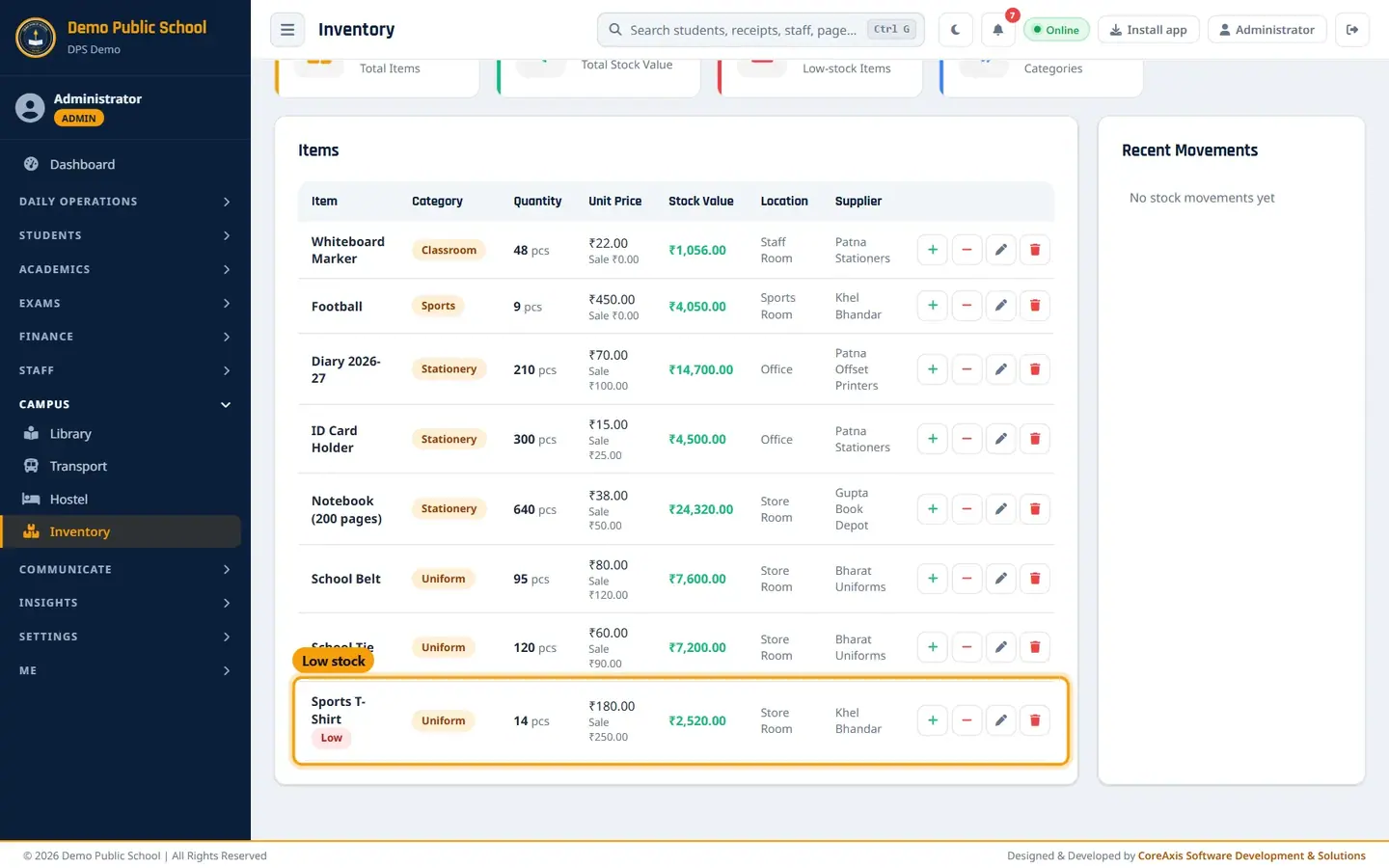
Open Campus › Inventory. The Items & Stock tab lists all items; items at or below their minimum show a red Low badge.
Items with stock value; Sports T-Shirt is low. Click Add Item.
Type the Item Name (Geometry Box) and Category (Stationery). Fill Quantity, Unit (pcs) and Unit Price (₹) (85).
Set Min Stock (20): when stock falls to this level the item is marked Low.
With the School Store on, fill Sale Price to Students (₹) (120). Leave it blank to sell at the unit price.
Fill Location (Store Room), Supplier (Gupta Book Depot) and Notes, then click Save.
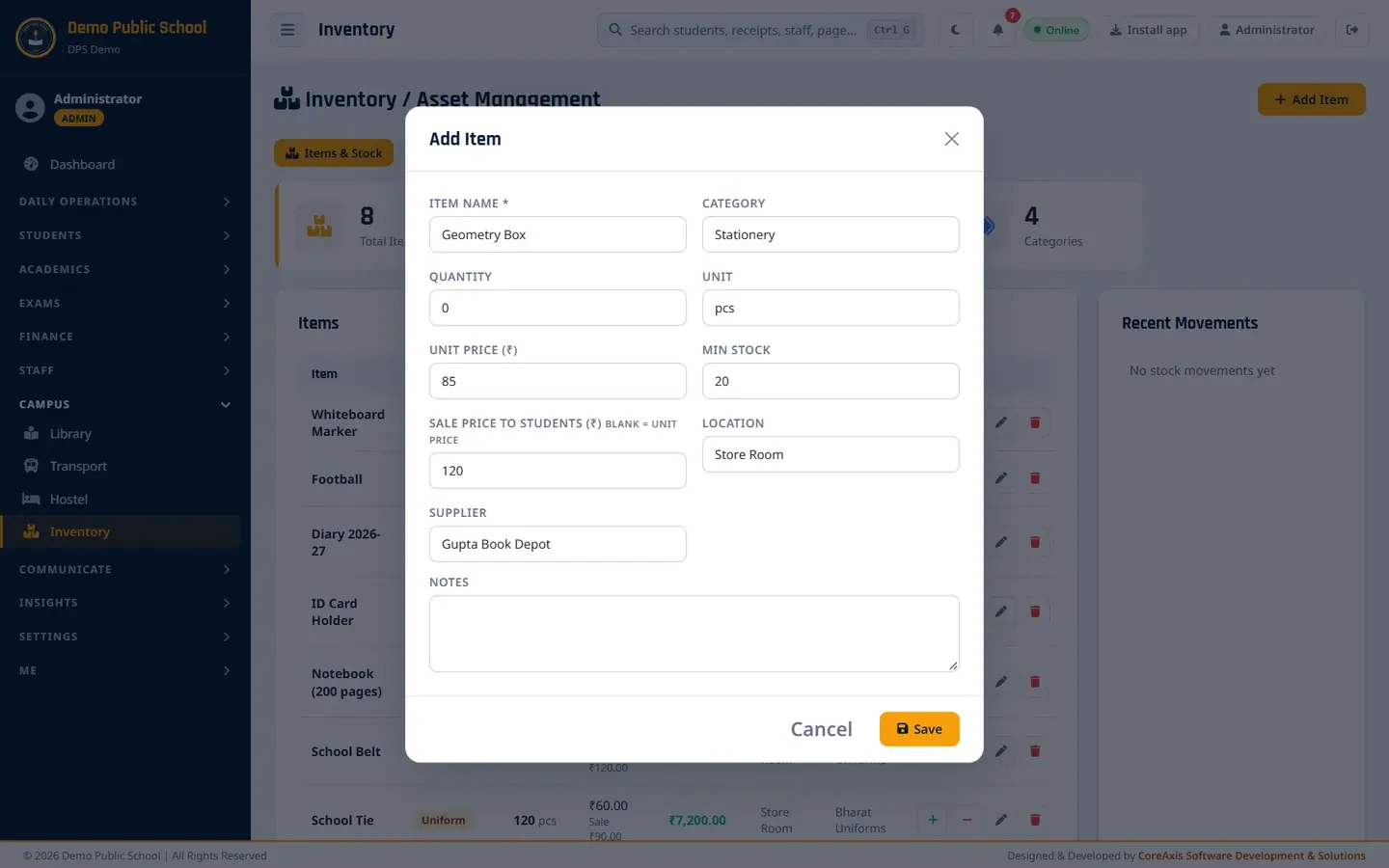
Add Item form.
Record stock in and stock out (example: 100 notebooks received, 2 footballs issued)
On the item's row, click the + button (Stock In).
Type the Quantity (100), check the Date and add a Note (Bill no. 4417, Gupta Book Depot).

Stock In for Notebook (200 pages). Click Save. The message Stocked in 100 Notebook (200 pages). appears and the quantity goes from 640 to 740.
For items given out, click the − button (Stock Out), type the quantity (2 footballs) and a note (Issued to PTI for inter-house matches), and click Save.

Stock Out for Football. Recent Movements on the right lists each stock in (+) and stock out (−).

Recent Movements: +100 notebooks, −2 footballs.
TipStock can never go below zero; a stock out larger than the quantity is refused.
School Store: make a kit (example: Class I Admission Kit)
Open the Kits tab and click New kit.
Type the Kit name (Class I Admission Kit).
Click Add item for each line and choose the item and quantity: Diary 2026-27 × 1, Notebook (200 pages) × 6, School Belt × 1, School Tie × 1, ID Card Holder × 1.

New kit with five items. Click Save kit and confirm. The kit is listed with its items and price.
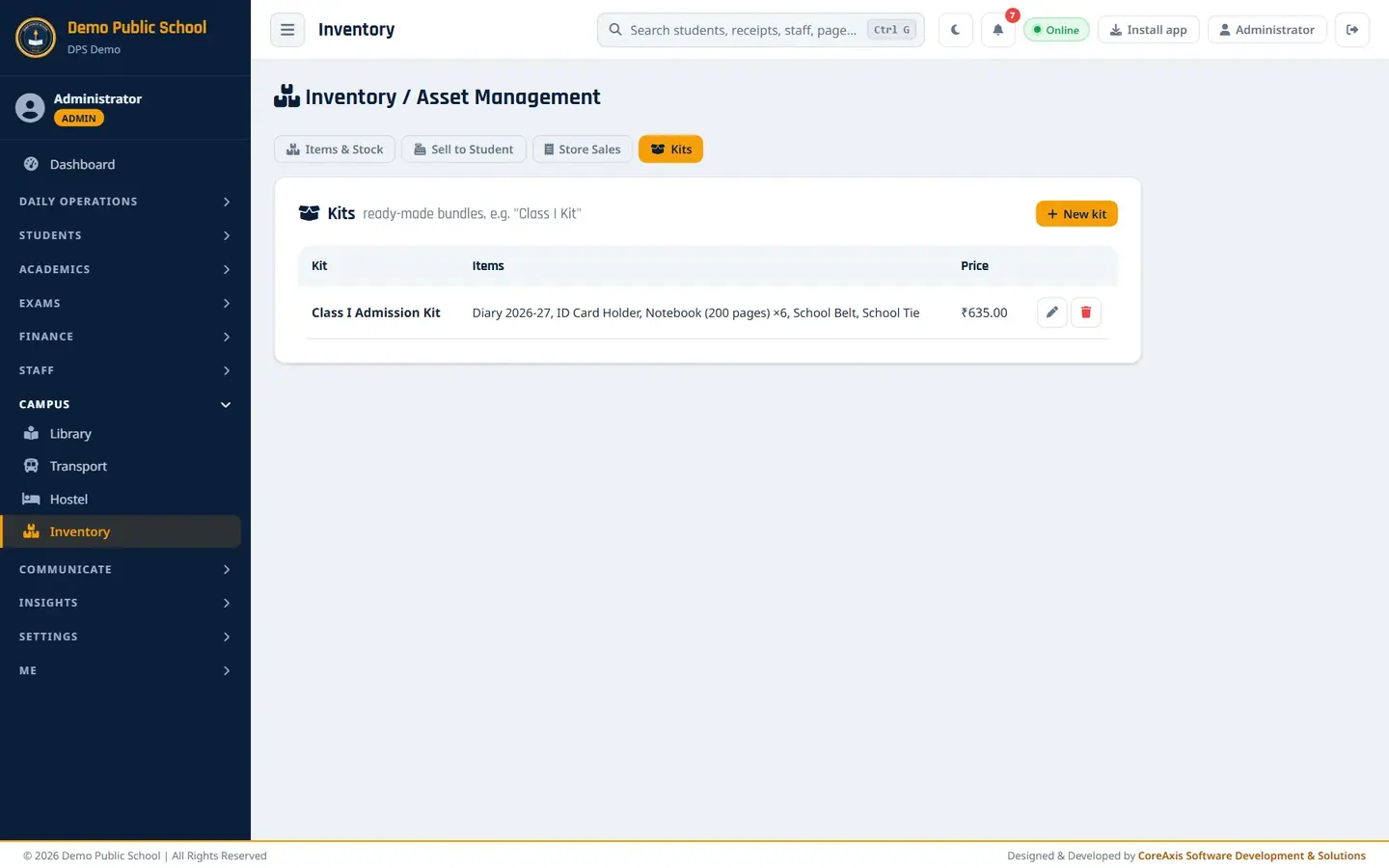
Kits list.
School Store: sell to a student (example: Aanya Ranjan, Class I-A, ₹635 added to dues)
Open the Sell to Student tab (Accountant: School Store).
In Student, type the name, admission number or father's name and click the student in the list. A green tick line confirms the choice.

Search by admission number. In Add a kit, choose Class I Admission Kit and click Add kit items. Use Add item for anything extra, and change quantities if needed.
Check the Total (₹635.00) and type a Note (New admission kit).
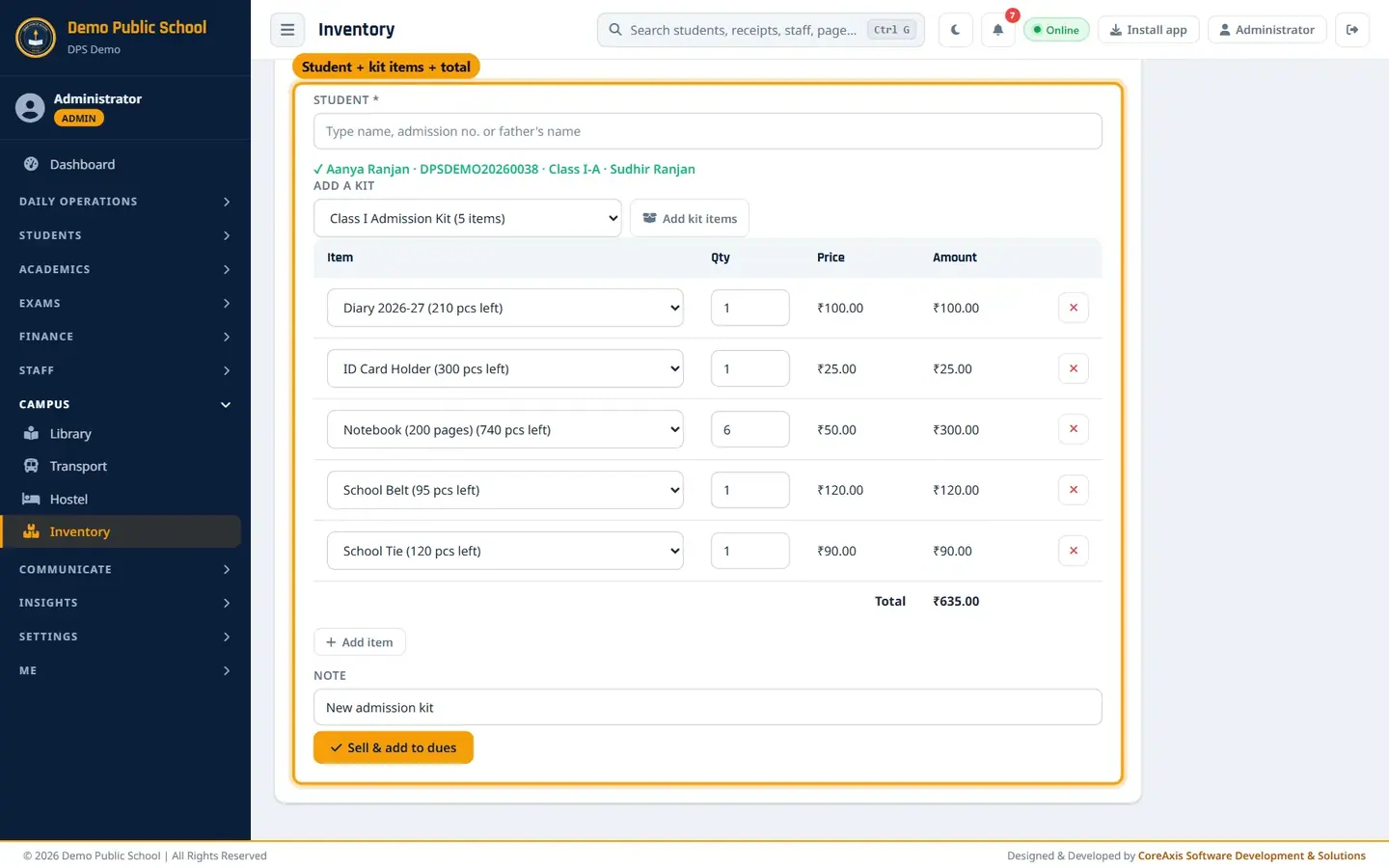
Student, kit lines, prices and total. Click Sell & add to dues and confirm Yes, sell.
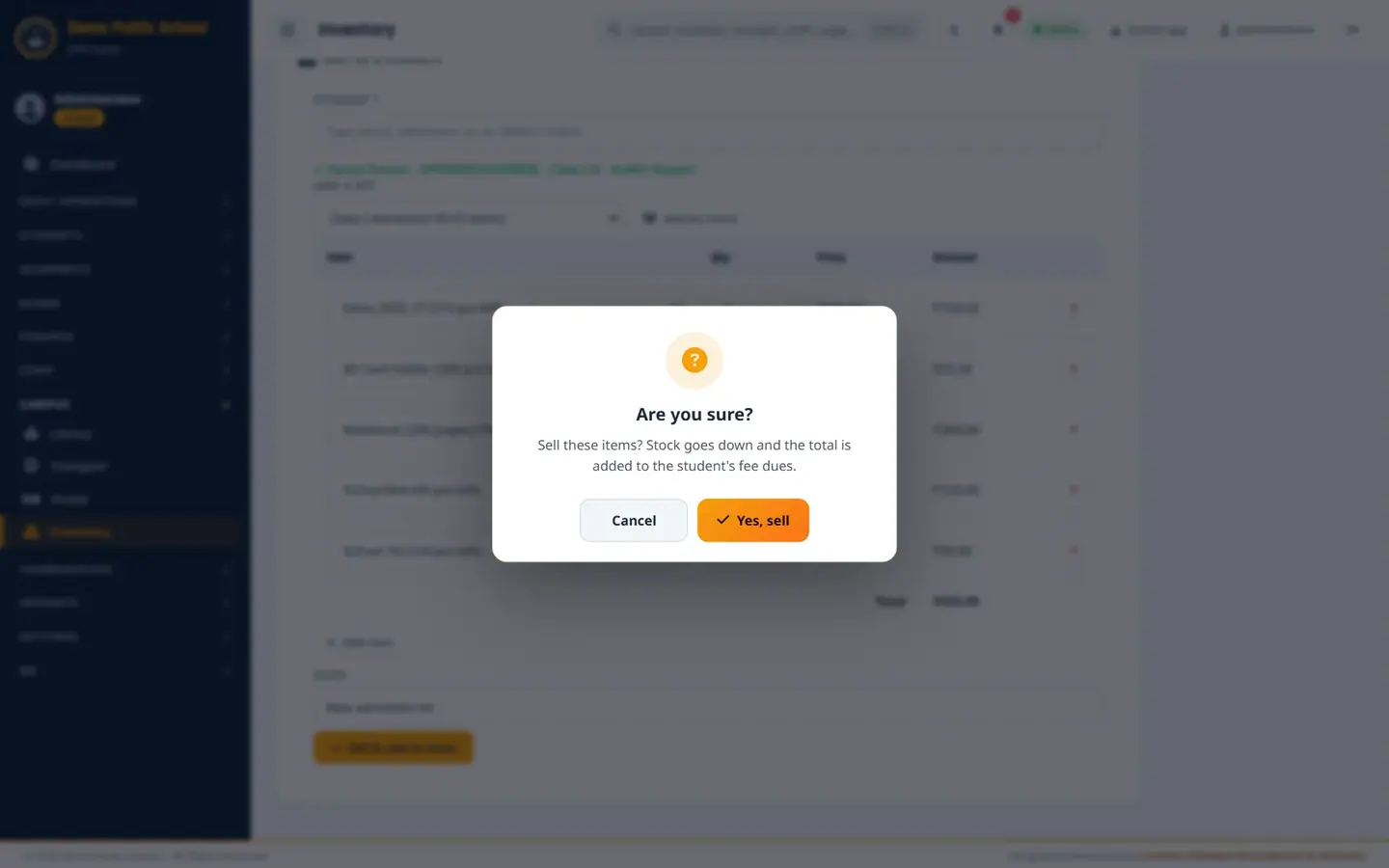
Stock goes down and the total is added to the student's fee dues. The message Sold to Aanya Ranjan — ₹635.00 added to their fee dues (School Store) appears. The sale is listed in Store Sales as Due until paid.
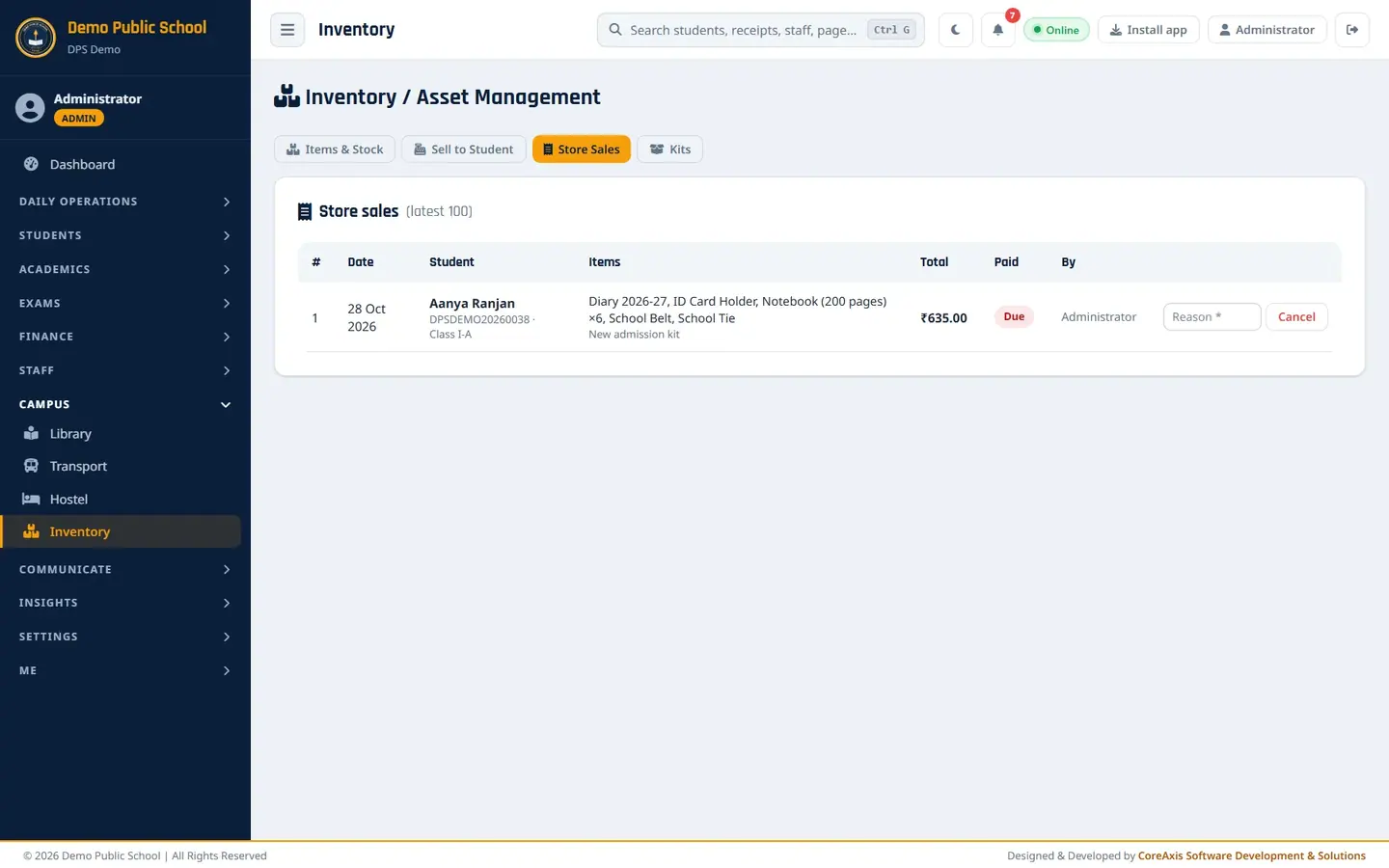
Store Sales register.
TipThe parent pays the store amount with the fees at the Fee Desk (head: School Store) or online.
TipTo undo a wrong sale, click Cancel on its row in Store Sales and give a reason. Items go back to stock and the charge is removed from the dues.
Screen at a glance
- Total Items / Total Stock Value / Low-stock Items / Categories
- Stock value = quantity × unit price, added up.
- Items table
- Item, Category, Quantity with unit, Unit Price and Sale price, Stock Value, Location, Supplier, and buttons + (Stock In), − (Stock Out), Edit, Delete.
- Sell to Student
- Student search, Add a kit, item lines with Qty / Price / Amount, Total, Note, Sell & add to dues.
- Store Sales
- Latest 100 sales: date, student, items, total, Paid / Due, by whom, Cancel.
- Kits
- Ready-made bundles with items, price, Edit and Delete.
Questions
I do not see Sell to Student, Store Sales or Kits.
The School Store is an add-on. Ask the CoreAxis platform team to turn it on for your school.
An item cannot be picked in the sell list.
Items with no sale price and no unit price are disabled. Edit the item and set a Sale Price to Students.