 CoreAxis School ERP
My Account · Chapter 53
My Account (Me menu)
The Me group at the bottom of the menu is the same for every staff member, from the principal to a teacher or accountant. It shows only your own records: your salary slips, your attendance as marked by the office, the substitution periods given to you, your leave, and your profile and sign-in settings. The example below is Amit Kumar Mishra, TGT Mathematics.
My Payslips: view or download a salary slip
Open Me › My Payslips. The top cards show the latest month's Net Pay, Gross and Deductions (September 2026: net ₹20,180.00, paid 03 Oct 2026).
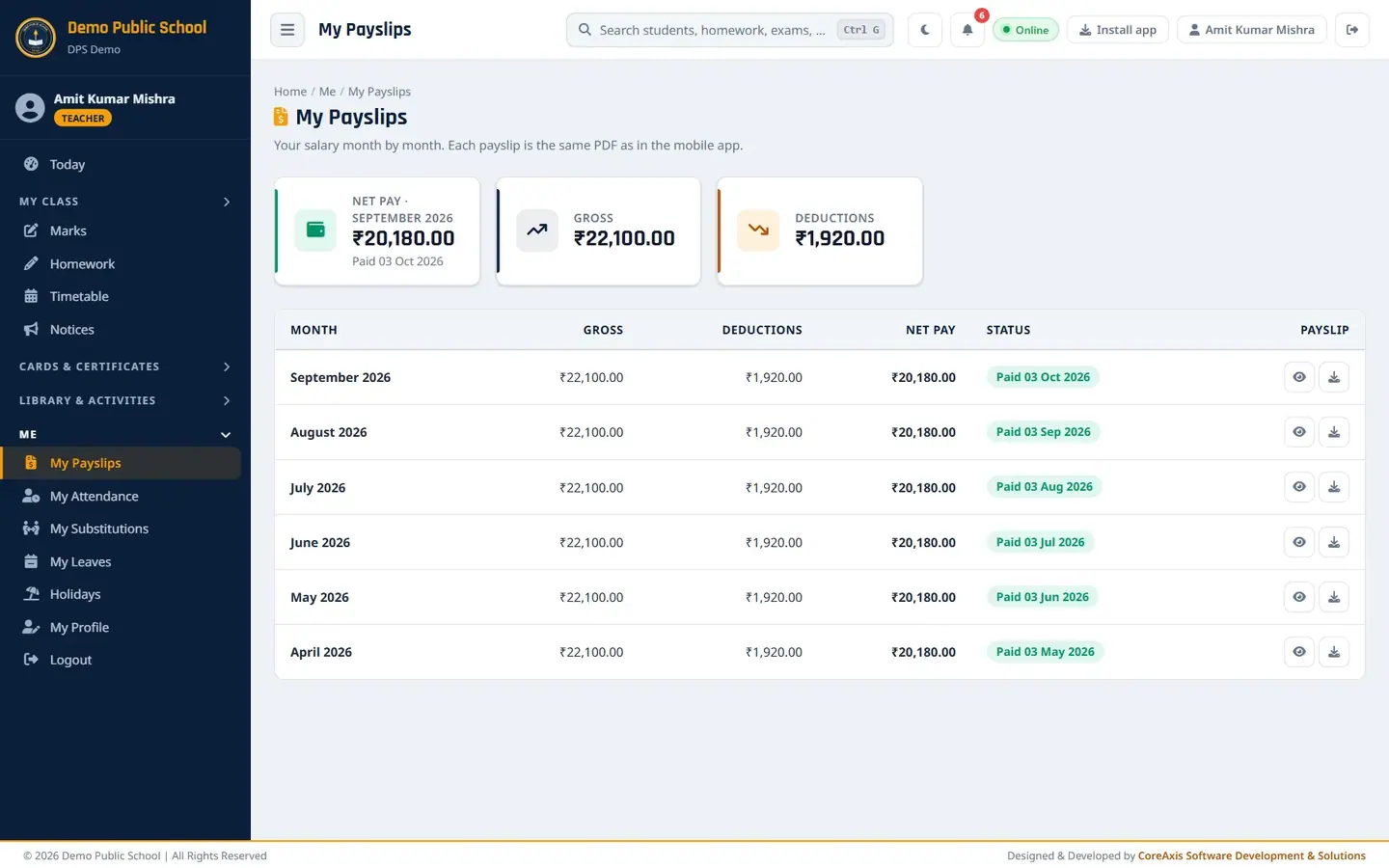
One row per month, newest first, with gross, deductions, net pay and paid date. The months are listed newest first: September 2026, August 2026 … April 2026.
Click the eye icon on a month to view the payslip PDF in the browser.
Click the download icon to save the PDF. It is the same payslip as in the mobile app.
TipA month appears here after the office generates salary for it in Salary / Payroll. Ask the accountant if a month is missing.
My Attendance: your month at a glance
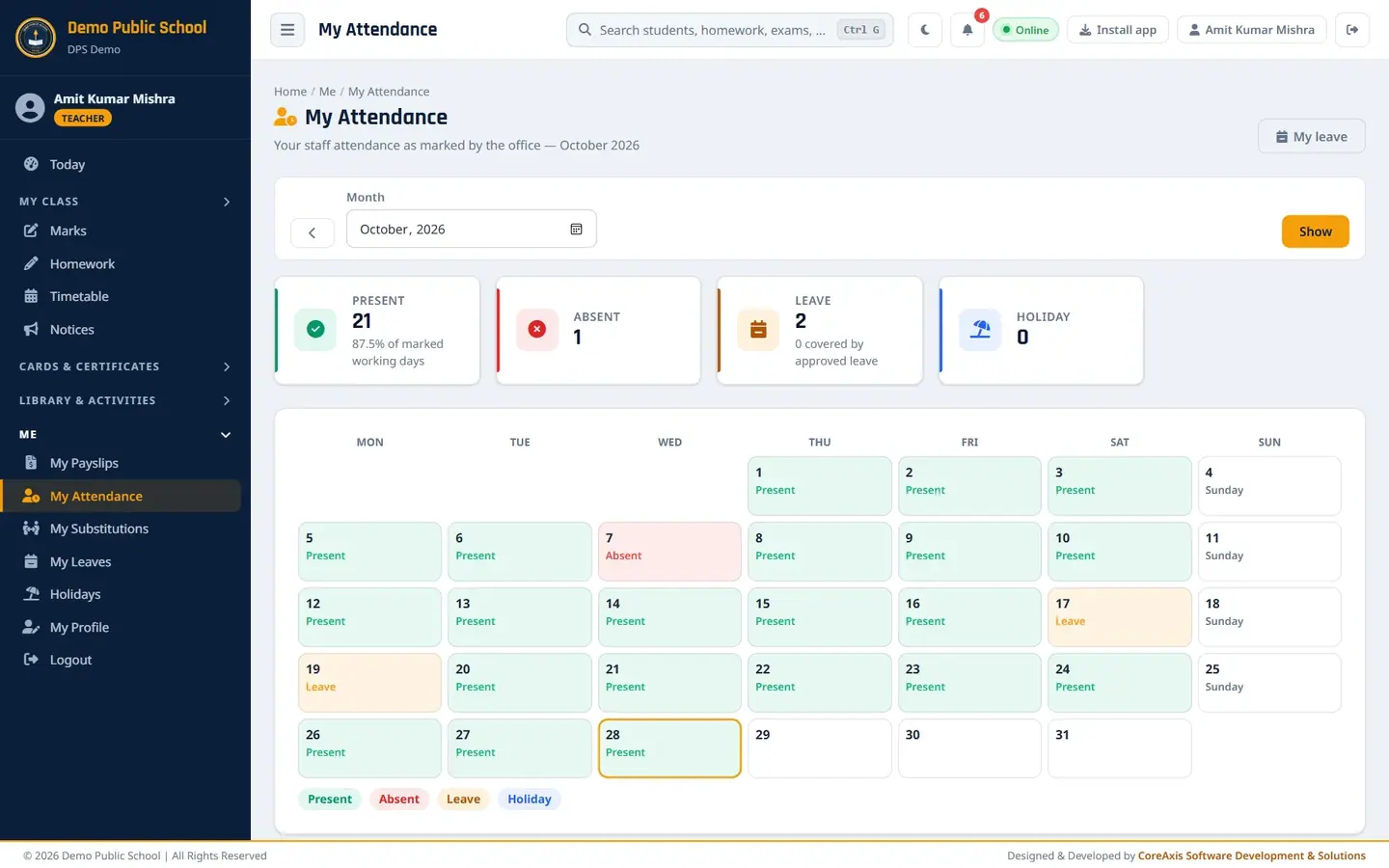
Open Me › My Attendance. The current month opens (October 2026).
21 present, 1 absent, 2 leave; Sundays shown. Read the cards Present (with % of marked working days), Absent, Leave (and how many are covered by approved leave) and Holiday.
Each day in the calendar shows Present, Absent, Leave, Holiday or Sunday. Use the arrow or the Month box and Show to see another month.
At the bottom, My leave balance shows CL, EL and HPL available; click Open My Leave to apply.
TipIf a day is wrong (for example Absent on a day you were present), tell the office; only they can change staff attendance.
My Substitutions
Open Me › My Substitutions (teachers). It lists periods you must take for absent colleagues: Today, This week and Next 14 days, then Today & upcoming and Last 30 days.

No substitutions assigned this week. The office arranges substitutions; ask them for a change.
My Leave
Open Me › My Leaves (teachers and accountants) or Me › My Leave (admin-level). Your balance for each leave type is at the top; Pending 2 under CL means 2 days are waiting for approval.

Leave balance and the Apply for Leave form. Fill Apply for Leave and click Submit Application. The full steps are in the Leave Management chapter.
My Profile: details and password
Open Me › My Profile. You can correct Full Name, Email and Phone. Username and Role are set by the office.
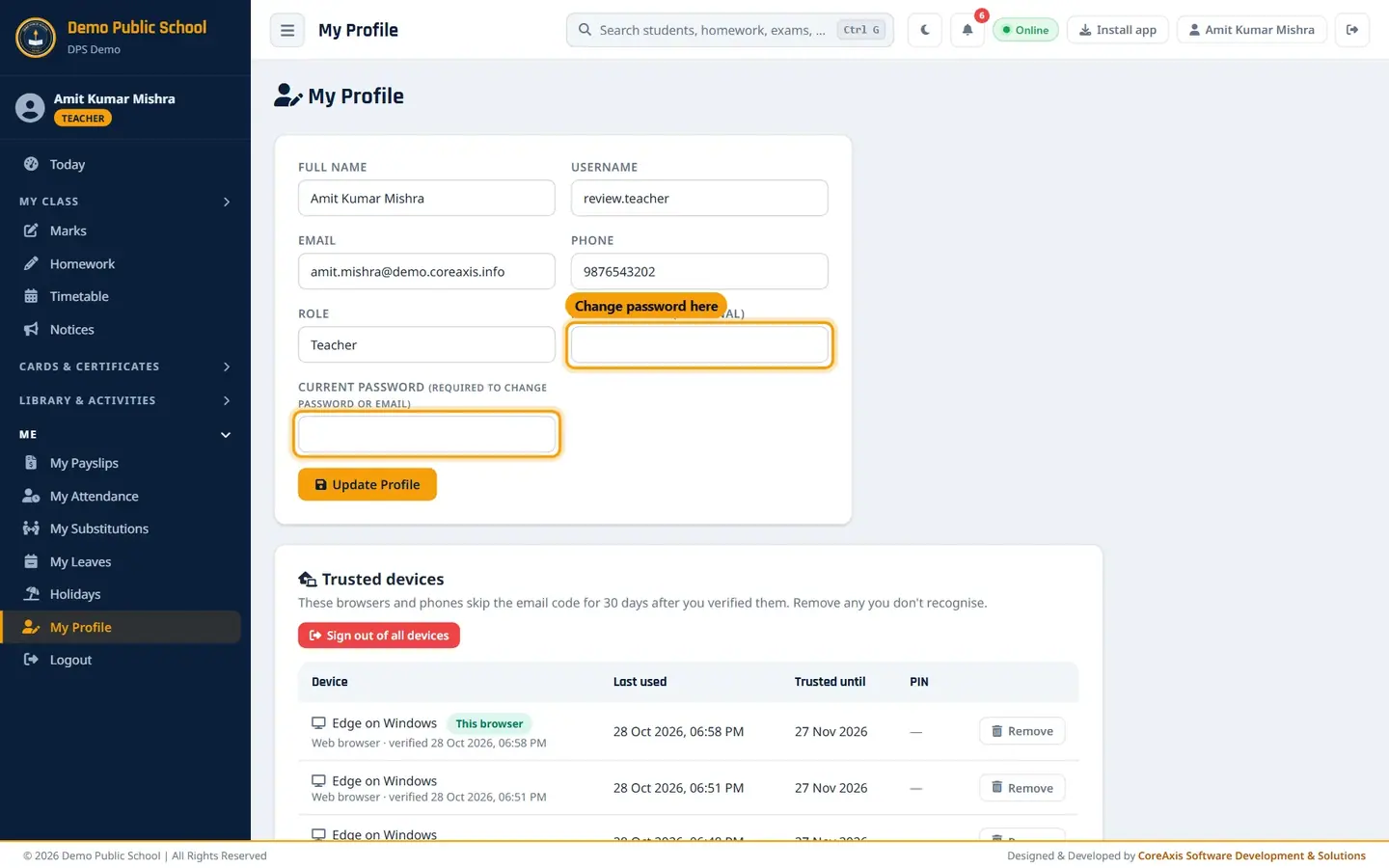
My Profile with the two password boxes. To change your password, type the new one in New Password (optional) (••••••••; at least 8 characters with an uppercase letter, a lowercase letter and a number).
Type your present password in Current Password. It is needed to change the password or the email.
Click Update Profile. Other devices are signed out after a password change; sign in again there with the new password.
ImportantNever share your password. The office can reset it, but they cannot see it.
Trusted devices and quick-login PIN
On My Profile, scroll to Trusted devices. Browsers and phones you verified with the email code skip the code for 30 days. Each row shows the device, last used, trusted-until date and whether a PIN is set.

Trusted devices list. Click Remove on any device you do not recognise. Click Sign out of all devices if you think someone else has your password.
Click Set a quick-login PIN for this browser to choose a 4–6 digit PIN. On this trusted browser you can then sign in with the PIN instead of the password.

Set a quick-login PIN: type it twice and click Save PIN. Type the New PIN and Confirm PIN and click Save PIN, or click Skip for now.
TipAvoid easy PINs like 1111 or 1234. Five wrong PINs turn PIN sign-in off for that browser.
Questions
I forgot my password.
Click Forgot Password? on the sign-in page, or ask the office (Admin) to reset it from Staff › Staff › Reset Password.
I changed my phone. Do I need a new code?
Yes. A new device asks for the 6-digit email code once, then it is trusted for 30 days.