 CoreAxis School ERP
Academics · Chapter 15
Substitution
Substitution (arrangement) shows, for one date, every teacher who is away and each of their timetable periods that needs cover. A teacher appears here when they are on approved leave, marked absent in Staff Attendance, or marked unavailable on this page. For each period the app lists only teachers who are free in that period, with the best choice first. The arranged periods appear in each substitute's My Substitutions page and on a printable sheet for the staff room.
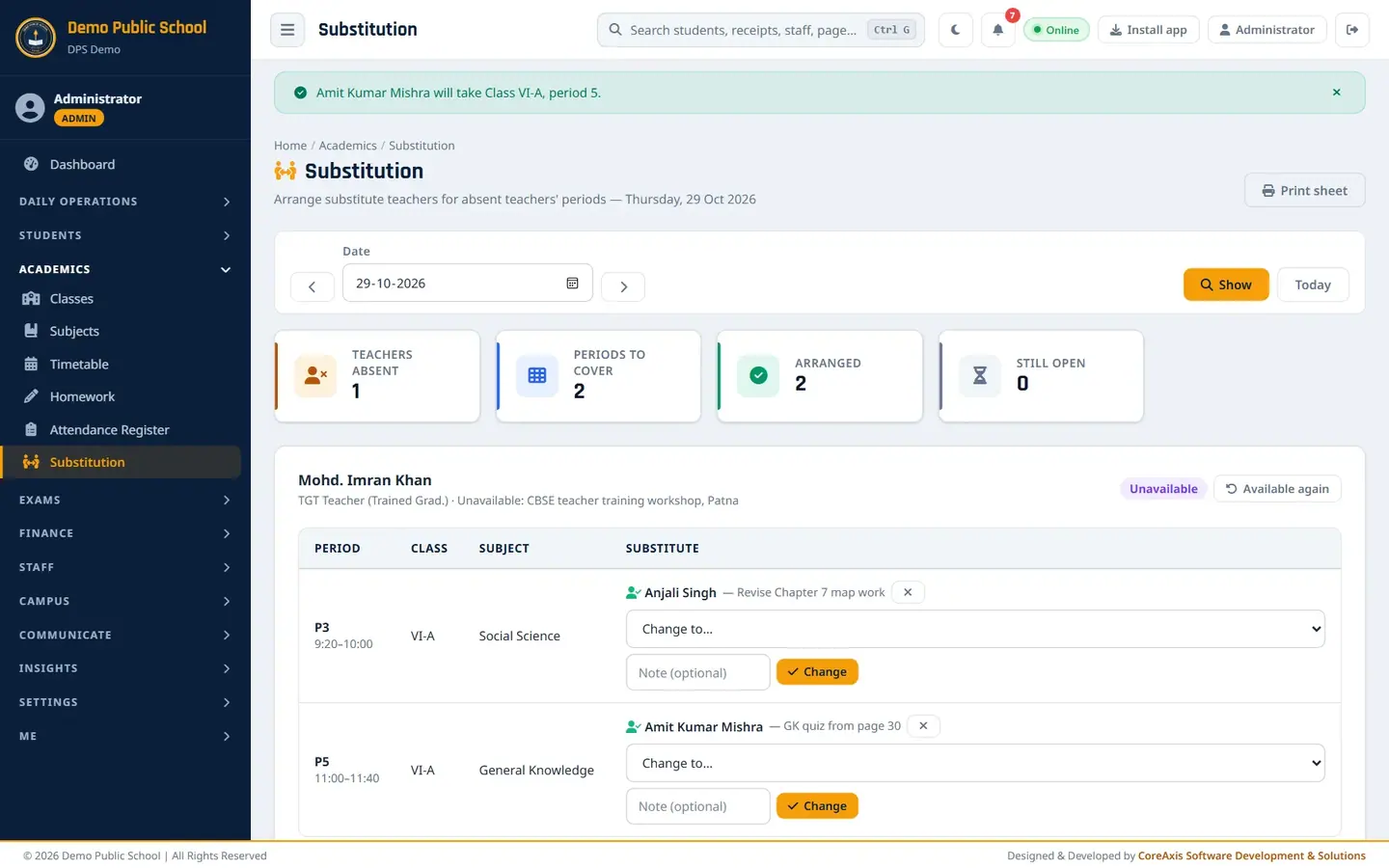
Screen at a glance
- Print sheet
- Opens the day's arrangement sheet in a new tab, ready to print.
- Date, ‹ › and Show
- Pick the date (or step one day back / forward) and click Show. Today returns to the current date.
- Teachers absent
- Teachers away on the date.
- Periods to cover
- Their timetable periods on that weekday.
- Arranged
- Periods that already have a substitute.
- Still open
- Periods still without a substitute (red when above zero).
- Teacher card
- One card per absent teacher with the reason and a badge: On leave, Absent or Unavailable. Available again removes a manual Unavailable mark.
- Period / Class / Subject / Substitute
- Each period to cover, with a list of free teachers, an optional Note and an Assign button. After assigning, the substitute's name is shown with an × to remove it and a Change to… list.
- Mark a teacher unavailable
- For a teacher who is away without a leave application or attendance mark (on duty elsewhere, training, came late). Their periods then appear above.
Mark a teacher unavailable for a day (example: Mohd. Imran Khan, 29 Oct 2026)
Mohd. Imran Khan is attending a CBSE training workshop on Thursday, 29 October. He has not applied for leave, so the office marks him unavailable.
Open Academics › Substitution.
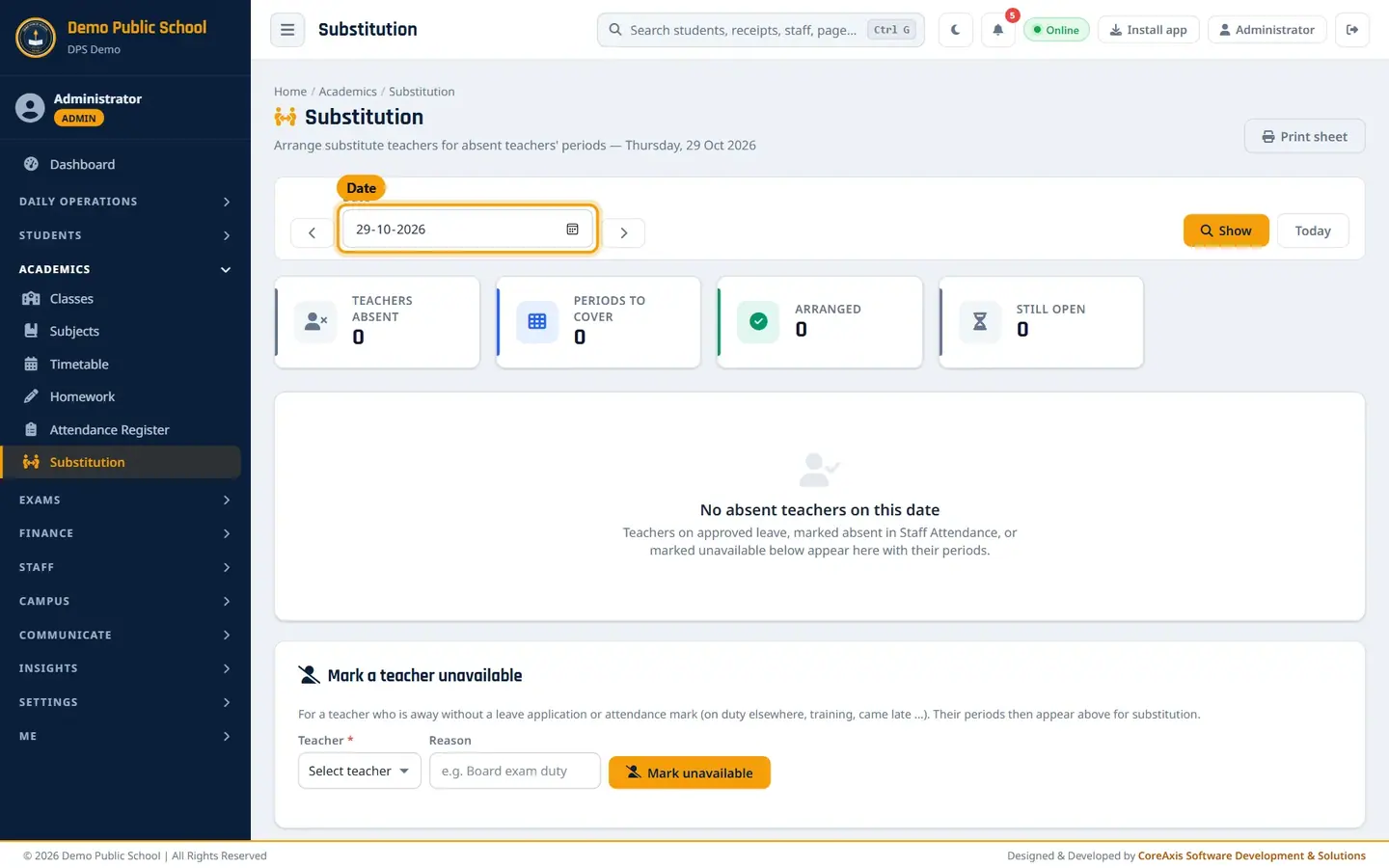
The Substitution page for a date with no absent teacher. Set Date to 29-10-2026 and click Show.
Under Mark a teacher unavailable, pick Mohd. Imran Khan in Teacher.
Type the reason in Reason: CBSE teacher training workshop, Patna.
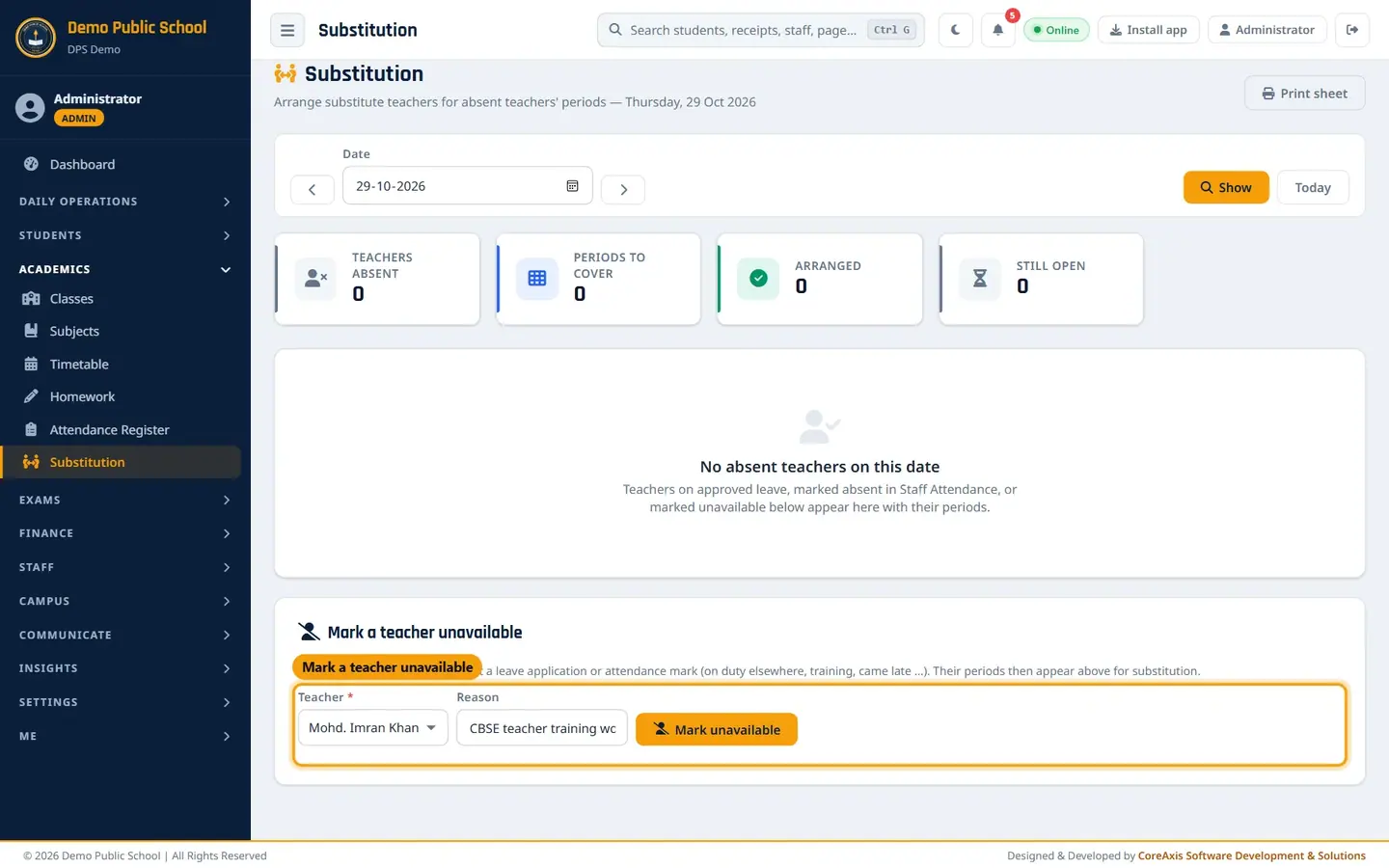
Marking a teacher unavailable. Click Mark unavailable, then confirm. The message "Mohd. Imran Khan marked unavailable for 29 Oct 2026. Assign substitutes below." appears and his card lists his Thursday periods (P3 Social Science and P5 General Knowledge in VI-A).

His periods now need cover: 2 still open.
TipTeachers with approved leave or marked absent in Staff Attendance appear here on their own. You do not need to mark them unavailable.
TipIf a teacher has no periods on that weekday, the card says "No timetable periods on Thursday — nothing to arrange."
TipIf the date is a holiday or Sunday, the page says the school is off and nothing needs arranging.
Assign substitutes (example: P3 to Anjali Singh, P5 to Amit Kumar Mishra)
In the row for P3 · VI-A · Social Science, open the list Pick a free teacher…. Each name shows how many substitutions the teacher already has this week and how many periods they teach that day. "teaches this class" means they know the students. The first name is marked (suggested).
Pick Anjali Singh — 0 this week, 0 periods today · teaches this class (suggested).
Type a short instruction in Note (optional), for example Revise Chapter 7 map work.
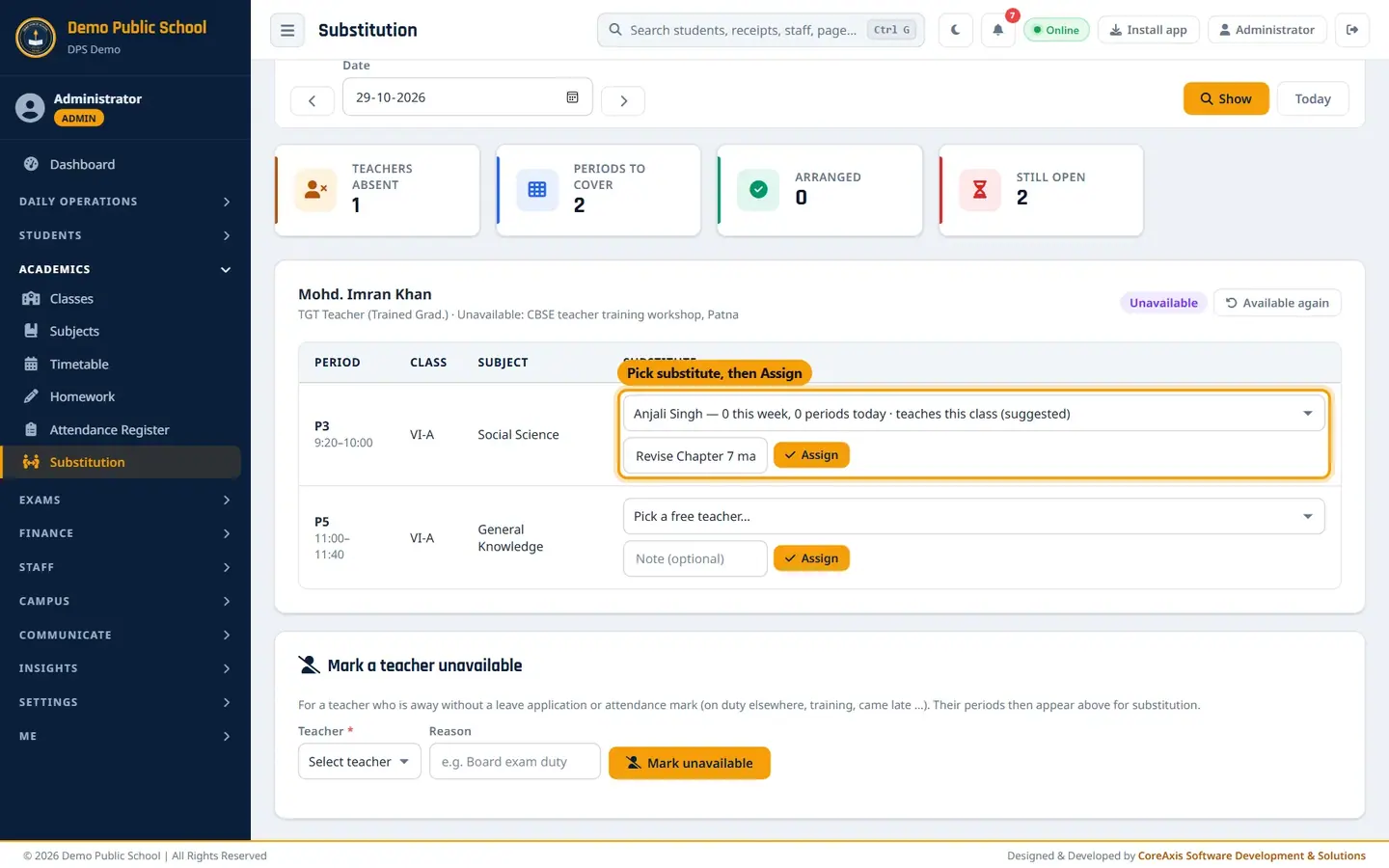
Pick a substitute and add a note. Click Assign and confirm. The message "Anjali Singh will take Class VI-A, period 3." appears.
Do the same for P5 · General Knowledge: pick Amit Kumar Mishra, note GK quiz from page 30, and click Assign.
Check the counters: Arranged 2 and Still open 0.
Both periods are covered.
TipOnly teachers who are free in that period and not away themselves are listed. If nobody is free, the row says "No free teacher in this period."
TipTo swap a substitute, pick another name in Change to… and click Change. To cancel an arrangement, click the × next to the name and confirm.
TipIf the absent teacher comes back, click Available again on their card. Arrangements already saved stay until you remove them.
Print the arrangement sheet
With the date selected, click Print sheet (top right). The sheet opens in a new tab.
Check the sheet: period, time, class, subject, absent teacher (with reason), substitute (with note) and a signature column. The footer shows how many periods are arranged and when it was printed.
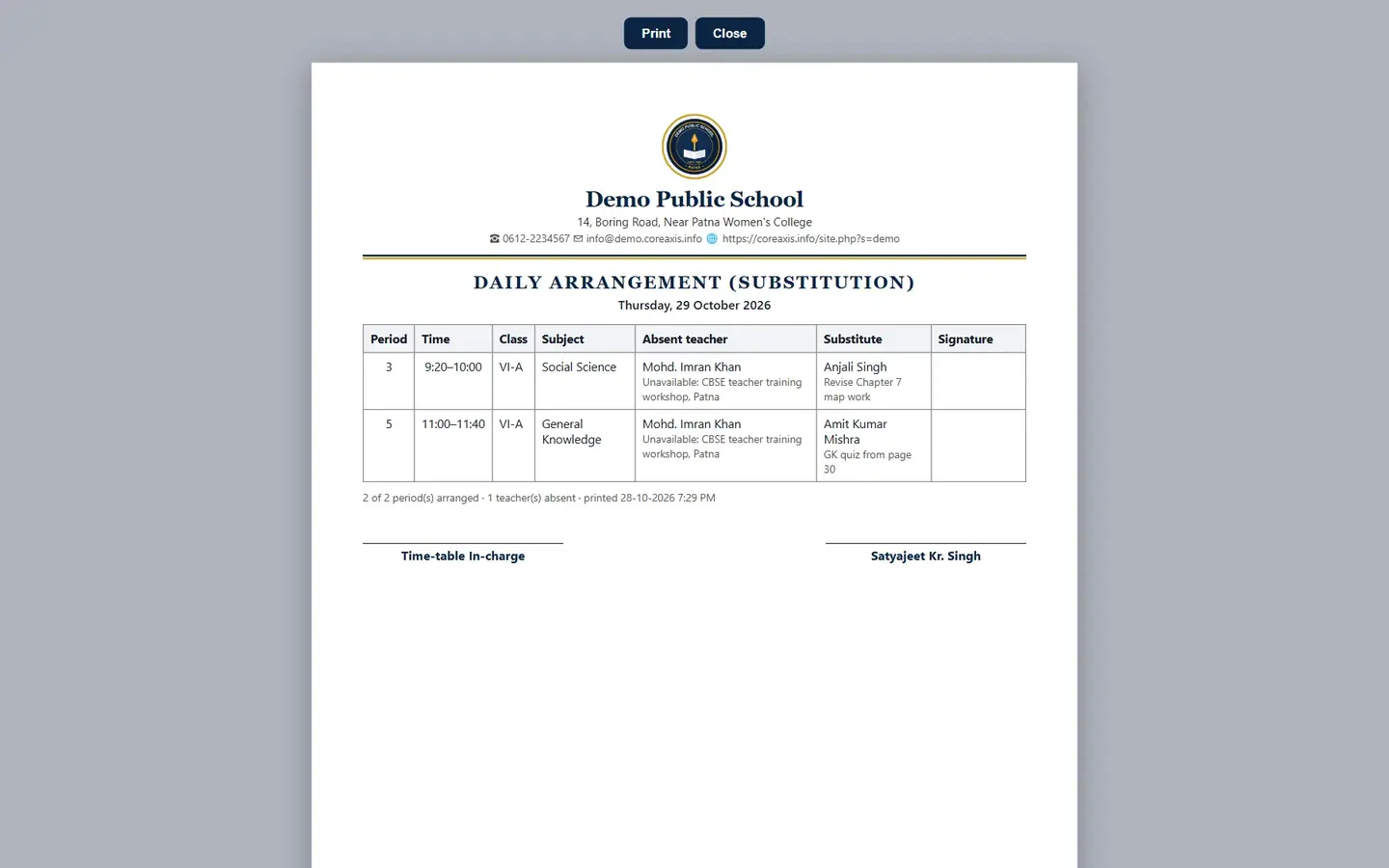
Daily Arrangement (Substitution) sheet for 29 October 2026. Click Print. Pin the sheet in the staff room and ask substitutes to sign against their period.
What the substitute teacher sees
Every staff member has Me › My Substitutions. It shows counters for Today, This week and Next 14 days, a table of upcoming periods (date, period, class, subject, in place of, note) and the last 30 days. Amit Kumar Mishra sees his period for tomorrow.
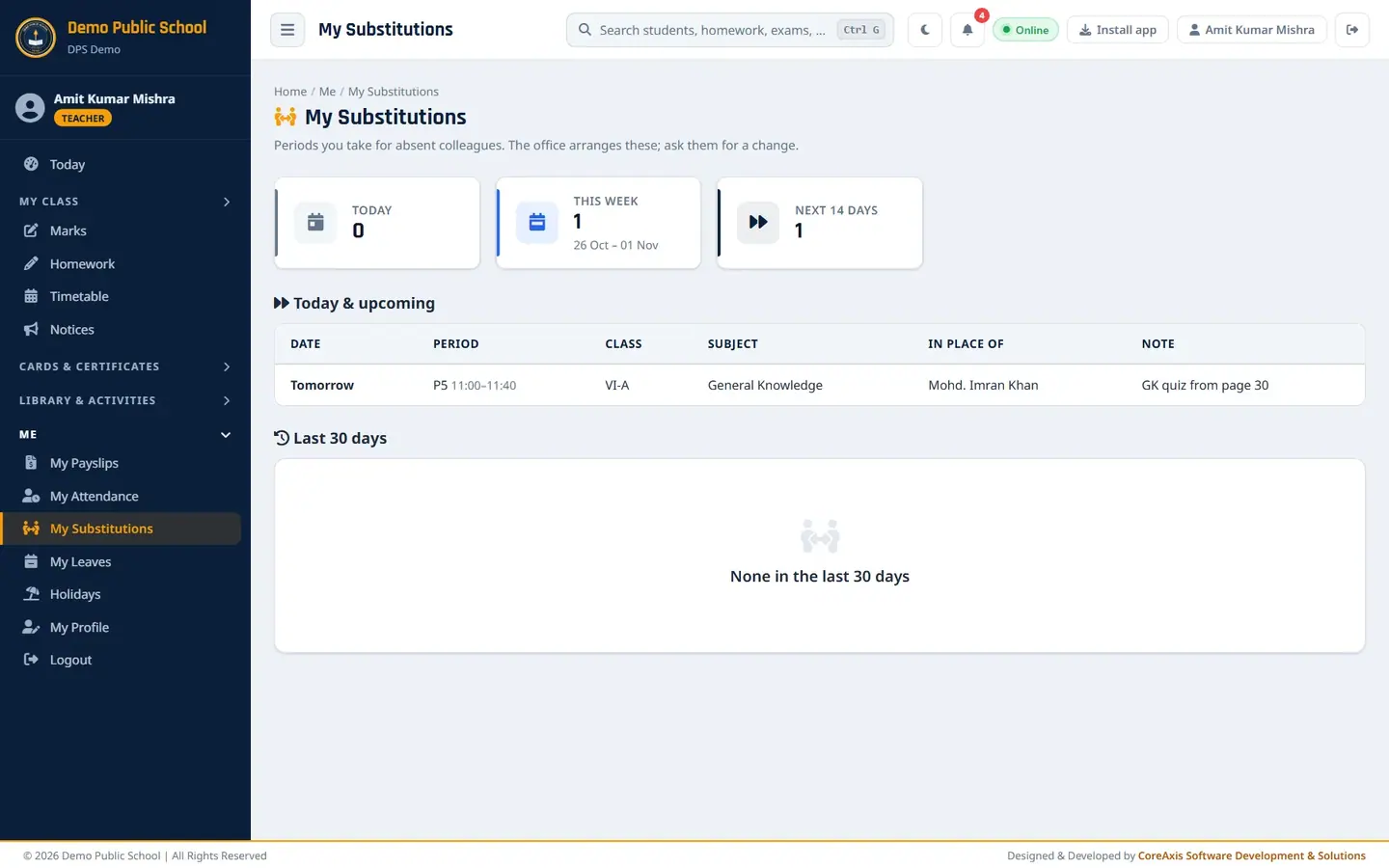
Teacher view: My Substitutions.
TipTeachers cannot change arrangements themselves; the page tells them to ask the office.
Questions
A teacher is on approved leave but does not appear. Why?
Check the date you are viewing and that the leave is approved (not pending). Also check that the teacher has periods in the timetable on that weekday.
Can I arrange substitutes for tomorrow in advance?
Yes. Use the › arrow or pick tomorrow's date and click Show.
Why is a teacher missing from the substitute list?
They already have a period at that time, or they are away themselves on that date.