 CoreAxis School ERP
Getting Started · Chapter 3
Dashboard
The Dashboard is the first screen an Admin or Principal sees after signing in. It answers three questions: what happened today, what is waiting for a decision, and how the month is going. Every card is a link to the page where you act on it. Accountants and Teachers get their own Today screen with the work of their role.
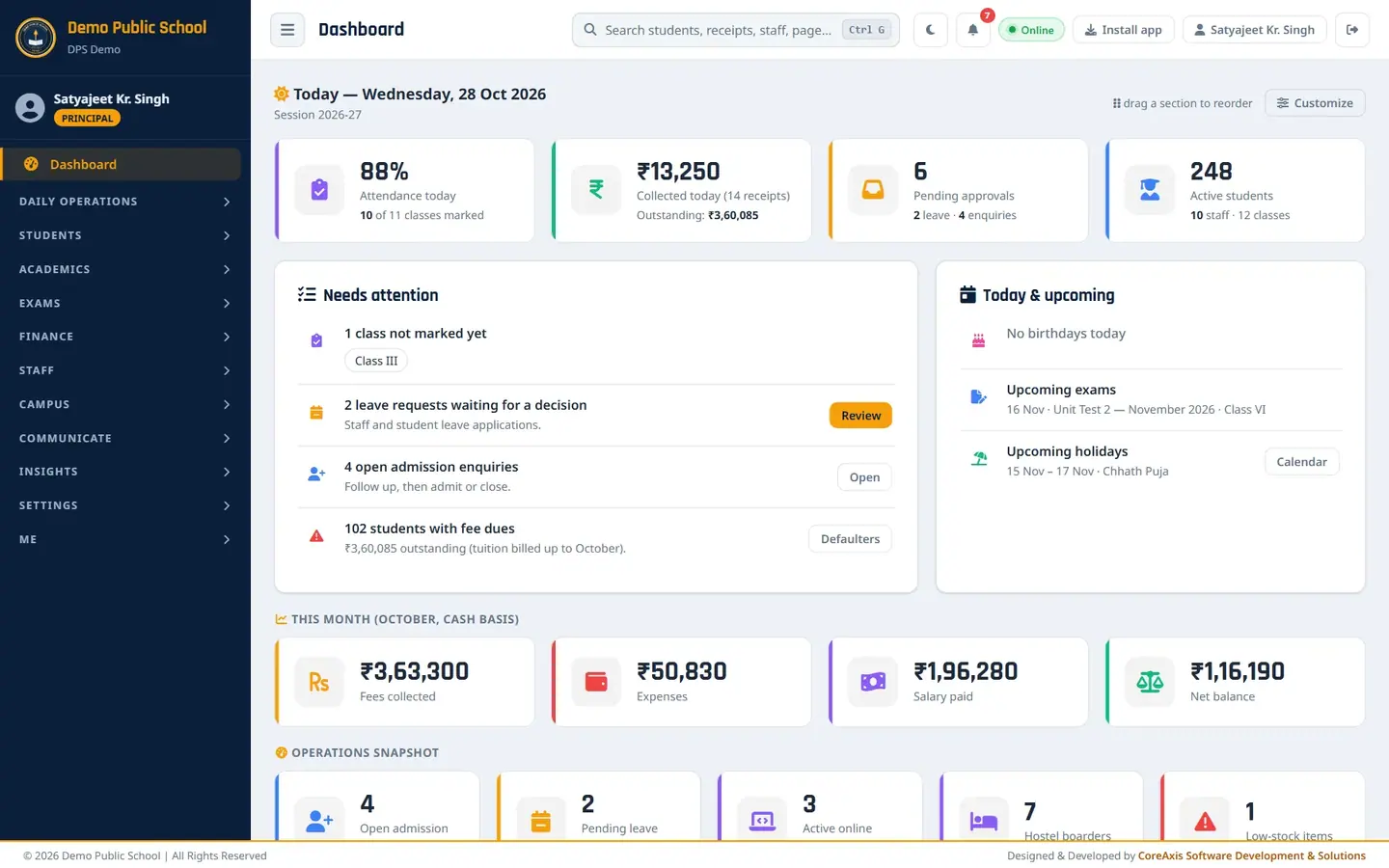
Read today's figures (example: Wednesday, 28 Oct 2026)
Click Dashboard at the top of the sidebar. The page opens with the date and the current session, for example Session 2026-27.
Read the four Today cards: attendance marked, fees collected today, pending approvals and active students.
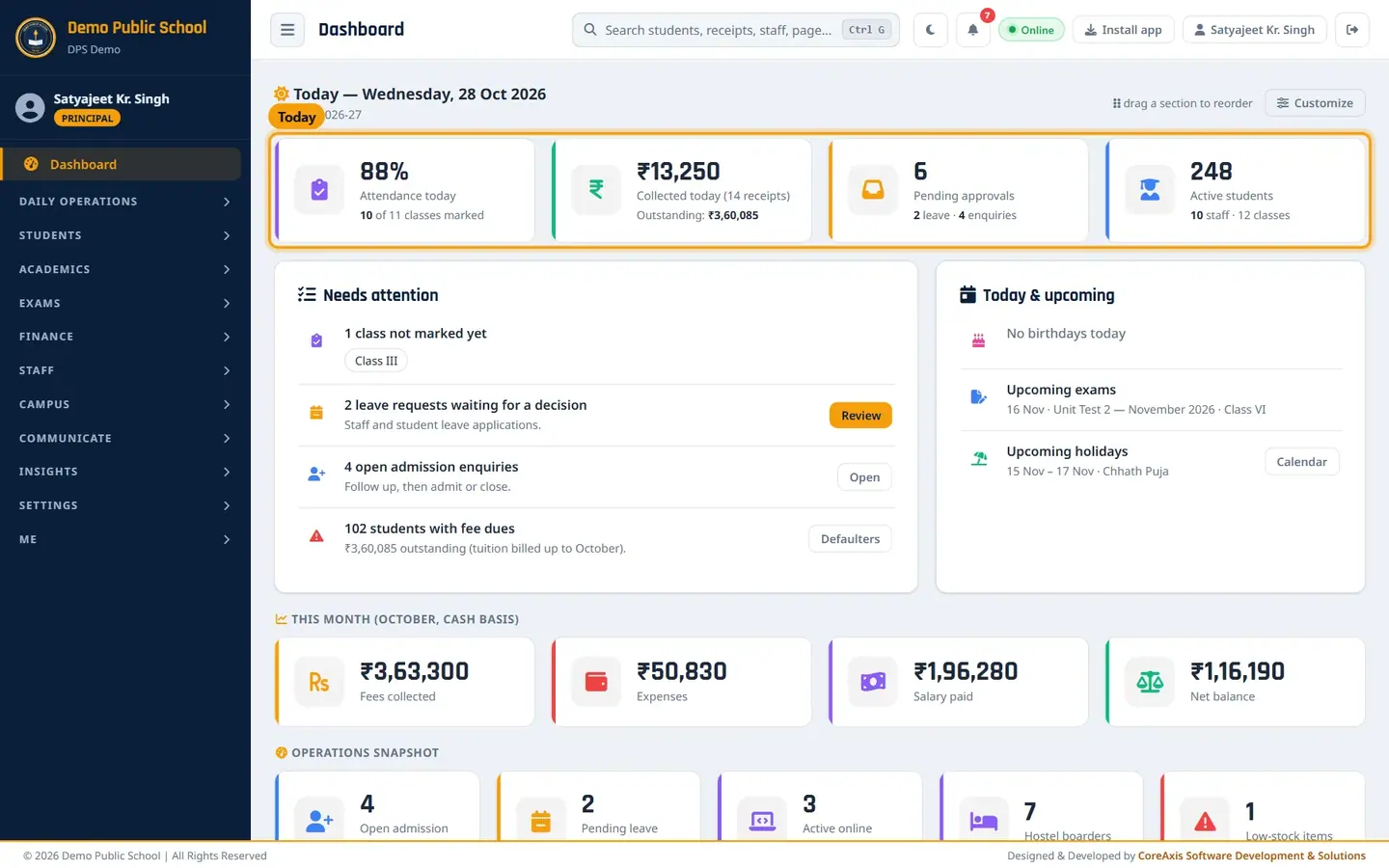
Today: 88% attendance (10 of 11 classes marked), ₹13,250 collected today (14 receipts) with ₹3,60,085 outstanding, 6 pending approvals, 248 active students. Look at Needs attention. It lists classes whose attendance is not marked yet (here Class III), leave requests, open admission enquiries and students with fee dues.
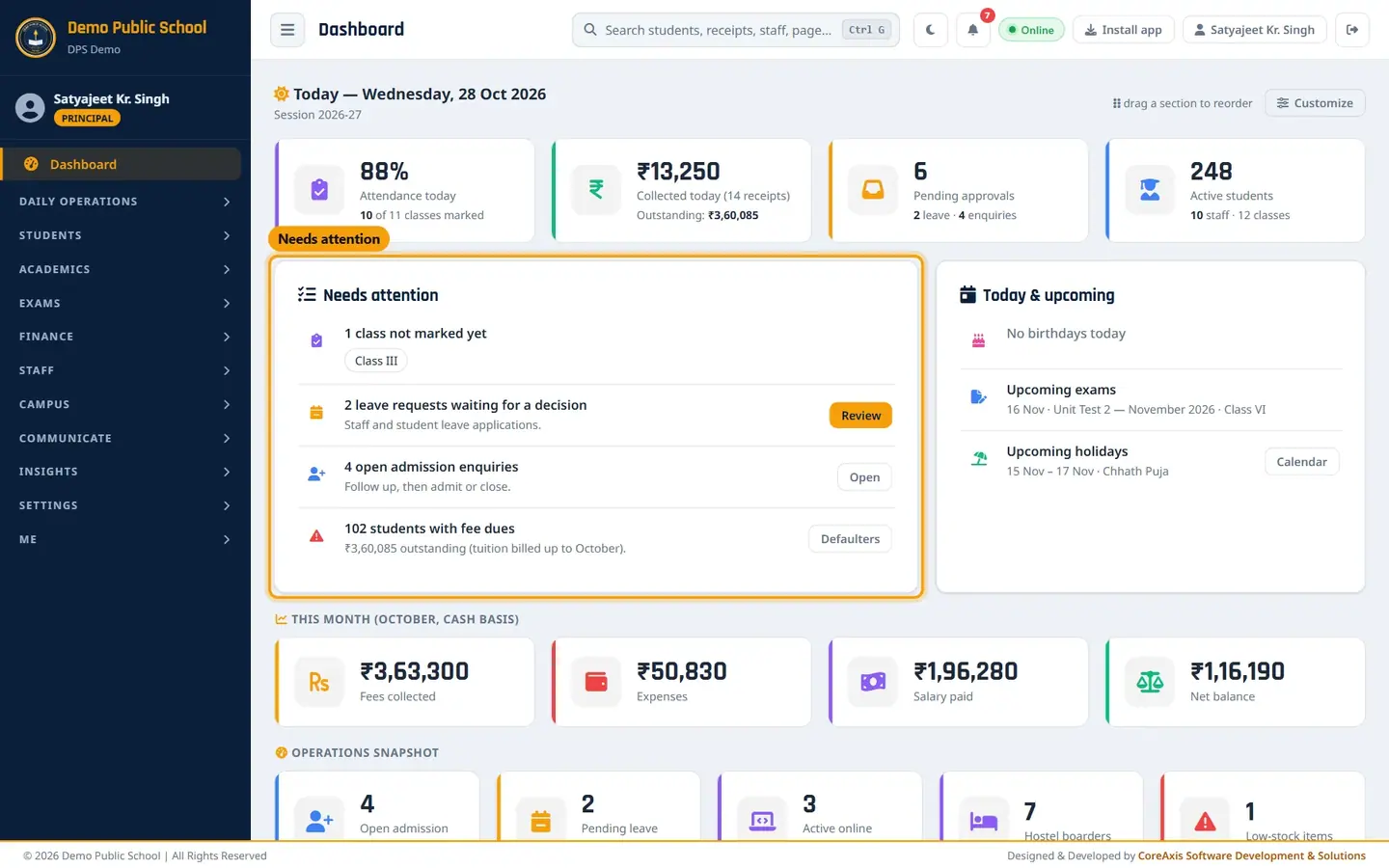
Needs attention on the left, Today & upcoming on the right. Click a class chip such as Class III to open attendance for that class, or click Review, Open or Defaulters to go to that list.
Read Today & upcoming for birthdays today, exams and holidays in the next 3 weeks. Click Calendar for the holiday calendar.
Scroll down to This month (fees collected, expenses, salary paid, net balance) and Operations snapshot.
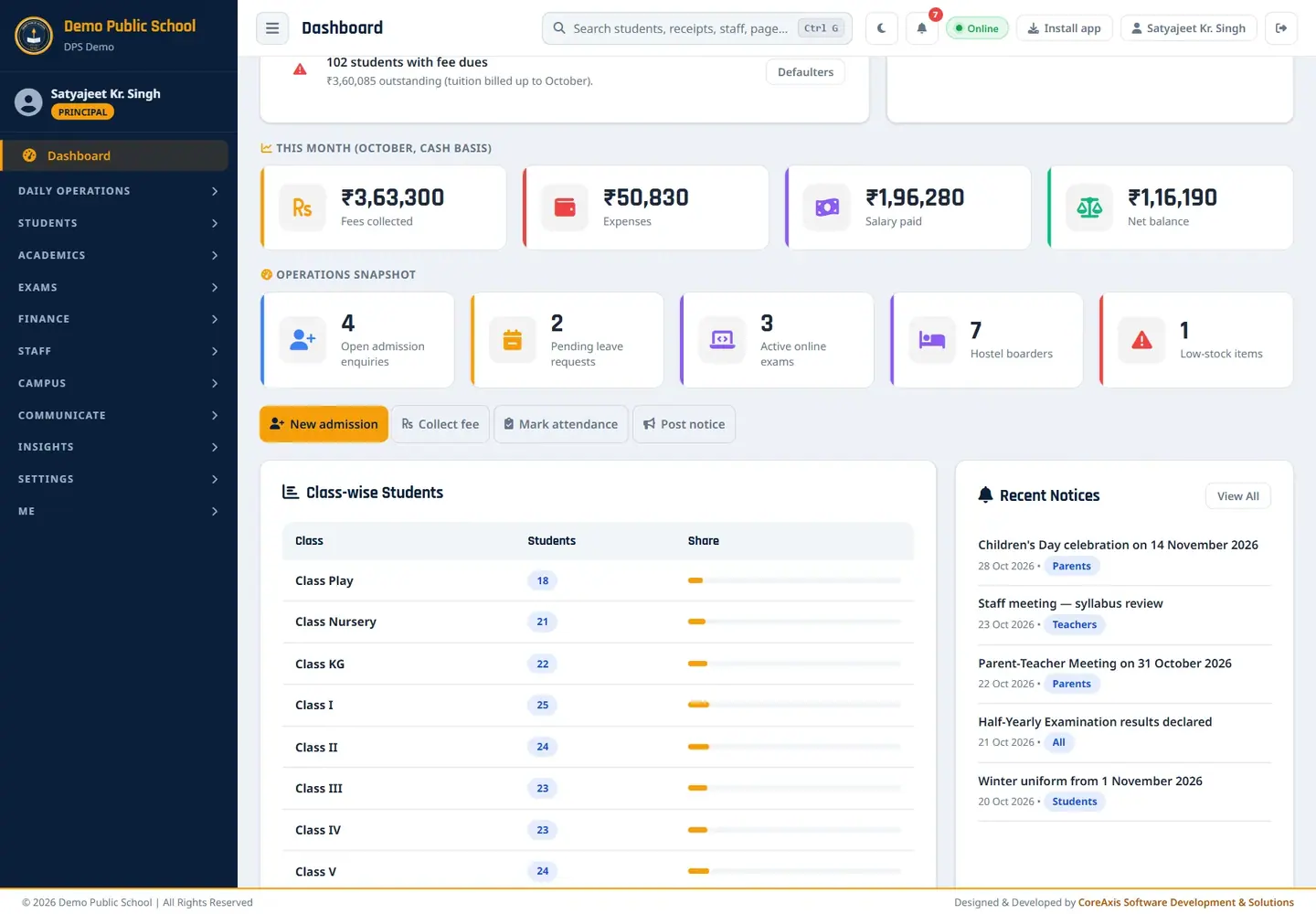
This month is on a cash basis: money actually received and paid in October (fees ₹3,63,300, net balance ₹1,16,190).
TipLower on the page are Shortcuts (New admission, Collect fee, Mark attendance, Post notice), Class-wise Students, Recent Notices and Recent Admissions.
TipAll amounts use Indian grouping (₹3,63,300; ₹10,07,050), and a minus figure is shown as −₹4,70,090.
Screen at a glance
- Attendance today
- Share of students present today and how many classes are marked, for example 10 of 11 classes marked.
- Collected today
- Fees received today and the number of receipts, with the total outstanding (tuition billed up to the current month).
- Pending approvals
- Leave requests plus open admission enquiries waiting for action.
- Active students
- Students on the active roll, with staff and class counts.
- Needs attention
- Unmarked classes, leave requests waiting for a decision, open admission enquiries, students with fee dues. Each row has a button to the list.
- Today & upcoming
- Birthdays today, exams and holidays in the next 3 weeks.
- This month (cash basis)
- Fees collected, Expenses, Salary paid and Net balance (fees minus expenses minus salary) for the current month.
- Operations snapshot
- Open admission enquiries, pending leave requests, active online exams, hostel boarders and low-stock items.
- Shortcuts
- New admission, Collect fee, Mark attendance, Post notice.
- Class-wise Students
- Number of active students in each class and the share of the school.
- Recent Notices / Recent Admissions
- The latest notices with audience, and the latest admitted students. View All and All students open the full lists.
Customize the dashboard (example: hide Class-wise students)
Click Customize at the top right of the dashboard. The Customize Dashboard popup opens.
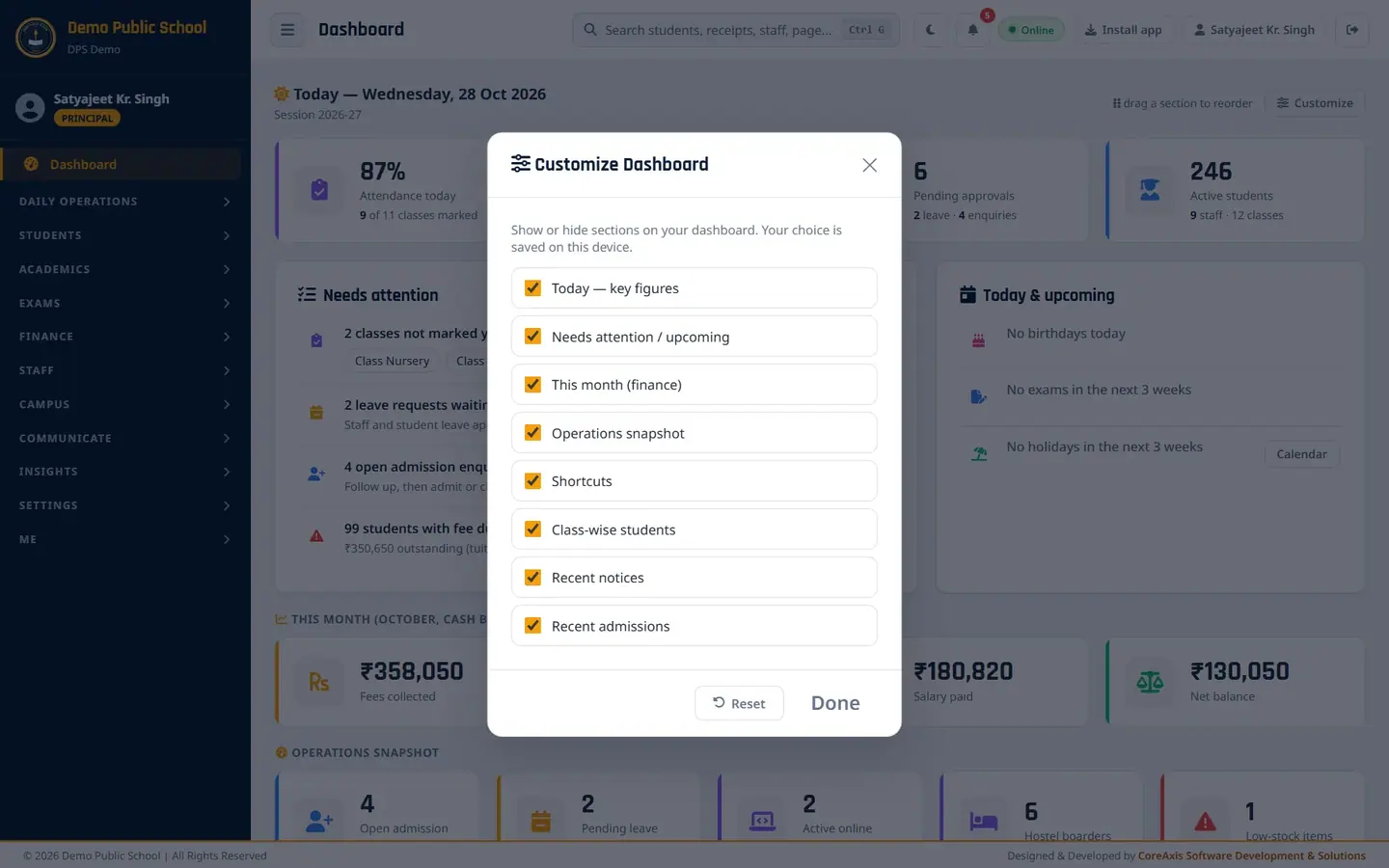
Tick the sections you want to see. Untick a section you do not need, for example Class-wise students.
Click Done. The section is hidden at once.
To change the order, point at a section. A drag handle appears at its top right corner. Drag the handle up or down and drop the section where you want it.
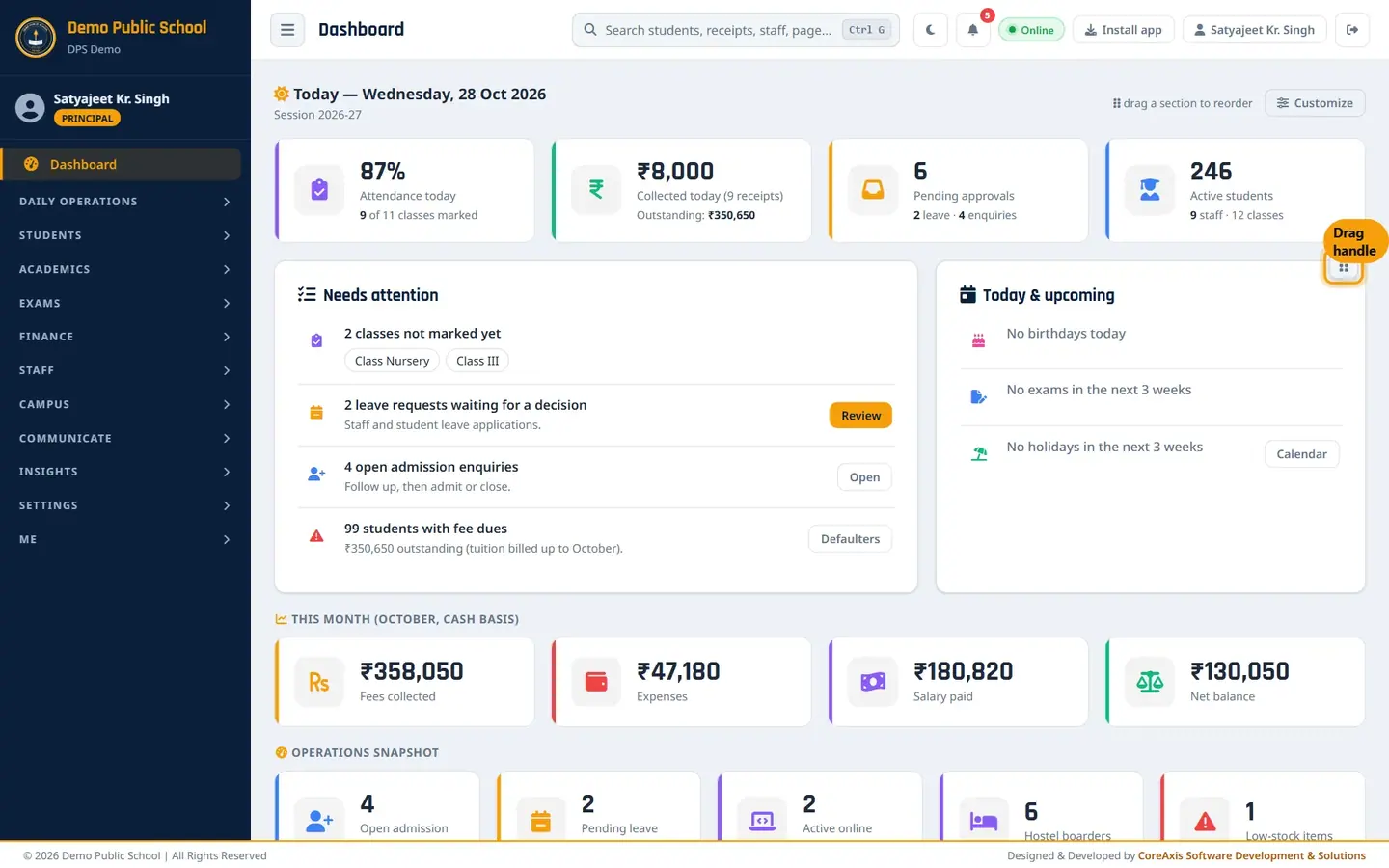
The drag handle (six dots) on the Today & upcoming section. To go back to the standard layout, open Customize and click Reset.
TipYour choice is saved on this device and browser only. Other staff and other computers keep their own layout.
Find anything with the search box (example: Kabir Sharma)
Click the search box in the top bar, or press Ctrl G (or /) on the keyboard.
Type a name, admission number, receipt number or page name, for example Kabir.

Results are grouped: students, fee receipts, staff, pages. Use the arrow keys to move and press Enter to open, or click a result. Press Esc to close.
TipTyping a menu name such as 'fee dues' or 'cash book' opens that page directly. You only see results from menus your role can open.
Top bar: reminders, dark mode, install app
Find the top bar buttons: search, dark mode (moon), the reminders bell, Online status, Install app, your name and Logout.
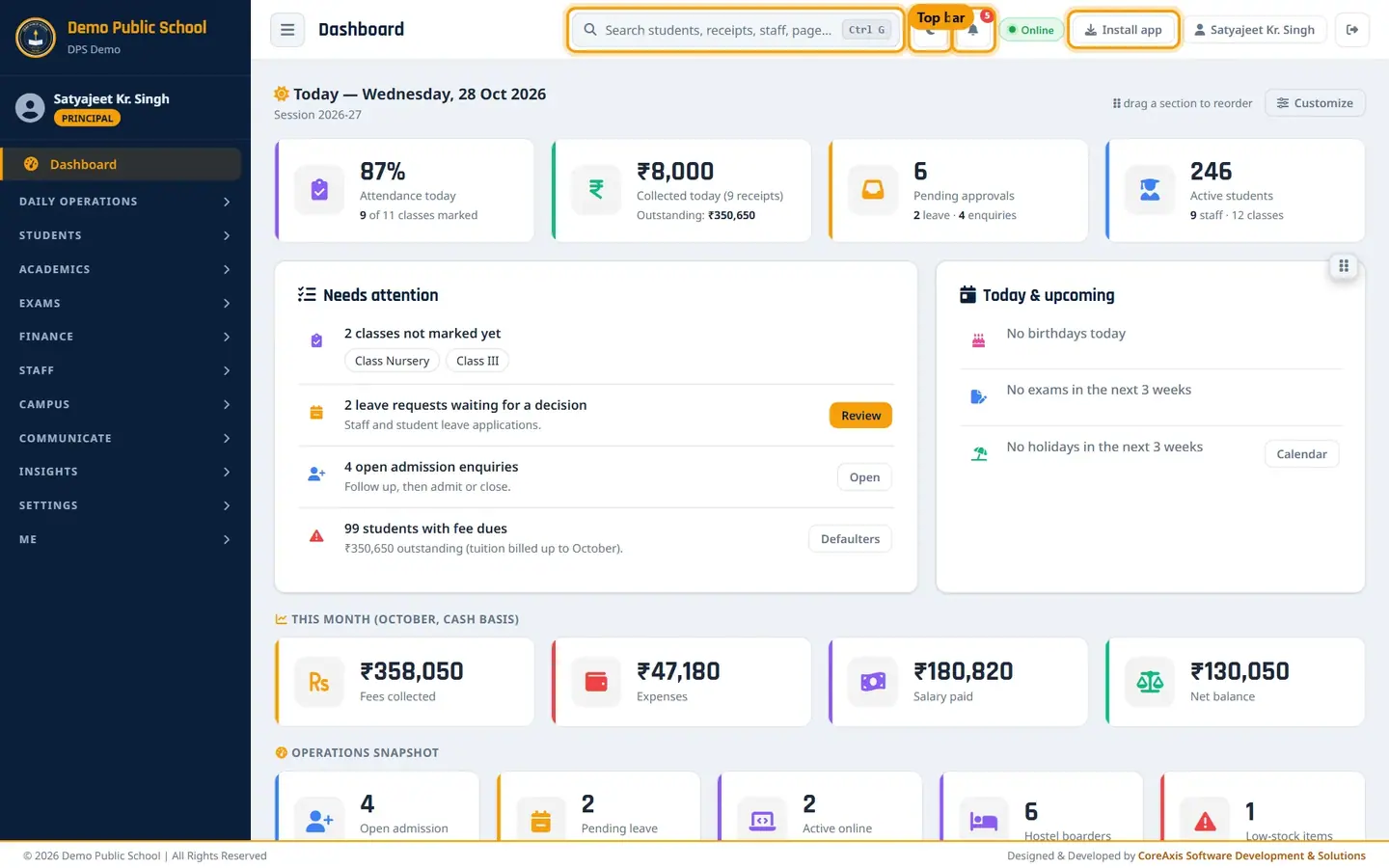
The top bar is the same on every page. Click the bell to open Reminders & Important Dates: new notices, homework due, competitions and other dated items. The red number shows how many are new.

Click a reminder to open it; Clear all empties the list. Click the moon icon to switch to dark mode. Click it again (sun) to go back to light mode.
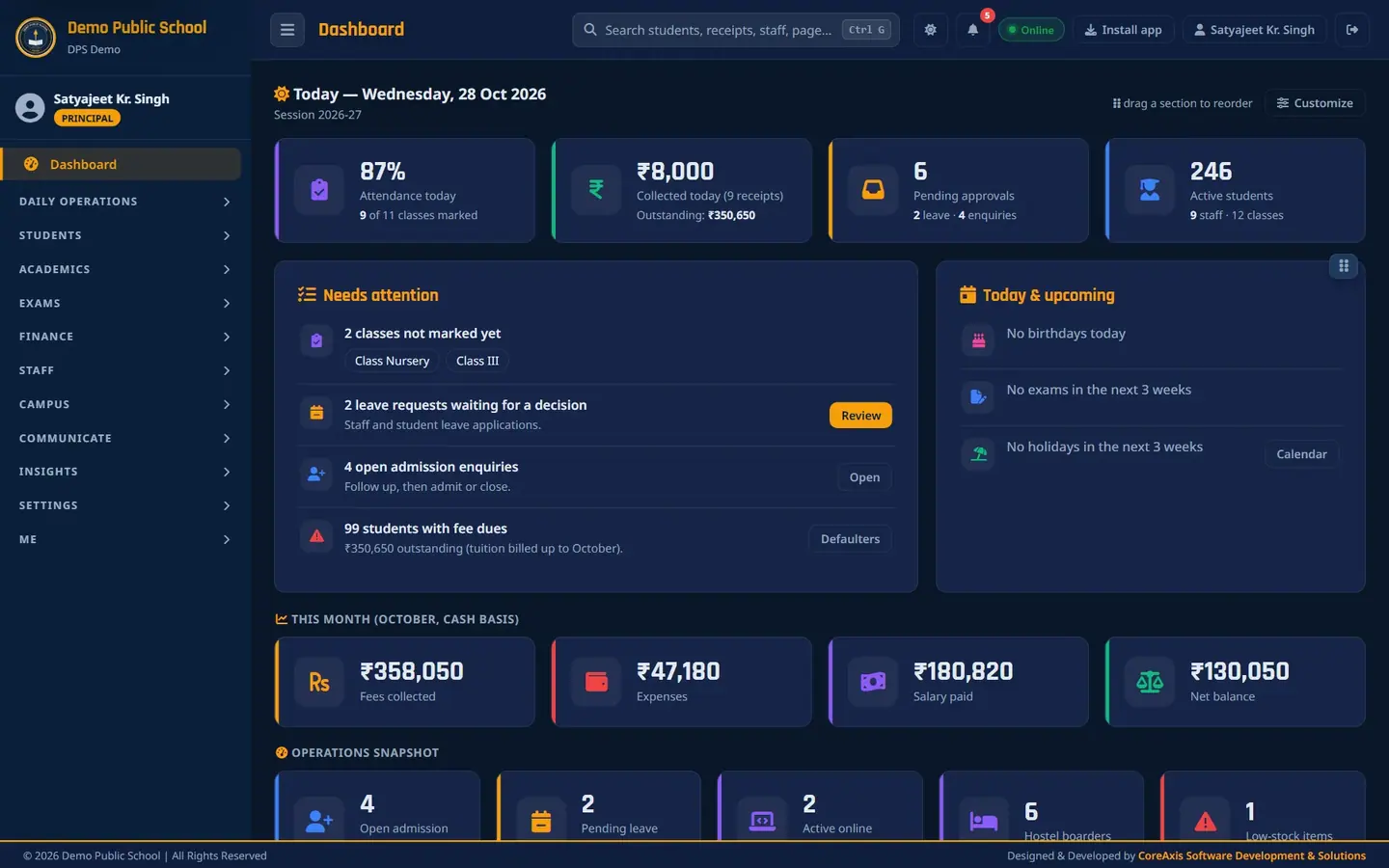
Dark mode is remembered on this browser. Click Install app to add CoreAxis to the desktop or phone home screen. It opens in its own window like an app. The button appears only in browsers that support it.
Click your name to open My Profile.
TipOnline turns to Offline when the internet connection drops. Pages you opened earlier can still be viewed, but nothing can be saved until you are back online.
Sidebar menus
The sidebar groups the menus. Click a group name to open or close it; only one group stays open at a time and the group of the page you are on opens by itself. The three-line button next to the page title makes the sidebar narrow.
- Daily Operations
- Attendance, Fee Desk, Leave Approvals.
- Students
- Students, Admission Enquiries, Inactive / Alumni, Student ID Cards, TC / Bonafide, Document Register.
- Academics
- Classes, Subjects, Timetable, Homework, Attendance Register, Substitution.
- Exams
- Create Exams, Marks Entry, Exam Eligibility, Exam Form Apply, Admit Cards, Online Exam, Report Cards, Exam Certificates.
- Finance
- Concessions, Cheques / DD, UPI / Bank Claims, Fee Dues, Fee Structure, Online Payment, Expenses, Salary / Payroll, Finance Ledger.
- Staff
- Staff, Staff Attendance, Staff ID Cards, Leave Management, Holiday Calendar.
- Campus
- Library, Transport, Hostel, Inventory.
- Communicate
- Notices, SMS, Gallery, Competitions, Letterhead & Letters.
- Insights
- Analytics, Reports.
- Settings
- School Profile, Academic Sessions, Plan & Billing.
- Me
- My Payslips, My Attendance, My Substitutions, My Leave, My Profile, Logout.
How the menus differ by role
Each person sees only what their role allows. A page that is not in your menu cannot be opened by typing its address either; the app shows an access-denied message.
Admin and Principal see the full sidebar above. Only they approve TC / SLC requests, concessions and leave, and change Settings.
Accountant lands on Today (Accountant Dashboard): fees collected today, receipts today, outstanding, defaulters, cheques pending clearance, receipts today and highest dues with a Collect button. The menu is a flat list: Fee Desk, Fee Dues, Concessions, Cheques / DD, UPI / Bank Claims, Fee Structure, Students, Expenses, School Store, Payroll, Finance Ledger, Reports, plus Documents and Me.
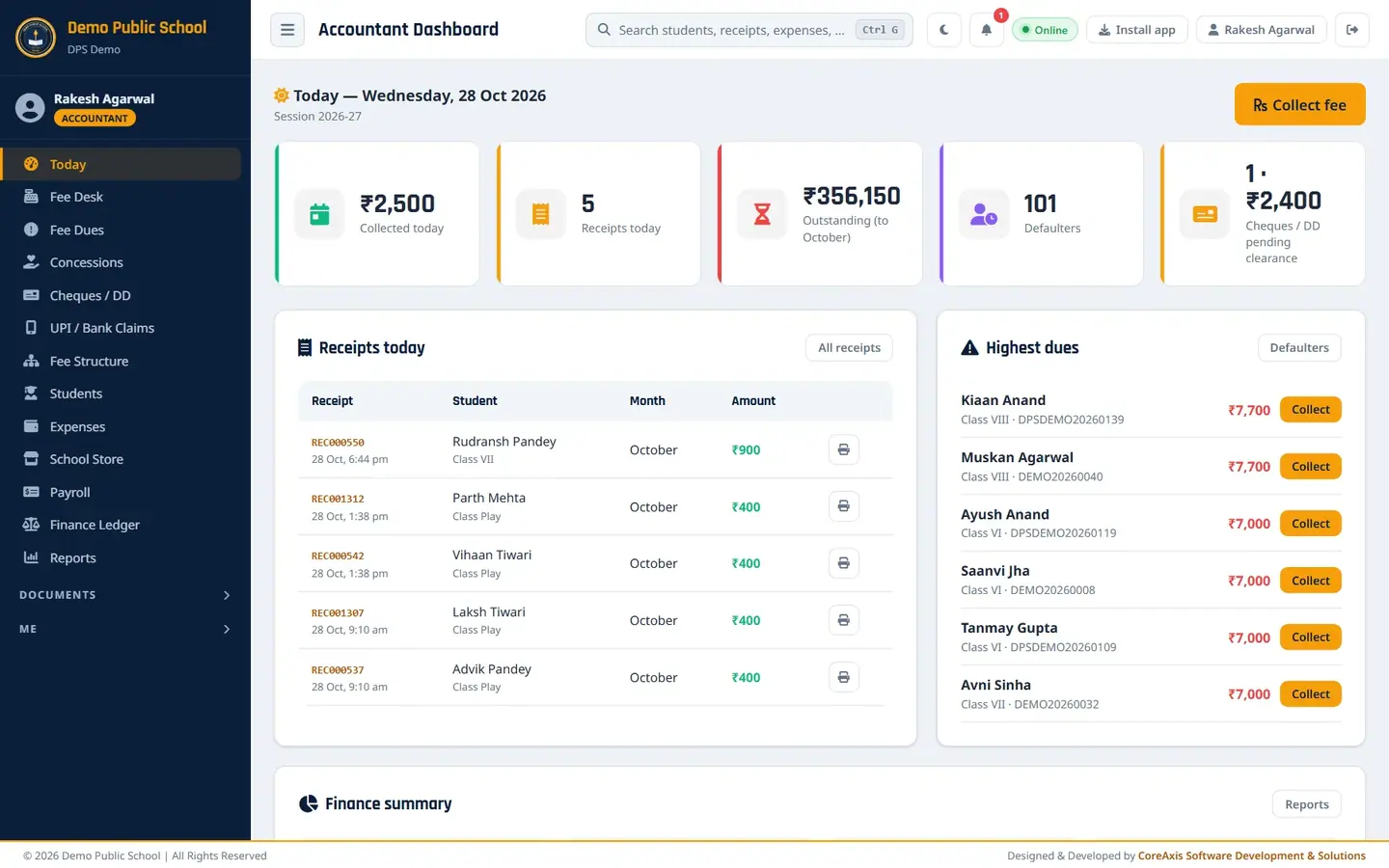
The Accountant's Today screen (Rakesh Agarwal). Teacher lands on Today (Teacher Dashboard): my class attendance, today's timetable, homework due, my leave balance, notices and substitutions. The menu has My Class (Attendance, Attendance Register, Report Cards), Marks, Homework, Timetable, Notices, Cards & Certificates, Library & Activities and Me. A teacher sees only the classes assigned to them.
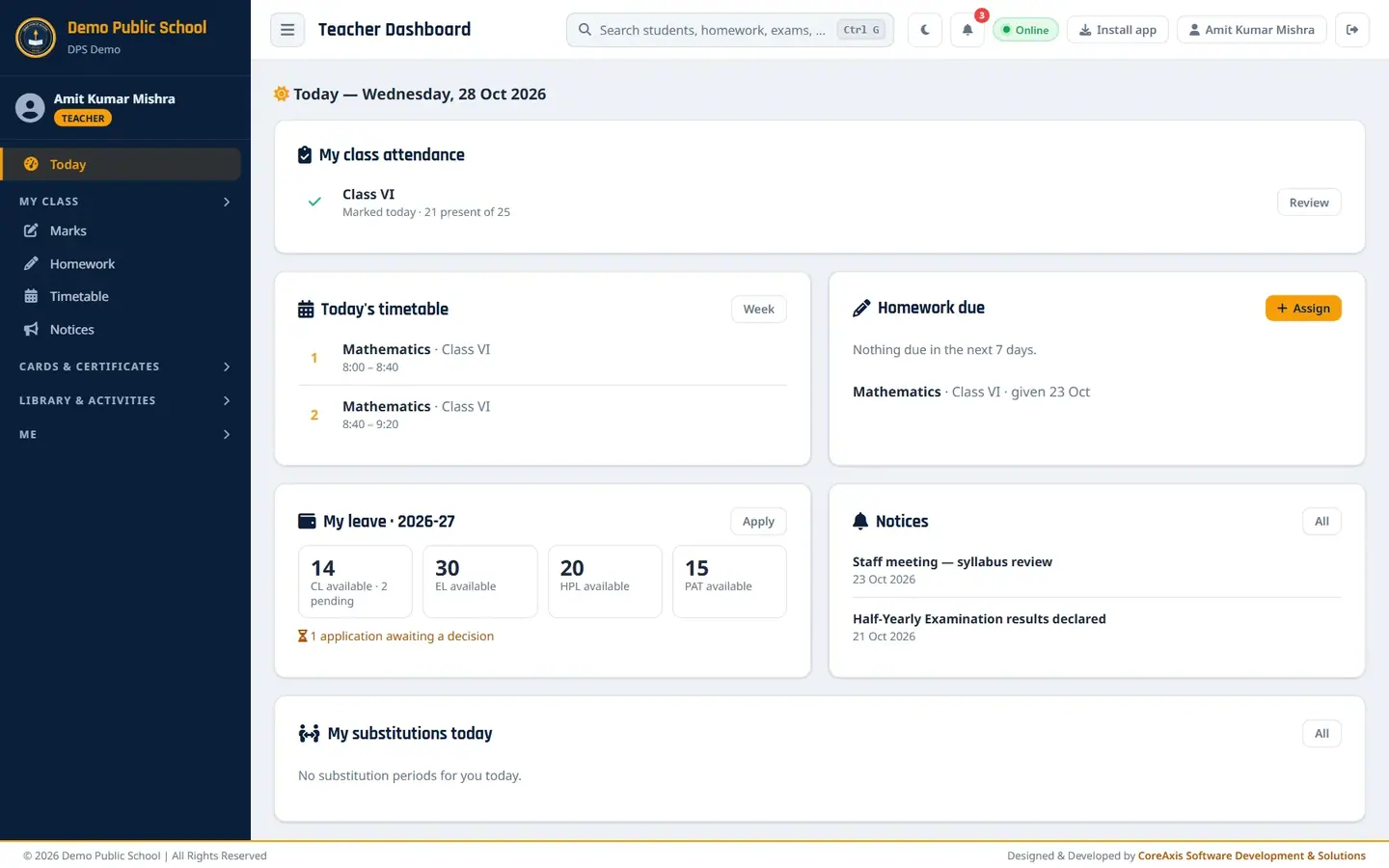
The Teacher's Today screen (Amit Kumar Mishra).
Questions
The dashboard numbers look old.
The figures are worked out when the page opens. Reload the page (F5) to see the latest.
I hid a section by mistake.
Click Customize, tick the section again and click Done, or click Reset.
Why does Collected today differ from This month?
Collected today is only today's receipts. This month adds up every fee received from the 1st of the month, on a cash basis.