 CoreAxis School ERP
Exams · Chapter 19
Exam Form Apply
Exam Form Apply is the second step of the exam workflow, after Exam Eligibility. For each exam and class it lists the students with their eligibility, form status, form date and exam form fee. Only students Approved in Exam Eligibility can have their form submitted. An exam form fee is added to each student's fee account as an "Exam Form Fee" charge, so it shows at the Fee Desk and in the student's dues. Once any form of an exam is submitted, admit cards for that exam are printed only for students whose form is submitted.
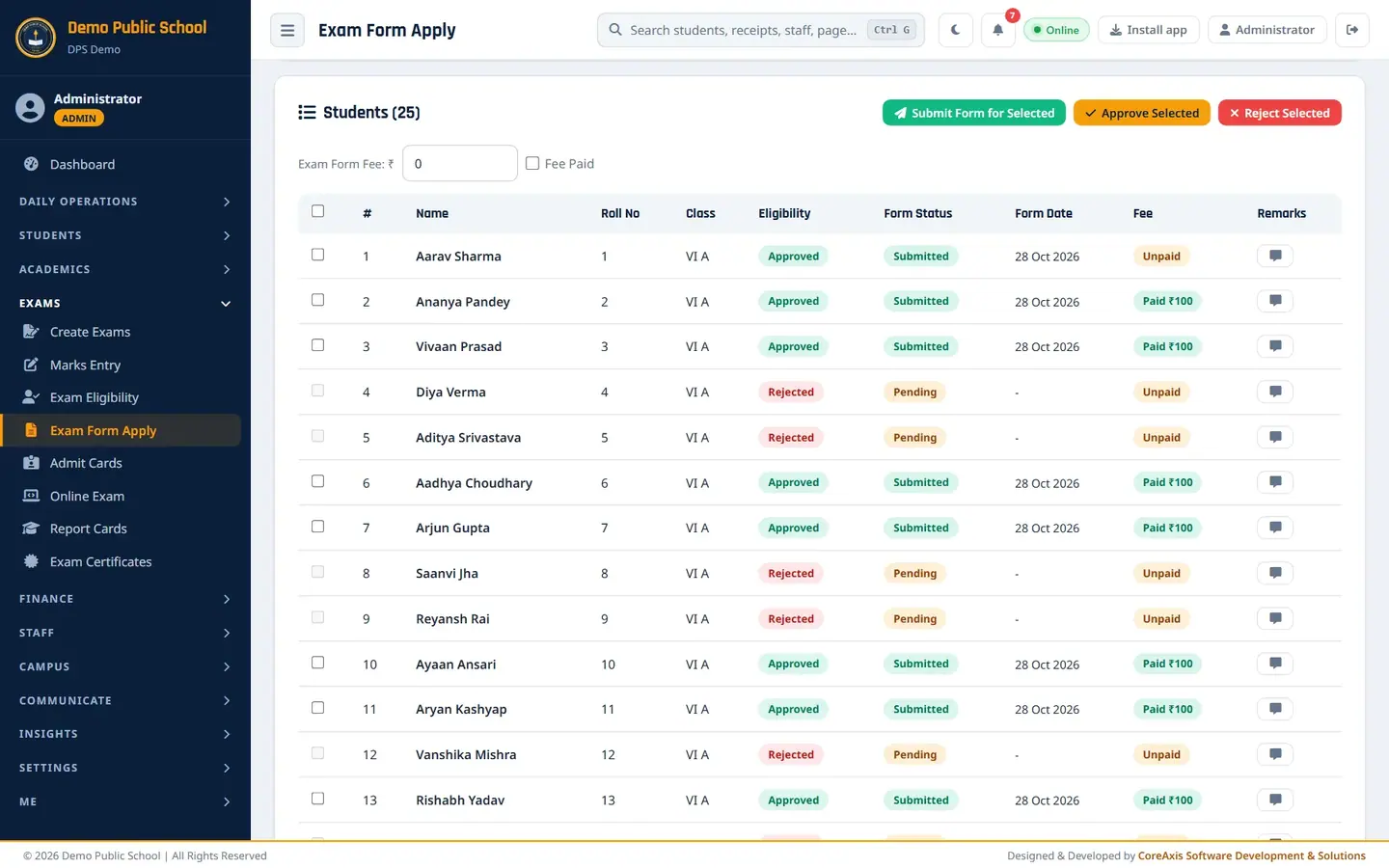
Screen at a glance
- Eligibility Check / Print Admit Cards
- Buttons at the top to go to the step before and the step after.
- Workflow note
- Eligibility Check → Exam Form Apply (here) → Admit Card → Marks Entry → Report Card → Certificate.
- Select Exam / Filter by Class / Status
- Choose the exam, then narrow the list by class (classes are listed in school order: Play, Nursery, KG, I … IX) and by status (Approved, Pending, Rejected). Click Filter.
- Exam summary
- Exam name, type and start date, with counts: Eligible, Forms Submitted, Rejected, Pending.
- Submit Form for Selected / Approve Selected / Reject Selected
- Actions for the ticked students.
- Exam Form Fee: ₹ and Fee Paid
- The fee charged for the form. It is added to each submitted student's fee account as an "Exam Form Fee" charge. Tick Fee Paid if the money was collected now: the app then also makes a Cash receipt for it.
- Table
- Name, Roll No, Class, Eligibility, Form Status (Submitted / Pending), Form Date, Fee (Paid ₹… / Unpaid), Remarks (speech-bubble button).
Submit exam forms (example: Unit Test 2, Class VI, form fee ₹100 paid)
Open Exams › Exam Form Apply and pick Unit Test 2 — November 2026 (Unit Test) in Select Exam.

Choose the exam and the class. Classes are listed in school order. Pick VI A in Filter by Class and click Filter. The list shows 25 students: 14 Approved and 11 Rejected.
Tick the students whose form you are submitting. Rejected students cannot be submitted, so tick only Approved ones (Aarav Sharma's form was already submitted by Force Apply).
Enter 100 in Exam Form Fee: ₹ and tick Fee Paid if the fee has been collected in cash at the counter.
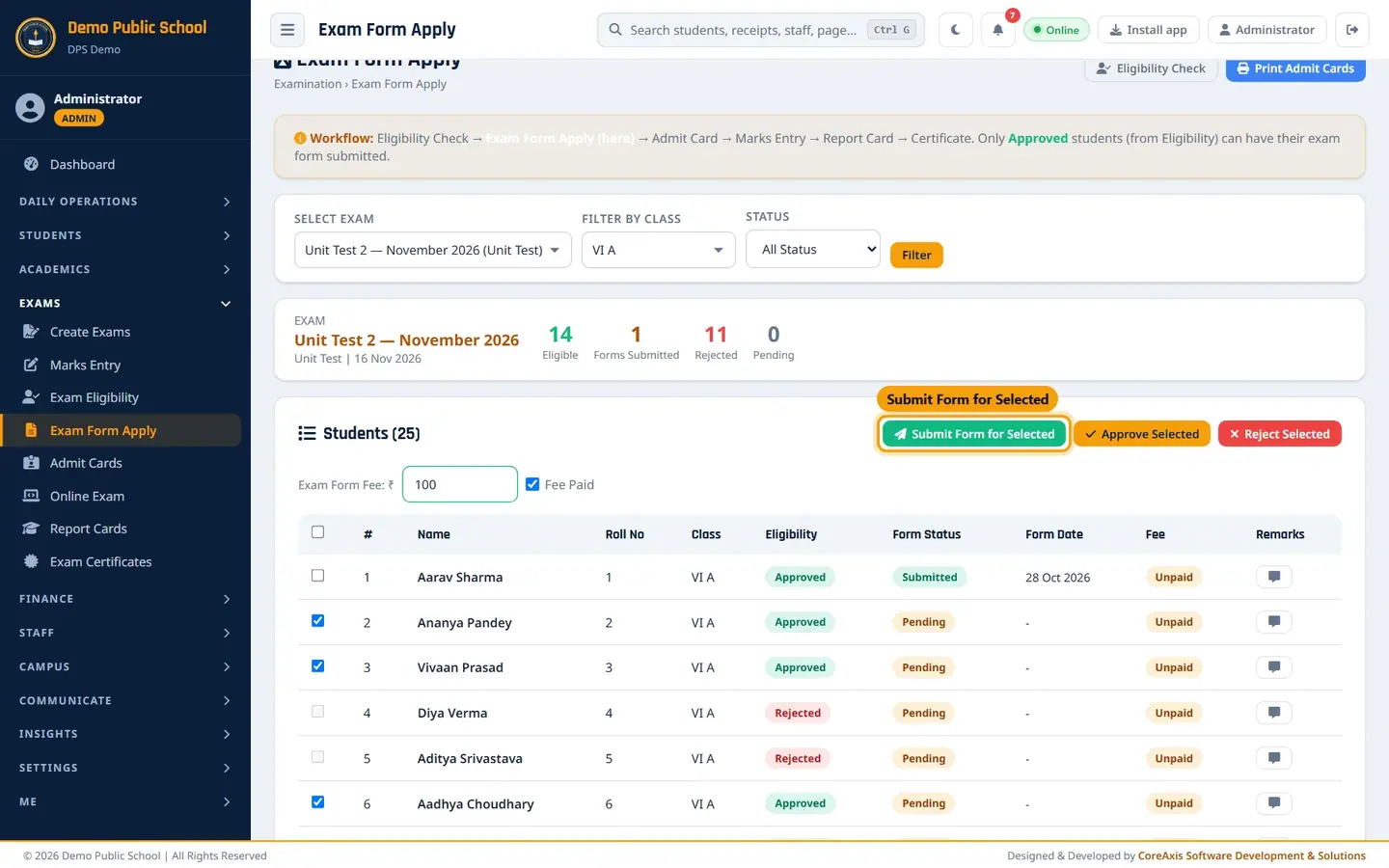
Approved students ticked, fee ₹100 paid. Click Submit Form for Selected and Confirm. The message confirms the forms, the ₹100 exam fee added to each student's fee account and, because Fee Paid was ticked, the Cash receipts made.
Check the list: Form Status is Submitted, Form Date is 28 Oct 2026 and Fee shows Paid ₹100.
Forms submitted.
TipThe exam form fee is posted to the student's fee account as an "Exam Form Fee" charge. With Fee Paid ticked, a Cash receipt is made at once (it appears in Recent Collections and the Cash Book). Without it, the fee stays due and is collected at the Fee Desk like any other charge.
TipApprove Selected / Reject Selected change the eligibility of ticked students without going back to Exam Eligibility. Reject asks to confirm.
Submit a form when the fee is not yet paid (example: Saanvi Jha, ₹100 due)
Saanvi Jha was first Rejected for fee dues. The Principal set her to Approved (Eligible) in Exam Eligibility › Edit Status. Her father will pay the exam fee at the counter later.
Pick the exam and VI A, then click Filter. Saanvi Jha's tick box is now active.
Tick Saanvi Jha, enter 100 in Exam Form Fee: ₹ and leave Fee Paid unticked.

Fee ₹100, Fee Paid not ticked. Click Submit Form for Selected and Confirm. The message reads "Exam form submitted for 1 student(s). ₹100 exam fee added to 1 student(s)' fee account — collect it at the Fee Desk."
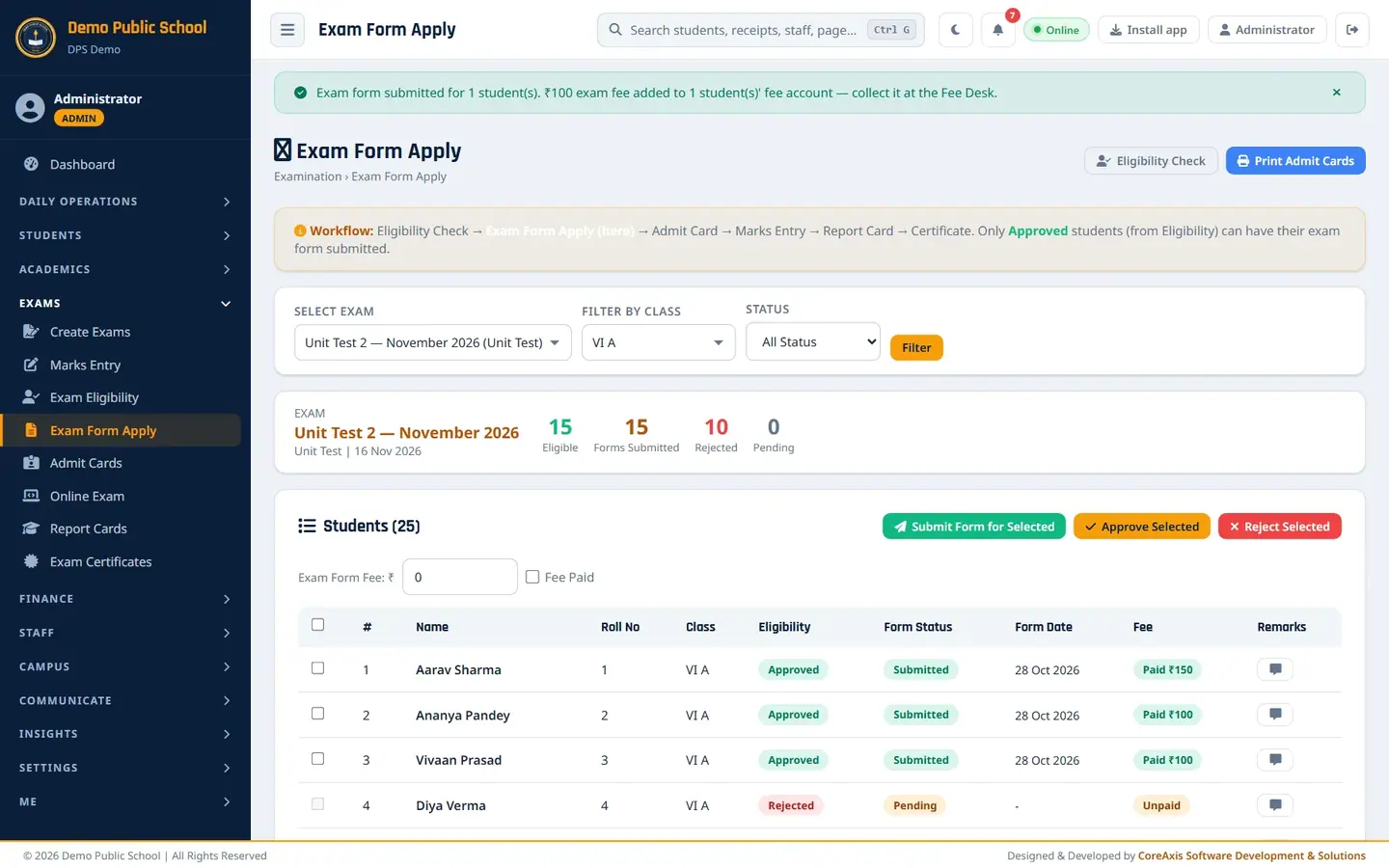
The fee is now due in Saanvi's fee account; her row shows Unpaid. When her father pays, open Fee Desk, search Saanvi Jha and collect the Exam Form Fee charge listed under Other charges & late fee. See the Fee Desk chapter.

The Exam Form Fee charge on Saanvi Jha's Fee Desk card.
TipThe charge is added only once per student and exam. Submitting the same student again does not bill the fee twice.
Add a remark for a student
Click the speech-bubble button in the student's Remarks column (example: Diya Verma).
Type the note in Remark / Note, for example: Father met the office on 28 Oct; dues to be cleared this week.

Remark for Diya Verma. Click Save Remark. The message "Remark updated." appears.
Questions
The tick box of a student is greyed out.
The student is not Approved in Exam Eligibility. Approve them there (or with Approve Selected here), or use Force Apply.
Do students apply for the exam themselves?
No. The office submits the forms here on the students' behalf.
Why does the admit card list not show a student?
Once forms are submitted for an exam, admit cards are printed only for students whose form is submitted. Submit that student's form here.
Where does the exam form fee go?
Into the student's fee account as an "Exam Form Fee" charge. It shows at the Fee Desk, in Fee Dues and on the receipt when collected. Ticking Fee Paid when you submit the form makes a Cash receipt at once.