 CoreAxis School ERP
Students · Chapter 5
Admission Enquiries
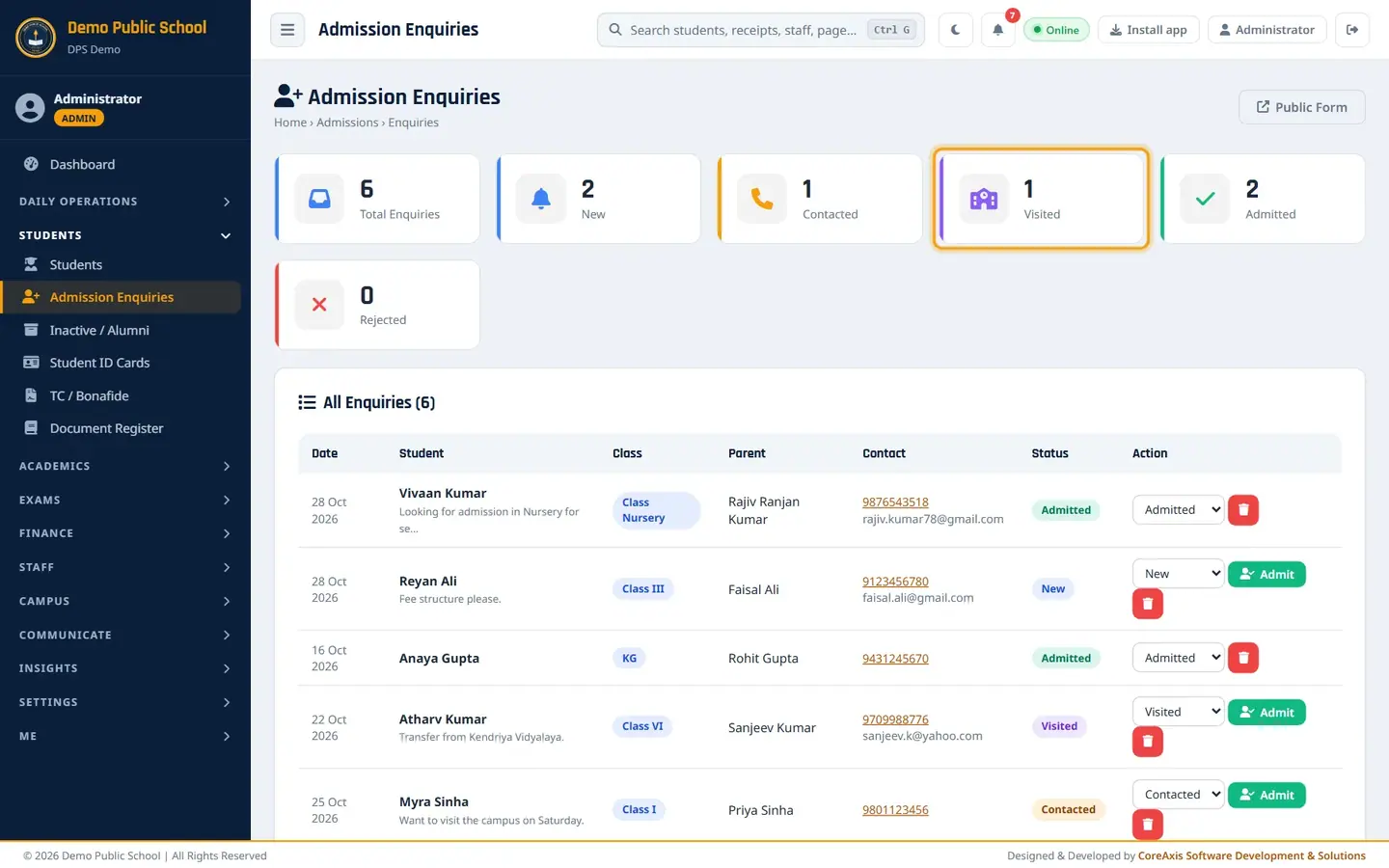
Parents fill the online Admission Enquiry form on the school website. Each enquiry lands in Admission Enquiries with the status New. The office calls the parent, moves the enquiry to Contacted (and to Visited once the family has seen the school), and when the child joins clicks Admit: the New Admission form opens already filled from the enquiry. The Dashboard counts open enquiries under Needs attention.
A parent sends an enquiry (example: Vivaan Kumar for Nursery)
This is what the parent sees. Share the form link on the school website, WhatsApp or social media.
The parent opens the school's Admission Enquiry page (the link shown under Public Form).
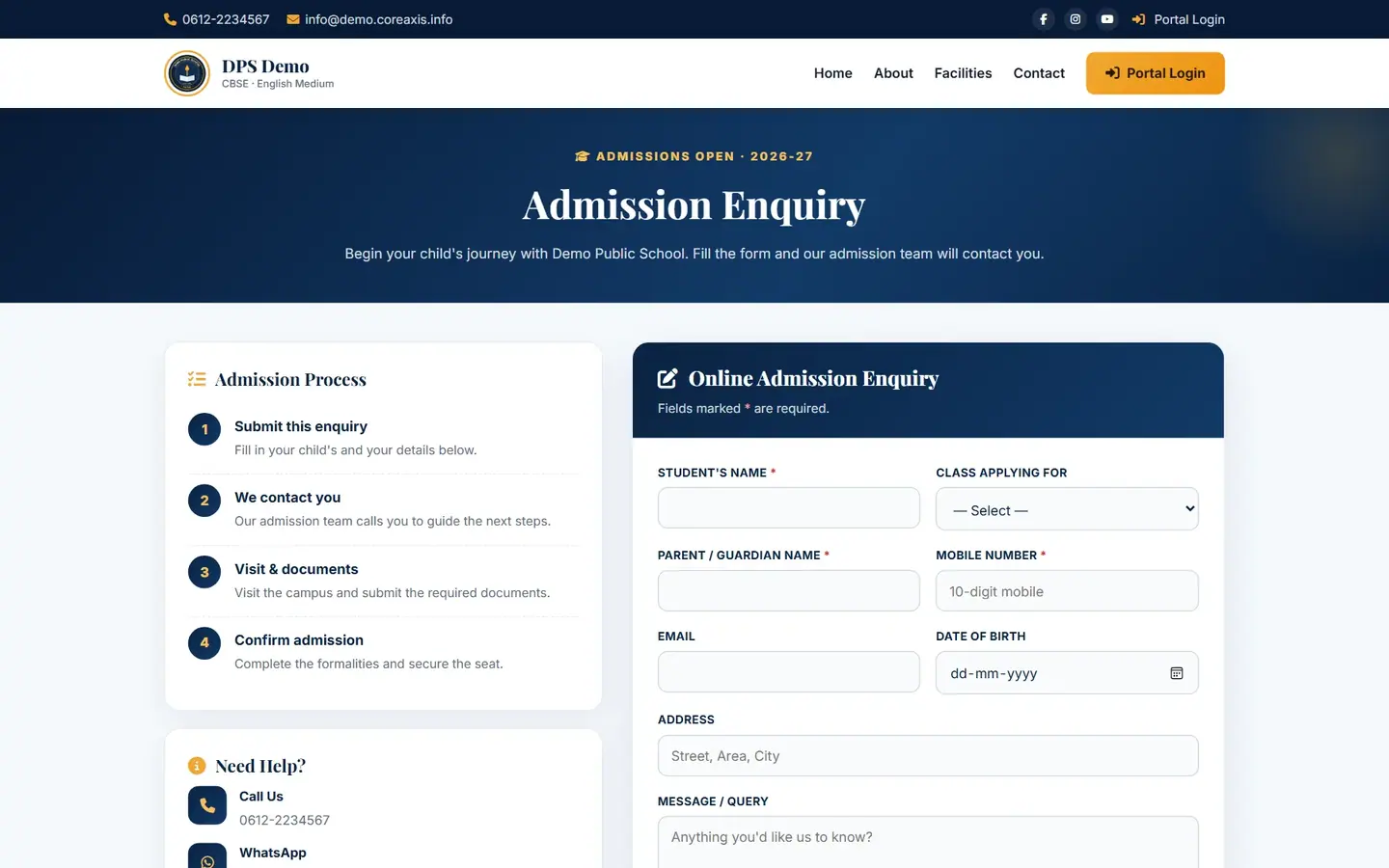
The public Admission Enquiry page carries the school's name, logo and contacts. The parent types Student's Name: Vivaan Kumar, picks Class Applying For: Class Nursery and types Parent / Guardian Name: Rajiv Ranjan Kumar.
The parent types Mobile Number: 9876543518, Email: rajiv.kumar78@gmail.com and picks Date of Birth: 09-06-2022.
The parent types the Address and a Message / Query, for example a request for fee details.
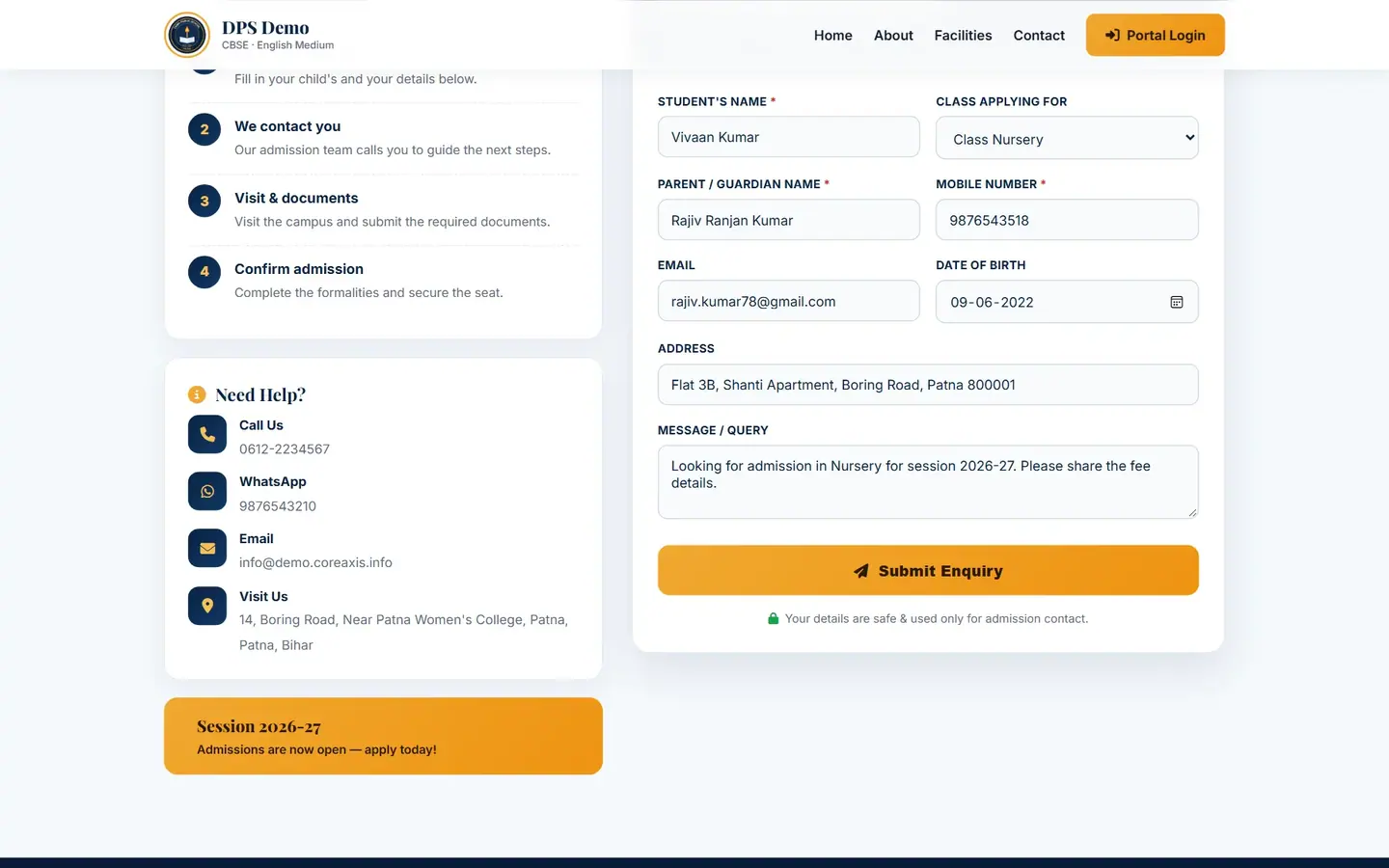
Fields marked * are required. The parent clicks Submit Enquiry. The page shows Enquiry Submitted!

The parent is told the admission team will call.
Follow up an enquiry (example: mark Vivaan Kumar as Contacted)
In the sidebar open Students and click Admission Enquiries. The newest enquiry is at the top with the status New.
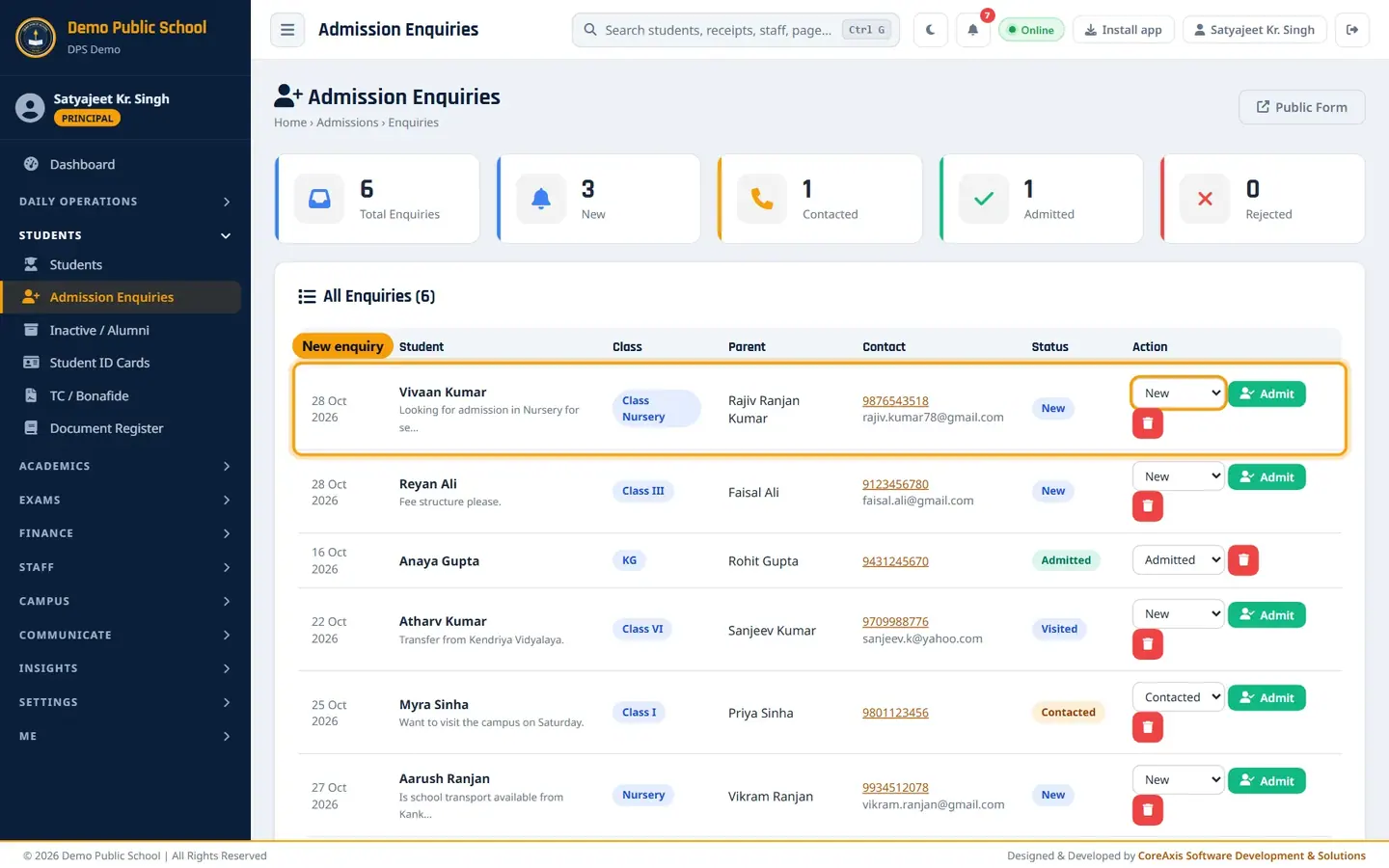
Vivaan Kumar's enquiry, received today. Read the row: date, student and the start of the message, class, parent, phone and email. Point at the message to read it in full.
Call the parent. Click the phone number to dial it from a phone.
In the Action column change the status box from New to Contacted.
Click Confirm in the popup.

Each status change asks for confirmation. The message Status updated. appears and the badge turns to Contacted.
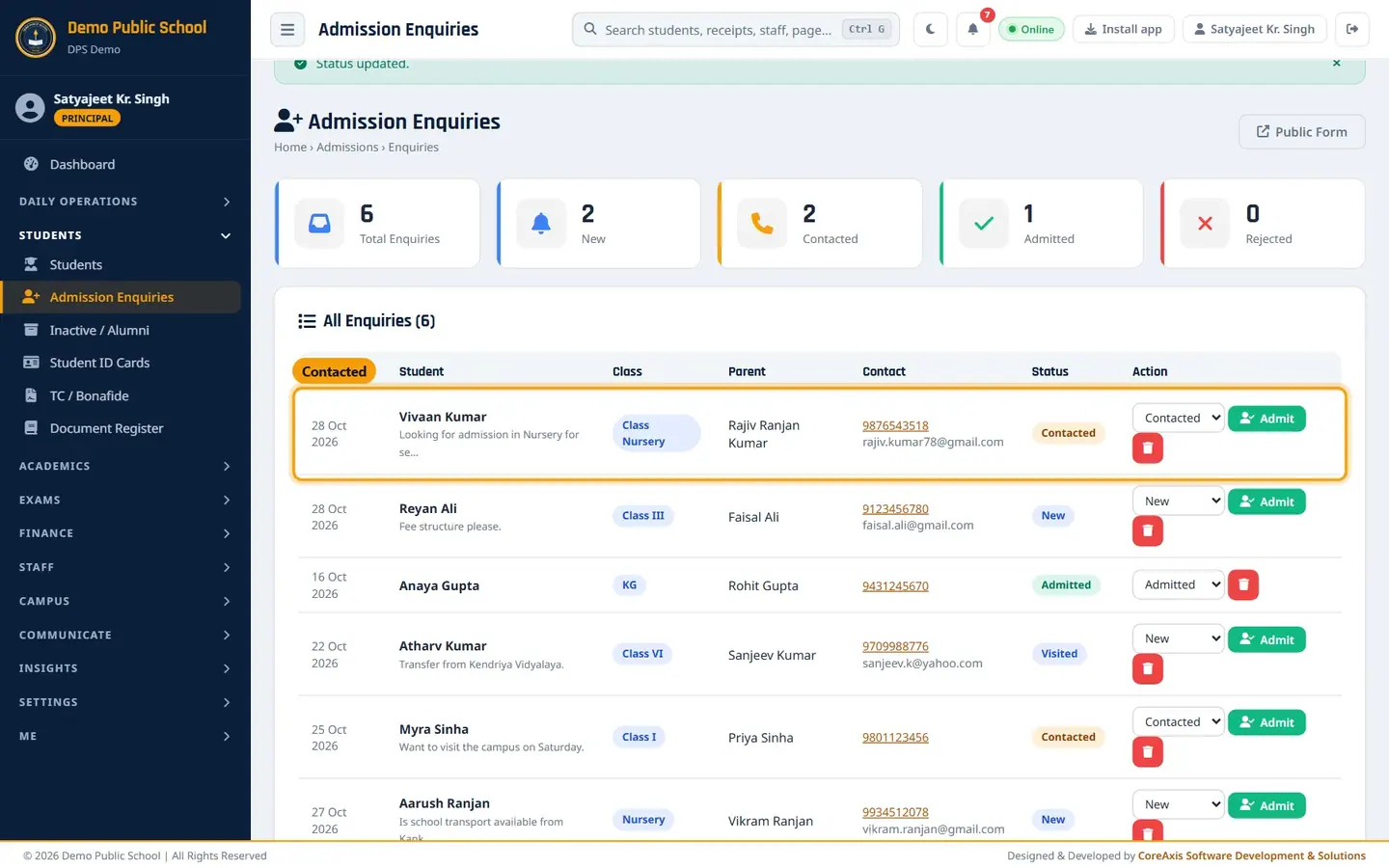
Status is now Contacted. When the family comes to see the school, change the status to Visited the same way (example: Atharv Kumar, Class VI, who visited after a transfer from Kendriya Vidyalaya). The Visited card counts these enquiries.
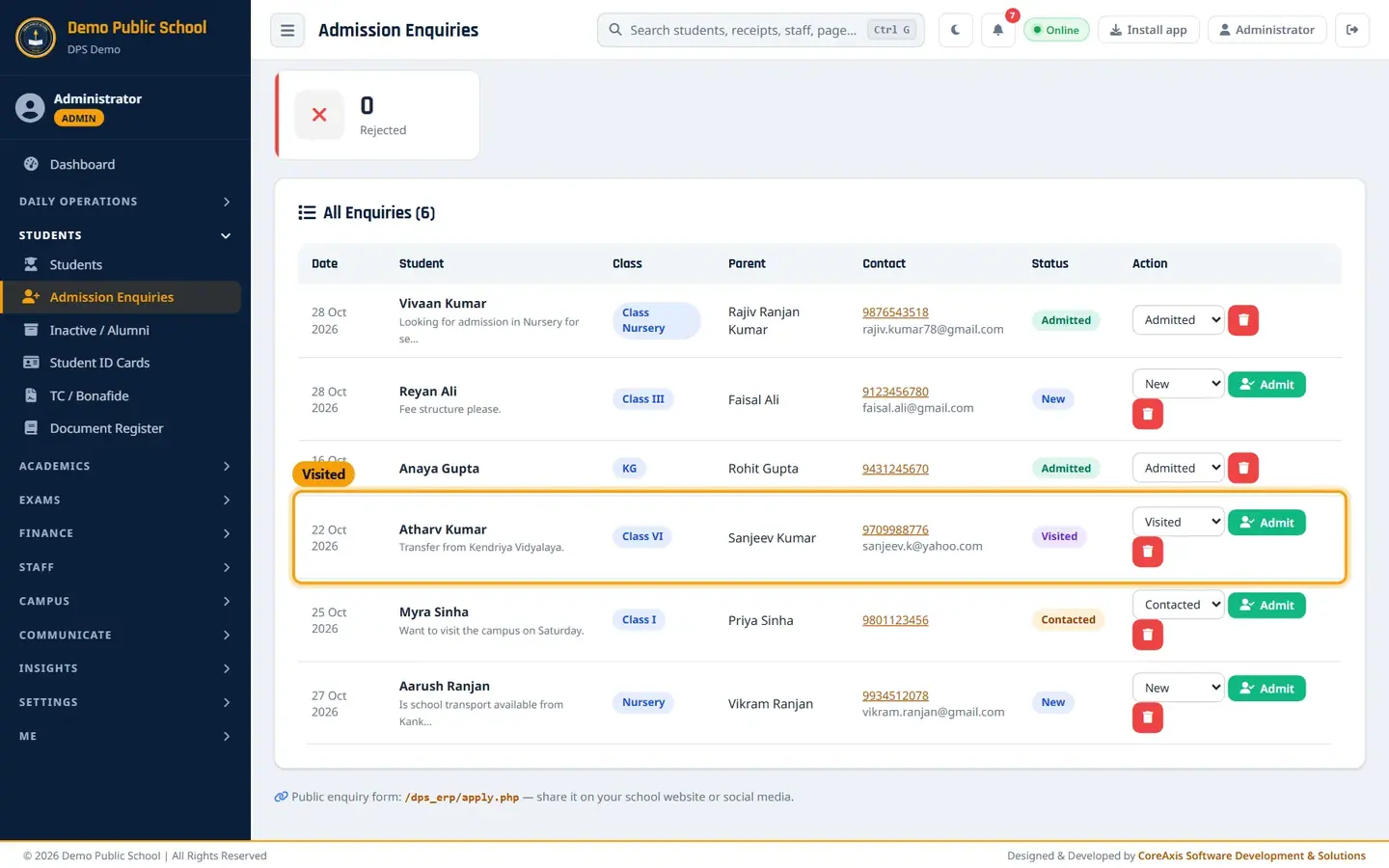
Atharv Kumar's enquiry with the purple Visited badge.
TipChoose Rejected when the family does not take admission. Rejected enquiries stay in the list for the record.
TipClick a count card at the top (New, Contacted, Visited, Admitted, Rejected) to list only those enquiries; Show All clears the filter.
Admit from an enquiry (example: Vivaan Kumar into Class Nursery)
On the enquiry row click Admit. The New Admission form opens with the message Pre-filled from admission enquiry #6. Saving marks the enquiry as admitted.
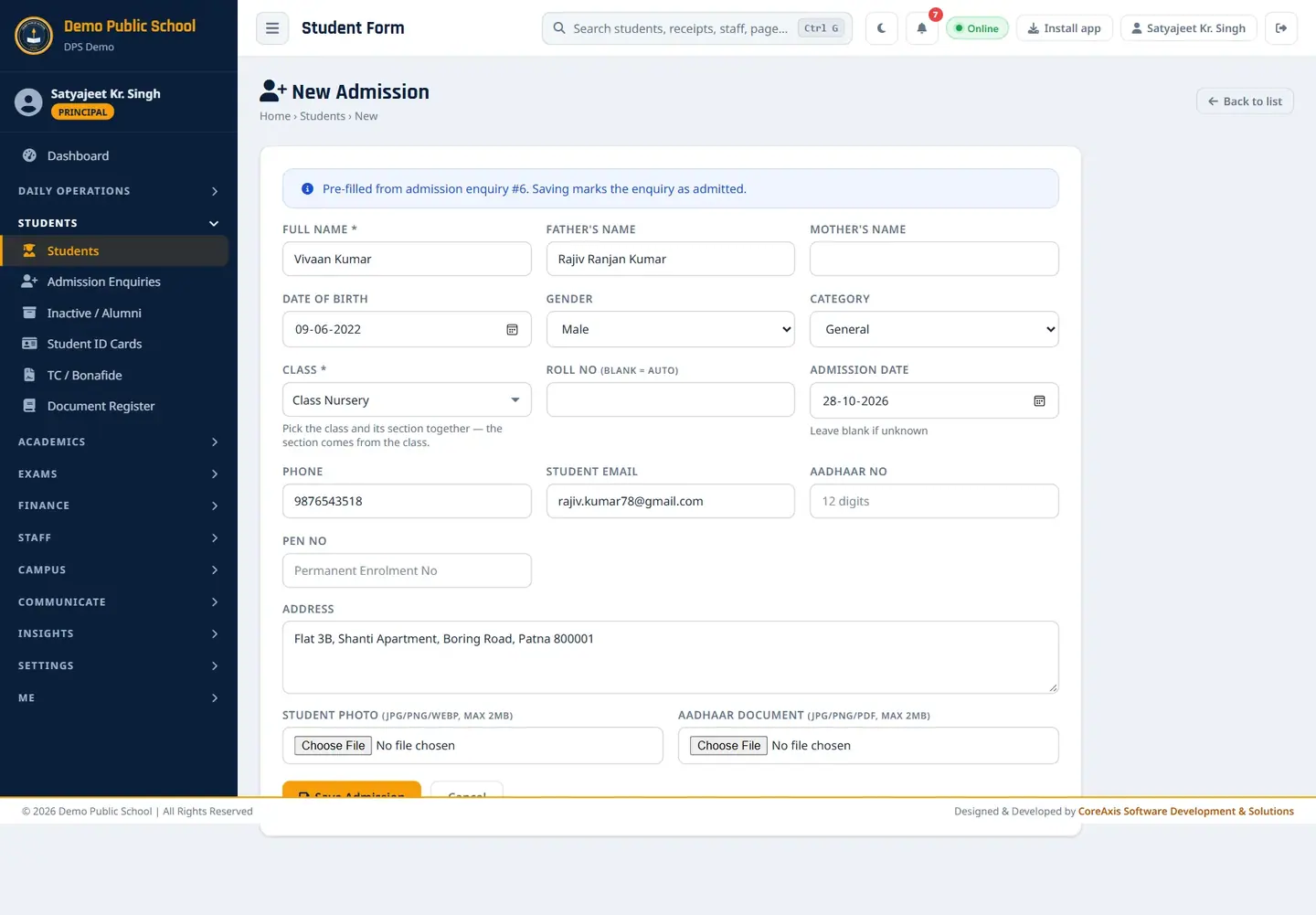
Name, father, date of birth, class, phone, email and address come from the enquiry. Check the filled details. Add what the enquiry does not have: Mother's Name Kavita Kumari, Gender Male, Category General.
Check that Class shows Class Nursery. Set the Admission Date to 28-10-2026.
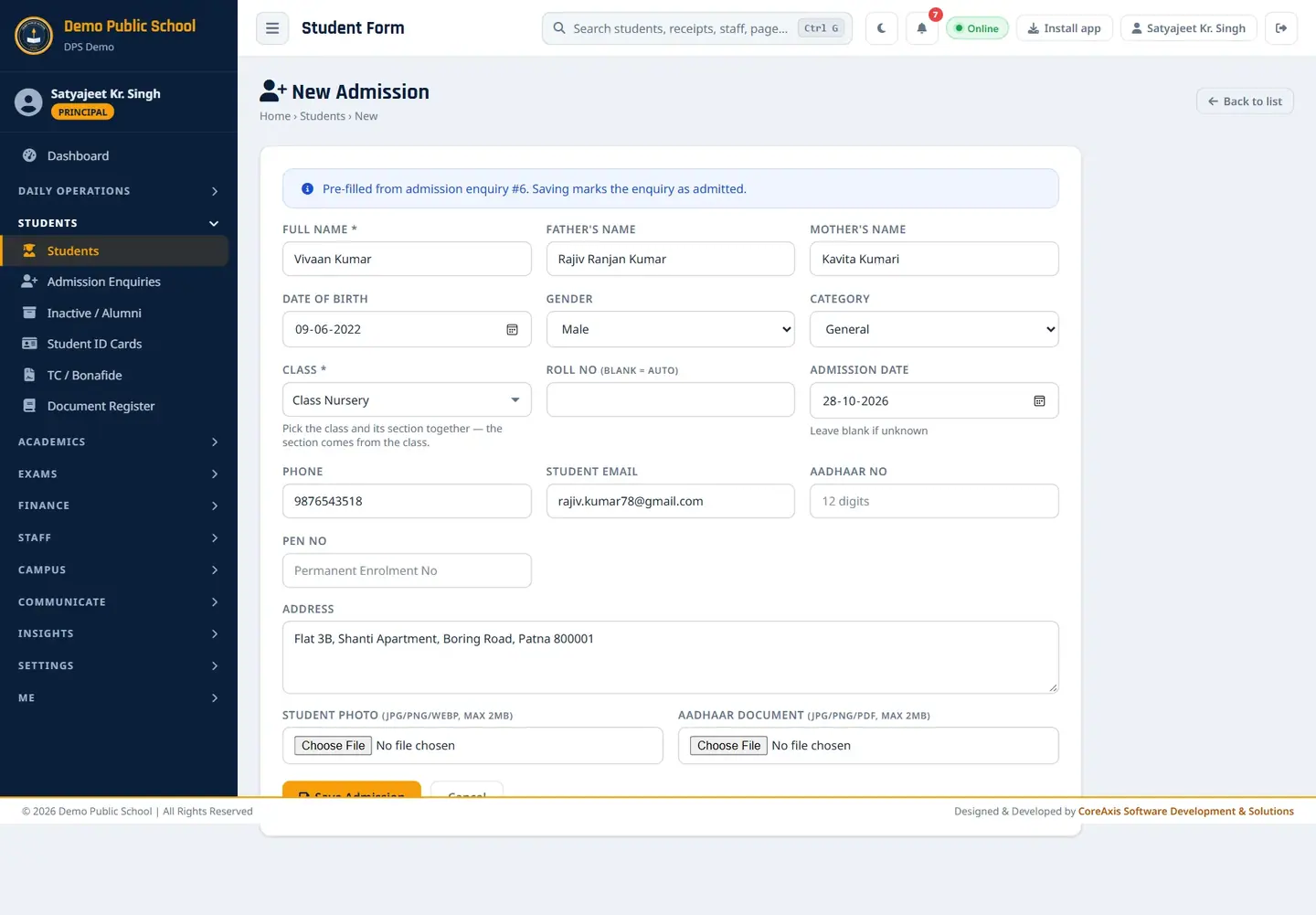
The form is ready to save. Click Save Admission and confirm. The message Student admitted! Admission No: DPSDEMO20260144 appears.
Open Admission Enquiries again. The enquiry now shows Admitted and the Admit button is gone.
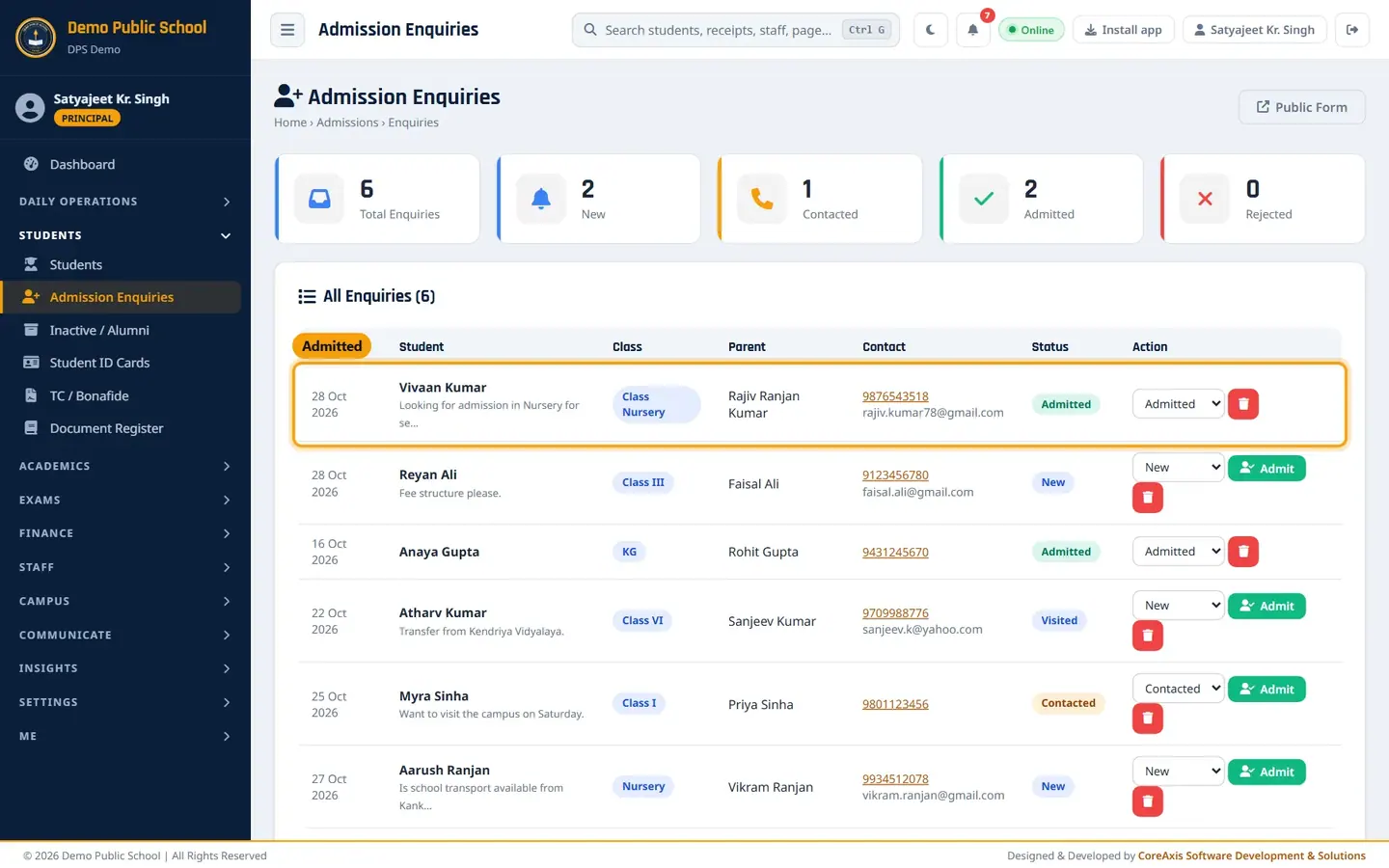
Admitted enquiries cannot be admitted twice.
TipChoosing Admitted in the status box also opens the pre-filled admission form. An enquiry becomes Admitted only after the student record is saved.
Share the enquiry form link
Click Public Form at the top right to open the parent form in a new tab.

Public Form opens the same page parents see. Copy the link from the browser address bar, or from the line Public enquiry form: at the bottom of the page.
Paste the link on the school website, in WhatsApp groups or on social media.
Screen at a glance
- Total Enquiries
- All enquiries ever received. Click to show all.
- New / Contacted / Visited / Admitted / Rejected
- Count of enquiries in each status. The five cards add up to Total Enquiries. Click a card to filter the list.
- Date
- When the parent sent the enquiry.
- Student
- Child's name and the first part of the parent's message.
- Class
- Class the parent applied for.
- Parent / Contact
- Parent or guardian name, mobile number (tap to call) and email.
- Status
- Coloured badge: New (blue), Contacted (amber), Visited (purple), Admitted (green), Rejected (red).
- Action
- Status box to change the status (New, Contacted, Visited, Admitted, Rejected), Admit to open the pre-filled admission form, and the red bin to delete the enquiry (asks twice).
Questions
A parent phoned instead of using the form. How do I record it?
Open Public Form yourself and fill it in for the parent, or admit the child directly from Students › New Admission.
Can I undo Admitted?
The enquiry status can be changed back, but the student record stays. Remove the student from the Students list if the admission was a mistake.
Who can see enquiries?
Admin, Principal and Vice Principal. Accountants and Teachers do not see this menu.