 CoreAxis School ERP
Insights & Settings · Chapter 49
Analytics
Analytics turns the school's records into charts: fee collection against expenses month by month, students by class, gender and category, today's attendance, expenses by category, new admissions, staff by role, fees by payment mode, online exam scores and admission enquiries. Choose a class and a date range at the top; click any chart to open the page behind it.
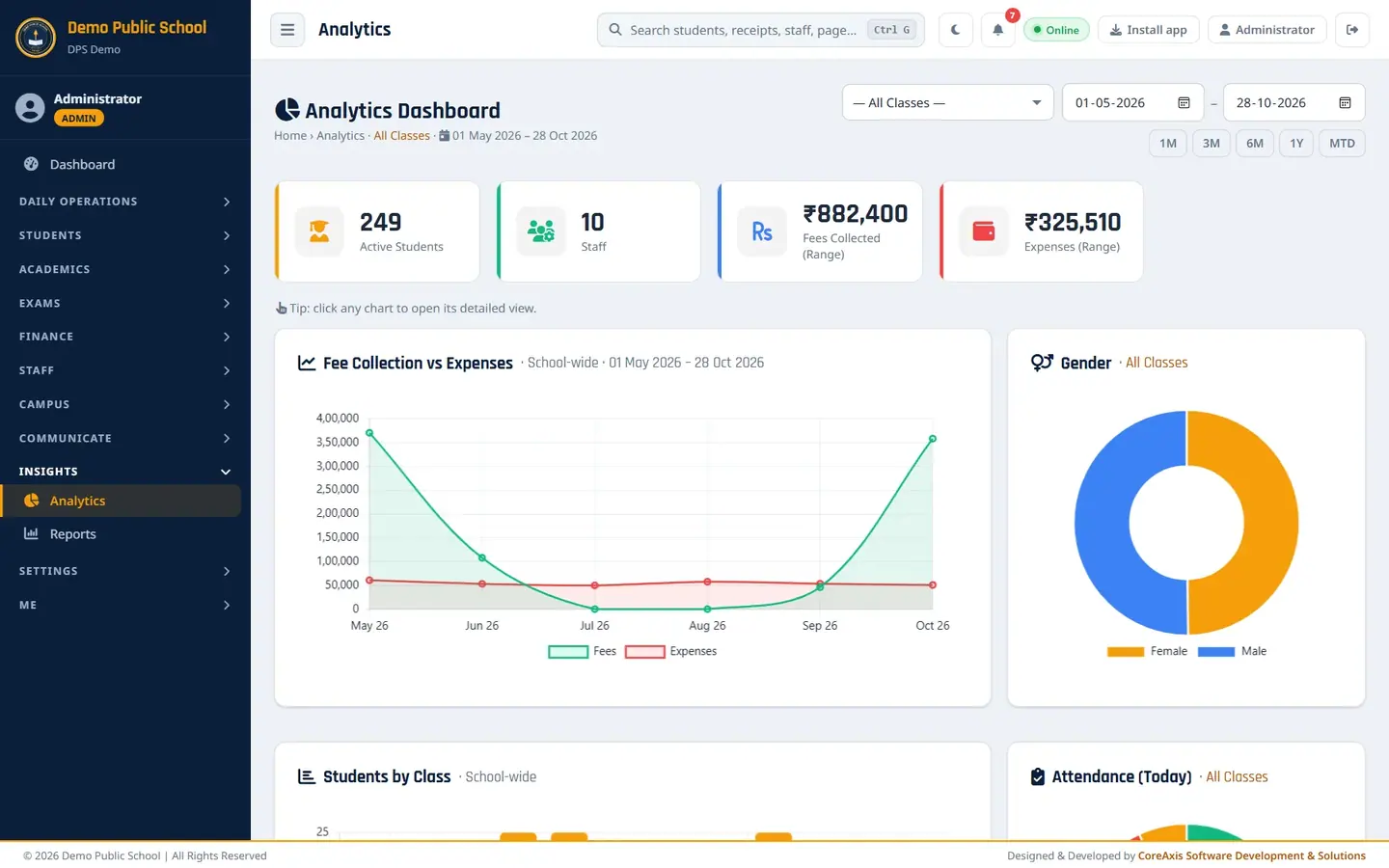
Read the school overview
Open Insights › Analytics. The default view is — All Classes — for the last six months.
Active Students, Staff, Fees Collected and Expenses for the range. Read the four cards: Active Students, Staff, Fees Collected (Range) and Expenses (Range).
Fee Collection vs Expenses shows the two lines month by month.
Scroll down for Students by Class, Attendance (Today), Category Distribution and Expenses by Category.
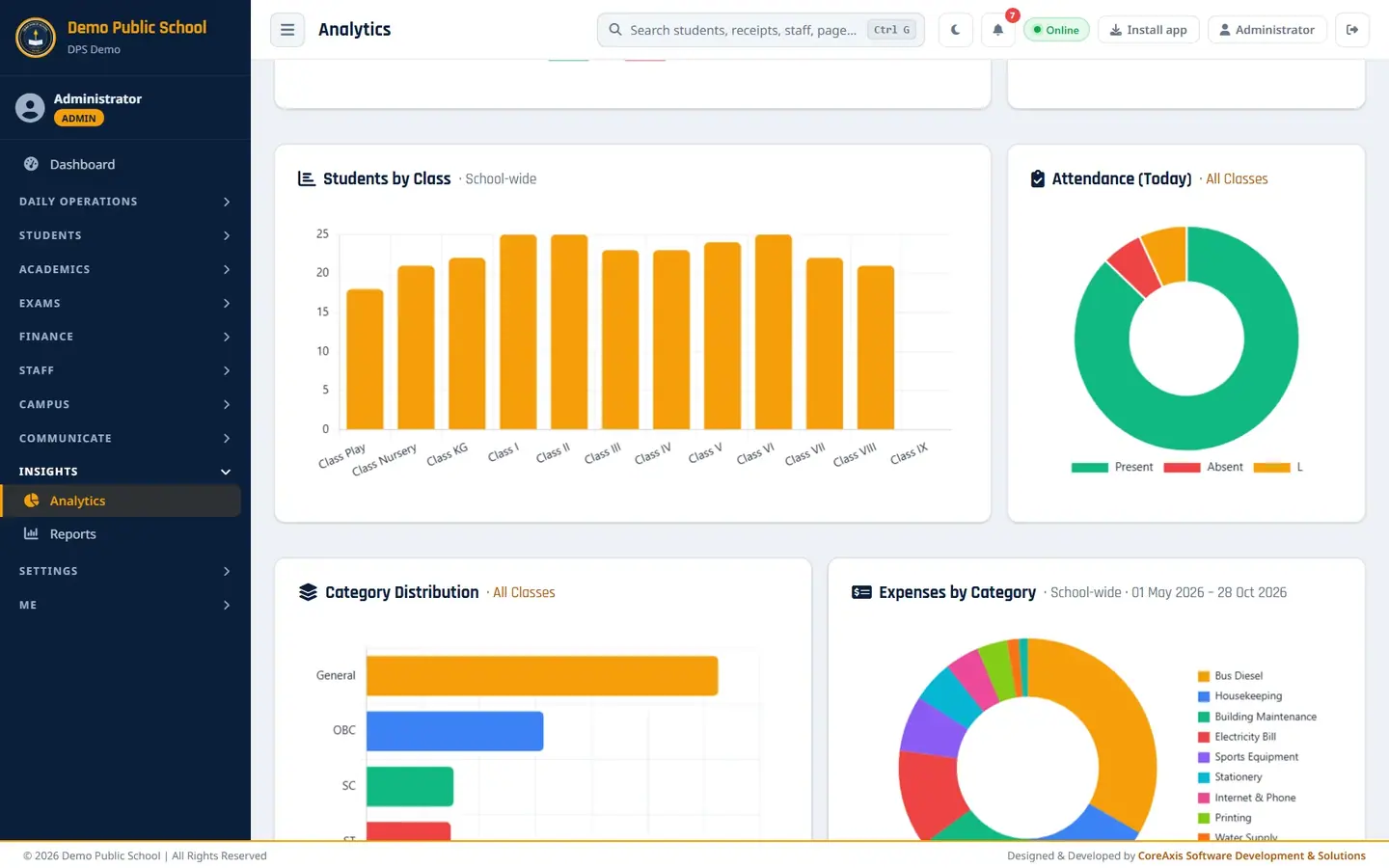
Students by class and today's attendance. Under More Insights, see New Admissions Trend (6 months), Staff by Role, Fees by Payment Mode, Online Exam Avg % and Enquiries by Status.
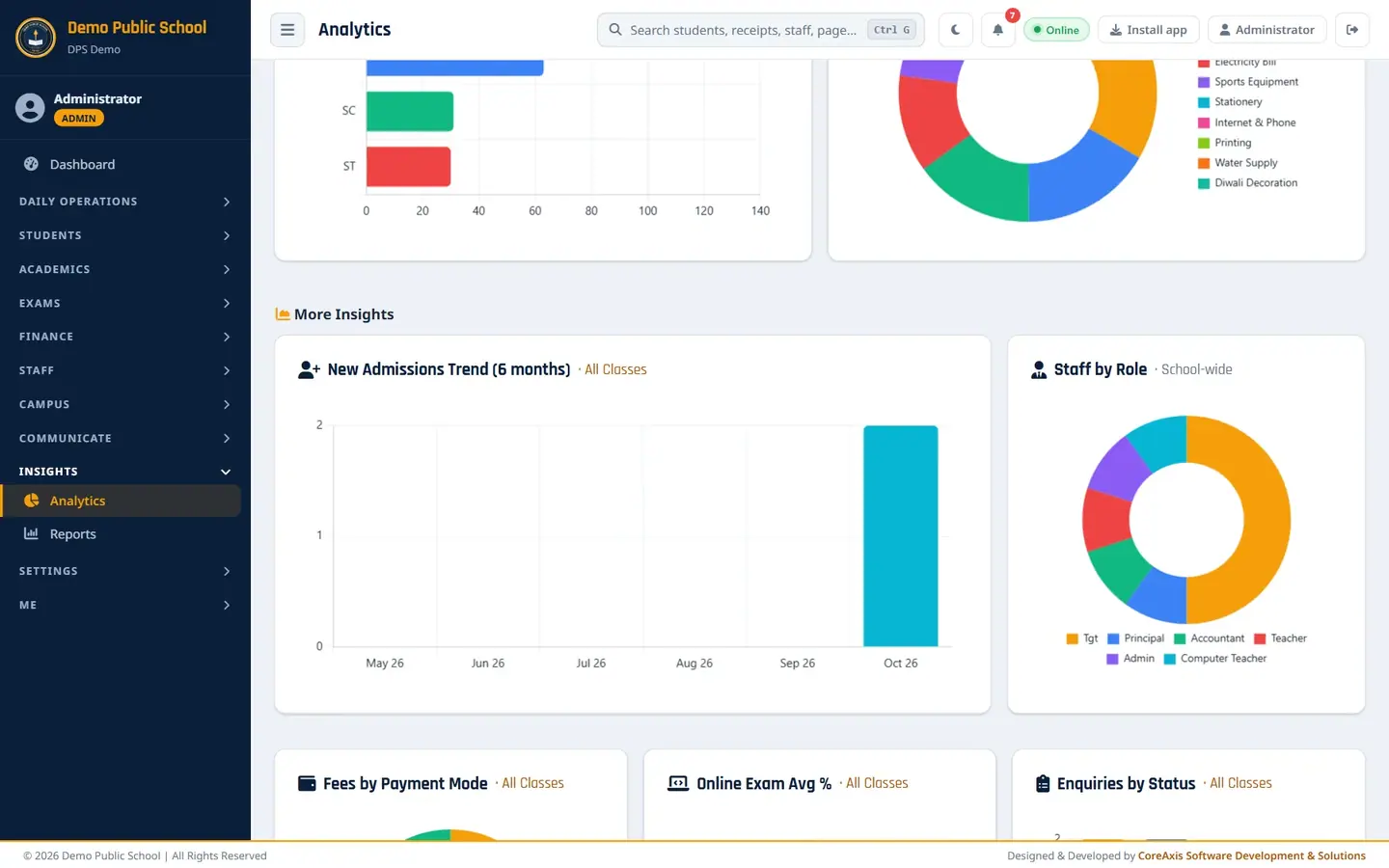
More Insights. Click any chart to open the page that holds its details.
Look at one class for a chosen period (example: Class V, 1 April – 28 October 2026)
In the class box at the top, choose Class V.
Set the dates (01-04-2026 to 28-10-2026), or click a quick range: 1M, 3M, 6M, 1Y or MTD (month to date).
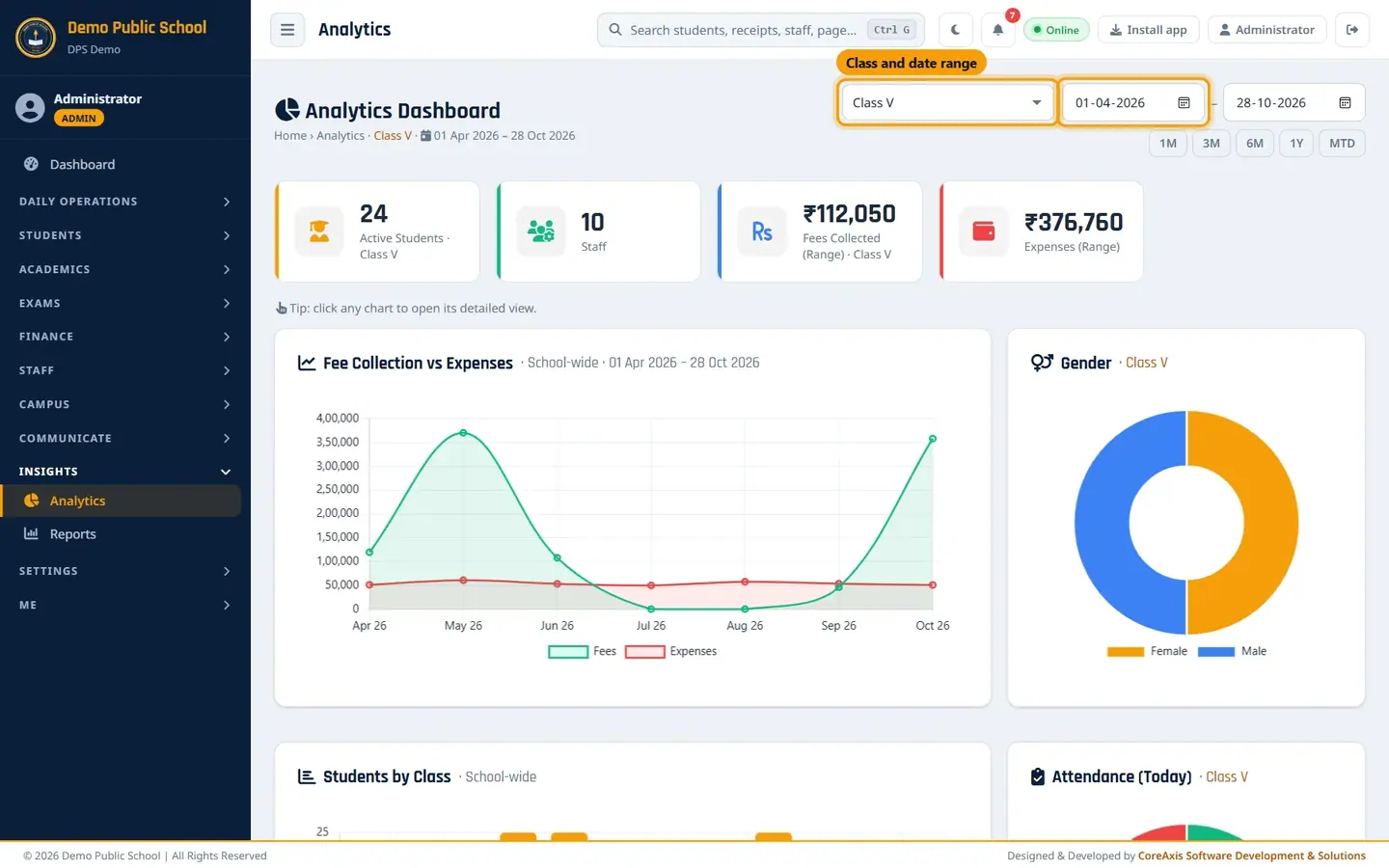
Class V: 24 students, ₹1,12,050 fees in the range. Cards and charts marked with the class name now show only that class. Charts marked School-wide (expenses, students by class, staff by role) always show the whole school.
Screen at a glance
- Class / From / To / 1M 3M 6M 1Y MTD
- Filters for every chart that is not school-wide.
- Fees Collected (Range)
- Receipts in the date range (for the chosen class if one is picked).
- Expenses (Range)
- School expenses in the date range (always school-wide).
- Gender / Category Distribution
- Active students by gender and by category (General, OBC, SC, ST …).
- Attendance (Today)
- Present, absent and leave for today's student attendance.
- Fees by Payment Mode
- Cash, UPI, cheque, online and other modes.
Questions
The numbers here differ from the Finance Ledger.
Check the date range: Analytics starts six months back by default. Set the same From and To as the ledger.