 CoreAxis School ERP
Role Guides · Chapter 55
Teacher
This guide follows Amit Kumar Mishra, Mathematics teacher and class teacher of Class VI-A at Demo Public School. A teacher sees only his own classes: he marks attendance and makes report cards for his class, enters marks and gives homework for the classes he teaches, and handles his own leave and substitutions. Each section points to the module chapter that explains the screen in full (Attendance, Marks Entry, Homework, Timetable, Notices, Library, Leave, My Account).
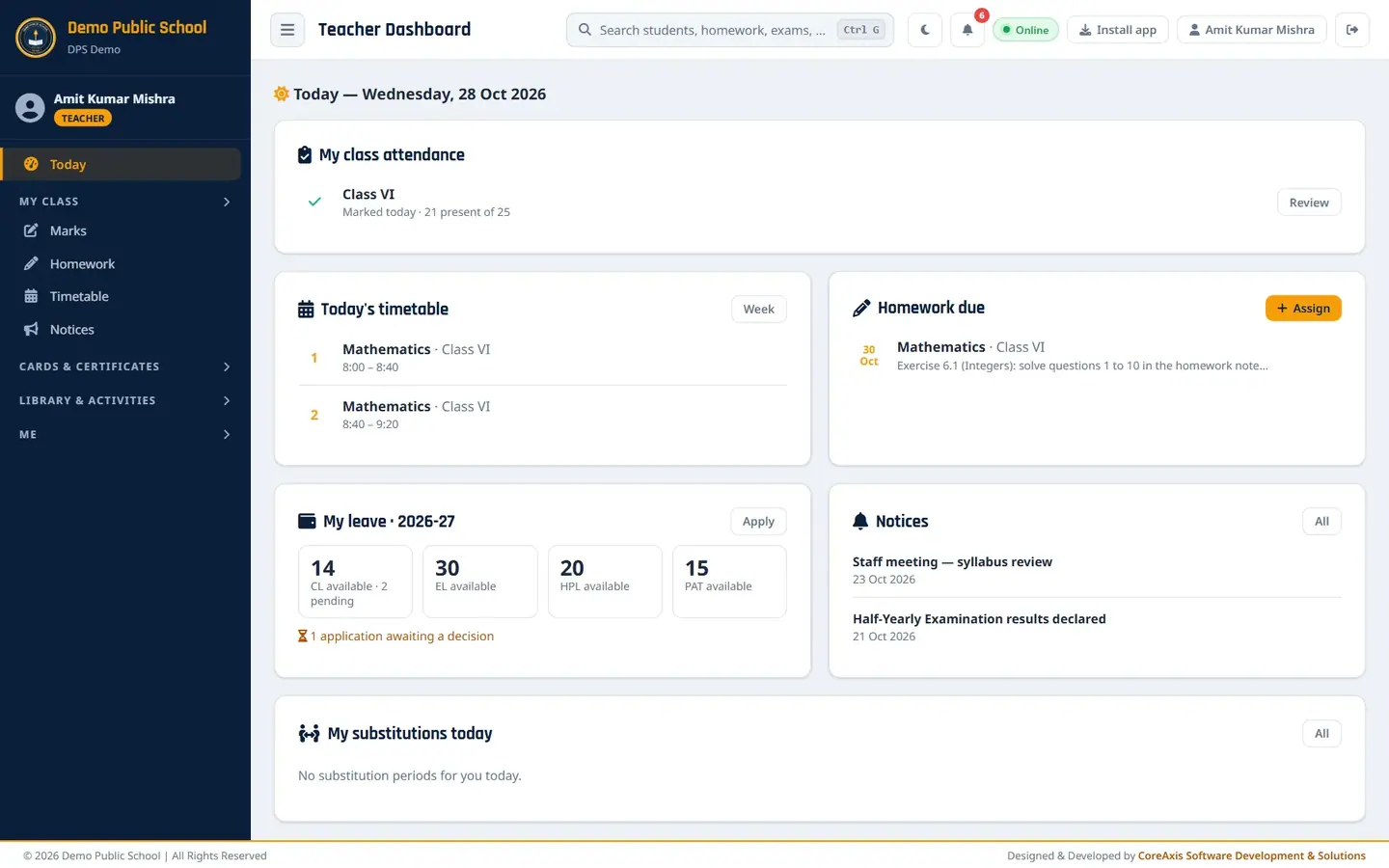
The Today page at a glance
After signing in, the teacher lands on Today. Read it top to bottom before the first period.
Amit Kumar Mishra's Today page on Wednesday, 28 Oct 2026.
- My class attendance
- Whether today's attendance for your class is saved, and how many are present ("Marked today · 21 present of 25"). If it is not yet marked, the card says so. Review opens the attendance register for today.
- Today's timetable
- Your periods today with subject, class and time (Period 1 and 2: Mathematics, Class VI). Week opens the full timetable.
- Homework due
- Homework you gave that is due in the next 7 days, with the due date. Assign opens the homework form.
- My leave · 2026-27
- Leave balance by type (CL, EL, HPL, PAT) and how many applications are awaiting a decision. Apply opens My Leaves.
- Notices
- The latest notices for teachers and for everyone. All opens the Notice Board.
- My substitutions today
- Periods you must take today for an absent colleague, if the office has arranged any. All opens My Substitutions.
- Top bar
- Search (Ctrl + G) finds students, homework and exams of your classes. The bell shows notifications. Your name opens My Profile; the last icon signs you out.
The teacher's menu
Groups open one at a time. Click a group name (My Class, Cards & Certificates, Library & Activities, Me) to open it.
Open My Class to see the class-teacher screens.
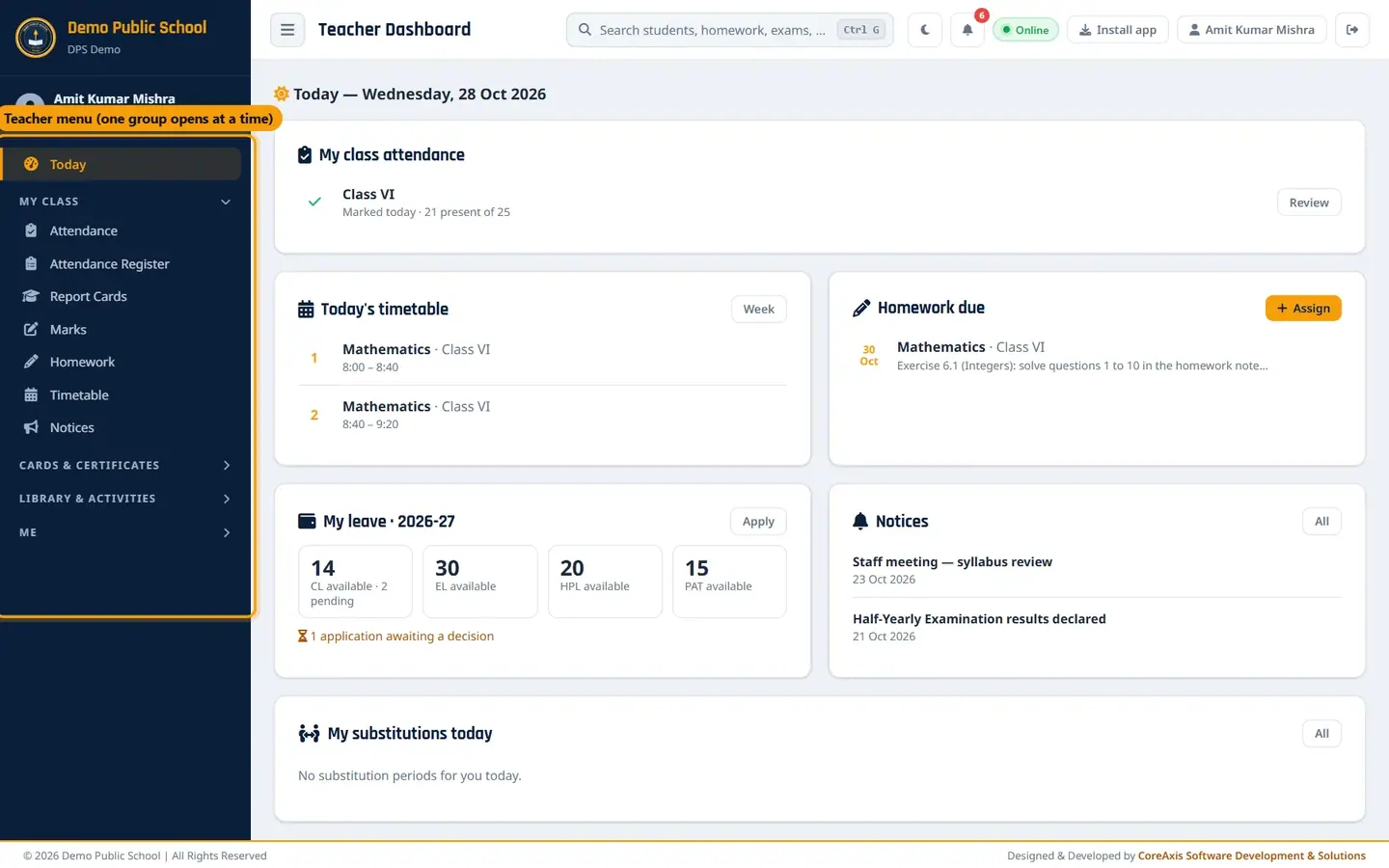
The teacher menu with My Class open.
- My Class › Attendance
- Mark daily attendance for your class. See the Attendance chapter.
- My Class › Attendance Register
- Month-wise register of your class (P / A / L for each day), printable.
- My Class › Report Cards
- Generate and print report cards for your class.
- Marks
- Exams of your class: create a class test, assign subjects, enter marks. See the Marks Entry chapter.
- Homework
- Give, edit and delete homework. See the Homework chapter.
- Timetable
- Week timetable of any class; you can edit only your own class. See the Timetable chapter.
- Notices
- Read notices and post a new notice. See the Notices chapter.
- Cards & Certificates › Student ID Cards, Admit Cards, Exam Certificates
- Print ID cards, admit cards and exam certificates for your class.
- Library & Activities › Library Desk, Competitions
- Issue and return library books; record competitions and winners. See the Library chapter.
- Me › My Payslips, My Attendance, My Substitutions, My Leaves, Holidays, My Profile
- Your own salary slips, attendance, substitution periods, leave applications, the holiday list and profile. See the Leave and My Account chapters.
First period: mark today's attendance for Class VI-A
Attendance is marked once a day, in the first period. You can open it again later the same day to change a mark (for example, a student who went home with a leave note).
Click My Class › Attendance, or Review on the Today page.
Choose Class VI in the class box. The date is today; you can pick an earlier date to correct it.
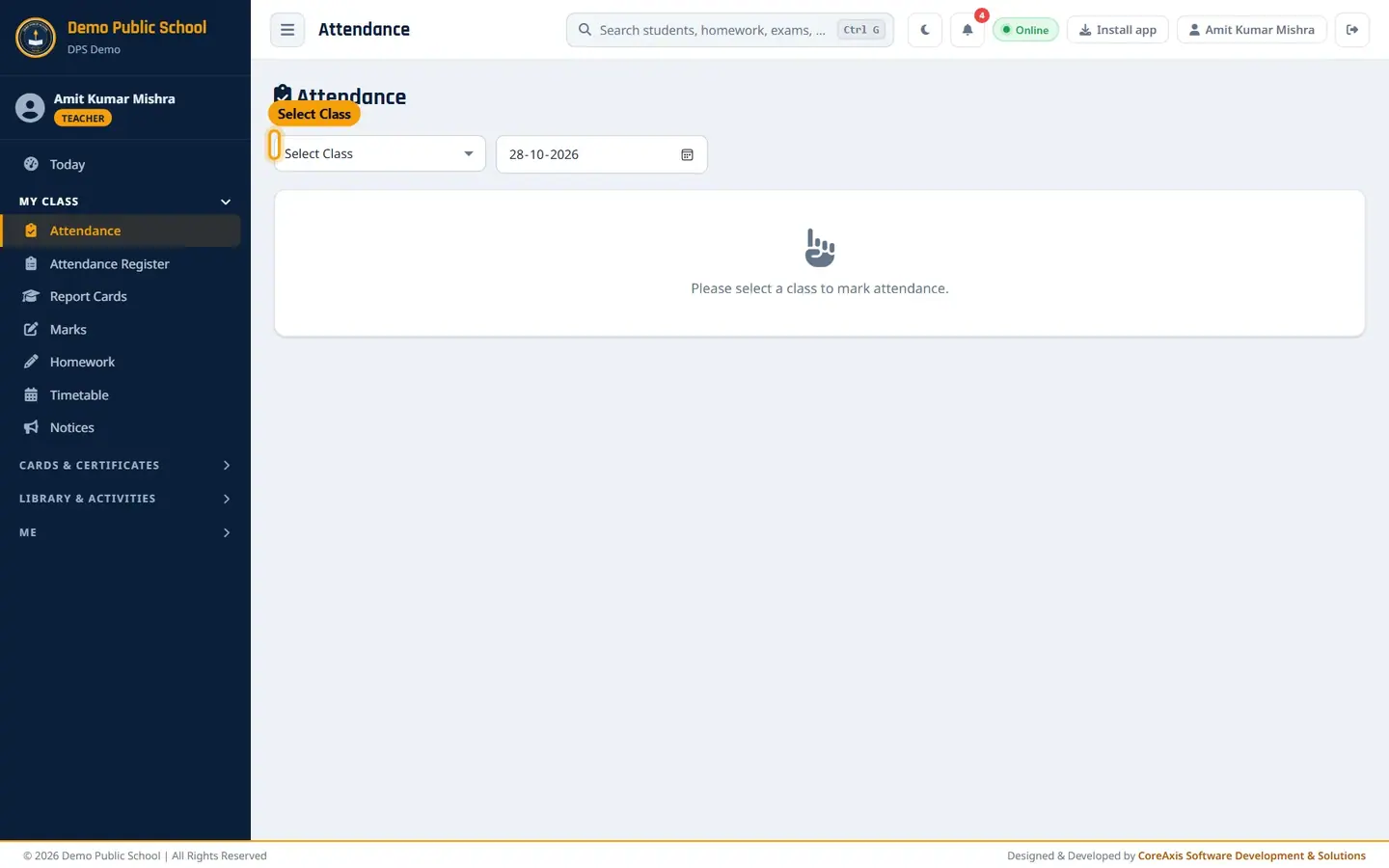
Select your class. Only your own classes are listed. If the green Saved bar shows, attendance is already recorded today; you can still change marks. If it says Not saved yet, click Mark all present first.

Saved earlier today by Amit Kumar Mishra. The This month column shows each student's P and A count. Change only the students who are not present: A for absent, L for leave. In the example, Ananya Pandey is marked L because her parents sent a leave note.

A changed row gets a blue edge until it is saved. Check the counts in the bar at the bottom (Present, Absent, Leave, Not marked) and click Save attendance.

"Unsaved changes" shows until you click Save attendance. Click Save attendance again in the popup to confirm.
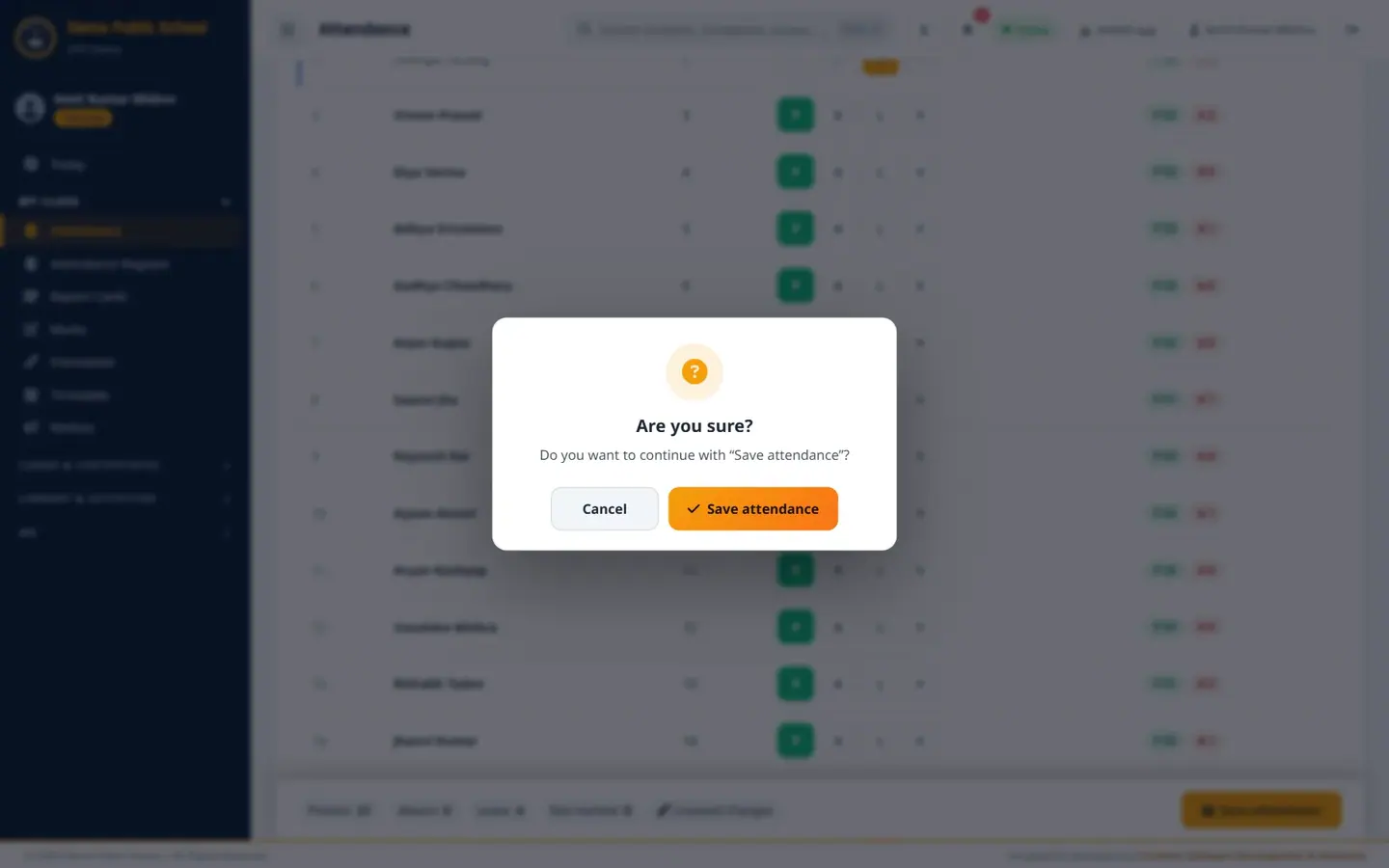
Every save asks once for confirmation. The message Attendance saved for 28 Oct 2026 appears and the bar shows the time and who marked it.

Saved: Present 21, Leave 4, Not marked 0.
TipThe × button next to P / A / L clears a mark (leaves the student unmarked).
TipAbsent marks feed the parent portal, the attendance register, the attendance percentage on report cards, and absence SMS if the school uses it.
After class: give homework (example: Class VI Mathematics, Exercise 6.1, due 30 Oct)
Click Homework, then Assign Homework.
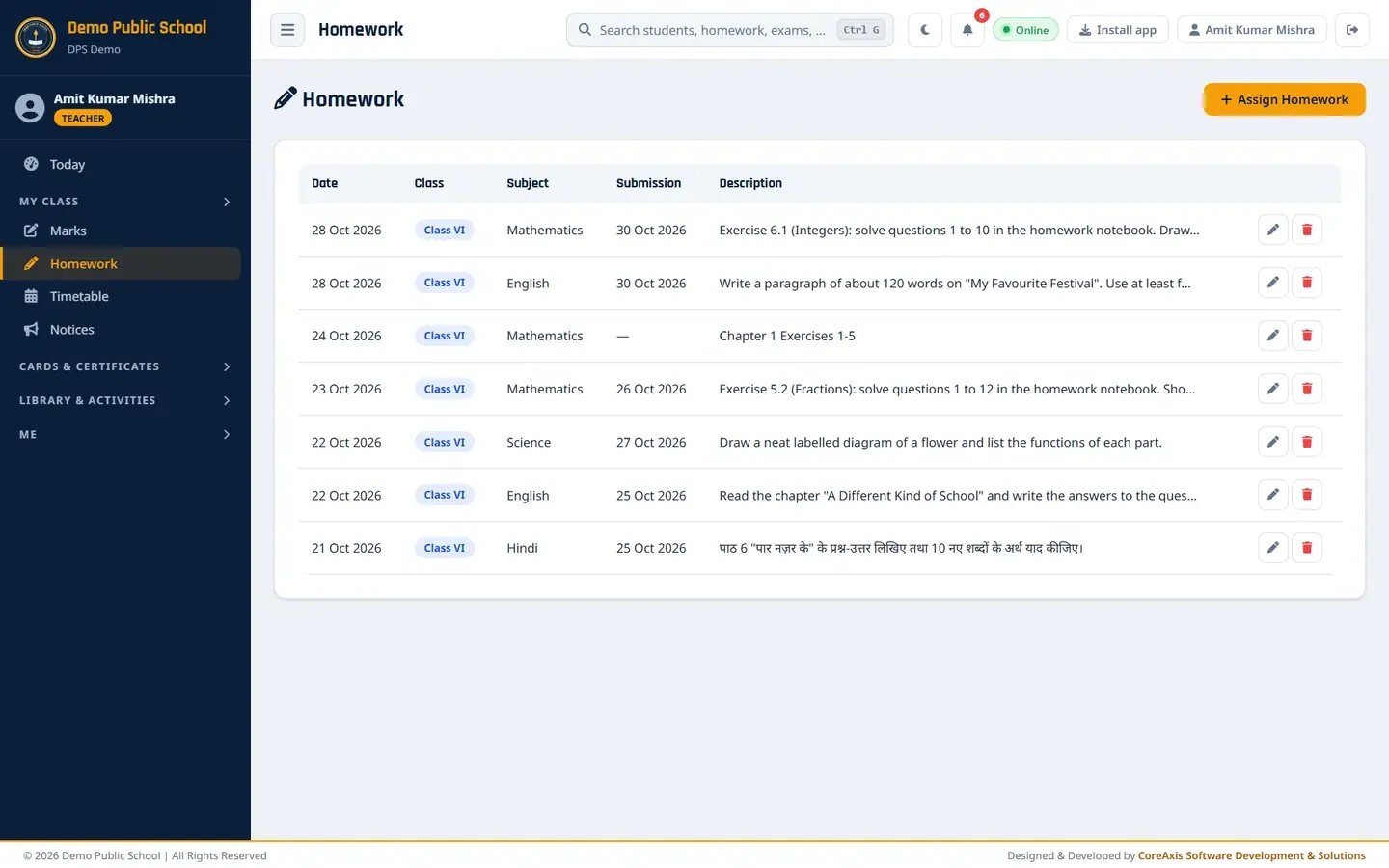
The homework list shows everything given to your classes, newest first. Hindi homework shows in Devanagari. Choose Class (Class VI) and Subject (Mathematics).
Keep Date as today and set Submission Date (30-10-2026).
Type the Description: "Exercise 6.1 (Integers): solve questions 1 to 10 in the homework notebook. Draw a number line for questions 3 and 4."
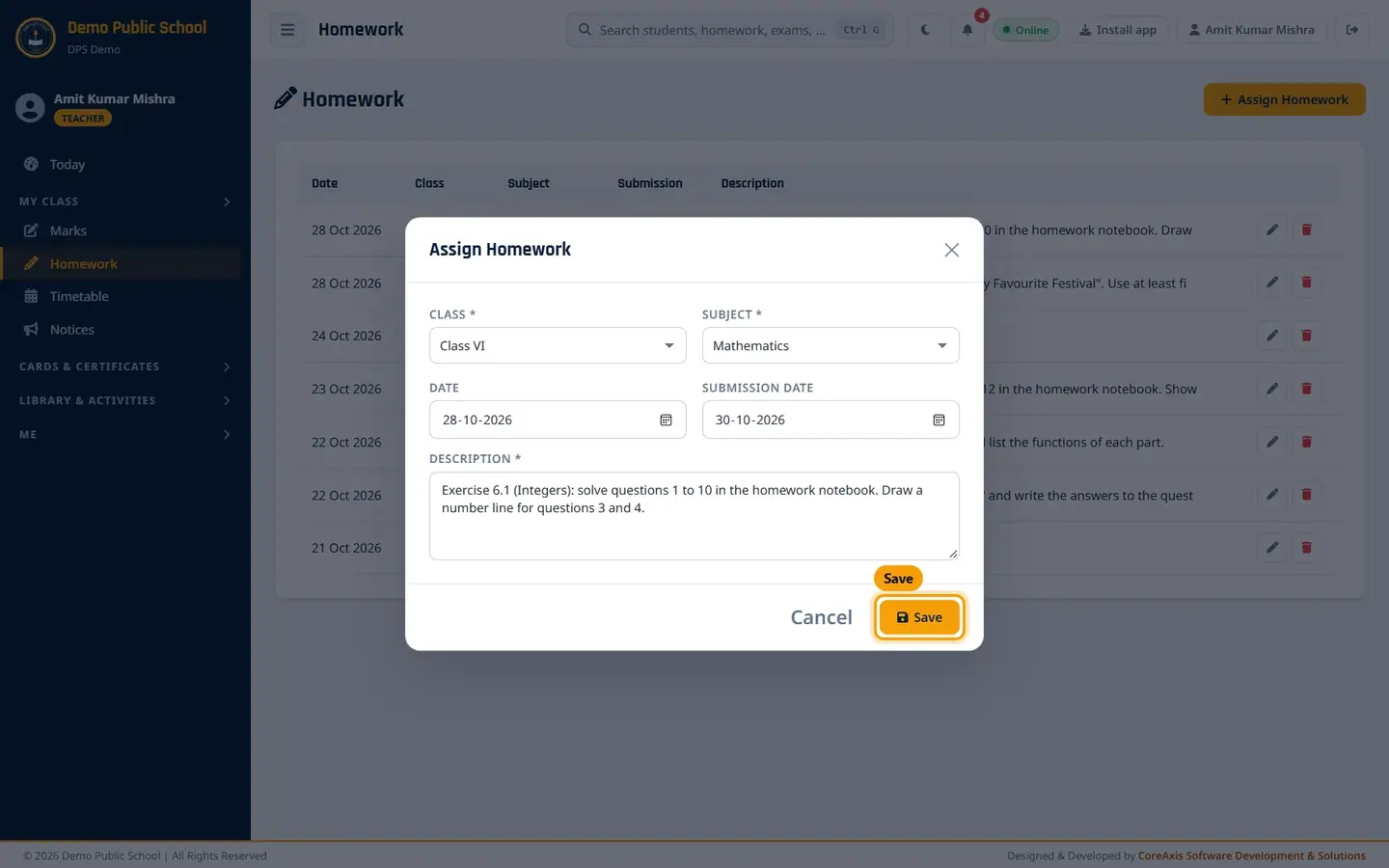
The filled Assign Homework form. Click Save, then Save again in the popup.

The message Homework assigned! appears and the homework is at the top of the list. Students and parents see it at once in the portal and the app.

The new homework for Class VI, due 30 Oct 2026.
TipUse the pencil icon to correct a homework; the red bin deletes it (it asks twice).
Enter marks for your subject (example: Class Test — Integers, Mathematics, out of 25)
A teacher can create a test for his own class, choose the subject, and enter marks. Results are shown to students only after the Principal / Administrator publishes the exam.
Click Marks. The list shows the exams of your classes and the exams set for All Classes (the Half-Yearly Examination). Click Create Exam.

Exams of Class VI and the All Classes Half-Yearly Examination. Fill Exam Name (Class Test — Integers (Mathematics)), Exam Type (Unit Test), Class (Class VI), Start Date and End Date (27-10-2026). Click Create Exam and confirm.
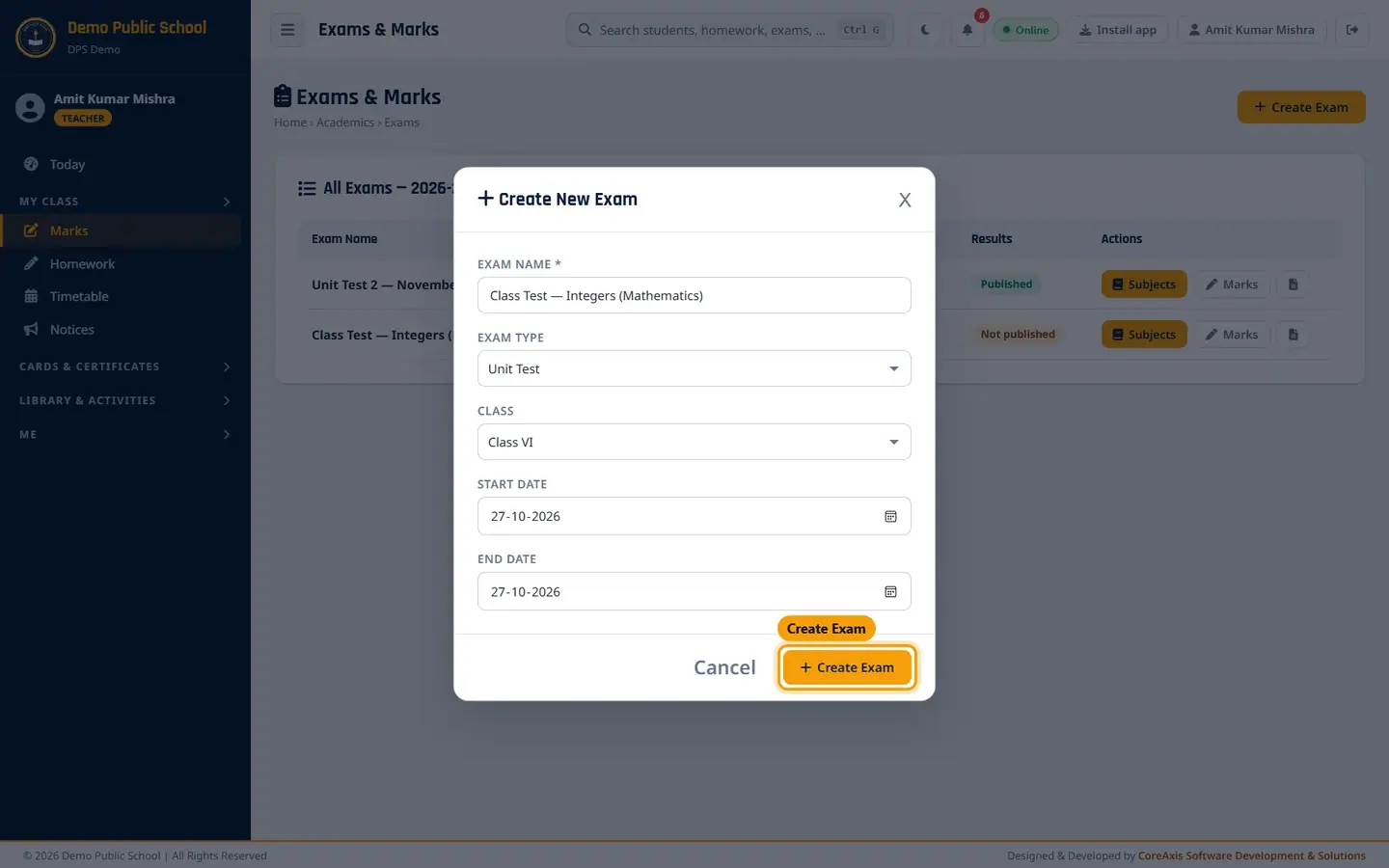
Teachers can choose only their own class. On Assign Subjects, tick Mathematics, set Max Marks 25, Pass Marks 9 and the Exam Date. Click Save Subject Assignment and confirm.

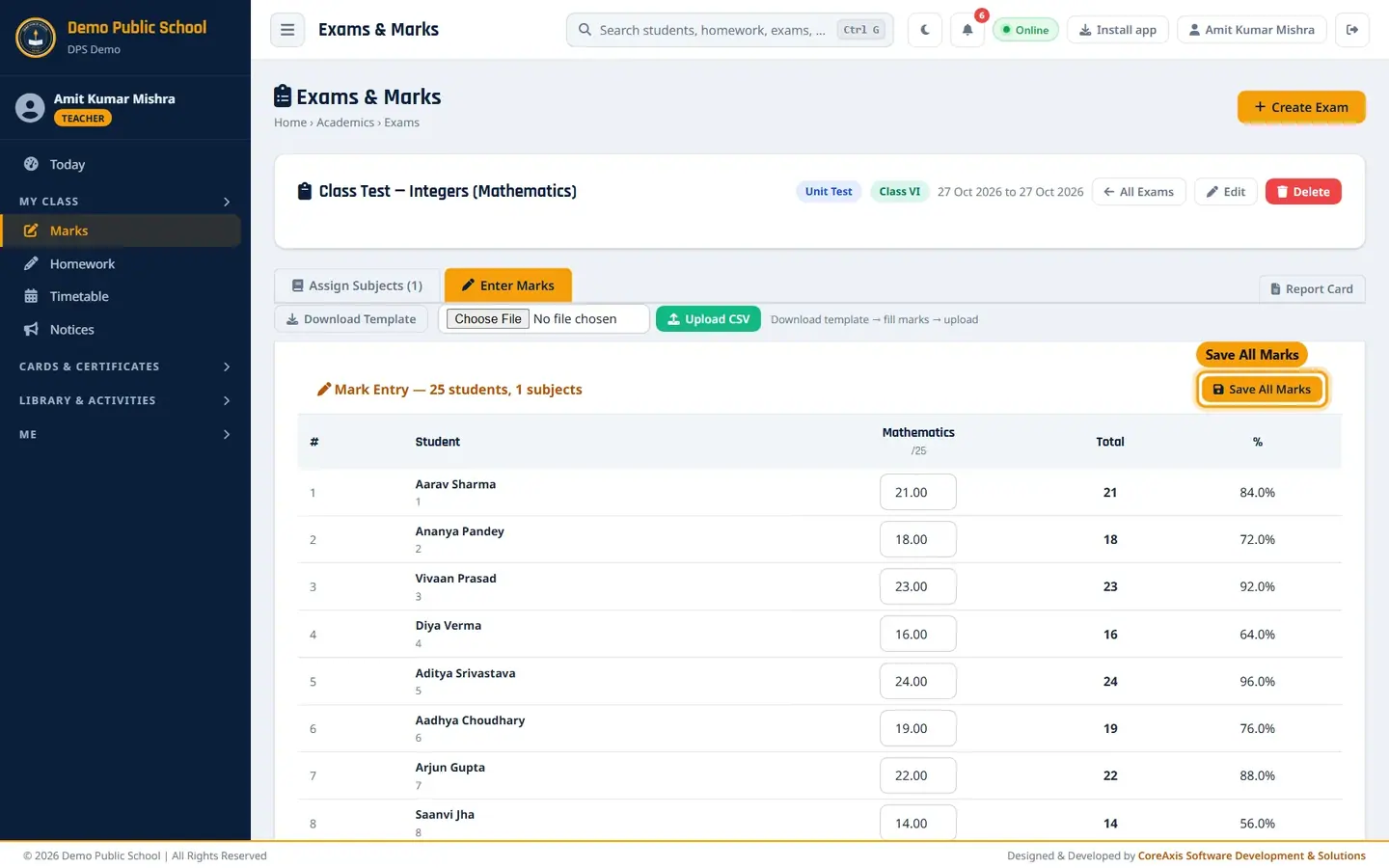
Only the ticked subject gets a marks column. A teacher has Edit but no Delete button. Open Enter Marks. Type each student's marks in the Mathematics column. Total and % update as you type.
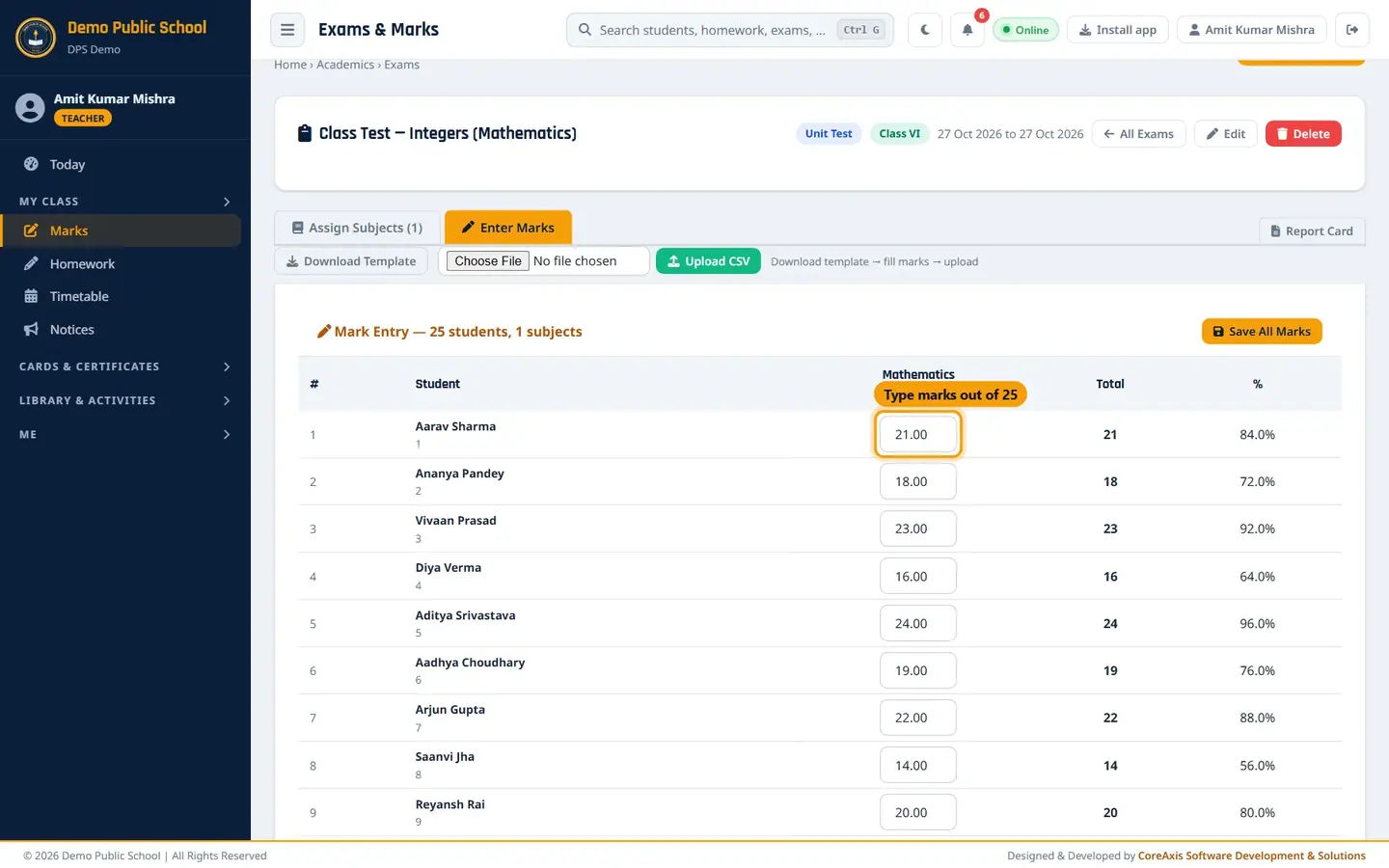
Mark Entry for 25 students, 1 subject. Click Save All Marks (top or bottom of the table) and confirm.
The message Marks saved successfully! appears. You can come back and change marks until the exam is published.
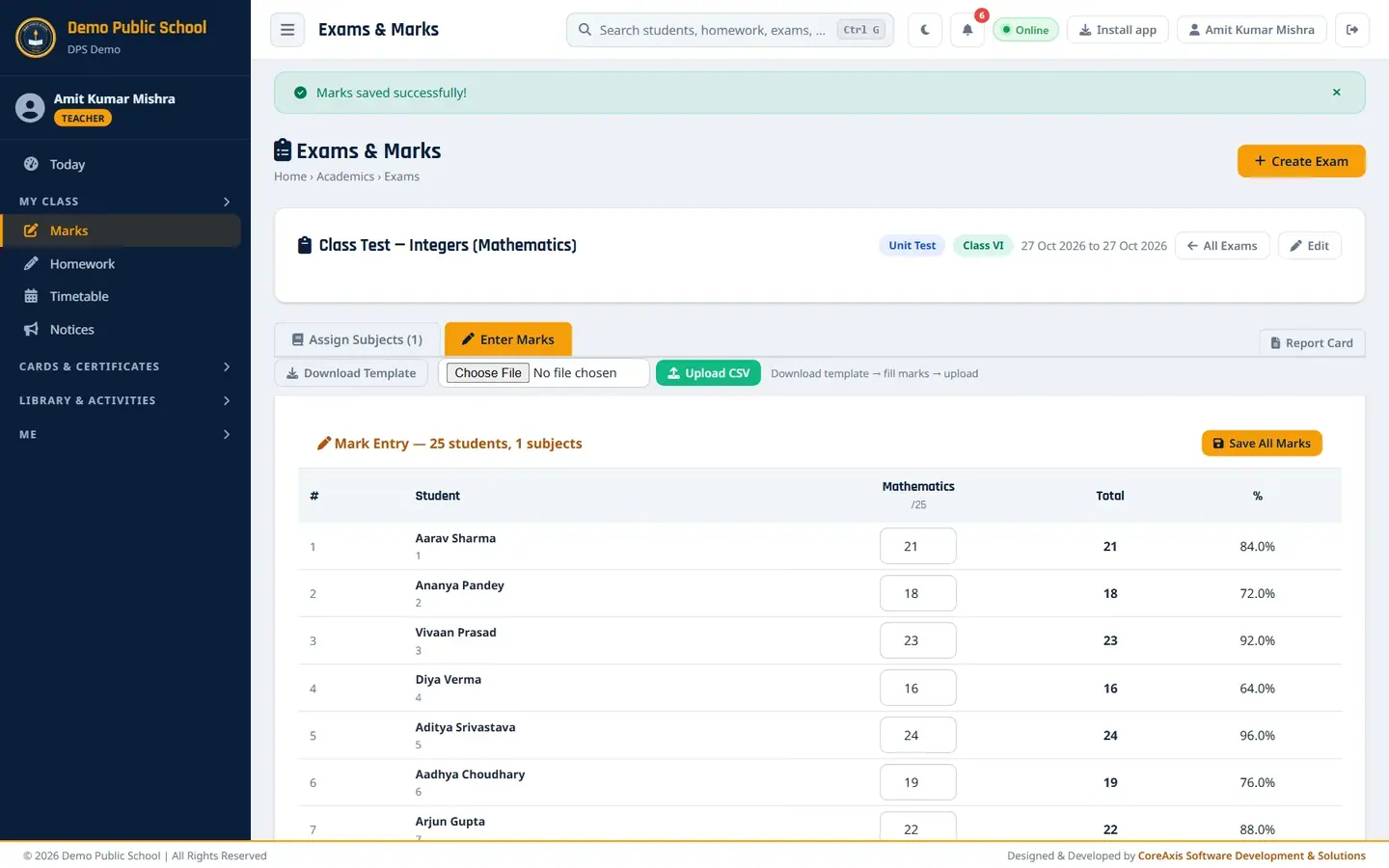
Saved marks show as typed (21, 18 …).
TipFor a large class, use Download Template, fill marks in Excel, then Upload CSV.
TipBlank means "not entered"; type 0 for a student who scored zero.
Enter marks for a school-wide exam (example: Half-Yearly Examination, Class VI-A)
The Half-Yearly Examination is set for All Classes by the Principal. Each class teacher enters the marks of their own class.
Click Marks. In the row of Half-Yearly Examination (Class: All), click Marks.
The Class box shows your class (VI - A). It lists only your own classes. The sheet shows your 25 students and the exam's 6 subjects.
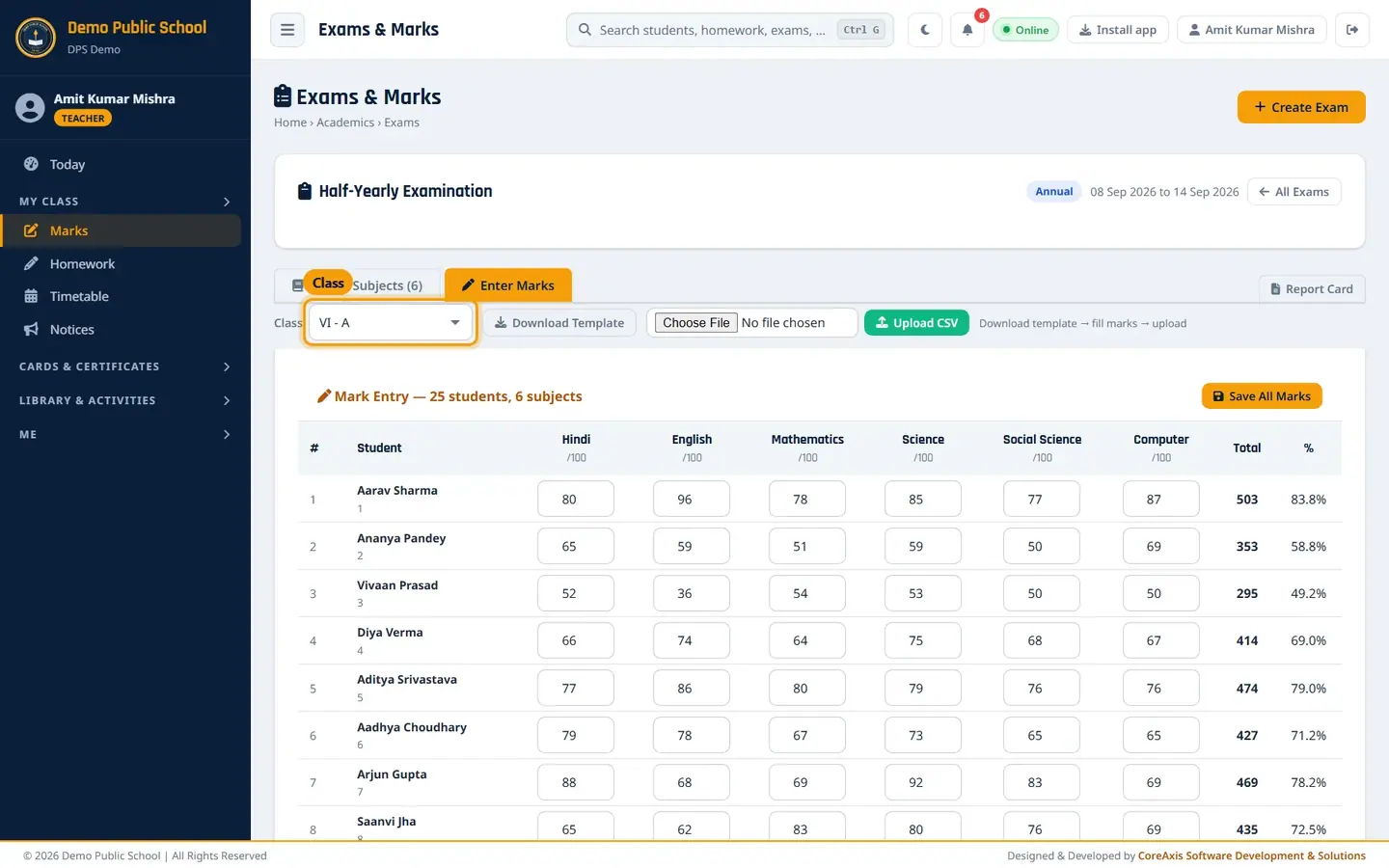
An All Classes exam: the Class box shows only your class. There is no Edit or Delete for this exam. Type the marks and click Save All Marks, then confirm.
TipThe subjects, maximum marks and dates of an All Classes exam are set by the Principal or Administrator; the Assign Subjects tab is read-only for you.
Check the timetable and notices
Click Timetable (or Week on Today) and choose Class VI. Each cell shows subject, teacher and time.
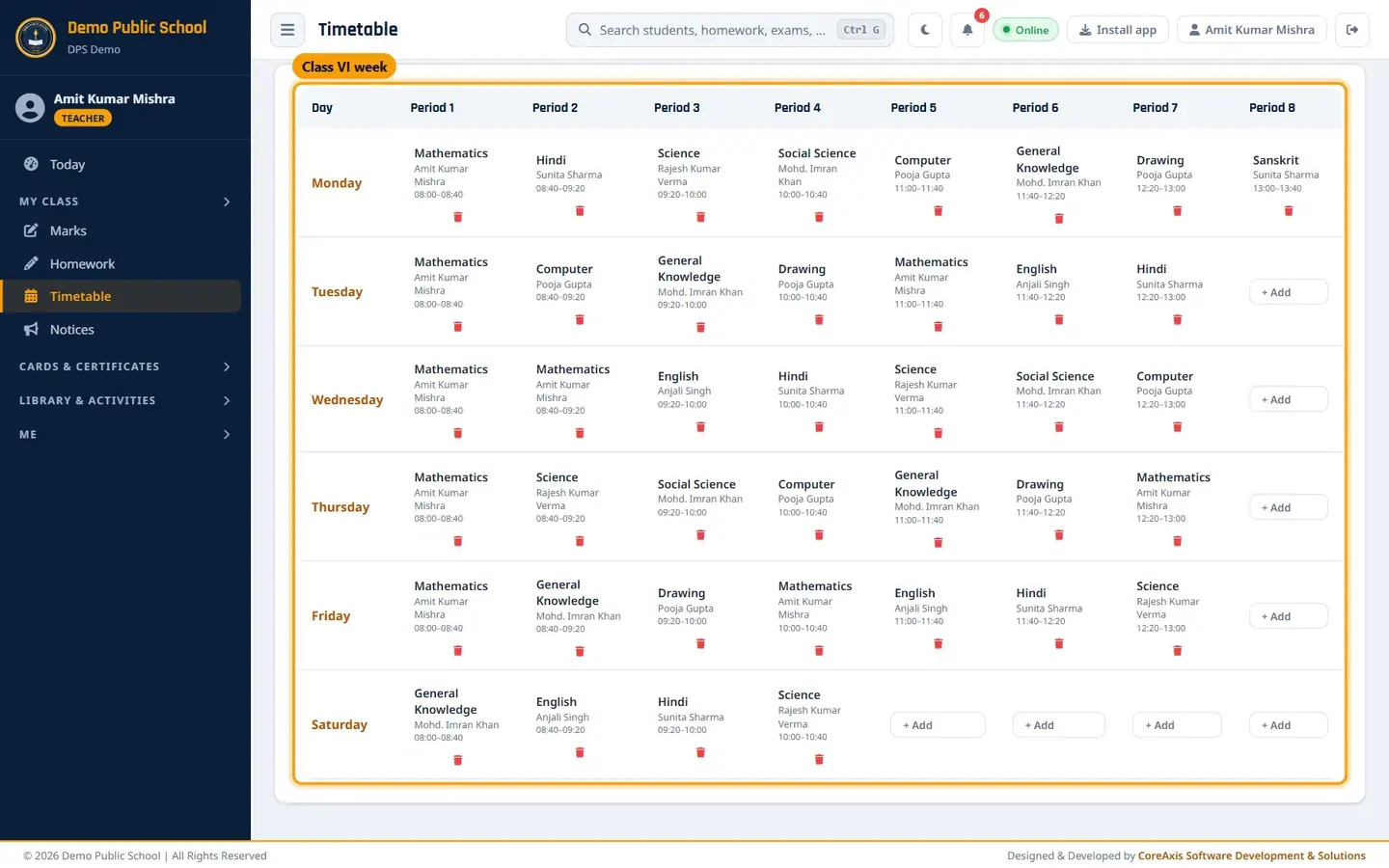
Class VI week timetable. You can add or remove periods only for your own class. Click Notices to read the Notice Board. Use the Show and For filters to see active or removed notices and who they are for. New Notice posts a notice.
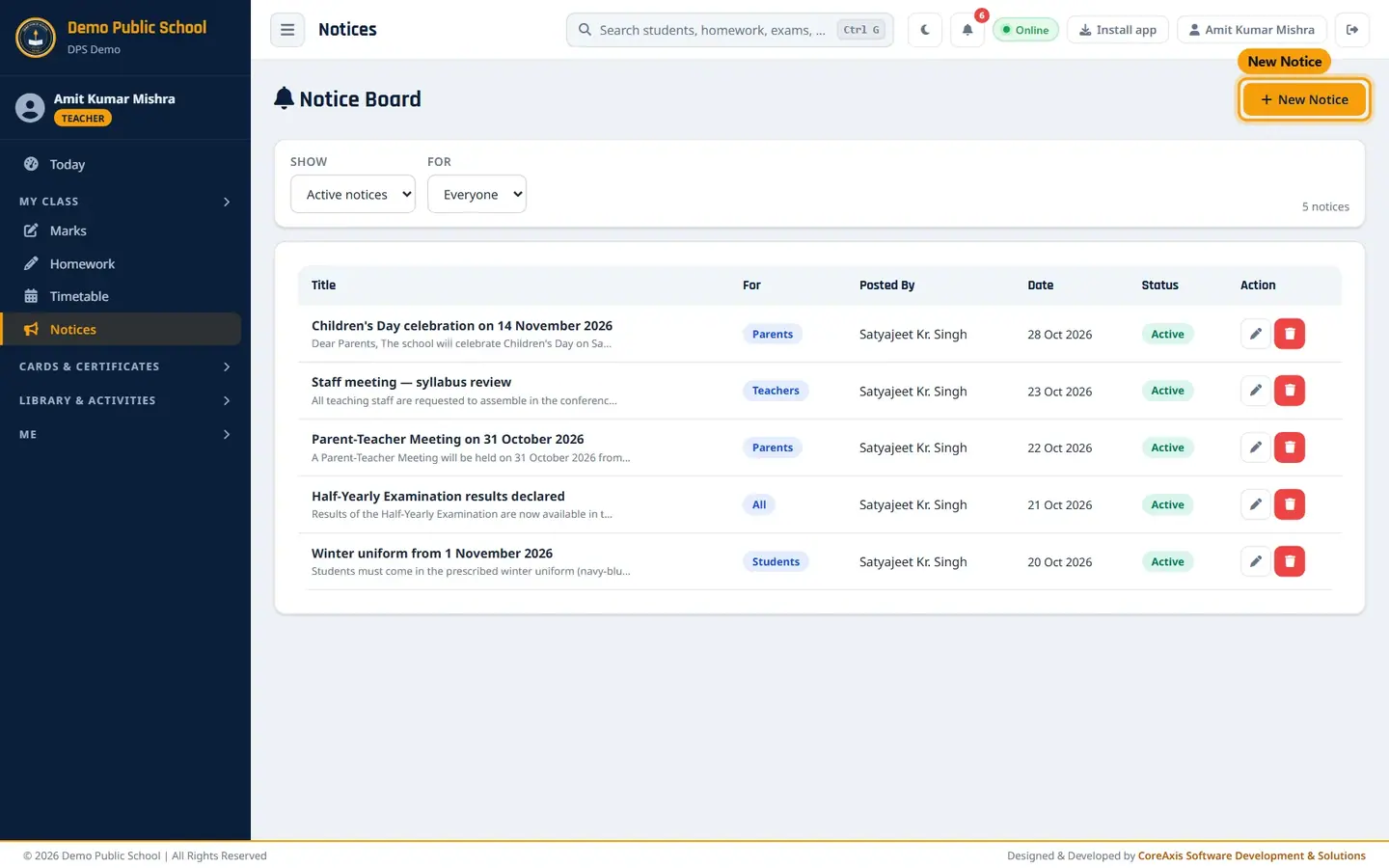
Notice Board: 4 active notices.
Print report cards for your class (example: Aarav Sharma, Half-Yearly)
Click My Class › Report Cards.
In Select Class choose Class VI. Leave Student as All Students in Class, or pick one student.
Choose Term I Exam (Half-Yearly Examination) and, at the end of the year, Term II Exam (Annual). Pick a Report Card Design.
Click Generate & Print Report Cards. For one student, click Report Card on his row.

Class VI, Term I = Half-Yearly Examination. The cards open in a new tab as a DIGITAL COPY (preview). Click Issue & Print to print the original; it is recorded in the Document Register.
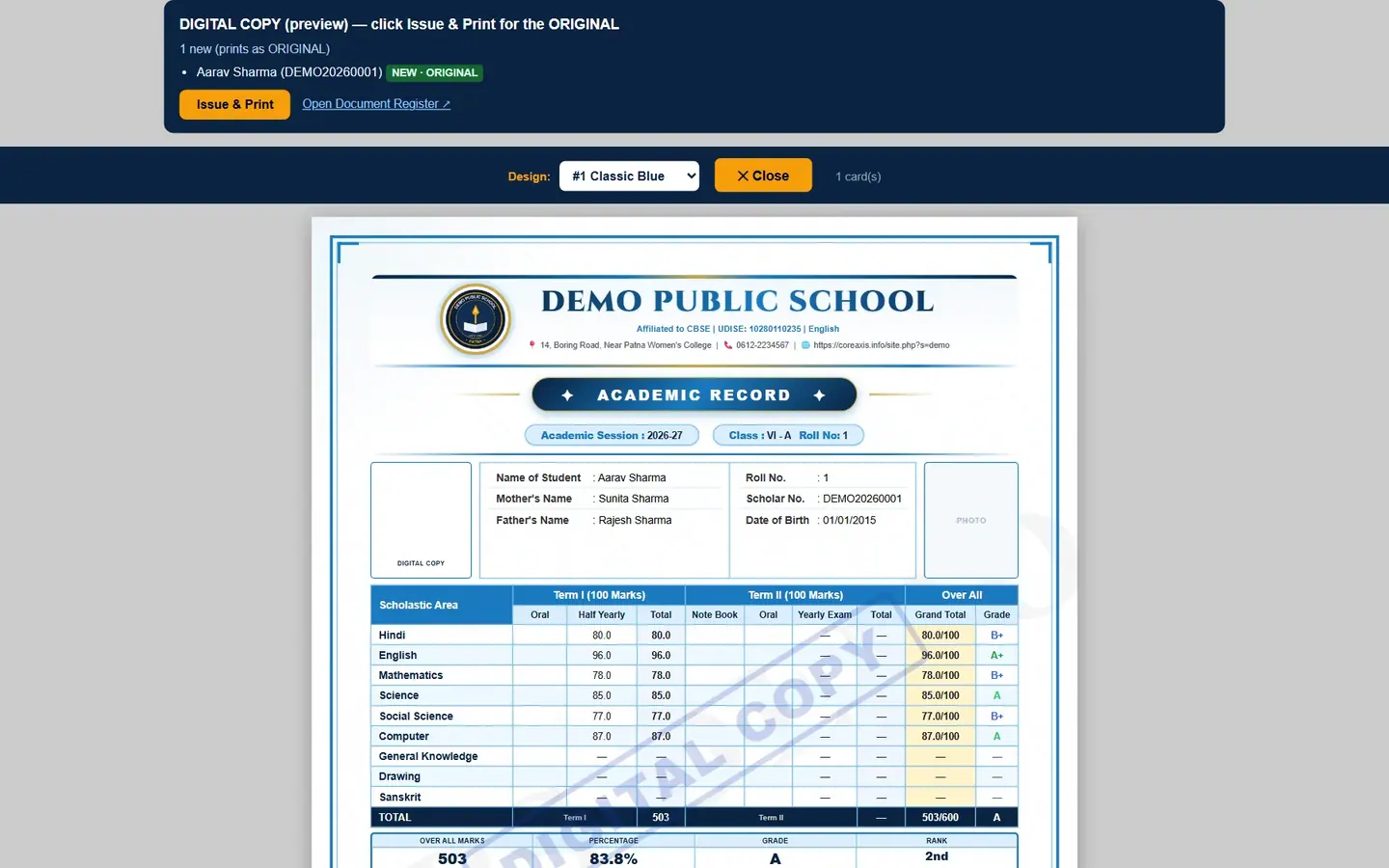
Aarav Sharma's academic record: 503/600, 83.8%, grade A, rank 2nd.
TipA second print of the same report card prints as DUPLICATE COPY. See the Documents chapter.
ID cards, admit cards and exam certificates
Cards & Certificates › Student ID Cards: choose a template (#1 Classic Navy to #7 Horizontal Teal), then a class or one student, and click Generate & Print.
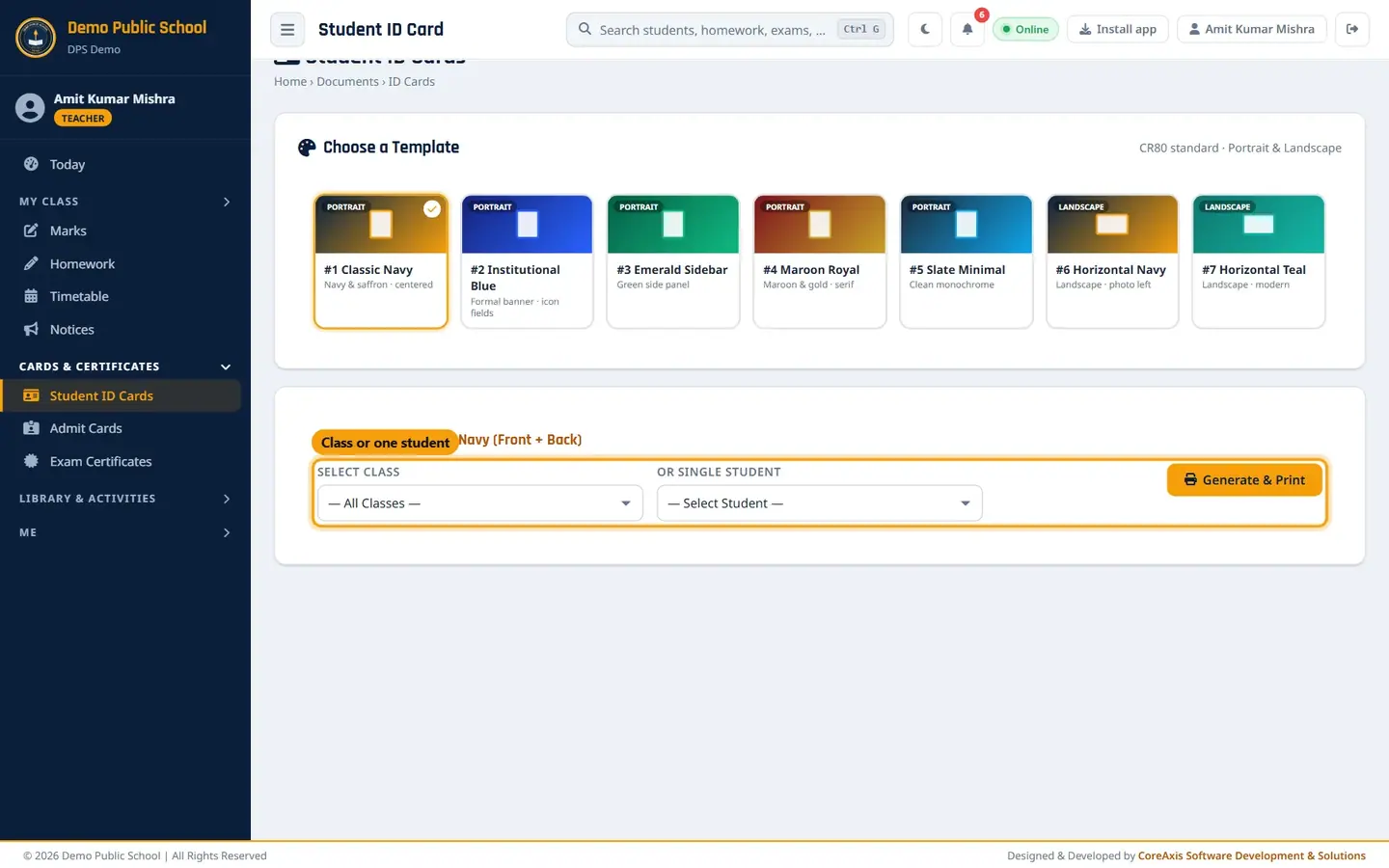
Class VI students are listed; other classes are not. Admit Cards: choose Class, the exam (for the date sheet), the template (Detailed or Simple tabular) and, optionally, one student. Click Generate & Print Admit Cards.
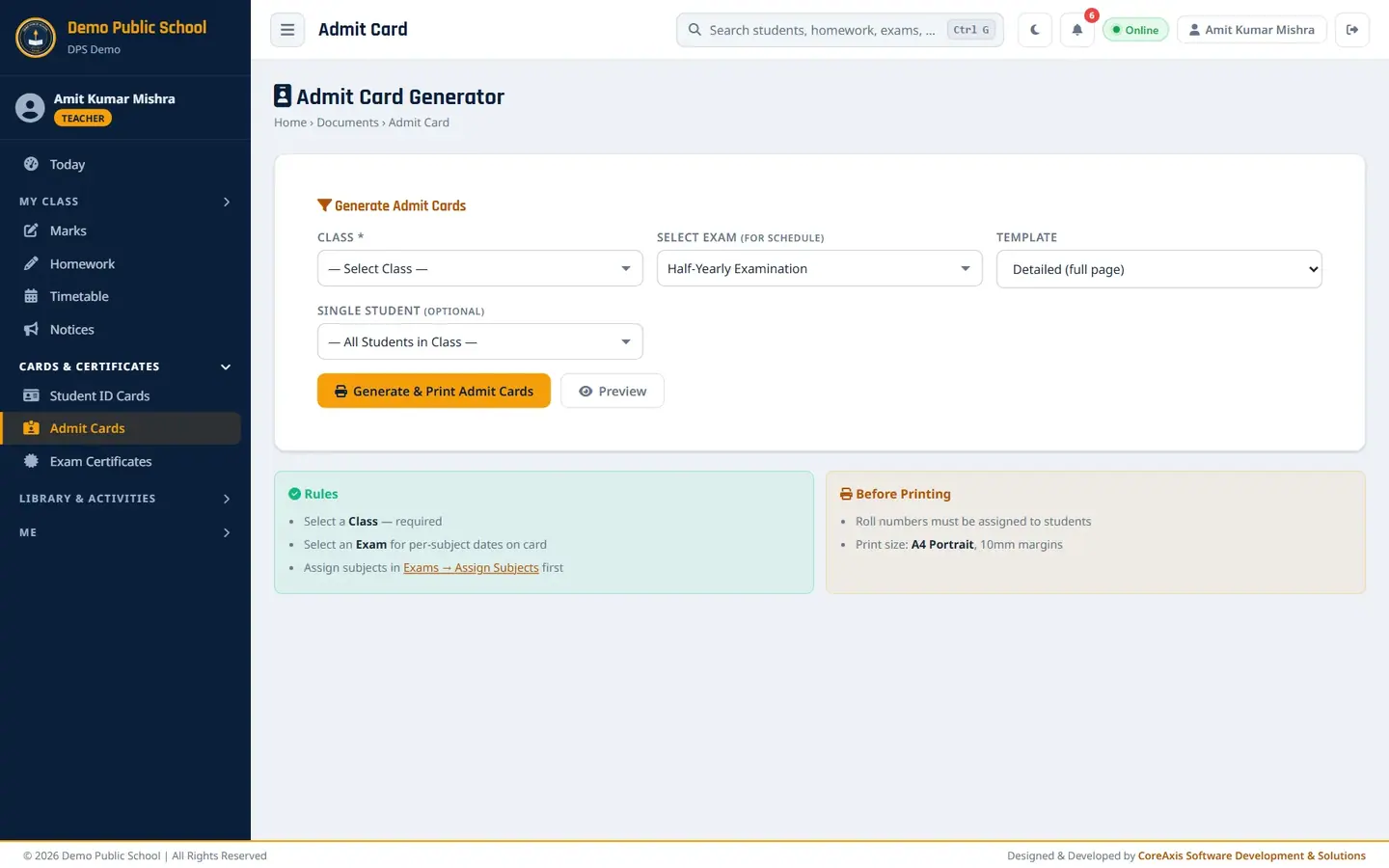
Exam Certificates: print merit or participation certificates for an exam. See the ID Cards and Documents chapters for the full steps.
Library Desk and competitions
Library & Activities › Library Desk shows total copies, available, issued and overdue books. Use Issue Book when a student borrows a book and the return button when it comes back.
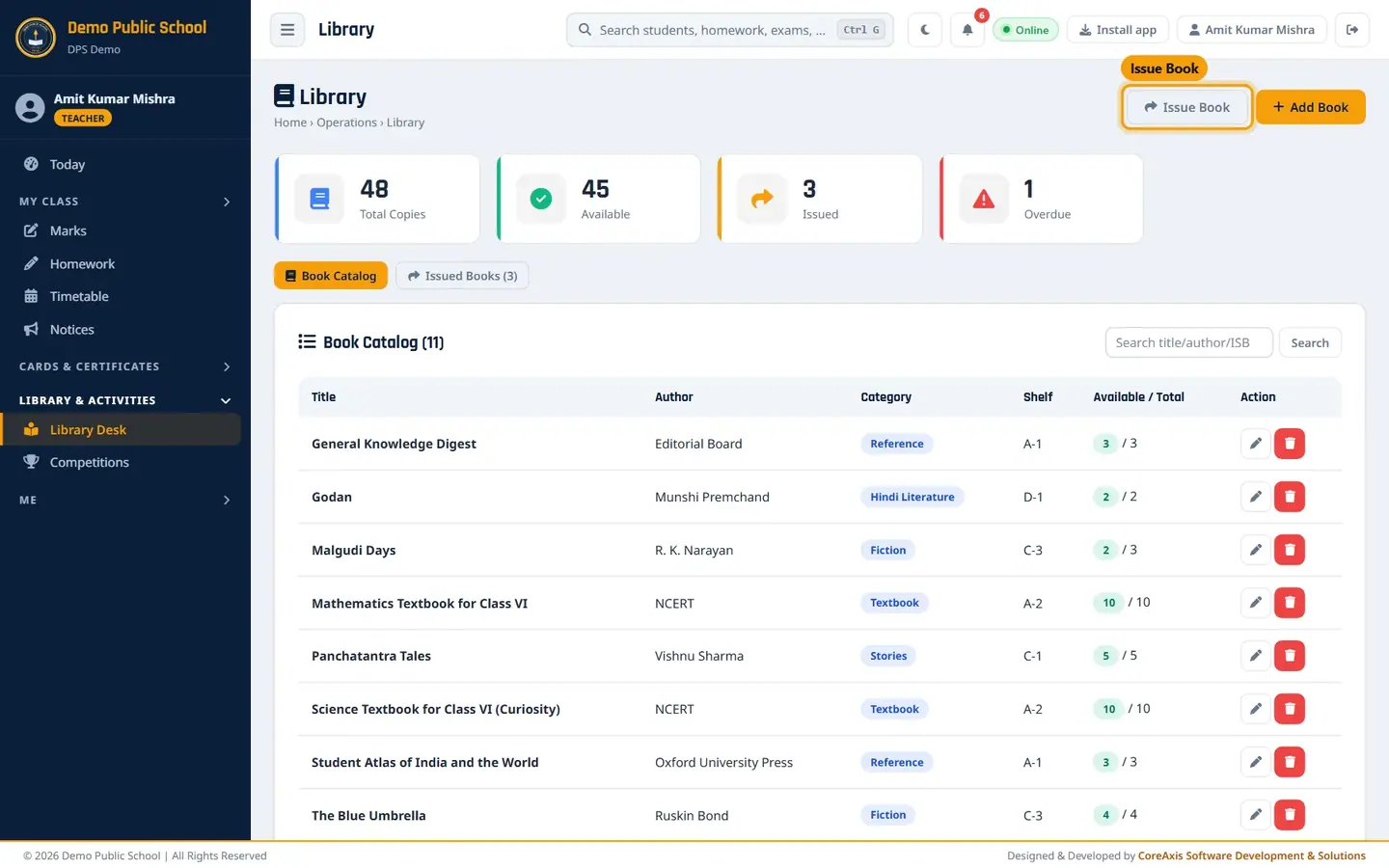
46 copies, 3 issued, 2 overdue. Full steps are in the Library chapter. Competitions lists school competitions (name, type, date, venue). New Competition records a new one and its winners.

Student leave from parents: approve or reject (example: Aarav Sharma, 6–7 Nov)
Leave requests that parents send from the portal or the app reach the class teacher.
Click Me › My Leaves and open the Student Leave tab.
Read the request (student, dates, days, reason). Type a short note in Remarks if needed.

Aarav Sharma's parent asked for 06–07 Nov 2026. Click the green tick to approve (or the red cross to reject). The popup asks, for example, "Approve the leave of Aarav Sharma? The parent sees the decision in the portal / app." Click Approve (or Reject).
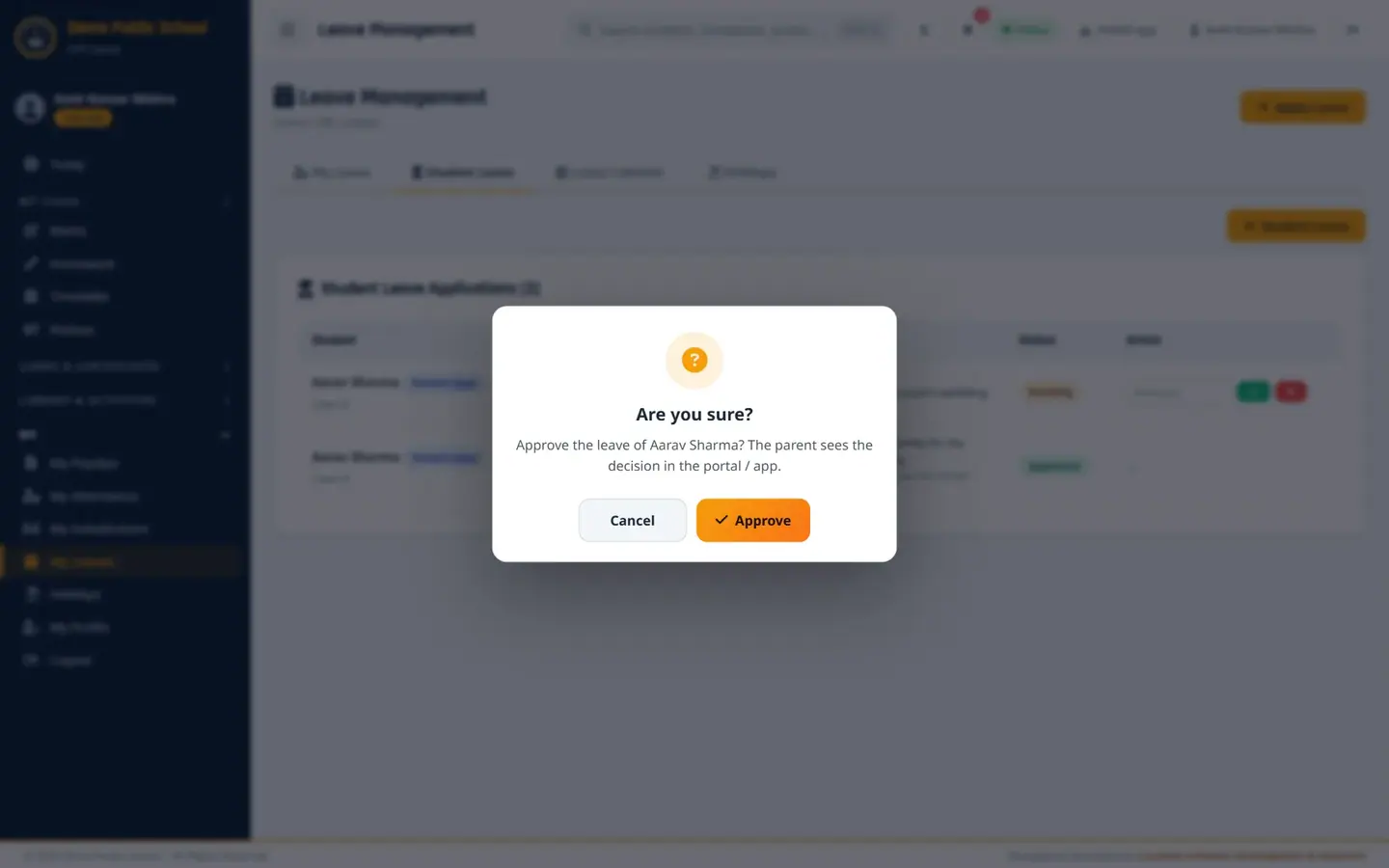
The approve popup names the student. The status changes to Approved with your remark. The parent sees it in the portal.
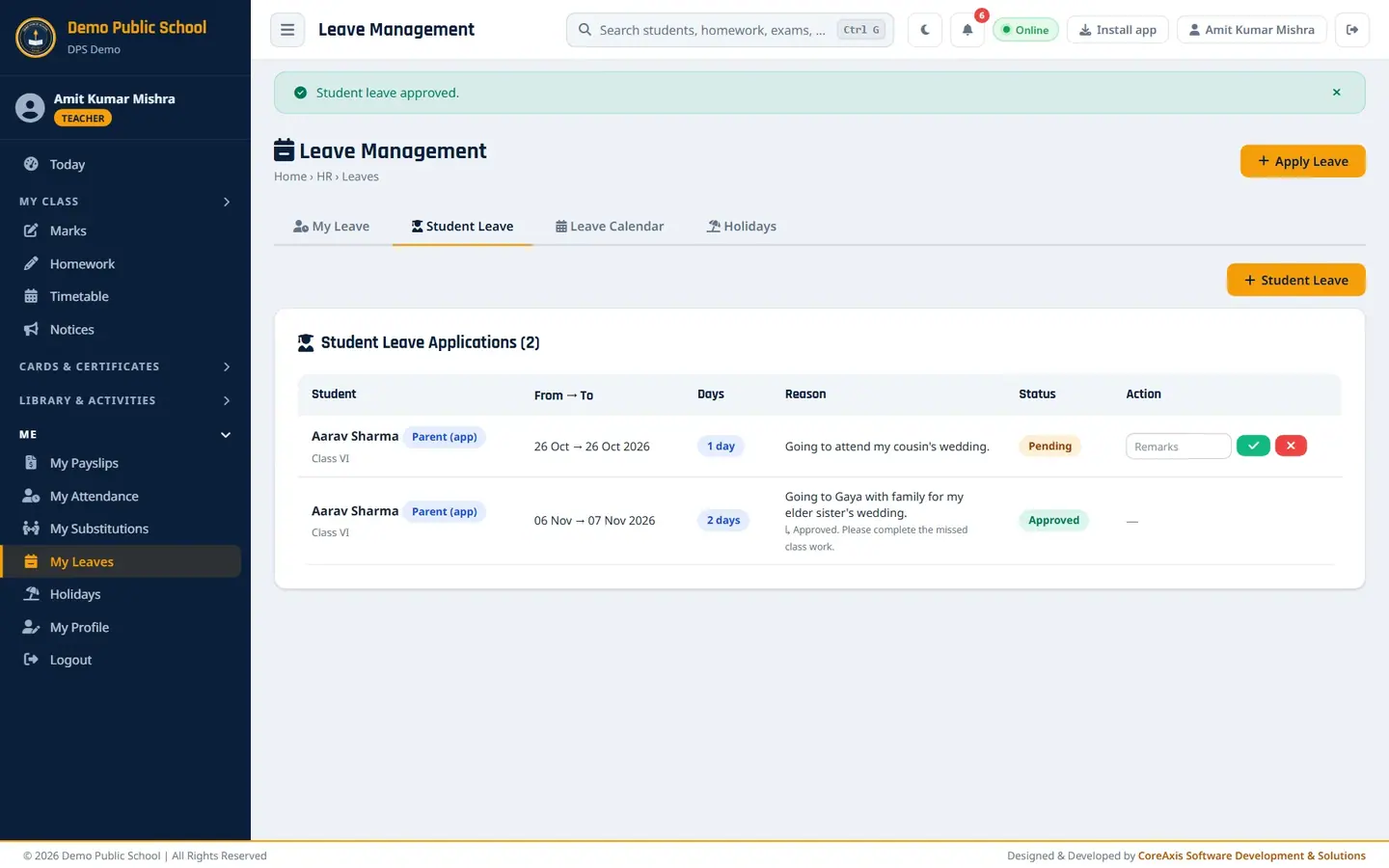
Approved, with the remark shown under the reason.
Tip+ Student Leave lets you record leave for a student yourself (for example when the parent sends a written note).
Your own leave, substitutions and payslips
Me › My Leaves: the top shows your balance for each leave type. Fill Apply for Leave (type, from, to, duration, reason, charge handed over to, class arrangement notes) and click Submit Application. Your applications and their status are listed below.

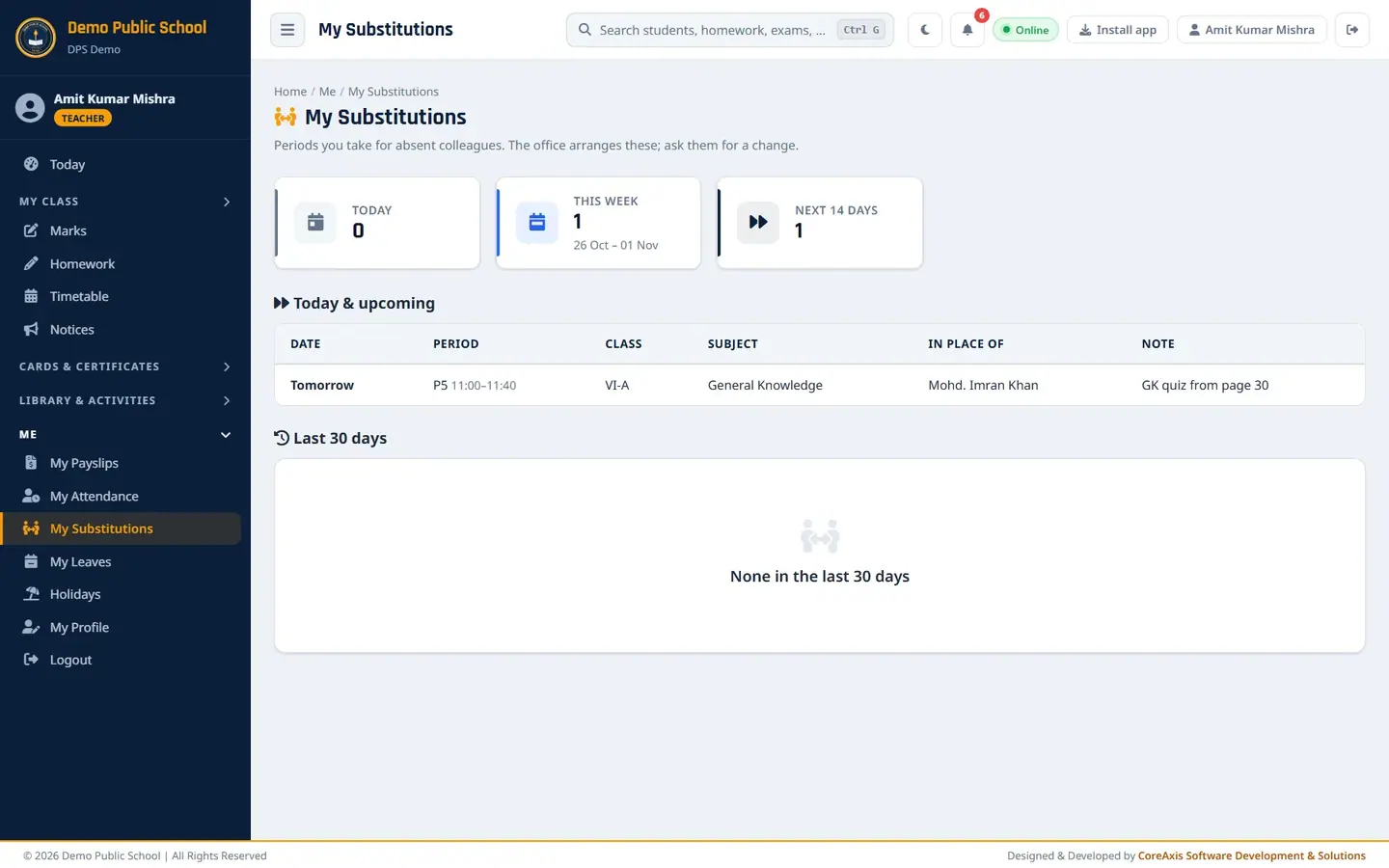
Apply for Leave. See the Leave chapter for approvals and joining reports. Me › My Substitutions: periods you take for absent colleagues today, this week and in the next 14 days. The office arranges them.
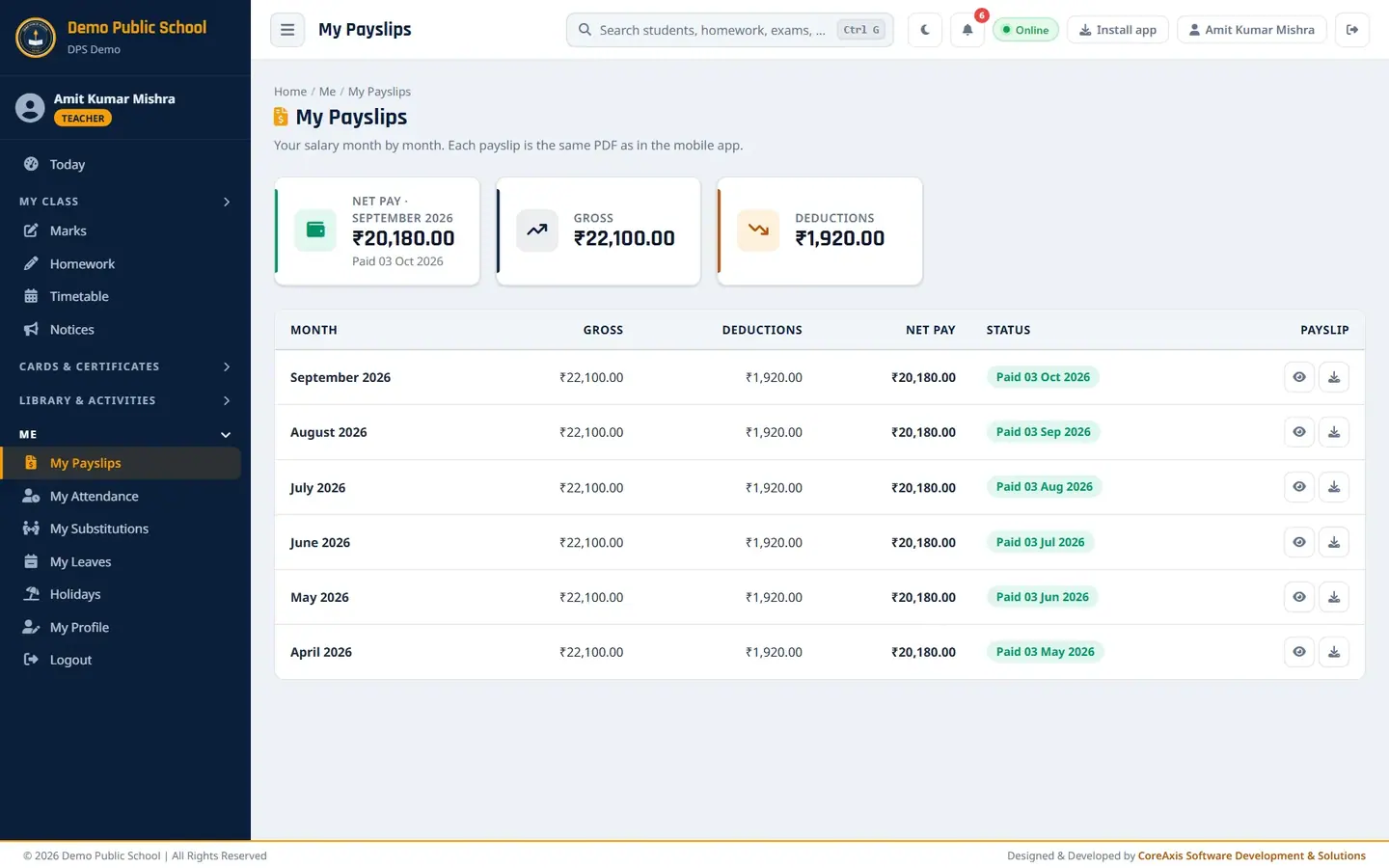
Me › My Payslips: view or download your payslip for each month, newest month first.
Daily checklist
- Before period 1
- Today page: timetable, substitutions, notices.
- Period 1
- Attendance for your class: Mark all present, change absentees, Save attendance.
- After each class
- Homework: assign with a submission date.
- After a test
- Marks: enter and save marks for your subject.
- Once a day
- My Leaves › Student Leave: approve or reject parents' requests.
- Exam time
- Admit cards before the exam; report cards after results are published.
Questions
I forgot to mark attendance yesterday. Can I still do it?
Yes. Open Attendance, choose the class and change the date to yesterday, then mark and save. Future dates cannot be chosen.
Why can I not see Class VII in Attendance?
Teachers see only the classes assigned to them. The Principal / Administrator assigns classes on the staff record.
Students cannot see the marks I entered.
Marks show in the portal only after the exam is published by the Principal / Administrator.
Where do I enter Half-Yearly marks?
Under Marks. The Half-Yearly Examination is set for All Classes; click Marks in its row and your class is already chosen in the Class box. Enter the marks and save. Report Cards then uses it as Term I.