 CoreAxis School ERP
Student & Parent Portal · Chapter 56
Student / Parent Portal
The Student / Parent Portal is where a parent or student sees everything the school records about one child. There is no password: the child's own Admission Number and Date of Birth are the sign-in. A parent with more than one child in the school can add each child and switch between them. The worked example is Aarav Sharma, Class VI-A, admission number DEMO20260001. Everything in the portal is also in the CoreAxis mobile app.

Sign in (example: Aarav Sharma, DEMO20260001)
Open the school website and click Student Portal, or open https://coreaxis.info/portal.php and choose the school.

Portal Login of Demo Public School. Type the child's Admission Number exactly as on the fee receipt or ID card (DEMO20260001).
Enter the Date of Birth as per school records (01-01-2015).
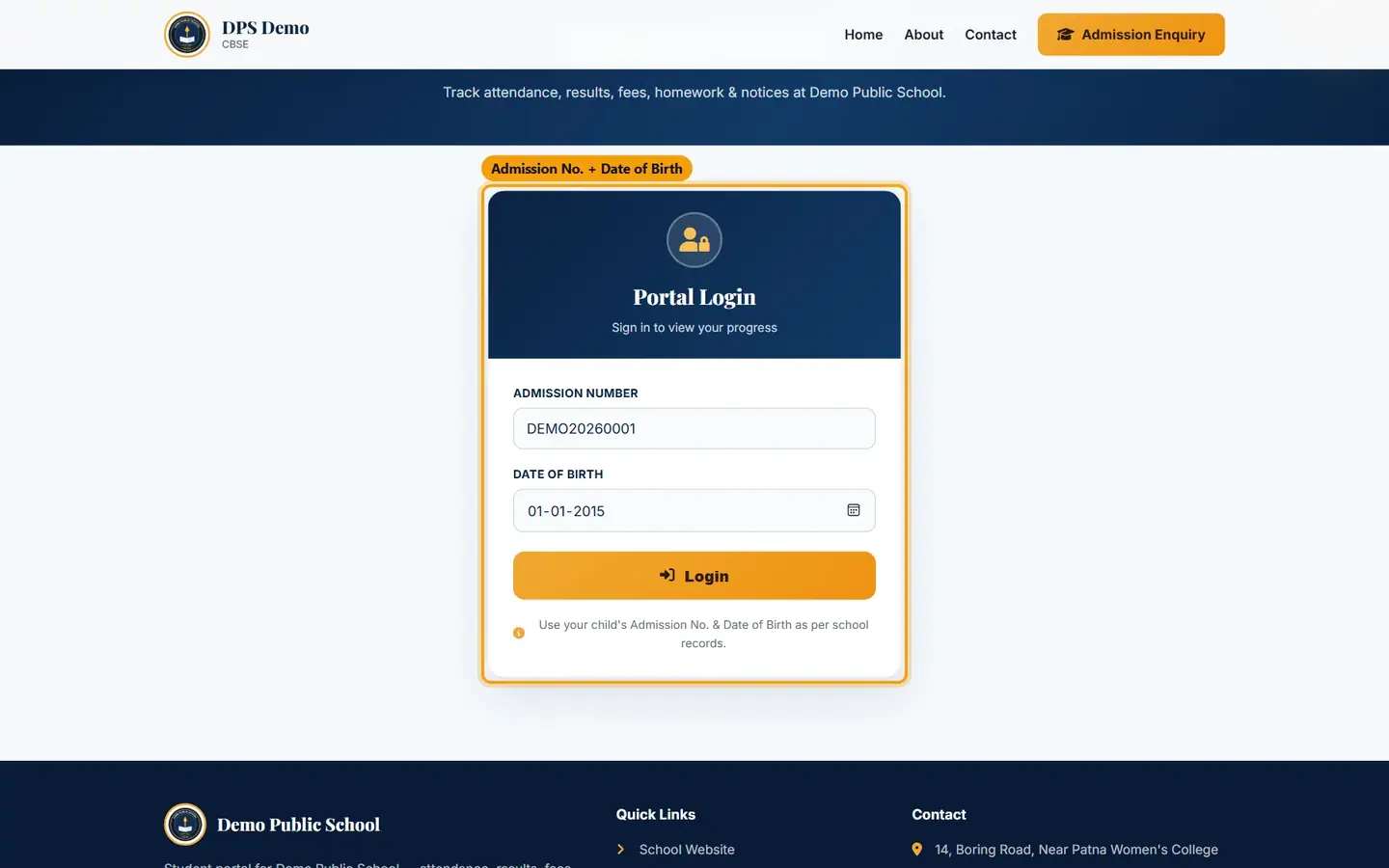
Admission number and date of birth filled in. Click Login. The portal opens on the Dashboard.
TipAfter 6 wrong tries for one admission number (or 20 from one network) the portal waits 15 minutes before allowing another try.
TipThe portal signs you out after 30 minutes without use. Sign in again with the same details.
TipIf the date of birth is wrong in the school records, the parent must ask the school office to correct it.
Dashboard
Use the left menu to move between sections. Each section opens in the same page; the browser Back button returns to the previous section. On a phone, use the bottom bar (Home, Fees, Results, Attendance, More).
Aarav Sharma's dashboard: 80% attendance, ₹1,000 due, 84% average score.
- Attendance (card)
- Attendance percentage for the session.
- Days Present
- Number of days marked present.
- Balance Due
- Fee still to pay for the months billed so far.
- Avg Score
- Average percentage across published exam results.
- Attendance (panel)
- Ring chart with Present, Absent, Leave and Total days.
- Fees Snapshot
- Tuition paid this session, balance due and the date of the last payment.
- Latest Results
- Subject, exam and marks of the latest published exam.
- Latest Notice
- The newest notice for students or parents.
- Top bar
- Search (Ctrl + G) searches this child's own fees, results, homework and notices. Install app adds the portal to the phone. School Website opens the school's public site.
- Red number on a menu item
- Something needs attention: an online test to take, a new admit card, or an overdue library book.
My Profile and Attendance
Click My Profile to see the student details (admission number, date of birth, gender, session) and contact details (father's and mother's name, phone, address).
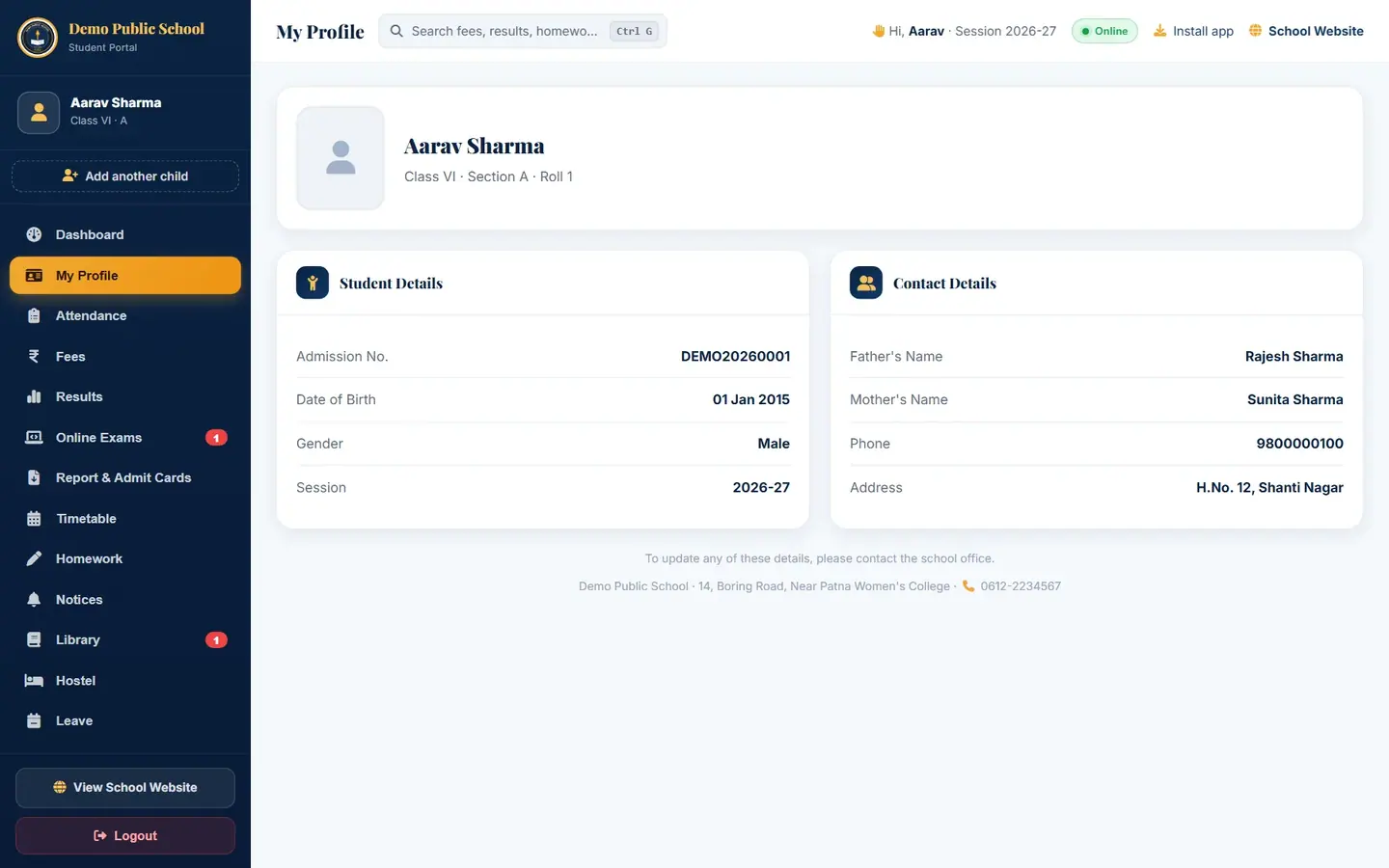
Profile details can be changed only by the school office. Click Attendance for the session summary: present, absent, leave and total days.

Aarav Sharma: 20 present, 3 absent, 2 leave of 25 days (80%).
Fees: dues, payment history and receipts
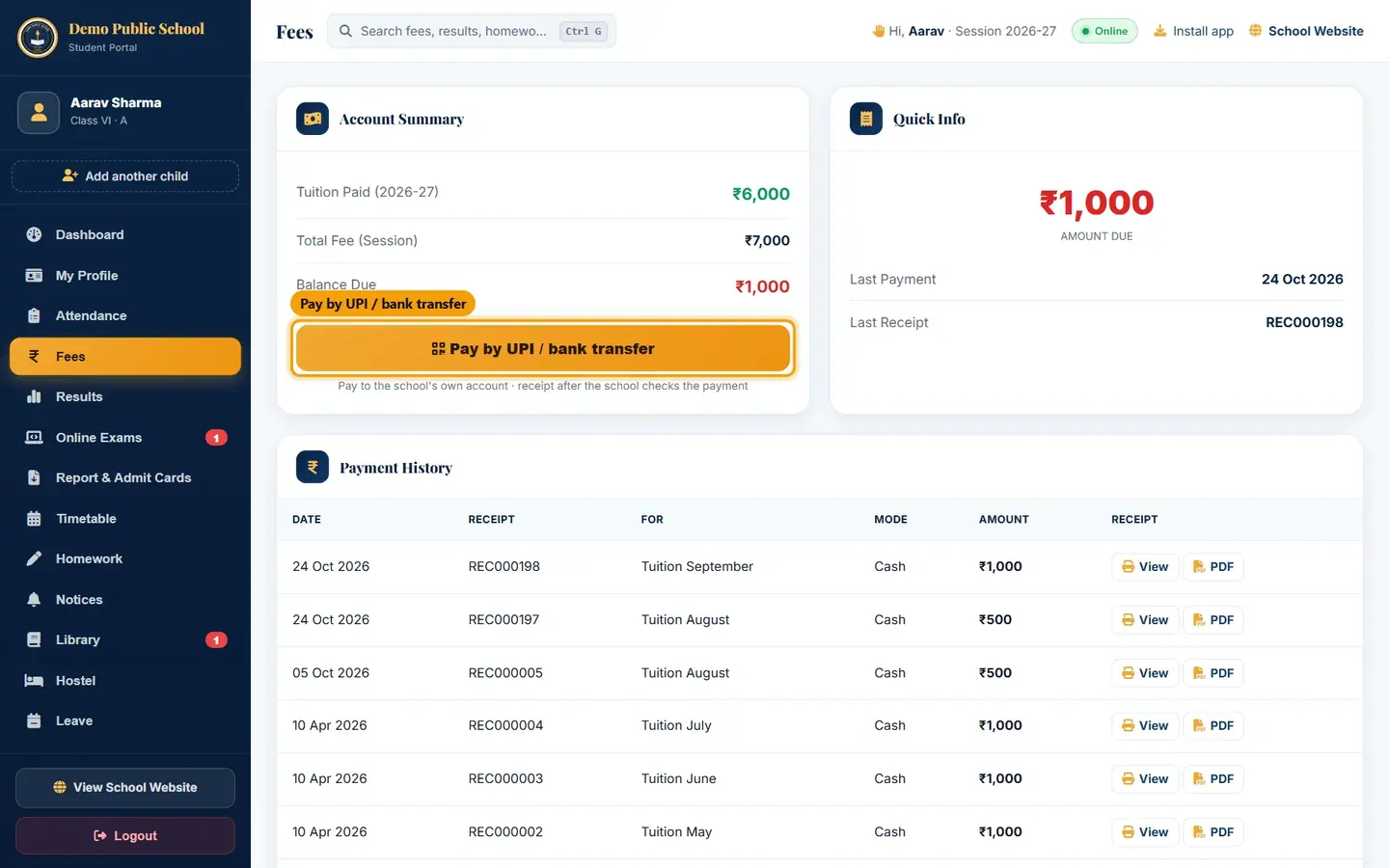
Click Fees. Account Summary shows Tuition Paid (2026-27), Total Fee (Session) and Balance Due; Quick Info shows the amount due, last payment date and last receipt number.

₹6,000 tuition paid; ₹1,000 due. The yellow box shows the ₹1,000 UPI payment the school is still checking: nothing more to pay for now. If you have sent a UPI / bank payment that the school has not checked yet, a yellow box under Balance Due shows the amount being checked and what is Left to pay (or "Nothing more to pay for now" when it covers the dues).
Scroll to Payment History. Each row shows date, receipt number, what it was for, mode and amount. A receipt that covers several months shows the range, for example Tuition August – October.
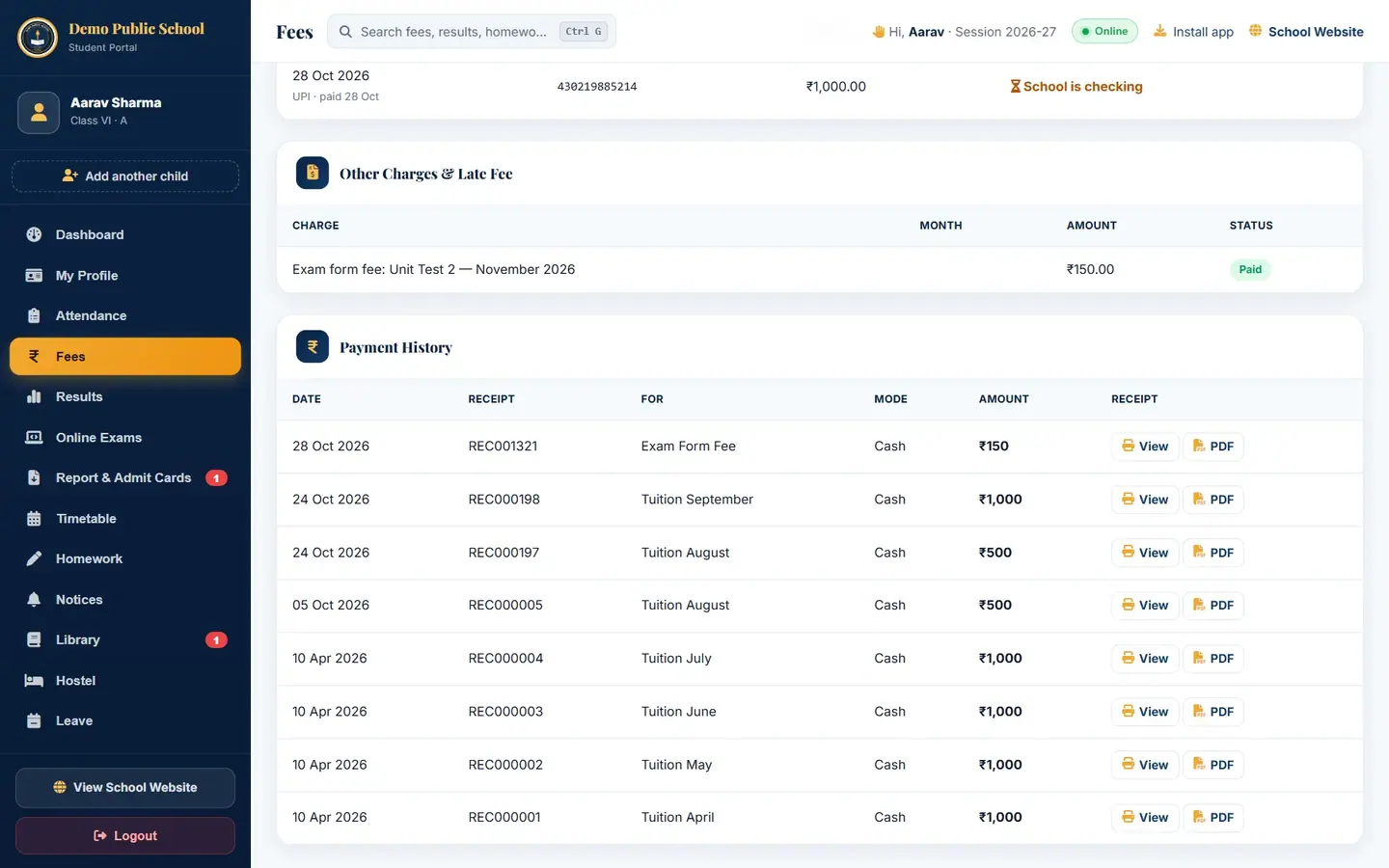
Aarav Sharma's receipts from April to October 2026, including the Exam Form Fee. Click View to open a receipt. Use Print, choose a Design, or click Download PDF. Back to Portal returns to Fees.
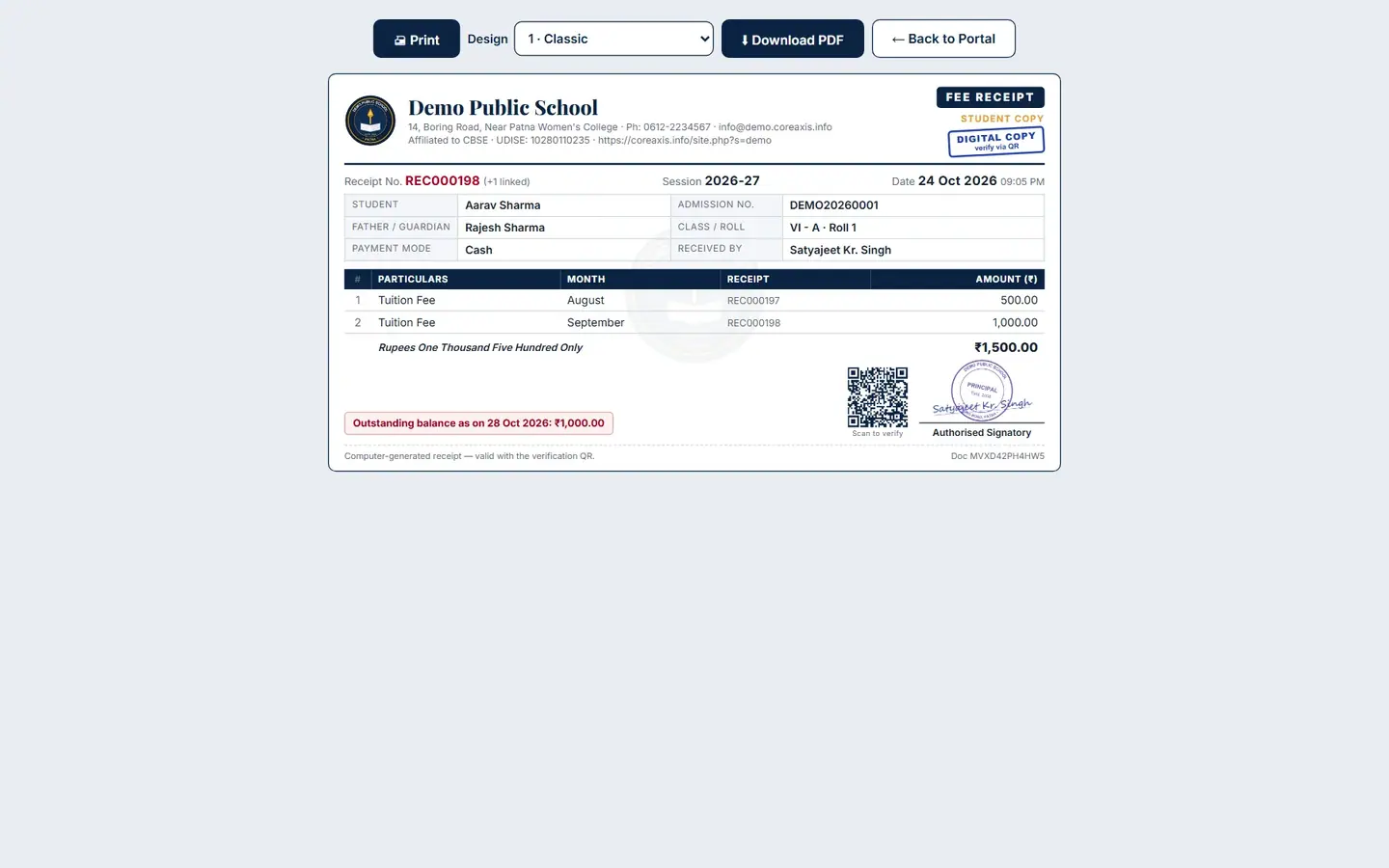
Receipt REC000198 (linked with REC000197): ₹1,500, marked DIGITAL COPY with a verification QR. Click PDF on a row to download the receipt as a PDF file straight away.
TipReceipts downloaded from the portal are marked DIGITAL COPY. Anyone can scan the QR code to check that the receipt is genuine.
Pay by UPI or bank transfer and send the UTR (example: ₹1,000, UTR 430219885214)
The parent pays straight into the school's own UPI ID or bank account, then sends the transaction reference (UTR) and, if possible, a screenshot. The office checks the bank statement and makes the receipt. Pay online with card or net banking appears instead, or as well, when the school has turned on online payment.
On Fees, click Pay by UPI / bank transfer.
The button shows only when there is tuition due. Step 1 · Pay: check Amount to pay (₹). It starts at what is left to pay: the tuition due minus any UPI / bank payment the school is still checking. You may lower it for a part payment. The QR code, the school's UPI ID (demopublicschool@sbi) with a Copy button, and the payee name are shown.
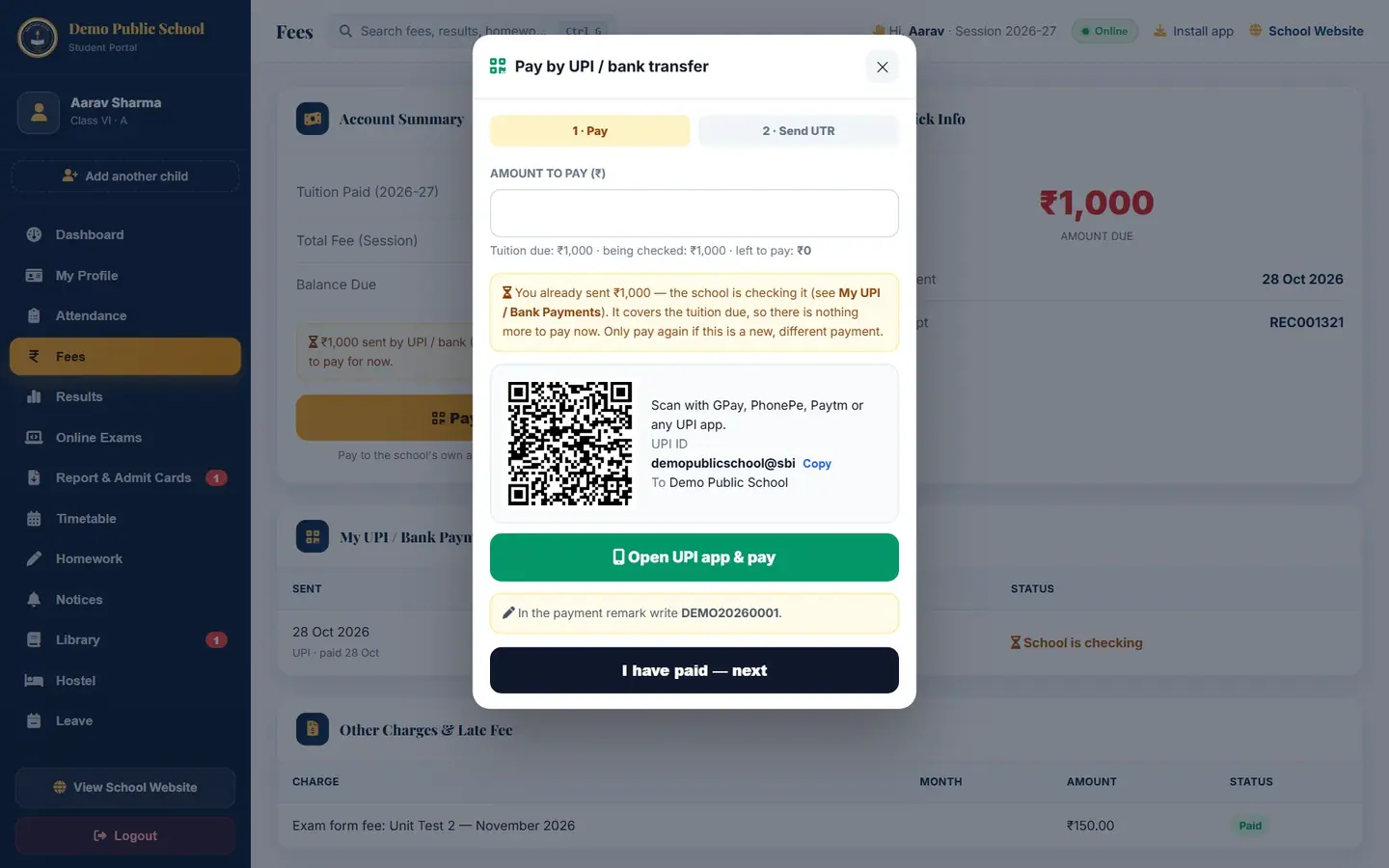
Aarav's ₹1,000 claim is still being checked, so left to pay is ₹0 and a note warns against paying the same dues twice. On a phone, tap Open UPI app & pay. The UPI app opens with the school, amount and remark filled in. On a computer, scan the QR code with the phone instead.
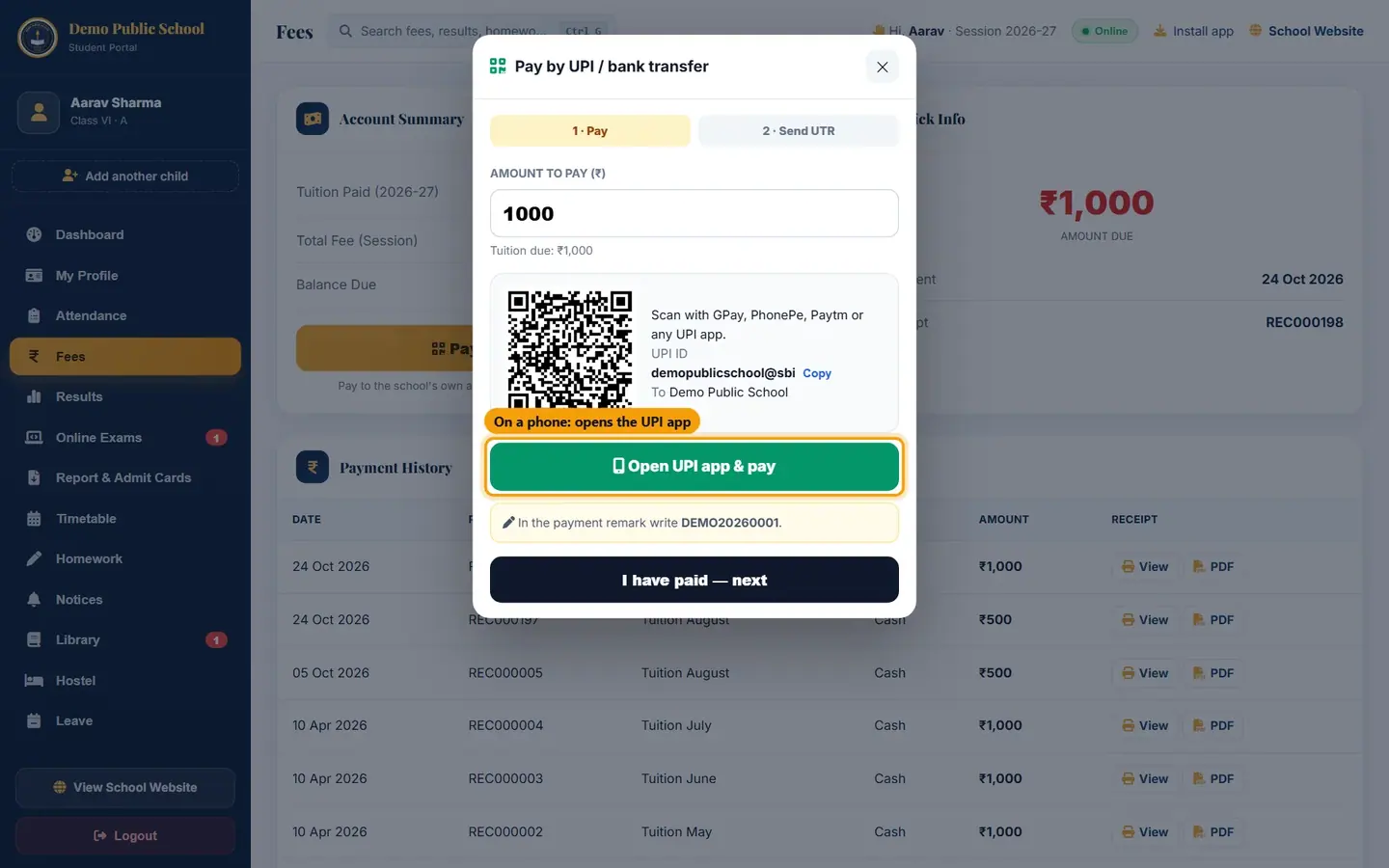
Open UPI app & pay works on phones that have a UPI app. In the payment remark write the admission number (DEMO20260001). If the school has given bank details, Bank transfer (NEFT / IMPS) shows the account name, number and IFSC to use instead.
After paying, note the UTR / UPI reference number in the UPI app and click I have paid — next.
Step 2 · Send UTR: choose Paid by (UPI or Bank transfer), check Amount paid (₹), type the 12-digit UTR / Reference No., set Paid on, attach the payment Screenshot (optional) and add a Note (optional).

UTR 430219885214 for ₹1,000, with the payment screenshot attached. Click Send to school, then Send in the popup.
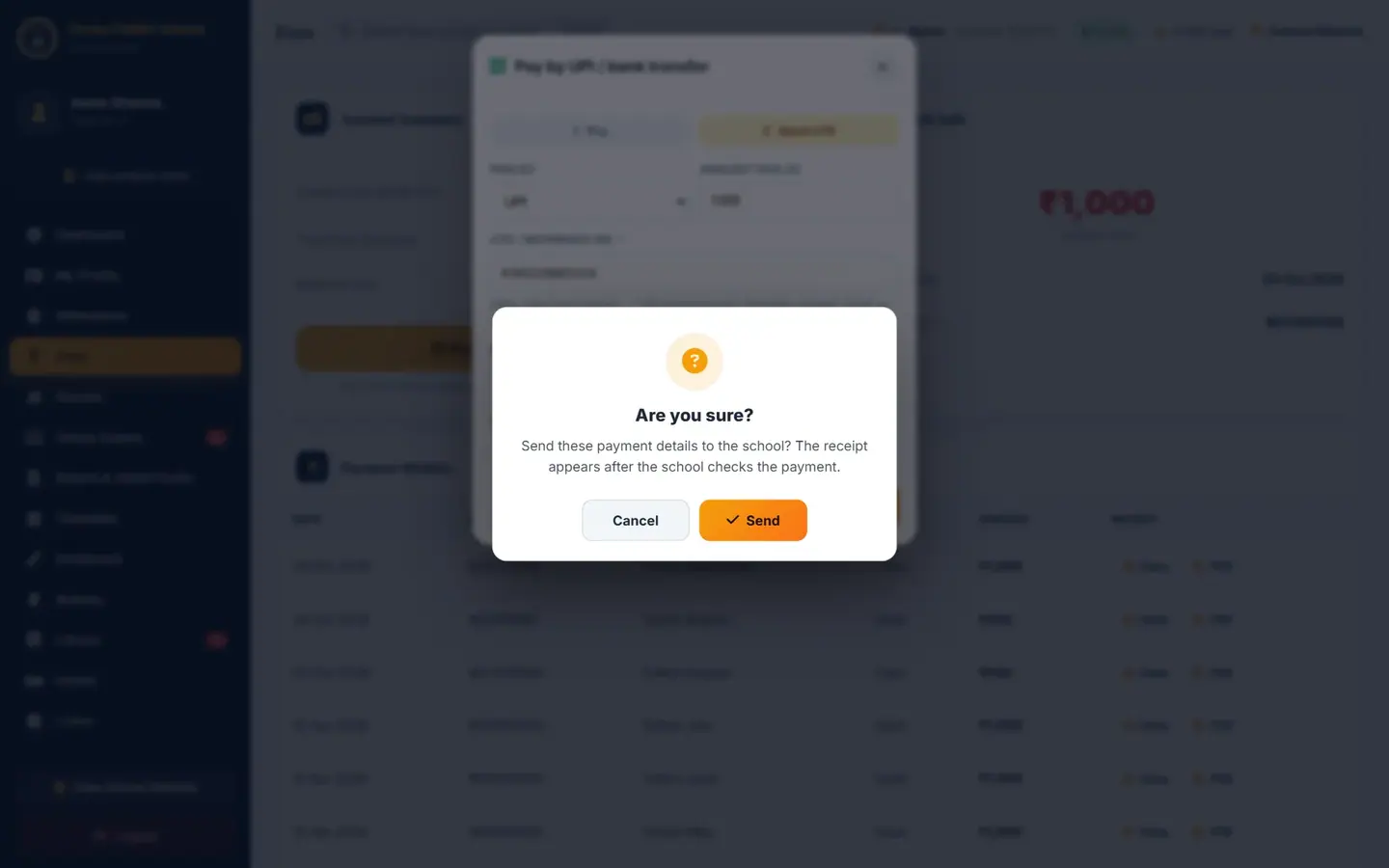
The receipt is made only after the school checks the payment. A green message thanks you and a new box My UPI / Bank Payments shows the claim with status School is checking.

The claim waits for the office; the balance changes after the receipt is made.
TipWhere to find the UTR: GPay — open the payment, "UPI transaction ID"; PhonePe / Paytm — "UTR" or "UPI Ref. No."; bank — the NEFT / IMPS reference.
TipDo not send the same payment twice. While a claim is being checked, the portal shows it on Fees and in step 1, and offers only what is left to pay.
TipThe office verifies claims on UPI / Bank Claims, usually within 1–2 working days.
TipPay online (card / net banking), when the school has it switched on, also offers only what is left after the claims being checked.
My UPI / Bank Payments: status of what you sent
On Fees, the My UPI / Bank Payments box lists the last payments you reported.

- Sent
- The date you sent the details, and the mode and date of payment (UPI · paid 28 Oct).
- UTR
- The reference number you typed.
- Amount
- The amount you said you paid.
- School is checking
- The office has not yet matched it with the bank statement.
- Verified
- The money was found; the receipt now appears in Payment History.
- Rejected
- No matching payment was found. The reason is shown; correct the details and send again, or contact the office.
Results and report cards
Click Results to see each published exam, subject, marks and percentage, with the overall average.
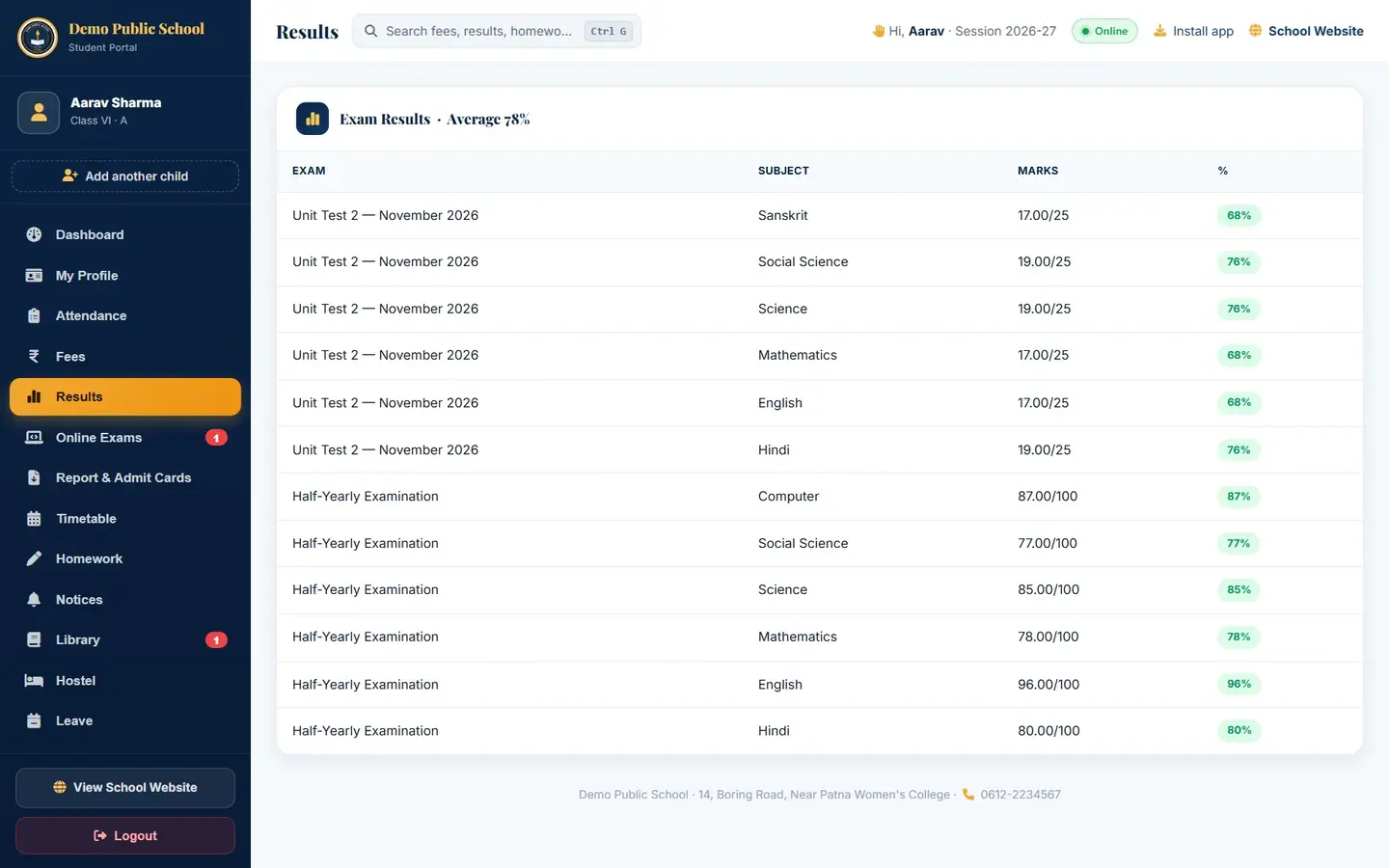
Half-Yearly Examination results; average 84%. Click Report & Admit Cards. Under Report Cards, each published exam has View and PDF.
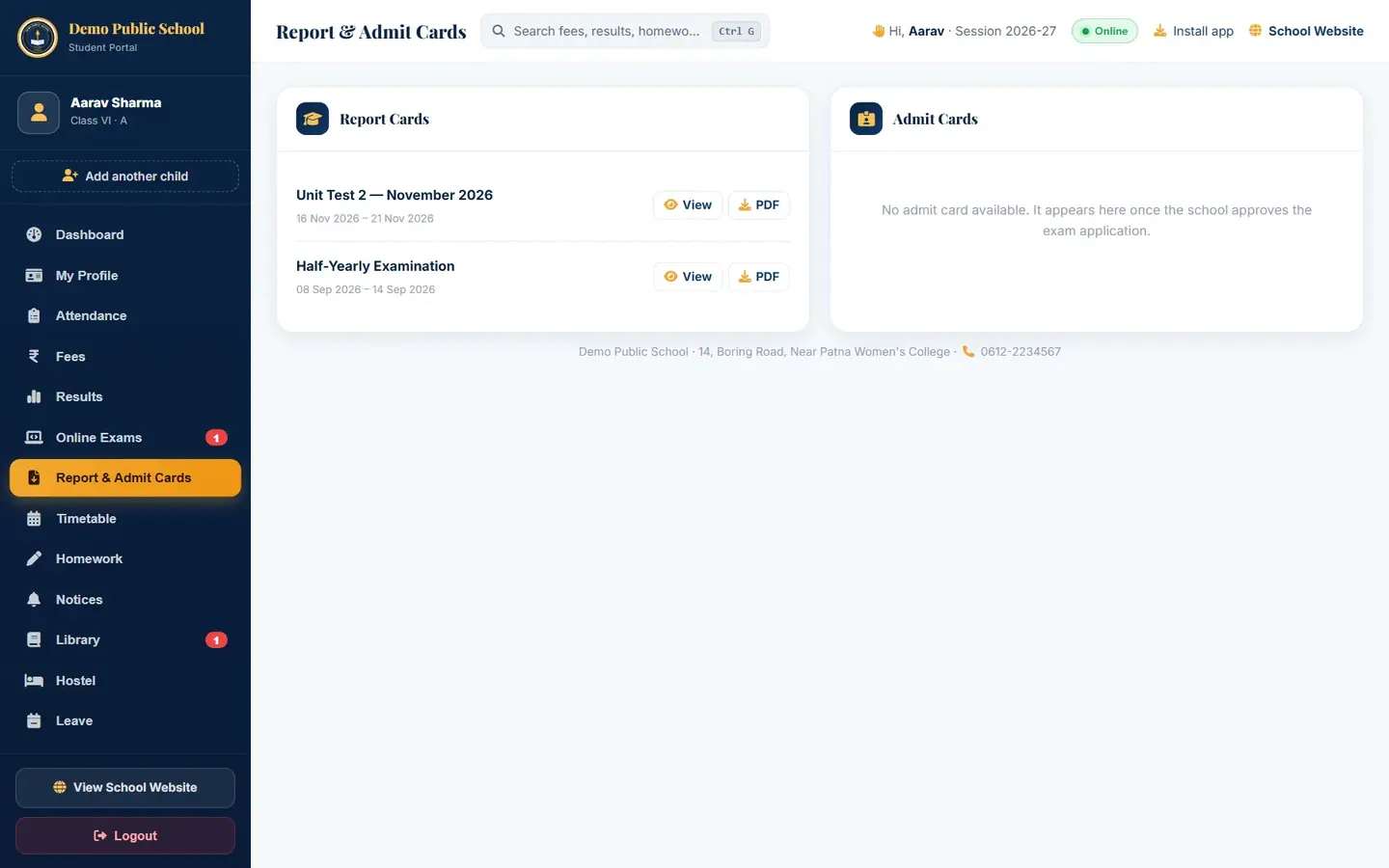
Admit cards appear here once the school approves the exam application. Click View (or PDF) next to Half-Yearly Examination to open the report card.
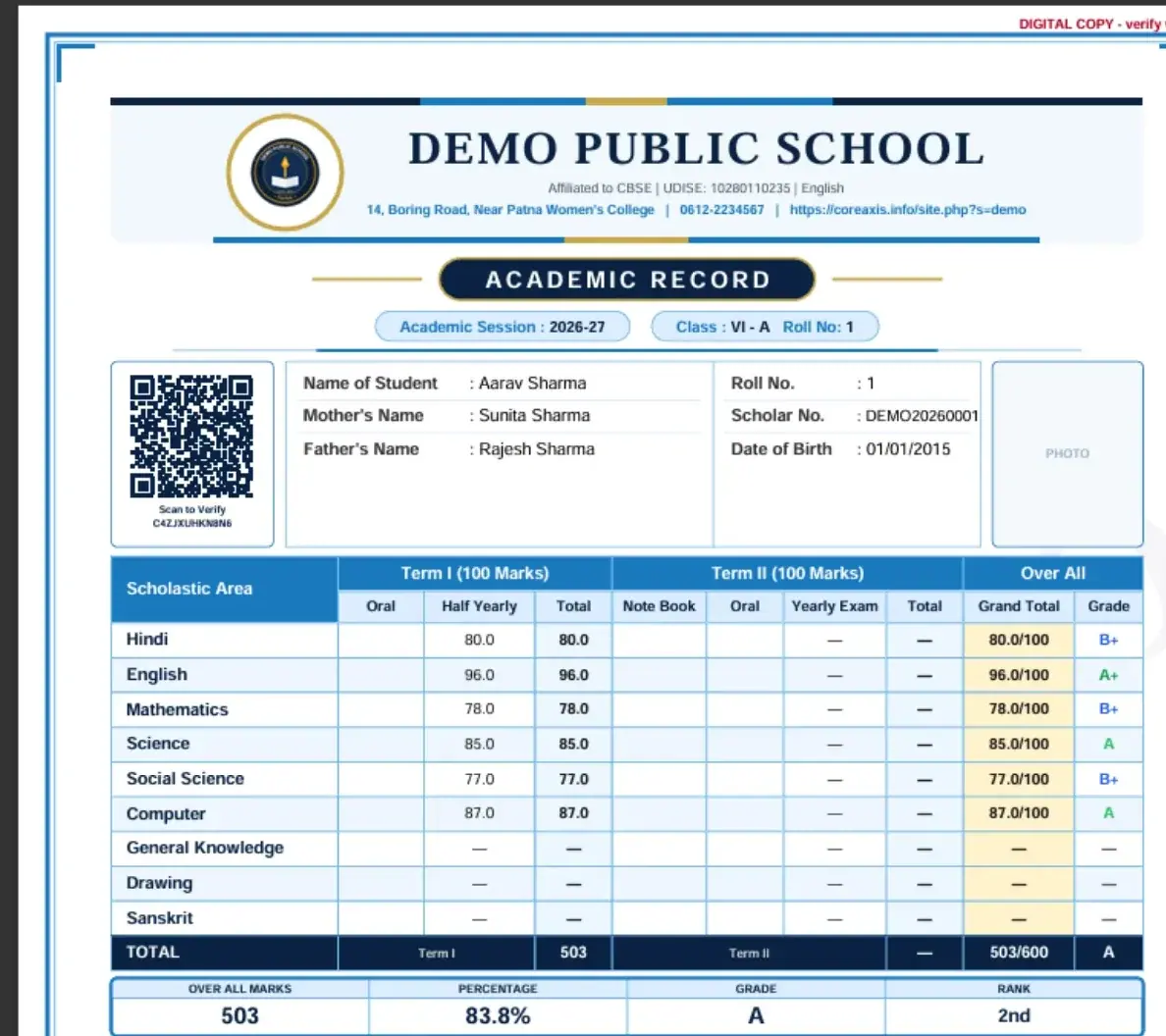
Aarav Sharma's academic record, marked DIGITAL COPY, with a QR code to verify it.
TipResults appear only after the school publishes the exam. Ask the class teacher if a result is missing.
Take an online test (example: Mathematics Practice Test (CBT), 5 questions, 20 minutes)
Online tests work like national computer-based tests: a question palette, Mark for Review, a timer and an automatic result. The worked example has negative marking (0.25 for a wrong answer).
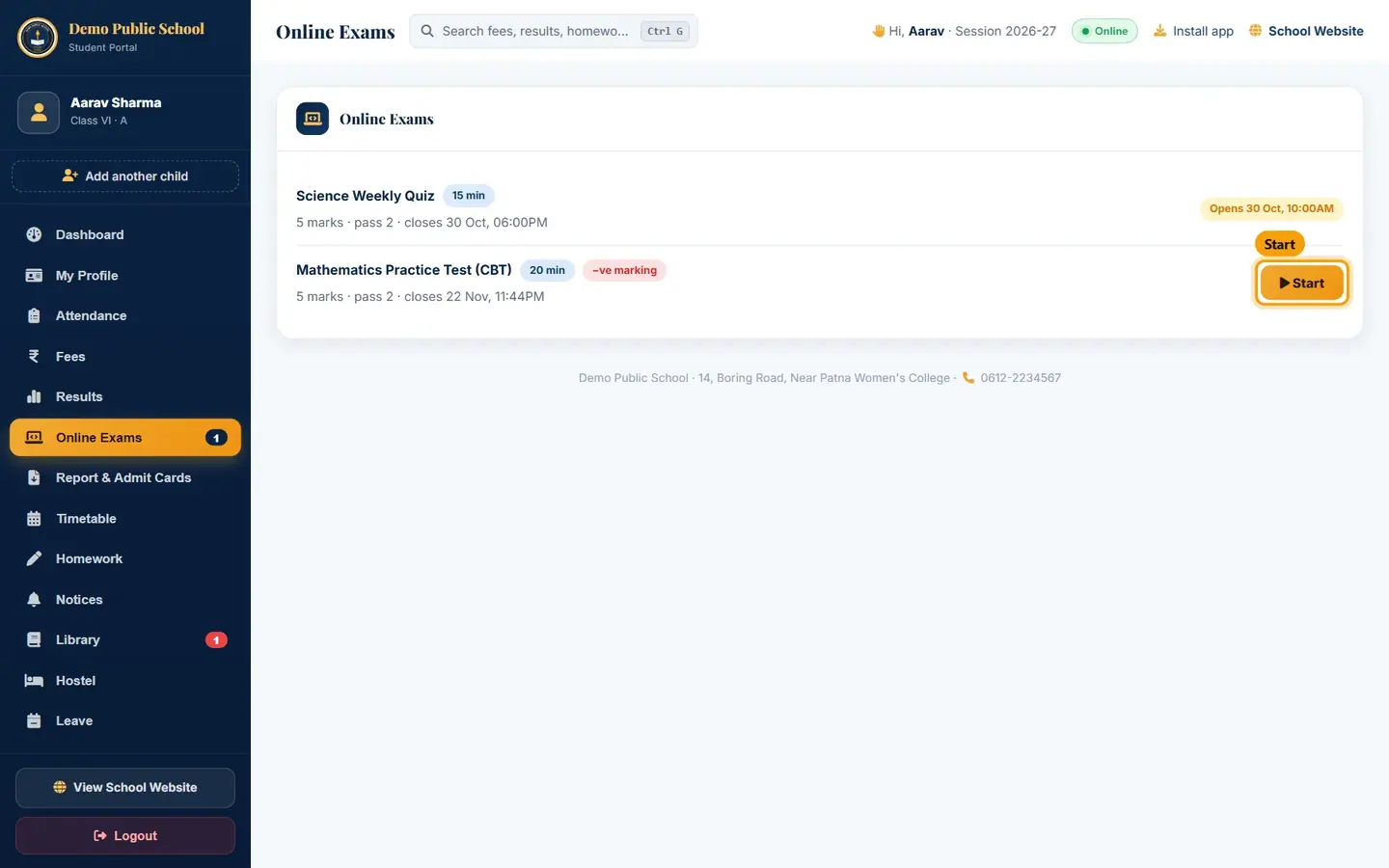
Click Online Exams. Open tests show Start; tests that open later show their opening time.
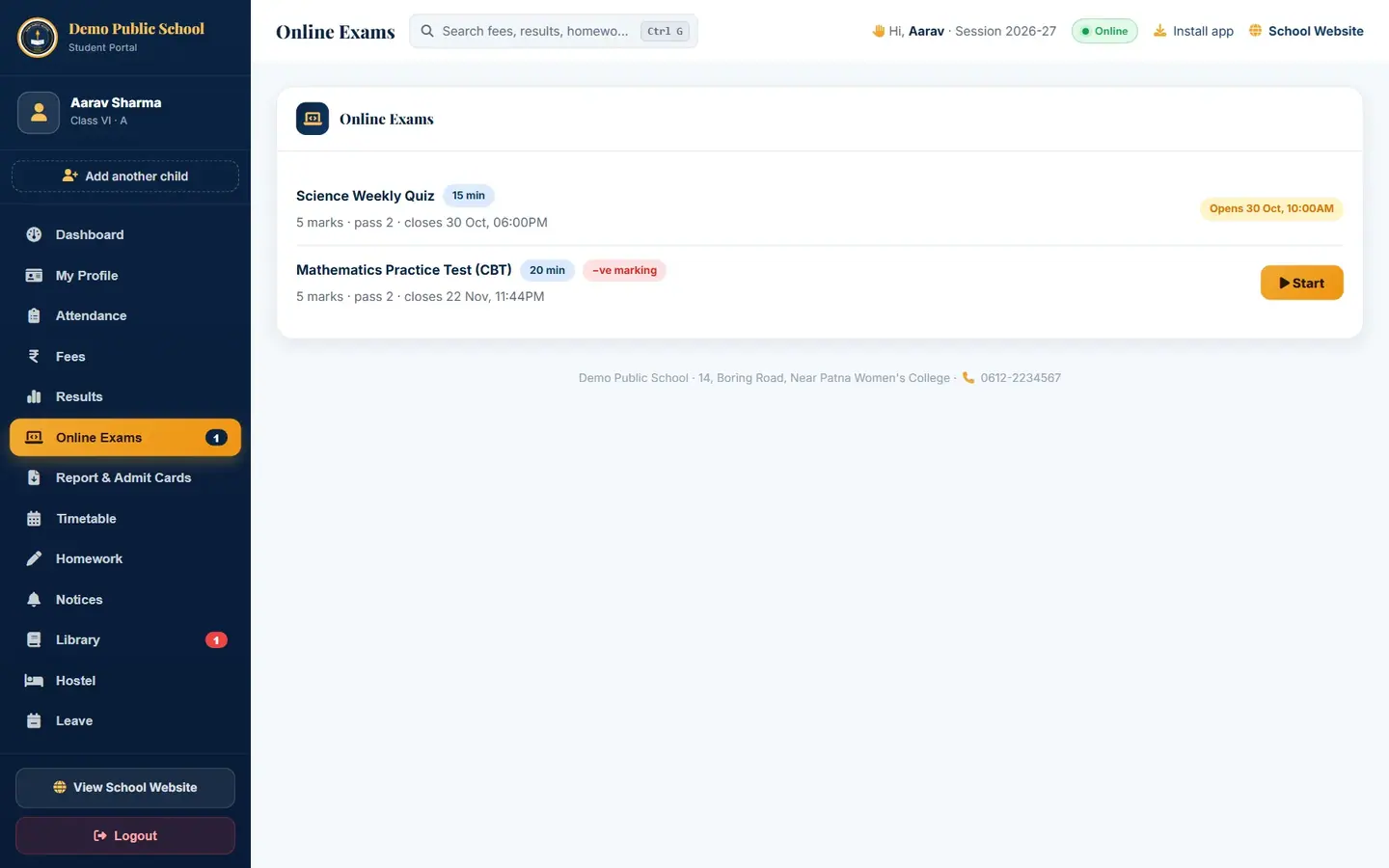
Science Weekly Quiz opens on 30 Oct; Mathematics Practice Test (CBT) is open now. Click Start on the test.
Read the instructions: questions, total marks, minutes, pass mark, the teacher's instructions and the general guidelines.

The timer starts when you click Start Test. The test can be taken once. Tick I have read and understood all the instructions above and click Start Test.

Click an option to answer. Click Save & Next to go on, Previous to go back, Clear to remove your answer.
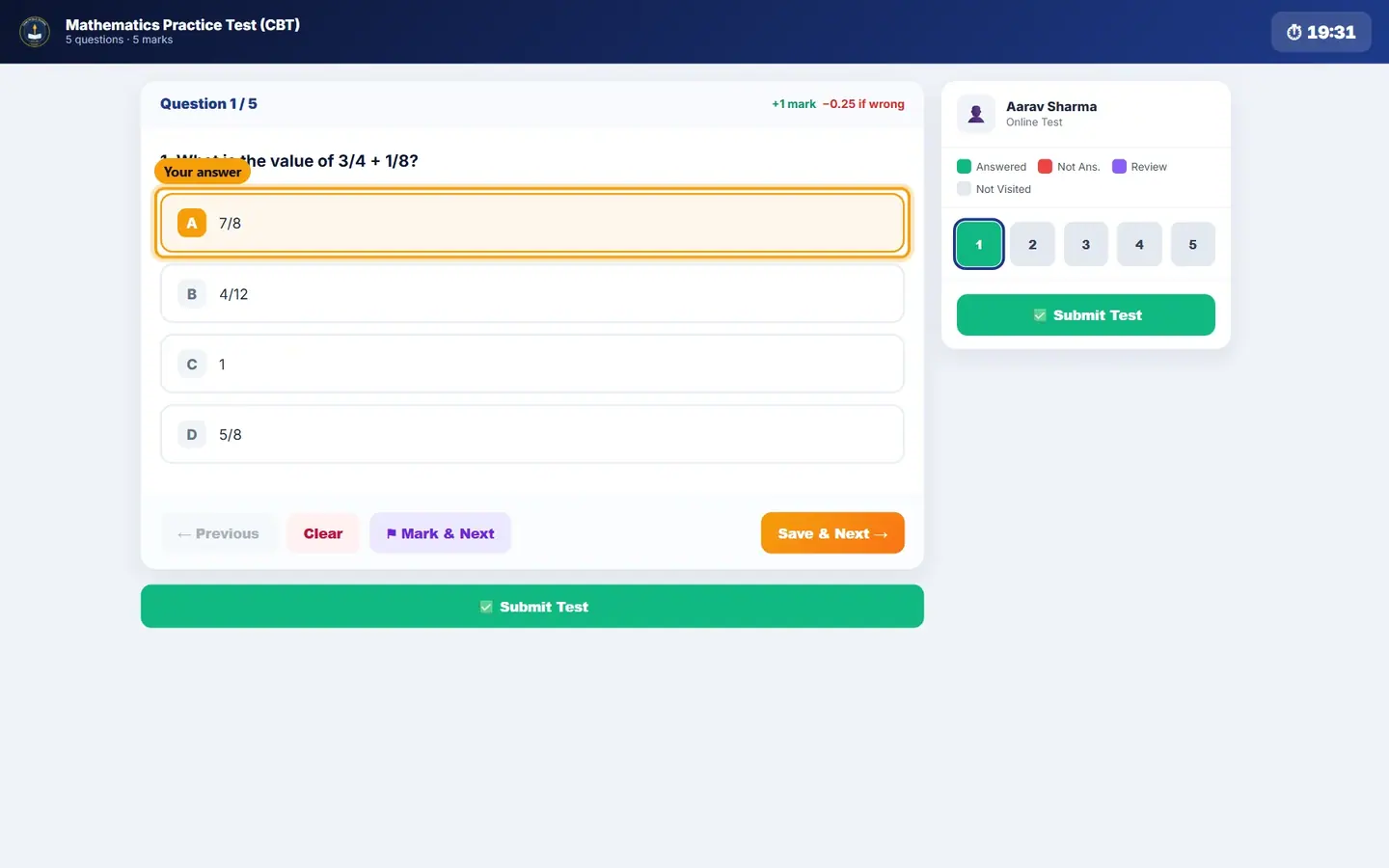
Question 1: 3/4 + 1/8 = 7/8 (option A). The top right shows the time left. Not sure? Click Mark & Next. The question turns purple in the palette so you can come back to it.

Mark & Next keeps your answer and flags the question for review. Use the question palette to jump to any question. Green = answered, red = not answered, purple = marked for review (purple with a green dot = answered and marked), grey = not visited.
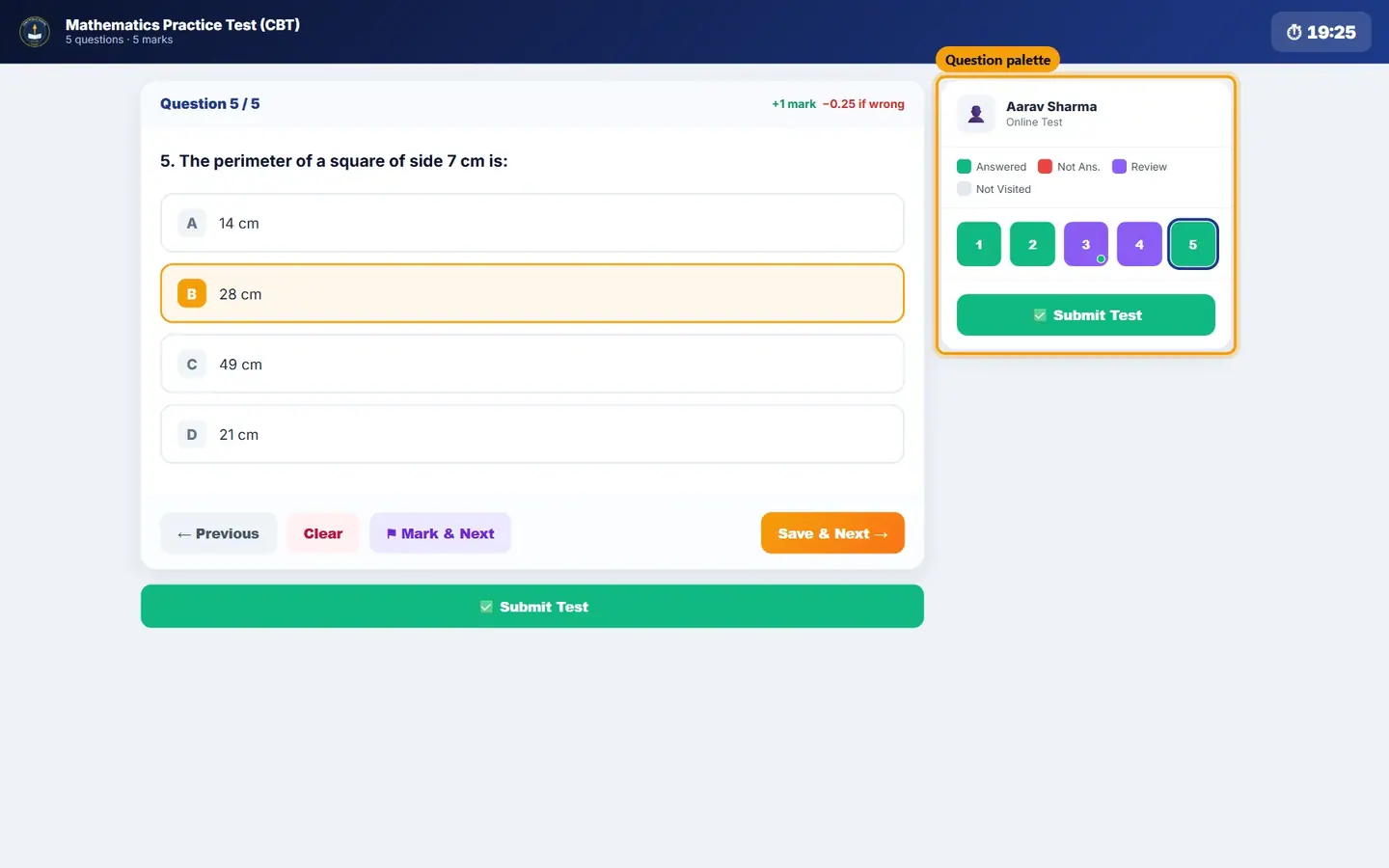
Questions 3 and 4 are marked for review; 1, 2 and 5 are answered. Click Submit Test. Check the summary (Answered, Not Answered, Marked Review, Not Visited). Click Resume to go back, or Submit Now to finish.
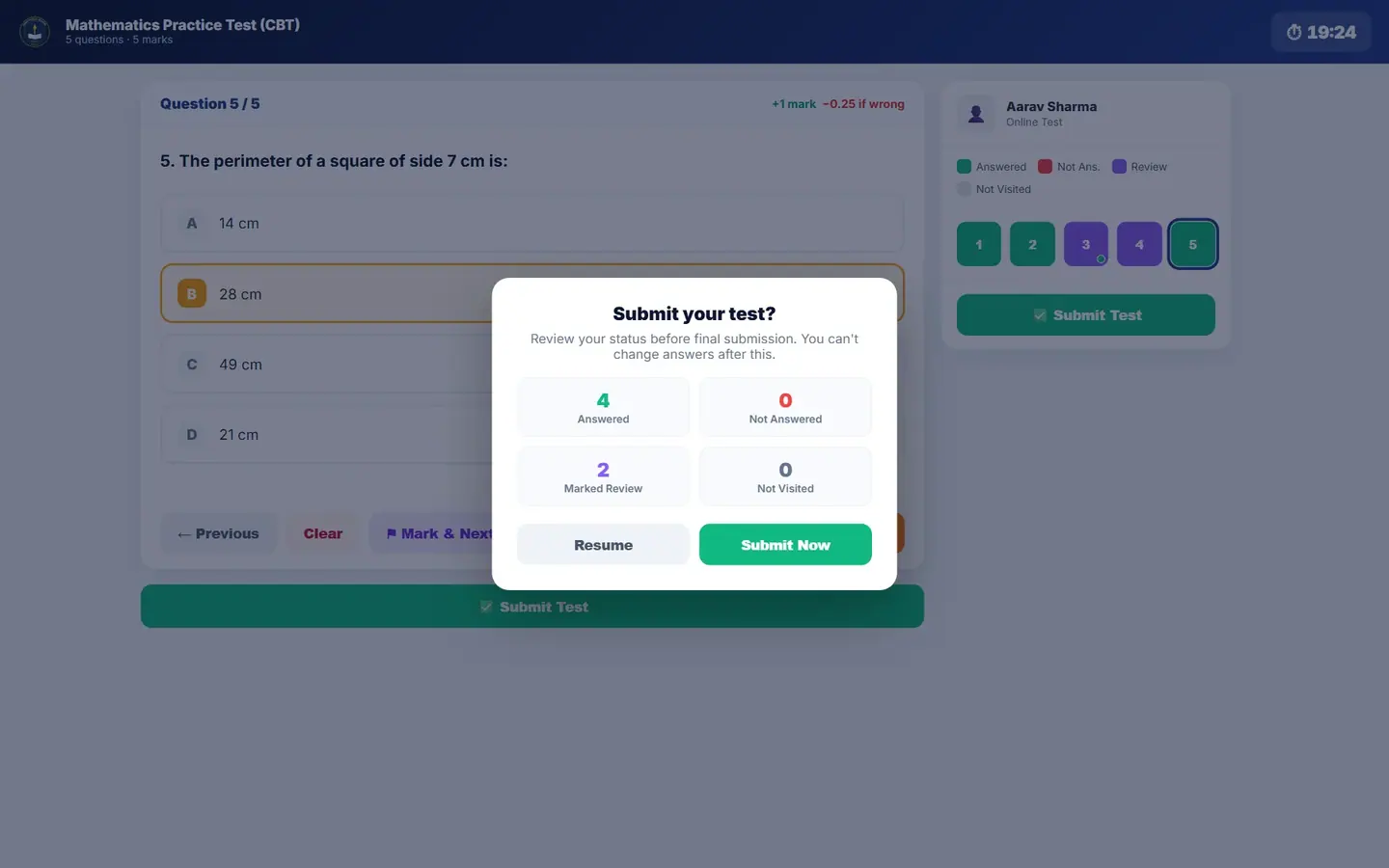
Answers cannot be changed after Submit Now. The result opens at once: score, pass / fail, correct, wrong, skipped, accuracy, rank and time taken.
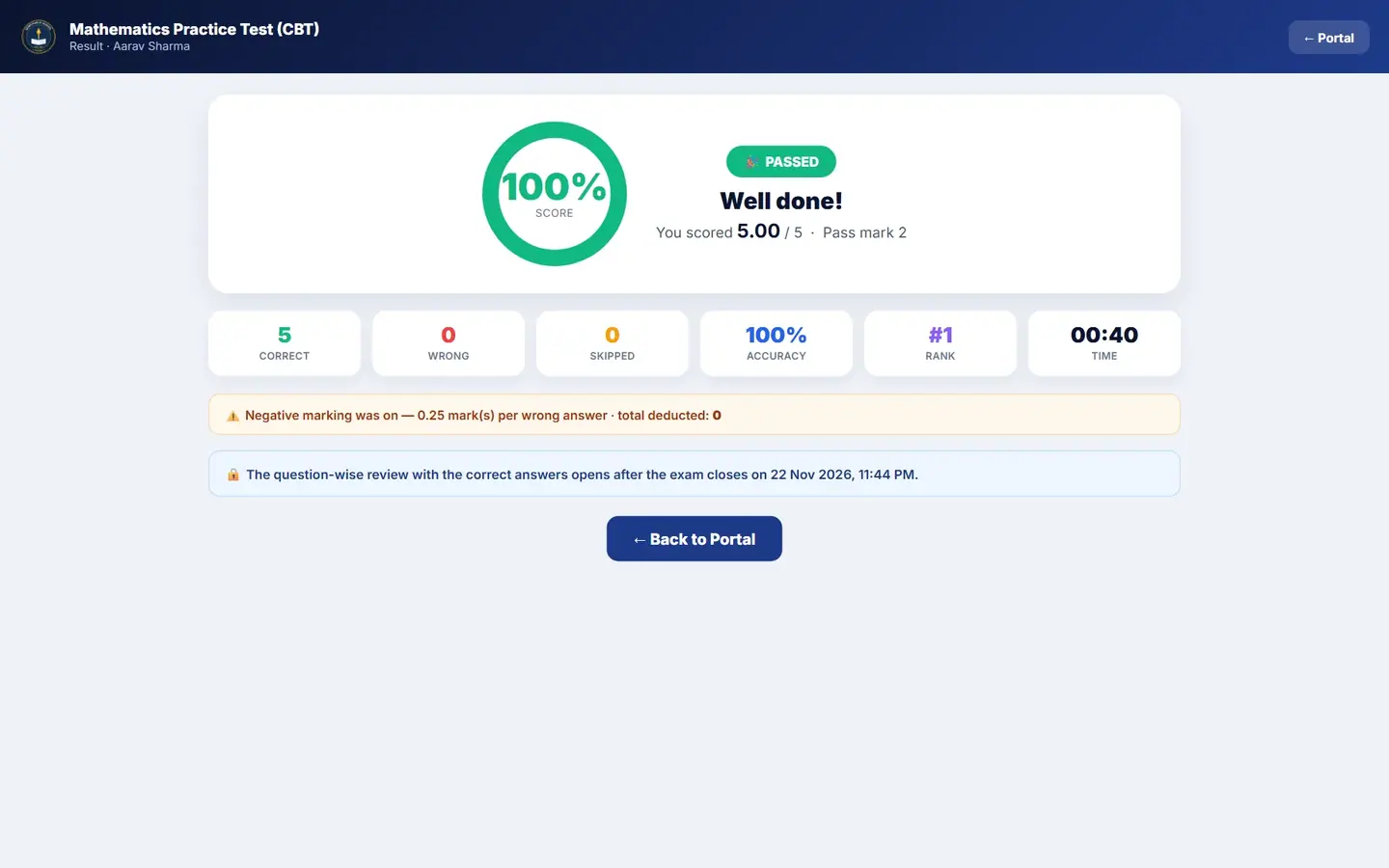
Aarav Sharma scored 5.00 / 5 and passed. The question-wise review opens after the test closes on 22 Nov 2026.
TipIf time runs out, the test is submitted automatically.
TipDo not refresh or leave the page during the test. Answers are kept in the browser, but staying on the page is safest.
TipWith negative marking, a skipped question scores 0 but a wrong answer loses marks.
ImportantEach test can be taken only once. Click Submit Now only when you have checked every question.
Homework, notices, timetable, library and hostel
Homework lists homework for the class, newest first, with subject, date given and the task.
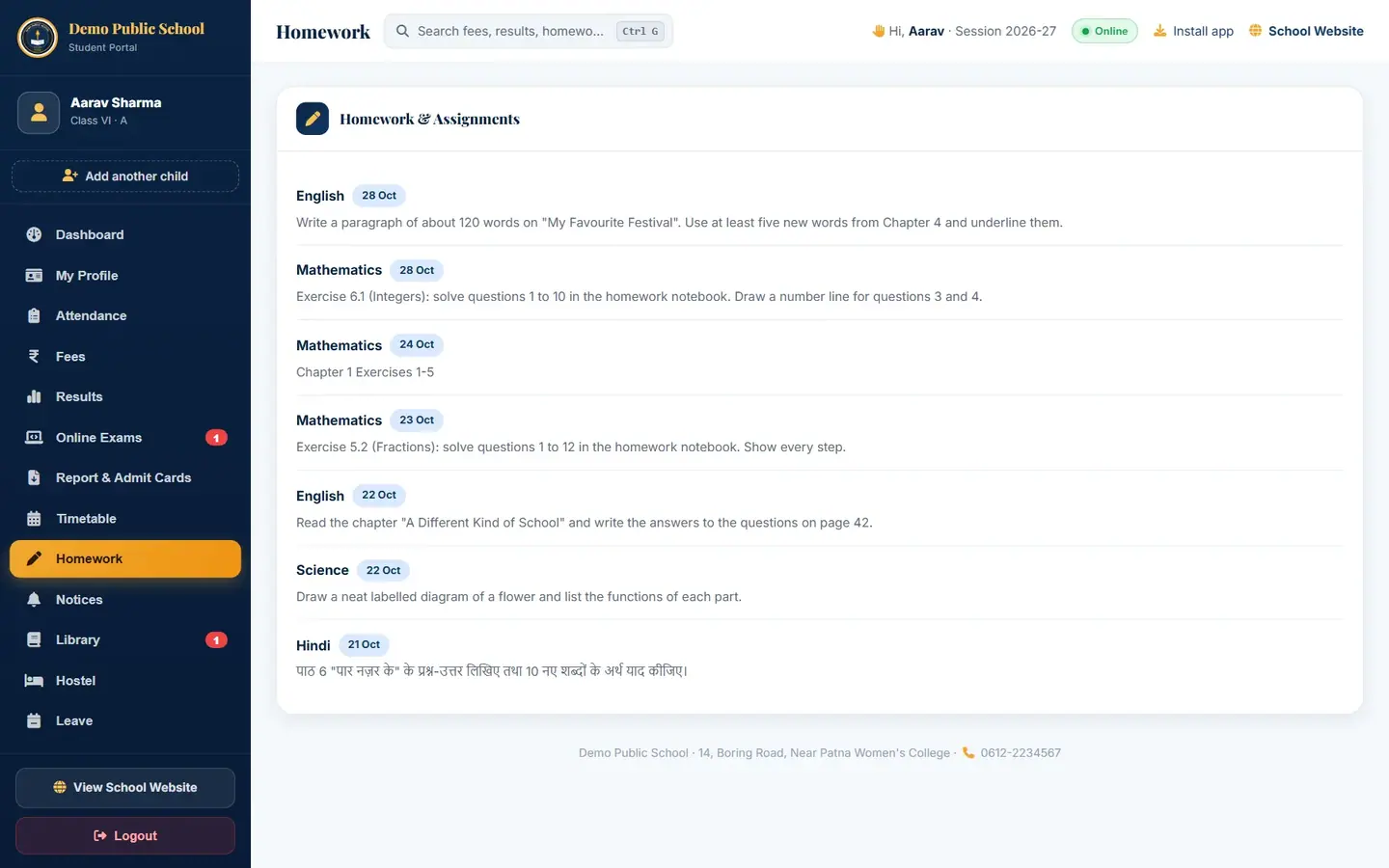
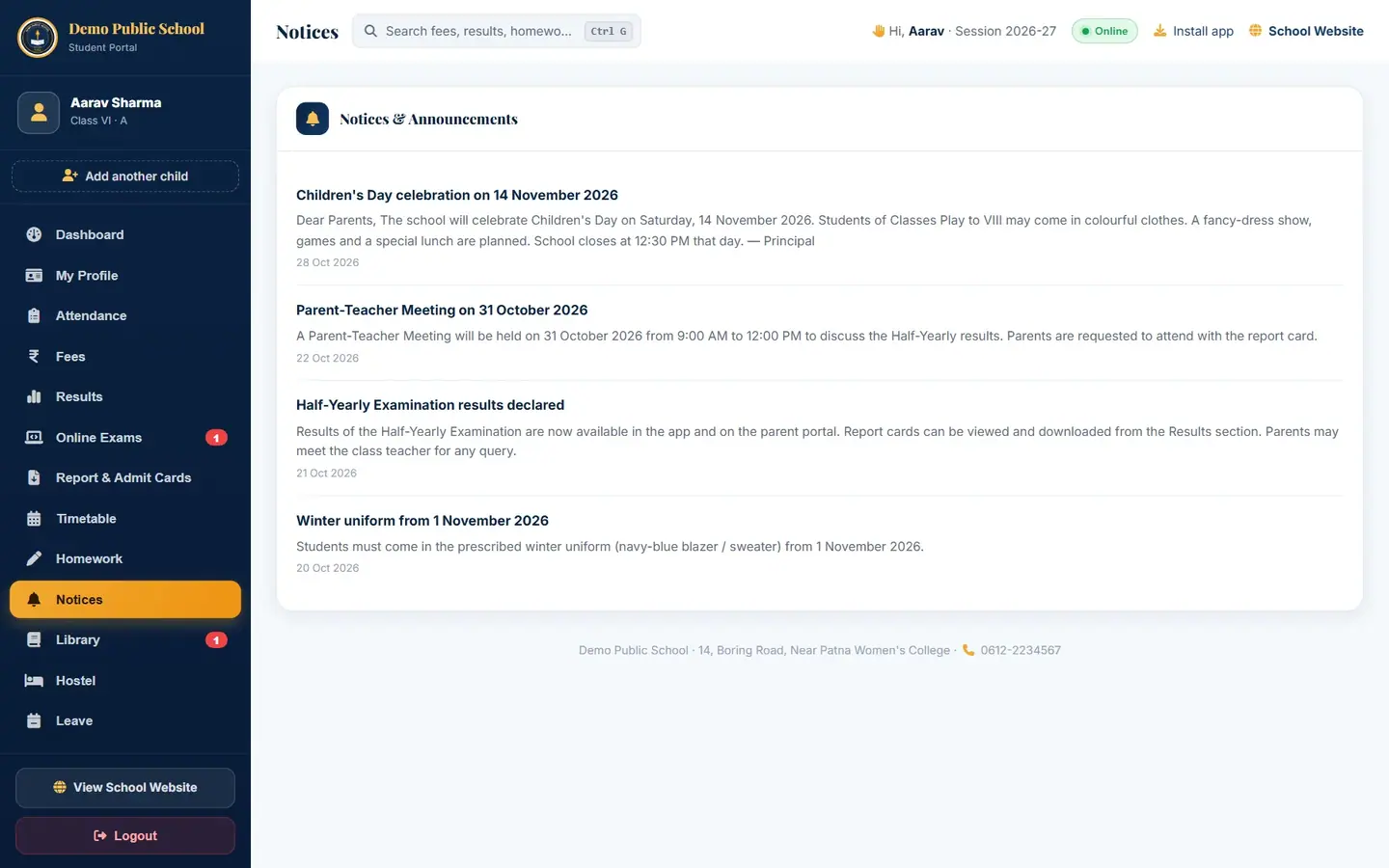
Notices lists notices for students and parents, newest first.
Timetable shows the class timetable for the week, with subject, teacher and period time.

Class VI A timetable. Library shows books issued to the child, the due date, and any overdue fine.

Wings of Fire is 1 day overdue; fine ₹2 per day, paid at the library on return. Hostel (only for hostel students) shows the room, date allotted, monthly hostel fee and the warden's contact.

- Homework
- Subject, date given, task text. Due dates are set by the teacher.
- Notices
- Title, text and date of each notice.
- Timetable
- Period number and time, subject and teacher for Monday to Saturday.
- Library
- Books with me, Overdue, Fine so far; each book with issue date, due or return date and status.
- Transport
- Shown only when the child uses school transport: route, stops, vehicle, driver and monthly fare.
- Hostel
- Shown only for hostel students: status, room, allotted date, monthly fee, warden.
Request leave for the child (example: 6–7 Nov 2026, family wedding in Gaya)
Click Leave.
Set From (06-11-2026) and To (07-11-2026).
Type the Reason: "Going to Gaya with family for my elder sister's wedding."

The Request leave form. Click Send request and confirm. The request appears under My requests as Pending.

When the class teacher or office decides, the status changes to Approved or Rejected, with the school's remark.
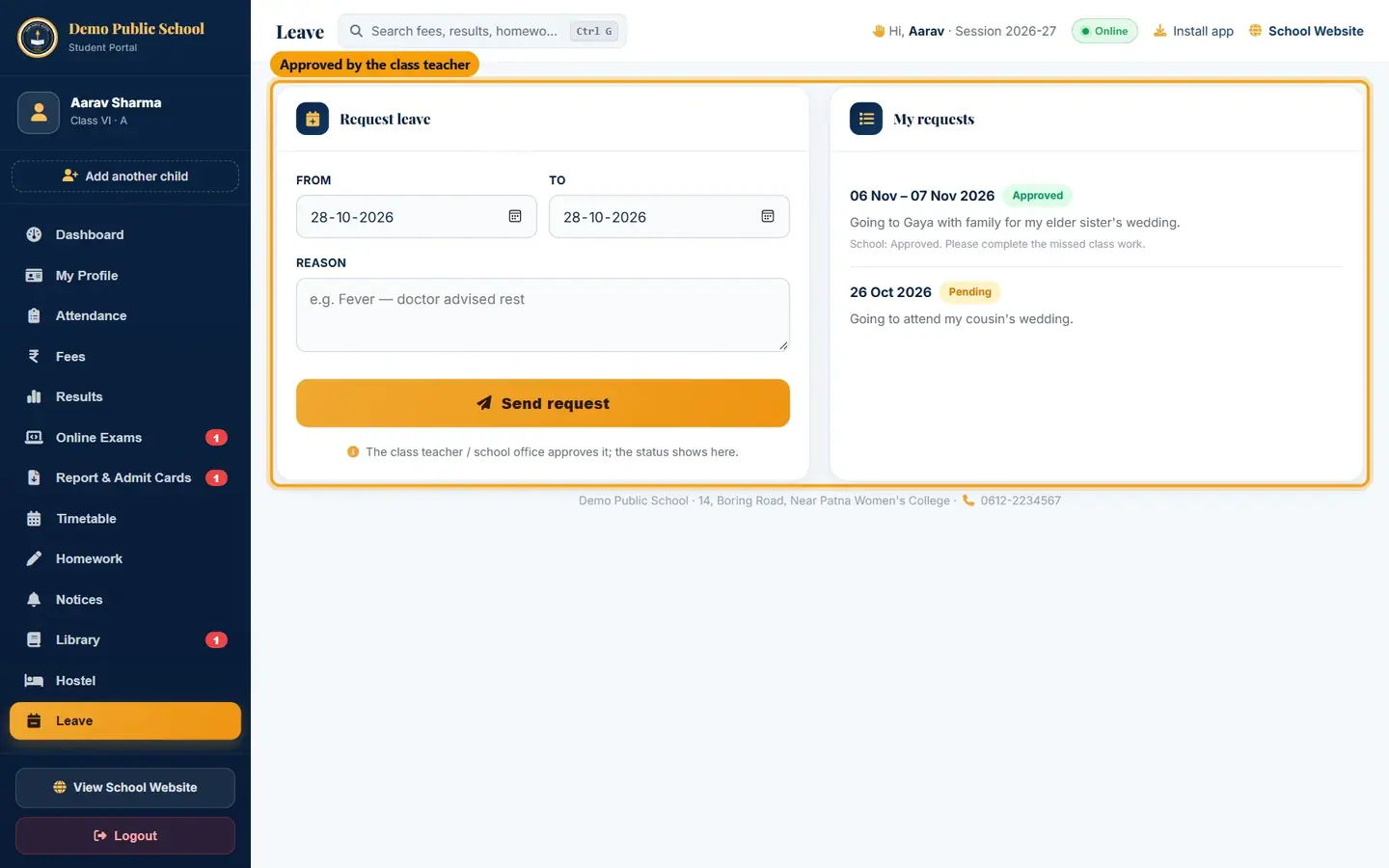
Approved by the class teacher: "Approved. Please complete the missed class work."
TipA request that overlaps dates already requested is refused with a message. Dates up to 30 days in the past can be entered for a sick leave already taken.
Add another child and switch between children (example: Ansh Kumar, Class VII-A)
A parent with two or more children in the school can see all of them in one sign-in (up to 6). Each child is checked with that child's own admission number and date of birth.
Click Add another child (left menu, under the child's name).
Type the other child's Admission Number and Date of Birth and click Verify & add.

Each child is verified separately. The portal now shows the added child, with a Viewing strip at the top for switching.

Added Ansh Kumar. You are now viewing their details. Click the other child's name in the strip (or in the left menu) to switch. The same section stays open.
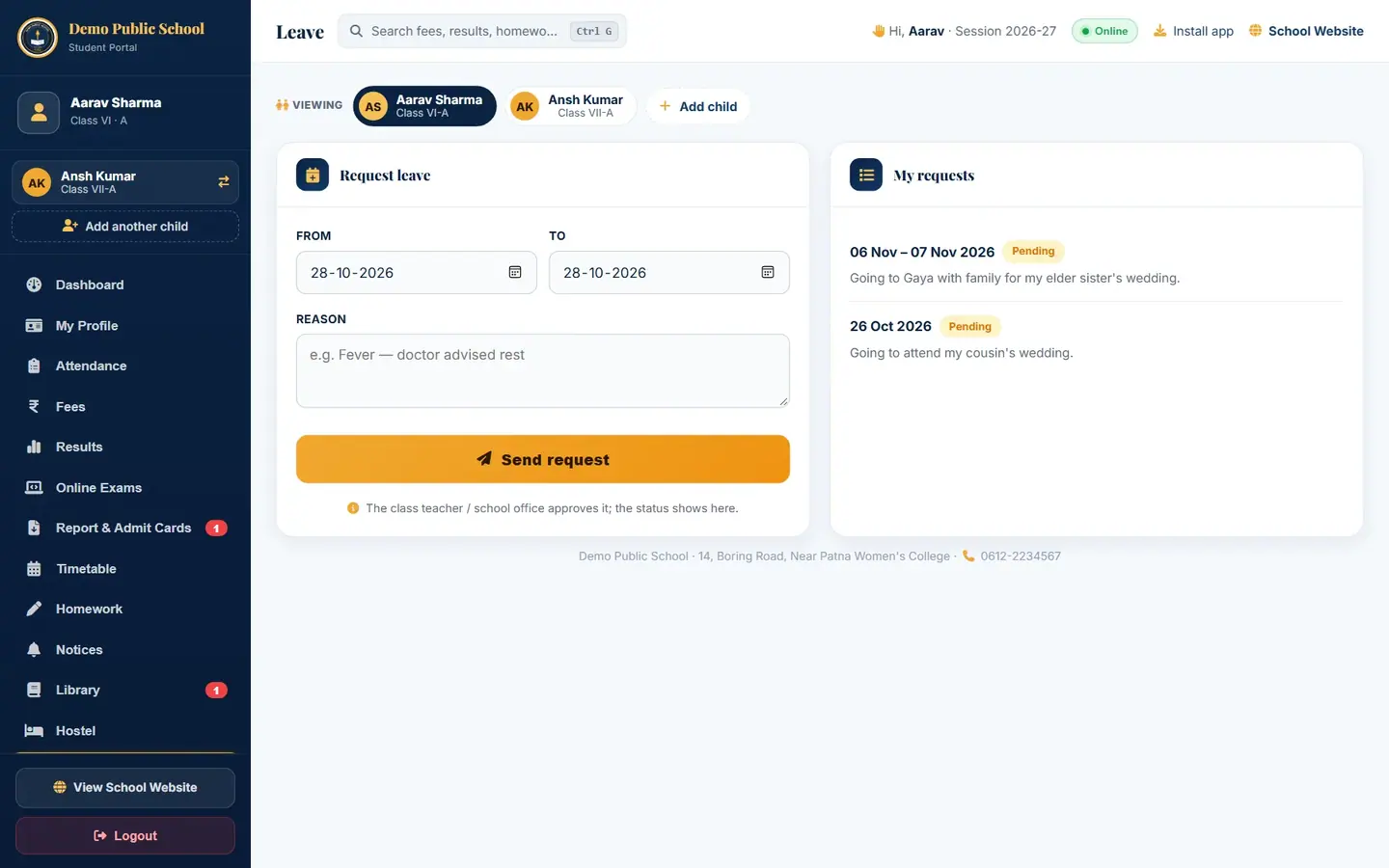
Back on Aarav Sharma. Ansh Kumar stays one click away. To take a child off this sign-in, click the small × next to the child's name in the Viewing strip (shown for the children you are not viewing).
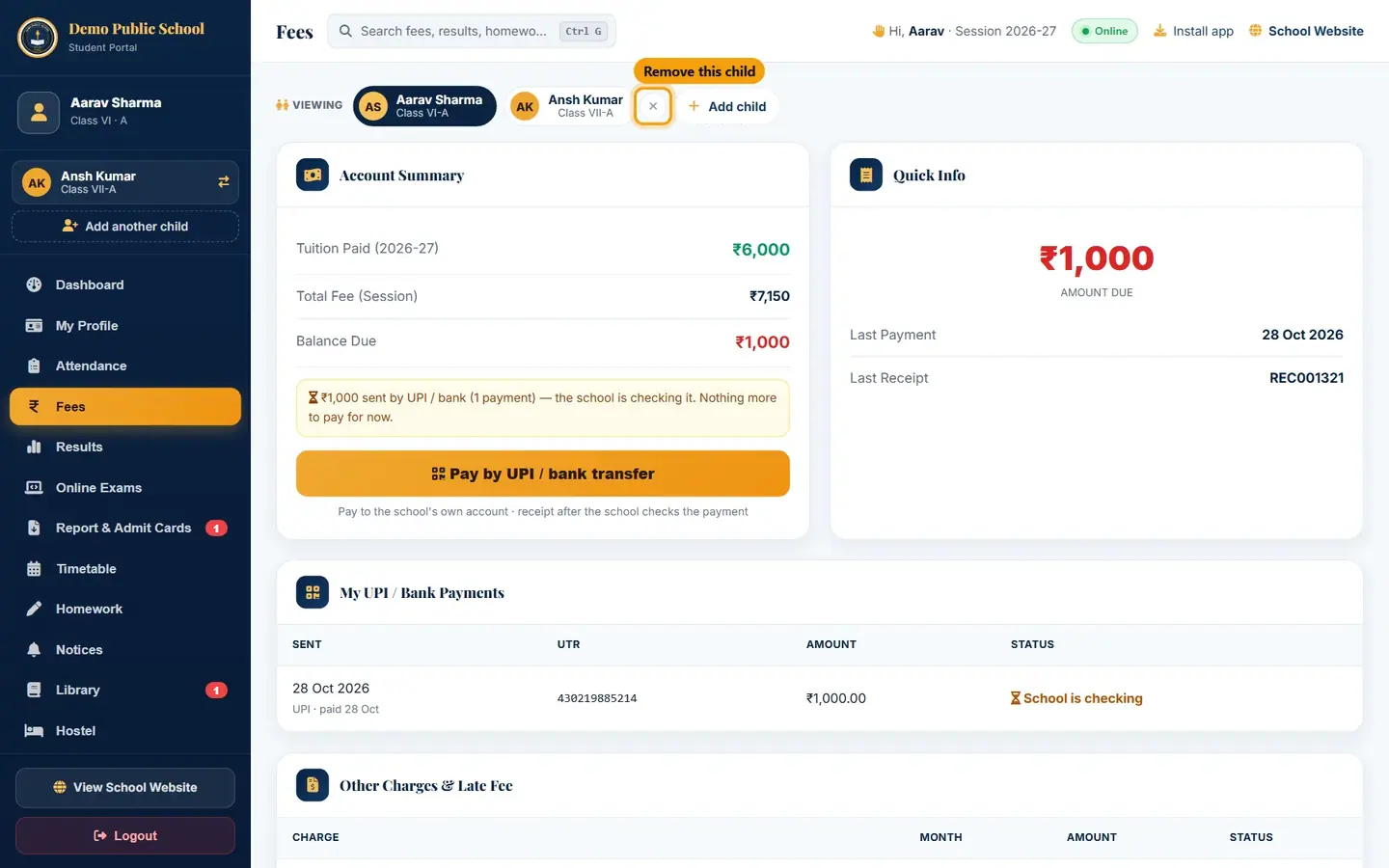
The × button removes Ansh Kumar from this sign-in. Read the popup ("Remove Ansh Kumar from this sign-in? You can add them again with the admission number and date of birth.") and click Remove, then Yes, proceed.

Removing asks twice. The message Child removed from this sign-in. appears. Only the sign-in changes; the child's records at the school are not touched.
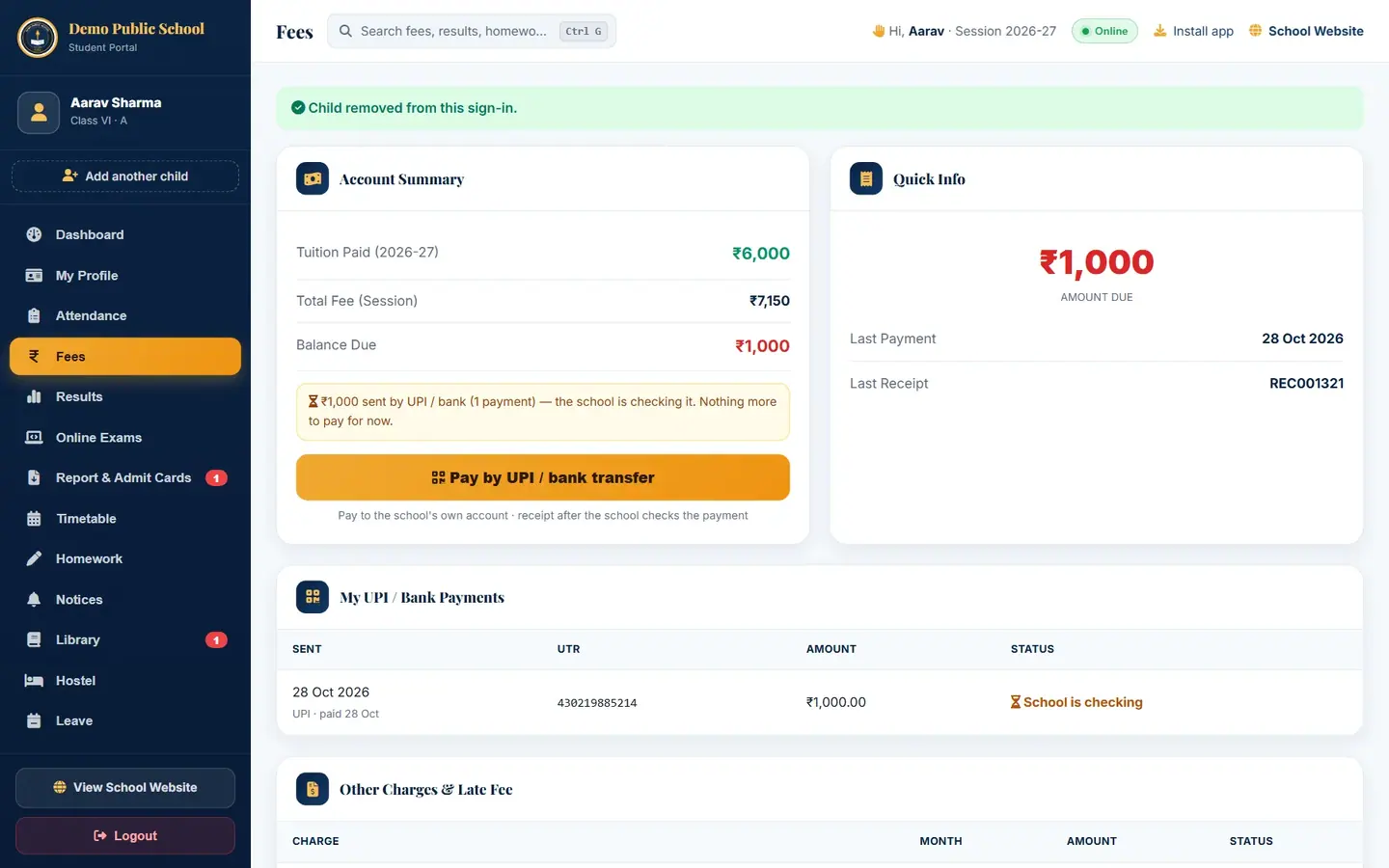
Back to Aarav Sharma only.
TipThe children stay linked only for this sign-in. After Logout, sign in again and add them again.
TipTo remove the child you are viewing, first switch to another child; the × shows only on the other children.
Sign out
Click Logout at the bottom of the left menu (on a phone: More › Logout) and confirm.
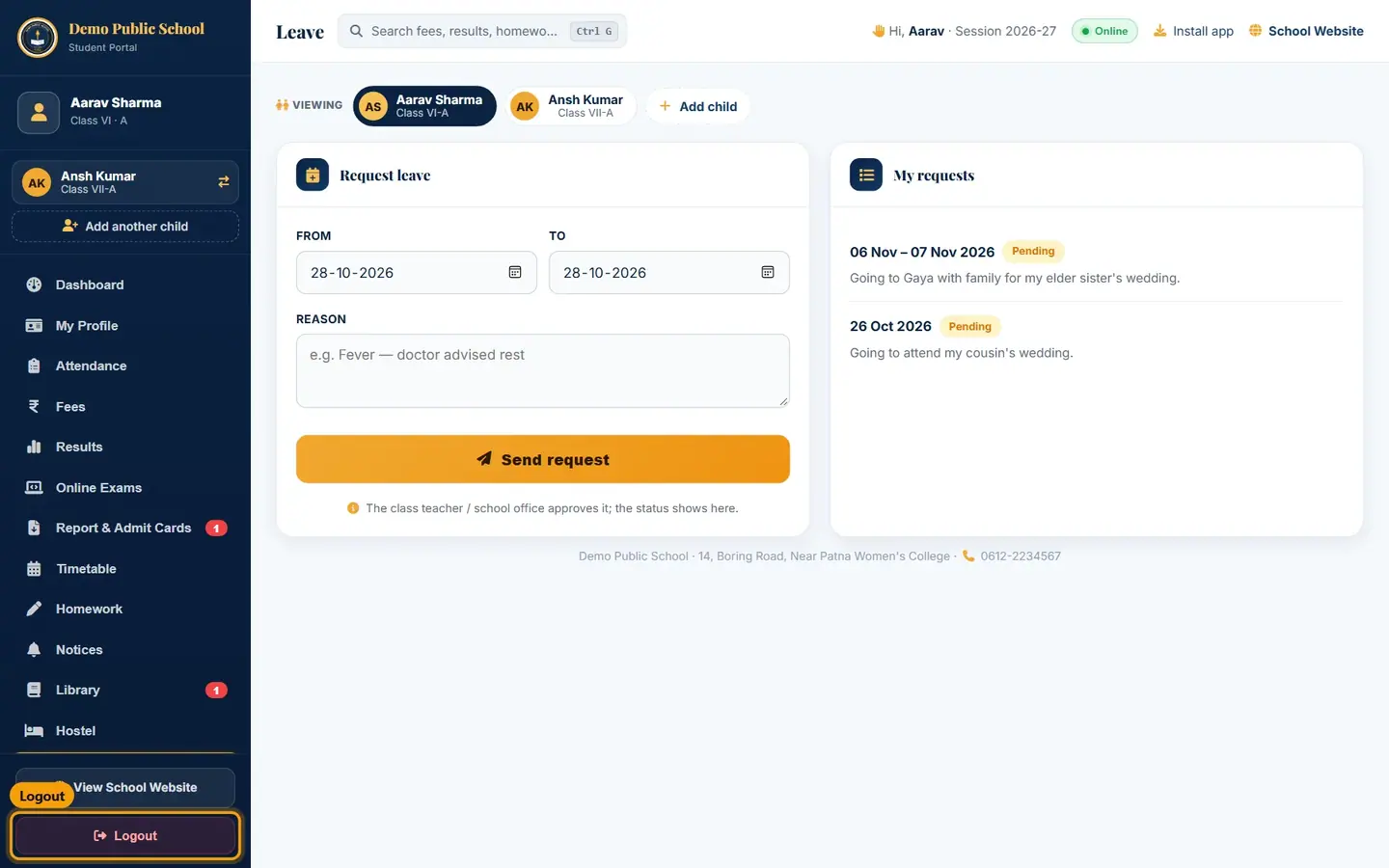
The Portal Login page opens. Copies of the pages kept on the device for offline use are cleared.

Signed out: the login form is shown again.
TipAlways sign out on a shared or cyber-café computer. Logout signs out every child added in that sign-in.
Questions
The portal says "Invalid Admission No or Date of Birth".
Check the admission number on a fee receipt or ID card and the date of birth as given at admission. If they are correct, the school office must correct the record.
I paid by UPI but the balance has not changed.
The balance changes when the office verifies the payment and makes the receipt. Until then the payment shows under My UPI / Bank Payments as School is checking.
I typed a wrong UTR.
Contact the school office. The office will reject the wrong claim with a reason; then send the correct UTR again.
My child's result is not showing.
Results and report cards appear only after the school publishes the exam.
The online test closed while my child was answering.
The test is submitted automatically when time runs out; the answers given till then are marked. Ask the class teacher if there was a technical problem.
Can I change the phone number or address?
No. Contact details are kept by the school office. Ask the office to update them.
I sent a UPI payment. Why does Pay by UPI now show ₹0?
The school is still checking your payment and it covers the dues. The portal takes payments being checked off the amount to pay, so the same fee is not paid twice. Once the office verifies it, the receipt appears in Payment History.