 CoreAxis School ERP
Communicate · Chapter 46
Gallery
The Gallery holds photos of school events: annual function, sports day, excursions, awards. Photos are grouped by title and category, and the category buttons at the top filter them. The same photos appear on the school's own public website made by CoreAxis.
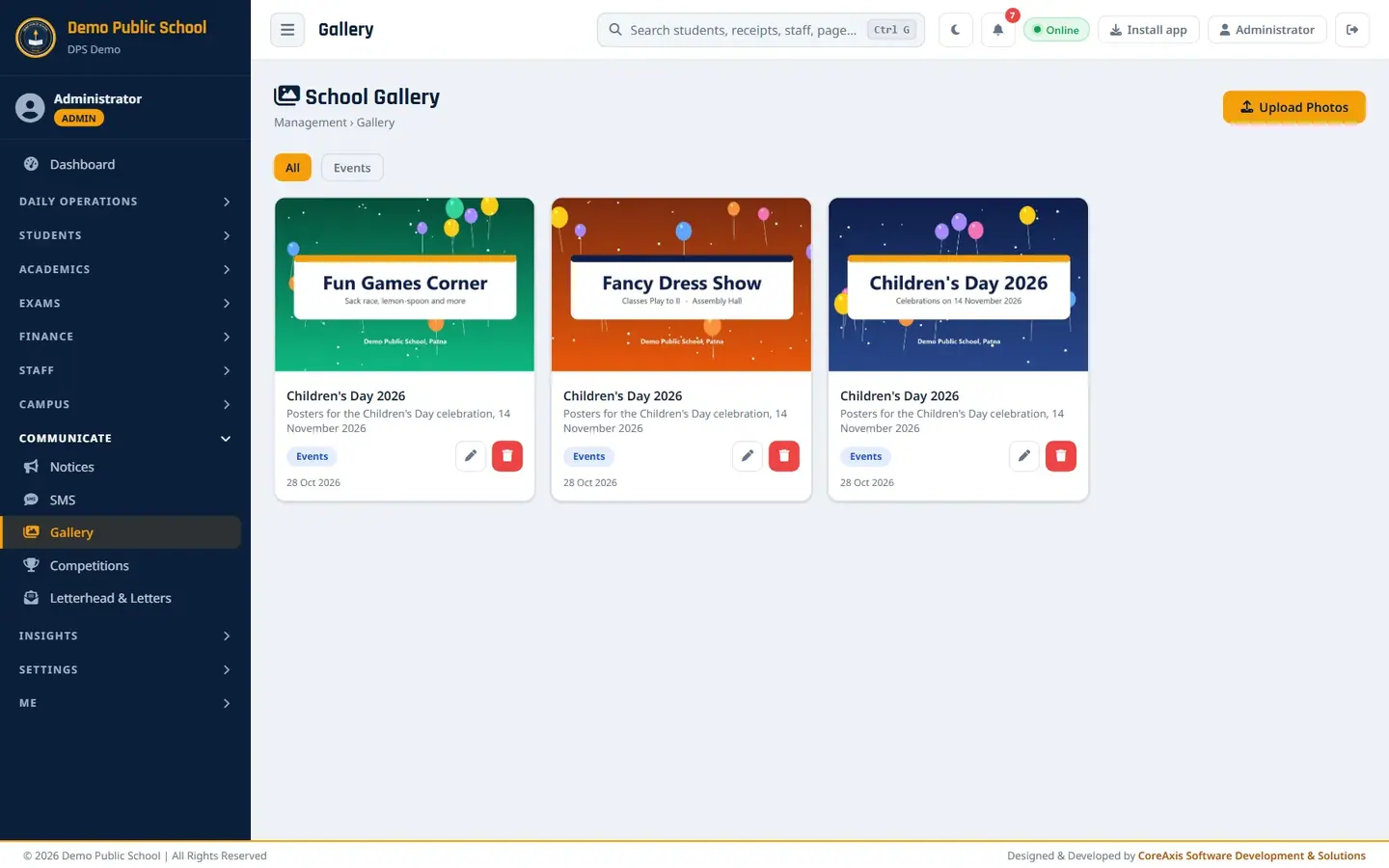
Upload photos (example: Children's Day 2026 posters)
Open Communicate › Gallery and click Upload Photos.
Type the Title (Children's Day 2026). All photos in this upload get this title.
Choose the Category (Events). Other categories: Sports, Academic, Cultural, Annual Function, Excursion, Awards, General.
Type a short Description (optional).
Click Choose Files under Select Photos and pick one or more JPG, PNG or GIF files. The box shows how many are chosen (3 files).
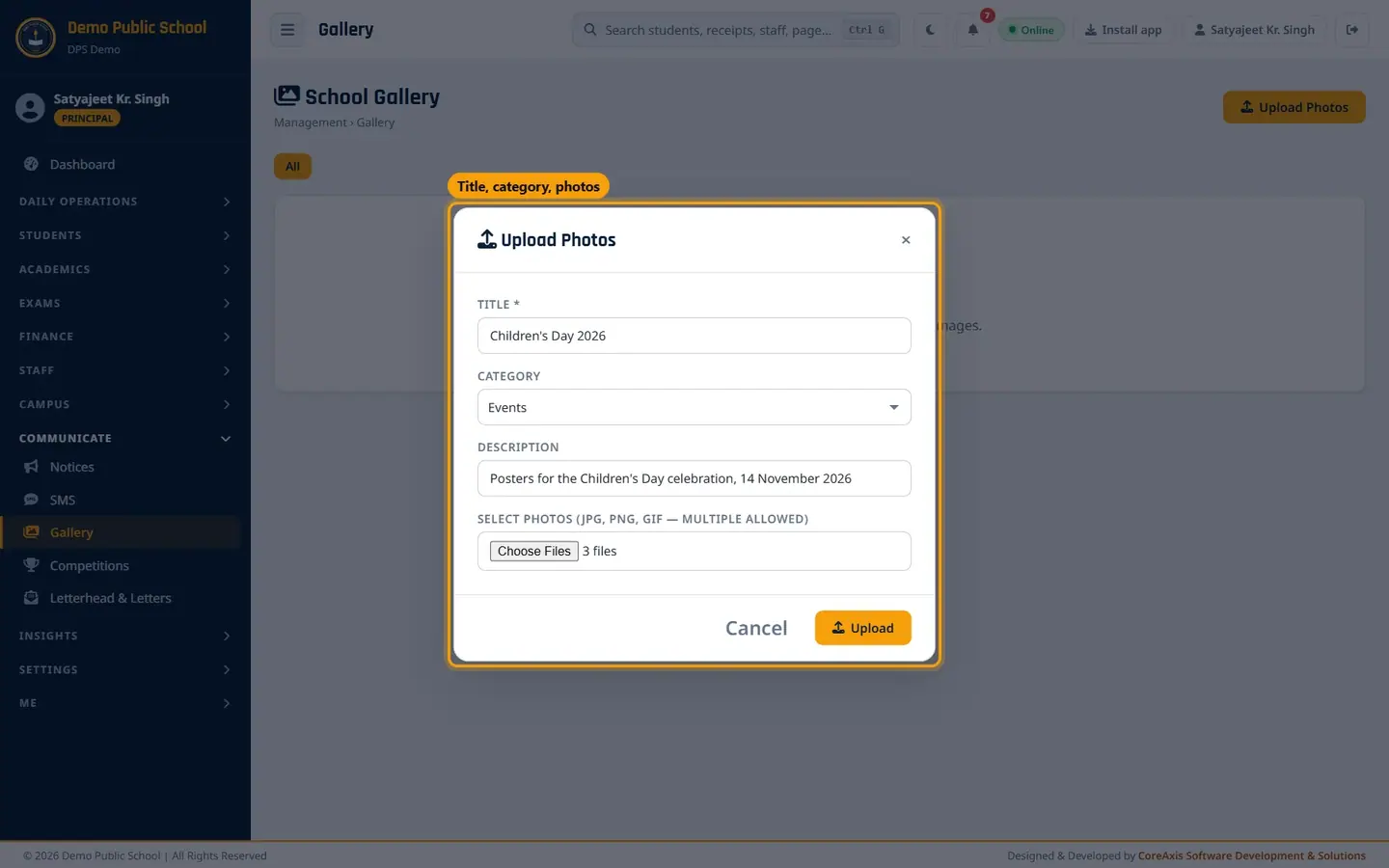
Upload Photos with three files chosen. Click Upload and confirm. The message 3 photo(s) uploaded successfully. appears and the photos show as cards.
Three photos under the Events category. Click a photo to see it full size. Click anywhere to close.

Full-size view.
TipUse photos up to a few MB each. Large camera photos upload faster if you resize them on the phone first.
TipGet parents' consent before you publish photos of children on the public website.
Edit or delete a photo
Click the pencil icon on a photo card to change its title, category or description, or to replace the picture.
Click the red bin icon to delete a photo, and confirm.
ImportantA deleted photo is removed from the server and the website and cannot be brought back.
Screen at a glance
- Category buttons (All, Events …)
- Show only the photos of one category.
- Photo card
- Picture, title, description, category badge, upload date, Edit and Delete.
Questions
Can parents see the gallery?
Yes. The photos appear in the Gallery section of the school's public website.