 CoreAxis School ERP
Campus · Chapter 42
Hostel
The Hostel page lists rooms by block with capacity and monthly fee, and the students allotted to each bed. A room cannot take more students than its capacity, and a student can hold only one bed at a time. The room fee reaches the student's dues through one hostel charge in Finance › Fee Structure › Extra charges.
Add a room (example: Boys Block, Room 103, 6-bed dormitory)
Open Campus › Hostel. The Rooms tab shows each room with occupied beds.
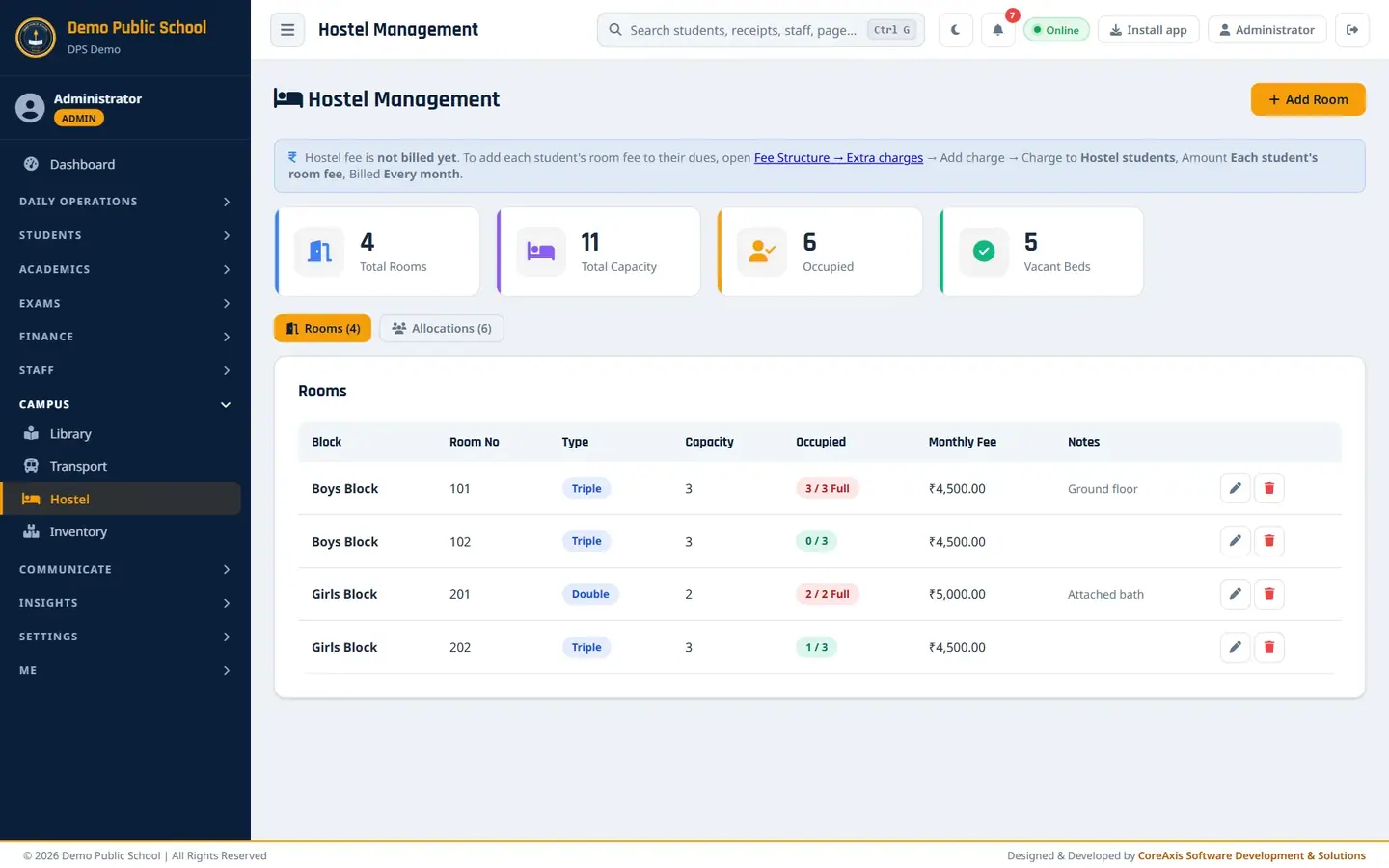
Rooms with capacity, occupancy and monthly fee. Click Add Room.
Type the Block (Boys Block) and Room No (103).
Choose the Room Type (Dormitory; the list has Standard, Single, Double, Triple, Deluxe, Dormitory, AC and Non-AC), and fill Capacity (6), Monthly Fee (₹) (3500) and Notes.

Add Room form. Click Save and confirm.
TipBlock + room number must be unique. Capacity cannot be lowered below the students already in the room.
Edit a room (example: Boys Block 102, Triple, new note)
On the Rooms tab, click the pencil icon on the row of Boys Block / 102.
The Edit Room form opens with the saved values. Room Type shows Triple.
Change what you need, for example Notes: Attached bathroom; window cooler fitted on 27 Oct 2026.

Edit Room keeps the room's type (Triple). Click Save and confirm. The message Room updated! appears.

Boys Block 102 with the new note.
TipCapacity cannot be lowered below the number of students already in the room.
Allot a student to a room (example: Rohan Chauhan, Class VIII, Boys Block 102, from 1 November 2026)
Open the Allocations tab and click Allocate Student.
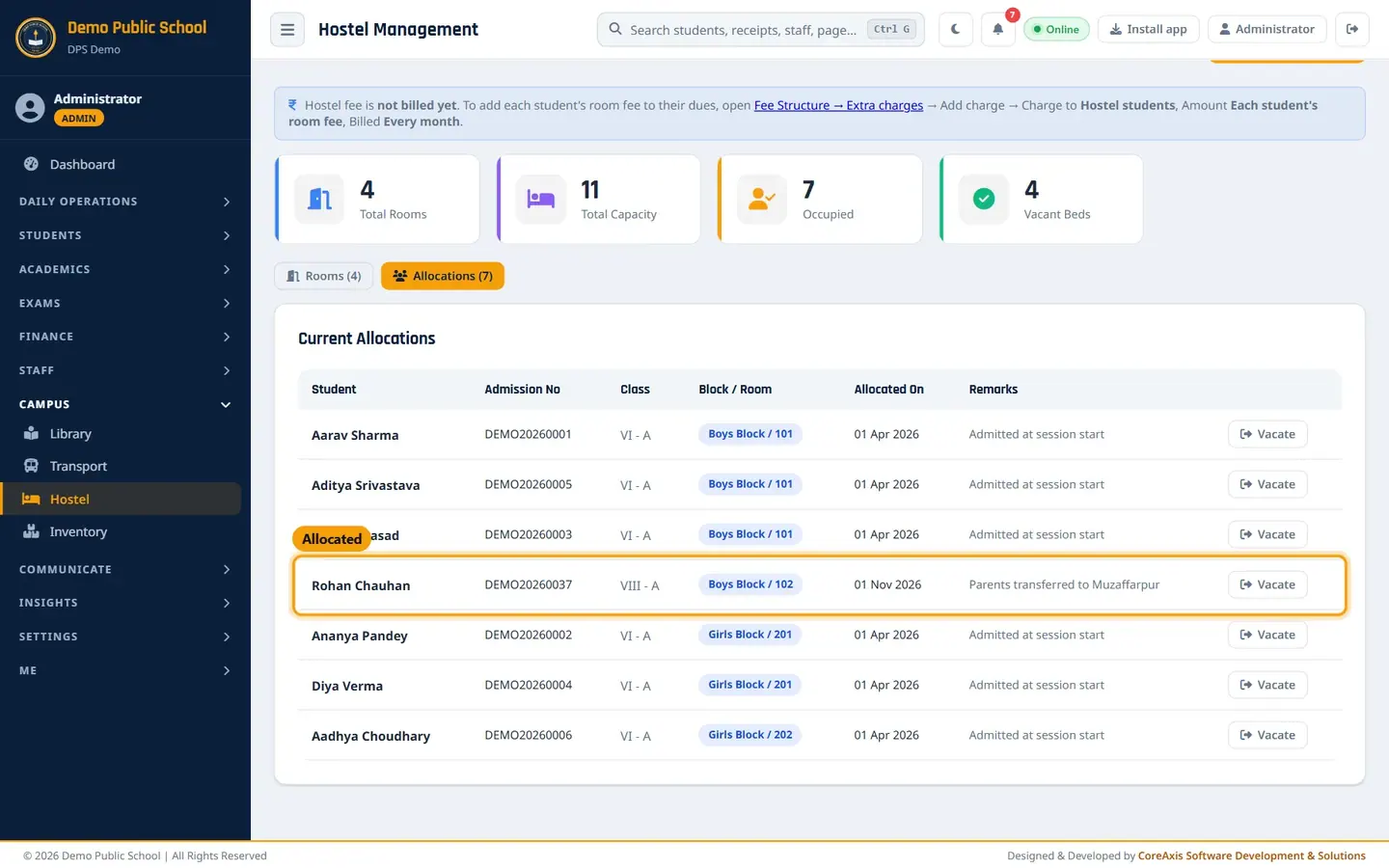
In Student, choose Rohan Chauhan (DEMO20260037 · VIII). Students who already have a bed are not listed.
In Room, choose Boys Block / 102 (0/3, ₹4,500). Only rooms with a free bed are listed.
Set the Allocated Date (01-11-2026) and type Remarks (Parents transferred to Muzaffarpur).
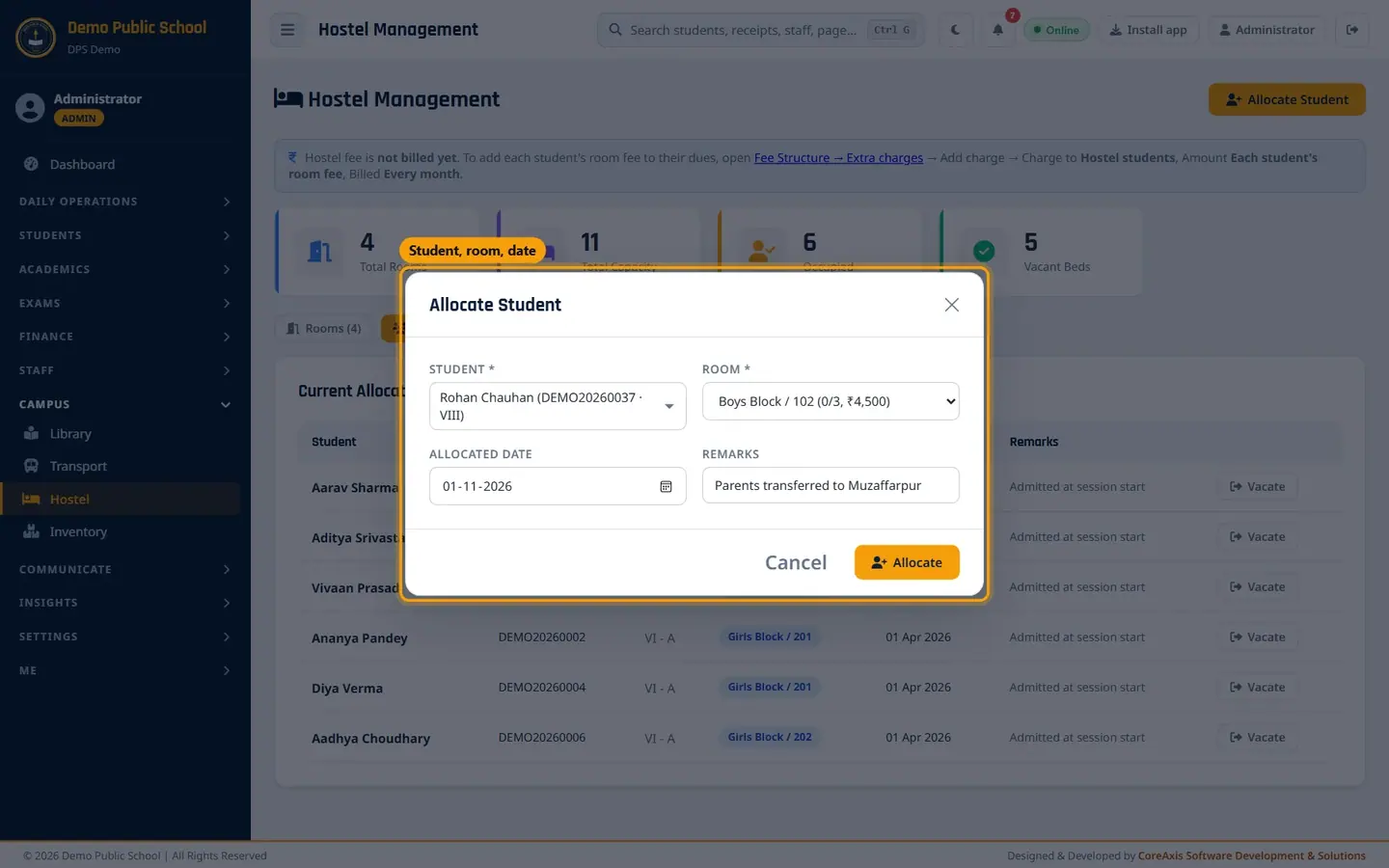
Allocate Student form. Click Allocate and confirm. The message Student allocated to room. appears and he is listed under Current Allocations.
Rohan Chauhan in Boys Block / 102.
TipWhen a student leaves the hostel, click Vacate on the row. The bed becomes free; the student's record stays.
Bill the hostel fee to students' dues
Until this charge exists, the Hostel page shows the note: Hostel fee is not billed yet. Set it up once per session.
Open Finance › Fee Structure and go to Extra charges. Click Add charge.

Add charge form. Type the Charge name (Hostel Room Fee). In Paid under head, choose an existing head or New head and type Hostel Fee.
In Charge to, choose Hostel students. In Amount, choose Each student's room fee (monthly).
In Billed, choose Every month. Leave First month at Session start and Last month at Session end.

Hostel charge: hostel students, each student's room fee, every month. Click Save charge and confirm. Each hostel student is billed their own room's monthly fee from the month of allocation; the lines appear at the Fee Desk under the Hostel Fee head.
ImportantA new charge is also billed for months of the session that have already passed (from each student's allocation date). Check the amount before saving.
Screen at a glance
- Total Rooms / Total Capacity / Occupied / Vacant Beds
- Summary of all rooms and beds.
- Rooms tab
- Block, Room No, Type, Capacity, Occupied (Full when no bed is free), Monthly Fee, Notes, Edit / Delete.
- Allocations tab
- Student, Admission No, Class, Block / Room, Allocated On, Remarks, Vacate.
Questions
A room with students cannot be deleted.
Vacate its students first (or move them), then delete the room.
Where do hostel students see the warden's phone?
Enter the warden's name and phone in Settings › School Profile › People & Branding. It is shown to hostel students in the app.