 CoreAxis School ERP
Communicate · Chapter 48
Letterhead & Letters
The letterhead is built from the School Profile: logo, name, tagline, address, UDISE, affiliation and registration numbers, phone, email and website. You type the letter; the app adds the letterhead, a reference number (for example DPSDEMO/CIR/2026-27/0001), the date and the signature, and keeps a copy in Saved Letters & Notices so it can be reprinted. Six designs are available.

Write and print a circular (example: winter timings from 2 November 2026)
Open Communicate › Letterhead & Letters. On the right you see your auto letterhead.
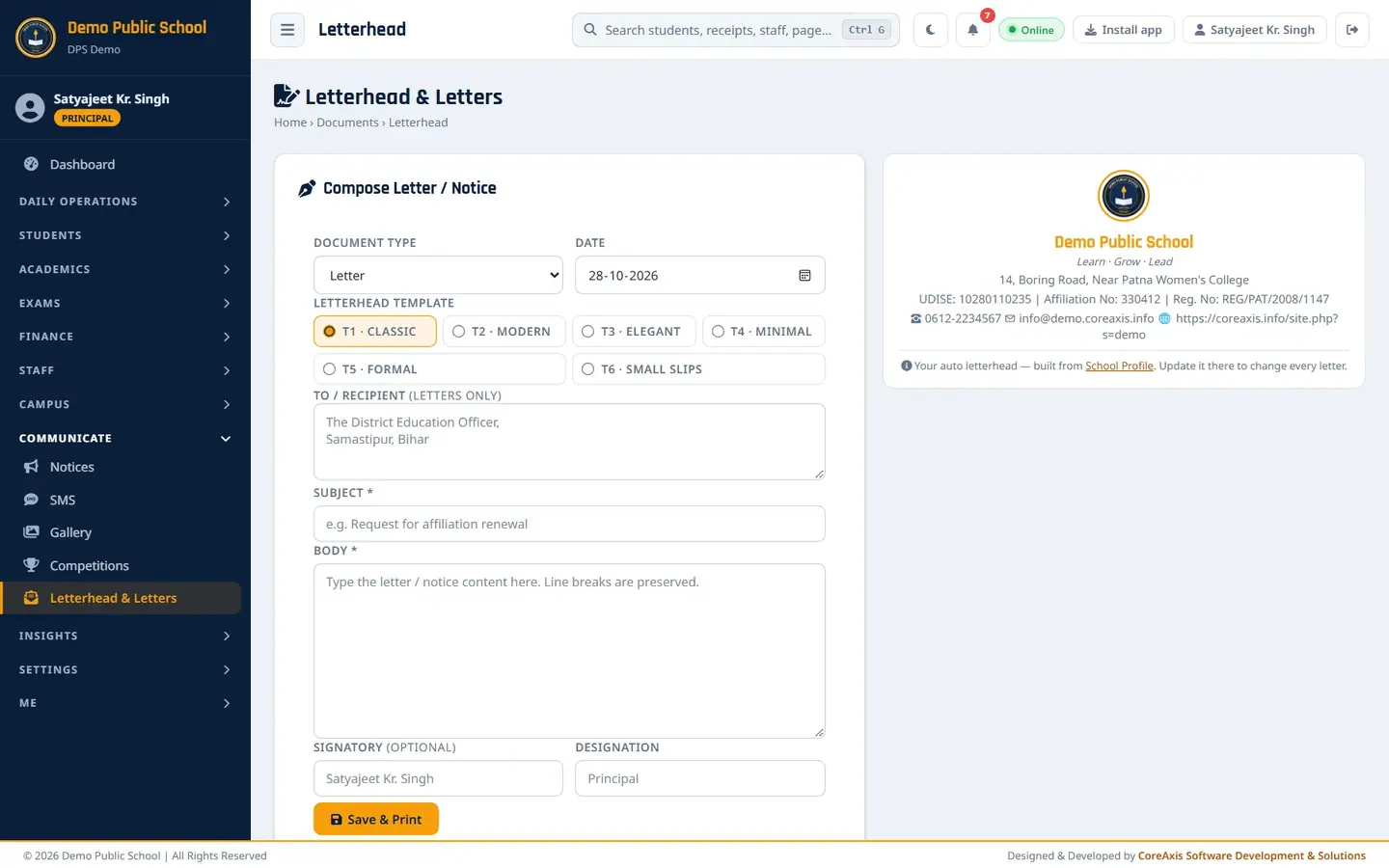
Compose Letter / Notice with the letterhead preview. Choose the Document Type: Circular (or Letter, Notice).
Check the Date and click a Letterhead Template: T1 Classic, T2 Modern, T3 Elegant, T4 Minimal, T5 Formal or T6 Small Slips.
For a letter only, type the To / Recipient address (for example The District Education Officer, Patna).
Type the Subject (Winter timings from 2 November 2026) and the Body. Line breaks are kept.
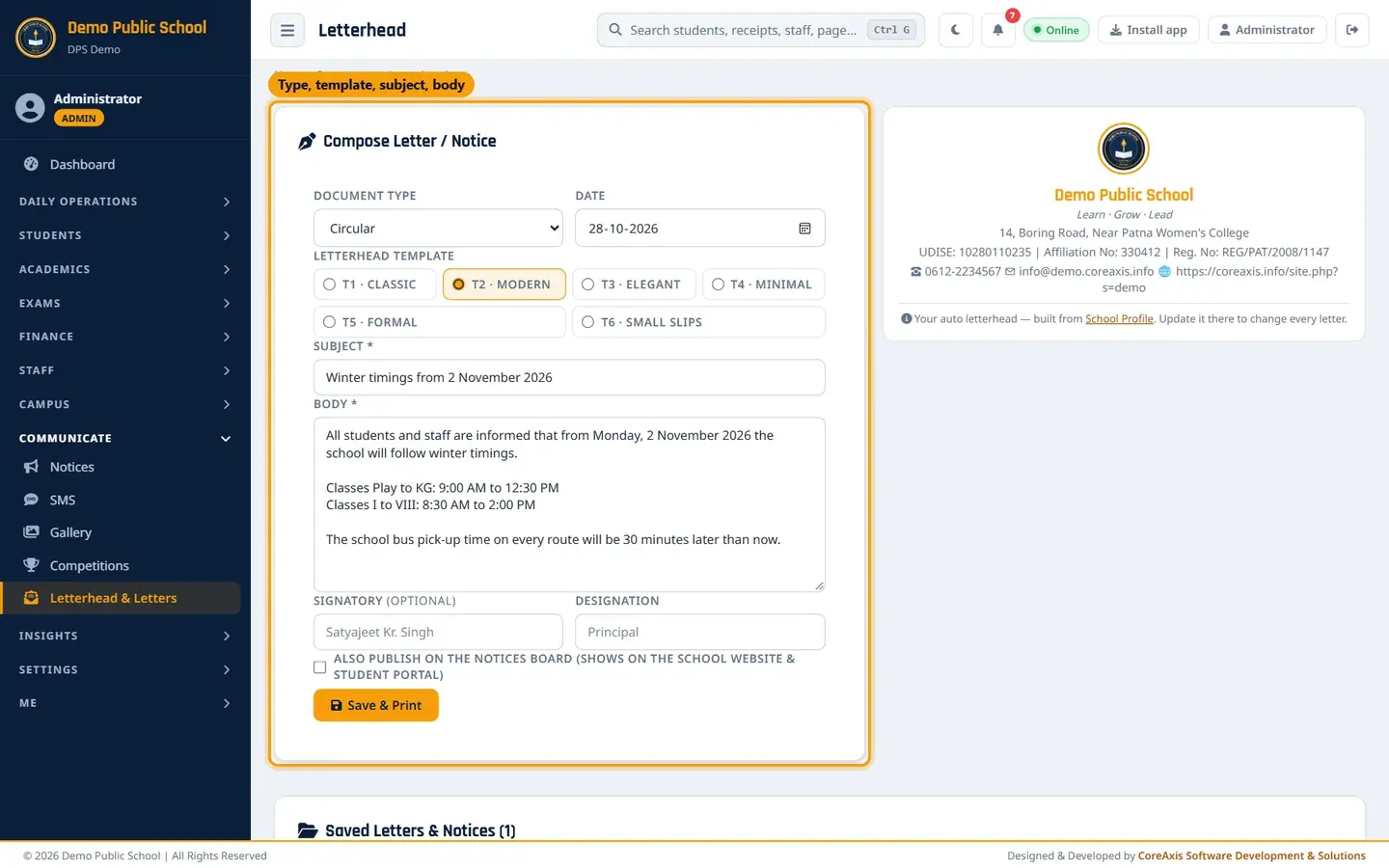
Circular with subject and body. Check Signatory and Designation (the principal's name is filled in). For a notice, tick Also publish on the Notices board to show it on the school website and student portal too.
Click Save & Print and confirm.
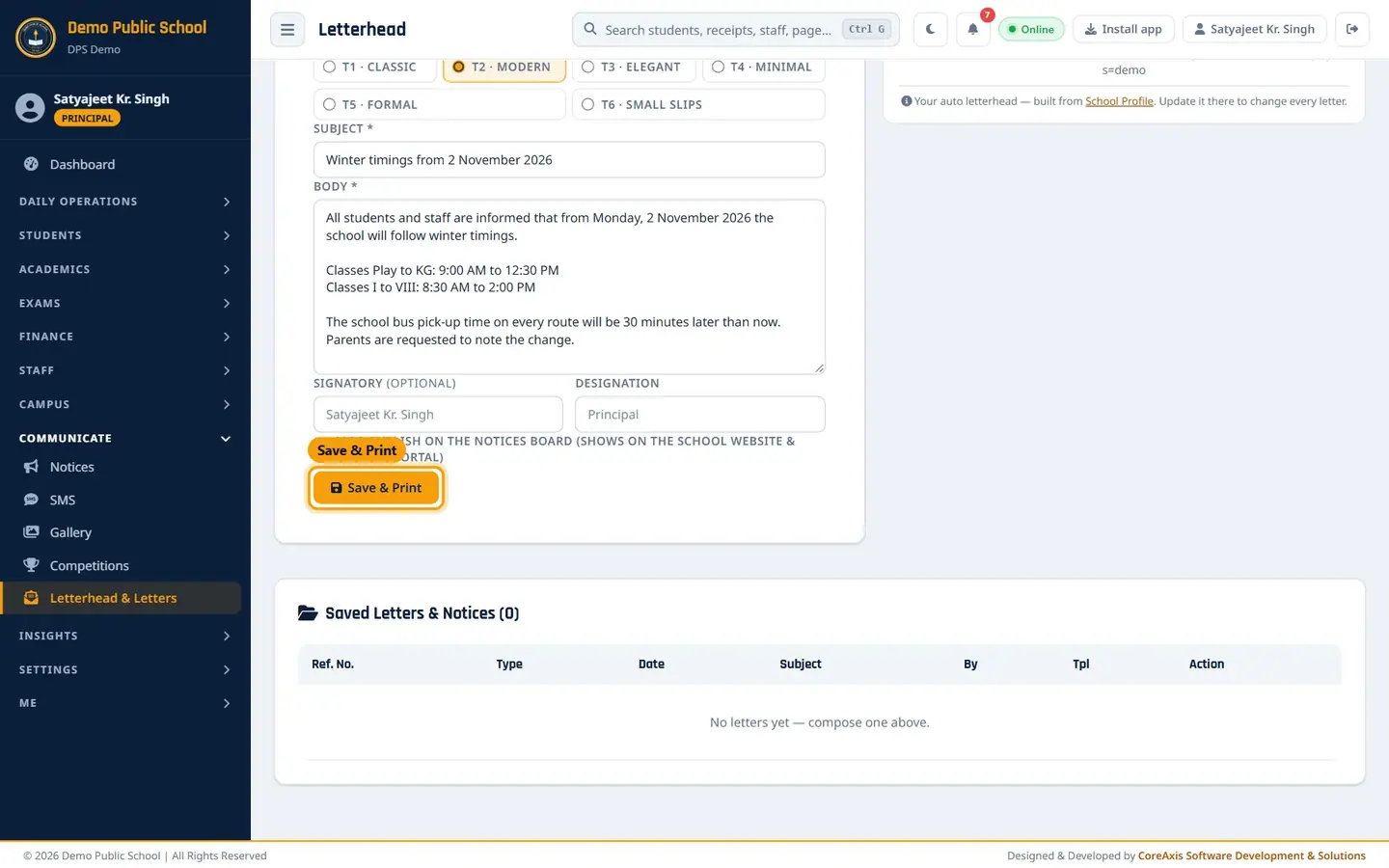
Save & Print. The message Saved — DPSDEMO/CIR/2026-27/0001 appears and the print view opens in a new tab. Click Open print view if your browser blocked it.
Printed circular with reference number and date. In the print view, use T1–T6 to try another design, then click Print.
Reprint or delete a saved letter
Scroll to Saved Letters & Notices. Each row shows Ref. No., Type, Date, Subject, By and template.
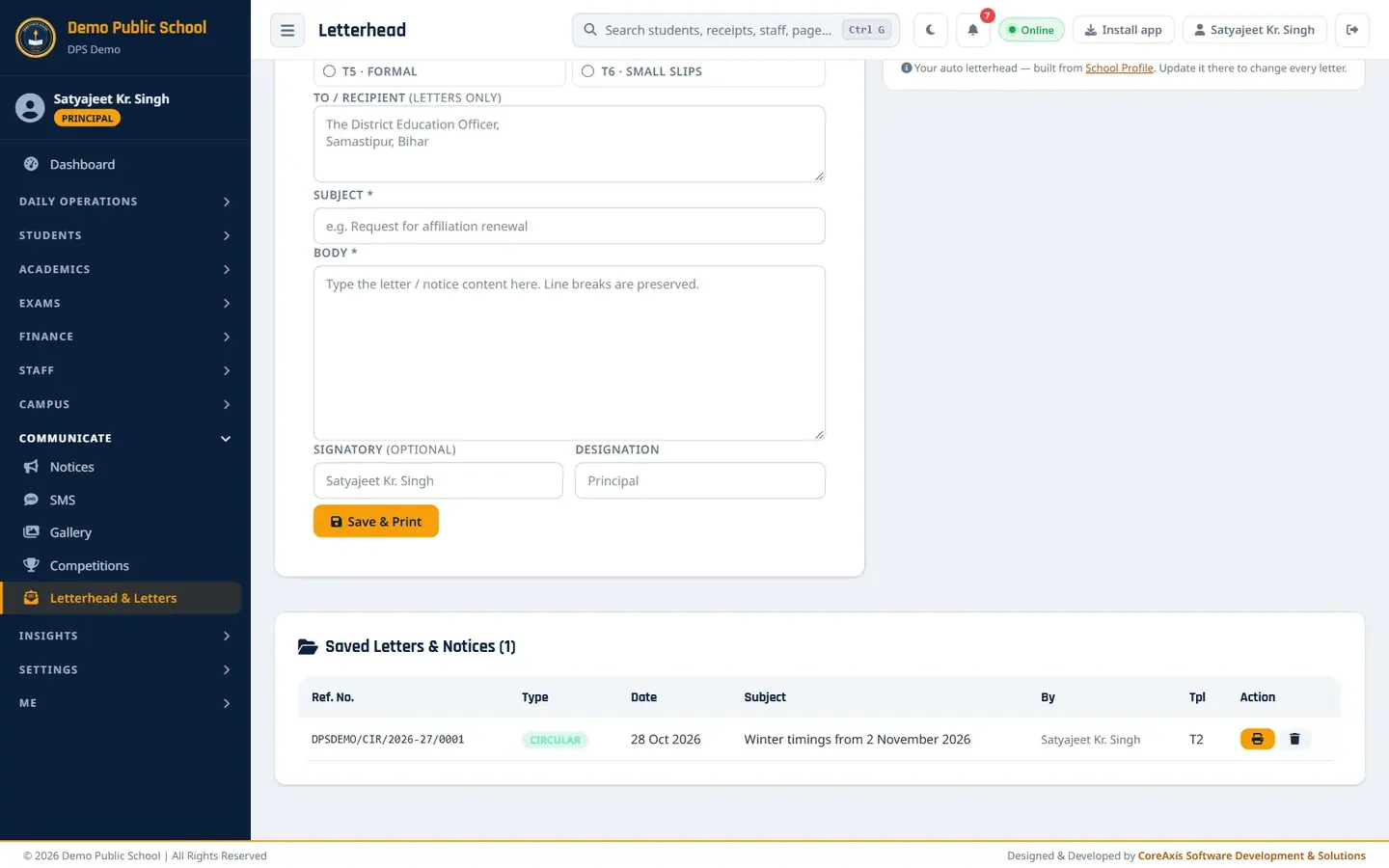
Saved Letters & Notices. Click the print icon to open it again.
Click the bin icon to delete a letter made by mistake, and confirm.
ImportantDeleting a letter cannot be reversed.
Screen at a glance
- Document Type
- Letter (with recipient), Notice or Circular. Each type has its own reference series (LTR, NTC, CIR).
- Letterhead Template
- Six designs; T6 Small Slips prints 6, 8 or 10 identical slips on one A4 sheet, for cutting and handing out.
- Auto letterhead preview
- Built from School Profile. Change the logo, address or numbers there.
- Saved Letters & Notices
- History of every saved letter with reprint and delete.
Questions
The address on the letterhead is old.
Update it in Settings › School Profile › Address. Every letter, certificate and card uses the new address from then on.