 CoreAxis School ERP
Exams · Chapter 16
Create Exams
Every test the school holds — unit test, half-yearly, annual or pre-board — starts here. You create the exam, choose which subjects it covers with their maximum marks, pass marks and dates, then enter marks (see Marks Entry). The subject list feeds admit cards and report cards. Results stay hidden from students and parents until the Principal or an Admin clicks Publish.
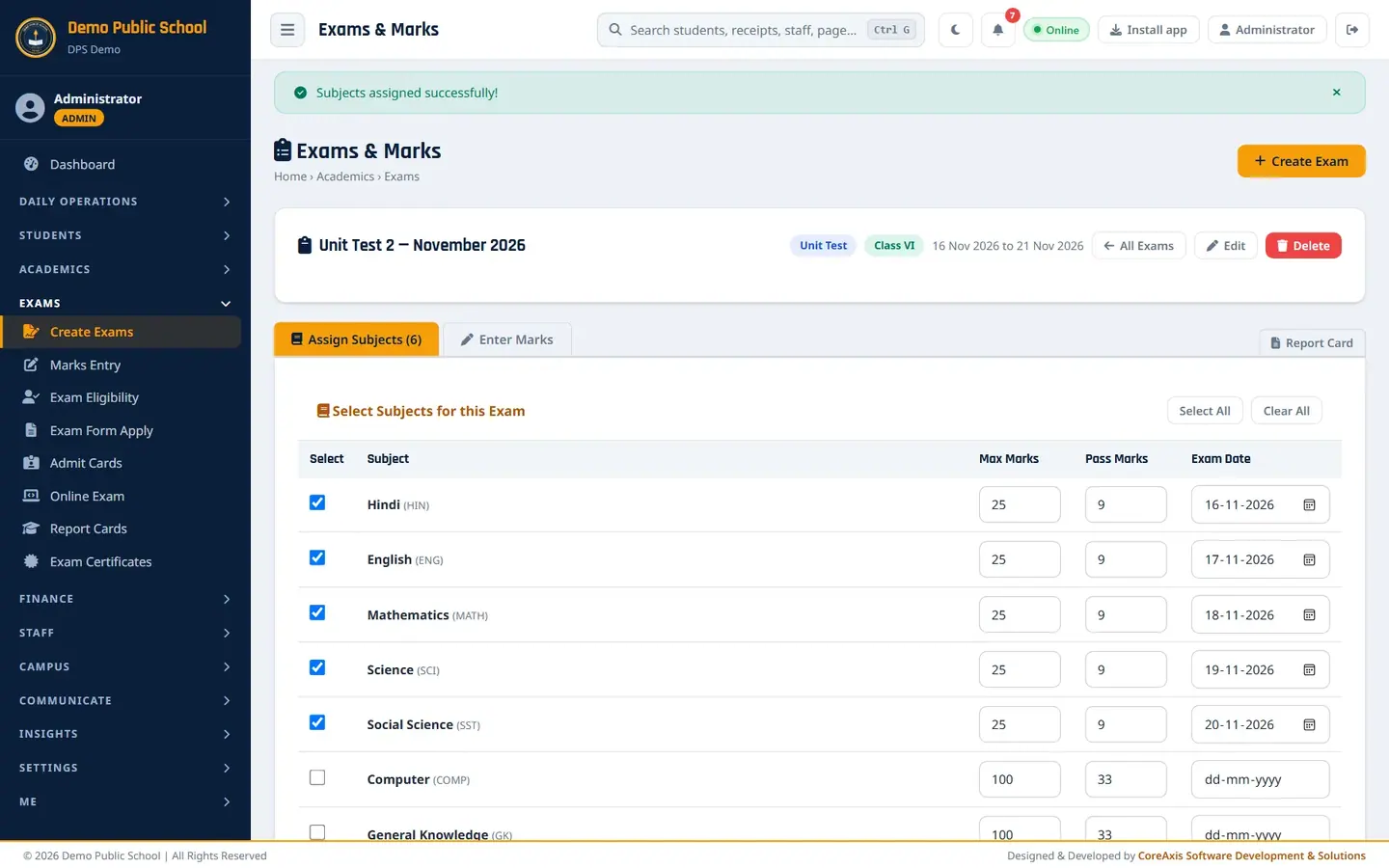
Screen at a glance
- Create Exam
- Opens the form for a new exam.
- All Exams — 2026-27
- The exams of the current session, newest first.
- Exam Name / Type / Class / Dates
- Name, type (Unit Test, Half Yearly, Annual / Yearly, Pre-Board), the class (or All) and the date range.
- Results
- Published (students and parents can see the marks) or Not published. Admin and Principal see a Publish / Hide button next to it.
- Subjects
- Opens the exam on the Assign Subjects tab.
- Marks
- Opens the exam on the Enter Marks tab.
- Report card icon
- Opens Report Cards with this exam's class and exam already chosen.
- Exam header (inside an exam)
- Type and class badges, dates, All Exams, Edit (change name, type, class or dates) and Delete (removes the exam and all its marks). Delete is shown to Admin and Principal only. For an All Classes exam, Edit is also Admin and Principal only.
Create an exam (example: Unit Test 2 — November 2026 for Class VI)
Open Exams › Create Exams and click Create Exam.

The exam list with the Create Exam button. Type Unit Test 2 — November 2026 in Exam Name.
Pick Unit Test in Exam Type and Class VI in Class.
Set Start Date to 16-11-2026 and End Date to 21-11-2026.
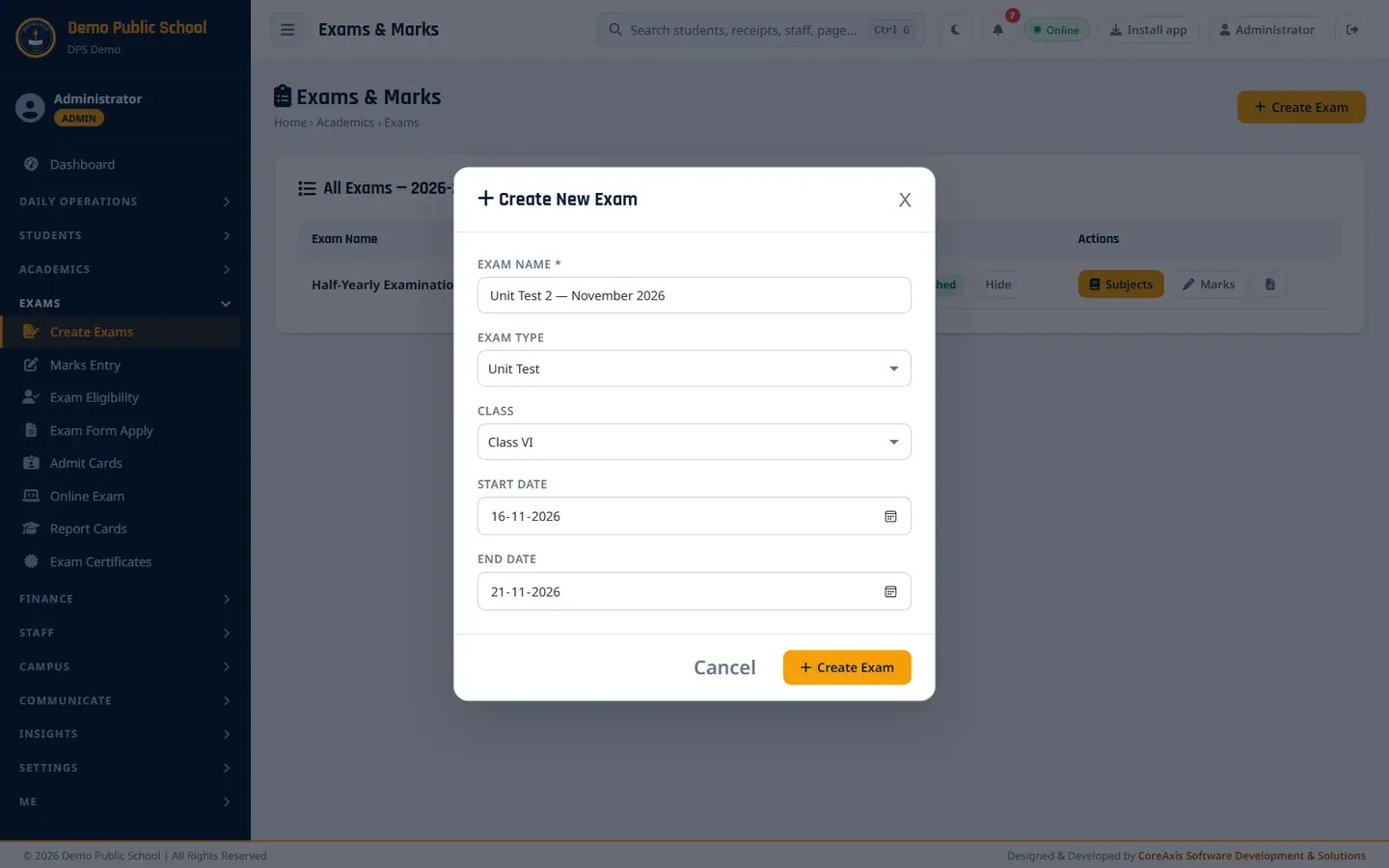
The Create New Exam form. Click Create Exam and confirm. The message "Exam created! Now assign subjects." appears and the exam opens on the Assign Subjects tab.

A new exam: no subjects ticked yet.
TipChoose All Classes for a school-wide exam such as the Half-Yearly or Annual exam: you set the subjects and dates once, and marks are entered class by class (the Enter Marks tab has a Class box). Choose one class for a class test or a test with its own subjects.
TipTeachers can create exams only for their own class. All Classes is for Admin and Principal; teachers still see All Classes exams and enter marks for their own class.
Choose the subjects, marks and dates
Unit Test 2 covers six subjects, 25 marks each, pass mark 9, one subject a day.
Tick Select for Hindi, English, Mathematics, Science, Social Science and Sanskrit. Leave Computer, General Knowledge and Drawing unticked. Select All and Clear All tick or untick every row.
In each ticked row, set Max Marks to 25 and Pass Marks to 9.
Set each Exam Date: Hindi 16-11-2026, English 17-11-2026, Mathematics 18-11-2026, Science 19-11-2026, Social Science 20-11-2026, Sanskrit 21-11-2026.
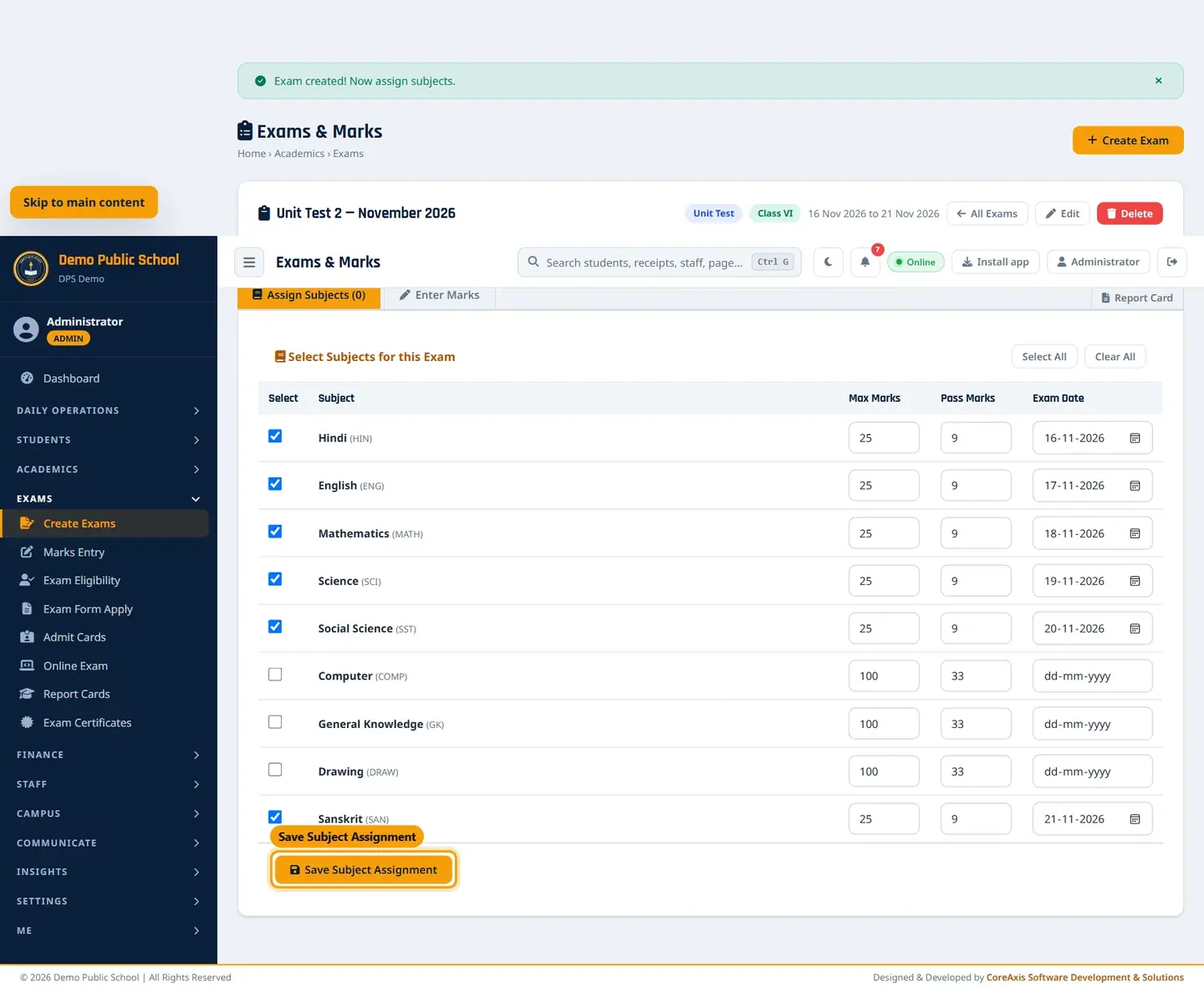
Six subjects ticked with 25 / 9 marks and dates. Click Save Subject Assignment and confirm. The message "Subjects assigned successfully!" appears and the tab reads Assign Subjects (6).
Saved: the exam now has 6 subjects.
TipThe subject dates and marks print on the admit card schedule. Pass marks decide pass / fail on the report card.
TipThe list shows the subjects taught in the exam's class (see Academics › Subjects).
Publish results
After marks are entered and checked (see Marks Entry), publish the exam so students and parents can see the marks. Only the Principal or an Admin can publish.
Open Exams › Create Exams. In the exam's row the Results column shows Not published.
Click Publish next to it.
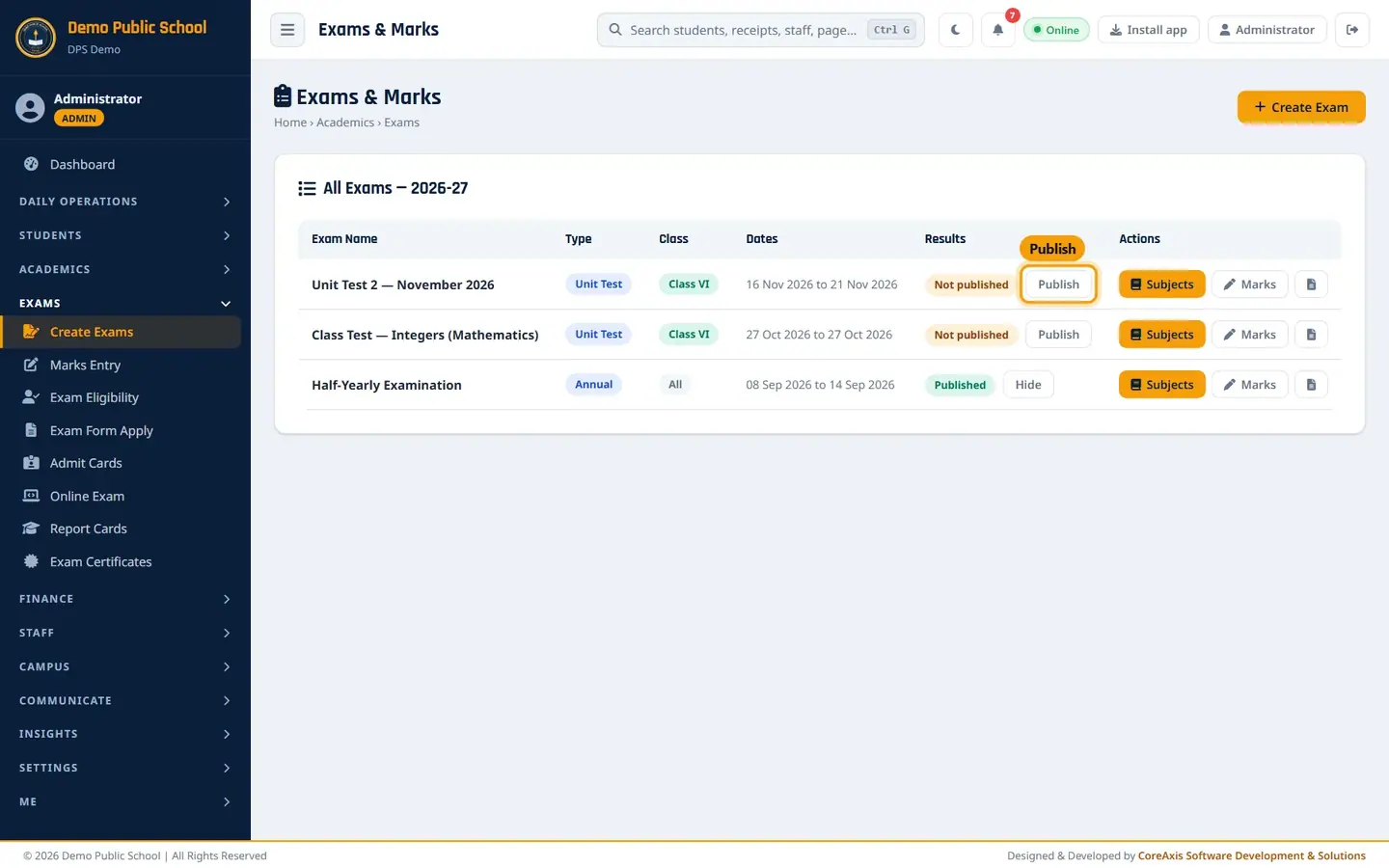
The Publish button in the Results column. Click Publish in the confirmation popup.

Confirm publishing. The message "Results published. Students and parents can now see the marks." appears and the badge turns green: Published.
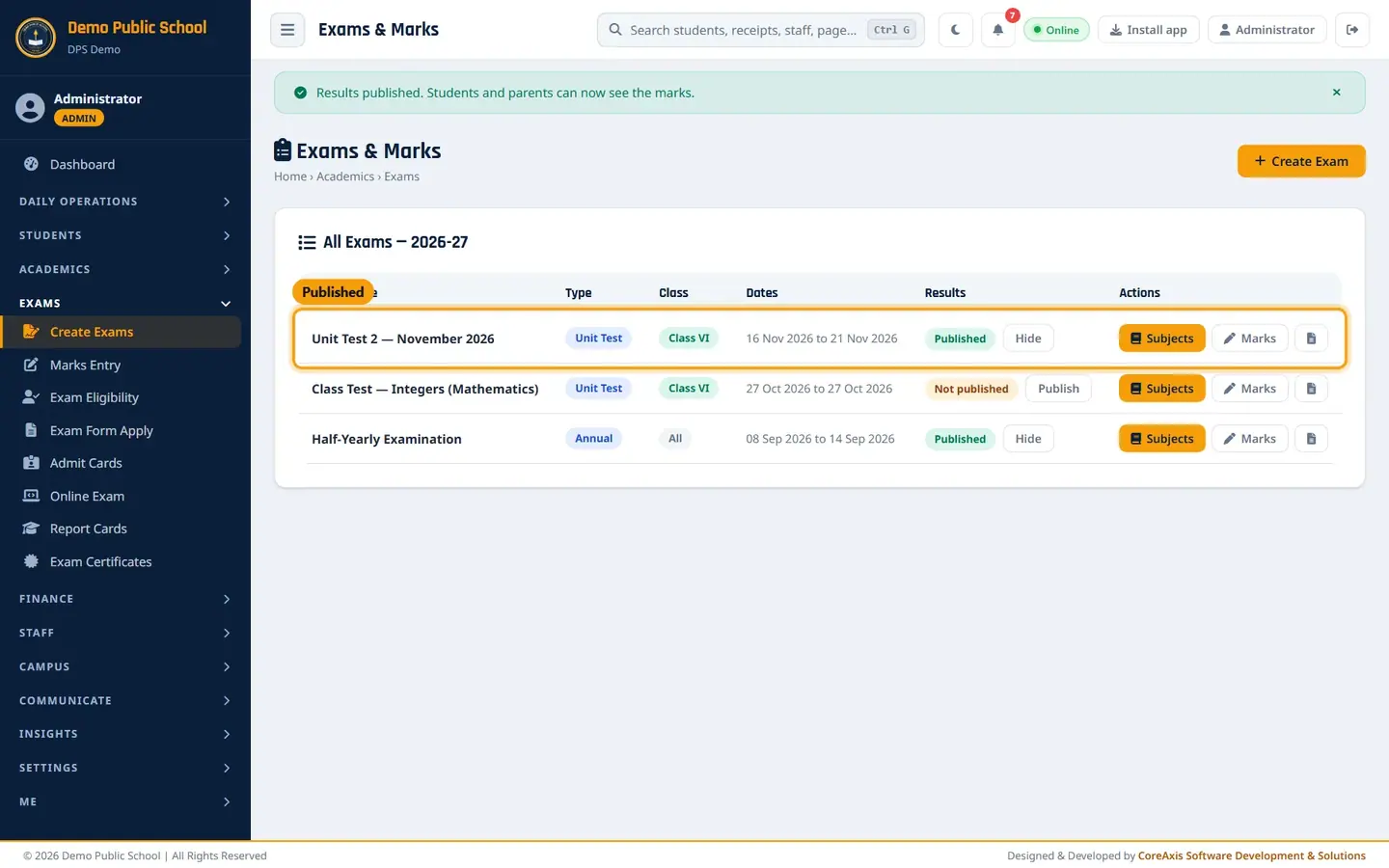
Unit Test 2 is published. Students and parents now see the marks under Results in the portal and the mobile app.

Aarav Sharma's portal shows his Unit Test 2 marks subject by subject.
TipClick Hide to take results back from the portal, for example to correct a mark. Publish again when done.
TipMarks can still be changed after publishing. Parents see the change at once, so check marks before you publish.
Edit or delete an exam
Open the exam (click Subjects in its row).
Click Edit to change the name, type, class or dates, then Save in the form.
Click Delete only for an exam created by mistake. Confirm twice. Only Admin and Principal see the Delete button.
ImportantDelete removes the exam and ALL its marks. It cannot be reversed. Do not delete a published exam that parents have already seen; use Hide instead.
Questions
Which exam type should I choose?
Unit Test for class tests and periodic tests, Half Yearly for Term I, Annual / Yearly for the final exam, Pre-Board for Class X and XII practice. On the report card, Term I is usually the Half Yearly exam and Term II the Annual exam.
Unit Test 2 is held for every class. Do I create it many times?
You have two choices. Create it once for All Classes: the subjects, marks and dates are the same for every class, and marks are entered class by class (each class teacher sees their own class). Or create one exam per class with the same name (Unit Test 2 — November 2026) when classes have different subjects or dates.
Can a teacher publish results?
No. Teachers can create exams and enter marks for their own class. Only the Principal or an Admin sees the Publish / Hide and Delete buttons.