 CoreAxis School ERP
Exams · Chapter 22
Report Cards
Report Cards turns the marks entered in Marks Entry into a printed Academic Record for each student: subject-wise Term I and Term II marks, grand total, grade, percentage, class rank, attendance, co-scholastic and discipline areas, the promotion line (on the final result only) and the grading scale. You choose the class, the Term I exam and (later in the year) the Term II exam, and one of four designs. As with admit cards, the first print is registered as the ORIGINAL in the Document Register.
Screen at a glance
- Marksheet Generation Rules
- Enter marks first; Term I = Half Yearly / Unit Test exam; Term II = Annual / Final exam; rank is worked out class-wise by percentage.
- Grade Scale (CBSE Pattern)
- A+ 91–100% Outstanding, A 81–90% Excellent, B+ 71–80% Very Good, B 61–70% Good, C+ 51–60% Above Avg, C 41–50% Average, D 33–40% Below Avg, E below 33% Fail.
- Select Class *
- The class to print. The student list below loads when you pick it.
- Student (blank = all)
- All Students in Class, or one student.
- Term I Exam (Half Yearly) / Term II Exam (Annual)
- The exams whose marks fill the two halves of the card. Choose — None — for a term not held yet.
- Report Card Design
- #1 Classic Blue, #2 Royal Maroon, #3 Emerald, #4 Royal Purple.
- Generate & Print Report Cards
- Opens the cards in a new tab.
- Students table
- Roll No, Admission No, Student Name, Father and a Report Card button for one student.
Print report cards for a class (example: Class VI, Term I = Half-Yearly Examination)
Open Exams › Report Cards.
Pick Class VI in Select Class. The page reloads with the 25 students of Class VI.
Pick Half-Yearly Examination in Term I Exam (Half Yearly). Leave Term II Exam (Annual) as — None — until the annual exam is over.
Keep All Students in Class and choose a design, for example #1 Classic Blue.

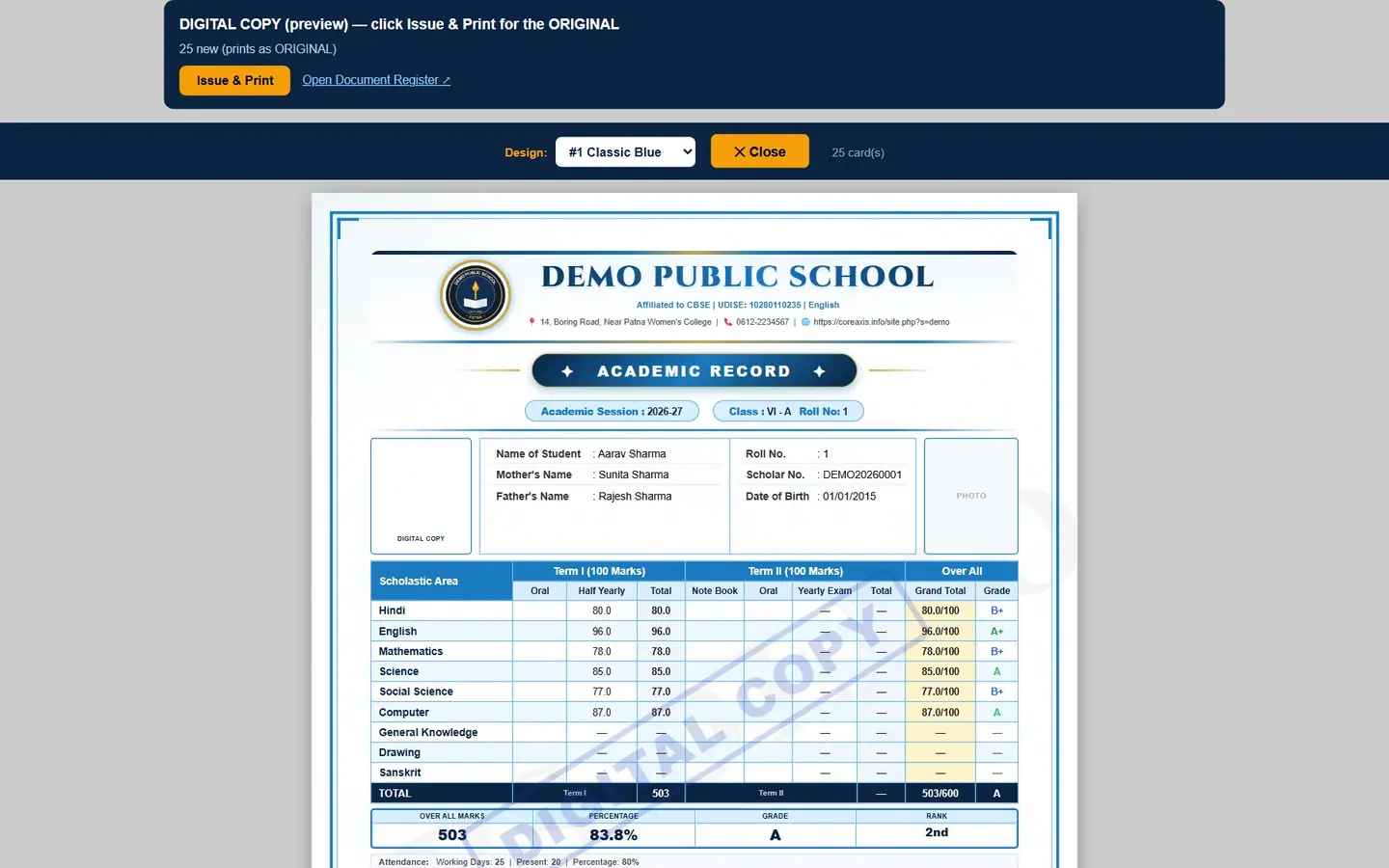
Generate Academic Record for Class VI. Click Generate & Print Report Cards. A new tab opens with 25 cards as a DIGITAL COPY (preview).
Aarav Sharma: 503/600, 83.8%, grade A, rank 2nd. Scroll through the cards and check marks, attendance and rank. Change the Design list in the top bar to try another colour.

The same card in #2 Royal Maroon. Check the bottom of the card. A Term I card ends with the grading scale, the Class Teacher's Remarks line and the signatures. It has no promotion line, because promotion is decided on the final result.
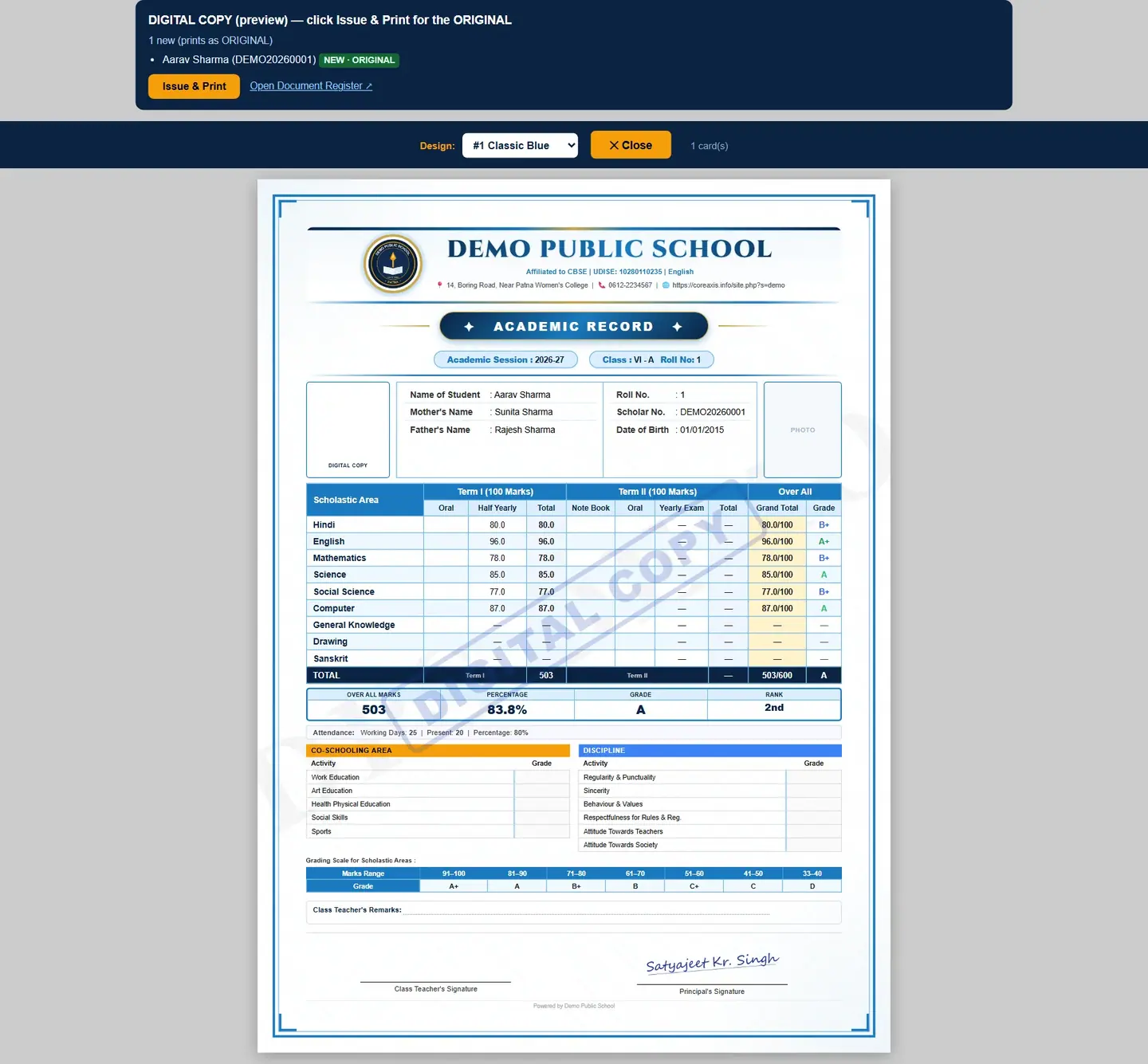
Aarav Sharma's full Term I card: no promotion line; the Principal's signature (Satyajeet Kr. Singh) at the bottom. Click Issue & Print. The cards are registered as ORIGINAL and the print window opens. Print on A4.
TipTo print one student's card, click Report Card in that student's row.
TipThe blank Oral and Note Book columns, co-scholastic grades, discipline grades and the Class Teacher's Remarks line are left for the teacher to fill in by hand.
TipSubjects with no marks in the chosen exams print with dashes.
TipThe promotion line (for example "Congratulations! Promoted to Class VII") prints only when a Term II (Annual) exam is chosen, that is on the final result of the year. It follows the promotion rule set in School Profile.
One student or one exam from the exam list
Pick the class, then pick the student in Student (blank = all), or use the Report Card button in the students table.
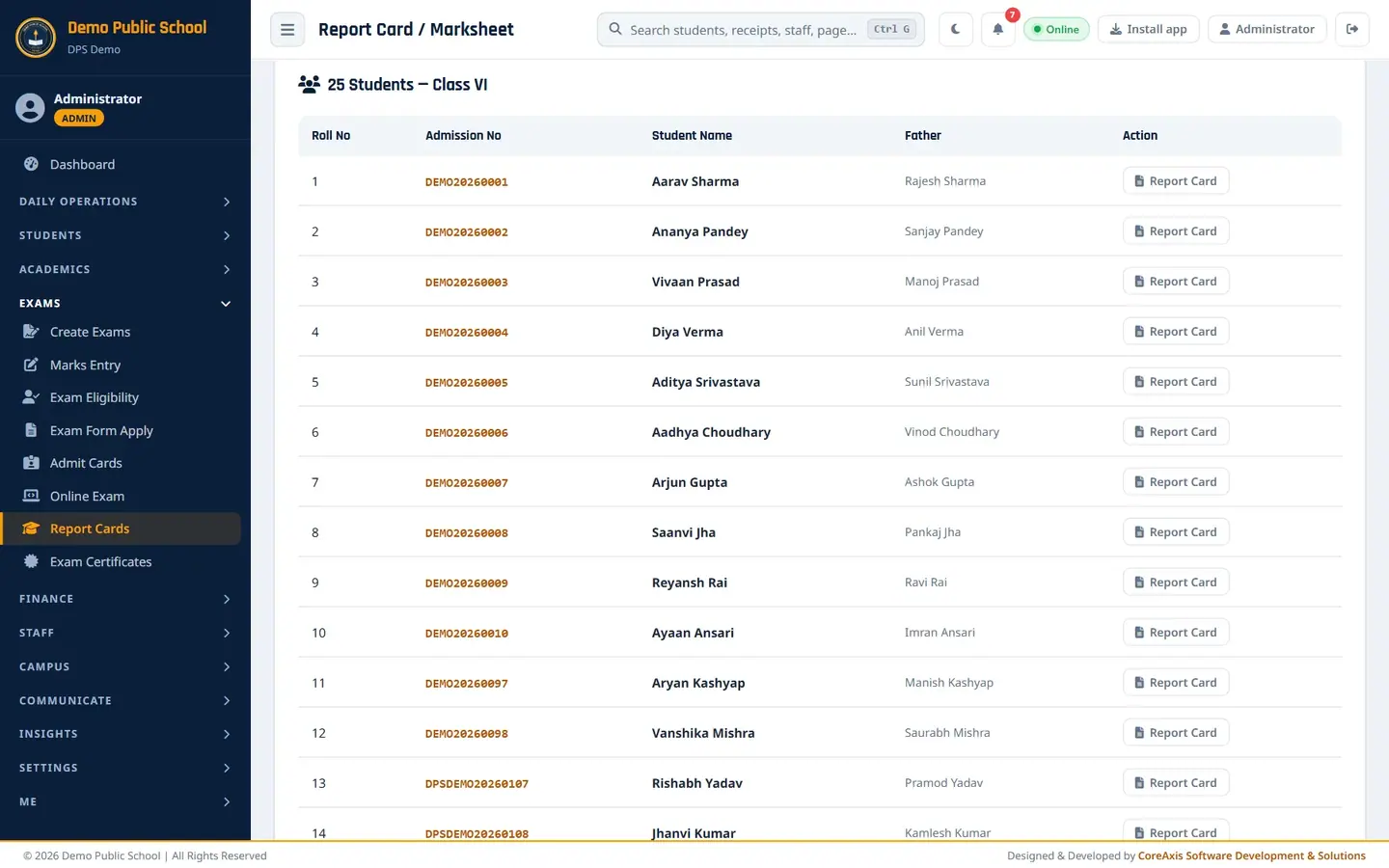
Report Card button per student. From Exams › Create Exams you can also click the report-card icon in an exam's row; it opens this page with that exam as Term I.
Questions
The rank looks wrong.
Rank is worked out from the percentage of all students of the class in the chosen exams. Check that every student's marks are entered and saved in Marks Entry.
Can parents download the report card?
Yes, from Report & Admit Cards in the portal. Their download is marked DIGITAL COPY; the stamped ORIGINAL is the one the school prints.
Can I use a unit test as Term I?
Yes. Any exam of the session can be chosen for either term; the column heading on the card still reads Half Yearly / Yearly Exam.