 CoreAxis School ERP
Exams · Chapter 18
Exam Eligibility
Exam Eligibility is the first step of the exam workflow: Eligibility → Exam Form Apply → Admit Card → Marks Entry → Report Card → Certificate. You set the rules for an exam (minimum attendance and whether fees must be clear), run an automatic check for a class, and then review the result. Only students marked Approved can have their exam form submitted and get an admit card. The Principal can let a student sit the exam in spite of the rules with Force Apply.

Screen at a glance
- Step 1: Select Exam & Set Rules
- Select Exam, Filter Class, and the Eligibility Rules box: Min Attendance % and Fee Clearance Required, with Save Rules.
- Step 2: Auto-Check Eligibility
- Pick a class and click Auto-Check (Attendance + Fee). The note beside it repeats the rules in use.
- Total Applied / Eligible / Ineligible / Pending
- Counts of students checked for this exam and their status.
- Step 3: Review & Manage Applications
- Filter buttons All / Eligible / Ineligible / Pending, and Print Admit Cards (n) once a class is selected and some students are eligible.
- Bulk bar
- Tick students, then Mark Eligible / Mark Ineligible + Apply to Selected, or Force Apply Form.
- Attendance column
- OK (meets the minimum) or Low.
- Fees column
- Clear (no tuition dues to date) or Dues.
- Status / Remarks
- Approved, Rejected or Pending, with the reason (for example Fee dues pending (₹1,000) or Attendance 68% < 75%).
- Actions
- Pencil = Edit Status, purple bolt = Force Apply Exam Form, bin = remove the student's application. A green Applied badge replaces the bolt once the form is submitted.
Check eligibility for an exam (example: Unit Test 2, Class VI — 75% attendance, fees clear)
Open Exams › Exam Eligibility and pick Unit Test 2 — November 2026 — Class VI in Select Exam.
In Eligibility Rules, enter 75 in Min Attendance % and tick Fee Clearance Required.
Click Save Rules and confirm. The message "Eligibility rules saved." appears.
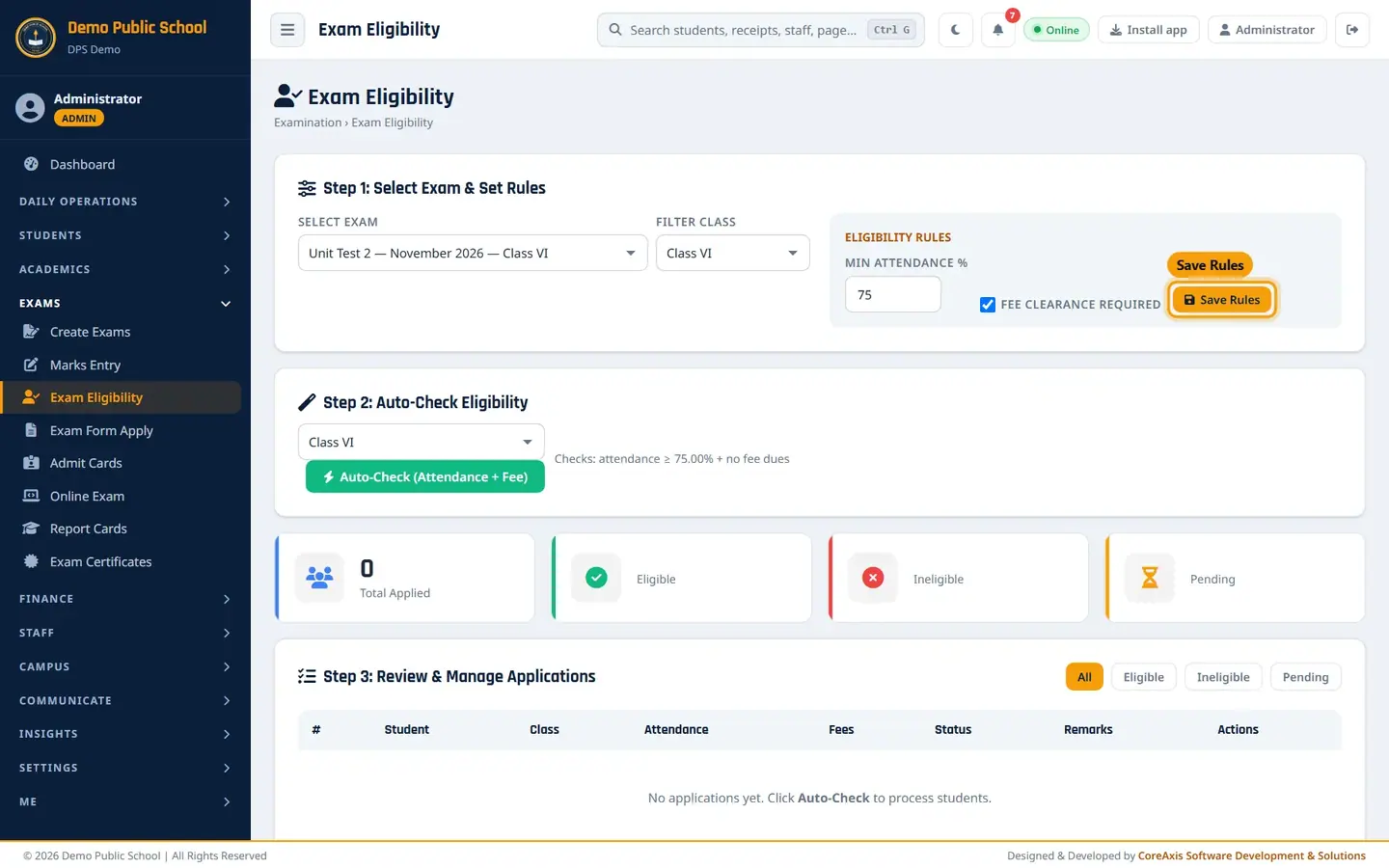
Step 1: exam and rules. In Step 2, pick Class VI and click Auto-Check (Attendance + Fee).
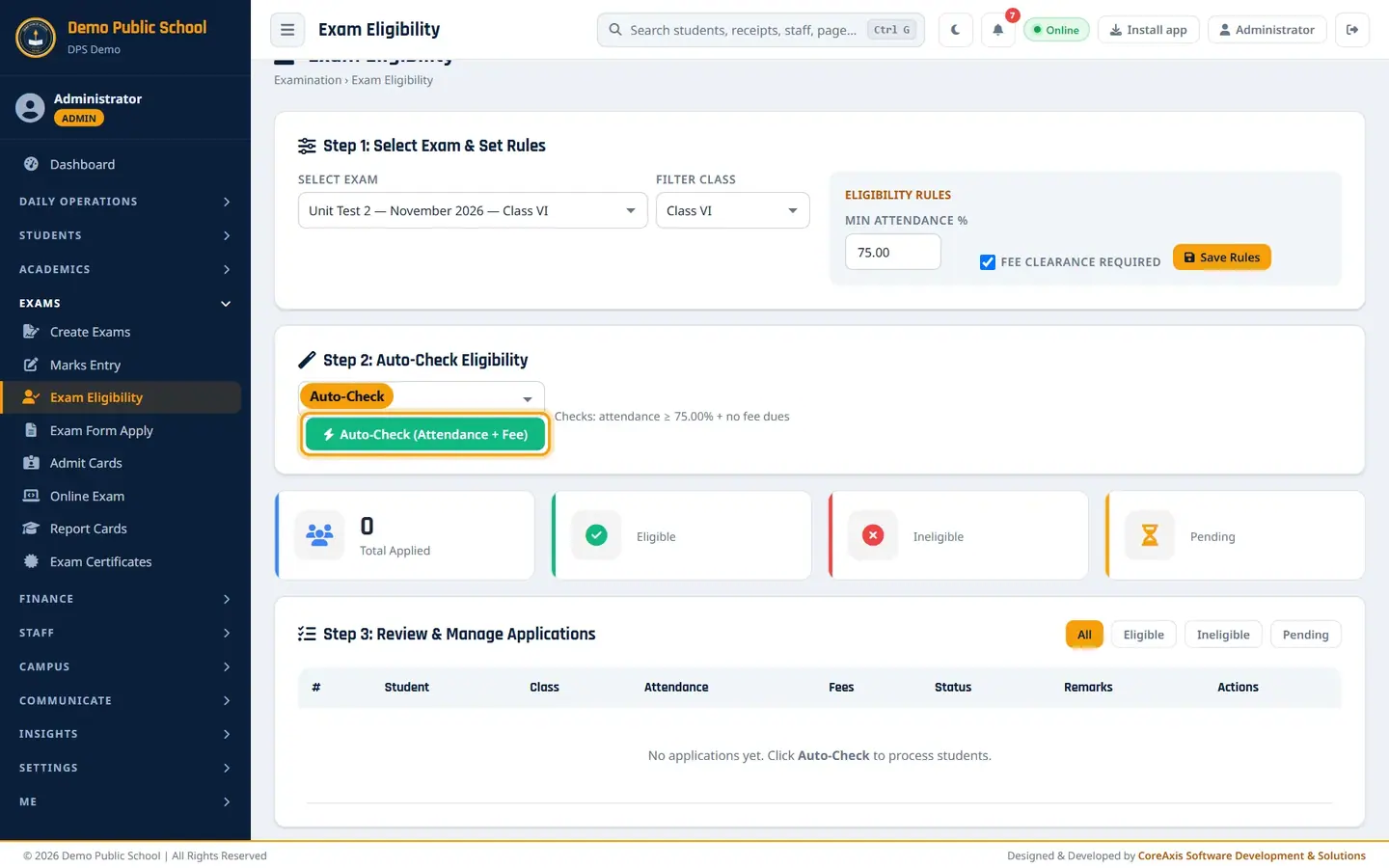
Step 2: run the automatic check for the class. Read the popup ("Auto-check will update all student statuses based on attendance and fee rules. Continue?") and click Confirm.

Confirm the auto-check. The message "Auto-check complete: 13 eligible, 12 ineligible." appears. Step 3 lists each student with Attendance, Fees, Status and the reason.
Aarav Sharma is Rejected: Fee dues pending (₹1,000).
TipAttendance is this session's attendance (present days out of working days, holidays excluded) — the same figure as on the portal and report card.
TipFee clearance means no tuition dues up to today, the same figure as the fee defaulter list.
TipYou can run Auto-Check again after parents pay. Students whose exam form is already submitted keep their decision.
Let a student sit the exam despite the rules (Force Apply)
Aarav Sharma's father has promised to pay the ₹1,000 balance by 10 November. The Principal allows Aarav to sit the exam.
In Aarav Sharma's row, click the purple bolt (Force Apply Exam Form).

The Force Apply button. In Reason / Remark, type: Special permission by Principal — balance of ₹1,000 to be paid by 10 Nov 2026.

Force Apply Exam Form with the reason. Click Force Apply. The popup asks: "Force apply the exam form for this student? This bypasses the eligibility rules." Click Confirm.

Force Apply asks for confirmation with its own message. The message "Exam form force-applied successfully." appears. Aarav is now Approved and his exam form is marked submitted.
TipTo force-apply several students together, tick them and click Force Apply Form in the bulk bar.
Change a student's status by hand
Click the blue pencil (Edit Status) in the student's row.
Pick Pending, Approved (Eligible) or Rejected (Ineligible) in Status and write a Remarks line.

Update Eligibility. Click Update.
For many students at once, tick them (or tick the box in the header row to select every student in the list), choose Mark Eligible or Mark Ineligible and click Apply to Selected. The change applies to every ticked row.
Next step
The counters now read 25 applied, 14 eligible, 11 ineligible. Go to Exam Form Apply to submit the forms of approved students, or click Print Admit Cards to go straight to the admit cards.

Summary after the auto-check and one force-apply.
Questions
Do I have to use Exam Eligibility for every exam?
Only if you want admit cards with that exam's schedule. The Admit Card page lists only Approved students of the chosen exam, so an exam that was never checked shows no students there. For a class test without admit cards you can skip it.
A parent paid today. How does the student become eligible?
Run Auto-Check again for the class, or set the student to Approved (Eligible) with Edit Status.
What does the bin do?
It removes the student's eligibility record for this exam (asks to confirm). Run Auto-Check again to recreate it.