 CoreAxis School ERP
Communicate · Chapter 44
Notices
The Notice Board is where the school posts circulars and announcements. Each notice is addressed to All, Teachers, Students or Parents, and appears on the dashboards and in the student / parent portal for that audience. If SMS is set up, a short SMS can be sent with the notice. For a formal printed circular on the letterhead, use Letterhead & Letters.
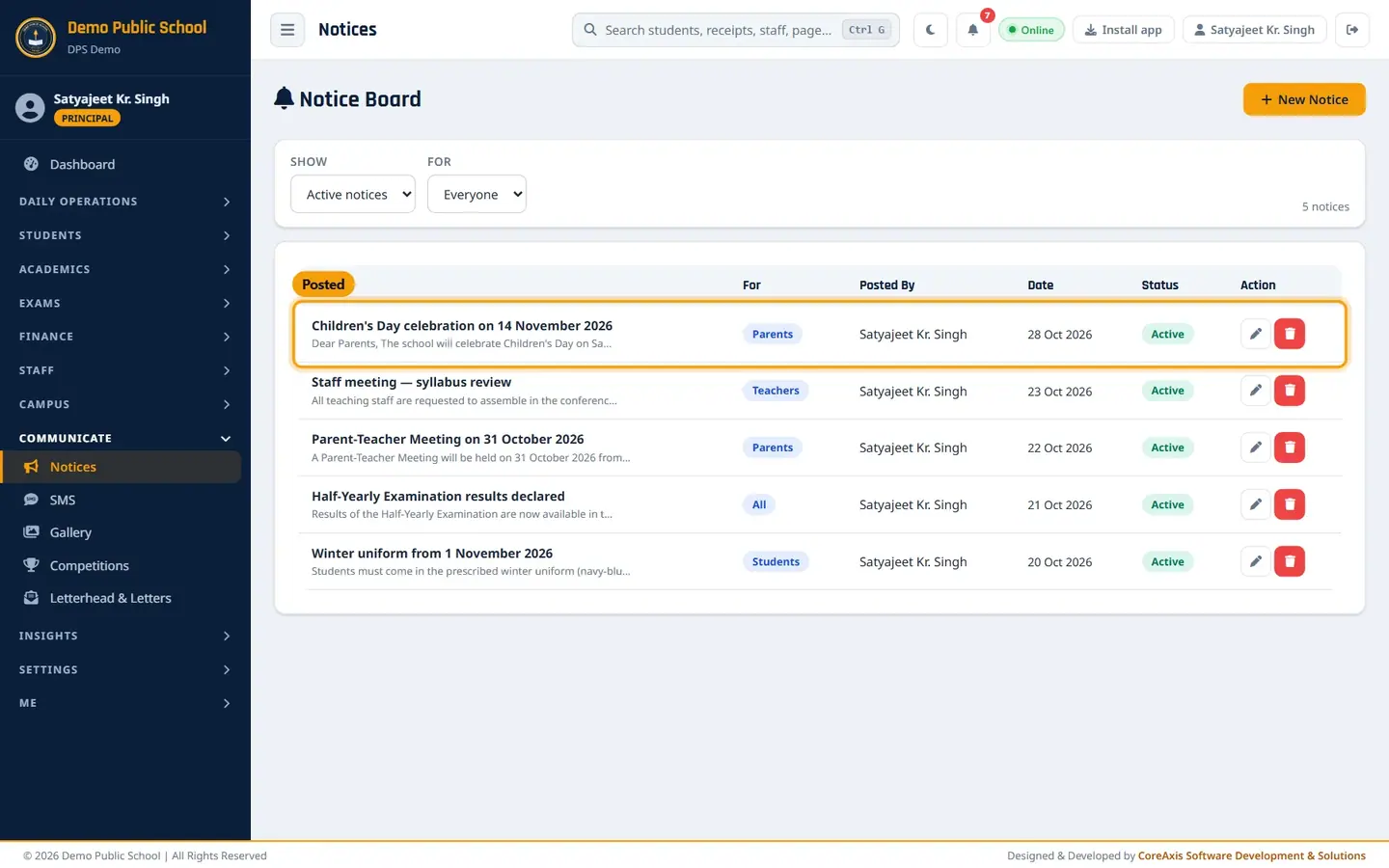
Post a notice to parents (example: Children's Day celebration on 14 November 2026)
Open Communicate › Notices and click New Notice.
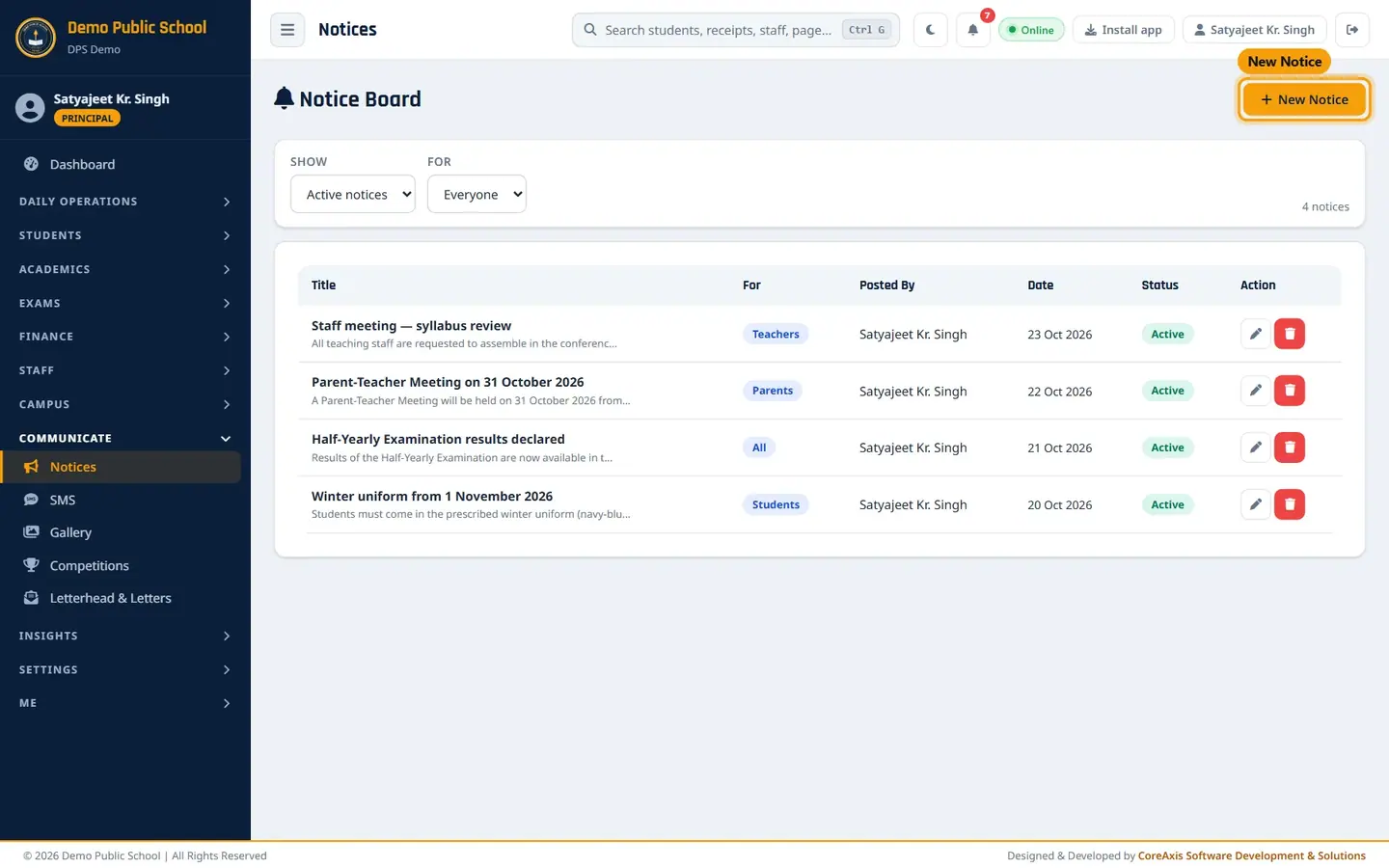
Notice Board with active notices. Type the Title (Children's Day celebration on 14 November 2026).
In For, choose who should see it: Parents. Choose All for everyone, Teachers for staff only, or Students.
Check the Date (today by default).
Type the Content. Line breaks are kept.
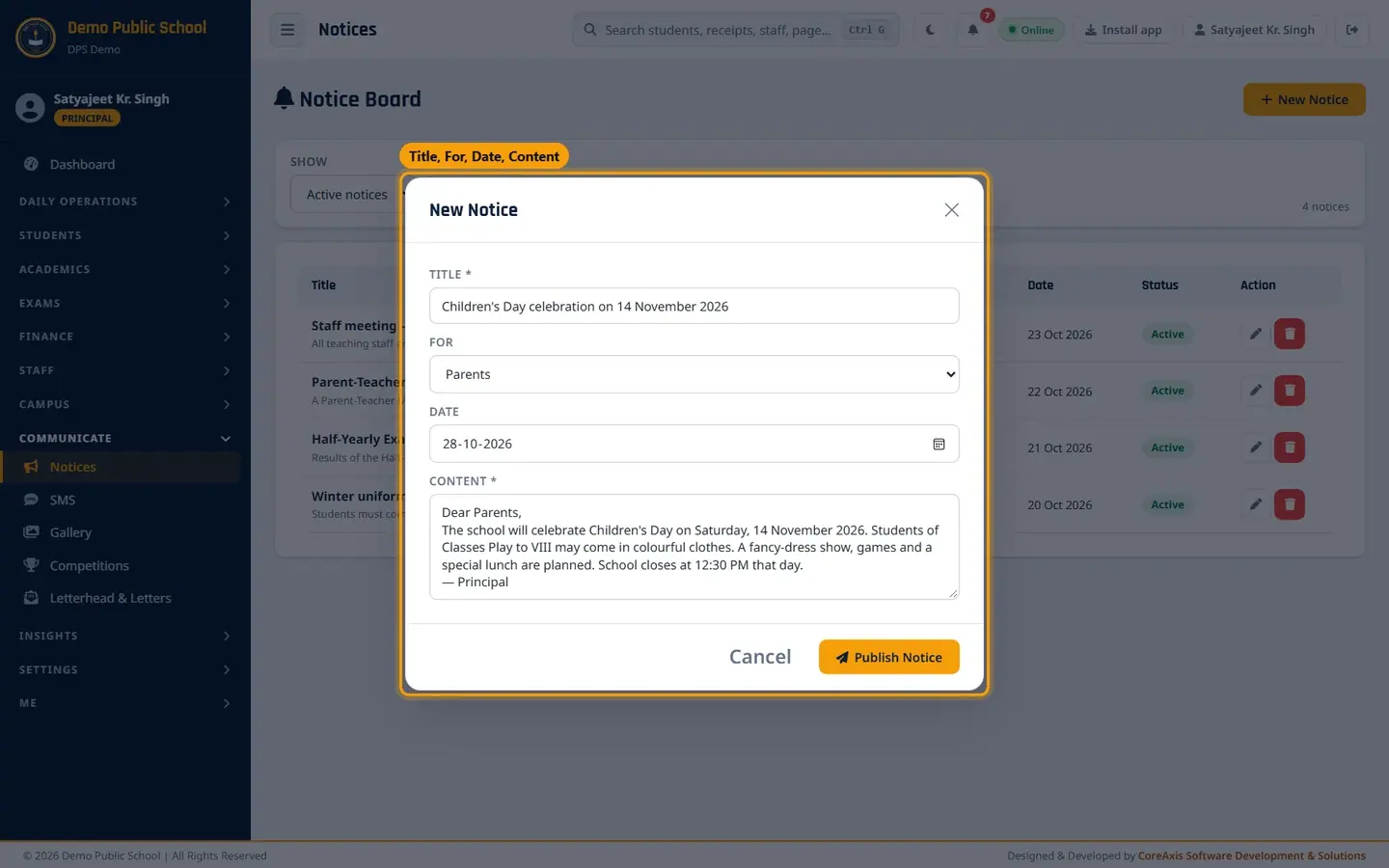
New Notice form. If SMS is enabled and allowed with notices, a tick box Also send as SMS to this notice's audience appears (Teachers go to teaching staff; Students / Parents go to parents; All goes to both). Tick it only when the notice is urgent; each SMS costs credit.
Click Publish Notice and confirm. The notice is at the top of the list as Active.
The new notice for Parents.
Find, edit or remove a notice
Use Show (Active notices, Removed, All) and For (Everyone, All, Teachers, Students, Parents) to filter the list.
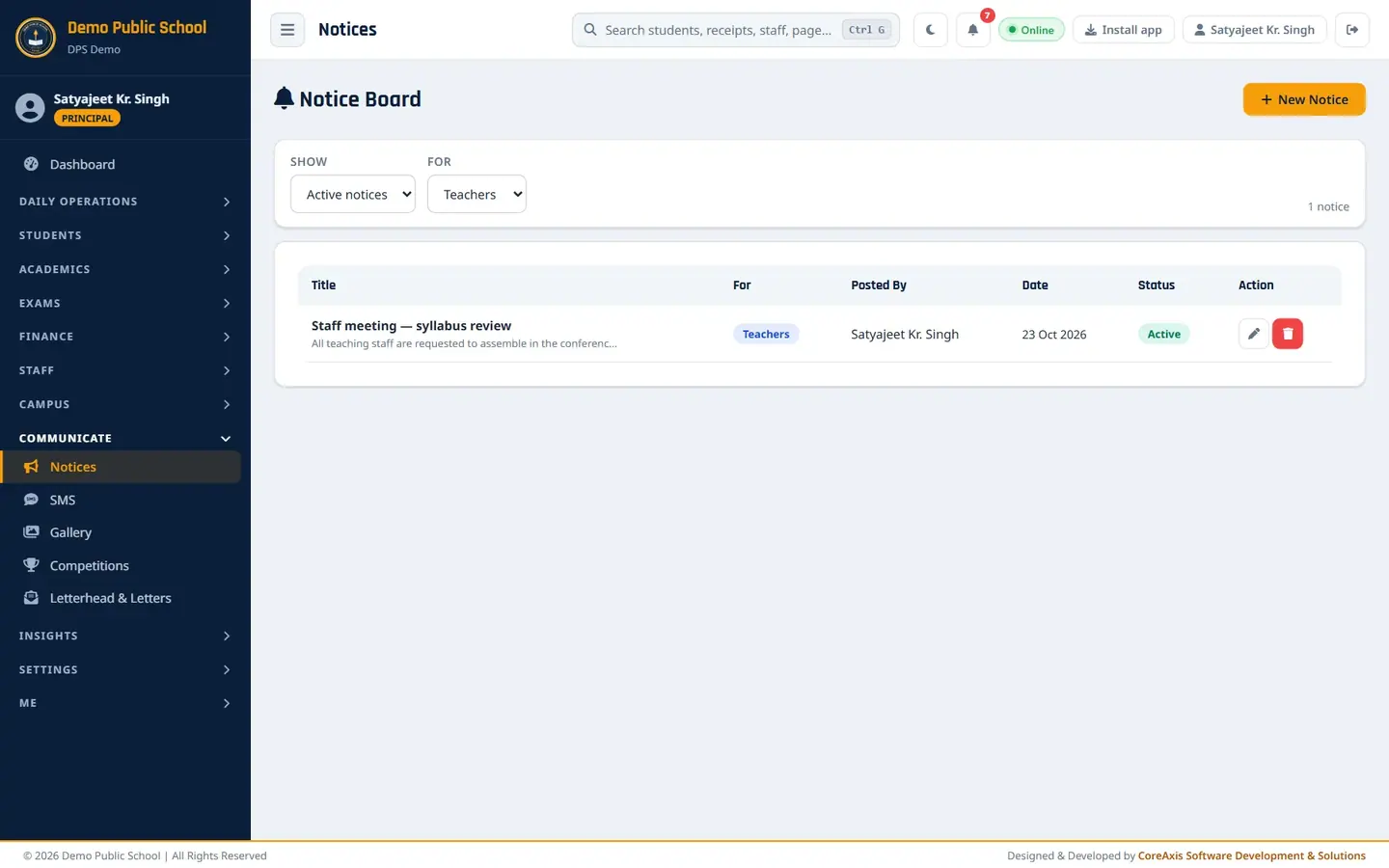
Only notices for Teachers. Click the pencil icon to correct a notice and save again.
Click the red icon (Remove) to take a notice off the board. Removed notices stay under Show › Removed.
Teachers and notices
Teachers open Notices from their menu. They see the same board and can post a notice with New Notice, for example a class test reminder for parents.
Notice Board signed in as a teacher.

Teacher view of the Notice Board.
Screen at a glance
- Title
- Notice heading, with the first line of the content below.
- For
- Audience: All, Teachers, Students or Parents.
- Posted By / Date
- Who posted it and the notice date.
- Status
- Active (shown) or Removed.
- Action
- Edit and Remove.
Questions
Do parents get a notification?
Parents see the notice in the parent portal and app. They get an SMS only if you tick the SMS box and SMS is set up.
Can I post a notice for one class only?
Notices go to an audience (All, Teachers, Students, Parents), not to one class. To reach one class's parents, use SMS › Send SMS › Specific Class, or give the information as homework for that class.