 CoreAxis School ERP
Academics · Chapter 13
Timetable
The timetable is a grid of six days and eight periods for each class. Each period holds a subject, a teacher and an optional start and end time. The app stops you from putting one teacher in two classes at the same time. The timetable is used by Substitution (to find an absent teacher's periods and free teachers), by the teacher's view, and by the Timetable tab of the student and parent portal.
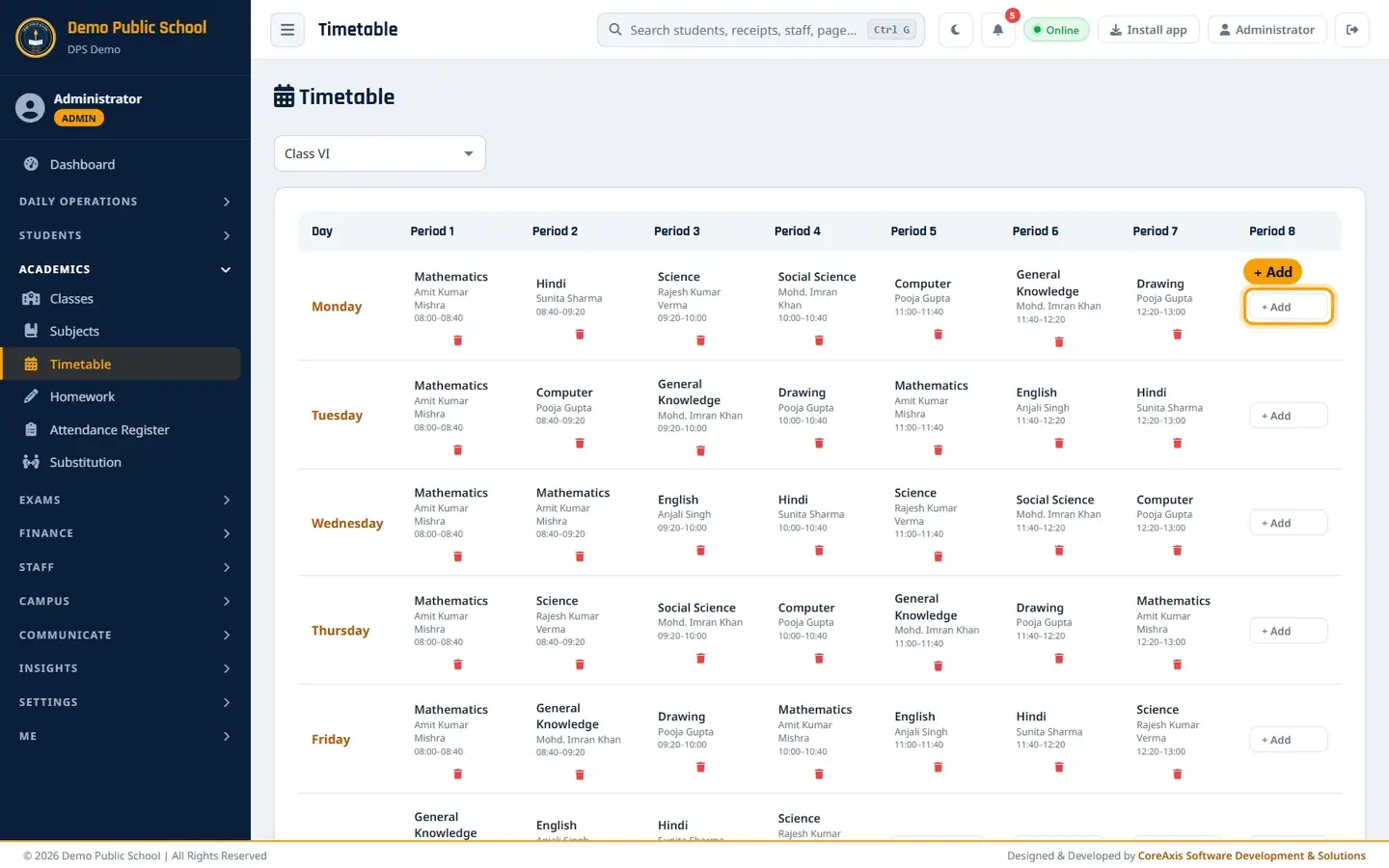
Screen at a glance
- Select Class
- Choose the class whose timetable you want to see or change. The grid opens as soon as you pick a class.
- Day rows
- Monday to Saturday.
- Period 1 – Period 8
- Each filled cell shows subject, teacher and time (for example Mathematics, Amit Kumar Mishra, 08:00–08:40).
- + Add
- An empty period. Click to add a subject and teacher.
- Click a filled period
- Opens the same form to edit subject, teacher or time.
- Red bin under a period
- Removes that period (asks to confirm).
Add a period (example: Class VI, Monday period 8 — Sanskrit with Sunita Sharma)
Open Academics › Timetable.
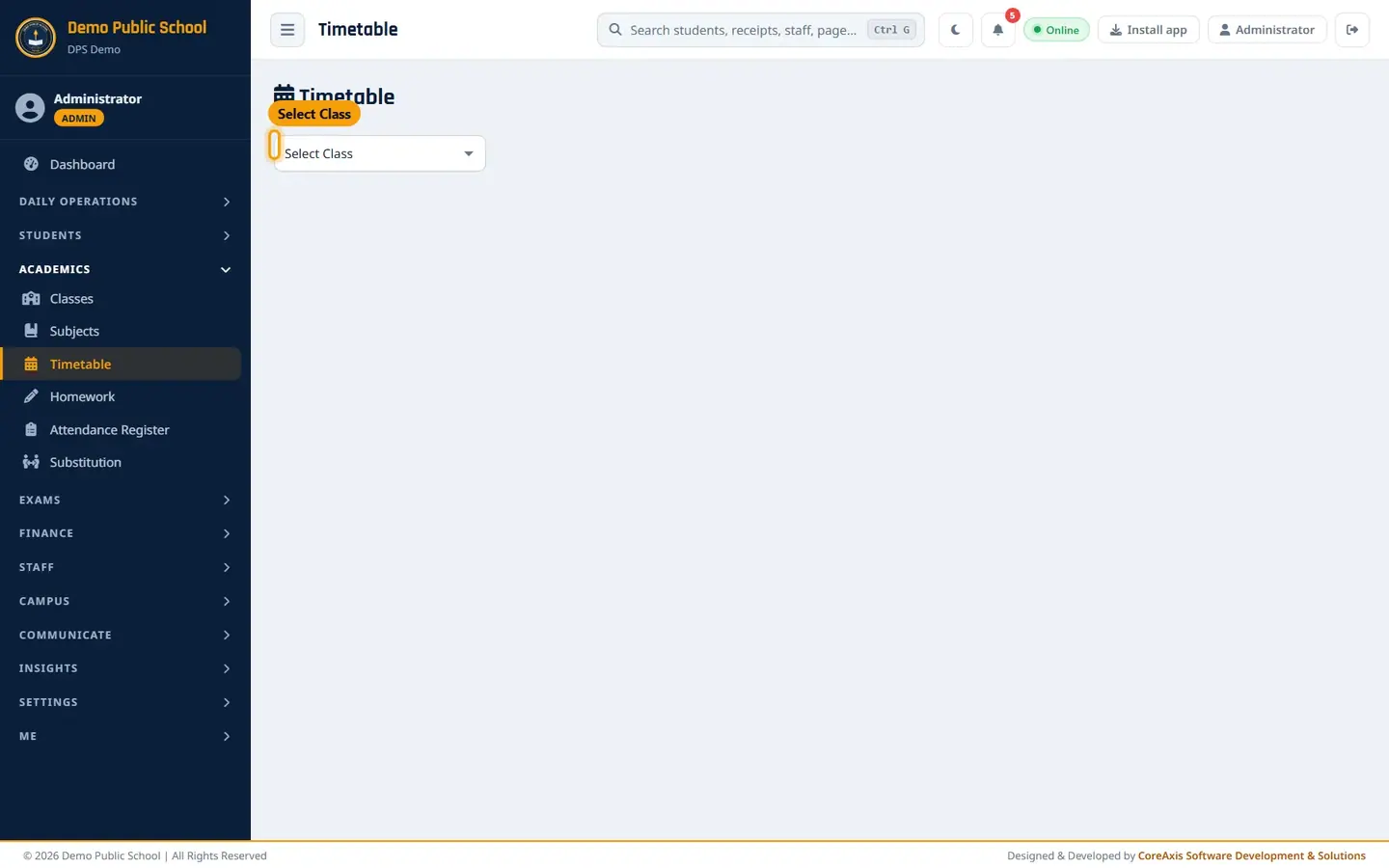
Pick a class to open its weekly grid. Pick Class VI in Select Class.
Find the Monday row and click + Add under Period 8.
Class VI timetable; Monday period 8 is empty. In the Monday — Period 8 form, pick Sanskrit in Subject and Sunita Sharma in Teacher.
Set Start Time to 13:00 and End Time to 13:40.

The period form. Click Save, then Save in the confirmation popup. The message "Timetable updated!" appears and the cell shows Sanskrit, Sunita Sharma, 13:00–13:40.

The new period in the grid.
TipTimes are in 24-hour format (13:00 = 1:00 PM). The end time must be after the start time.
TipThe subject list shows all subjects; the app refuses a subject that is not taught in the class ("That subject is not taught in this class.").
Change or remove a period
Click on the filled period (for example Tuesday, Period 5 — Mathematics). The form opens with the title Tuesday — Period 5 (Edit).

Editing an existing period. Change the subject, teacher or times and click Save, then confirm.
To empty a period instead, click the small red bin under it and confirm Remove this period?.
When a teacher is already busy (clash check)
A teacher cannot be in two classes in the same day and period. If you try, nothing is saved and a red message names the clash.
Example: in Class IX you add Monday period 1 — Mathematics with Amit Kumar Mishra. Amit already teaches Class VI in that period, so the app shows "This teacher is already assigned to Class VI in Monday period 1."
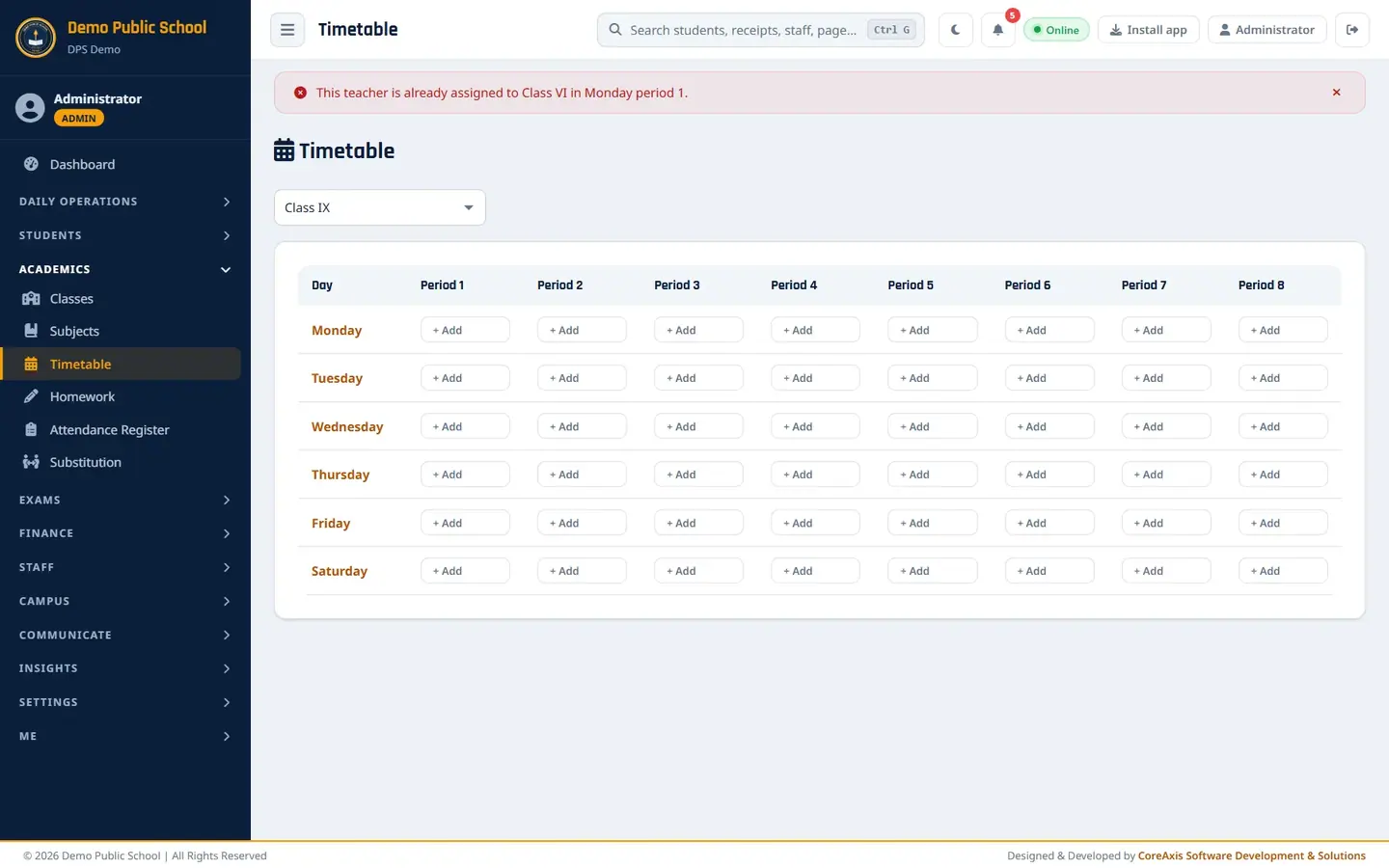
The clash message. Pick another teacher or another period.
What teachers see
Teachers open Timetable from My Class in their menu. They can add and edit periods only for the class they are class teacher of. For any other class the page shows "View only — you can edit the timetable of your own class."
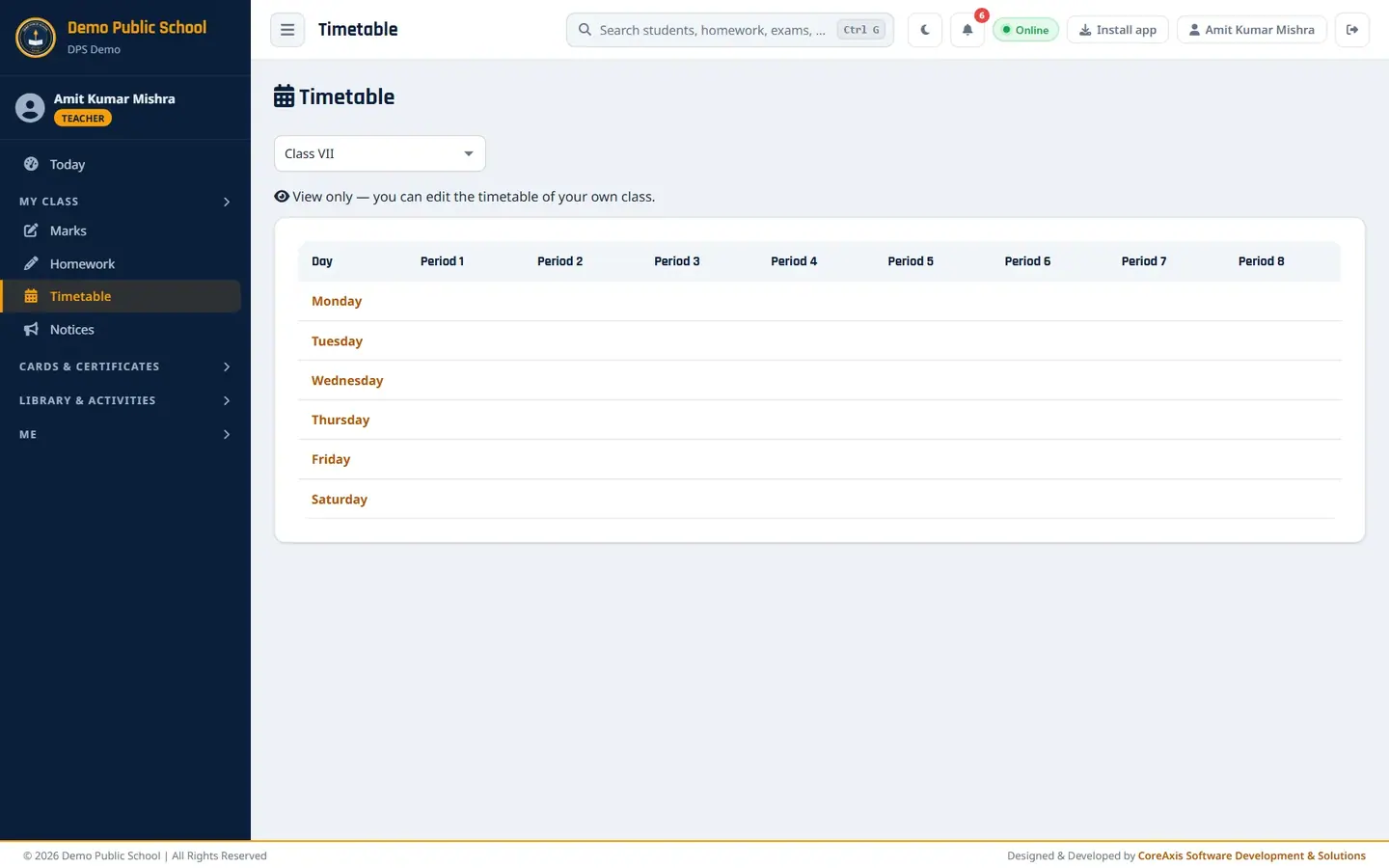
Teacher Amit Kumar Mishra viewing Class VII (view only).
Questions
How do I print a class timetable?
There is no separate print button. Open the class's timetable and use your browser's Print (Ctrl + P), choosing Landscape.
Can a period be left without a teacher?
Yes. Leave Teacher as Select. The period shows the subject with a dash for the teacher. Such periods do not appear in Substitution.
Where do parents see the timetable?
In the student and parent portal, under Timetable.