 CoreAxis School ERP
Exams · Chapter 17
Marks Entry
Marks are entered on one sheet per exam: one row per student and one column per subject assigned to the exam. Totals and percentages update as you type. For an exam set for All Classes (such as the Half-Yearly Examination) you pick the class in the Class box and enter that class's marks. Marks feed report cards, exam certificates (rank and percentage) and, once the exam is published, the Results tab of the student and parent portal. Teachers enter marks only for the class they are class teacher of.
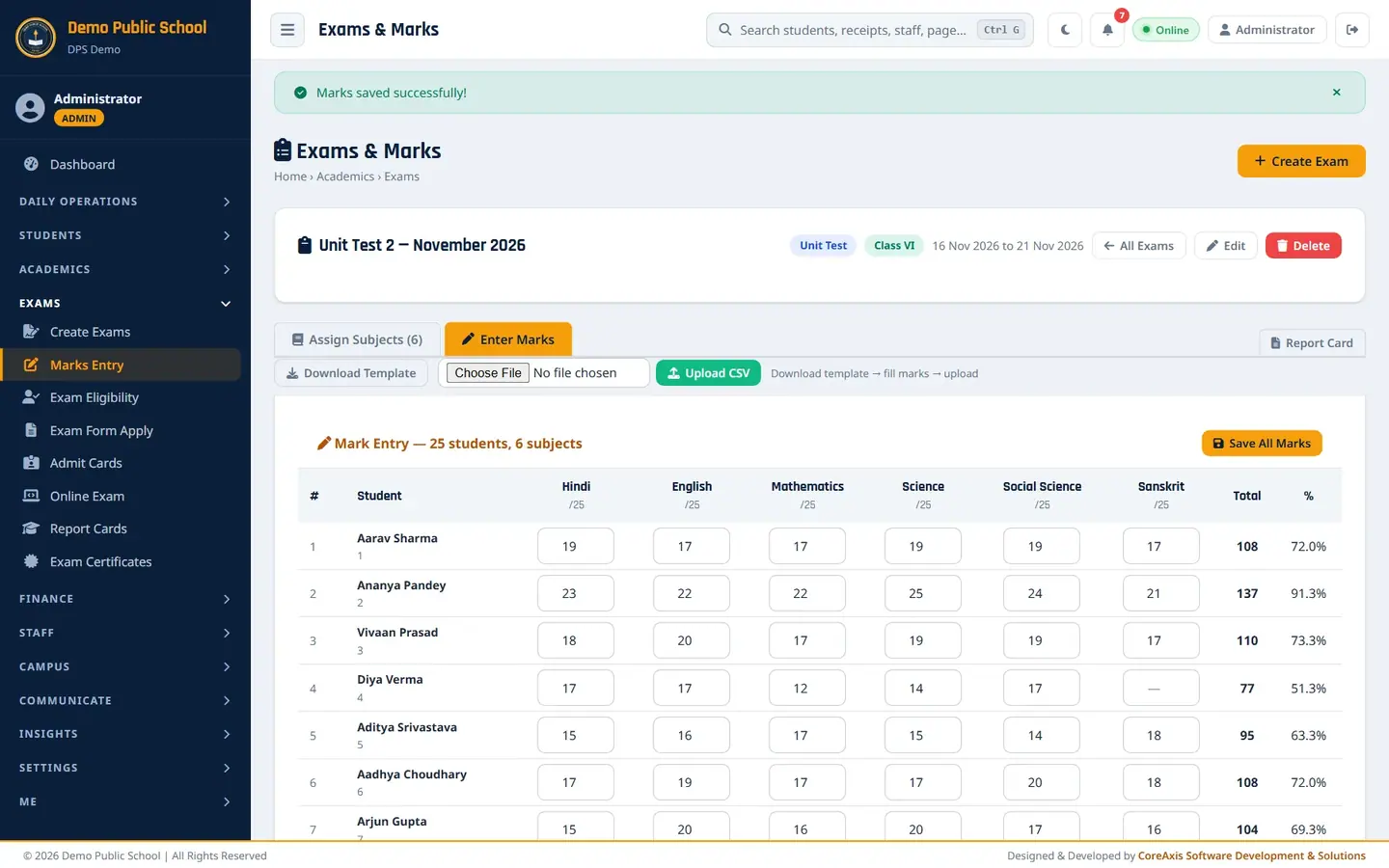
Screen at a glance
- Exam list
- Exams › Marks Entry first shows the exam list. Click Marks in an exam's row to open its sheet.
- Assign Subjects (n) / Enter Marks tabs
- Switch between the subject set-up and the marks sheet of the same exam.
- Class (All Classes exams only)
- Shown on the Enter Marks tab of an exam set for All Classes. Pick the class whose marks you are entering; the sheet reloads with that class's students. Teachers see only their own class in the list.
- Download Template
- Downloads a CSV file with one row per student and one column per subject (with its maximum).
- Choose File + Upload CSV
- Uploads the filled template and saves all marks at once.
- Mark Entry — n students, n subjects
- The sheet title. Save All Marks appears above and below the sheet.
- Student column
- Name with roll number, in roll-number order.
- Subject columns
- One box per subject; the heading shows the maximum (for example /25). An empty box shows a dash.
- Total / %
- Worked out as you type, out of the total maximum of all subjects.
- Report Card
- Opens Report Cards for this exam's class.
Enter marks (example: Unit Test 2 — November 2026, Class VI)
Open Exams › Marks Entry. In the row of Unit Test 2 — November 2026, click Marks.
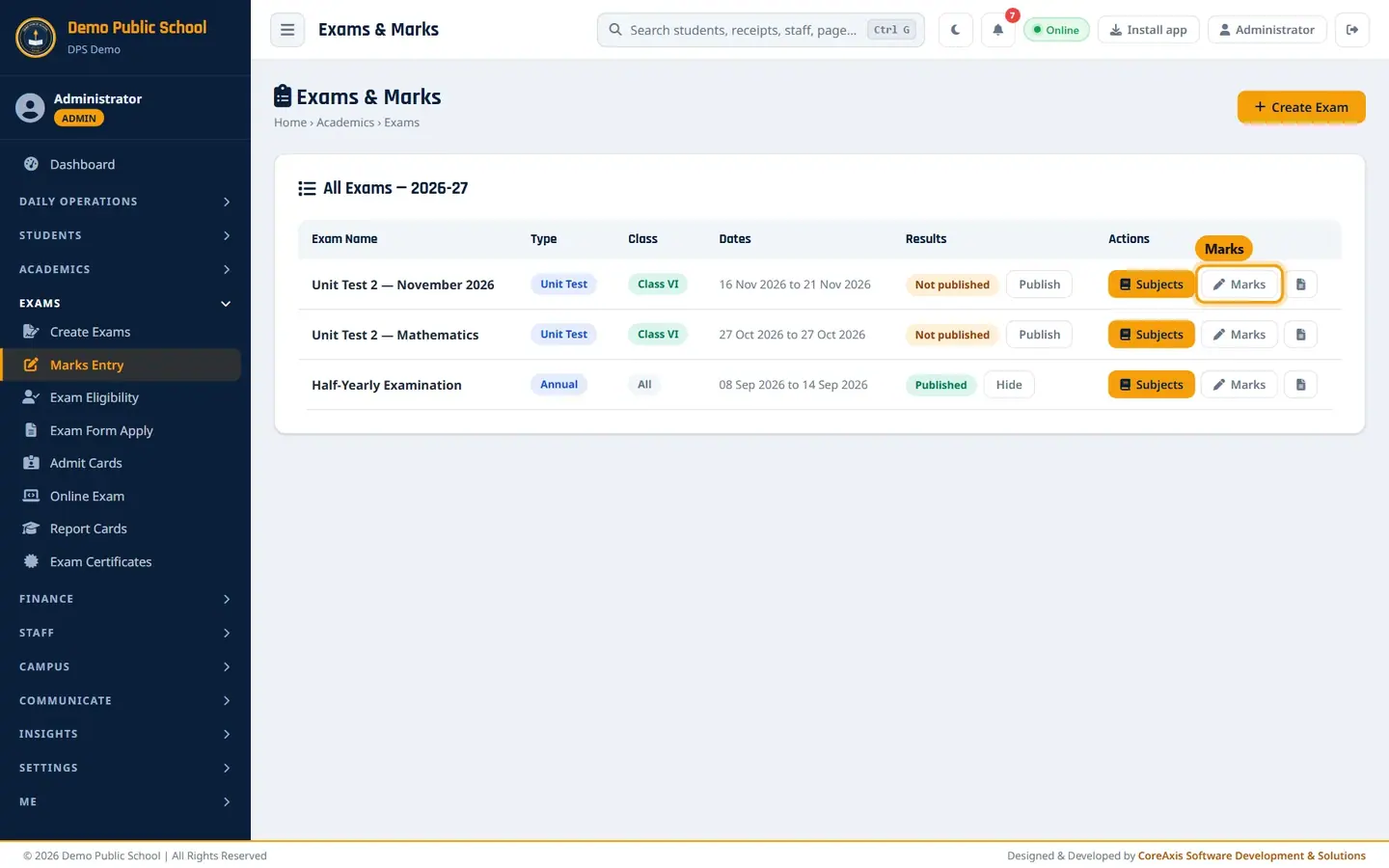
Pick the exam. The Enter Marks tab opens with 25 students and 6 subjects, each out of 25.
Type each student's marks in the subject boxes. Press Tab to move to the next box. For example, Aarav Sharma: Hindi 19, English 17, Mathematics 17, Science 19, Social Science 19, Sanskrit 17 — the Total shows 108 and % shows 72.0%.
Leave a box empty if the student was absent for that paper (Diya Verma, Sanskrit, in the example).
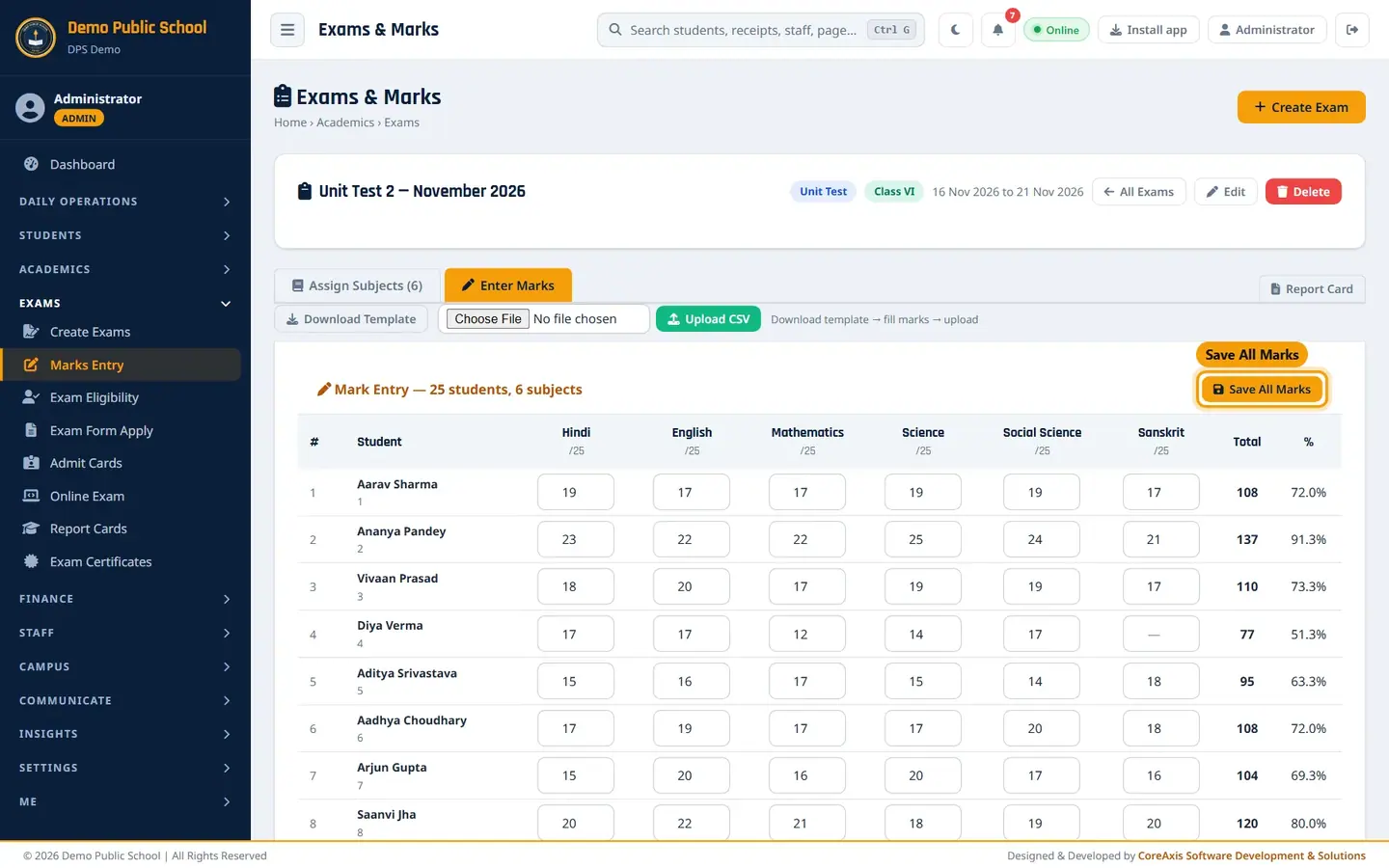
Marks typed in; totals and percentages update as you type. Click Save All Marks, then Save All Marks in the confirmation popup. The message "Marks saved successfully!" appears.
Saved: the marks show exactly as typed.
TipSave often. Marks are saved only when you click Save All Marks; leaving the page without saving loses what you typed.
TipA box does not accept more than the subject's maximum, and the app never saves more than the maximum or less than 0. Half marks such as 17.5 are allowed.
TipYou can come back and change any mark later; save again to update it.
Upload marks from Excel (CSV)
On the Enter Marks tab, click Download Template. A file named like marks_template_exam2.csv downloads.
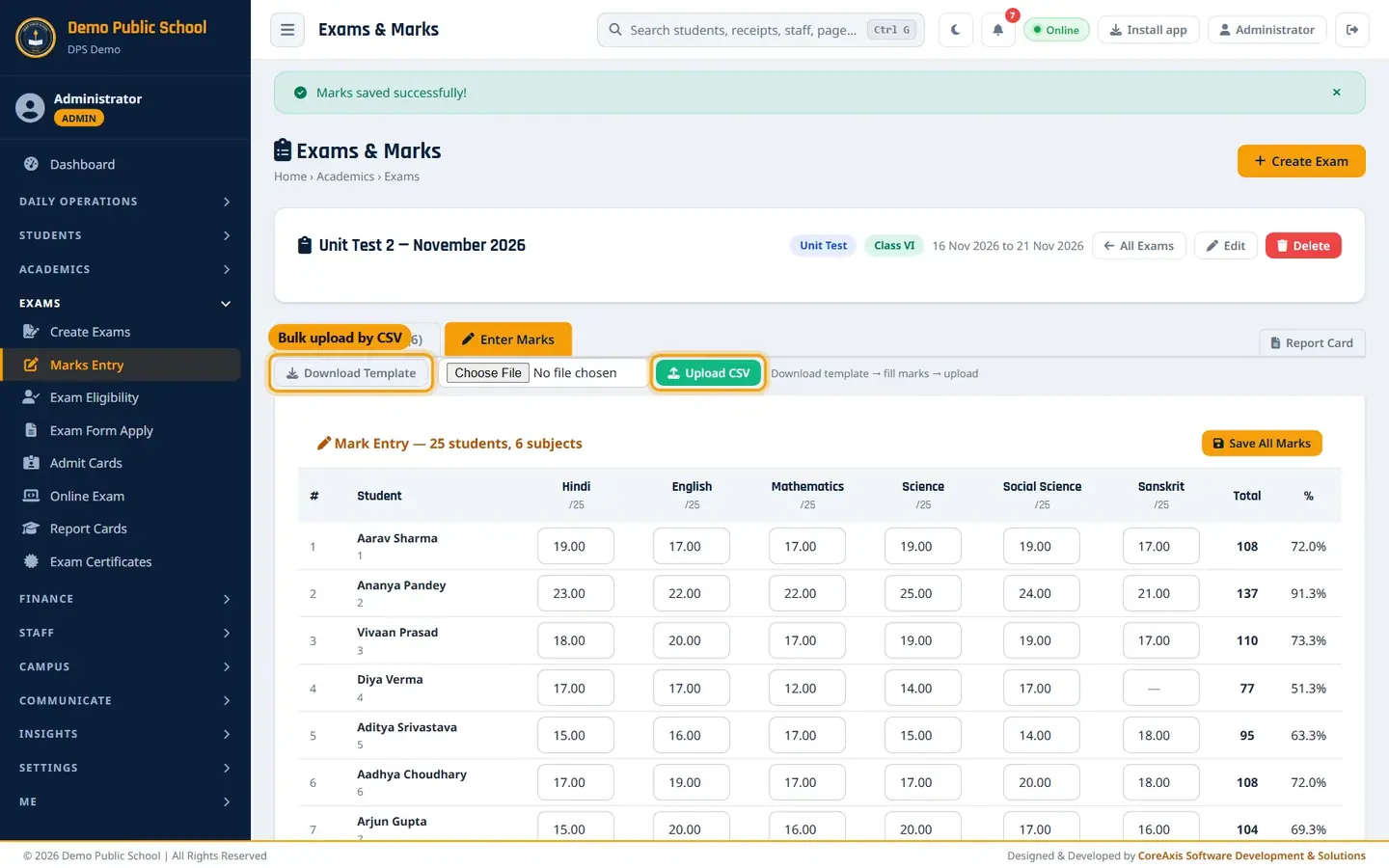
Download Template, then Upload CSV. Open the file in Excel. Do not change the first three columns (student_id, admission_no, student_name) or the header row.
Type the marks under each subject column and save the file as CSV.
Click Choose File, pick the saved CSV and click Upload CSV. The message tells you how many marks were saved and how many rows were skipped.
ImportantUploading replaces the marks of the subjects in the file. A blank cell in the CSV is saved as no mark, even if a mark was entered earlier on screen. Fill every cell, or remove columns you did not fill.
Enter marks for an All Classes exam (example: Half-Yearly Examination, Class VI-A)
The Half-Yearly Examination was created once for All Classes. Its marks are entered class by class.
Open Exams › Marks Entry. In the row of Half-Yearly Examination (Class: All), click Marks.
On the Enter Marks tab, pick VI - A in the Class box. The sheet reloads with the 25 students of Class VI-A and the exam's 6 subjects, each out of 100.
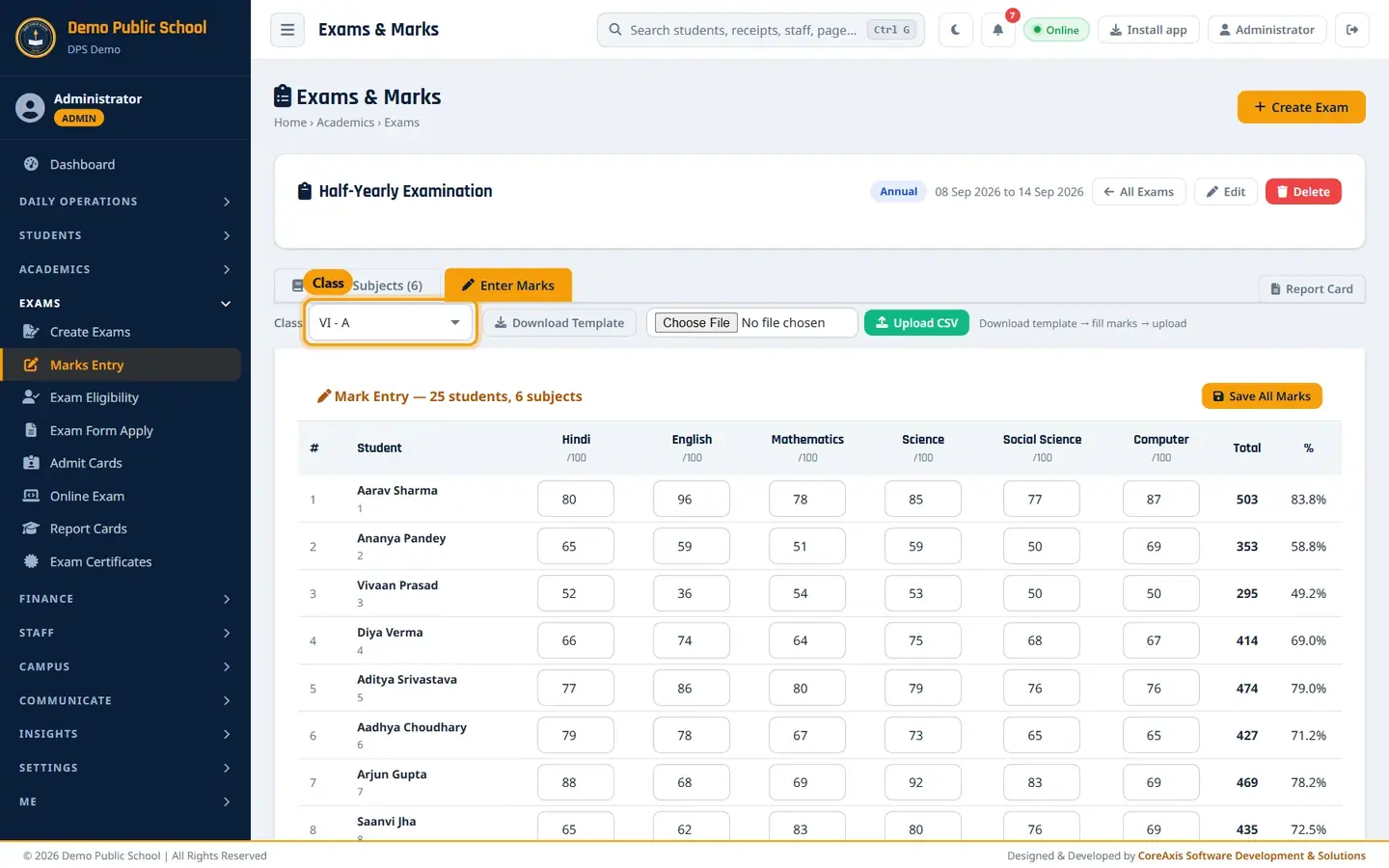
The Class box appears only for an All Classes exam. Type or correct the marks, for example Aarav Sharma: Hindi 80, English 96, Mathematics 78, Science 85, Social Science 77, Computer 87 (Total 503, 83.8%).
Click Save All Marks and confirm. Only the marks of the class shown are saved.
Pick the next class in the Class box and repeat.
TipDownload Template and Upload CSV also work for the class chosen in the Class box.
TipA class teacher sees only their own class in the Class box, so each teacher enters the marks of their own class.
Lock and publish rules
- Before publishing
- Marks are visible only to staff. Students and parents see nothing for this exam.
- Publish
- Only the Principal or an Admin can publish (Exams › Create Exams › Publish). Students and parents then see the marks under Results.
- After publishing
- Marks are not locked. Any change you save shows in the portal at once. To correct marks quietly, click Hide, fix and save, then Publish again.
- Who can enter marks
- Admin and Principal for every class. A teacher for their own class only, and only if their role has the Marks permission.
- All Classes exams
- The sheet lists one class at a time. Pick the class in the Class box, enter and save its marks, then pick the next class. Subjects, maximum marks and dates are the same for every class.
Teacher's view
A class teacher opens Marks from My Class. The list shows their class's exams and the exams set for All Classes (Amit Kumar Mishra sees the Class VI exams and the Half-Yearly Examination).
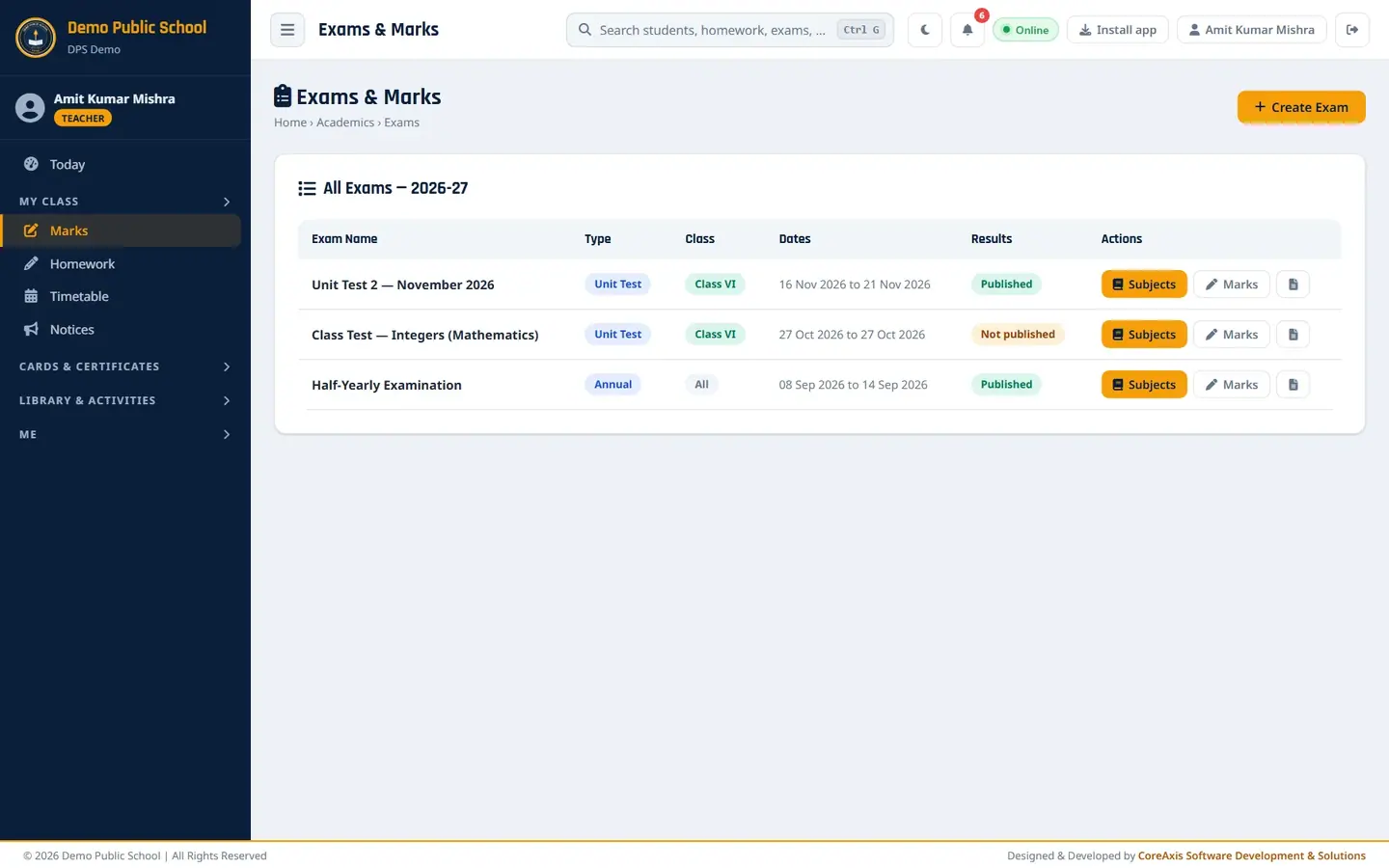
Teacher: Class VI exams and the All Classes Half-Yearly, with no Publish button. The marks sheet works the same way as for the office.
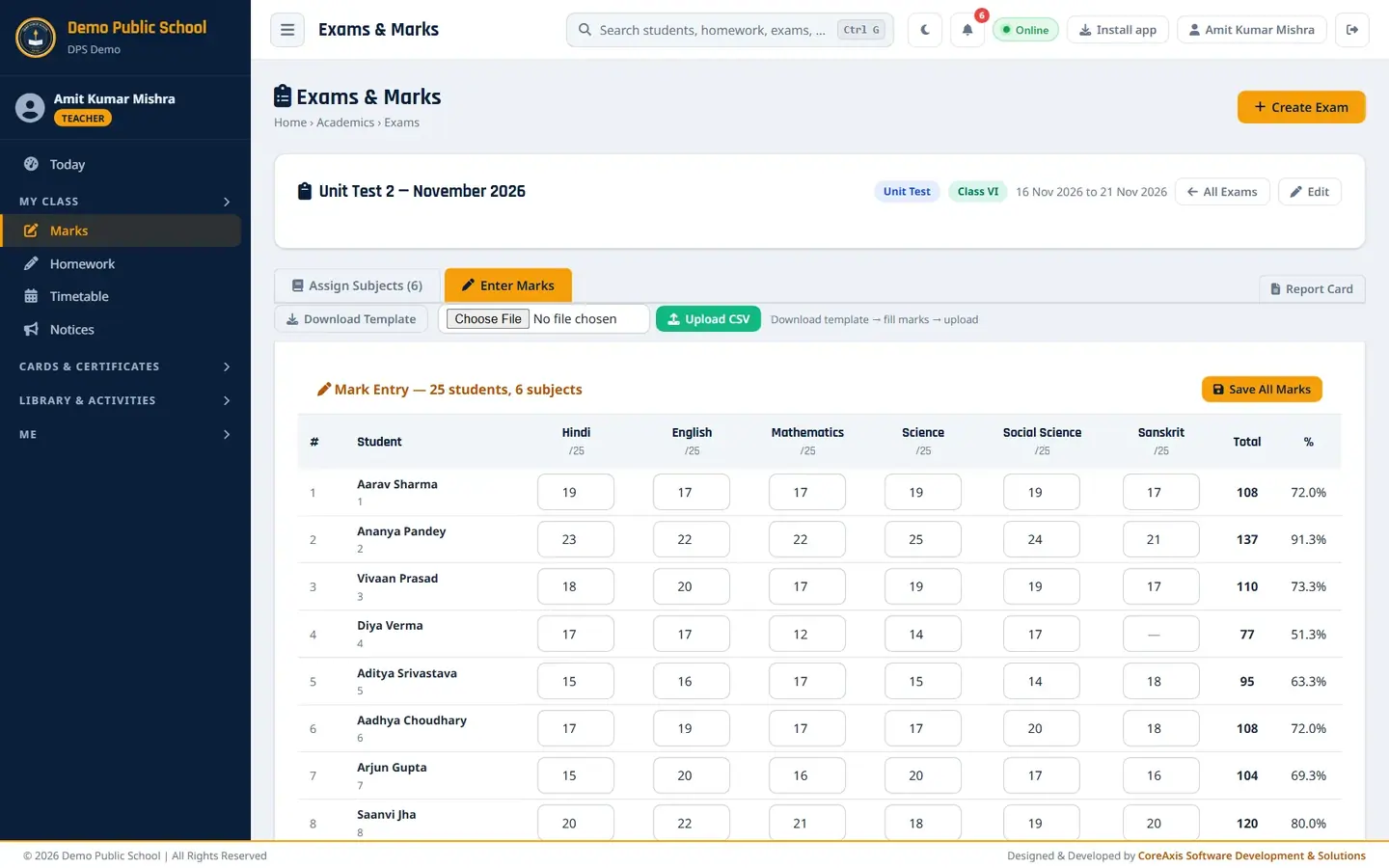
Teacher Amit Kumar Mishra on the Unit Test 2 sheet.
TipTeachers cannot publish results or delete an exam. They tell the Principal when marks are complete.
TipFor an All Classes exam, a teacher can enter marks for their own class only; the subjects and dates are set by the Principal or an Admin.
Questions
A subject is missing from the marks sheet.
It is not ticked for this exam. Open the Assign Subjects tab, tick it with its maximum and pass marks, and click Save Subject Assignment.
A new student joined after marks were entered. How do I add their marks?
Open the sheet again. Every active student of the class is listed, including new admissions. Type their marks and save.
How do I mark a student absent for a paper?
Leave the box empty. On the sheet it shows as a dash. Note that the Total and % on the sheet are still worked out of the full maximum of all subjects (Diya Verma: 77 out of 150 = 51.3%).
How does a class teacher enter marks for the Half-Yearly Examination?
Open Marks, click Marks in the Half-Yearly Examination row and check that your class is shown in the Class box. Enter the marks and click Save All Marks. Only your own class is listed.