 CoreAxis School ERP
Admin & Principal · Chapter 4
Students
The Students tab lists every active student of the current session with admission number, class, roll number and fee status. Tap a student to open the profile: details, attendance calendar, fees and results in one place. Admin and Principal can correct details from the phone; teachers see a read-only list of their own classes (More › Students of my classes) and accountants a read-only list. The list is saved on the phone, so searching and opening profiles works without internet. On the website this is Students › Students.
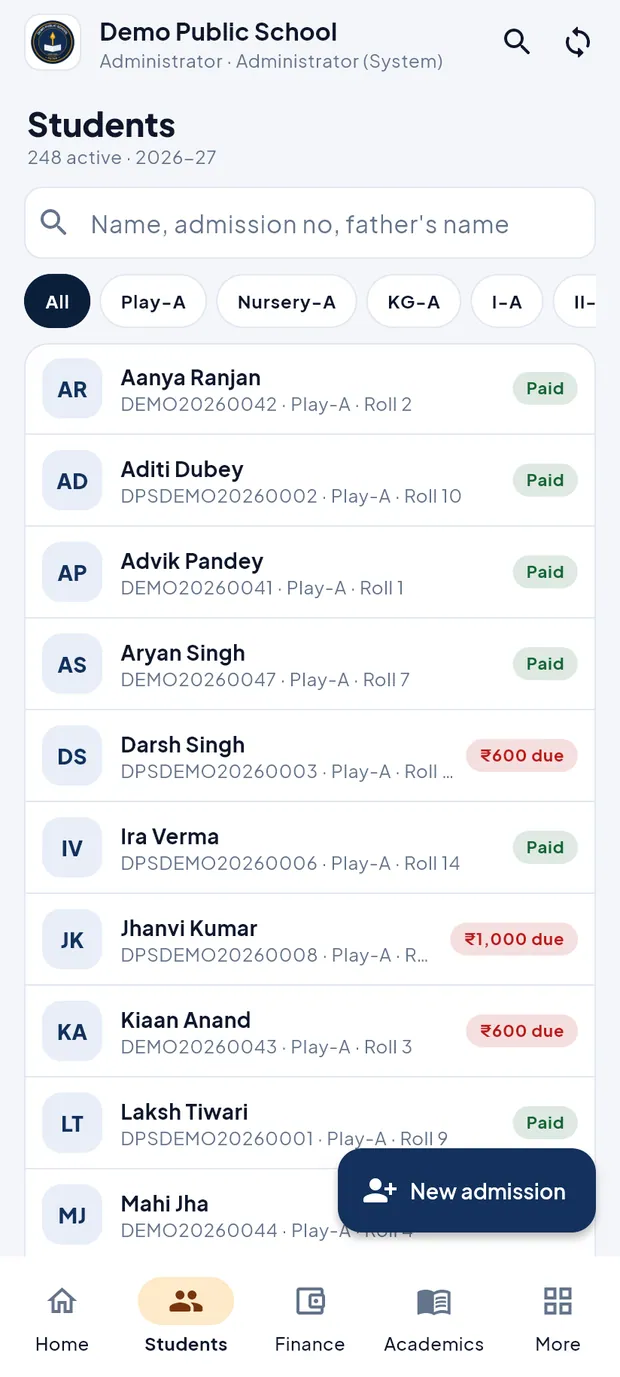
The Students tab at a glance
Tap Students in the bottom bar.
Students tab: 248 active students in session 2026-27.
- Header
- Number of active students and the session, e.g. 248 active · 2026-27.
- Search box
- Name, admission no, father's name. The list filters as you type; tap × to clear.
- Class chips
- All, Play-A, Nursery-A, KG-A, I-A … Swipe sideways to see more classes. A selected class shows its students by roll number.
- Student row
- Initials, name, admission number, class and roll number.
- Fee tag
- Green Paid when nothing is due this session, red ₹… due with the amount due till now.
- New admission
- Opens the admission form. See the New admission chapter.
Find a student (example: Aarav Sharma, VI-A)
Open the Students tab.
Tap the class chip VI-A to see only that class, sorted by roll number.
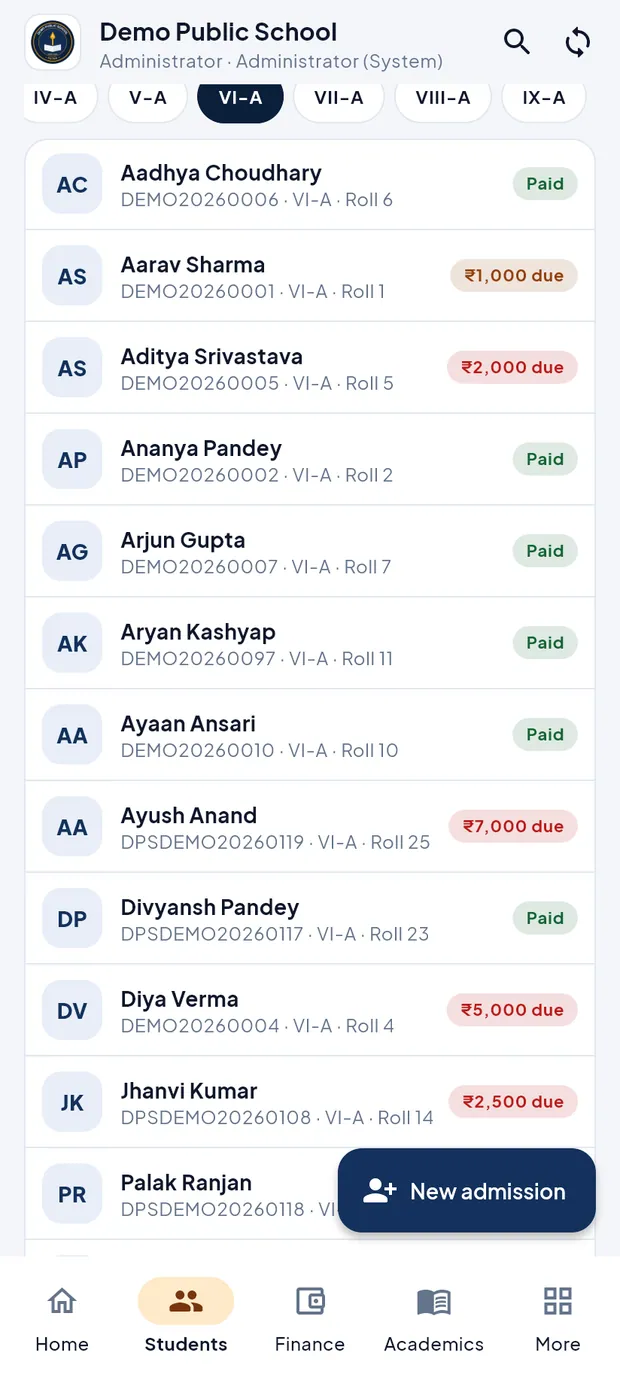
Class VI-A with Paid and due tags. Or type part of the name, admission number or father's name in the search box, e.g. aarav.
Tap Aarav Sharma to open his profile.
TipSearch also works from Home › Search, which finds students together with their receipts and leave records.
TipStudents added on the website appear here after the next sync. Pull down on the list to sync now.
Read the student profile (example: Aarav Sharma)
The dark card at the top shows the name, class, roll number and admission number. Four tabs sit below it.
On Details, check the parents' names, date of birth, gender, phone, address, section, roll number, admission date and category. Tap the green phone icon next to a number to call the parent.

Details tab of Aarav Sharma, Class VI-A, Roll 1, Adm. DEMO20260001. Tap Attendance to see this month's and the session's attendance percentage and a month calendar coloured Present, Absent, Leave and Holiday. Use the arrows to change the month.

October 2026: 80.0% this month, 80.8% for the session. Tap Fees to see the total paid and due, the tuition month grid (Paid, Part paid, Due, Not due yet) and the list of receipts. Tap Collect fee to take a payment for this student.

Paid ₹6,000, due ₹1,000 for October. Tap Results to download or share admit cards and report cards, and to see subject-wise marks of each published exam.

Unit Test 2: 108 / 150, 72.0%, grade B+.
TipOnly results the school has published appear with marks. A report card marked Not published is not visible to the parent yet.
TipThe Attendance and Results tabs appear only if the school uses those modules.
Correct a phone number or address (example: Aarav Sharma)
Use this for quick fixes at the desk: phone numbers, parents' names, address, roll number and section. It works offline.
Open the student's profile on the Details tab.
Tap Edit contact details. A sheet opens from the bottom.

Edit contact details for Aarav Sharma. Change the field you need, e.g. type the father's new number in Phone (10 digits starting with 6–9).
Tap Save. The change is saved on the phone and sent to the school server at the next sync.
TipIf nothing was changed the app says No changes and does not save.
Edit all details (example: change the category)
On the profile, tap Edit all details. The full student form opens, filled with the current details.
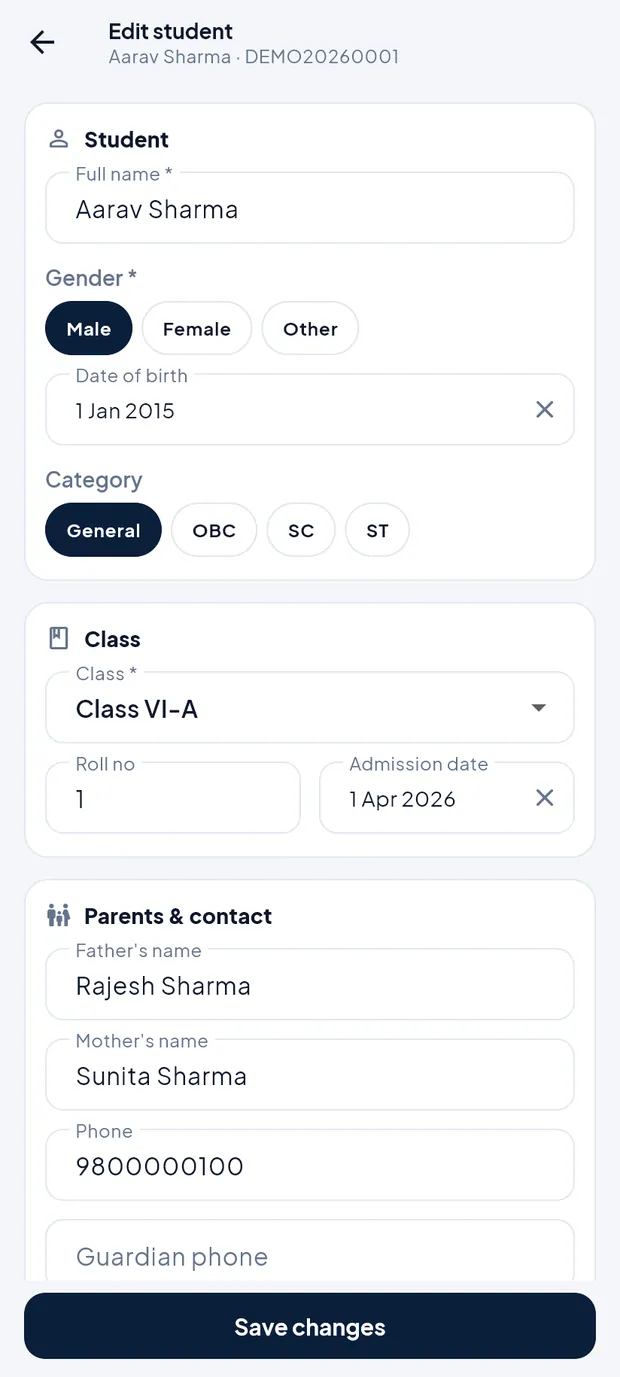
Edit student: Student, Class and Parents & contact sections. Change what you need: Full name , Gender , Date of birth, Category (General, OBC, SC, ST), Class *, Roll no, Admission date.
Scroll down for Parents & contact (Father's name, Mother's name, Phone, Guardian phone, Student email, Address) and Documents (Aadhaar no, PEN no).
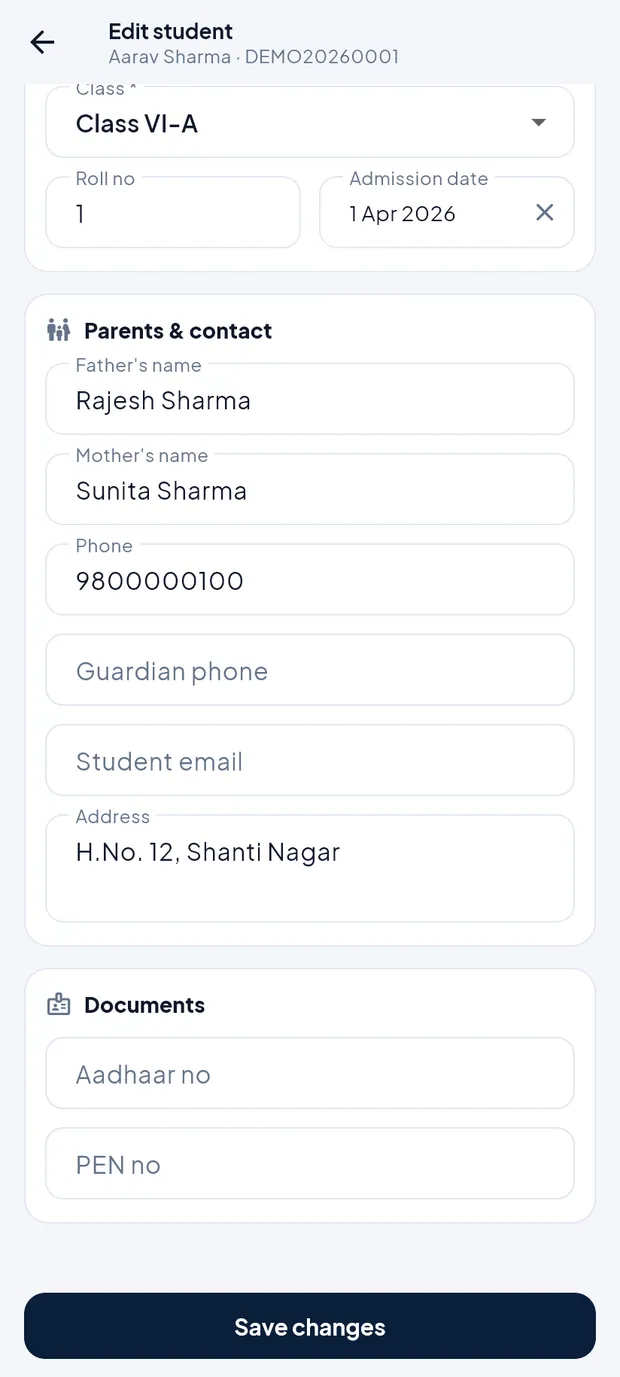
Lower part of the form. Tap Save changes. The app shows Student updated (or saves it on the phone to sync later).
TipAadhaar must be exactly 12 digits. Phone numbers must be 10 digits starting with 6–9.
TipA new admission saved offline cannot be edited until it has synced and has an admission number.
Change a student's photo
On the profile, tap Change photo (online).
Take a photo or choose one from the phone.
Wait for Photo updated. The photo is uploaded at once, so this needs internet.
Questions
Can I change a student's fee or mark a student as Left from the app?
No. Fee structure, concessions, transfer certificates and marking a student as Left are done on the website (Students and Finance menus).
A student added on the website today is not in the list.
Pull down on the Students list (or tap the sync button) to fetch the latest records.
Can a teacher edit student details?
No. Teachers see a read-only list of their classes under More › Students of my classes. Only Admin and Principal see the edit buttons.