 CoreAxis School ERP
Admin & Principal · Chapter 7
Receipts
Receipts lists every fee receipt of the session that is saved on the phone, newest first. Search by receipt number, student or admission number, open a receipt and share it as a PDF on WhatsApp, Gmail or any app. The list works offline, because it reads the data saved on the phone. Cancelled and bounced receipts are shown in red.
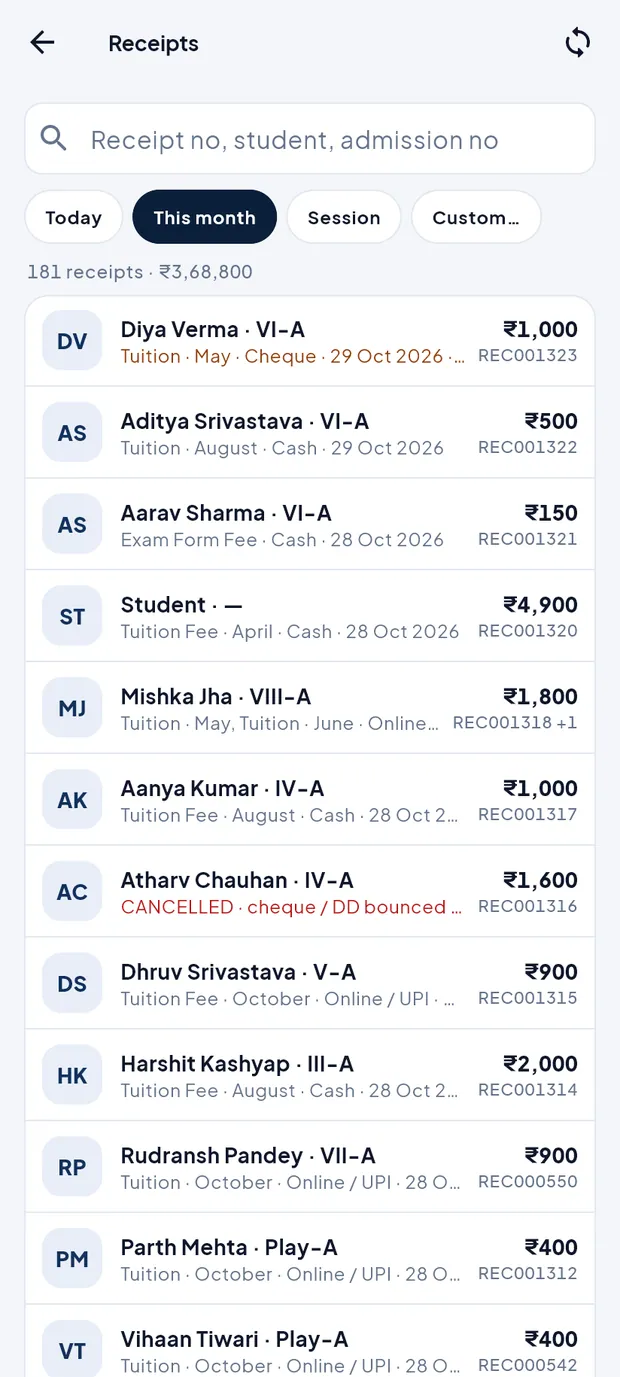
Find a receipt and share it (example: Diya Verma, Class VI-A, REC001323)
Open Finance › Receipts. This month is selected and the line under the chips shows the count and total, for example 181 receipts · ₹3,68,800.
Receipts of this month, newest first. Type Diya or REC001323 in the search box Receipt no, student, admission no.
Tap the receipt. It opens with the school name, receipt no., student, class / adm. no., what it was for, mode, who collected it, remarks and the amount in words.

Receipt REC001323: ₹1,000 by cheque for May tuition. Tap Share PDF. The phone's share list opens; choose WhatsApp, Gmail, Drive or any other app.
The parent gets a PDF like the printed receipt: school header, FEE RECEIPT, DIGITAL COPY stamp, particulars, amount in words, outstanding balance and a verification QR.
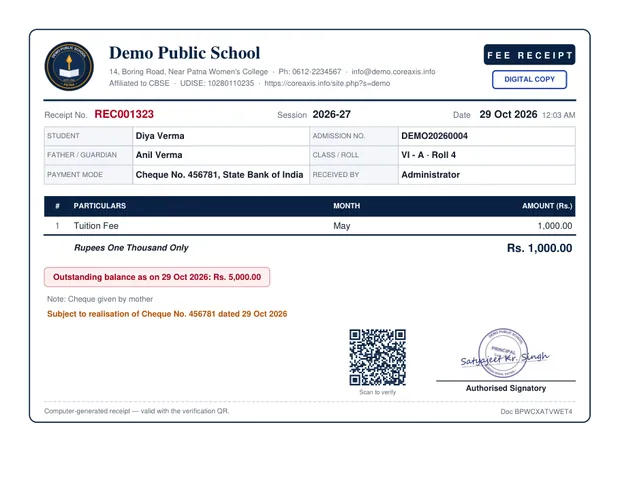
The shared PDF. Cheque receipts say “Subject to realisation”. Tap Done to go back to the list.
TipWhen the phone is online and the receipt has synced, the PDF comes from the school server, the same as on the website. Offline, the app makes the PDF on the phone in the same design.
TipThe PDF is marked DIGITAL COPY. The original printed receipt is issued by the school office.
Choose the period
Tap Today for the receipts made today (handy for the day-end cash check).
Tap This month or Session for longer lists.
Tap Custom… and pick a start and end date in the calendar.
Pull the list down, or tap the sync button at the top, to bring in receipts made by other staff.
What the receipt lines mean
- Name · Class
- Student and class, with the fee head and month, payment mode and date below it.
- Amount and receipt no.
- On the right. +1, +2 after the number means one payment made several receipts (for example two tuition months).
- … · awaiting clearance (orange)
- A cheque or DD receipt not yet cleared by the bank.
- CANCELLED · cheque / DD bounced (red)
- The bank returned the cheque; the months it paid are due again.
- Cheque / DD bounced — reversal (red)
- The minus receipt the school made when the cheque bounced.
- Receipt no. starting with OFF-
- Collected offline and not yet synced. It gets its final number at the next sync and updates by itself.
Other places that show receipts
Finance tab › Recent receipts shows the latest few; tap All to open this screen.
Accountant: Home › Today's receipts and Fees tab › Today's receipts list today's receipts. A cheque receipt shows “awaiting clearance”.

Accountant's Fees tab with today's two receipts. Students › tap a student › Fees tab › Receipts shows only that student's receipts.
Right after collecting, the receipt opens by itself with Share PDF and Done.
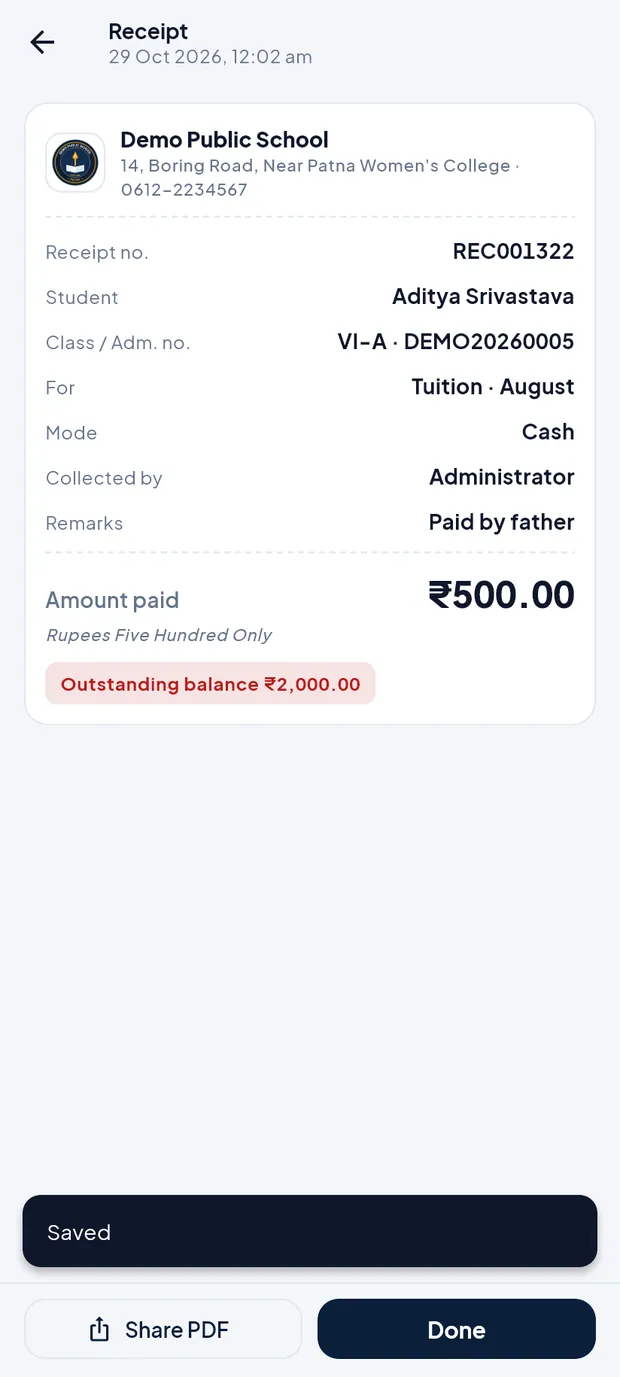
Receipt just after collecting ₹500 from Aditya Srivastava.
Questions
Can I delete or edit a receipt in the app?
No. Only Admin / Principal can delete a receipt, on the website (Fee Desk).
A receipt I made offline still shows OFF-… as its number.
The phone has not synced yet. Connect to the internet and tap the sync button. If the receipt shows “Not saved by the school server”, open Sync status to retry or discard it.
Share PDF says it could not create the PDF.
Try again. If it keeps failing, check that the phone has free storage, or share the receipt later from the website.