 CoreAxis School ERP
Admin & Principal · Chapter 13
Academics
The Academics tab collects the daily academic work: attendance, marks, homework, timetable and exams, plus links to notices and leave. Attendance, marks, homework and new exams are saved on the phone first and synced later, so they work without internet. Editing the timetable and viewing online exam results need a connection. Admin and Principal work on every class; a teacher sees only the classes assigned on the website (see the Teacher guide).
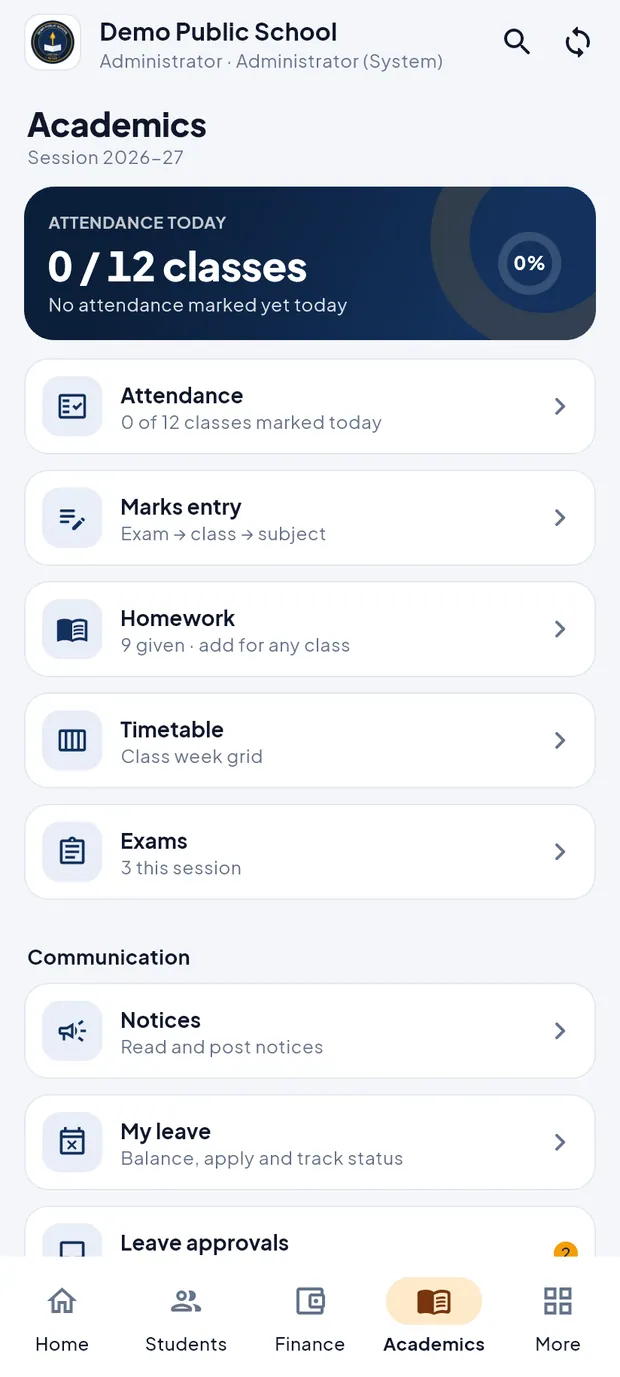
The Academics tab at a glance
Tap Academics in the bottom bar.
Academics tab on Thu 29 Oct 2026 before any class was marked.
- ATTENDANCE TODAY
- Classes marked out of all classes (0 / 12 classes) and the present percentage.
- Attendance
- All classes with their status for the chosen day.
- Marks entry
- Exam › class › subject, then type marks.
- Homework
- Homework given so far; add for any class.
- Timetable
- Week grid of a class.
- Exams
- Exams of the session, their date sheet and result publishing.
- Communication
- Notices, My leave, Leave approvals, Leave calendar and Holidays. See the Notices and Leave chapters.
Mark attendance (example: Class III-A, everyone present)
Tap Academics › Attendance (or Attendance in the Home quick actions). Every class is listed with Not marked or Marked n.
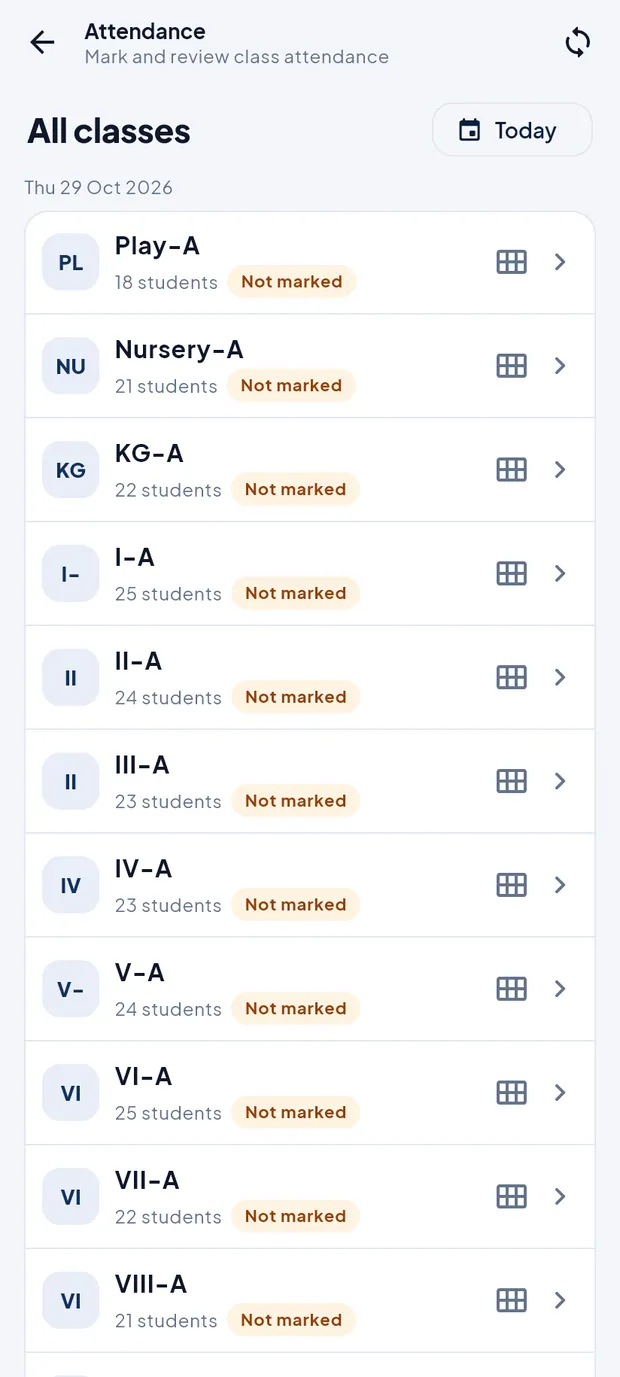
All classes for Thu 29 Oct 2026. To mark another day, tap the date chip (Today) and pick the date. Attendance cannot be marked more than one day ahead.
Tap III-A. Everyone starts as P (present); the counts at the top show 23 PRESENT, 0 ABSENT, 0 LEAVE.
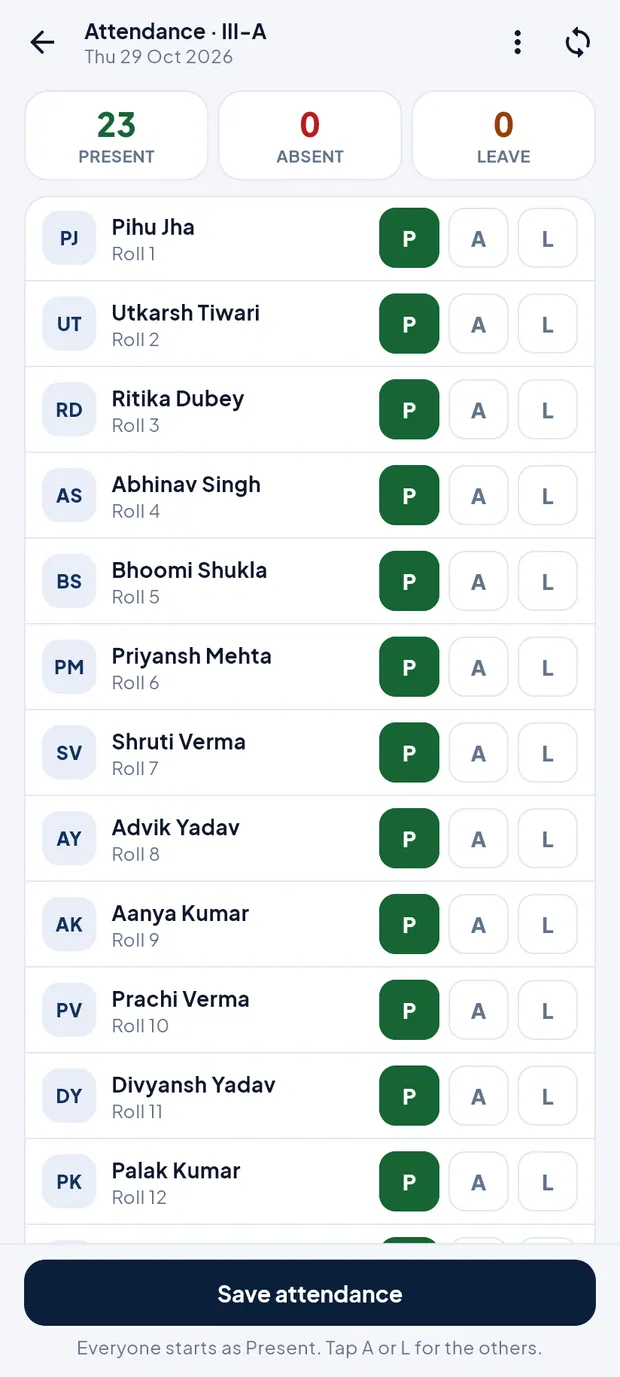
Marking Class III-A. Tap A for an absent student or L for a student on leave. The counts change at once.
For bulk changes, tap the ⋮ menu: Mark everyone present or Mark as holiday (everyone).
Tap Save attendance. Online it is saved on the server; offline the app shows Saved on phone · will sync.
Open the class again to correct it. The screen says Already marked for this date · you are editing it, and the button stays No changes until you change a mark.
TipParents see the attendance in their app after the sync.
TipOn the website this is Daily Operations › Attendance.
See the monthly register (example: Play-A, October 2026)
In Attendance, tap the grid icon on the class row (Play-A).
Read P, A and L for each student and each day. Class present shows the class percentage and Days marked the number of days with attendance.

Register · Play-A: 88.7% present, 24 days marked. Use the arrows at the top right to go to another month. Swipe sideways to see later dates.
Enter marks (example: Unit Test 2, VI-A, Hindi out of 25)
Tap Academics › Marks entry. Exams are listed with their classes and how many marks are entered.
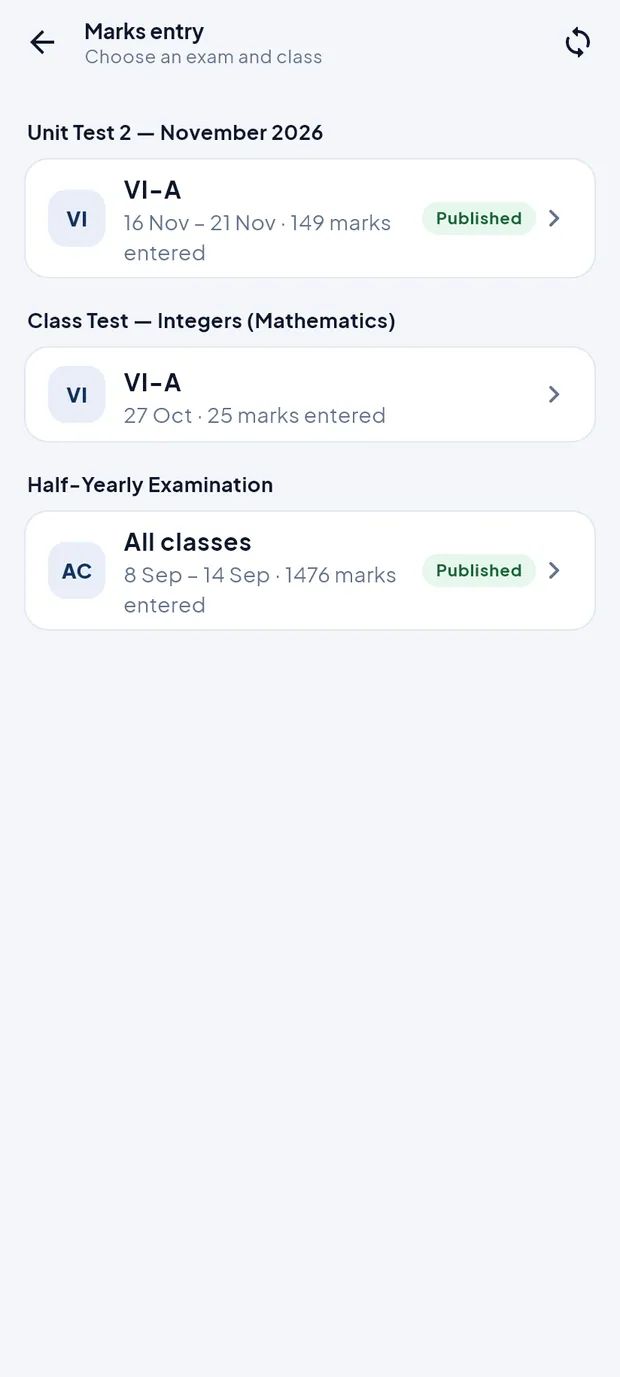
Exams with class tiles and Published tags. Tap VI-A under Unit Test 2 — November 2026.
Tap the subject chip (Hindi). The header shows the maximum marks (out of 25).
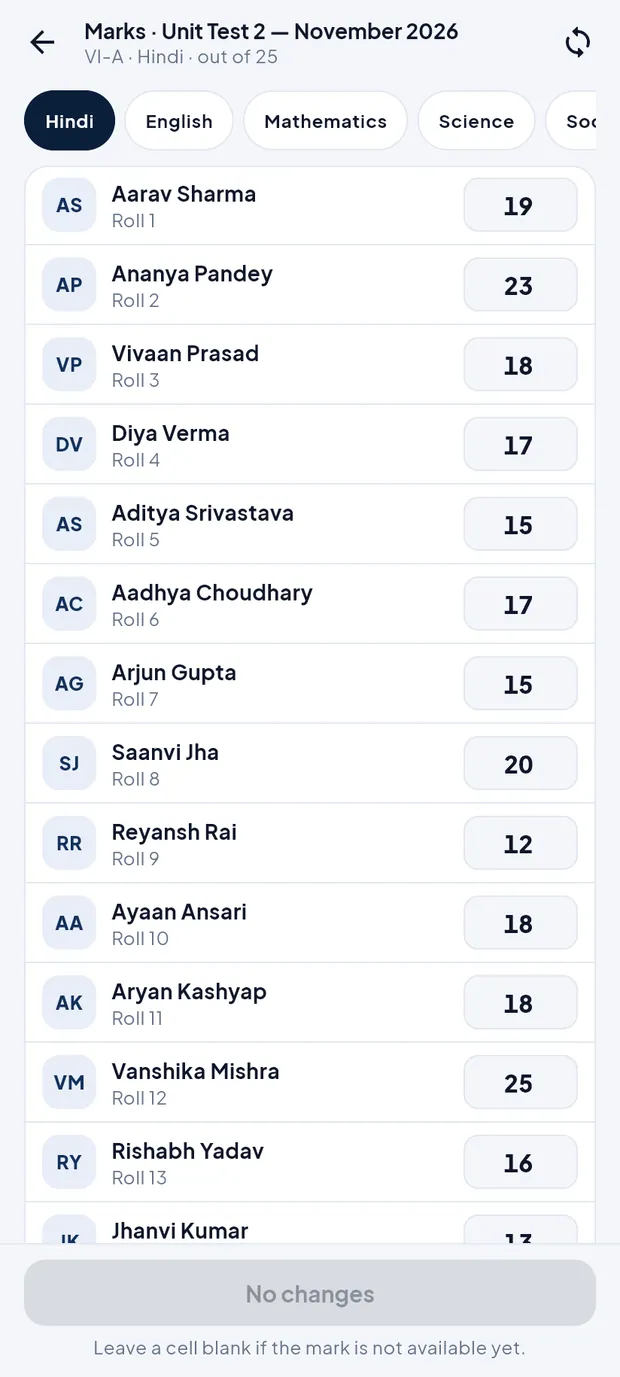
Marks grid for VI-A, Hindi. Type each student's marks in the box next to the name. Leave a box blank if the mark is not available yet.
Tap Save n marks. The button shows how many marks changed; it says No changes when there is nothing to save.
Tap the next subject chip and repeat.
TipMarks entry works offline; the marks reach the server at the next sync.
TipA mark above the maximum is refused with a message such as … is more than the maximum of 25.
Give homework (example: Mathematics, VI-A)
Tap Academics › Homework. Homework is listed newest first with tags such as Due tomorrow or Was due 26 Oct. Use the class chips to filter.
Tap Add homework.
Choose the Class (VI-A) and Subject (Mathematics).

Add homework form. Check Given on (today) and pick Submit by (optional).
Type the work in Homework, e.g. Exercise 6.2 (Integers): solve questions 1 to 8.
Tap Save homework. Parents of the class see it in their app after the sync.
View or change the timetable
Tap Academics › Timetable and tap a class chip (Play-A, Nursery-A …).
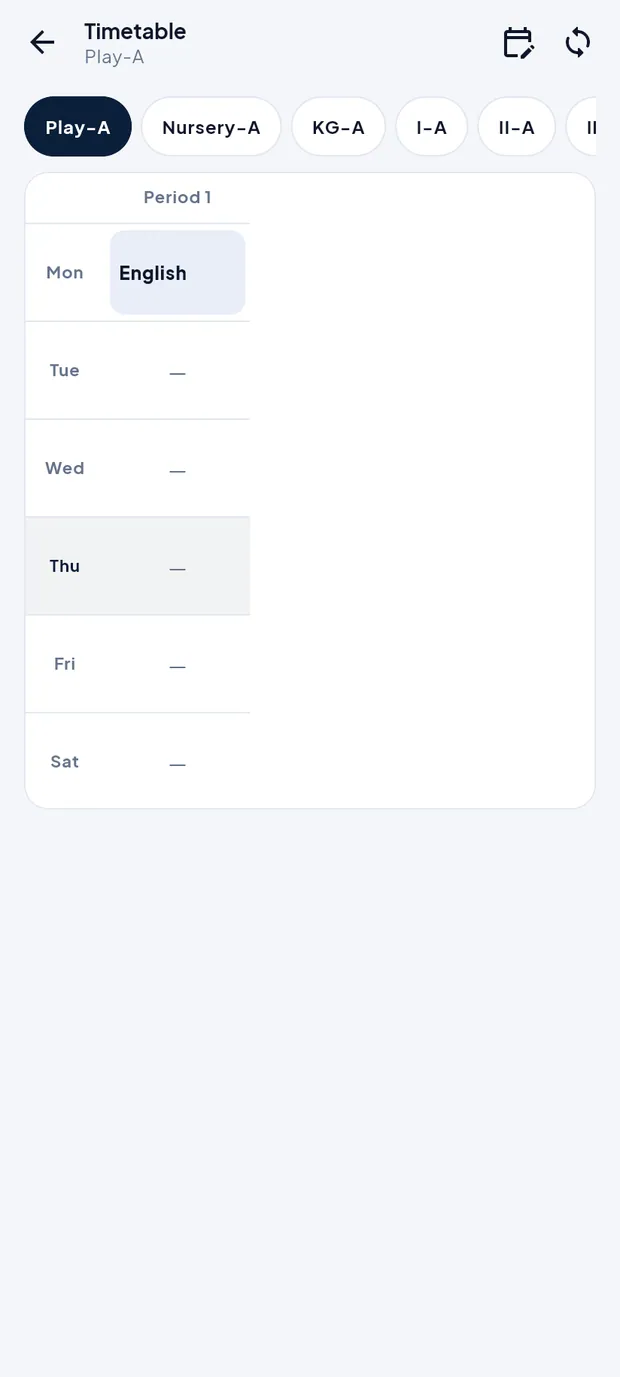
Week grid of Play-A. Read the subject for each period and day. Swipe sideways for more periods.
To change a period, tap the edit icon at the top right, then tap the period. Choose the Subject (or Free period), the Teacher and the Starts / Ends time and tap Save period. Clear period empties it.
Timetable changes need internet and apply at once.
Create an exam and publish results (example: Half Yearly for VI-A)
Tap Academics › Exams. Each exam shows Published or Draft.
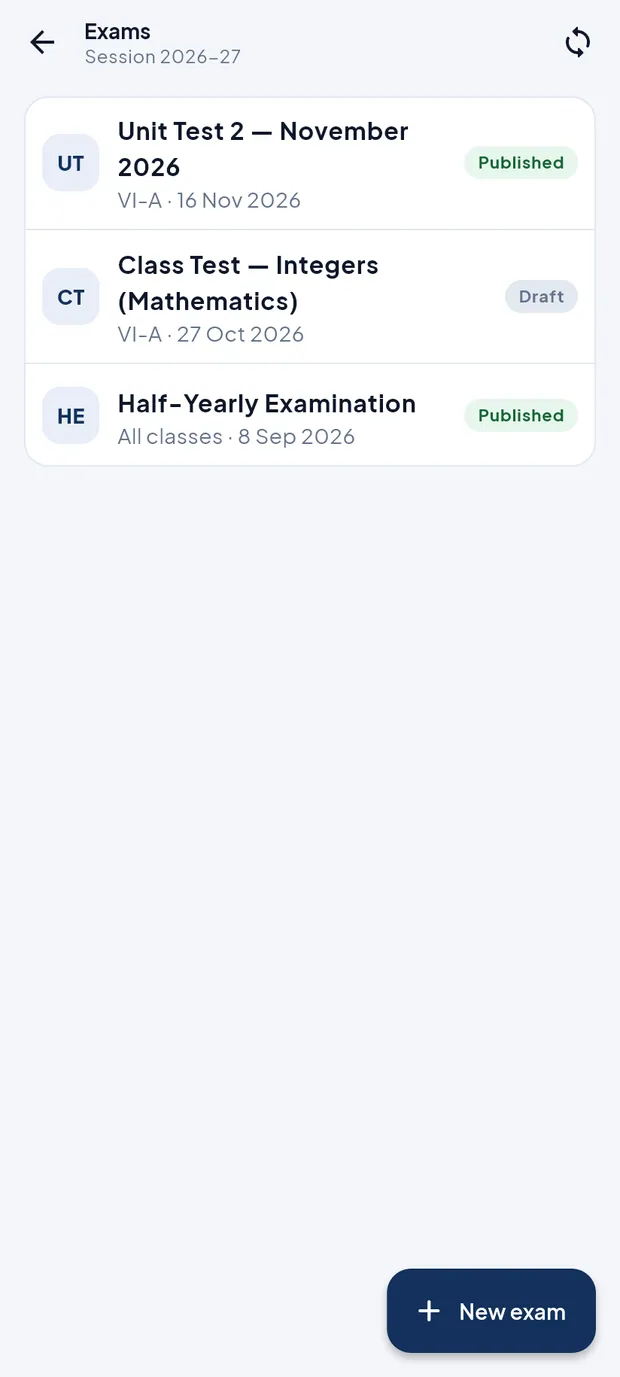
Exams of session 2026-27. Tap New exam. Type the Exam name * and tap a Type: Unit Test, Half Yearly, Annual or Pre-Board.
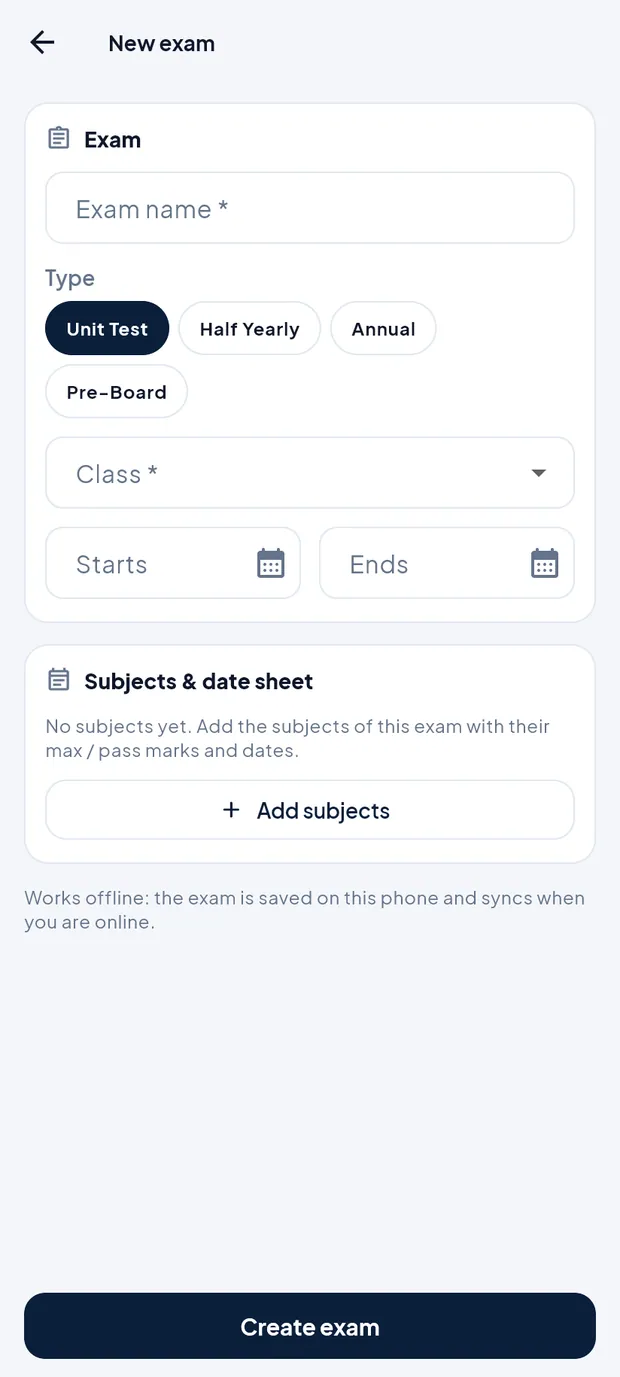
New exam form. Choose the Class * (or All classes) and pick Starts and Ends.
Under Subjects & date sheet, tap Add subjects, then set Max, Pass and Date for each subject.
Tap Create exam. It works offline and syncs later.
When marks are complete, open the exam and tap Publish results, then confirm. Students and parents can now see the marks. Hide results takes them back.
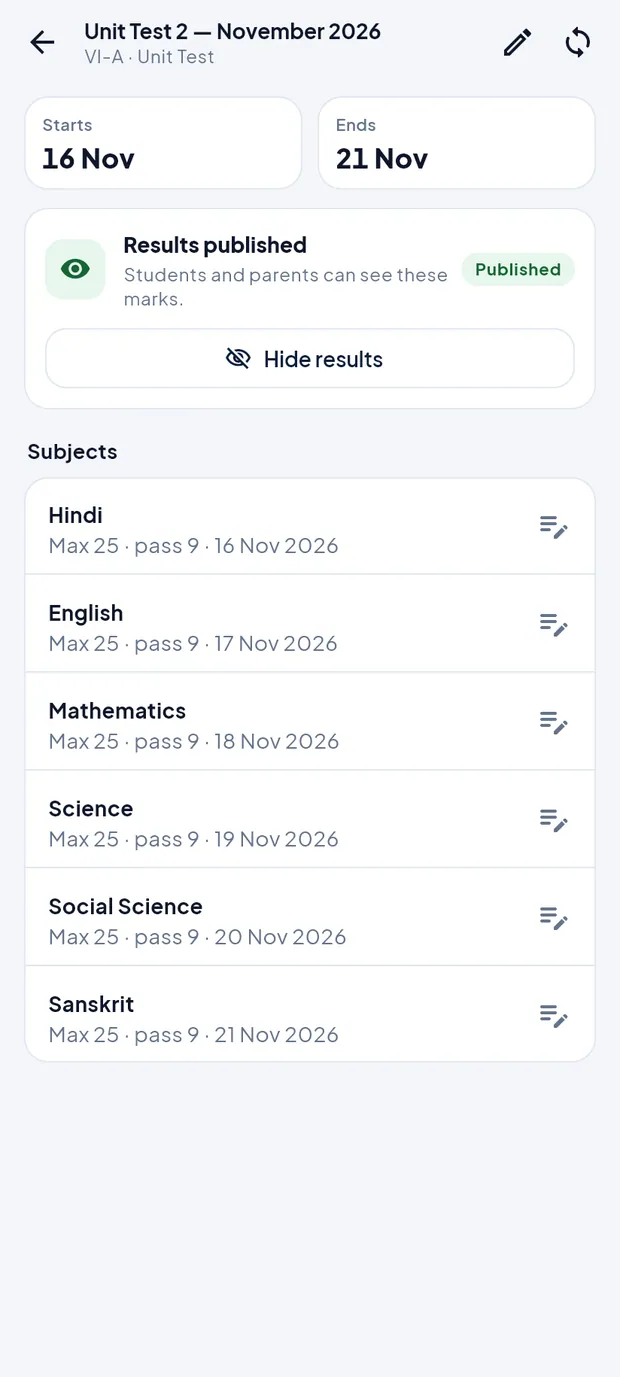
Unit Test 2: dates, Results published, subjects with max and pass marks.
TipOnly the principal or an administrator can publish results. Teachers can create class tests for their own classes.
TipReport cards and admit cards are designed and printed on the website.
Online exam results
Open the side drawer (tap the school name on Home) and tap Online exams. Online tests are made on the website; the app shows their results read-only and needs internet.
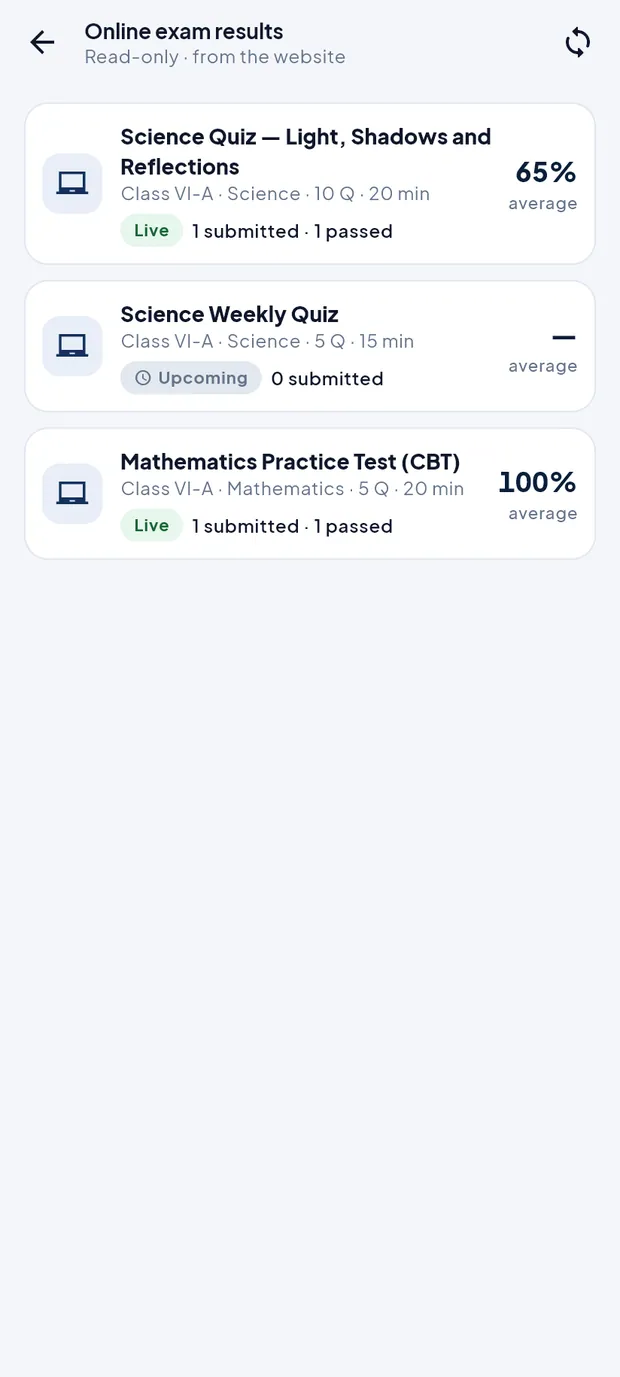
Online exam results with average, Live / Upcoming and submitted counts.
- Test card
- Name, class, subject, number of questions and minutes, status (Live or Upcoming), submitted and passed count, and the average percentage.
- Test detail
- Tap a test to see the students who submitted, ranked, with marks, percentage and the pass mark.
Questions
I marked attendance offline. When do parents see it?
After the phone syncs. Check the sync button or More › Sync status for changes waiting on the phone.
Can I mark attendance for yesterday?
Yes. Tap the date chip on the Attendance screen and pick yesterday's date.