 CoreAxis School ERP
Getting Started · Chapter 2
Sign in, PIN and sign out
The sign-in screen has two tabs. Staff (Admin, Principal, Accountant, Teacher) use Official / Teacher with their school email and password. Parents and students use Student / Parent with the school, admission number and date of birth. After the first sign-in you create an app PIN, which unlocks the app and, on a trusted phone, signs staff in again without a password. Signing in needs internet; unlocking with the PIN does not.

Staff sign-in on a new phone (example: Satyajeet Kr. Singh, Principal)
The first time you sign in on a phone, the app emails you a 6-digit code to check it is you.
Open the app. The Official / Teacher tab is selected.
Type your school email in Email, for example satyajeet.singh@demo.coreaxis.info.
Type your password in Password (••••••••). Tap the eye icon if you want to check what you typed.
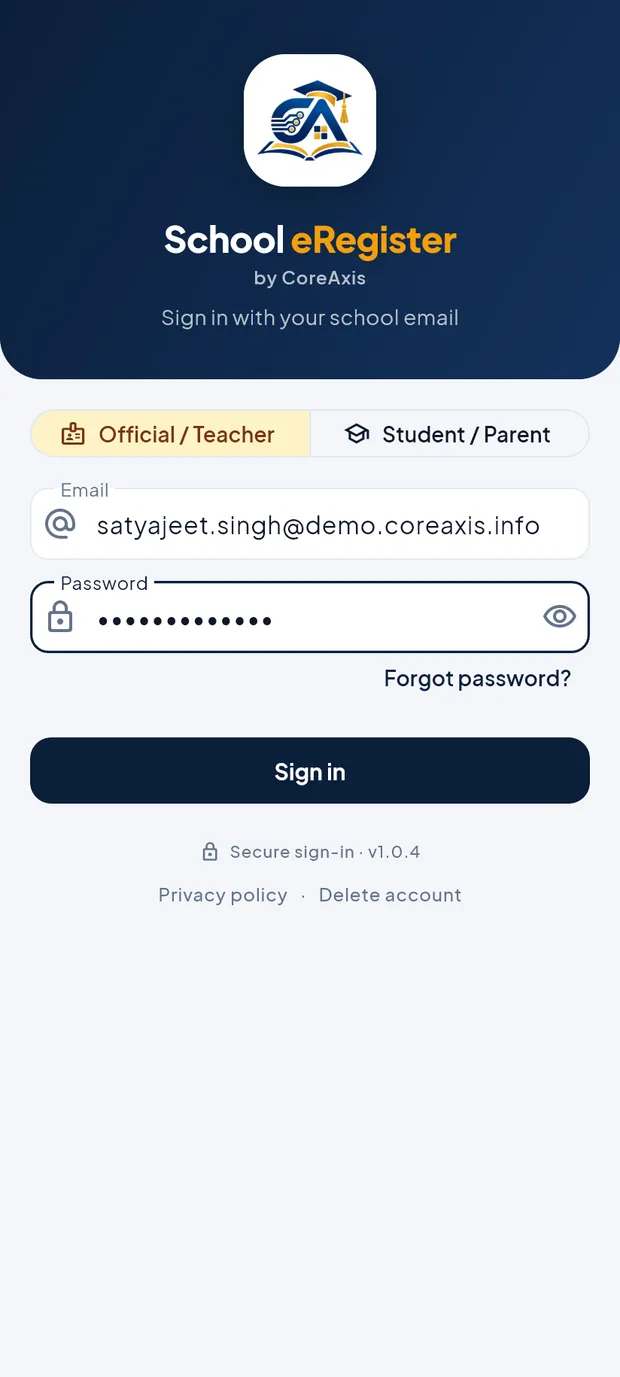
Email and password entered on the Official / Teacher tab. Tap Sign in. The screen Check your email opens and shows the address the code was sent to, partly hidden.
Open your email, find the 6-digit code and type it in the six boxes. The code is checked as soon as the sixth digit is typed, or tap Verify & sign in.

Check your email: six code boxes and Trust this device for 30 days. Leave Trust this device for 30 days ticked on your own phone. Untick it on a phone that other people also use.
On Create a 4–6 digit PIN, type a PIN you will remember and tap the tick.
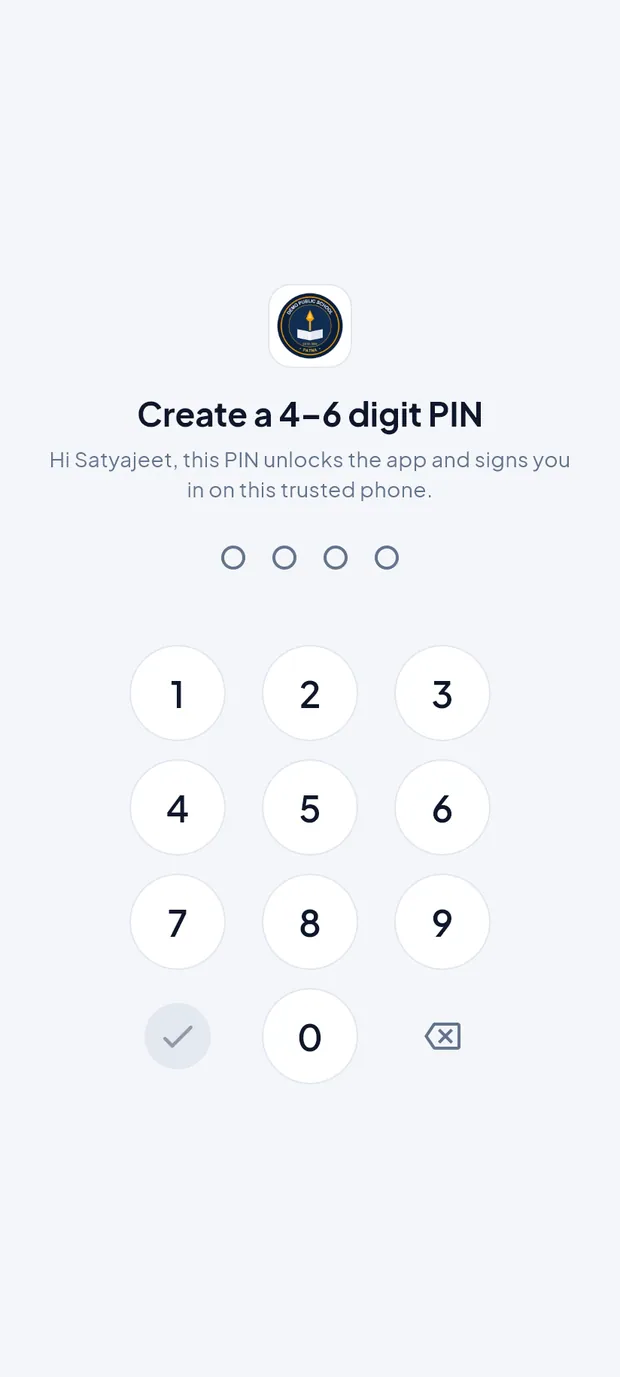
Create a PIN after the first sign-in. On Confirm your PIN, type the same PIN again.
If the phone has a fingerprint or face unlock, the app asks Unlock with fingerprint or face? Tap Enable to use it, or Not now.
The Home screen opens. The first sync downloads the school's data; wait a few seconds before you search or collect fees.
TipThe code expires in 10 minutes. If it does not arrive, check the spam folder, then tap Resend code when the countdown ends. If the school has SMS set up, Send by SMS instead sends it to the mobile number in your staff profile.
TipNever share the code. The school or CoreAxis will never ask for it.
TipPasswords must have at least 8 characters with an uppercase letter, a lowercase letter and a number.
Sign in again with your PIN (example: the Administrator on a trusted phone)
On a phone you trusted, the next sign-in needs only your PIN for 30 days. This screen appears after you sign out or when the session ends.
Open the app. The screen Welcome back, Administrator shows your name and school.
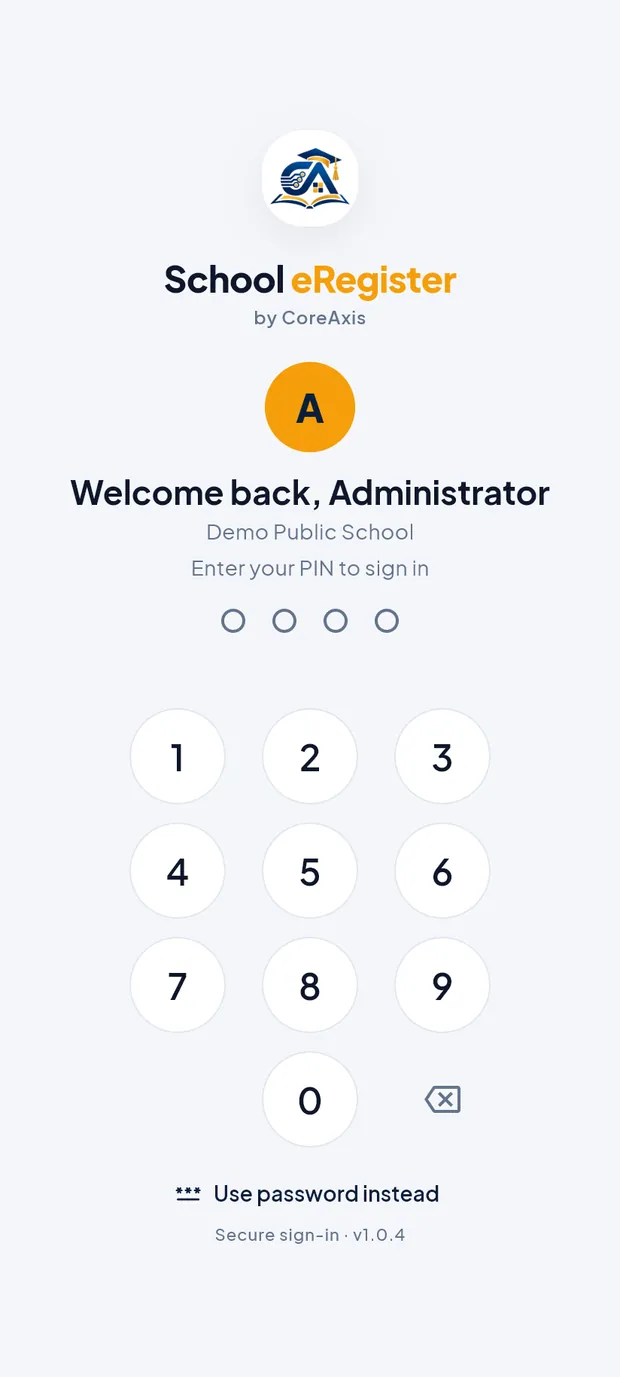
Welcome back: sign in with the PIN on a trusted phone. Type your PIN. The app signs you in and opens Home.
To sign in with your email and password instead, or as a different person, tap Use password instead.
TipPIN sign-in needs internet. After 30 days, or after you change your password, the app asks for the password and email code again.
Unlock the app (example: back from a class after 10 minutes)
The app locks itself when it starts and after 5 minutes in the background. Unlocking works without internet.
Open the app. The lock screen shows Enter your PIN to unlock.
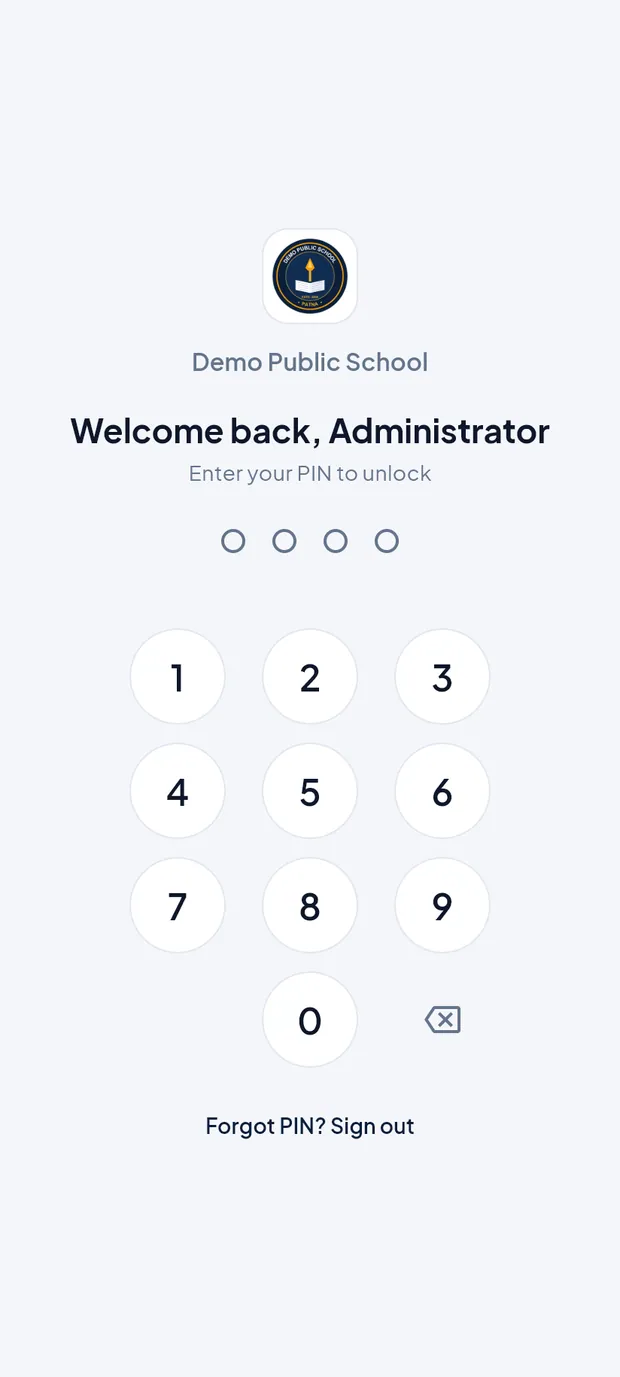
The lock screen with the PIN pad and Forgot PIN? Sign out. Type your PIN, or touch the fingerprint sensor if fingerprint / face unlock is on.
The app opens on the screen you left.
TipTo lock the app yourself, use More › Lock now or Lock app now in the side menu.
TipAfter 5 wrong PINs the app makes you wait before the next try. After 10 wrong PINs it signs out. Changes not yet sent are kept and are sent after you sign in again.
TipForgot your PIN? Tap Forgot PIN? Sign out and sign in again with your password. You then create a new PIN.
Forgot password (example: admin@demo.coreaxis.info)
Staff can reset their own password with a 6-digit code. This needs internet.
On the sign-in screen tap Forgot password?.
Type your school email in Email.
Under Send the code by, choose Email. SMS can be chosen only when the school has SMS set up; it shows SMS (off) otherwise.
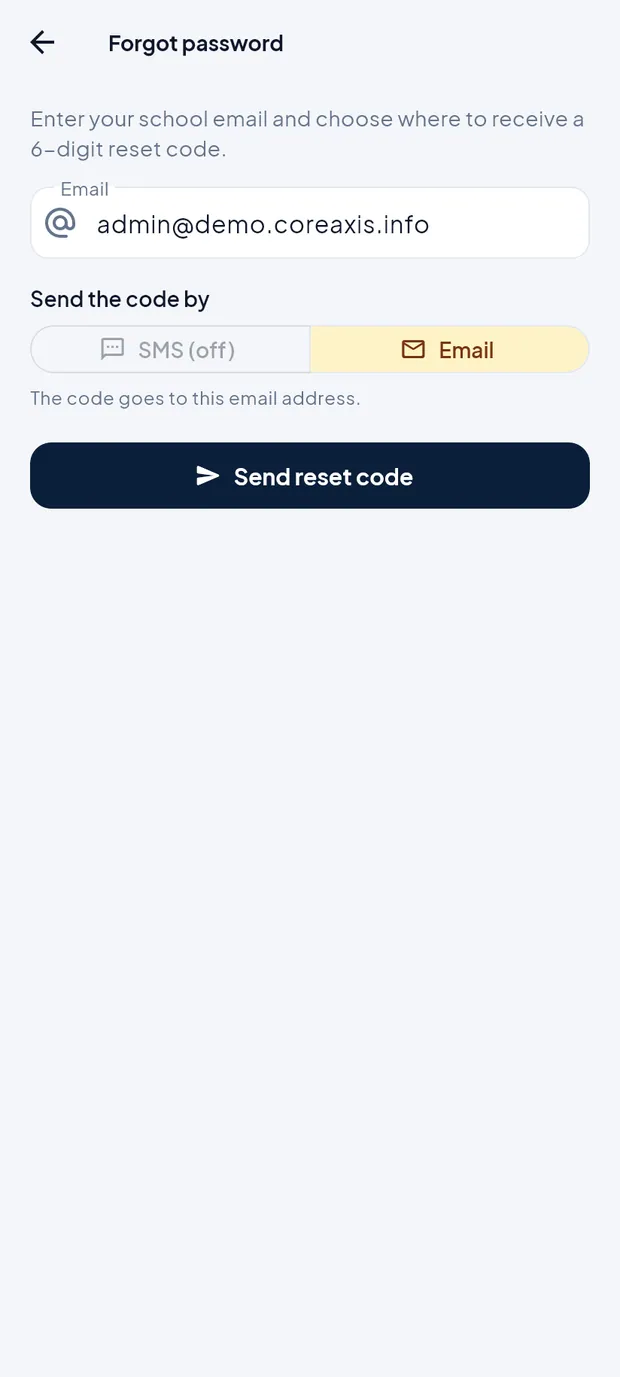
Forgot password: email and where to send the code. Tap Send reset code.
Type the 6-digit code from the email.
Type a new password in New password and again in Confirm new password (••••••••).
Tap Reset password, then sign in with the new password.
TipIf the code did not arrive, tap Start over and check the email address.
TipIf online reset is not available, ask the school administrator to reset your password on the website.
Parent / student sign-in (example: Aarav Sharma, VI-A, DEMO20260001)
Parents and students do not need a password. They sign in with the school, the admission number and the date of birth, exactly as on the school's records.
On the sign-in screen tap the Student / Parent tab.
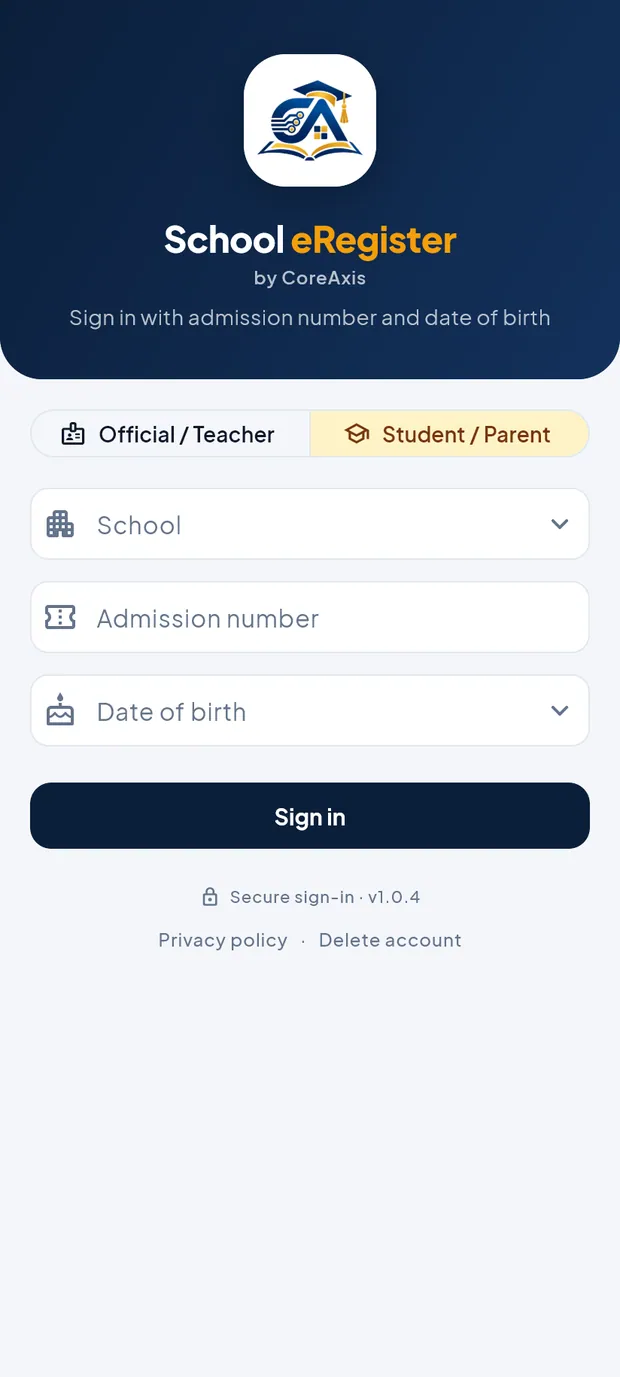
The Student / Parent tab: School, Admission number and Date of birth. Tap School. Type part of the school name, for example demo, in Search school name and tap Demo Public School.
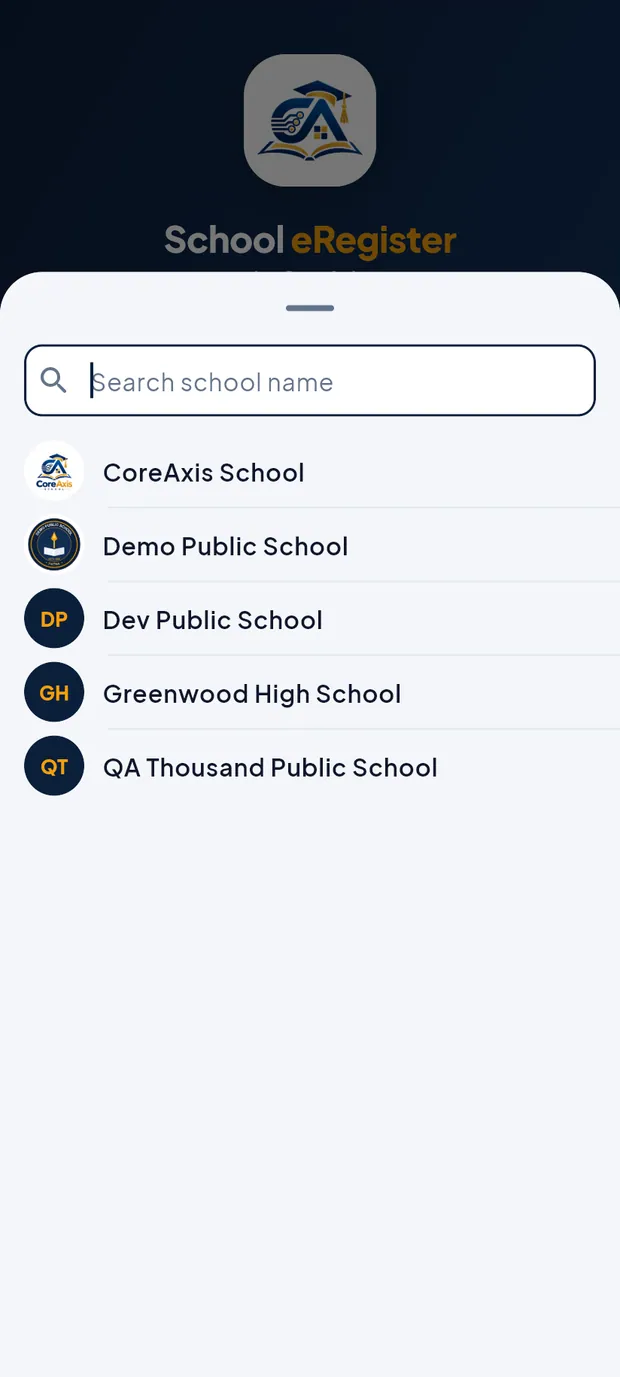
Choose the school from the list. Type the admission number in Admission number, for example DEMO20260001. It is printed on the fee receipt and the ID card.
Tap Date of birth. In Student date of birth, tap the pencil icon to type the date (01/01/2015 in month/day/year order) and tap OK.
Check the three fields and tap Sign in.
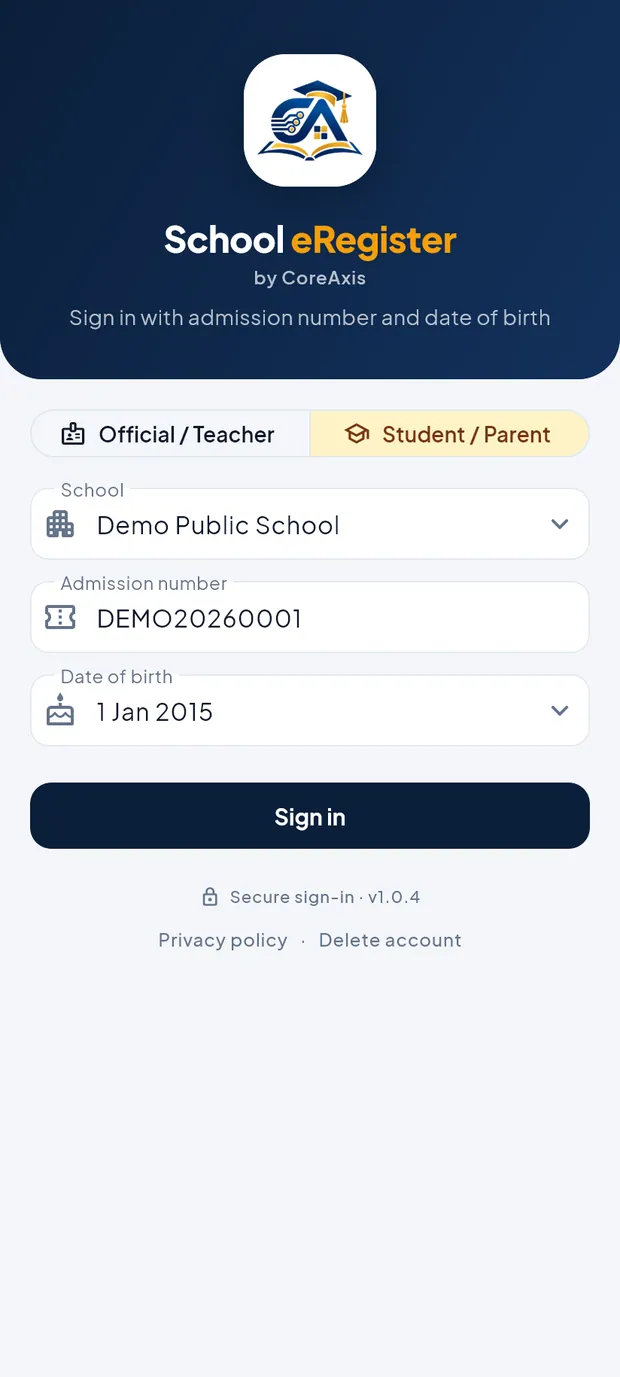
All three fields filled for Aarav Sharma. Create a 4–6 digit PIN and confirm it. This PIN locks the app on this phone.
TipIf sign-in fails, check the date of birth with the school office; it must match the school's records.
TipStudents and parents are not asked for an email code.
Add another child (example: a parent with two children in the school)
A parent can keep each child on the same phone and switch between them.
On Home, tap the school name at the top to open the side menu.
Tap Add another child.
Choose the School, type the other child's Admission number and choose the Date of birth.

Add another child with that child's own admission number and date of birth. Tap Verify & add child. The child is added to the phone.
To switch, open the side menu and tap Switch to and the child's name. Each child keeps its own data; the same app PIN is used for all.
When two people use the same phone
If a different staff member signs in on a phone that still holds the previous person's unsent changes, the app asks Unsent changes from that person. Tap Keep for that person to keep the changes on the phone; they are sent when that person signs in again. Delete removes them for good. Cancel stops your sign-in. On a shared phone, untick Trust this device for 30 days when you enter the email code.
Sign out (example: the Administrator leaving a shared office phone)
Tap More in the bottom bar and scroll to the end.
Tap Sign out.
Read the message and tap Sign out to confirm. All school data saved on this phone is removed.
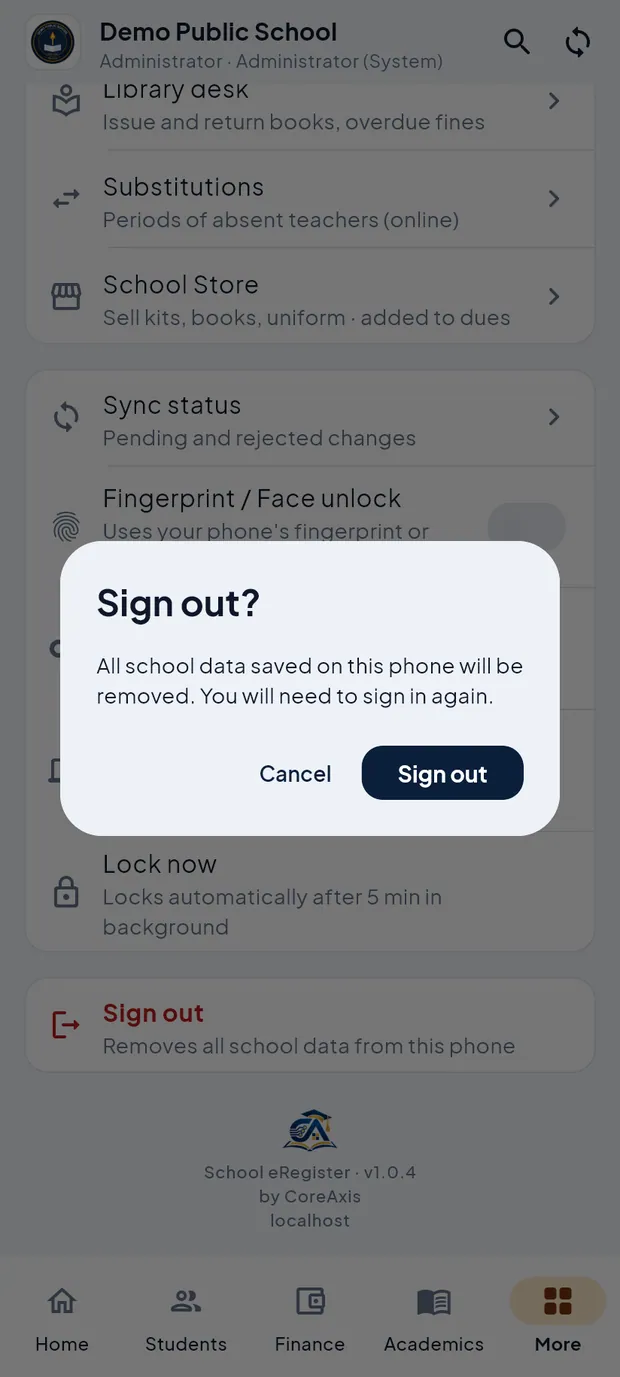
Sign out? confirmation.
TipParents with more than one child are asked whether to sign out this child only or all children. Signing out of all children also removes the app PIN.
TipOn a trusted phone the next sign-in can be done with the PIN. To stop this, remove the phone in More › Trusted devices.
ImportantIf some changes have not reached the school server, the app shows Unsynced changes will be lost. Tap Cancel, connect to the internet and open Sync status first. Sign out anyway deletes those changes permanently.
Questions
I did not get the email code.
Wait a minute and check the spam folder. Then tap Resend code. Make sure the school has your correct email; the office can check it on the website.
Can I sign in without internet?
No. Signing in needs internet. After you are signed in, the app unlocks with the PIN and works offline.
Where do I find the Privacy policy or ask to delete my account?
Use the links Privacy policy and Delete account at the bottom of the sign-in screen, or in the side menu after sign-in.
My phone was lost. What should I do?
Sign in on another phone and use More › Trusted devices › Sign out of all devices, or change your password on the website. Tell the school office.