 CoreAxis School ERP
Admin & Principal · Chapter 6
Collect fee
Collect fee is the app's fee counter. You pick the student, tick the months and other fees, choose how the parent paid and tap Collect. The receipt opens at once and can be shared as a PDF. Collection works offline: the payment is saved on the phone and sent to the school server at the next sync. On the website the same work is done on the Fee Desk, and months are allocated the same way on both.
Ways to open Collect fee
Finance tab › Collect fee (Admin / Principal). You then choose the student.
Home › Quick actions › Collect fee, or Collect fee in the side drawer.
Accountant: tap the box Collect fee for a student on the Home or Fees tab.
From a student: Students › tap the student › Fees tab › Collect fee. The collect screen opens for that student directly.
From Search: type fee and tap Collect fee, or type a student's name.
TipOnly Admin, Principal and Accountant logins can collect fees. Other staff see the note “Your role cannot collect fees.”
Collect a cash payment (example: Aditya Srivastava, Class VI-A, ₹500 for August)
Open Finance › Collect fee. The screen Collect fee · choose student lists all students with a green Paid or red ₹… due tag.

Choose the student. Class chips narrow the list. Type part of the name, admission number or father's name in the search box, for example aditya.
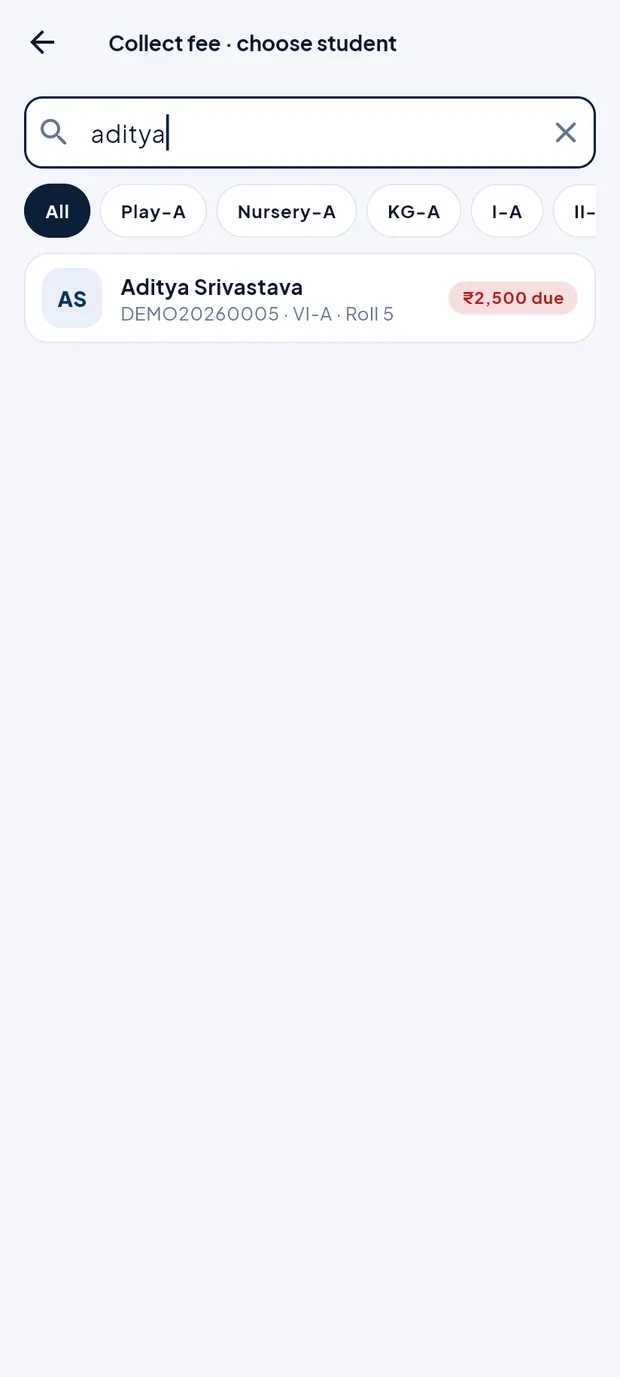
One match: Aditya Srivastava, DEMO20260005, ₹2,500 due. Tap the student. The top card shows Due this session ₹2,500 and 3 months due.
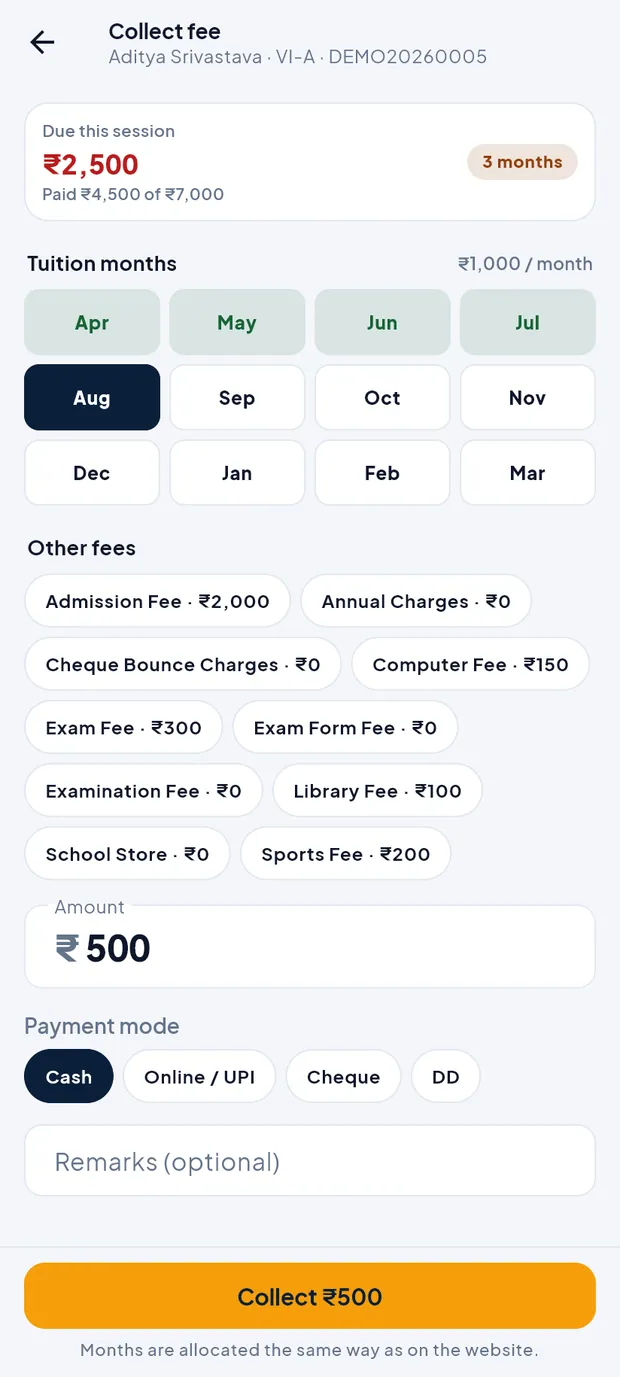
Check Tuition months. The oldest due month (Aug) is already selected. Light green months are paid. Tap more months to add them.
August is selected; Amount fills in by itself (₹500 left for August). Tap any Other fees chip the parent is also paying (for example Exam Fee · ₹300). The Amount adds it up.
Leave Payment mode on Cash. (For a UPI payment already in the school account you would tap Online / UPI; no extra fields appear.)

Online / UPI mode needs no extra details. Type a note in Remarks (optional), for example Paid by father.
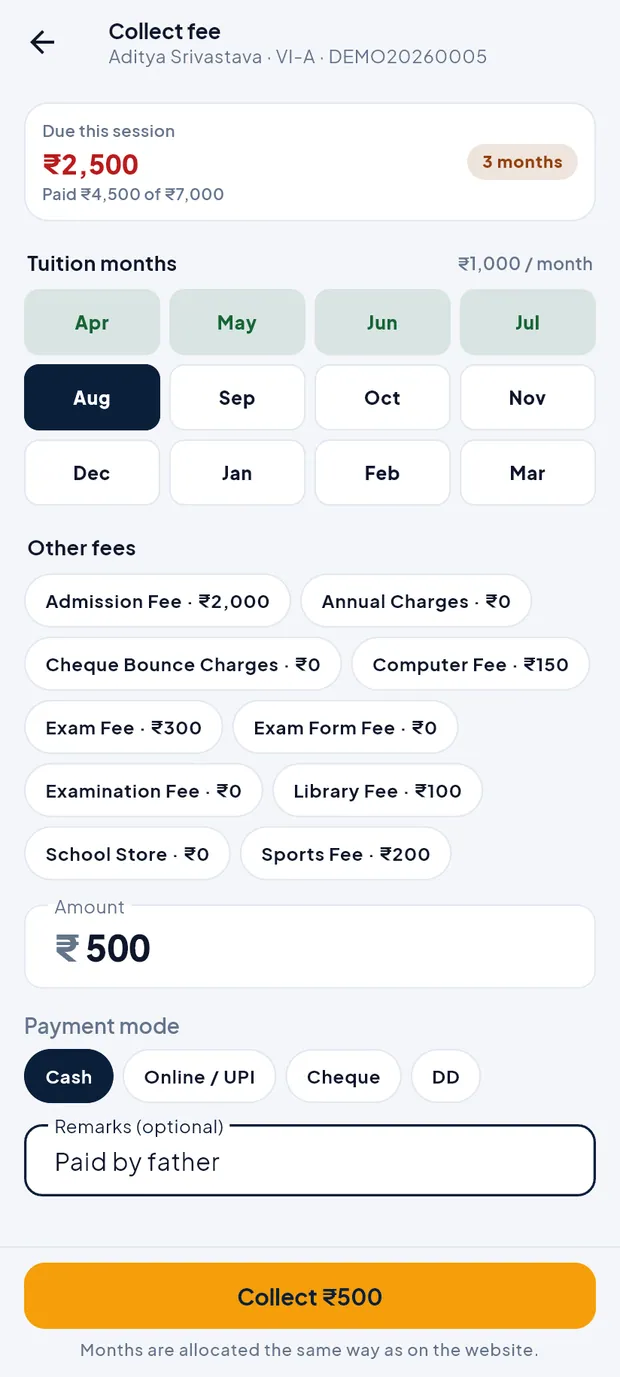
Ready to collect: Cash, remark typed. Tap the orange button Collect ₹500.
The Receipt opens with receipt no. REC001322, the amount in words and Outstanding balance ₹2,000.00. A message Saved appears at the bottom.
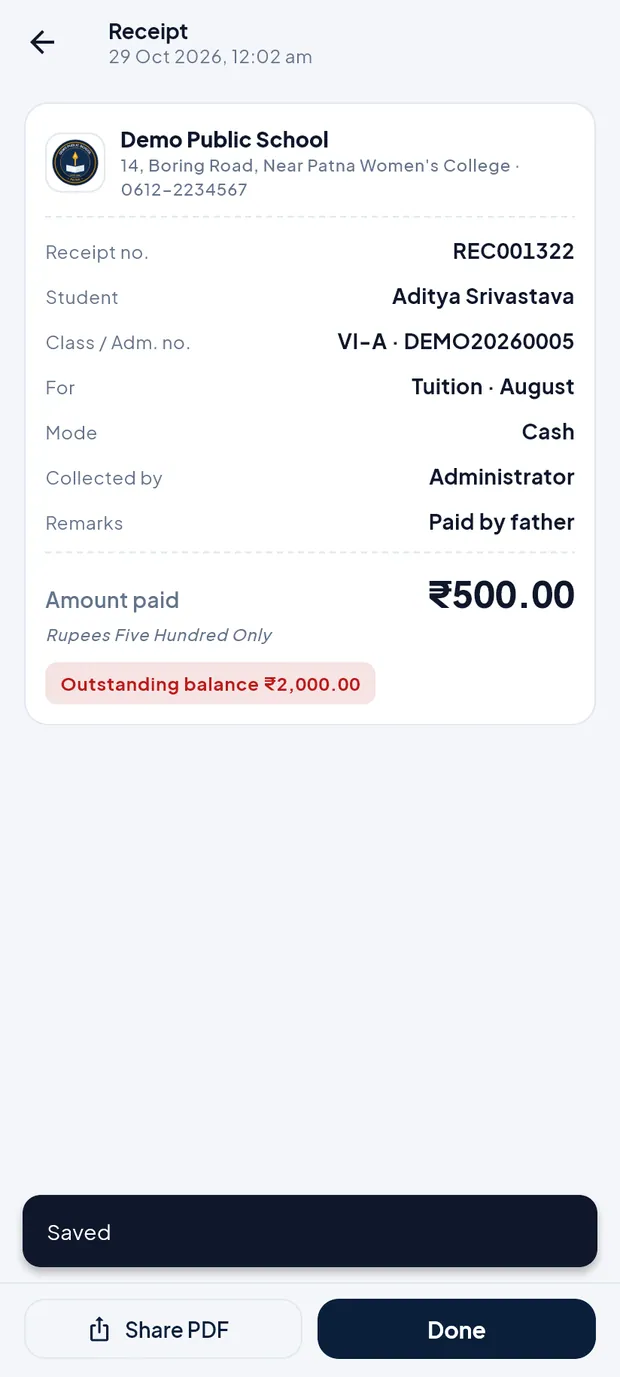
The receipt opens right after collecting. Tap Share PDF to send the receipt to the parent (WhatsApp, Gmail…), or Done to go back.
TipIf you change the Amount by hand: less than the selected total is applied to the oldest months first; more than the total is kept as an advance. The app shows this under the Amount box.
TipCount the cash before you tap Collect. The receipt is made at once.
Collect a cheque (example: Diya Verma, Class VI-A, cheque 456781, ₹1,000 for May)
Open Collect fee for Diya Verma and select the month May.
Under Payment mode tap Cheque (or DD for a demand draft). Three more fields appear.
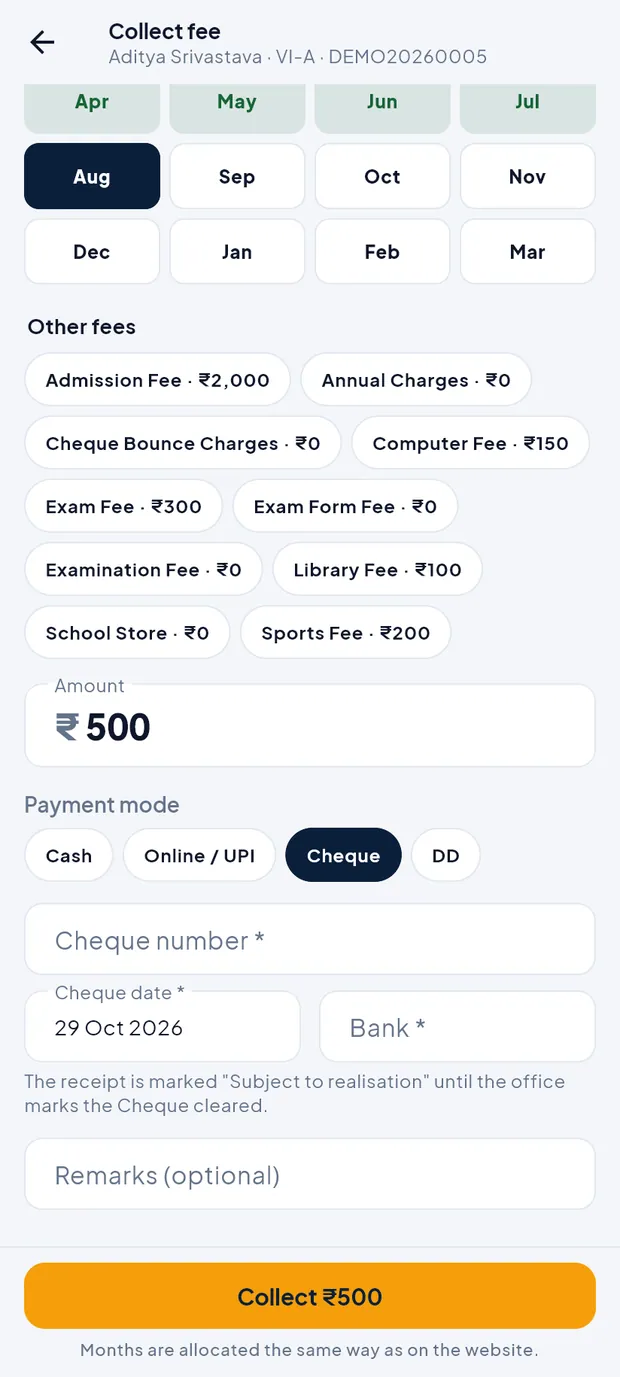
Cheque number, Cheque date and Bank are required. Type Cheque number 456781.
Check Cheque date. It shows today; tap it to pick the date written on the cheque.
Type Bank State Bank of India, and a remark such as Cheque given by mother.
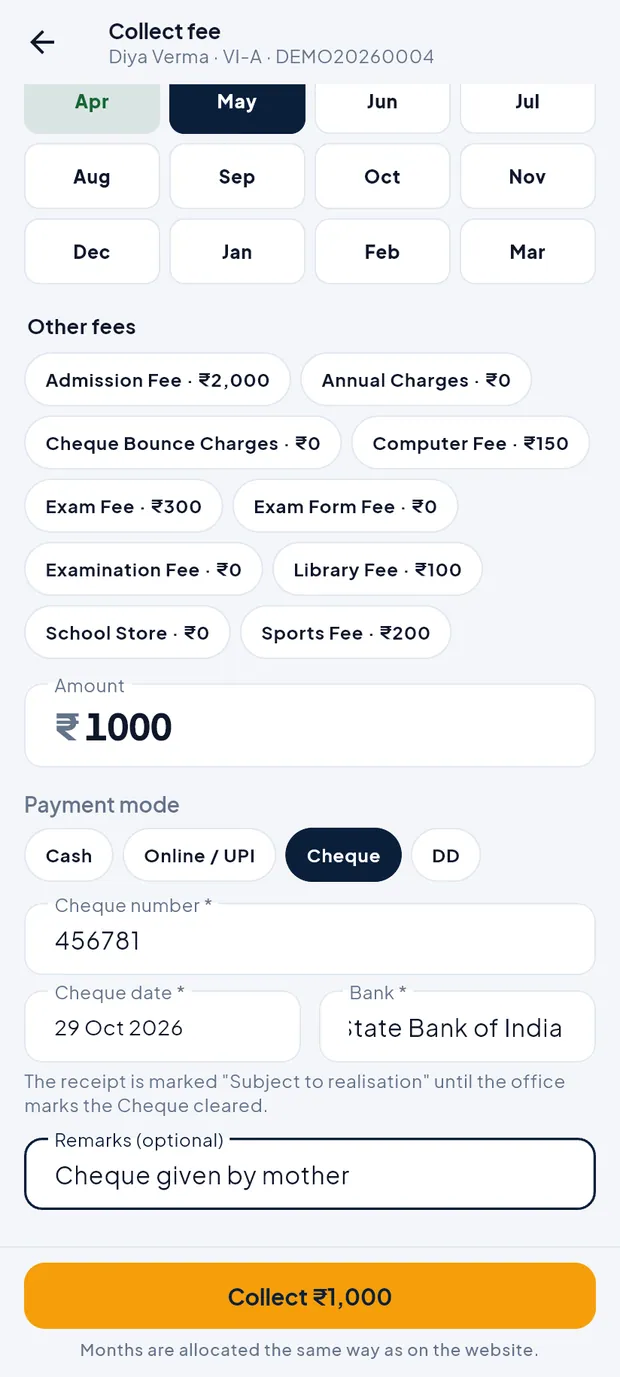
Cheque details filled in. Tap Collect ₹1,000. The receipt shows Mode Cheque (REC001323).

Cheque receipt with the balance still due.
TipThe receipt says “Subject to realisation” until the office marks the cheque cleared. See the chapter Cheques / DD.
TipIf the cheque bounces later, the months it paid fall due again.
Collect fee screen at a glance
- Due this session
- What the student still owes this session. When there are other charges it shows the split: Tuition ₹… + other charges ₹…. The pill on the right shows how many months are due, or All paid.
- Tuition months
- April to March with the monthly fee (₹1,000 / month). Paid months are light green, the selected month is dark. Tap a month to add or remove it.
- Other charges & late fee
- Shown only when the student has them: late fee, hostel fee, School Store sales, cheque bounce charge. Tap a chip to pay it.
- Other fees
- Fee heads of the student's class (Admission Fee, Exam Fee, Library Fee, Sports Fee…). Tap to add to this receipt.
- Amount
- Fills in from what you selected. You may type a different amount.
- Payment mode
- Cash, Online / UPI (money already received in the school's account), Cheque, DD. Cheque and DD need number, date and bank.
- Remarks (optional)
- Up to 250 characters; printed on the receipt.
- Collect ₹…
- Saves the payment and opens the receipt. The line below reminds you that months are allocated the same way as on the website.
Collecting without internet
Collect the fee as usual. The payment is saved on the phone and the message says Saved on phone · will sync.
The receipt gets a provisional number that starts with OFF- and shows the note “Provisional receipt. Saved offline. The final receipt number is assigned when this phone syncs, and this receipt updates by itself.”
When the phone is online again it syncs by itself (or tap the sync button). The receipt then gets its normal number, such as REC001324.
If the school server does not accept the payment, the receipt shows a red note “Not saved by the school server” with the reason. Open Sync status to retry or discard it.
TipRight after signing in, wait for the first sync to finish before you collect. Until then the student list and the totals on the Finance tab can show ₹0 or “No matching students”.
Questions
The parent paid by UPI to the school's account at the counter. Which mode do I choose?
Online / UPI. If the parent paid from home and sent the UTR in the app, do not collect it here; verify it in UPI claims instead, so the payment is not counted twice.
Can I collect fees when the subscription has expired?
No. The button stays off with the note “Subscription expired · read-only. Renew the plan to make changes.”
I collected for the wrong student. Can I cancel the receipt in the app?
No. Only Admin / Principal can delete a receipt, on the website. Ask them before you collect again from the right student.
Why does the list show ₹0 or no students right after I signed in?
The first sync is still running. Wait until the sync button stops turning, then search again.