 CoreAxis School ERP
Student & Parent · Chapter 24
Leave, notices, profile, library, hostel and children
The More tab holds everything else for a student or parent: leave requests to the class teacher, notices, holidays, the read-only profile, library books, school transport and hostel, plus app settings and sign out. A parent with more than one child in the school adds each child once and switches between them. The worked example is Aarav Sharma, Class VI-A. On the website these are the Leave, Notices, Profile, Library, Transport and Hostel sections of the Student / Parent Portal.

The More tab
Tap More in the bottom bar. The top shows the child's card (admission no, class, roll no) and the school card (address, session, subscription status, phone and email).
More tab: child card, school card and the list of screens. Scroll down for the rest of the list, the settings and Sign out.
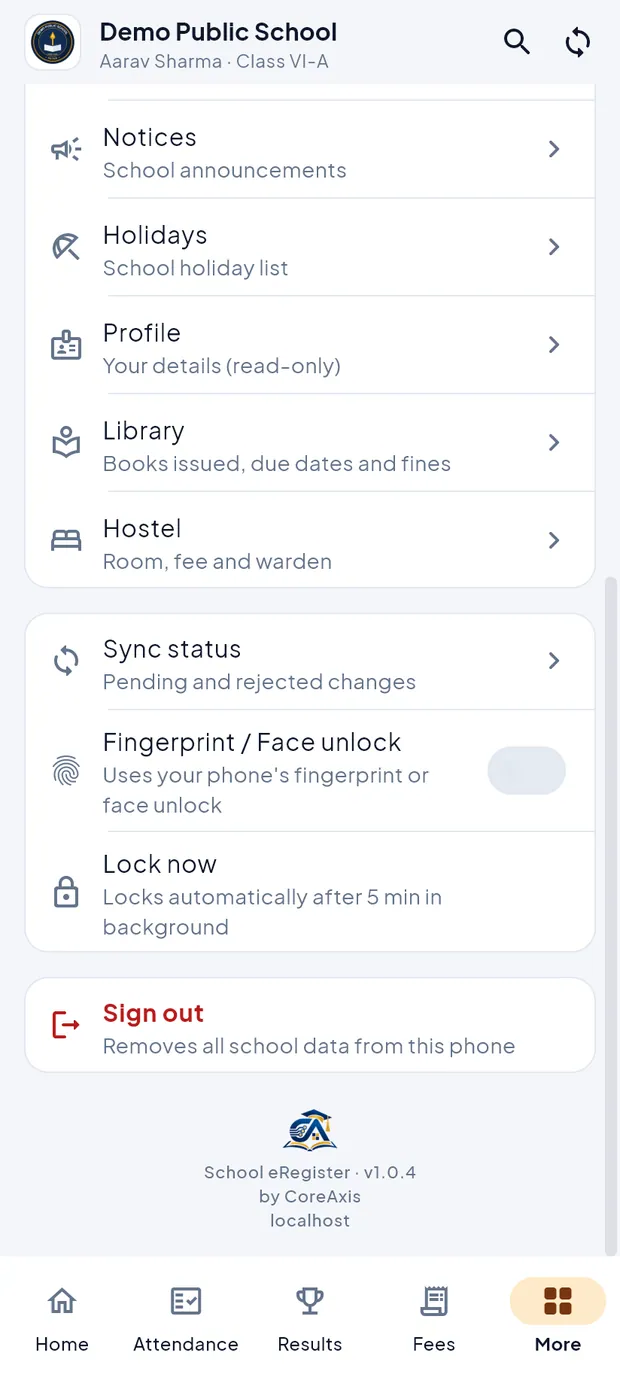
Library, Hostel, Sync status, Fingerprint / Face unlock, Lock now and Sign out.
- Leave requests
- Ask the class teacher for leave and see the decision.
- Homework
- Class homework and due dates (see the Study chapter).
- Timetable
- The class week (see the Study chapter).
- Notices
- School announcements.
- Holidays
- The school holiday list.
- Profile
- The child's details, read-only.
- Library
- Books issued, due dates and fines. Shown when the child has library records.
- Transport
- Route, stop, vehicle and driver. Shown when the child is on a school bus or van.
- Hostel
- Room, fee and warden. Shown when the child has a hostel room.
- Sync status
- Changes waiting to upload, or rejected by the school.
- Fingerprint / Face unlock
- Unlock the app with the phone's fingerprint or face instead of the PIN.
- Lock now
- Locks the app at once. It also locks by itself after 5 minutes in the background.
- Sign out
- Removes the school data from this phone.
Ask for leave (example: Aarav Sharma, 6–7 Nov 2026, family wedding)
The request goes to the class teacher, who approves or rejects it. This works offline: the request is sent when the phone is online again.
Tap More › Leave requests. Earlier requests are listed with Approved, Pending or Not approved.
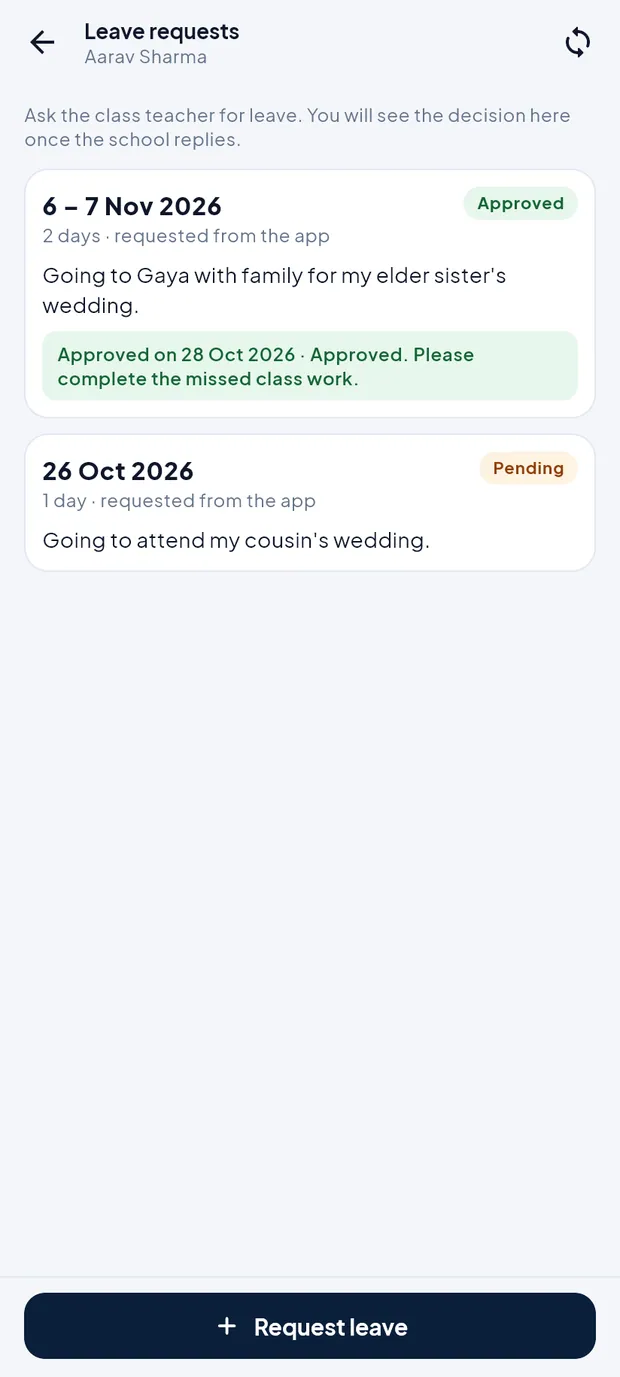
Leave requests: one approved with the teacher's note, one pending. Tap Request leave at the bottom.
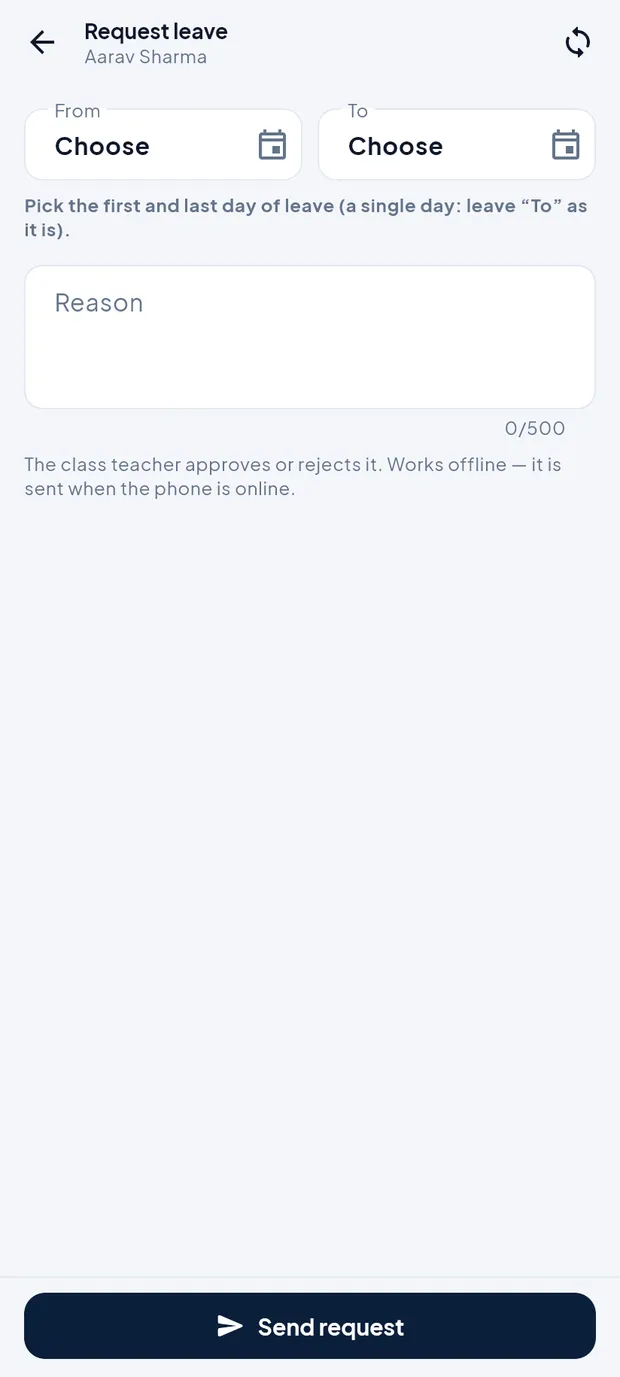
Request leave: From, To and Reason. Tap From and choose the first day of leave (6 Nov 2026).
Tap To and choose the last day (7 Nov 2026). For a single day, leave To as it is.
Type the Reason (up to 500 characters), for example: Going to Gaya with family for my elder sister's wedding.
Tap Send request. The app says Leave request sent to the class teacher and the request shows Pending.
Check back later. When the teacher decides, the request shows Approved or Not approved with the date and the teacher's note (here: Approved on 28 Oct 2026 · Please complete the missed class work).
TipIf the phone was offline, the request shows Not sent yet until it syncs.
TipApproved leave days show as Leave (brown) on the attendance calendar once the teacher marks attendance.
Read notices
Tap More › Notices (or All next to Notices on Home).
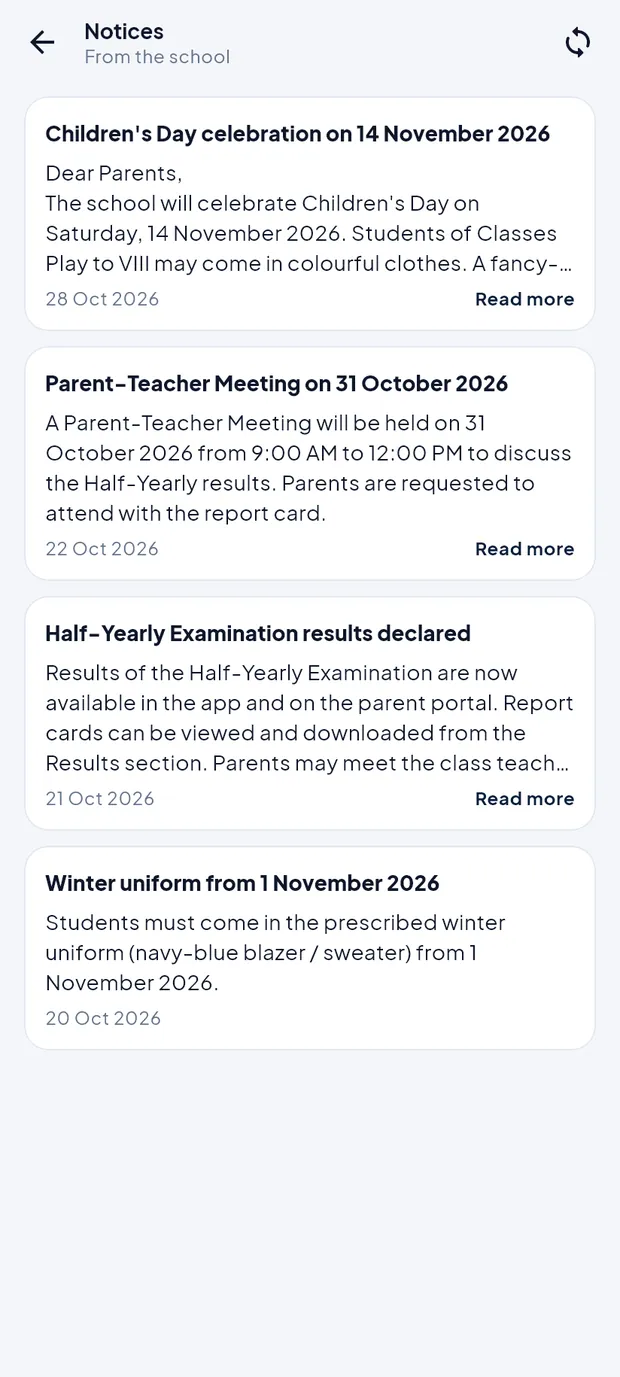
Notices from the school, newest first. Read the title, the first lines and the date of each notice (for example Parent-Teacher Meeting on 31 October 2026).
Tap Read more to see the whole notice.
TipNotices are saved on the phone and can be read offline.
TipFor the list of school holidays, tap More › Holidays.
See the profile and ID card
Tap More › Profile, or tap the student ID card on Home.
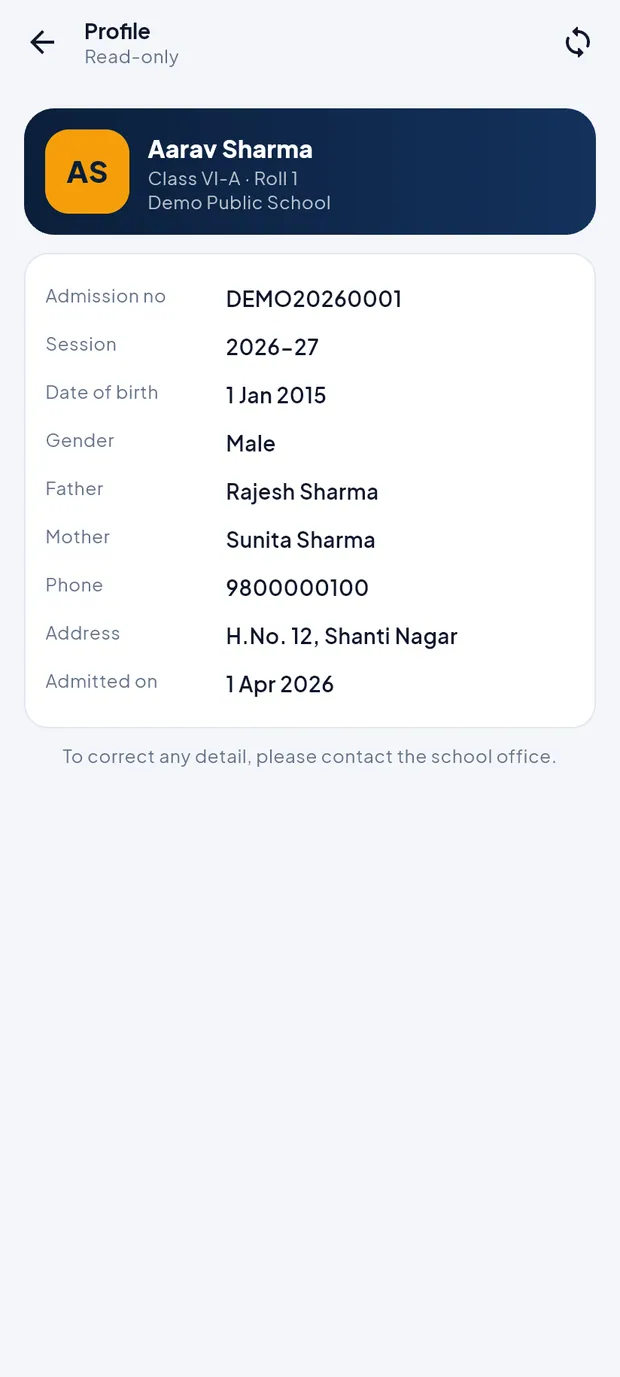
Profile (Read-only): admission no, session, gender, parents, phone, address and admission date. Check the details: Admission no, Session, Date of birth, Gender, Father, Mother, Phone, Address and Admitted on.
If something is wrong, contact the school office. The app cannot change these details.
TipThe student ID card on Home shows the name, class, roll no, admission no and father's name for the current session. The printed ID card is issued by the school.
Library, transport and hostel (example: Wings of Fire, Boys Block Room 101)
Tap More › Library. The top card shows Books with you and how many are overdue.
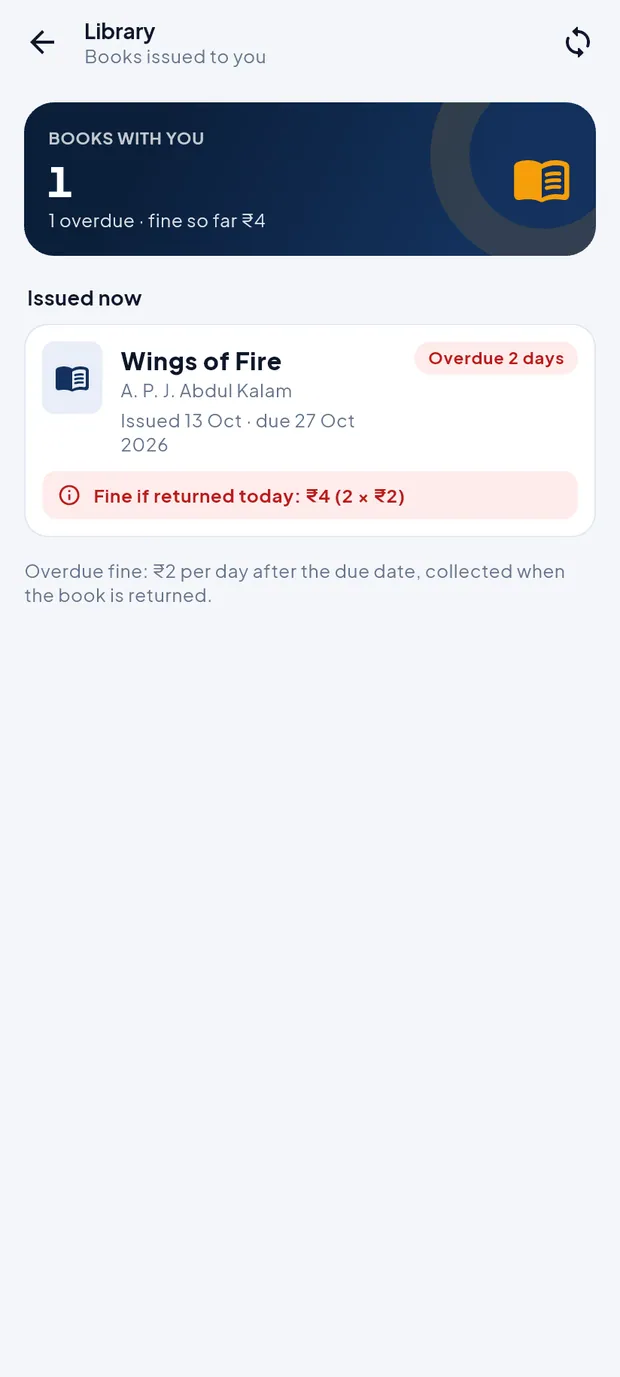
Library: Wings of Fire, overdue 2 days, fine if returned today ₹4. Under Issued now, read each book's issue and due date. An overdue book shows Overdue 2 days and Fine if returned today: ₹4 (2 × ₹2). The fine is collected when the book is returned.
Tap the back arrow, then More › Hostel. The top card shows the room (Boys Block · Room 101), room type, monthly fee and the date since when.

Hostel: block, room, room type, monthly fee and warden. Under Warden, tap the phone button to call the hostel warden.
If the child uses the school bus, tap More › Transport. It shows Your route, the Pickup point / stop, Vehicle number, Driver (with a call button) and Fare, and under Route the areas and stops, with the child's stop highlighted.
TipThese screens show only for a child who has library books, a bus route or a hostel room. The demo child has no bus route, so Transport is not shown for him.
TipThey are saved on the phone and open offline.
Add and switch children (example: a brother or sister of Aarav)
Each child signs in with their own admission number and date of birth and keeps their own data on the phone. Adding a child needs internet.
Tap the school name at the top of Home to open the side menu, then tap Add another child.

Add another child: School, Admission number and Date of birth. Check School (Demo Public School). Change it only if the other child studies in another school that uses School eRegister.
Type the other child's Admission number as on the fee receipt or ID card.
Tap Date of birth and choose the child's date of birth as in the school records.
Tap Verify & add child. The child is added to this phone.
To switch, open the side menu. The child card at the top lists the children on this phone; tap Switch to … for the other child.
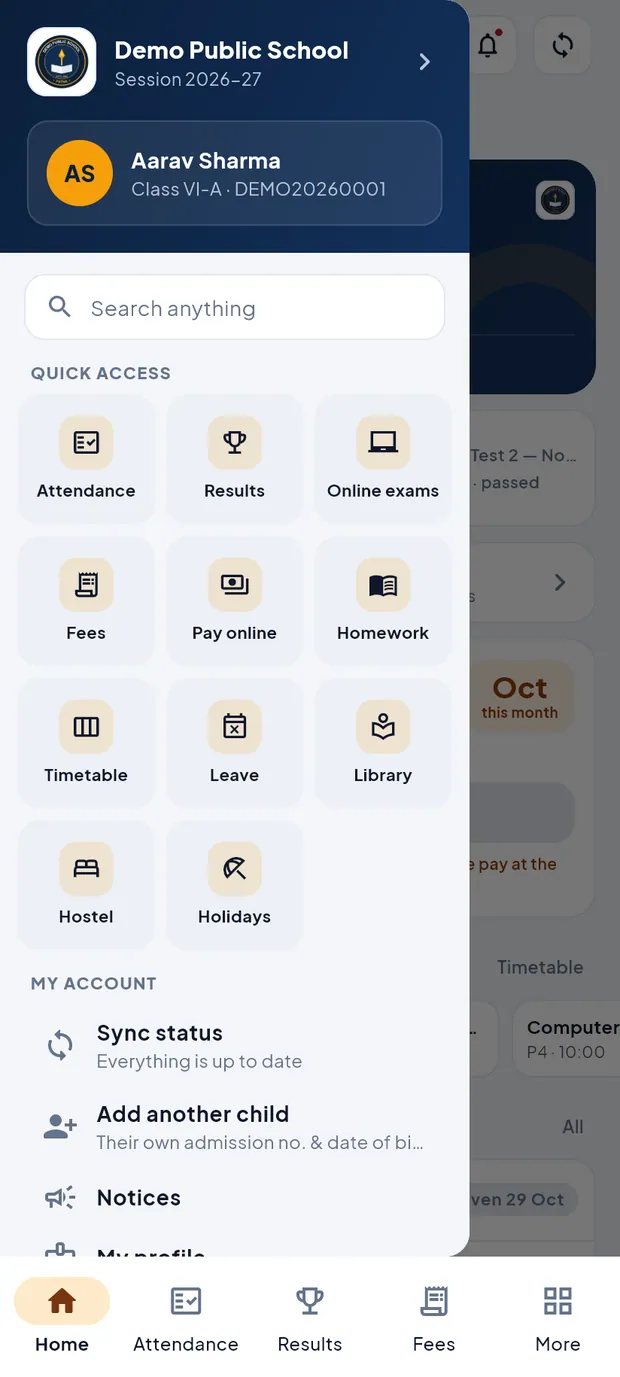
Side menu with the child card at the top. With two or more children, My children in the side menu lets you switch, add or remove a child.
TipIf the details do not match the school records, ask the school office to check the admission number and date of birth.
Sign out
Tap More, scroll down and tap Sign out.
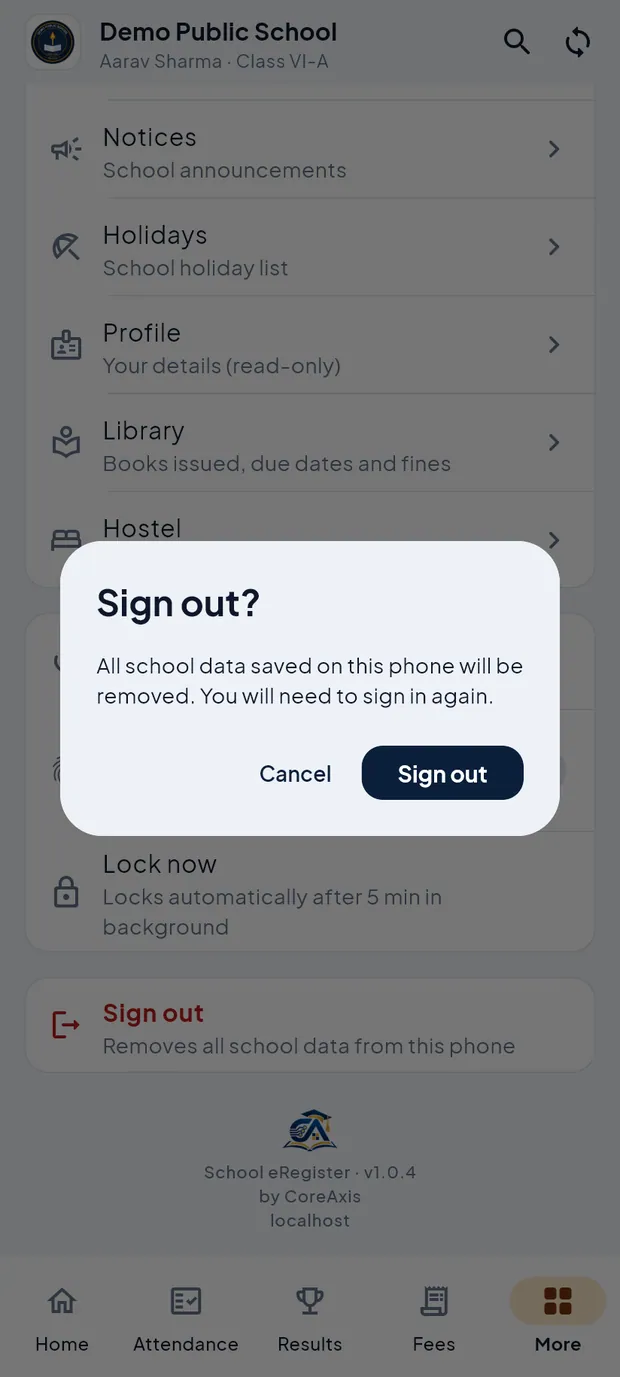
Sign out? All school data saved on this phone will be removed. With one child, the app asks Sign out?. Tap Sign out to remove the school data from the phone, or Cancel.
With several children, choose Sign out for this child only (other children stay on this phone) or Sign out of all … children (removes every child and the app PIN).
ImportantIf a leave request is still waiting to sync, the app warns Unsynced changes will be lost. Open Sync status and send it first, or it is lost.
Questions
Can I send a leave request without internet?
Yes. It is saved on the phone with Not sent yet and goes to the class teacher when the phone is online.
How do I correct my child's address or phone number?
Contact the school office. The profile in the app is read-only.