 CoreAxis School ERP
Admin & Principal · Chapter 12
Staff directory
The Staff directory lists all active staff with role and phone, grouped as Leadership, Teaching, Office and Support. Anyone with access can call or send a WhatsApp message from it. Admin and Principal also see Add staff and can tap a staff member to edit the details. Adding or editing staff needs internet, because the new password is sent once and never stored on the phone. Salary, staff ID cards and staff attendance are on the website (Staff and Payroll menus).
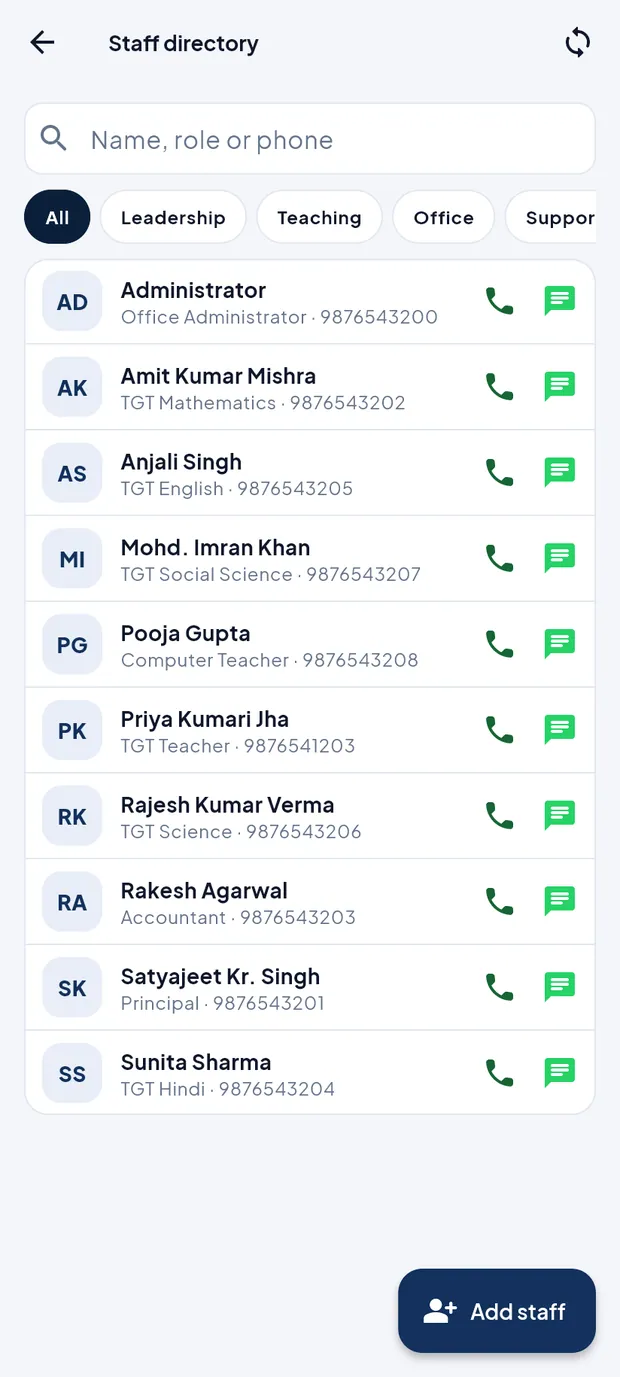
Call a staff member (example: Rakesh Agarwal, Accountant)
Open More › Staff directory.
Staff directory with call and WhatsApp buttons. Tap the Office chip, or type Rakesh in Name, role or phone.
Tap the phone icon to call, or the green message icon to open WhatsApp with his number.
Add a new teacher (example: Neha Sinha, TGT Science)
In Staff directory, tap Add staff.
Under Sign-in, type the Email (login ID) * (neha.sinha@demo.coreaxis.info). The Username * fills in from the email; change it if you like.
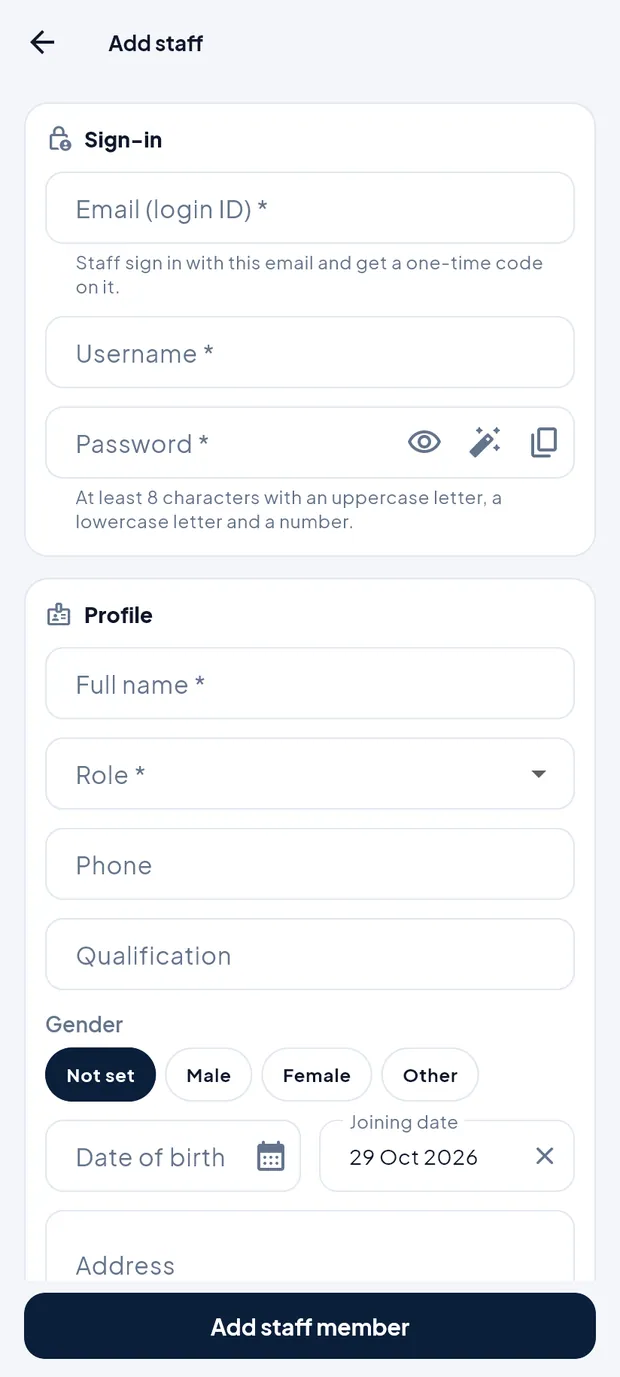
Add staff: Sign-in and Profile sections. Tap the magic-wand icon in Password * to generate a password, or type one with at least 8 characters, an uppercase letter, a lowercase letter and a number. Tap the copy icon to copy it and give it to the teacher privately.
Under Profile, type Full name , choose Role (TGT Teacher), and fill Phone, Qualification, Gender, Date of birth, Joining date and Address.
Under ID documents, type Aadhaar no and PAN no if available.

ID documents and the note that adding staff needs internet. Tap Add staff member. The app says the staff member is added and that they sign in with the email, the password and an email code.
TipThe new staff member gets a one-time code on the email when signing in on a new phone (see the Sign in chapter).
TipClass-teacher duties and subjects are assigned on the website (Classes and Timetable).
ImportantThe password is shown only while you add the staff member. It is not stored on the phone. Share it in person, not in a group chat.
Edit staff details
In Staff directory, tap the staff member's name. The Edit staff form opens.
Change the phone, role, qualification, address or other details. The username cannot be changed and the password is not shown here.
Leave Aadhaar no and PAN no blank to keep the stored numbers.
Tap Save changes. Changes need internet and apply at once.
TipA Super Admin can be edited only by a Super Admin.
TipA staff member can change their own password from More › Change password.
Questions
A staff member left the school. Can I deactivate the login from the app?
No. Deactivate staff on the website under Staff › Staff. The person then disappears from the directory after the next sync.
The directory is empty.
It appears after the first sync. Pull down on the screen to sync.