 CoreAxis School ERP
Teacher · Chapter 20
A teacher's day with the app
This guide follows Amit Kumar Mishra, Mathematics teacher and class teacher of VI-A at Demo Public School. A teacher sees only the classes assigned on the website. The bottom bar has Home, Attendance, Academics and More. Attendance, marks, homework, notices and leave are saved on the phone and sync later, so the day's work goes on even without internet. Each section points to the chapter that explains the screen in full.

Morning: read Home
After unlocking the app with the PIN, Amit lands on Home.
Home for Amit on Thu 29 Oct: Period 1 is Mathematics, VI-A at 8:00. Scroll down for the rest of the day and the To do list.
- UP NEXT · PERIOD 1
- The next period with subject, class and start time, and what comes after it.
- VI-A attendance not marked
- Reminder for the class teacher. Mark now opens the attendance of the class.
- My class · VI-A
- Number of students, this month's attendance percentage and open homework. Register opens the monthly register; Absent yesterday lists who was away.
- Today's schedule
- All periods of the day with time, subject and class. Week opens the timetable.
- To do
- Marks still to enter (Unit Test 2, Sanskrit: 24 of 25 entered) and homework due.
- Top bar
- Search, the notices bell (red dot = new notice) and the sync button.
Period 1: mark attendance of VI-A
Tap Mark now on Home, or open the Attendance tab and tap VI-A.
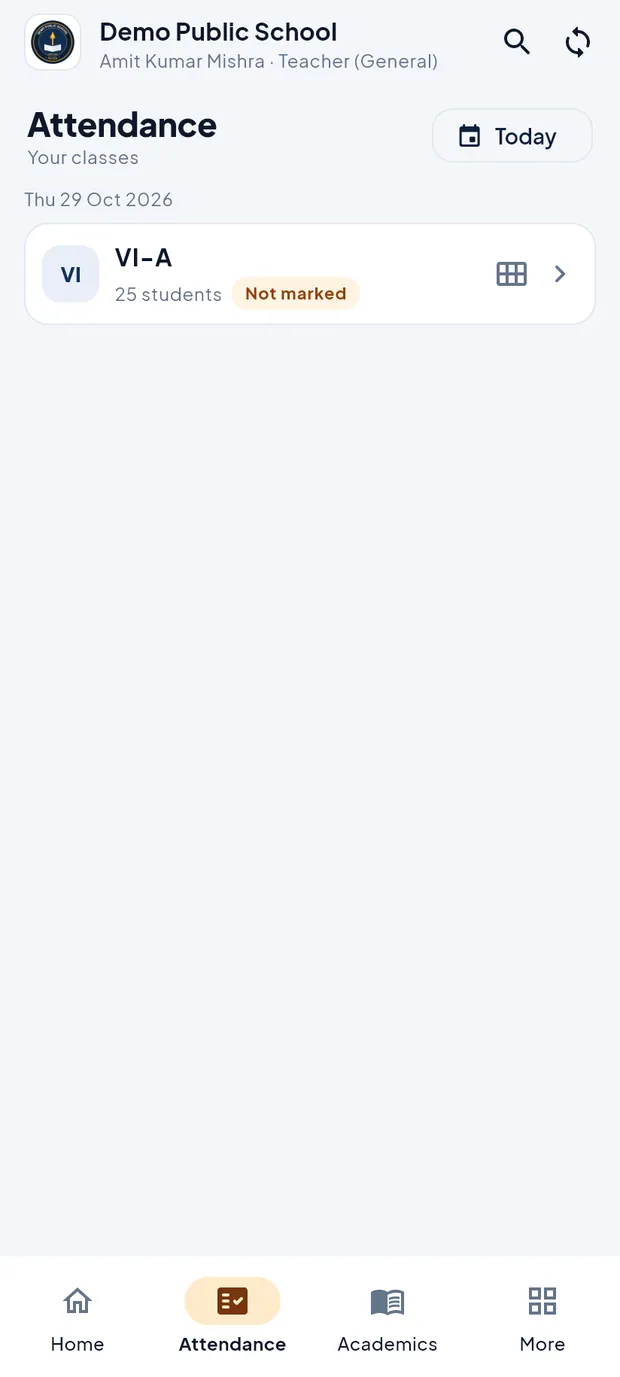
Attendance tab: VI-A, 25 students, Not marked. Everyone starts as present. Tap L for Saanvi Jha, who is on leave, and A for any student who is absent.
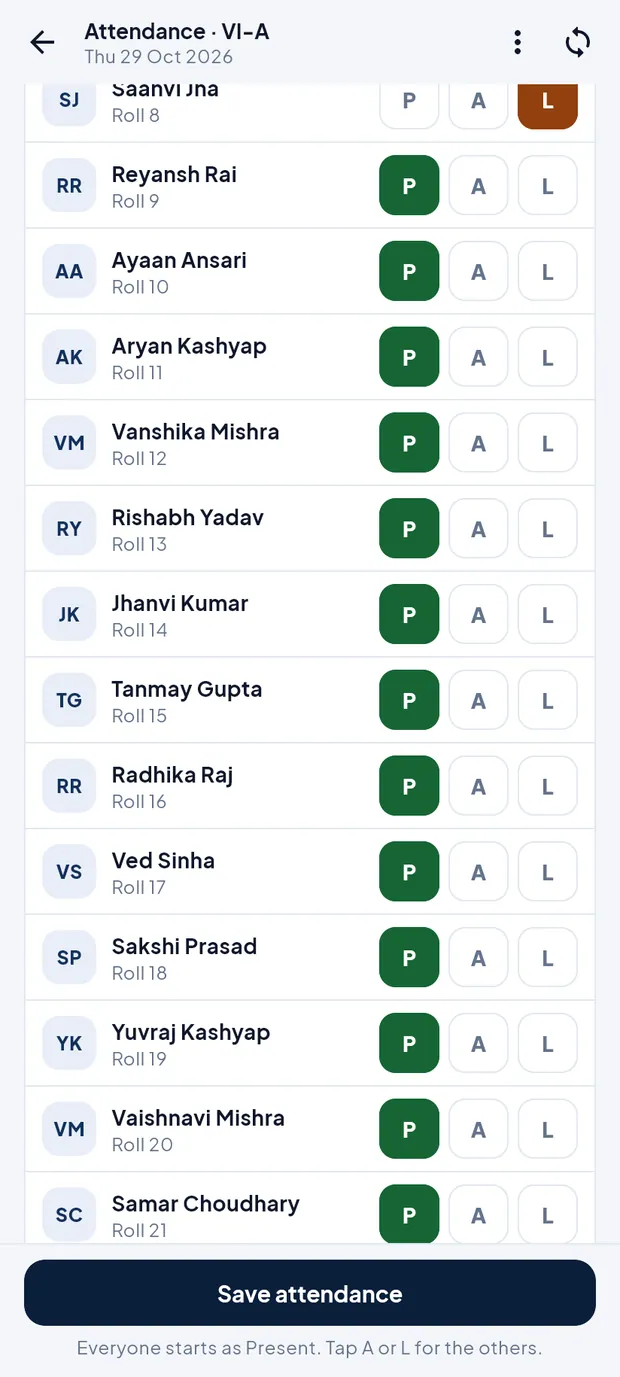
Marking leave and absent students. Tap Save attendance. Offline the app keeps it and says Saved on phone · will sync.
The Attendance tab now shows Marked 25. Tap the pencil to correct it later the same day.
TipA teacher can mark attendance only for classes assigned to him.
TipSee the Academics chapter for the monthly register.
Free period: enter marks
Open Academics and tap Marks entry.

Academics tab for a teacher. Tap VI-A under Unit Test 2 — November 2026.
Tap the subject chip and type each student's marks. Leave a box blank if the mark is not ready.
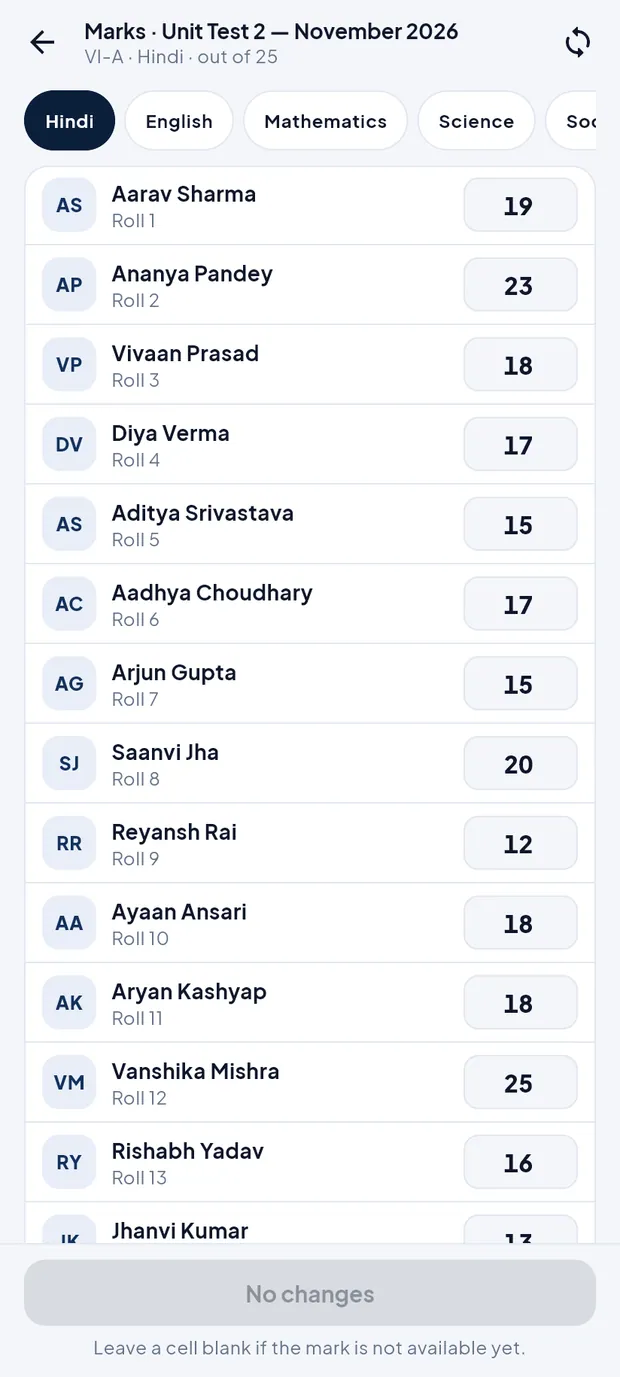
Marks for VI-A, out of 25. Tap Save n marks.
TipTeachers can create a class test for their own class under Academics › Exams › New exam. Only the principal or an administrator can publish results.
After class: give homework
Open Academics › Homework and tap Add homework.
Choose Class VI-A and Subject Mathematics, check Given on, pick Submit by (optional) and type the work: Exercise 6.2 (Integers): solve questions 1 to 8 in the homework notebook.
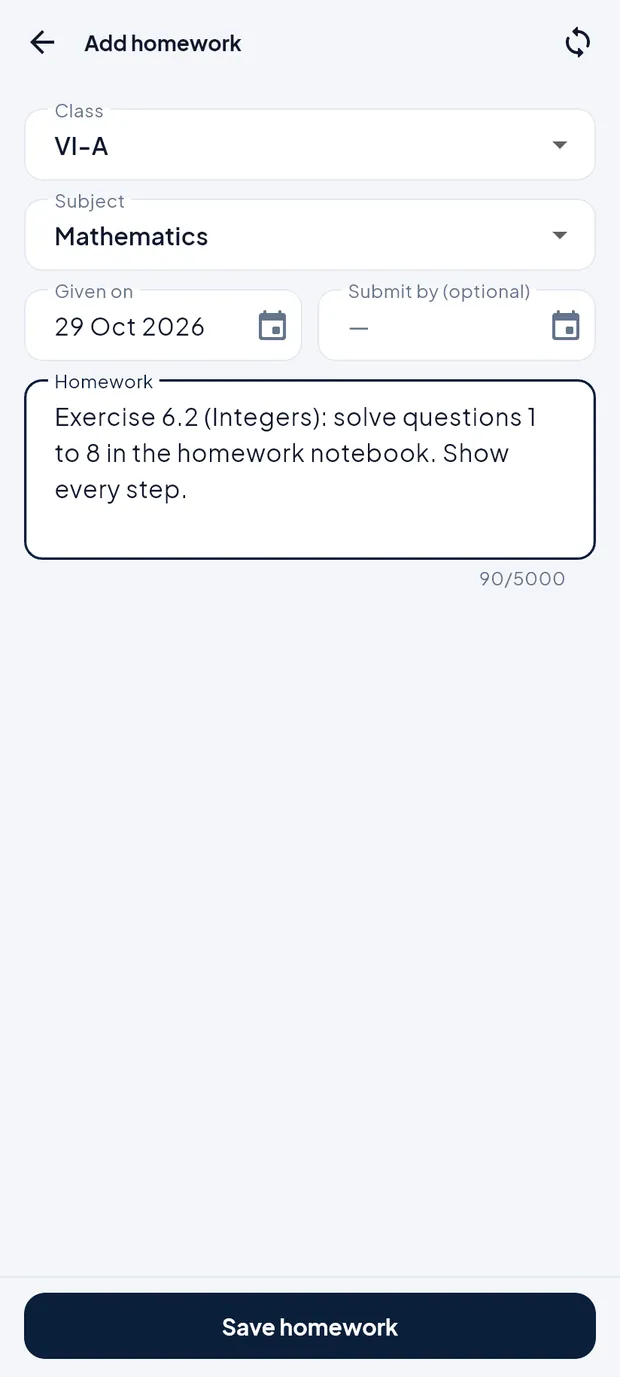
Homework ready to save. Tap Save homework. It appears at the top of the list, and parents of VI-A see it in their app.
Approve a parent's leave request (example: Aarav Sharma, 26 Oct)
Open More › Leave approvals (Student leave requests of your class). Requests sent by parents from the app are under Waiting for you.

Aarav Sharma, 1 day, Going to attend my cousin's wedding. Tap Approve or Reject on the card, or tap the card to see all details.

Leave application of Aarav Sharma. In the detail, tap Approve, reject or return, add a remark if needed and decide. The decision moves to Decided, and the parent sees it in the app.
Notices, substitutions and the library
Open More › Notices to read notices for teachers and for everyone. Tap New notice to post one (see the Notices chapter).

Notices for a teacher. Open More › Substitutions to see the periods you take for absent colleagues today, this week and in the next two weeks. This needs internet.
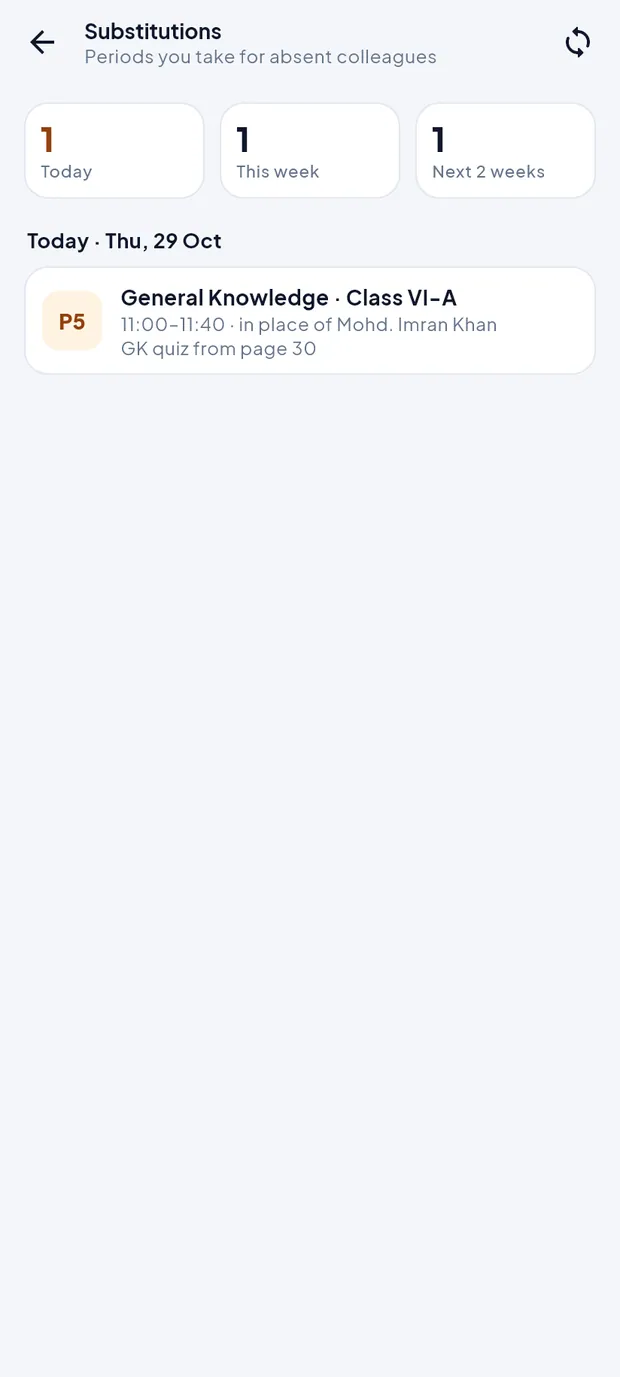
Period 5, General Knowledge, VI-A, in place of Mohd. Imran Khan. Open More › Students of my classes for a read-only list of your students with roll and admission numbers.
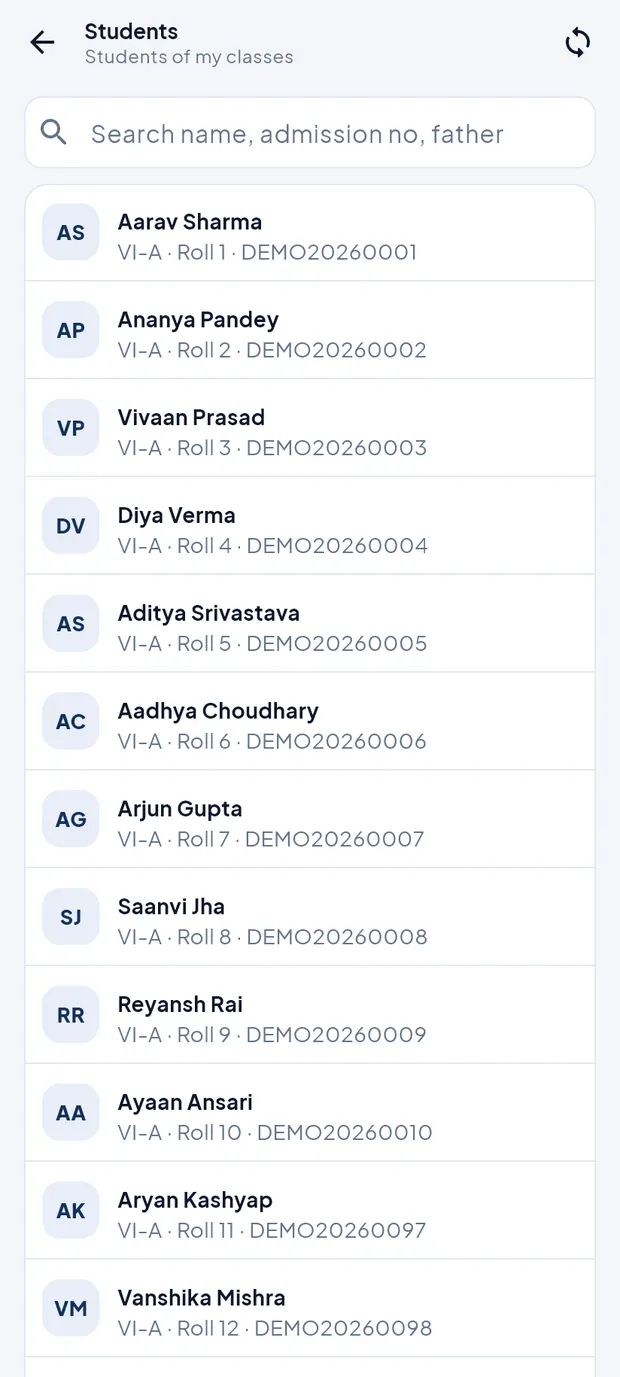
Students of VI-A. If you have library access, More › Library desk issues and returns books (see Library, School Store, transport and hostel).
Apply for your own leave
Open More › My leave. The card shows the days available (79 days: CL 14, EL 30, HPL 20) and your applications.

My leave with a pending CL application. Tap Apply leave, choose the Leave type, pick From and To, type the Reason and name the colleague who takes charge.
Tap Send application. It shows Pending until the principal decides; Withdraw takes it back.
TipSee the Leave chapter for cancellation and the joining report.
TipMore › My attendance and More › My payslips show your own attendance and salary slips.
Questions
I do not see my new class in the app.
Classes and subjects are assigned to teachers on the website. Ask the office, then pull down to sync.
Can I take attendance with no internet in the classroom?
Yes. Save it as usual; it is sent to the school when the phone is online again. Check More › Sync status for changes still waiting.