 CoreAxis School ERP
Getting Started · Chapter 3
Home screen and menus
Home is the first screen after sign-in. It shows what needs your attention today and has buttons for the most common jobs. Each role has its own Home: Admin / Principal see the whole school, the Accountant sees the fee desk, a Teacher sees their periods and class, and a parent sees the child. Three ways lead to every other screen: the bottom tabs, the side menu and search.
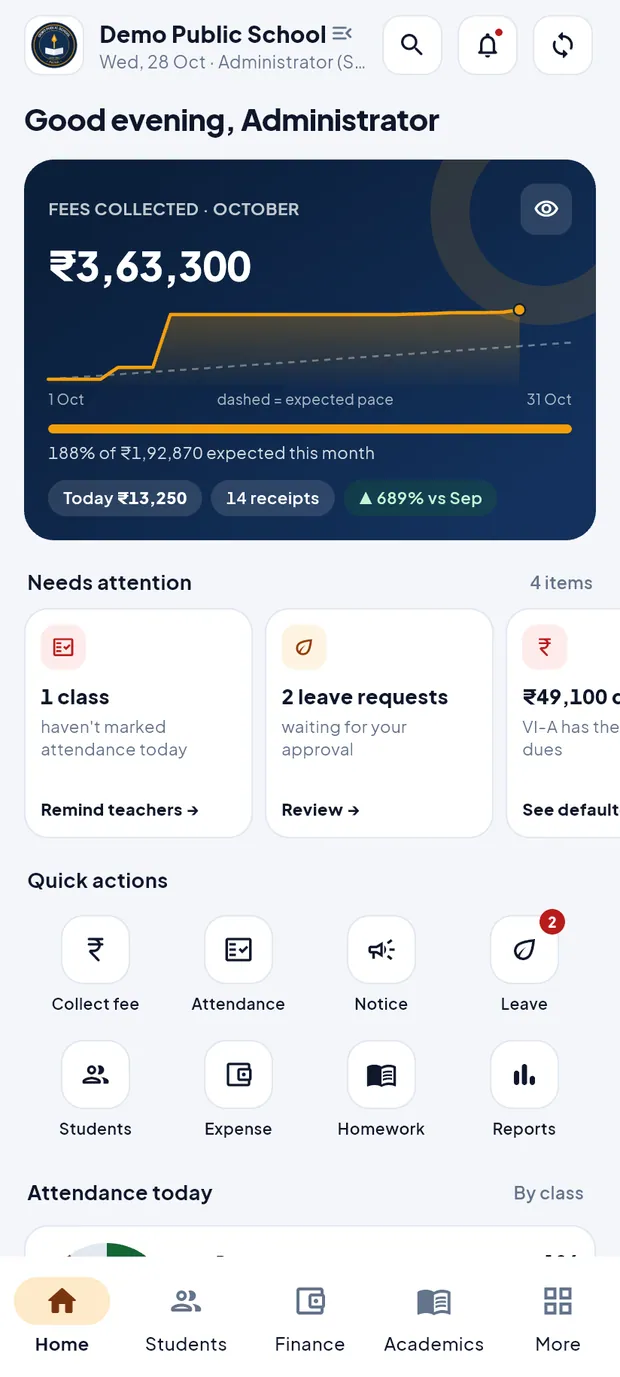
The header
The top of Home is the same for every role.
- School name
- Tap the school logo or name to open the side menu. The line below shows the date and who is signed in.
- Search (magnifier)
- Opens search for any screen or record. See Find anything with search below.
- Notices (bell)
- Opens the notices. A red dot means a notice you have not seen yet; it goes away when you open the notices.
- Sync (round arrows)
- Tap to sync now. Long-press to open the Sync screen. A number badge shows changes still waiting on this phone; a red badge means the school server rejected a change. When the phone is offline the icon is crossed out and a tap explains that changes are saved on the phone.
- Strips under the header
- Offline · data as of a time when there is no internet; Sync failed (tap to see why); Subscription expired · read-only when the school's plan has ended; Update available when a new app version is out.
Admin / Principal Home
The Principal and the Administrator see the same Home. Figures are for the whole school.
Fees collected for the month, with a line chart against the expected pace, today's total, the number of receipts and the change from last month. Tap the eye button to hide the amounts, for example when parents are in the office.
Fees collected · October with Today ₹13,250 and 14 receipts. Needs attention cards: classes that have not marked attendance (Remind teachers →), leave requests waiting for you (Review →) and the class with the highest dues (See defaulters →). Swipe sideways to see all cards.
Quick actions: Collect fee, Attendance, Notice, Leave (a red number shows requests waiting), Students, Expense, Homework and Reports.
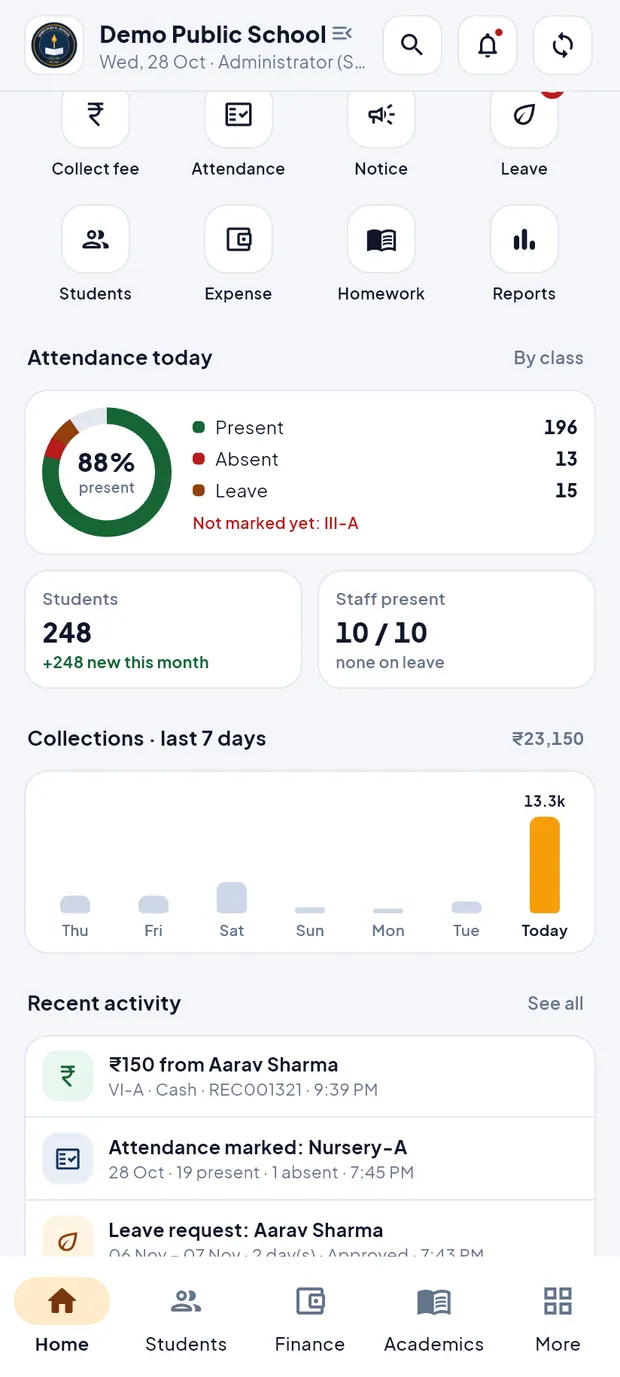
Quick actions and Attendance today. Attendance today: a ring with present, absent and leave, and the classes not marked yet. Tap By class to open attendance by class. Below are the Students and Staff present tiles.
Collections · last 7 days as bars, and Recent activity: latest payments, attendance and leave. Tap See all for the full list.
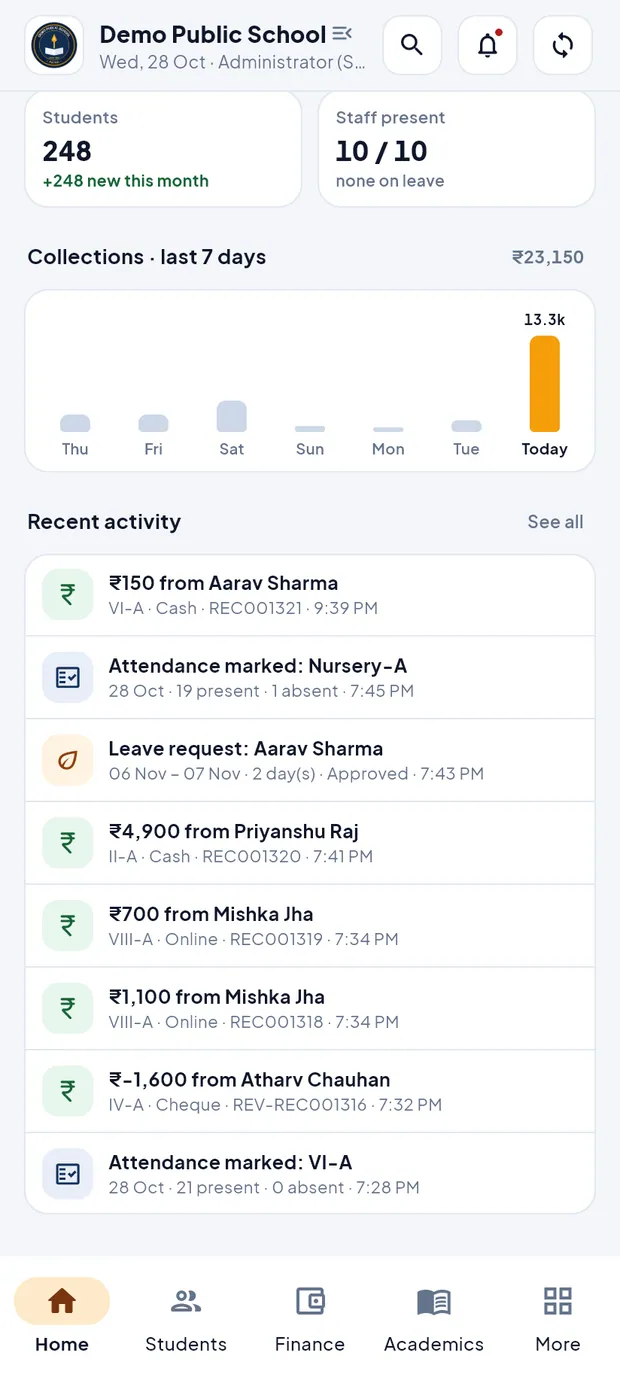
Collections · last 7 days and Recent activity.
TipOn the website the same figures are on the Admin dashboard.
Accountant Home
Collected today, split into cash, online and cheque, with the receipt count.
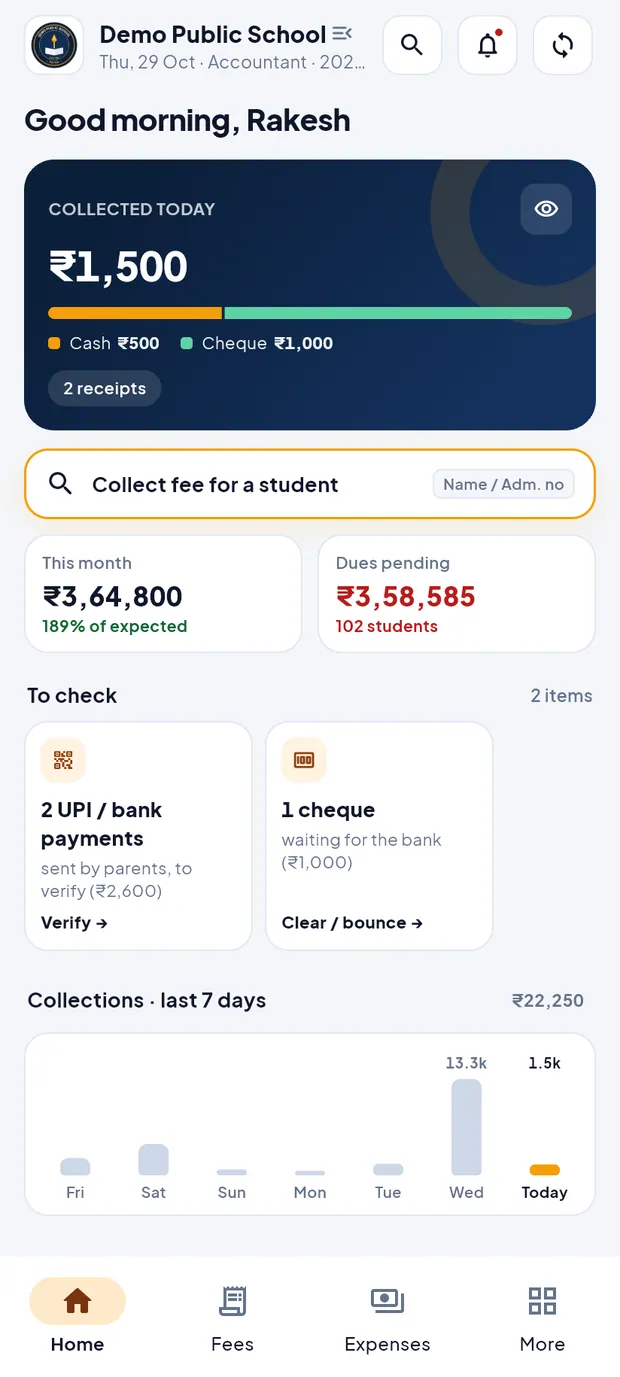
Accountant Home of Rakesh Agarwal: Collected today ₹1,500 and To check. Collect fee for a student: type a name or admission number to go straight to the student's dues.
This month collected and Dues pending with the number of students.
To check: UPI / bank payments sent by parents (Verify →) and cheques waiting for the bank (Clear / bounce →).
Lower down: Collections · last 7 days, Highest dues with All defaulters, and Today's receipts.
Teacher Home
Up next: the next period with subject, class and start time, and the period after it.

Teacher Home of Amit Kumar Mishra, class teacher of VI-A. A reminder when your class's attendance is not marked yet, with Mark now.
My class: students, this month's attendance %, open homework and who was absent yesterday. Register opens the monthly attendance register.
Today's schedule with all your periods, and To do: marks still to enter and homework.
Student / Parent Home
The Student ID card with photo, class, roll, admission number and father's name. Tap it to open the profile.
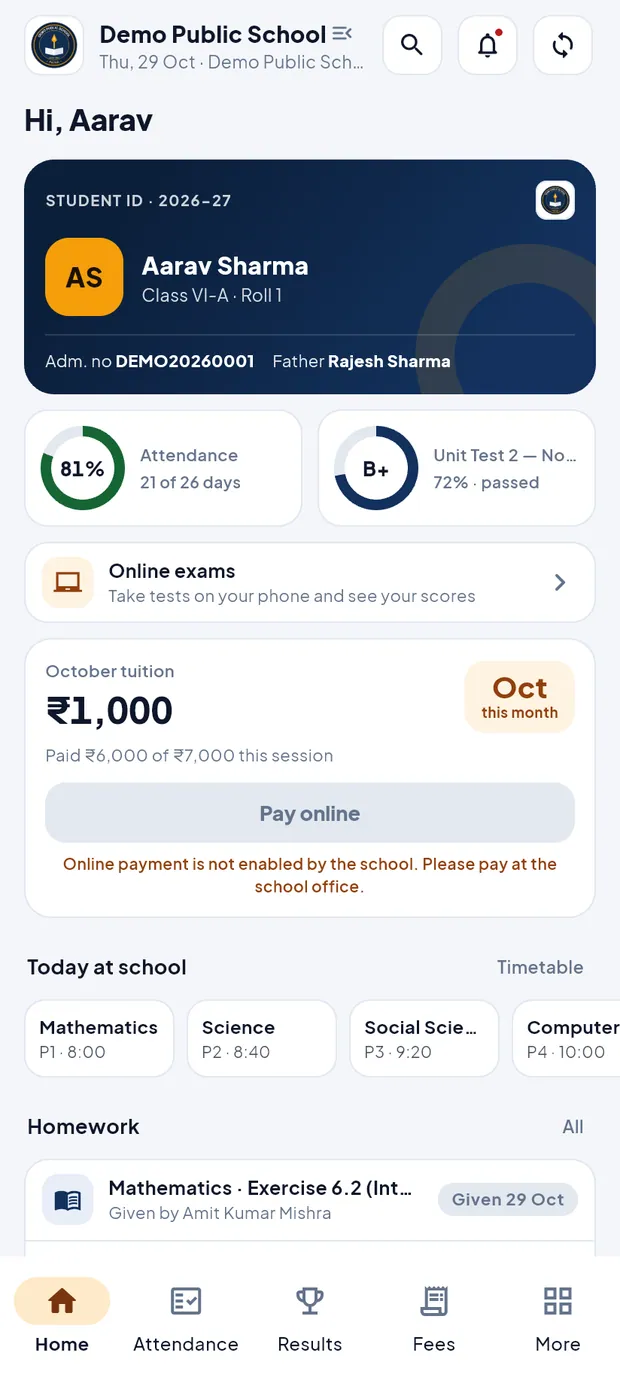
Parent Home for Aarav Sharma, VI-A. Attendance for the session and the latest exam result with grade.
Online exams: tests to take on the phone.
This month's fee with the amount paid this session.
Lower down: Today at school (periods), Homework and Notices.
TipTo pay fees by UPI or bank transfer, open the Fees tab and tap Pay … by UPI / bank. See the chapter on fees for parents.
Bottom tabs by role
The bar at the bottom changes with the role. A tab is hidden if the school has not switched on that module.
- Admin / Principal
- Home, Students, Finance, Academics, More.
- Accountant
- Home, Fees, Expenses, More.
- Teacher
- Home, Attendance, Academics, More.
- Student / Parent
- Home, Attendance, Results, Fees, More.
- More
- Your profile, the school card, all other screens (leave, notices, payslips, reports, library and more) and the settings. See Settings, sync and security.
Open a screen from the side menu (example: the Administrator opens Timetable)
On Home, tap the school name at the top left. The side menu opens with your name and role.
Under Quick access, tap Timetable.
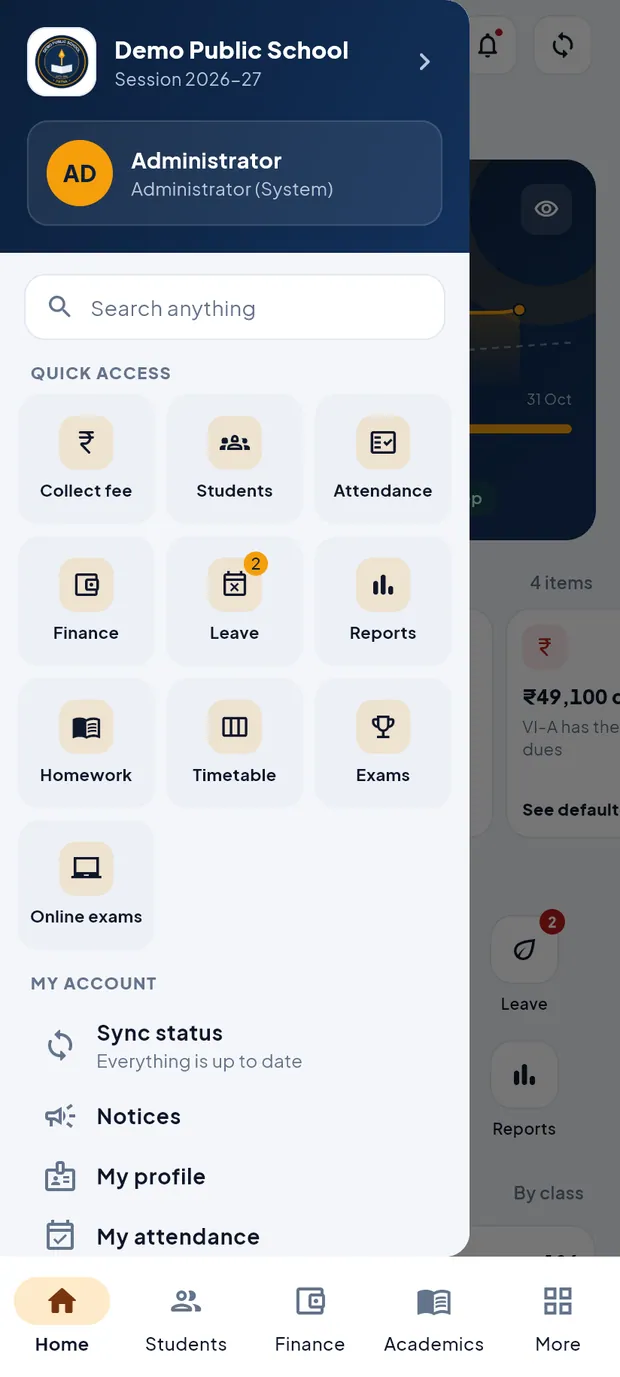
The side menu: account card, search, Quick access and My account. To close the menu without choosing, tap outside it or swipe it to the left.
TipQuick access depends on the role. Admin: Collect fee, Students, Attendance, Finance, Leave, Reports, Homework, Timetable, Exams, Online exams. Teacher: Attendance, Homework, Timetable, Exams, My leave, New notice, Online exams. Accountant: Collect fee, Receipts, Defaulters, Add expense, Reports, My leave. Parent: Attendance, Results, Online exams, Fees and more.
TipParents see Add another child and, with two or more children, Switch to with each child's name.
Side menu at a glance
- My account
- Sync status, Notices, My profile, My attendance, My payslips (staff), Substitutions (needs internet) and School details.
- Security & display
- Change password, Lock app now, Fingerprint / Face unlock, Hide amounts (shows ₹ •••• instead of figures) and the theme: Auto, Light or Dark.
- Help & support
- Contact school office (phone and email of the school), Call CoreAxis support, WhatsApp support and Email support.
- Bottom of the menu
- Privacy policy, Delete account, About School eRegister with the version, and Sign out.
Find anything with search (example: Aarav's receipts)
Search finds screens and records: students, staff, receipts, notices, homework, classes, leave and expenses. It searches the data saved on the phone, so it works offline.
Tap the magnifier in the header, or the Search anything box in the side menu.
Before you type, Popular shows common screens such as Collect fee, Students and Defaulters. Tap one to open it.
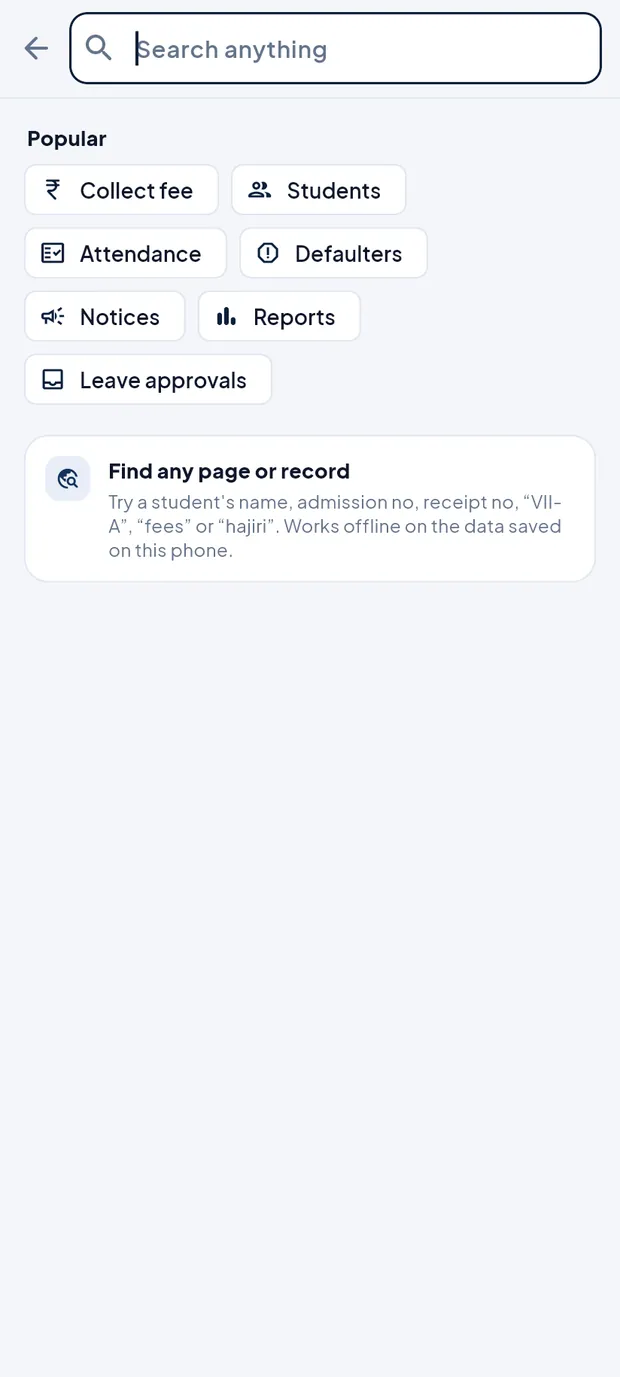
Search before typing: Popular shortcuts. Type a word for a screen, for example fee. Features & pages lists Collect fee, Finance, Receipts, Defaulters and Reports.
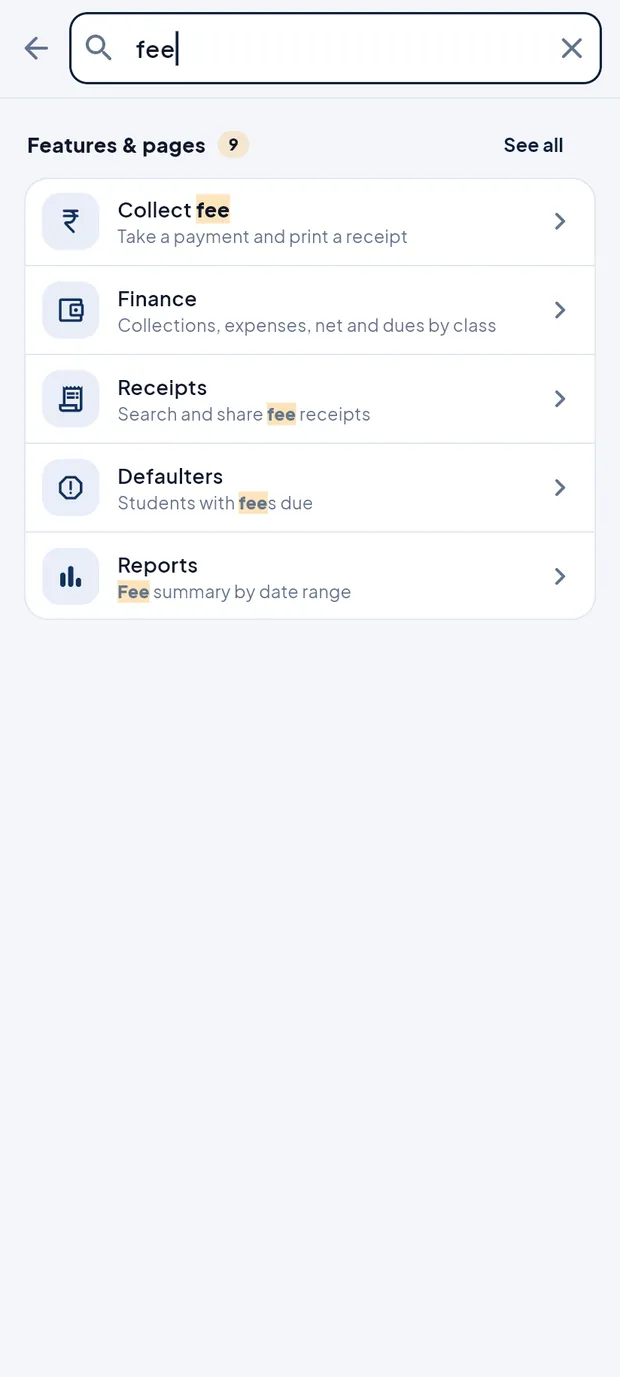
Searching fee finds the money screens. Type a name, for example aarav. The results are grouped: Students, Fee receipts and Leave.
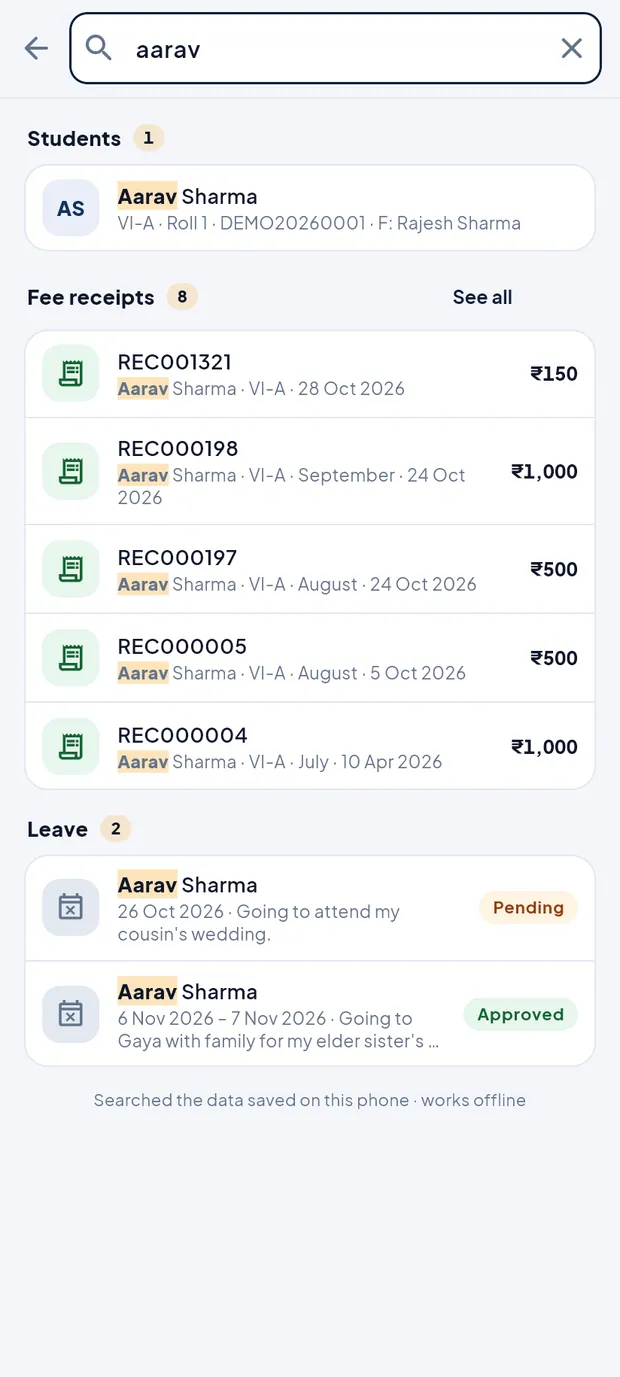
Searching aarav: the student, 8 fee receipts and 2 leave records. Tap REC001321 under Fee receipts to open that receipt, or tap the student to open the profile.
TipSearch understands everyday Hindi words too, for example fees jama, hajiri or chutti.
TipYou can search by admission number, receipt number or class, for example VII-A.
TipYour recent searches are listed under Recent searches; tap Clear to remove them.
Notices from the bell (example: Children's Day notice)
Tap the bell in the header. The red dot shows there is a new notice.
The notices open, newest first. Use the chips All notices, For everyone, Teachers, Students or Parents to filter.
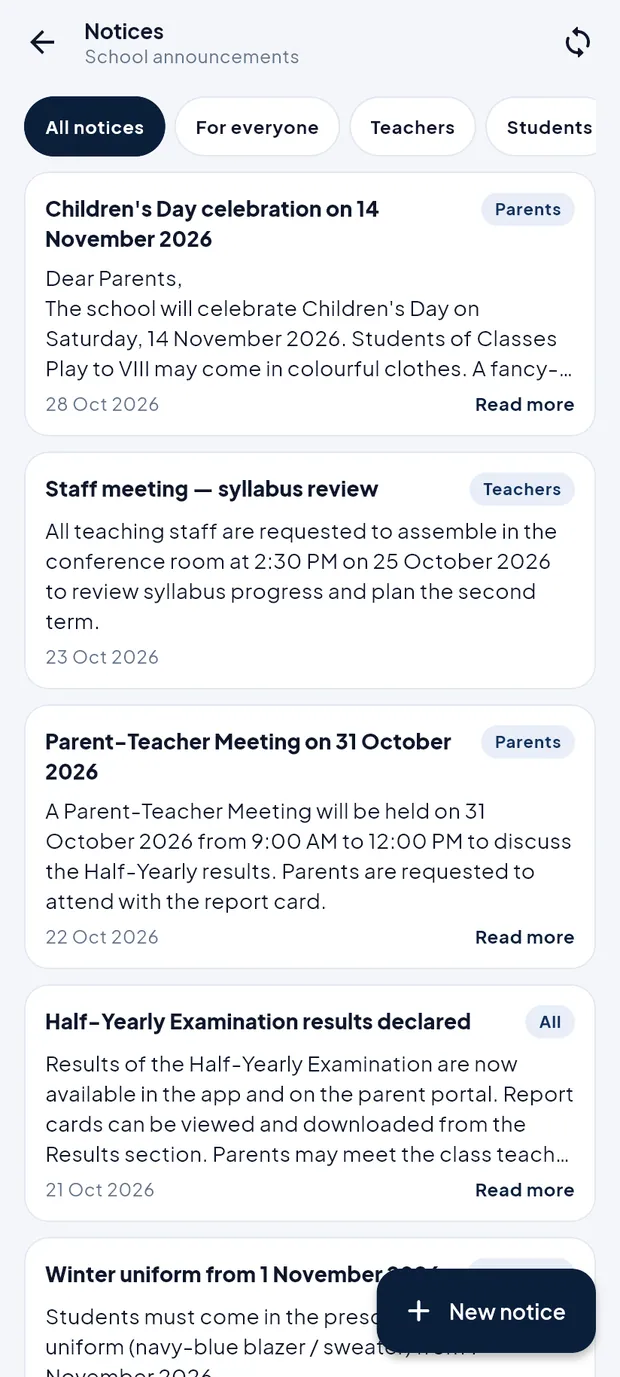
Notices with audience tags and Read more. Tap Read more on Children's Day celebration on 14 November 2026 to read the full text.
TipThe app has no pop-up phone notifications. New notices show as the red dot on the bell when the app syncs.
TipAdmin / Principal and teachers can post a notice with New notice. See the chapter Notices.
Questions
Home shows ₹ •••• instead of amounts.
Hide amounts is on. Tap the eye button on the fees card, or switch off Hide amounts in the side menu.
The figures on Home look old.
Check the strip under the header. If it says Offline, connect to the internet. Then tap the sync button and wait for it to stop turning.
A tab I need is missing.
Tabs depend on your role and on the modules the school has switched on. Ask the school administrator.