 CoreAxis School ERP
Admin & Principal · Chapter 11
Expenses
Expenses holds every payment the school makes other than salaries: electricity, diesel, stationery, repairs and so on. Each entry has a head, amount, date, who was paid and how. Expenses can be added, edited and deleted offline; the changes reach the school server at the next sync. The totals feed the Finance tab, Reports and the Ledger. Staff salaries are not entered here; they are paid in Salary / Payroll on the website.
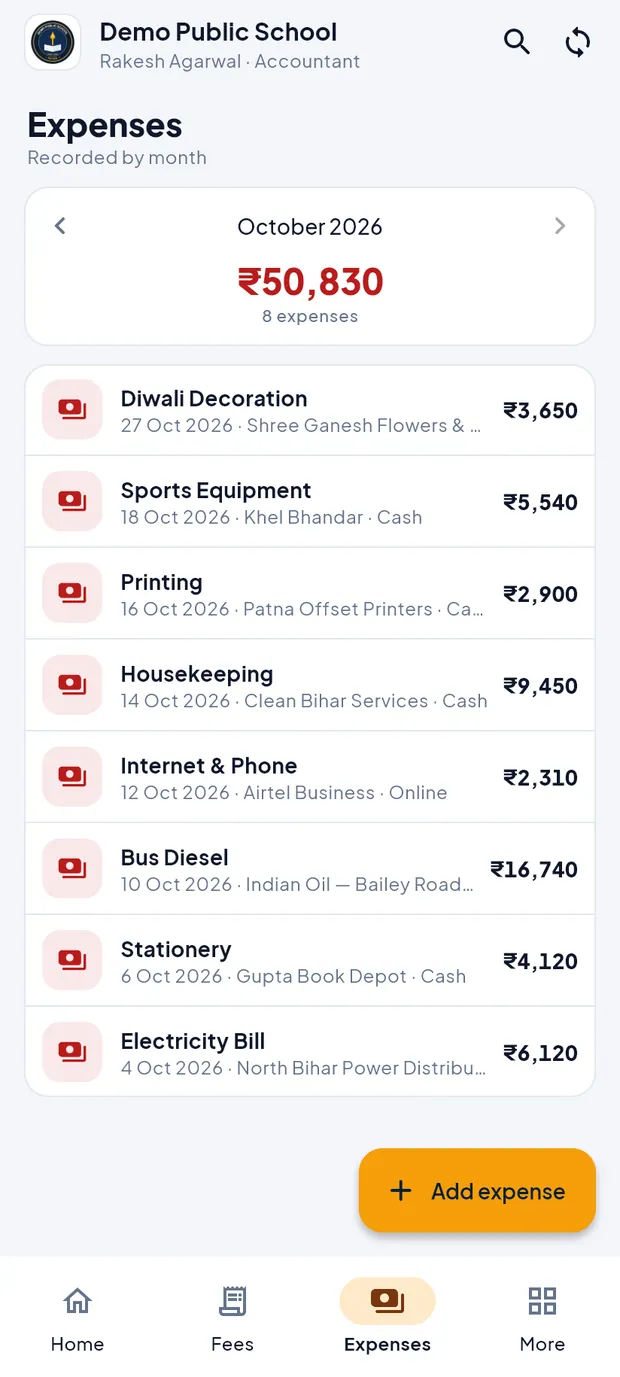
The expenses list
- Month card
- Month name with arrows for the previous / next month, the total and the number of expenses (October 2026: ₹52,680 · 9 expenses).
- Expense line
- Head, date, paid to and mode, with the amount on the right. Tap a line for all details.
- Not synced
- Orange tag on an expense saved on this phone and not yet sent to the school server.
- + Add expense
- Orange button at the bottom right.
Add an expense (example: Stationery ₹1,850 to Gupta Book Depot)
Open the Expenses tab (Admin / Principal: Finance › Expenses).
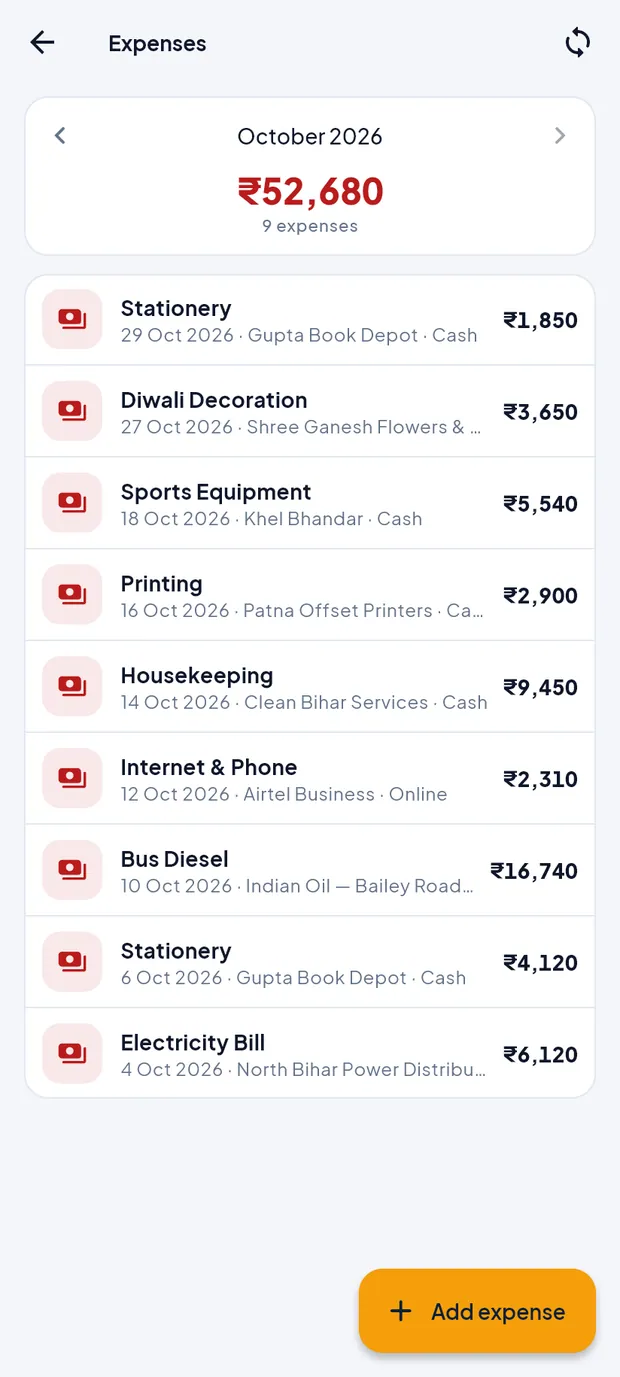
October 2026: ₹52,680 in 9 expenses. Tap Add expense. The form opens with today's date.
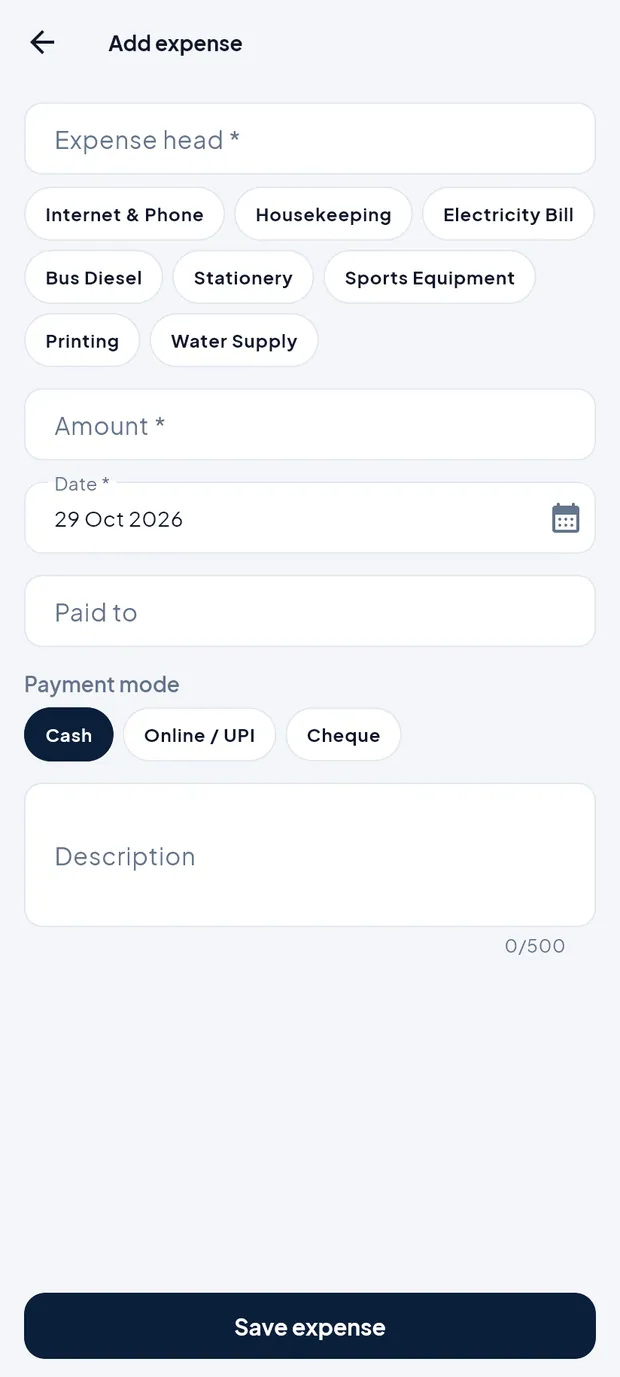
Add expense: chips under the head are the heads the school uses most. Tap the chip Stationery, or type the head in Expense head.
Type Amount 1850.
Check Date. Tap the calendar icon to choose another day.
Type Paid to: Gupta Book Depot.
Choose Payment mode: Cash, Online / UPI or Cheque.
Type a Description, for example Chalk boxes, registers and board markers (up to 500 characters).

The form filled in. Tap Save expense. The expense appears at the top of the list and the message Saved shows.

The new expense at the top.
TipWithout internet the message says Saved on phone · will sync, and the line has the tag Not synced until the phone syncs.
TipHeads such as salary, payroll or wages are not accepted: “Staff salaries are managed in Salary / Payroll on the website, not as an expense.”
Correct an expense (example: the same Stationery entry)
Tap the expense in the list. A sheet shows Date, Paid to, Mode and Description, with Edit and Delete.
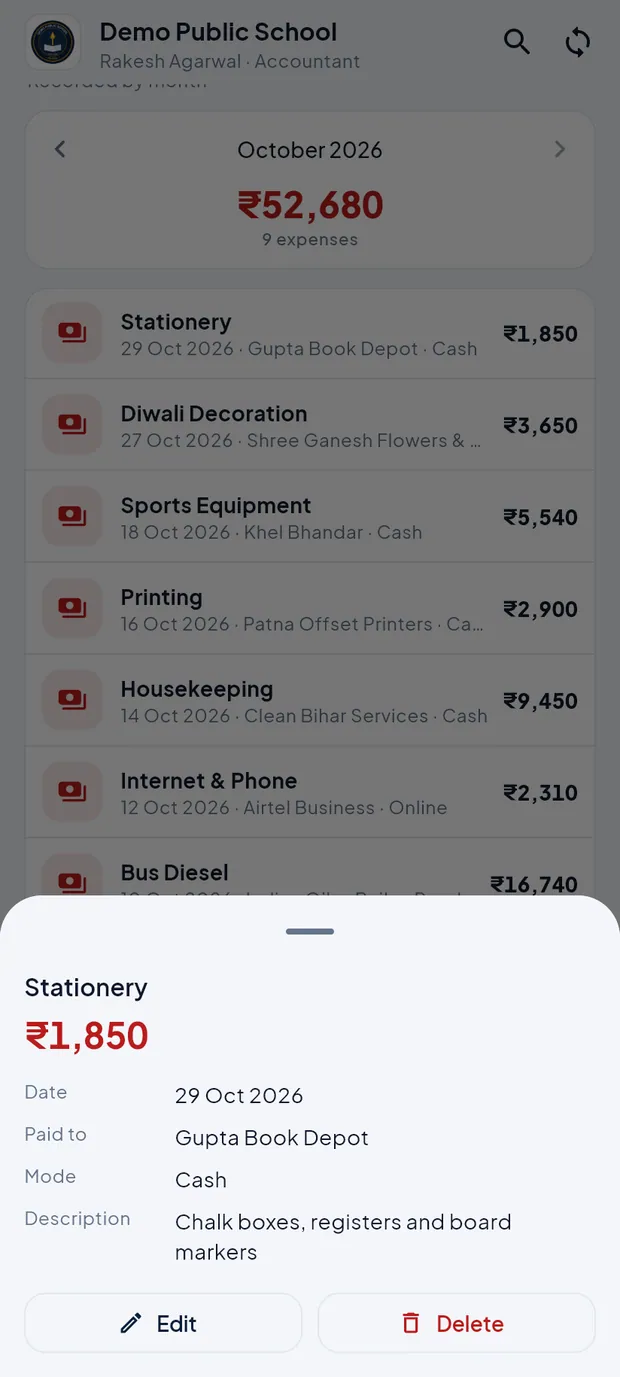
Expense details with Edit and Delete. Tap Edit. The box Edit this expense? says “A form opens with its details.” Tap Edit.
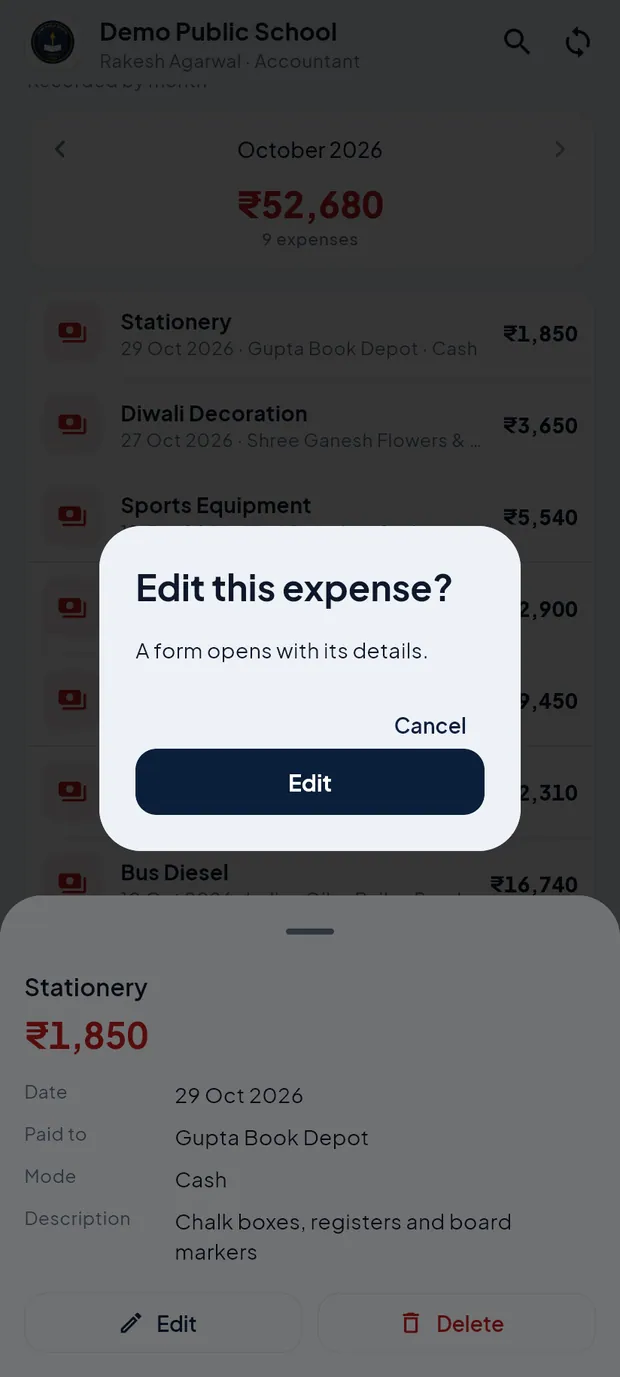
Confirm before the form opens. Change what is wrong, for example the amount or the date.

Edit expense with the saved details. Tap Save changes.
TipAn expense marked Not synced cannot be edited yet; its sheet says Saved on this phone · will sync. Sync first, then edit.
Delete an expense
Tap the expense, then tap Delete in the sheet.

Delete is next to Edit. The box Delete this expense? says that the expense (for example Stationery · ₹1,850) leaves every finance total.
Tap Delete to confirm, or Cancel.
ImportantA deleted expense cannot be brought back. If only a detail is wrong, use Edit instead.
Questions
Where do salaries go?
Salaries are paid in Salary / Payroll on the website. Reports and the Ledger add them to expenses for the net balance.
I don't see Edit and Delete.
Your login does not have the Expenses permission, or the expense is not synced yet. The subscription must also be active.
Can I attach a bill photo?
Not in the app. Keep the paper bill in the office file.