 CoreAxis School ERP
Student & Parent · Chapter 23
Attendance, results, online exams, homework and timetable
This chapter covers everything about the child's studies in the app: the Attendance and Results tabs, admit cards and report cards (under Results), online tests, homework and the class timetable. Attendance, results, homework and timetable are saved on the phone and open without internet. Admit cards and report cards need internet the first time; after that they open offline. Online tests always need internet. The worked example is Aarav Sharma, Class VI-A. On the website these are the Attendance, Results, Online Exams, Homework and Timetable sections of the Student / Parent Portal.
Check attendance (example: Aarav Sharma, October 2026)
Tap Attendance in the bottom bar.
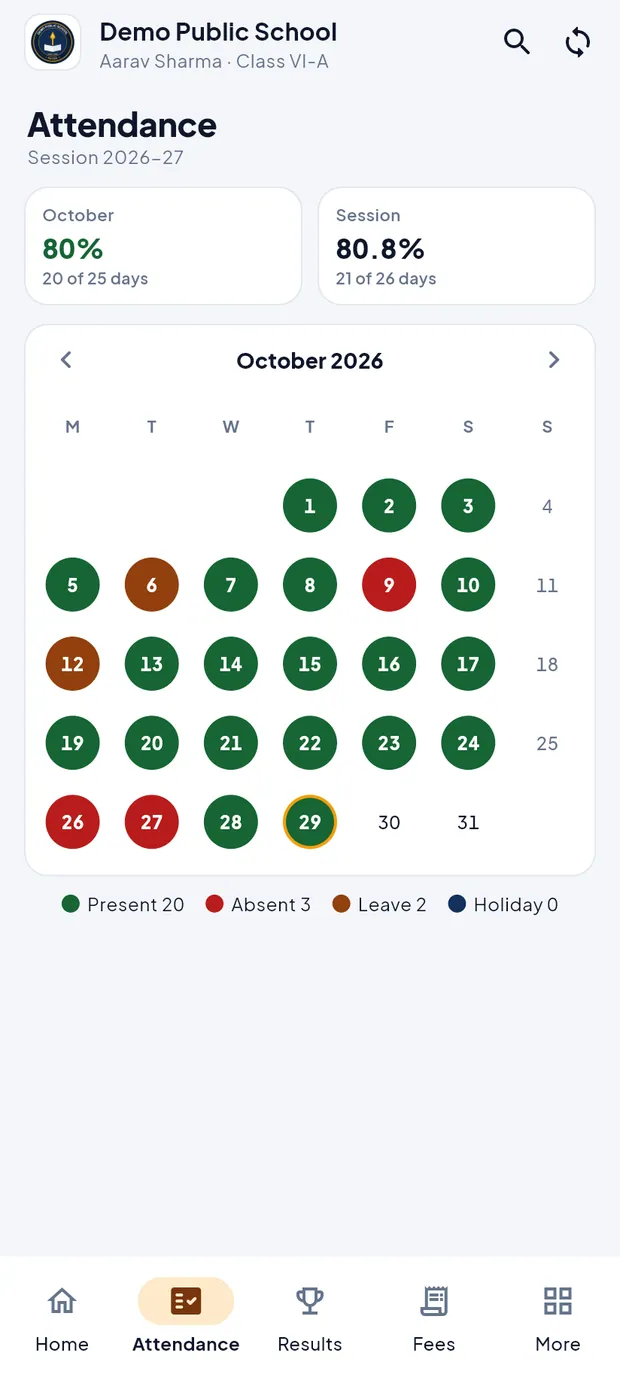
Attendance: October 80% (20 of 25 days), Session 80.8% (21 of 26 days), and the month calendar. Read the two cards: October 80% (20 of 25 days) for this month and Session 80.8% (21 of 26 days) for the year so far.
Look at the calendar. Green days are present, red days absent, brown days on leave and dark blue days holidays. Today has a yellow ring. Sundays and days not marked yet stay plain.
Read the totals under the calendar: Present 20, Absent 3, Leave 2, Holiday 0.
Tap the arrows next to October 2026 to see an earlier or later month.
TipAttendance appears after the class teacher marks it and the phone syncs. Pull down to refresh.
TipIf the child will be absent, ask the class teacher for leave from More › Leave requests (see the More chapter).
See results and subject marks (example: Unit Test 2 — November 2026)
Tap Results in the bottom bar.
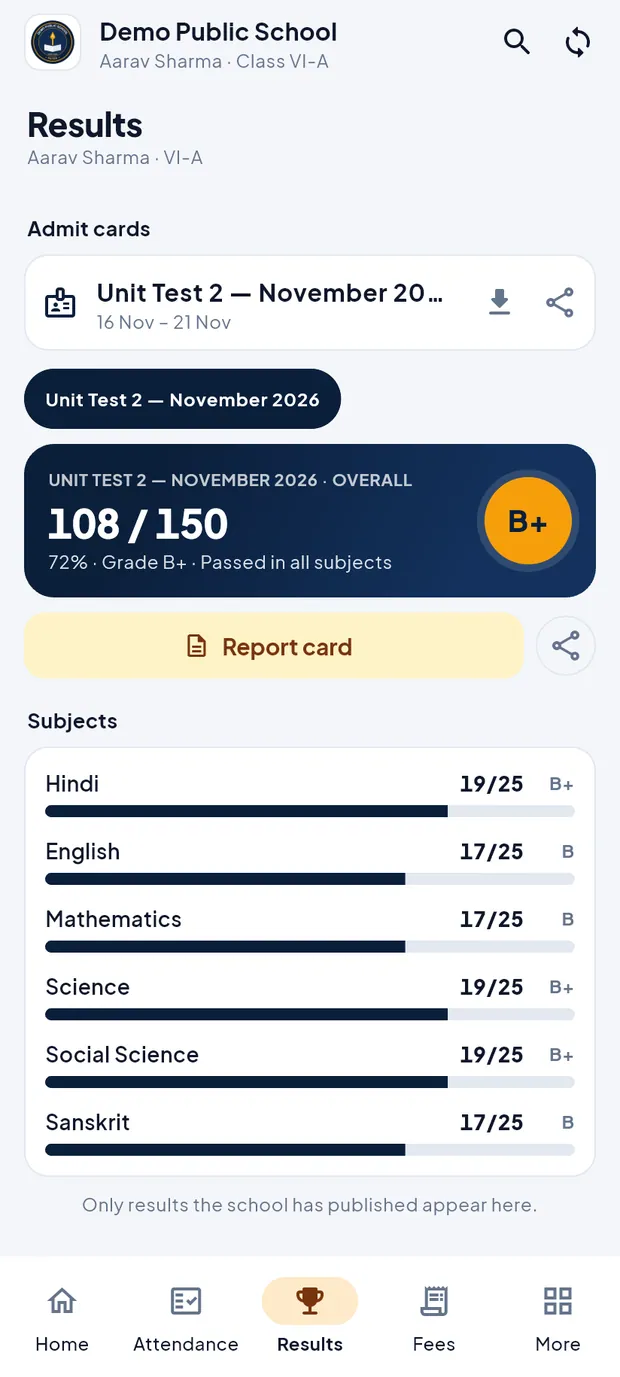
Results: admit card, exam chip, overall marks and grade, report card and subject marks. Tap an exam chip to choose the exam (here Unit Test 2 — November 2026). The latest exam is selected first.
Read the dark card: 108 / 150, 72% · Grade B+ · Passed in all subjects, with the grade in the yellow circle.
Scroll to Subjects. Each subject shows marks out of the maximum, a bar and the grade (Hindi 19/25 B+, English 17/25 B, Mathematics 17/25 B …).
Tap Report card to open the report card PDF for this exam, or the share button next to it to send it on WhatsApp or email.
TipOnly results the school has published appear here.
TipGrades: A+ 91% and above, A 81–90, B+ 71–80, B 61–70, C+ 51–60, C 41–50, D 33–40, E below 33 (not passed).
TipIf a subject is below its pass mark, the card says Passed · below pass mark in 1 subject or Not passed.
Download an admit card (example: Unit Test 2 — November 2026)
Admit cards for coming exams are at the top of the Results tab once the school issues them.
Open the Results tab and find Admit cards. Each card shows the exam and its dates (16 Nov – 21 Nov).
Tap the download button on the admit card. The app fetches the PDF and opens it in a PDF app on the phone.
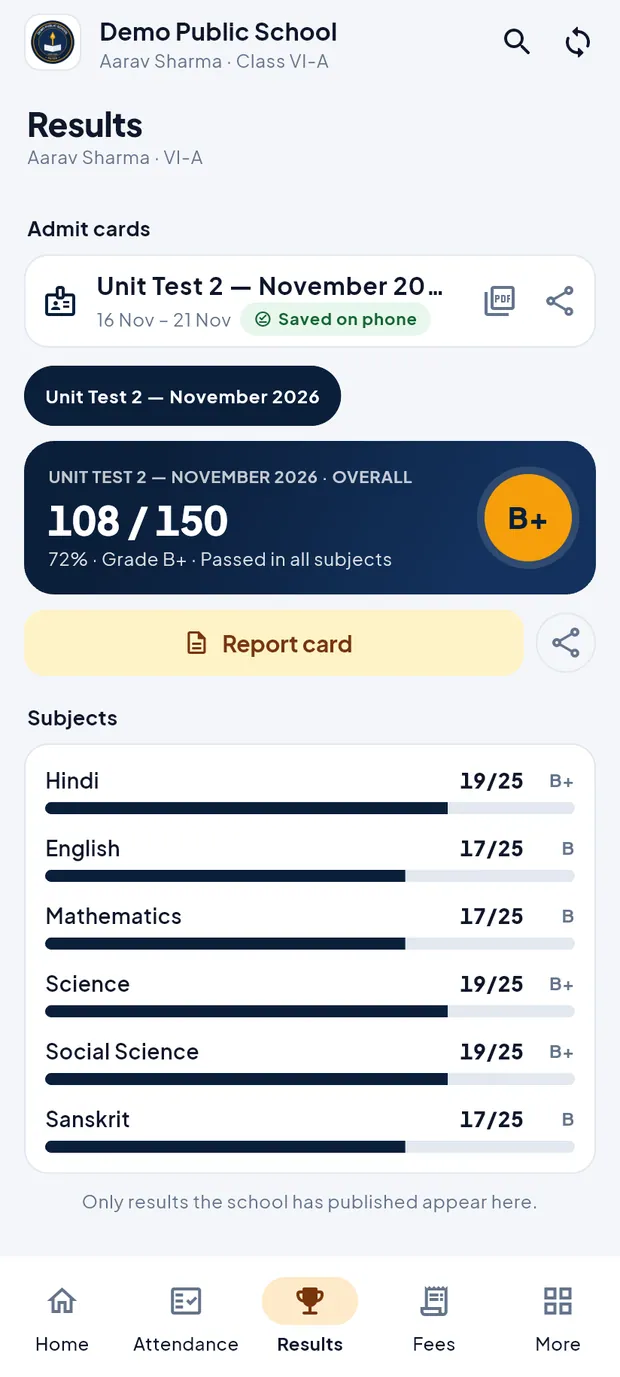
After the first download the admit card shows Saved on phone. Check the green Saved on phone chip. From now on the admit card opens even without internet.
Tap the share button to send the PDF to another app, for example to print it.
TipThe first download needs internet. Without it, the card shows Needs internet.
TipIf the phone has no PDF app, use Share to send the file to one.
TipCopies downloaded from the app are marked as a digital copy. For an original printed document, ask the school office.
Take an online test (example: Science Weekly Quiz)
Online tests need internet. Each answer is saved on the school server when you pick it, and the timer runs on the server.
On Home, tap Online exams (or Online exams in the side menu). The list has three chips: Upcoming, Live and Completed.

Live test: Science Weekly Quiz, 5 questions, 15 min, 5 marks, Open now. Under Live, find Science Weekly Quiz (Open now, Closes 30 Oct 2026, 6:00 pm) and tap Start.
Read the Instructions: questions, minutes, marks, pass mark, the note From your teacher, the Rules and the Question palette colours.
Tick I have read the instructions and I am ready to start. and tap Start test. The timer starts now.

Box ticked; Start test is now active. Read the question and tap an option (A–D). The line Saved on the school server confirms the answer.
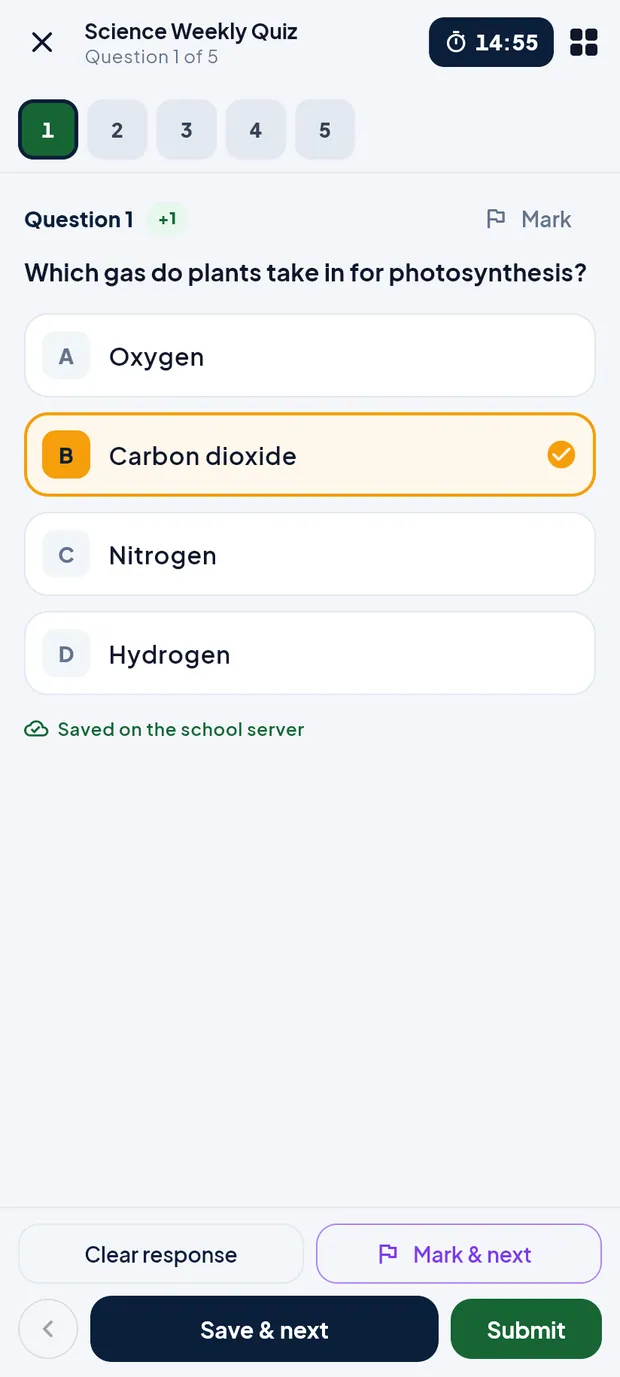
Option B selected and saved; timer at the top right. Tap Save & next to go on. Tap Mark & next to flag a question to come back to, or Clear response to remove your answer.
Tap the grid button at the top right to open the Question palette and jump to any question. Green = answered, red = not answered, purple = marked for review, grey = not visited.

Question palette with colours and Submit test. When you are done, tap Submit. The sheet Submit the test? shows how many are answered, not answered and marked, and the time left.

Check the counts, then Submit now or Resume test. Tap Submit now (or Resume test to go back).

Result: 1 / 5, 20%, Correct 1, Wrong 1, Skipped 3, Rank #1, Time 00:18. Read the result: score, percentage, Passed or Keep trying, Correct, Wrong, Skipped, Accuracy, Rank and Time. The correct answers show after the exam ends, under Question-wise review.
TipOne attempt only. After you submit you cannot take the test again.
TipA marked question that has an answer is still graded.
TipIf the internet drops, keep going. The app keeps the answers and sends them when you are back online. If time runs out, the test is submitted automatically.
TipClosing the test with the cross asks Leave the test?. The timer keeps running on the school server; tap Resume in the list to continue.
TipSome tests have negative marking. The rules say so before you start.
ImportantThe timer keeps running even if you close the app. Start a test only when you have time to finish it.
Read homework (example: Class VI)
Tap More in the bottom bar and then Homework (or All next to Homework on Home).
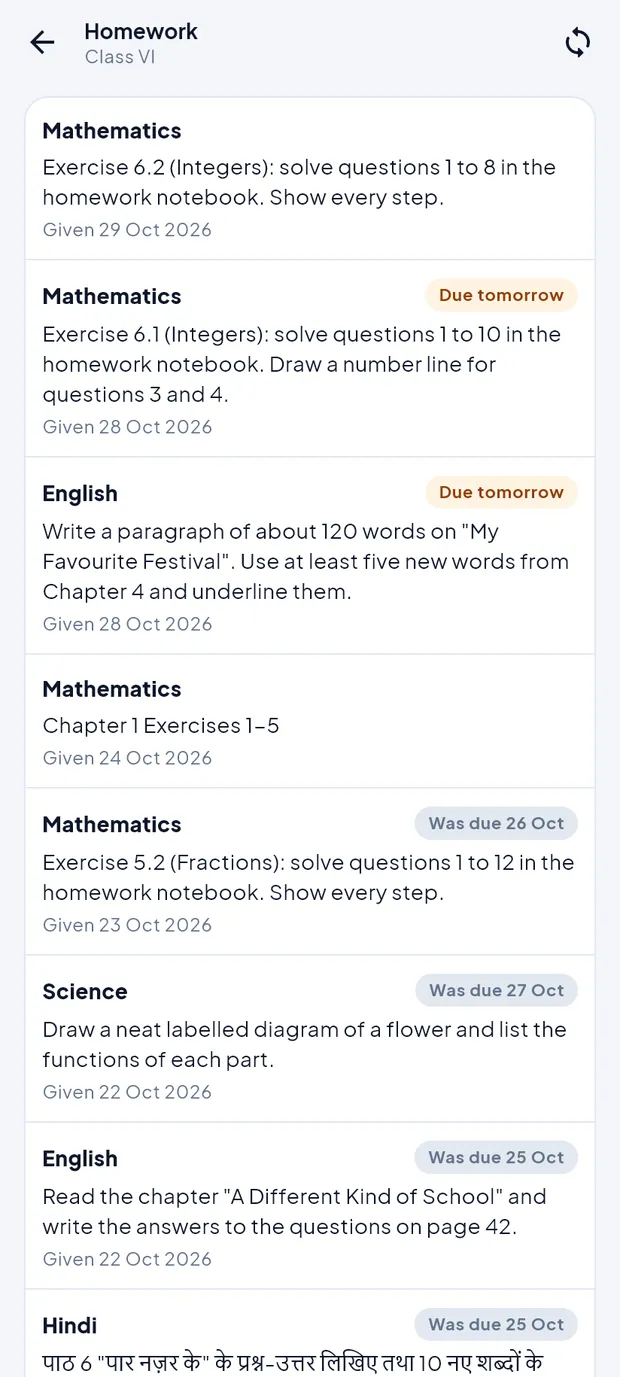
Homework for Class VI, newest first, with due chips. Read each item: subject, the work, and Given 29 Oct 2026.
Check the chip on the right: Due tomorrow, Due today, or Was due 26 Oct for past work.
See the class timetable (example: VI-A)
Tap More and then Timetable (or Timetable next to Today at school on Home).
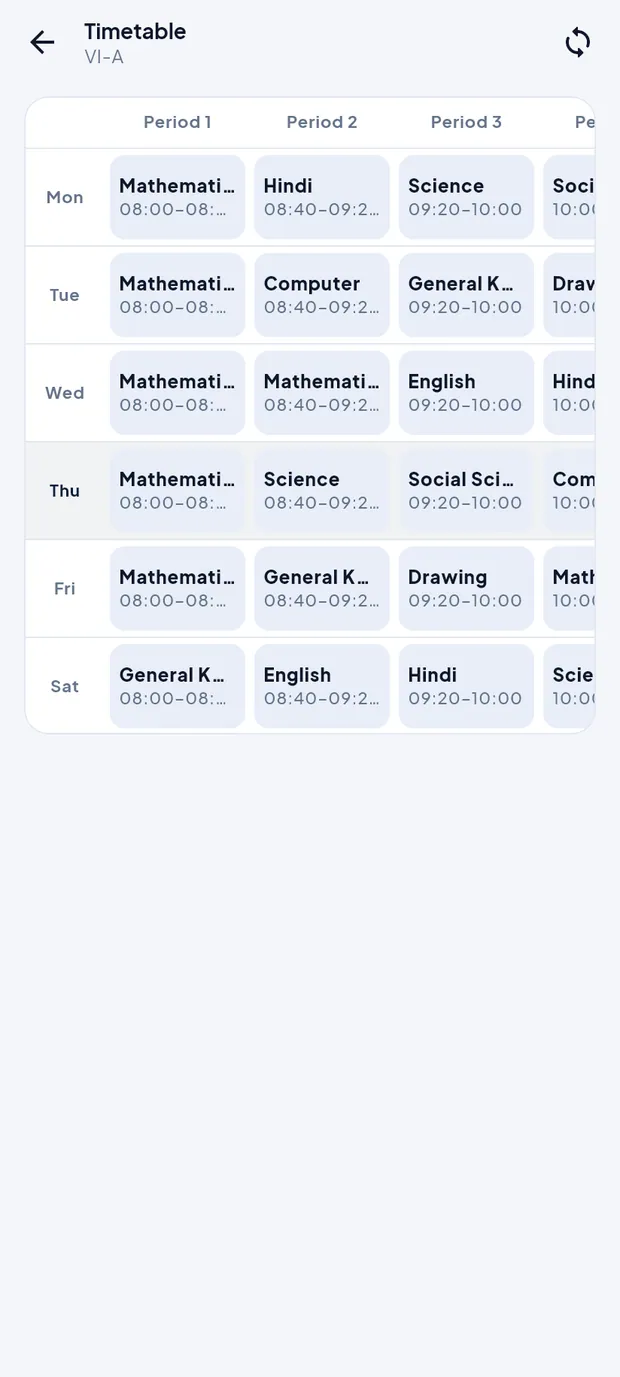
Timetable VI-A: days down the side, periods across the top. Find the day in the left column (Mon to Sat). Each cell shows the subject and the period time (Mathematics 08:00–08:40 …).
Swipe left on the grid to see the later periods.
Questions
What works without internet?
Attendance, results, homework and timetable from the last sync, and any admit card or report card already saved on the phone. Online tests and the first download of a document need internet.
Why is a result missing?
The app shows only results the school has published. Ask the class teacher when results will be published.
The internet stopped in the middle of an online test. Are my answers lost?
No. Answers already saved stay on the school server, and new ones are sent again when the phone is back online. The timer does not stop, so reconnect as soon as you can.