 CoreAxis School ERP
Admin & Principal · Chapter 10
Reports, Ledger & Defaulters
These screens show the school's money picture straight from the school server: fees collected, expenses and salaries, the cash book and bank book, and which students still owe fees. They need internet; the last report you opened stays on the phone and is shown offline with its date. From Defaulters you can send fee reminder SMS to parents. On the website the same figures are in Reports, Finance Ledger and Fee Dues.
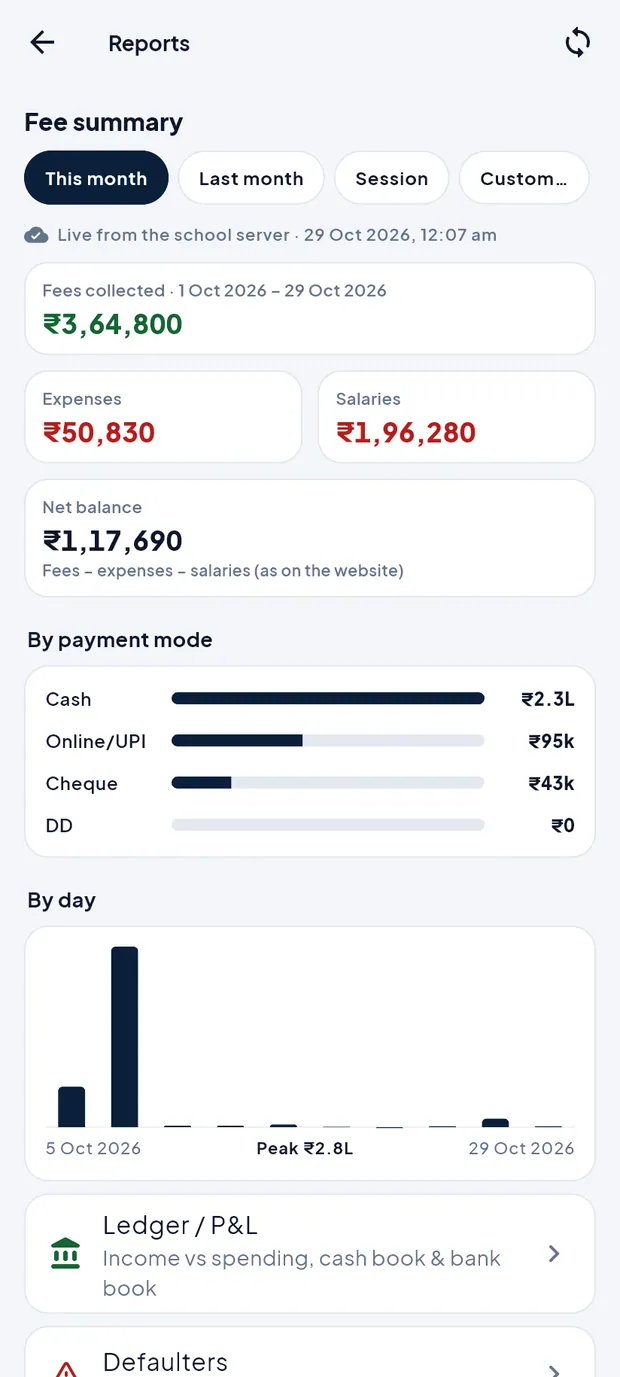
Read the fee summary (example: October 2026)
Open Finance › Reports. Fee summary for This month opens. The line Live from the school server · 29 Oct 2026, 12:07 am says when the figures were fetched.
Fee summary: ₹3,64,800 collected from 1 to 29 Oct 2026. Read Fees collected, Expenses and Salaries. Net balance is fees − expenses − salaries, the same as on the website (₹1,17,690).
Look at By payment mode for the split between Cash, Online/UPI, Cheque and DD.
Scroll to By day. The chart shows daily collections and the peak day.
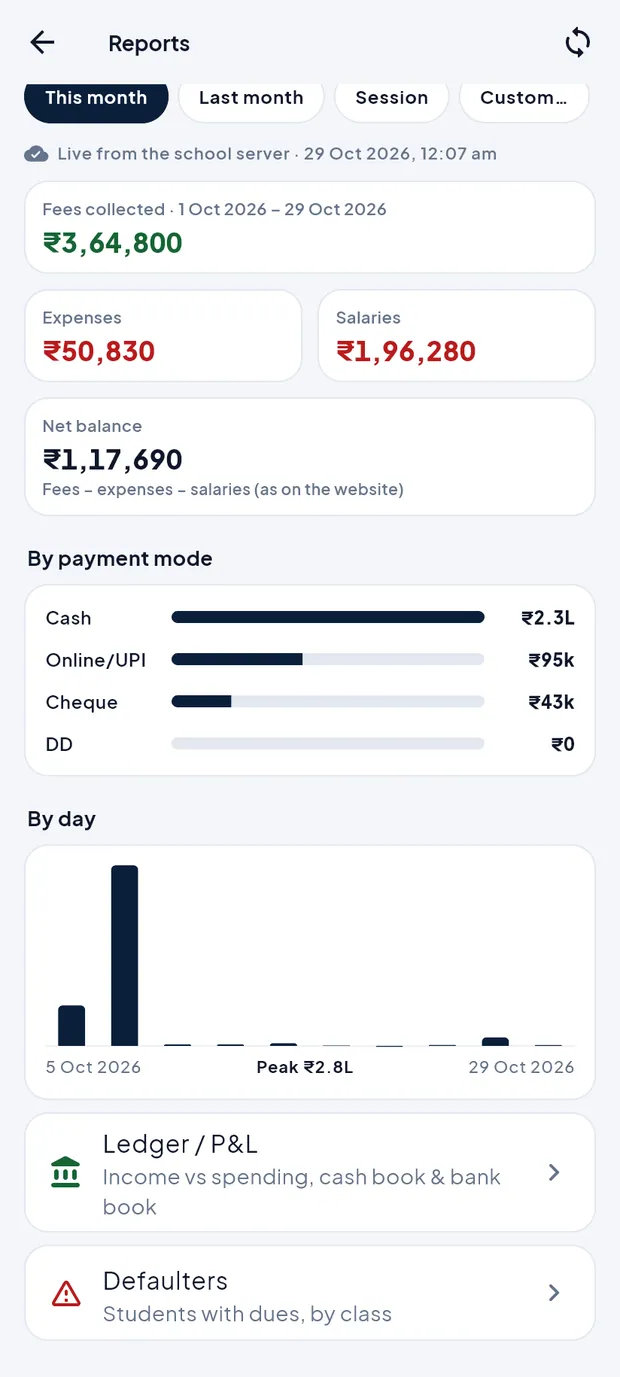
By day chart and links to Ledger / P&L and Defaulters. Tap Last month, Session or Custom… to change the period. A custom range can be at most 2 years.
Pull the screen down to fetch the latest figures after new receipts or expenses.
TipThe Finance tab tiles are counted from the data on the phone and leave out salaries (“Fees minus expenses on this phone. Salaries are in Reports.”). Use Reports for the full net balance.
Check the Ledger / P&L
Open Finance › Ledger, or tap Ledger / P&L at the bottom of Reports.
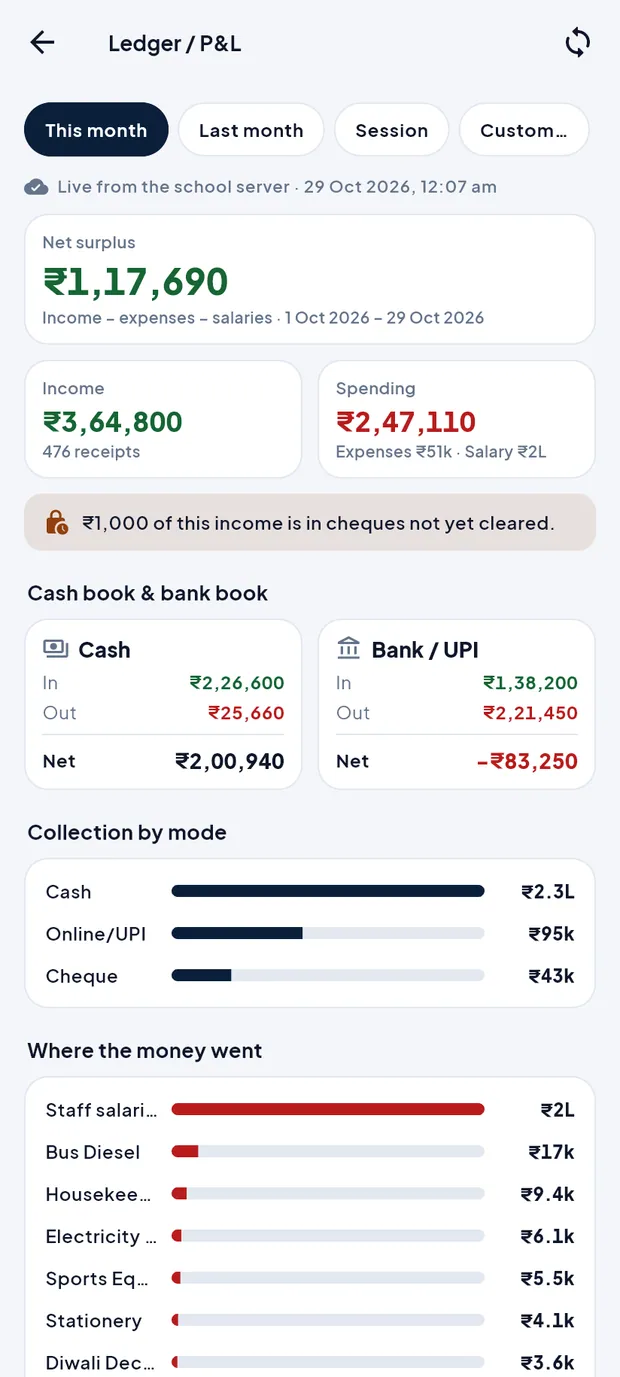
Ledger / P&L for October: net surplus ₹1,17,690. Read Net surplus (income − expenses − salaries), then Income (₹3,64,800, 476 receipts) and Spending (expenses and salary).
Note the orange line “₹1,000 of this income is in cheques not yet cleared.” Clear or bounce these in Cheques / DD.
Check Cash book & bank book: In, Out and Net for Cash and for Bank / UPI. Match the cash Net with the cash in hand.
Scroll for Collection by mode, Where the money went (salaries and each expense head) and Income by fee head.
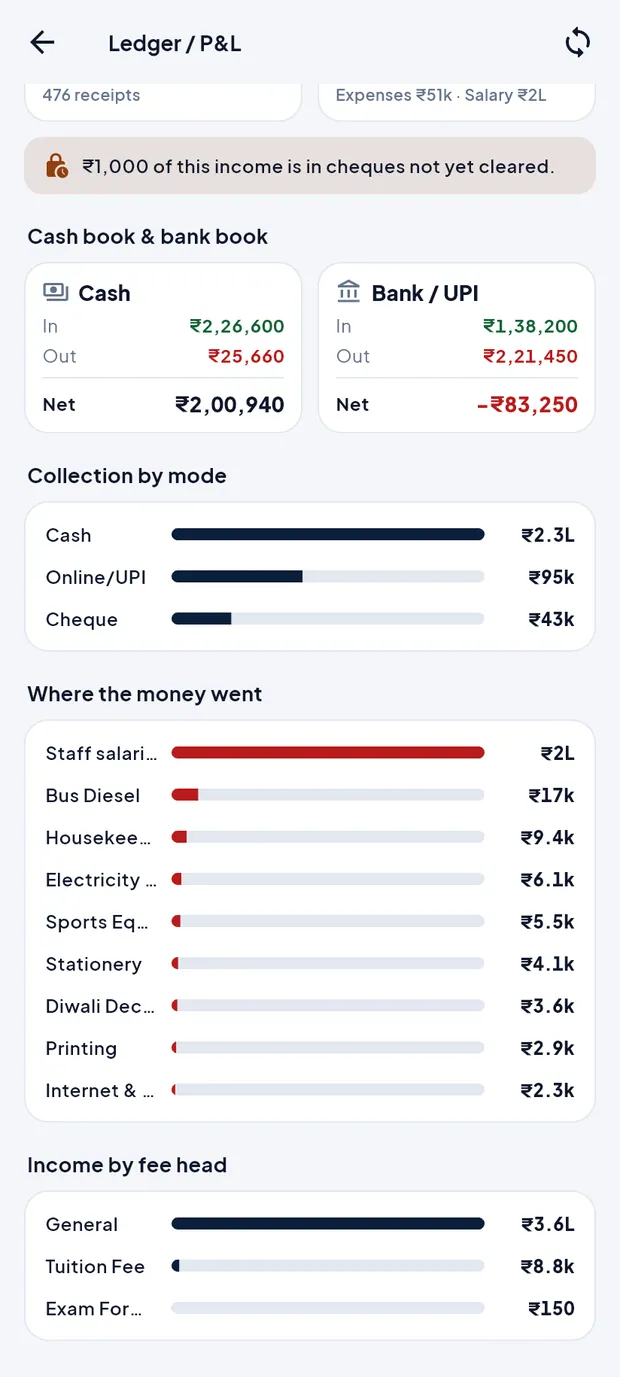
Where the money went and Income by fee head. For a period longer than a month, Month by month shows In and Out per month. A custom period can be at most 13 months.
Find defaulters by how long they owe (example: 2–3 months)
Open Finance › Defaulters, or tap See defaulters on Home. All students with dues are listed with the months due and amount.
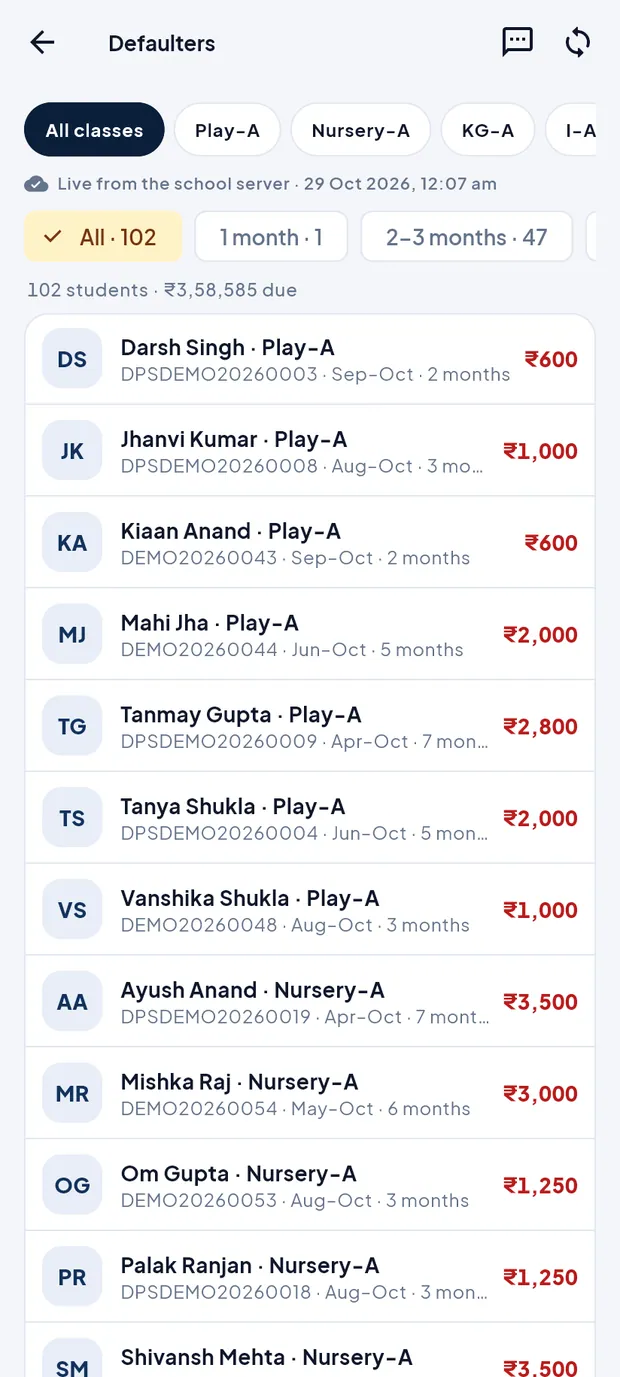
102 students · ₹3,58,585 due. Tap a class chip (for example Play-A) to see one class, or All classes.
Tap an age chip: 1 month, 2–3 months, 4+ months or Charges only (no tuition month due, only late fee or other charges). Each chip shows how many students it has.
With 2–3 months the list shows 47 students owing ₹89,285.

Only students whose dues are 2–3 months old. Tap a student to open their fees and collect the payment.
TipAmounts in red are more than one month due; orange is one month.
Send fee reminder SMS (example: all 102 defaulters)
On Defaulters, choose a class or leave All classes, then tap the message icon at the top (Send fee reminders (SMS)).
The sheet Fee reminder SMS shows Will get SMS, Total due, SMS balance, Skipped and a Sample message.
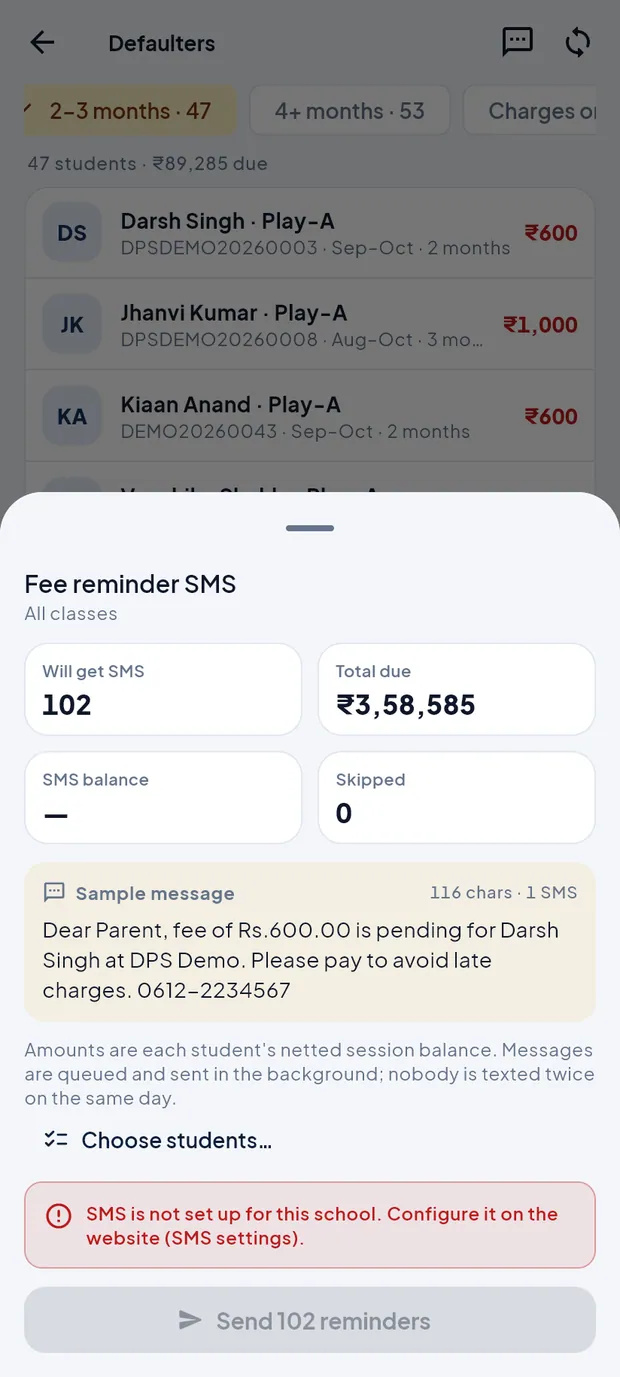
Preview: 102 parents will get the SMS. To remind only some parents, tap Choose students… and tick them (All / None to select quickly).
Tap Send 102 reminders.
Check Send 102 reminder SMS? and tap Continue.
The second box Uses SMS credits says how many credits will be used. Tap Send now.
The sheet shows the progress while messages are sent in the background.
TipNobody is texted twice on the same day. Students without a mobile number, or already reminded today, are skipped.
TipIf the sheet says “SMS is not set up for this school”, the Admin must set up SMS on the website first. The send button stays off until then.
ImportantSent SMS cannot be taken back, and each uses SMS credits.
Questions
Reports say “Reports need a connection to the school server”.
Connect to the internet. When offline, the app shows the last report saved on the phone with its date (“Showing the last report saved on this phone…”).
I added an expense but Reports still shows the old total.
Pull the Reports screen down to fetch fresh figures, and check the time on the Live from the school server line.
Who can send fee reminder SMS?
Admin / Principal and Accountant, when the school's plan includes fee SMS. Fee reminders need an internet connection.