 CoreAxis School ERP
Admin & Principal · Chapter 14
Notices
Notices shows every school announcement, newest first, with a tag for the audience. Admin, Principal and teachers can post a new notice; it appears in the app of everyone it is meant for and on the website. Notices are saved on the phone, and a new notice can be written offline and is published at the next sync. On the website this is Communicate › Notices.
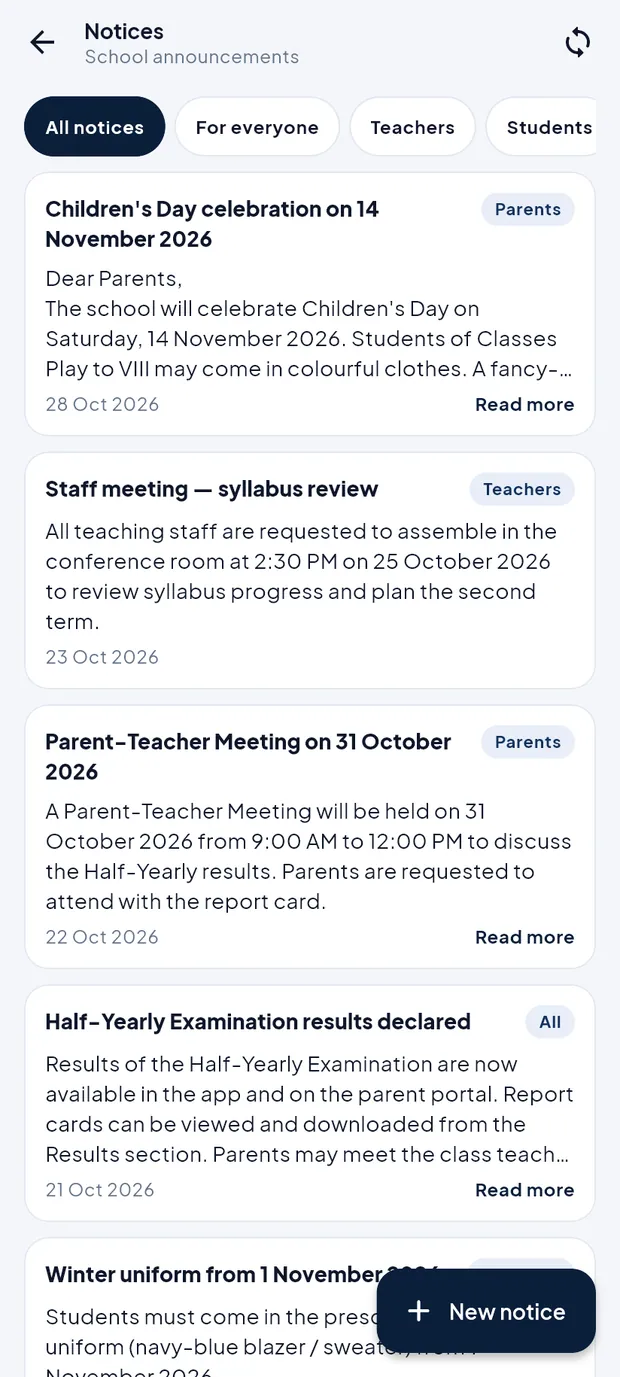
Read notices
Tap the bell icon on Home (a red dot means a new notice), or open More › Notices.
Notices with audience tags Parents, Teachers, All. Tap a filter chip to narrow the list: All notices, For everyone, Teachers, Students or Parents.
Tap Read more to open the full text in place, and Show less to fold it again.

Children's Day notice opened in full.
Post a notice (example: school closed for Chhath Puja)
In Notices, tap New notice.
Type the Title (up to 200 characters): School closed on 4 November - Chhath Puja.
Type the Message: Dear Parents, the school will remain closed on Wednesday, 4 November 2026 on account of Chhath Puja. Classes resume on Thursday, 5 November.
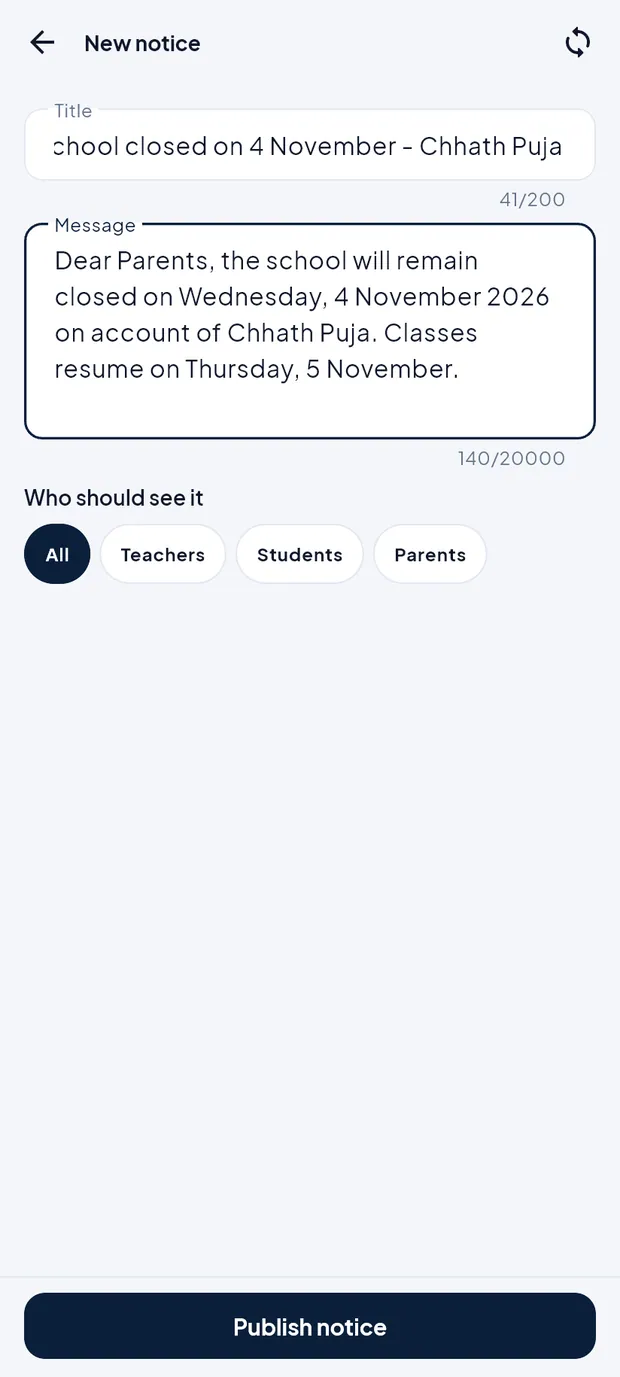
The holiday notice typed in. Under Who should see it, tap All, Teachers, Students or Parents.
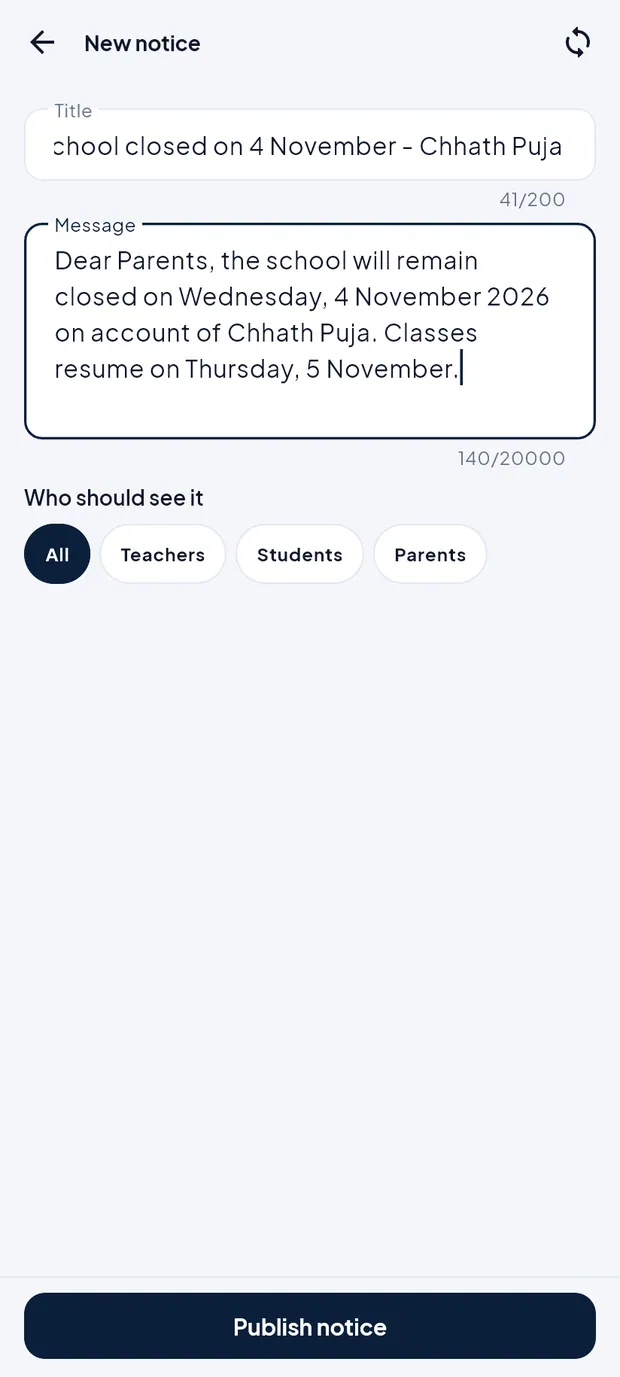
Audience chips. Tap Publish notice. Offline, the notice shows Not synced until the phone syncs.
TipA notice posted from the app does not send an SMS. If the parents must also get an SMS, post the notice on the website (Communicate › Notices), which can send it by SMS when the school has SMS set up.
ImportantCheck the date and the audience before publishing. Parents read the notice as soon as it syncs.
Questions
Can I edit or delete a notice from the app?
No. Edit or remove notices on the website under Communicate › Notices.