 CoreAxis School ERP
Accountant · Chapter 19
A day with the app (Accountant)
This guide follows Rakesh Agarwal, accountant of Demo Public School, through 29 Oct 2026 on his phone. The accountant's app has four tabs: Home, Fees, Expenses and More. Fee collection and expenses work without internet and sync later; UPI claims, cheques and reports need a connection. Each step points to the chapter that explains the screen in full.
Start of the day: sign in and let the phone sync
Open the app and unlock it with your PIN (or fingerprint). See the chapter Sign in.
Wait until the sync button at the top stops turning. The first sync after signing in brings all students, dues and receipts to the phone.
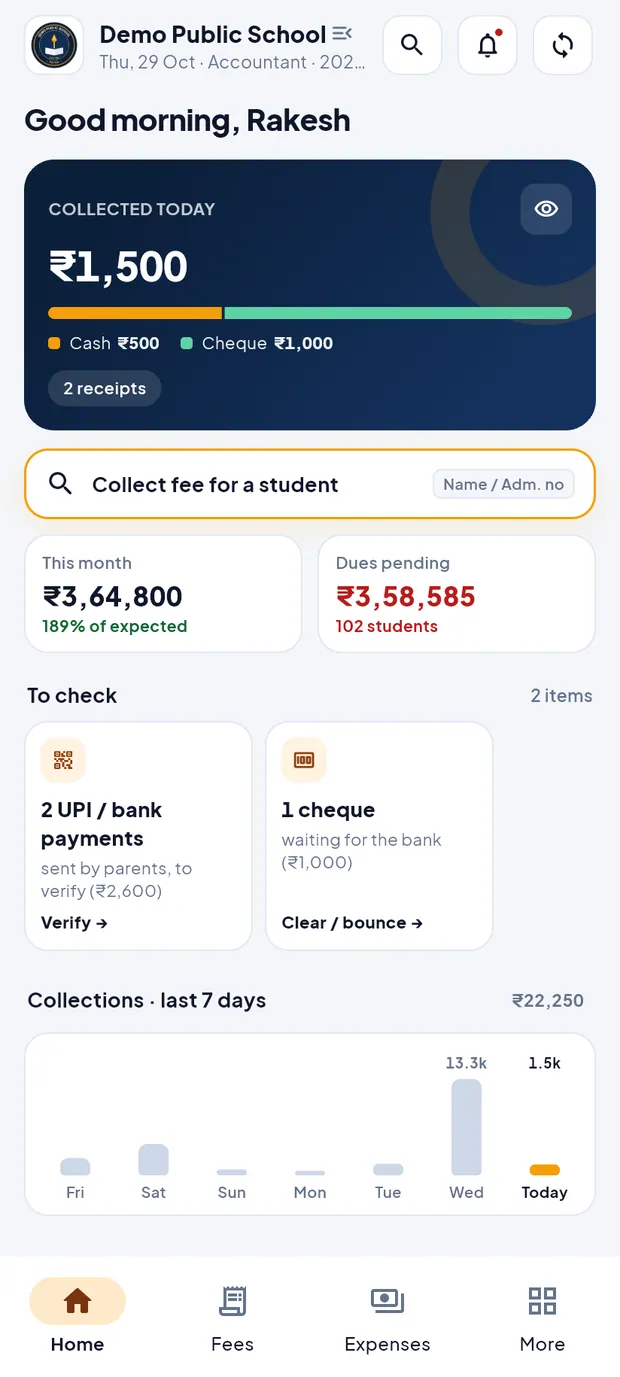
Read Good morning, Rakesh and the COLLECTED TODAY card. Tap the eye button on the card to hide the amounts when a parent is at the counter.
Rakesh's Home: ₹1,500 collected today (Cash ₹500, Cheque ₹1,000) in 2 receipts.
TipUntil the first sync finishes, the Fees tab can show ₹0 for this month and the student search can find nobody. Wait for the sync to finish before you collect.
Home at a glance
- COLLECTED TODAY
- Today's total with a bar split by mode (Cash, Cheque, Online) and the number of receipts. A note appears when some receipts are not yet synced.
- Collect fee for a student
- Orange search box. Tap it to choose a student and collect.
- This month
- Fees collected this month (₹3,64,800). Opens Reports.
- Dues pending
- Total still owed and the number of students (₹3,58,585 · 102 students). Opens Defaulters.
- To check
- Cards for UPI / bank payments to verify and cheques waiting for the bank, with Verify and Clear / bounce.
- Collections · last 7 days
- Bar chart of daily collections; today is orange.
- Highest dues
- Students owing the most, with All defaulters.
- Today's receipts
- Every receipt made today, newest first, with All.
At the counter: collect a fee (example: Ananya Singh, Class I-A, ₹700 for April)
Tap Collect fee for a student on Home or on the Fees tab.

Fees tab: collect box, today and this month, shortcuts and today's receipts. Type ananya. Pick Ananya Singh (₹4,900 due), not Ananya Pandey (Paid).
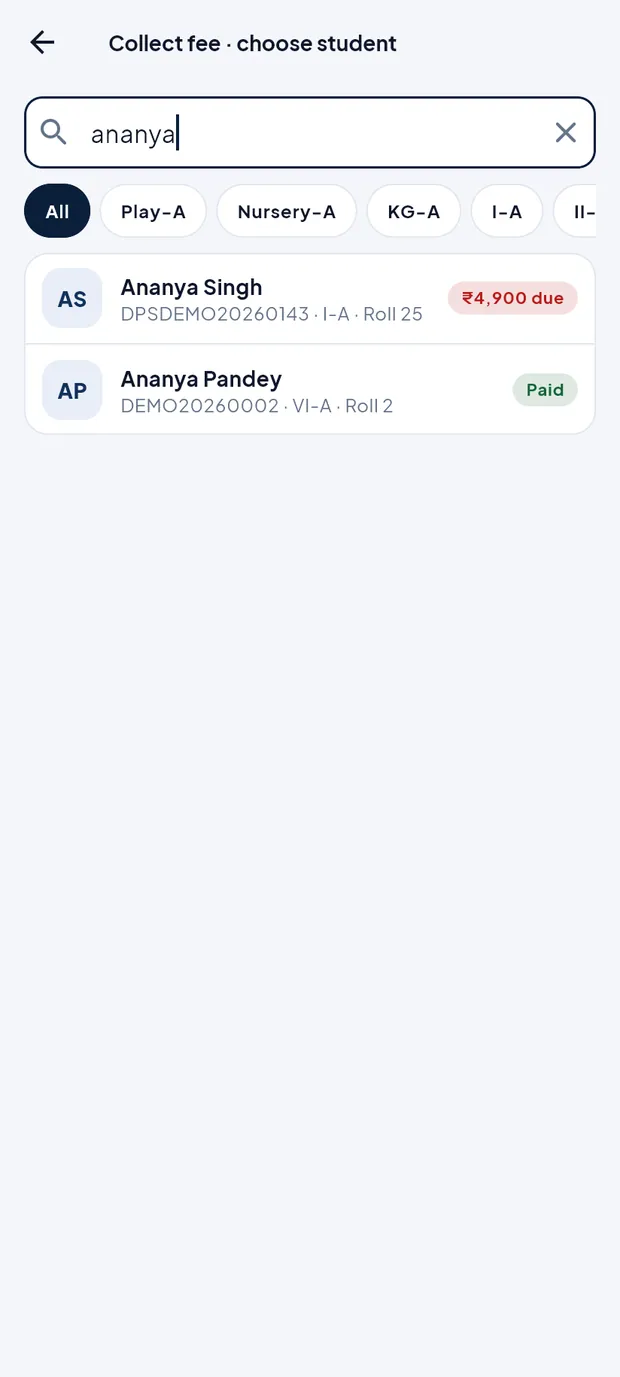
Two students named Ananya; check class and admission no. The oldest due month Apr is selected and the Amount shows ₹700 (₹700 / month).
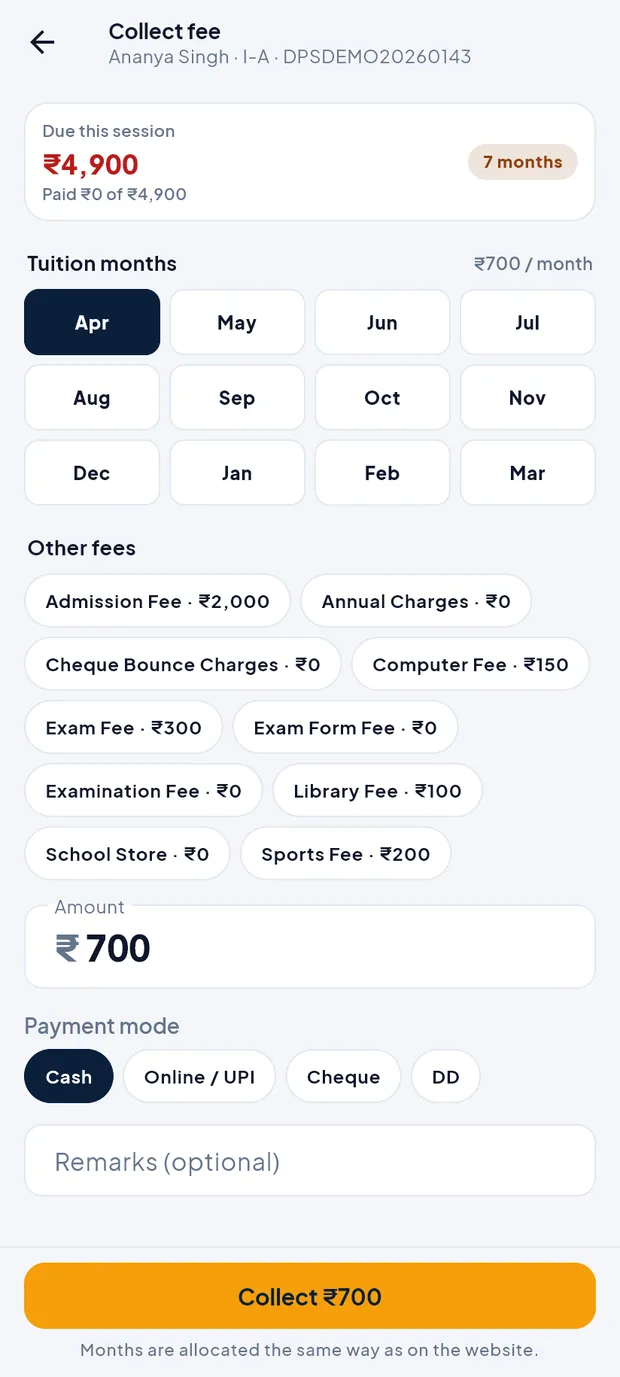
Collect fee: ₹4,900 due, 7 months. Leave the mode on Cash, add a remark if useful, and tap Collect ₹700.
On the receipt tap Share PDF to send it to the parent on WhatsApp, then Done.
TipFull details, cheques and offline receipts: see the chapter Collect fee.
Mid-morning: clear the To check list
On Home, under To check, tap Verify on the UPI / bank payments card. It opens UPI / Bank Claims.

Two claims waiting: Kiara Ranjan ₹1,600 and Aarav Sharma ₹1,000. For each claim, find the UTR in the bank statement. Tap Verify and then Verify & make receipt, or Reject with a reason. See the chapter UPI / Bank Claims.
Tap Clear / bounce on the cheque card. Mark each cheque the bank has paid as Cleared, or record a bounce. See the chapter Cheques / DD.
TipBoth screens need internet. Cheques can also be cleared on the website (Finance › Cheques / DD).
During the day: record expenses
When the office pays a bill, open the Expenses tab and tap Add expense.
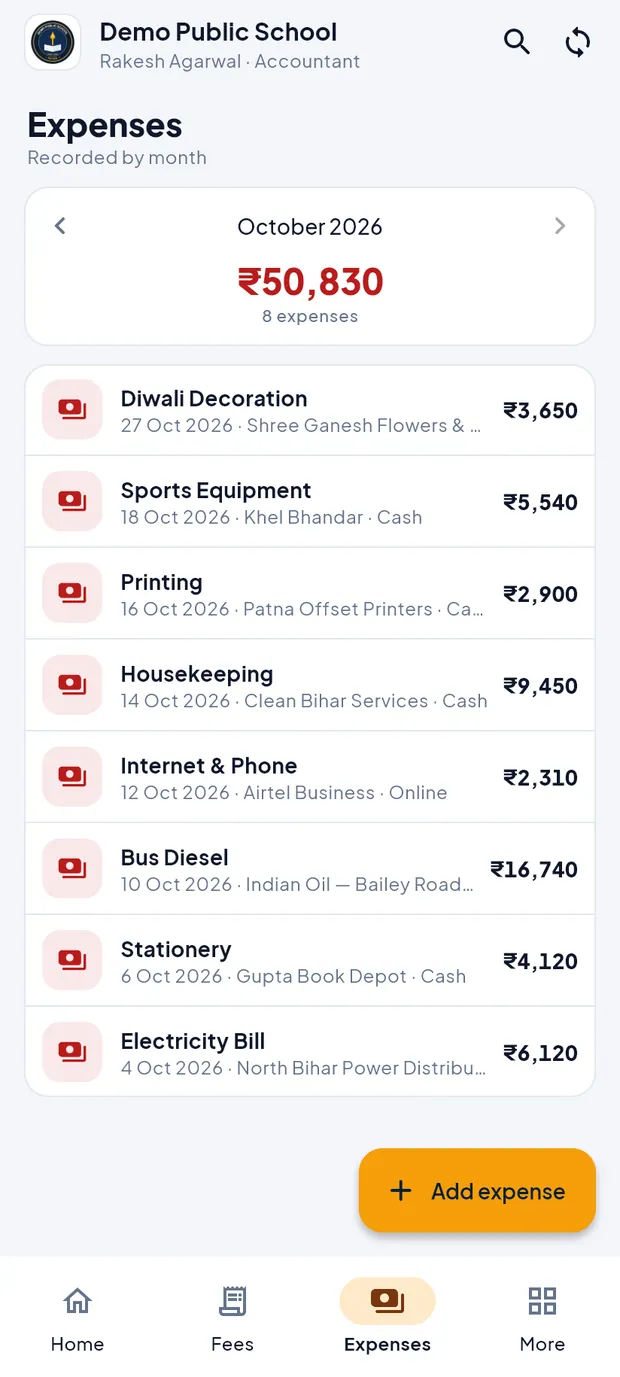
Expenses tab: October 2026, ₹52,680 in 9 expenses. Example: Stationery, ₹1,850, paid to Gupta Book Depot in cash. Tap Save expense. See the chapter Expenses.
End of the day: check the cash
Make sure the phone is online and tap the sync button, so every receipt and expense reaches the school server.
Open Fees › Receipts and tap Today. Add up the Cash receipts and compare with the cash in the drawer.
Scroll Home to Today's receipts for a quick look; a cheque receipt shows as awaiting clearance.

Last 7 days, highest dues and today's receipts. For the month, open Fees › Ledger and check the cash book Net. For dues, open Fees › Defaulters and send fee reminders if the school wants. See the chapter Reports, Ledger & Defaulters.
Your own pages in More
Open More. Your profile card shows role, email and phone, then the school card and links: My attendance, My payslips, Notices, My leave, Leave calendar, Holidays.
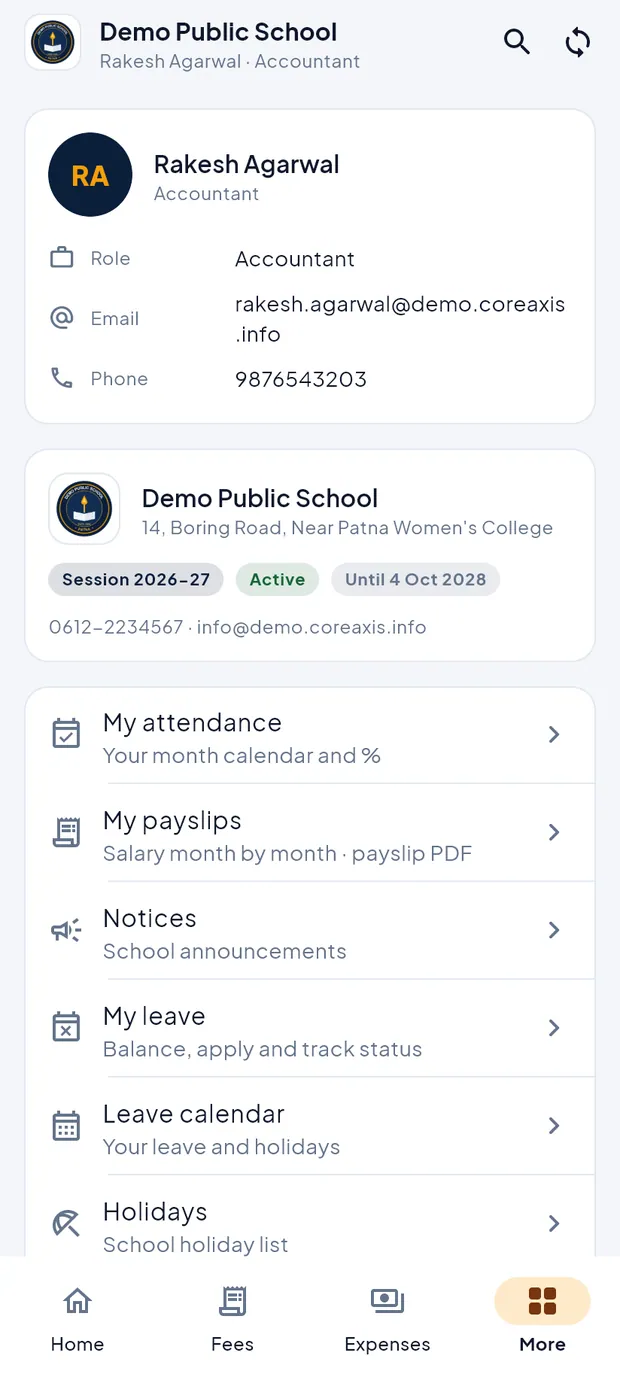
More tab for Rakesh Agarwal, Accountant. Further down: Students (read-only list), Reports, School Store (when the school has it), Sync status, Fingerprint / Face unlock, Change password, Trusted devices, Lock now and Sign out.

More tab, lower part. Tap My payslips to see the net pay for each month (September 2026: ₹16,640).
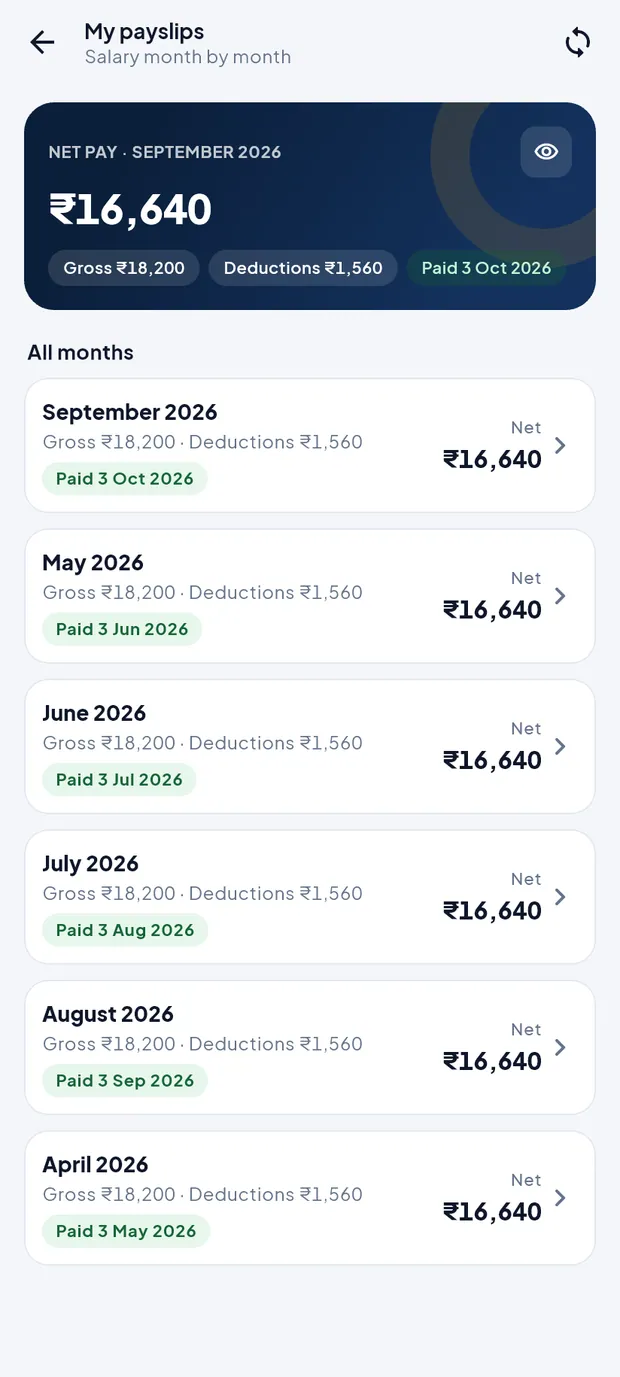
My payslips. Tap a month for the full payslip and tap Payslip PDF to save or share it.
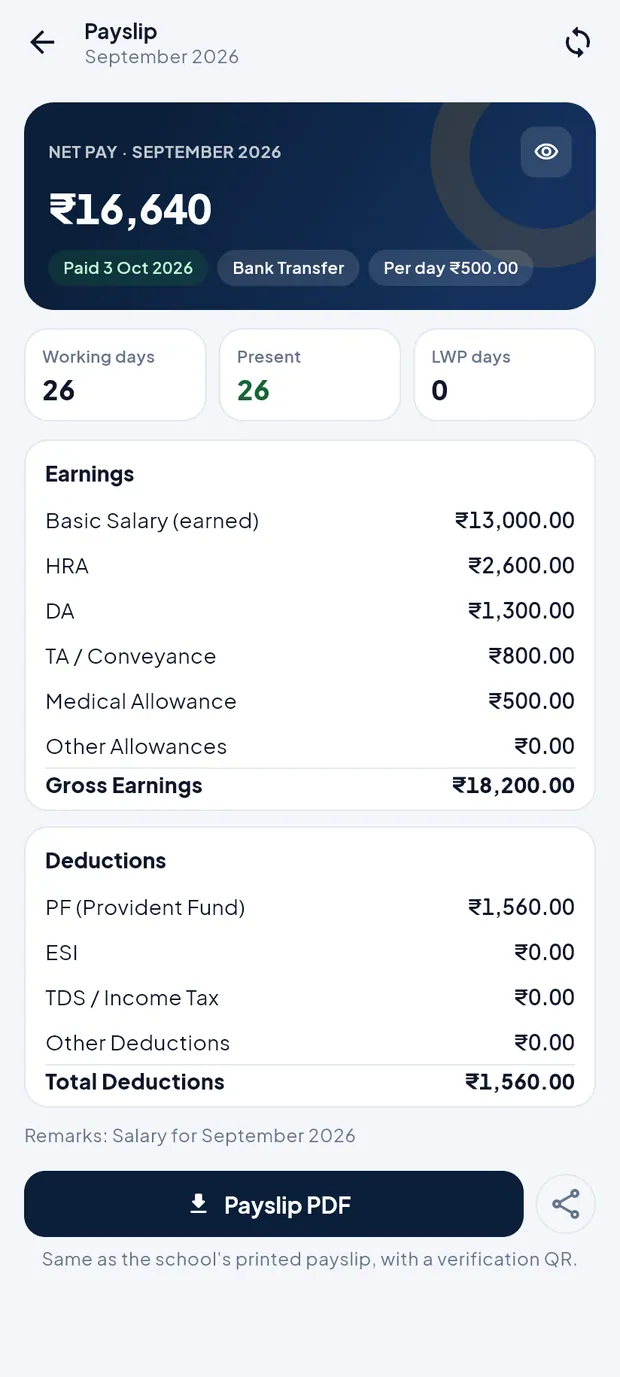
Payslip for September 2026.
Questions
There is no internet at the counter today. Can I still work?
Yes. Collect fees and add expenses as usual. Receipts get a provisional OFF-… number and everything syncs when the phone is back online. UPI claims, cheques and reports wait until you are online.
Can the accountant delete a receipt?
No. Only Admin / Principal can delete a receipt, on the website.
Where do I pay staff salaries?
On the website, in Salary / Payroll. They are not entered as expenses.